Trello Archived Cards: How to View, Restore, Delete
Find, restore, and permanently delete archived Trello cards on the web and mobile, plus what happens to your archived lists and whole boards.

Quick AnswerTo view Trello archived cards, open the board menu, click More, then Archived Items. Click Send to Board to restore a card, or Delete to remove it for good.
Trello archived cards aren’t gone, they’re just hidden from your active board. Trello stores them indefinitely so you can pull them back when a project reopens or audit what your team finished last quarter. This guide covers your own Trello account and boards using Trello’s official built-in archive feature, walking through finding archived cards, restoring them, and deleting them permanently on web, iOS, and Android.
- Archived cards stay in your Trello database forever until a board admin permanently deletes them.
- The keyboard shortcut C archives any card you hover over on the Trello web app.
- Archived items live under Board menu >
More>Archived Items, which switches between Cards and Lists. - Deleting a card is a two-step action: archive it first, then click Delete on the archived card to make it permanent.
- Permanently deleted Trello cards can’t be recovered, even by Atlassian support.
#Where Do Archived Cards Go in Trello?
Archived cards move out of the visible board into a hidden Archive list tied to that board. Like other Kanban project management systems, Trello treats archive as a soft-delete that protects your work history. The card keeps every comment, attachment, label, due date, and member assignment. According to Atlassian’s Trello support documentation on archiving cards, the archive is per-board, so a card archived on your “Q3 Marketing” board won’t appear in the archive of any other board.
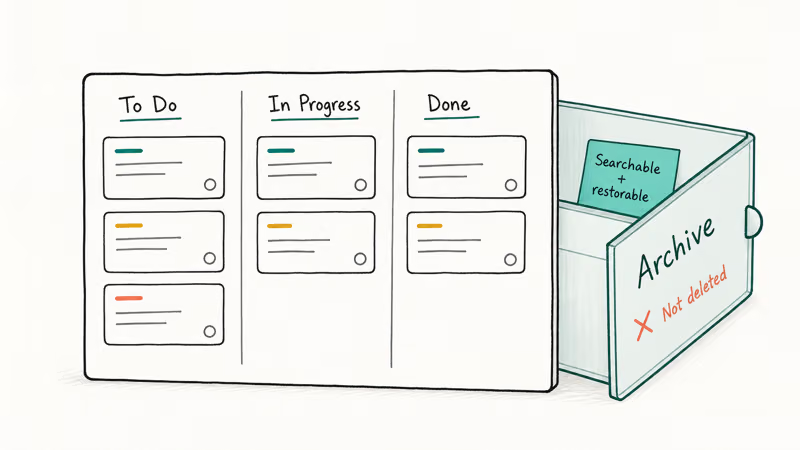
Anyone with board permissions can see and restore archived cards. The cards still count against your Workspace’s storage and search results, which is why archived items keep showing up when you use Trello’s search bar with the is
operator.#How to Archive a Trello Card
You have three ways to archive a card on Trello’s web app, and one path on mobile.
#Method 1: keyboard shortcut (fastest)
Hover your cursor over any card on the board and press C. The card slides off the list into the archive immediately, without opening the full card back.
#Method 2: card back menu
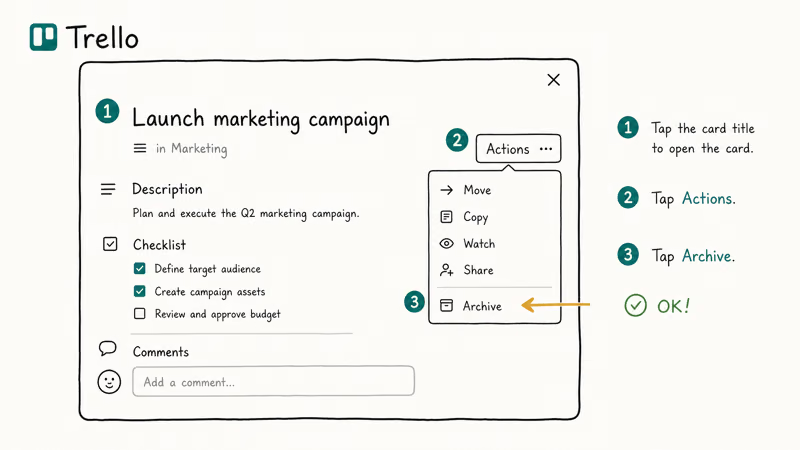
Click the card to open it.
In the right sidebar under Actions, click Archive. The card disappears from the board and a small confirmation appears at the bottom of the screen with an Undo option for about 5 seconds.
#Method 3: quick edit
Hover the card and click the small pencil icon that appears in the top-right corner. Pick Archive from the popup menu. This is useful when you want to archive without opening the full card view.
#On Trello mobile (iOS and Android)
Tap the card to open it, tap the three-dot menu in the top-right, then tap Archive. The mobile app doesn’t support keyboard shortcuts, so the menu is your only path. Trello’s official guide confirms that the iOS and Android apps share the same archive flow introduced when the apps were rebuilt in 2019.
#How to View Archived Cards on Your Board
Archived cards live one click deeper than active ones. Here’s how to surface them again.
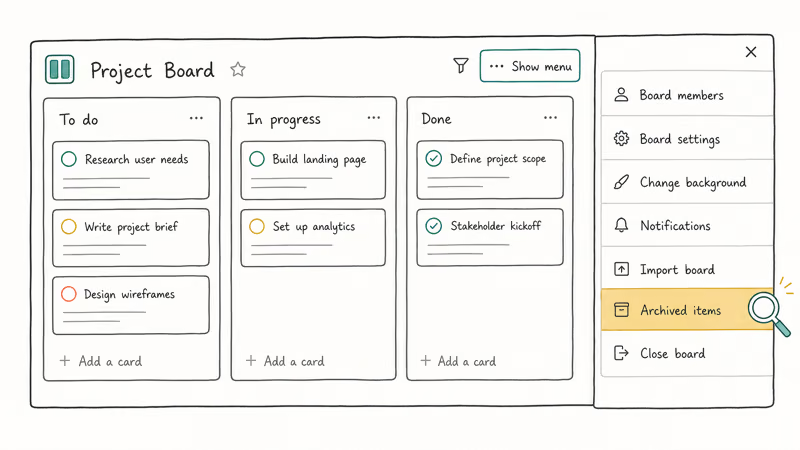
- Open the board you want to inspect.
- Click Show menu in the top-right corner if the board menu isn’t already visible.
- Click More in the menu list.
- Click Archived items.
Trello shows your archived cards in a scrollable panel on the right side of the board. The toggle at the top of that panel switches between Cards and Switch to lists, so check both if you can’t find what you archived.
If you have a long archive, type into the Search archive box at the top of the panel. Trello matches against card titles only by default, not descriptions or comments. To search across descriptions, drop back to the global search bar and add is
to your query.#How to Restore (Unarchive) a Trello Card
Restoring an archived card sends it back to the same list it lived on before, in the same position when possible.
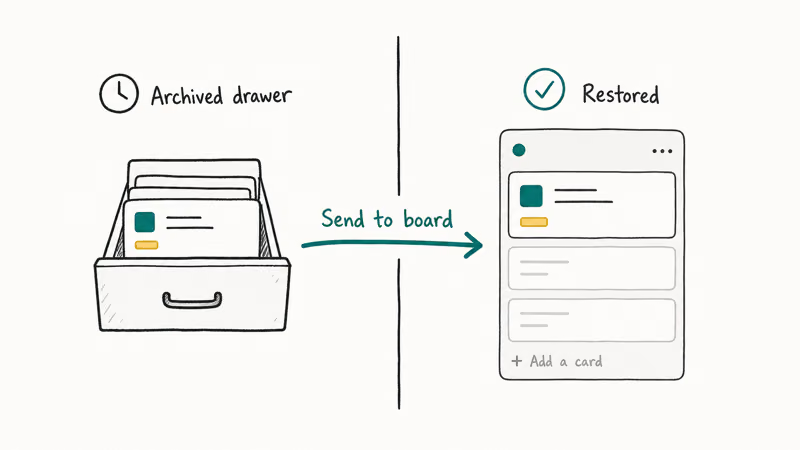
- Open Archived items as described above.
- Find the card you want to bring back.
- Click Send to board under the card’s title.
The card reappears on its original list. If that list has been archived too, Trello will move the card to the bottom of the first available list on the board, so you may need to drag it back to the right column. Trello doesn’t recreate the archived list automatically.
You can also restore a card from inside the card itself. Click the archived card in the panel to open its back. Trello shows a yellow banner at the top with This card is archived and a Send to board button. The keyboard shortcut C also unarchives a card if you press it from the open card view.
#How to Permanently Delete a Trello Card
Trello hides the delete option behind the archive step on purpose, since deleting is irreversible.
- Archive the card first using any of the three methods above.
- Open Board menu >
More>Archiveditems. - Click the archived card to open it.
- Click Delete at the top of the card back.
- Click Delete again in the confirmation popup.
Once you confirm the second click, the card is gone from Trello’s database and can’t be recovered. Atlassian’s data deletion policy states that permanently deleted Trello content is purged from active systems within 60 days, with backups rotated out within 180 days.
If you delete a card by accident, your options are limited. Recreate it from memory, ask a board member who saw the card to copy what they remember, or check whether your Workspace had a Power-Up like Activity Timeline that snapshotted your boards. Atlassian support can’t restore individual deleted cards.
For teams weighing alternatives, our Redmine vs Jira comparison covers tools you can pair with or migrate to from Trello, and the Bugzilla vs Jira breakdown helps if your workflow leans engineering-heavy.
#How to Archive and Restore Lists in Trello
Lists archive the same way as cards but with a different menu path.
To archive a list, click the three-dot icon at the top of the list header, then click Archive this list. Every card on that list becomes archived along with the list itself. The cards keep their list association in metadata, so if you ever restore the list, the cards return with it (provided you haven’t unarchived them individually in the meantime).
To restore an archived list:
- Open Board menu >
More>Archiveditems. - Click the Switch to lists toggle at the top of the panel.
- Find the list you want and click Send to board.
The list returns to its original position when possible. If you’ve added new lists since archiving, Trello places the restored list at the right edge of the board.
| Action | Web shortcut | Mobile path | Reversible? |
|---|---|---|---|
| Archive card | Hover + press C | Open card > menu > Archive | Yes |
| Archive list | List menu > Archive this list | Same | Yes |
| Restore card | Send to board (in archive) | Same | Yes |
| Delete card | Archive > Delete > Confirm | Same two-step | No |
| Close board | Board menu > Close board | Same | Yes (within 28 days) |
Table 1: Trello archive and delete actions across web and mobile, with reversibility notes.
#Can You Recover a Permanently Deleted Trello Card?
No. Once you click Delete twice on an archived card, Trello removes it from your Workspace database with no recovery path. This applies to free, Standard, Premium, and Enterprise plans equally. Atlassian Enterprise customers who pay for the Enterprise admin tier still can’t restore individual deleted cards, though they get more granular Workspace-level restore options for closed boards.
The safer pattern is to archive and forget.
Atlassian recommends archiving cards instead of deleting them whenever you might need the work later, since archived cards take up no board space but stay searchable. Archived cards can still surface useful context during later planning. If your team also uses Microsoft Teams, our Teams out-of-office guide pairs well with archive housekeeping during PTO.
#Bottom Line
Treat archive as your default cleanup action and reserve delete for personal cards you’re certain you’ll never need again. Use the C shortcut to archive cards in bulk during board cleanups, and check the Switch to lists toggle when you can’t find a missing card.
For account or board deletion, see our delete Trello account guide and Slack password reset walkthrough.
#Frequently Asked Questions
What happens to archived cards in Trello over time?
Archived cards stay in Trello’s database indefinitely. They keep all comments, attachments, due dates, and member assignments. Trello does not auto-delete archived cards based on age, even on the free plan. The only way they disappear is if a board admin manually deletes them or if the entire board is permanently deleted.
Where do unarchived cards go after I restore them?
Unarchived cards return to their original list when possible. If the original list was also archived or has been deleted since you archived the card, Trello places the card at the bottom of the first available list on the board. Drag it back to the column you want.
Can I unarchive a Trello list?
Yes, and the cards on it come back too.
Is deleting a Trello card the same as archiving it?
No. Archiving hides the card from the board but keeps it in the database, so you can restore it anytime. Deleting permanently removes the card and can’t be undone, even by Atlassian support. Trello forces you to archive a card first before showing the Delete option.
Why would I archive instead of delete?
Archive keeps a paper trail and makes active boards easier to scan. Archived cards stay searchable with the is
operator and can be restored without permanently changing the board history.Can free Trello accounts archive unlimited cards?
Yes. Trello’s free plan has no limit on how many cards you can archive. The 10-board limit on free Workspaces applies to active and closed boards combined, but archived cards within an existing board don’t count toward any cap.
Do archived cards still show up in Trello search?
Yes, with a caveat. The board-level search inside Archived items only matches card titles. The global Trello search bar across all your Workspaces matches titles, descriptions, comments, and attachments, but only when you add the is
filter to your query.
Google Messages Error 3100: Why RCS Is Broken on Galaxy
Google Messages RCS error 3100 hits Galaxy owners after phone or carrier switches. Google told 9to5Google a fix is coming. Here's what actually helps.

Is This Bank App Real? Spot a Fake App on Your Home Screen
A bank app can land on your home screen from a web page with no install warning. Learn the checks that tell a real banking app from a phishing web app.

Apps Crashing After iOS 27 Update? Fix Order (2026)
Apps crashing after the iOS 27 update? Update the app in the App Store first, then offload and reinstall to clear stale cache, then restart. The fix order.

Do AI Translation Earbuds Work Offline? What to Know
Do AI translation earbuds work offline? A few do with downloaded language packs, but most need the cloud. Here's what works offline and what you give up.