How to Set Out of Office in Microsoft Teams (2026 Guide)
Set Out of Office in Microsoft Teams from your profile picture, Settings, or Outlook automatic replies. Full guide for desktop, web, and mobile.

Quick AnswerClick your profile picture in the top right of Microsoft Teams, choose Set status message, then toggle Schedule out of office to pick start and end times and write an auto-reply. Teams syncs the schedule with Outlook automatic replies within about a minute, so you only have to set it in one place.
The fastest way to set Out of Office in Microsoft Teams is to click your profile picture and toggle Schedule out of office under Set status message. The same setting is available from Teams desktop, Teams web, and mobile. Teams shares this toggle with Outlook automatic replies, so a stale Outlook reply can override Teams.
- The fastest path is profile picture > Set status message > Schedule out of office.
- Out of office set in Teams syncs to Outlook automatic replies within about a minute on a stable connection.
- Custom internal vs external messages need the Outlook automatic replies dialog, not the Teams one.
- Free Microsoft Teams (no Microsoft 365 license) only supports status messages, not the scheduled auto-reply.
- To clear it on any platform, toggle Automatic replies off — the same switch lives in both Teams and Outlook.
#How Does Out of Office Work in Microsoft Teams?
Microsoft Teams treats Out of Office as a single shared setting, not two features. According to Microsoft’s Schedule an out of office status in Teams support page, the toggle inside Teams writes the same automatic-reply settings used by Outlook. So set it from either app and the change shows up in both.
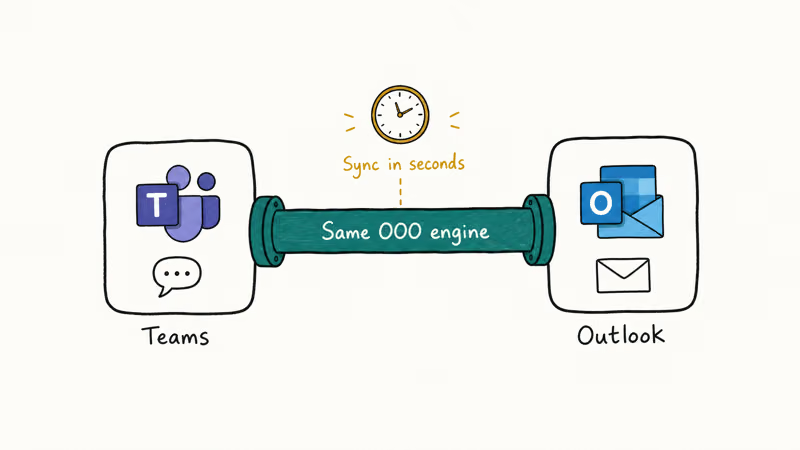
Three things happen the moment you toggle it on. Your Teams status flips to Out of Office with the purple briefcase icon, anyone messaging you in chat sees your custom note as an auto-reply, Outlook starts answering email with the same text, and the status bleeds into the People card coworkers see when they hover your name in chat or on a meeting invite. That last bit matters because it’s how teammates outside your immediate group find out you’re away.
The Teams status usually changes before the Outlook web label catches up. Set it before a meeting rather than at the last second so coworkers see the away state in both places.
#How to Set Out of Office From the Profile Icon
This is the path most people want. It’s the shortest and it works in the desktop, web, and mobile clients.
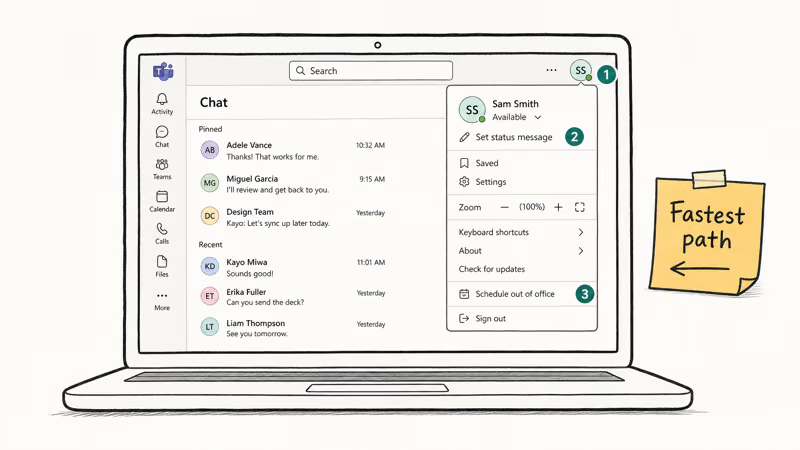
- Open Microsoft Teams and click your profile picture in the top-right corner.
- Choose Set status message from the dropdown.
- Click Schedule out of office at the bottom of the panel.
- Toggle Turn on automatic replies to on.
- Type your reply in the message box. Keep it short, since chat-side replies are plain text and can be trimmed in some clients.
- Tick Send replies outside my organization if you want external email to auto-reply too, then choose All external senders or Contacts only.
- Tick Send replies only during a time period, then pick the start and end dates.
- Click Save.
The toggle lives in the same panel whether you’re on the desktop client, the web app, or the mobile app, but the layout shifts a little on phones. On mobile, the Set status message option may be hidden behind a More menu after you tap your profile picture, and the Out of Office sub-screen scrolls vertically instead of staying as a single panel.
The auto-reply that goes out via Teams chat is plain text only. Links you paste turn into clickable URLs but you can’t bold, italicize, or attach a calendar invite. If you want richer formatting, use the Outlook path instead.
#How to Schedule Out of Office From Teams Settings
Teams also exposes the same setting under the gear menu, which is handy if you’ve already cleared a status message and don’t want to dig through a popup again.
- Click the three dots next to your profile picture, then choose Settings.
- Open the General tab on the left.
- Scroll to the Out of Office section.
- Click Schedule to open the same out-of-office dialog as Method 1.
- Configure the auto-reply, internal/external scope, and time window, then click Save.
Both paths write to the same backend setting, so changing one and re-opening the other always shows your latest values. Microsoft’s support documentation states that this single source of truth is exactly why the schedule survives if you switch between Teams desktop, mobile, and the web in the same day.
If your Teams Settings menu doesn’t show a General tab with Out of Office, you’re probably on Teams free or your IT admin has hidden it. Both cases are normal on Teams personal accounts that aren’t tied to a Microsoft 365 work subscription.
#How to Set Out of Office Through Outlook Automatic Replies
If you want different messages for inside vs outside your organization, or you need a richer reply with formatting and calendar attachments, set it from Outlook. The change still pushes to Teams.
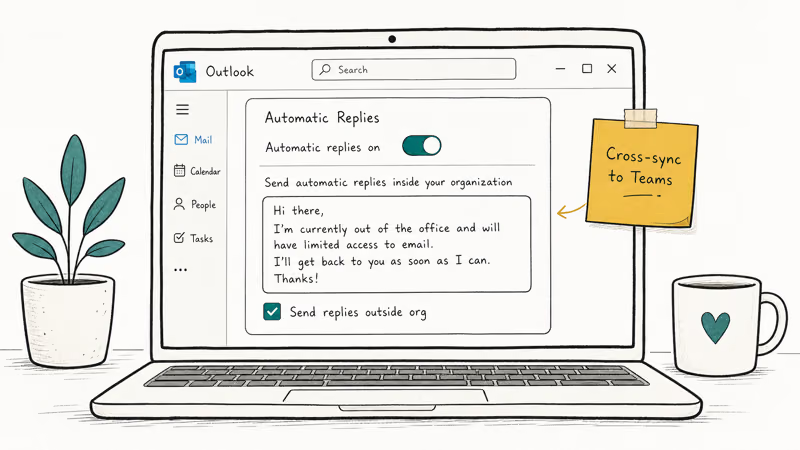
- Sign in to outlook.office.com in a browser.
- Click the gear icon in the top right and pick View all Outlook settings.
- Open Mail > Automatic replies.
- Toggle Turn on automatic replies.
- Tick Send replies only during a time period, then choose start and end dates with hour-level granularity.
- Type your internal message in the first box. Use rich text if you want bold, hyperlinks, or signatures.
- Tick Send replies outside your organization, choose Anyone outside my organization or Only my contacts, then enter the external message in the second box.
- Click Save.
According to Microsoft’s Send automatic out-of-office replies from Outlook page, Outlook only sends the auto-reply once per sender per session, not on every email. So if your boss emails you four times during your vacation, they get one reply. That’s the standard behavior across Outlook on the web, the desktop client, and the New Outlook for Windows.
The external scope choice matters more than people realize. Contacts only keeps spammers from confirming your address through the auto-reply, while Anyone outside my organization auto-replies to first-time external senders too. For most users, Contacts only is the safer default. If Outlook itself blocks the auto-reply from going out, the guide on Outlook keeps asking for password covers credential-loop fixes, and Outlook not receiving emails tackles the sync stalls that kill auto-replies.
Note: Outlook stores the schedule in your mailbox, not your local app. So a reply you set on Outlook web shows up the next time you open the desktop Outlook client too, and the same dates apply across both.
#How to Turn Off Out of Office in Teams
When you’re back, you don’t have to wait for the end-time to clear it. Both Teams paths above show a Turn off button when an active schedule exists.
The fastest way is from the profile icon:
- Click your profile picture > Set status message > Schedule out of office.
- Toggle Turn on automatic replies to off.
- Click Save.
That single toggle clears the auto-reply in both Teams and Outlook after the change syncs. If replies continue, check Outlook automatic replies directly before assuming Teams is stuck.
If your Teams status is stuck on Out of Office even after toggling off, restart the Teams client. A stale cache can hold the old status until you sign out and back in. The same trick works for several other Teams glitches, like the ones the Teams camera not working guide walks through.
#Why Won’t My Teams Out of Office Update?
If you toggled the schedule but Teams still shows your status as Available (or vice versa), one of three things is usually wrong.
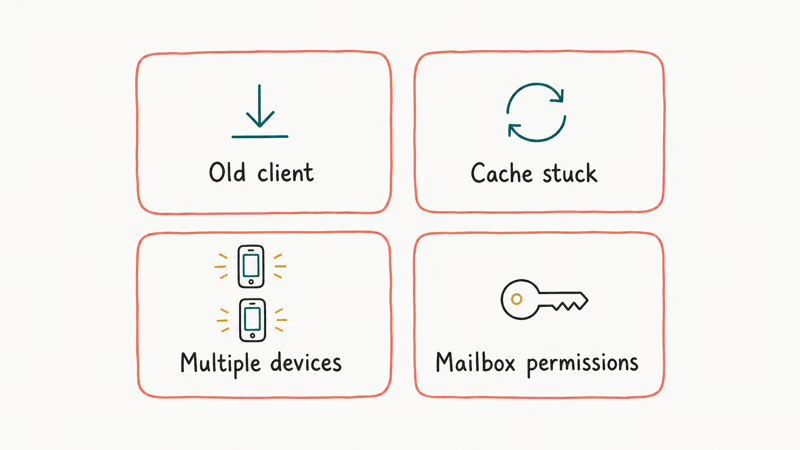
Outlook is the problem, not Teams. Out of Office in Teams is fed by Outlook automatic replies. When Outlook can’t sync, neither can Teams. If your Outlook is stuck disconnected, the Outlook disconnected guide walks through the cache reset and Exchange reconnect that fixes it most of the time. Once Outlook is talking to the server, the Teams status usually catches up within 2 minutes.
Two devices are fighting. Teams running on a desktop, a phone, and a web tab can each push a different status if you set Out of Office from one client and never refreshed the others. The cleanest fix is to set it from one client, close the others, then reopen them after about 90 seconds. The Teams server picks one source of truth and the rest fall in line.
The schedule already expired. A schedule with an end date in the past is silently ignored. Re-open the dialog and check the end date.
If none of that lifts the status, restart Outlook first. The guide on how to restart Outlook covers the proper full-restart sequence (not just closing the window), and that often clears the underlying state that Teams reads from.
#Bottom Line
For most cases, set Out of Office from the profile icon > Set status message > Schedule out of office path. It’s the fastest, and the Teams chat reply is what your coworkers see most. Save the Outlook automatic replies dialog for cases where you need separate internal vs external text or rich formatting. If the status won’t budge after you toggle, fix Outlook first, then check Teams.
#Frequently Asked Questions
Can I set out of office in Microsoft Teams without Outlook?
Only if you have a Microsoft 365 work or school account, since the Out of Office feature reads from your Exchange mailbox. Personal Teams (free) doesn’t include Exchange, so the Schedule option is greyed out and you can only post a manual status message.
Will my out of office message be sent to external contacts?
Only if you tick Send replies outside your organization in either the Teams or Outlook dialog. The default is internal-only, which means coworkers in the same Microsoft 365 tenant get the auto-reply but external senders don’t. The Contacts only option is usually safer for external replies since it stops auto-replies from confirming your address to spam senders, while still covering clients and partners who already have you in their address book.
How long can a Teams out of office last?
There’s no hard limit on the schedule length, but Microsoft caps the auto-reply window to dates that fit inside your mailbox retention. Most setups allow at least 1 year out, which is well past any typical vacation or sabbatical.
Does Teams out of office show in my calendar?
Setting Out of Office in Teams doesn’t automatically create a calendar block. Create a meeting in Outlook covering your absence and set its Show as field to Out of Office so the windows match.
Can I set different messages for inside and outside my organization?
Yes, but only through the Outlook automatic replies dialog. The Teams Set status message popup uses the same text for everyone. Once you save separate internal and external messages in Outlook, Teams pulls in the internal one for chat replies, and Outlook handles the external one for incoming email. According to Microsoft’s automatic-replies documentation, the system always picks the message that matches the sender’s relationship to your tenant.
Why does Outlook still show my out of office is on?
A stale schedule in Outlook can keep replying even after you think you cleared it. Open Outlook on the web, go to Settings > Mail > Automatic replies, and confirm both toggles are off. If the toggle looks off but Outlook keeps replying, sign out fully and back in. The cached state can survive a normal restart, especially on the New Outlook for Windows, and only a full sign-out clears it.
Can I set out of office on the Teams mobile app?
Yes. Tap your profile picture, pick Set status message > Schedule out of office, then save.
Google Messages Error 3100: Why RCS Is Broken on Galaxy
Google Messages RCS error 3100 hits Galaxy owners after phone or carrier switches. Google told 9to5Google a fix is coming. Here's what actually helps.

Is This Bank App Real? Spot a Fake App on Your Home Screen
A bank app can land on your home screen from a web page with no install warning. Learn the checks that tell a real banking app from a phishing web app.
Apps Crashing After iOS 27 Update? Fix Order (2026)
Apps crashing after the iOS 27 update? Update the app in the App Store first, then offload and reinstall to clear stale cache, then restart. The fix order.
Do AI Translation Earbuds Work Offline? What to Know
Do AI translation earbuds work offline? A few do with downloaded language packs, but most need the cloud. Here's what works offline and what you give up.