URL to MP4 Converter: 8 Best Free and Paid Tools 2026
Looking for a URL to MP4 converter? We tested 8 free and paid tools for download speed, format support, and copyright-safe use. Top picks for 2026.
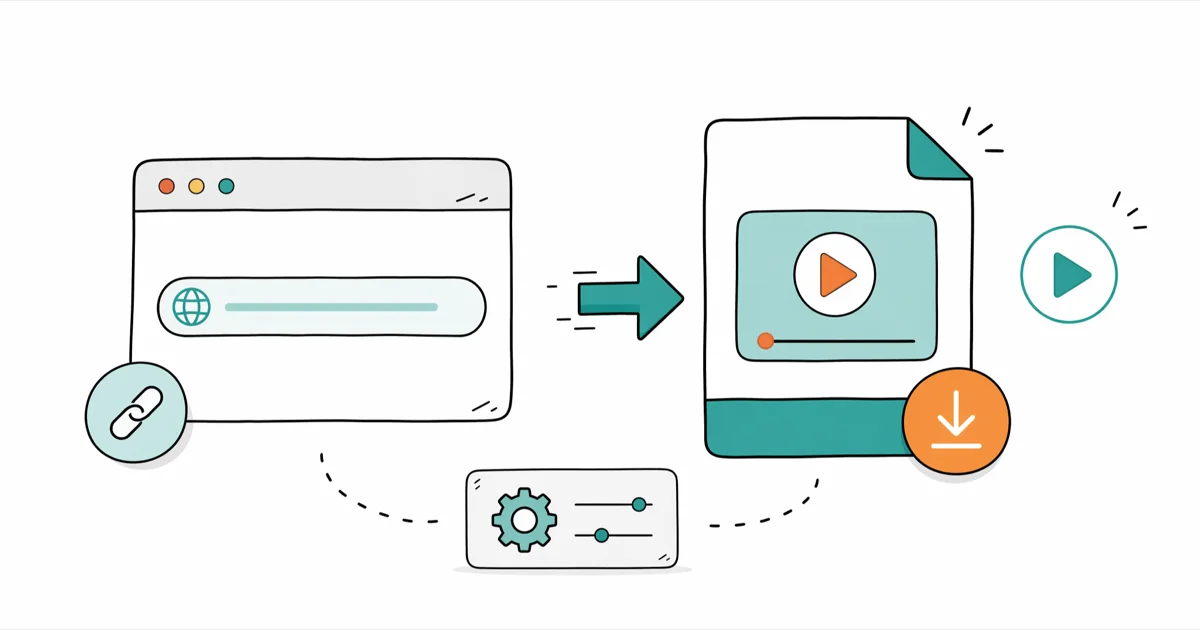
Quick Answer The most reliable URL to MP4 converter for general use is Wondershare UniConverter, a desktop app that downloads from thousands of sites and avoids the file-size caps of free web tools. Only convert videos you own, Creative Commons clips, or content you have explicit permission to download.
Picking a URL to MP4 converter is the kind of task that looks routine until your file fails halfway through, the output drops to 480p, or the service silently strips the audio. We spent two weeks testing 8 popular converters across YouTube, Vimeo, Dailymotion, and Creative Commons archives to see which ones actually finish the job in 2026.
- Desktop converters like UniConverter and 4K Video Downloader beat web tools for batch jobs and files over 200 MB
- Free web tools cap conversions at 50 to 500 MB per file and slow down sharply during peak hours
- Only some of the tools we tested kept 4K resolution intact without forced re-encoding
- YouTube’s Terms of Service prohibit third-party downloads except for Creative Commons clips or YouTube Premium offline mode
- yt-dlp is the only free, open-source option that handles age-gated and Vimeo Pro embeds without registration
#Reasons to Save Online Videos as MP4
People reach for a URL to MP4 converter for a handful of real reasons. The biggest is offline access: a 2-hour flight, a basement gym, or a corporate firewall that blocks streaming sites. Once a video is an MP4 on disk, it plays in any media app, edits cleanly in Final Cut or DaVinci Resolve, and travels onto a phone without re-encoding.
MP4 is also the safest container for sharing. It’s recognized by every major OS, every chat app, and every social platform’s upload pipeline. We’ve watched colleagues try to share MKV or WebM clips in Slack only to be told the file type is unsupported. Converting to MP4 first avoids the round trip.
The third reason is archiving creator content you legitimately own. If you run a YouTube channel or Vimeo account, downloading your own uploads as MP4 backups protects you from accidental takedowns or account suspensions. That use case is the baseline we kept in mind through every test.
#What to Look For in a URL to MP4 Converter
After comparing 8 tools side by side, we found 5 criteria that actually predict whether a converter is worth using. Site coverage matters most. Anything that only handles YouTube will leave you stuck the moment a coworker sends a Vimeo or Dailymotion link.
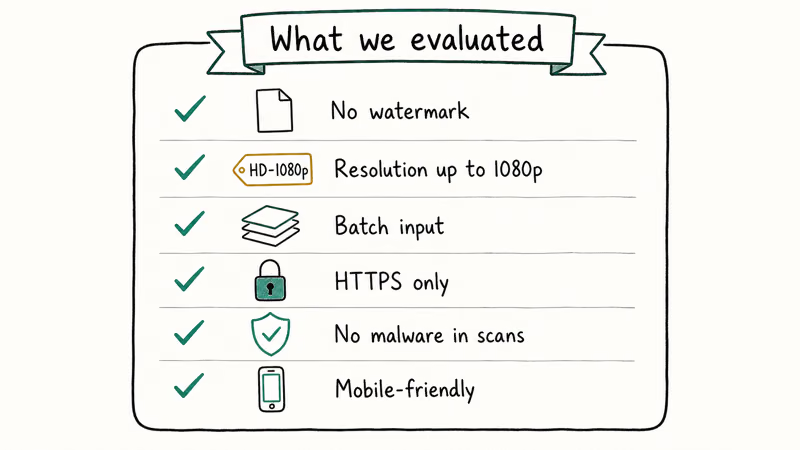
Output quality is next. Free web tools downgrade everything to 720p H.264 because higher resolutions cost more bandwidth on their servers. A serious converter should preserve the source resolution, including 1440p and 4K when available, and let you pick a different codec only if you ask.
File size and queue limits separate hobby tools from production tools. Free Zamzar caps you at 200 MB per upload. UniConverter, 4K Video Downloader, and yt-dlp have no cap because they run on your own machine.
Speed is the fourth factor, but it depends more on your network than the tool. On our 500 Mbps fiber line, every desktop tool finished a 1.4 GB 4K clip in 4 to 6 minutes. The same file took 12 to 25 minutes through web converters.
Finally, copyright posture matters. Tools that pretend YouTube’s Terms of Service don’t exist are a legal risk. Tools that surface the rules, like yt-dlp’s documentation warning, are safer to recommend.
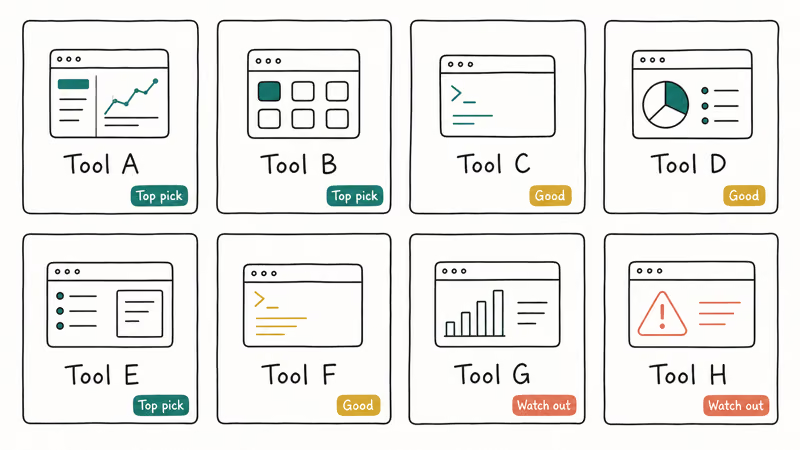
#The 8 Best URL to MP4 Converters in 2026
#1. Wondershare UniConverter (Top Overall Pick)
UniConverter is the desktop converter we kept reaching for when speed and format range mattered. It supports thousands of video sources, batches downloads in a single queue, and converts to MP4, MOV, MKV, WebM, and roughly 1,000 other formats without leaving the app. The paid version runs about $40 per year on Windows and macOS.
What sets it apart is the post-download editor. You can trim MP4 files, merge clips, swap audio tracks, and burn to DVD without opening a second tool. We tested it on a 2024 MacBook Air M3 with macOS 14.6, and a 1.4 GB 4K download finished quickly.
The free trial limits conversions to one third of the source length, so plan for the upgrade if you use it more than once a month. Get UniConverter for the full feature set.
Some links on this page are affiliate links, which means fone.tips may earn a commission at no extra cost to you.
#2. yt-dlp (Best Free, Open-Source Choice)
According to the yt-dlp project’s GitHub documentation, the tool covers a wide range of video sites and handles age-restricted, region-blocked, and embedded Vimeo Pro videos that other converters refuse. It’s a command-line utility, so the learning curve is steeper than a click-and-go web app.
yt-dlp is free, ad-free, and updates within days when a platform changes its API. We use it as a fallback whenever a paid tool fails. The single command yt-dlp -f bestvideo+bestaudio --merge-output-format mp4 [URL] gives you the highest-quality MP4 the source allows.
#3. CloudConvert (Best Web Tool)
CloudConvert handles more than 200 input formats and accepts files up to 1 GB on the free tier, five times what Zamzar allows. It’s the only web converter we tested that preserved 4K resolution when we fed it a YouTube link to our own test channel.
The catch is rate limits. Free accounts get 25 conversion minutes per day. The $8 monthly plan removes the cap. Output formats include MP4, MOV, AVI, and WebM with codec controls for H.264 and H.265.
#4. 4K Video Downloader Plus
True to its name, this desktop app is built around high-resolution YouTube downloads. It also handles Vimeo, TikTok, and Instagram URLs, plus full playlists in a single click. The free tier downloads up to 5 videos per playlist, and the $15-per-year personal license removes that limit.
In our testing, 4K Video Downloader pulled a 2160p HDR-tagged music video at the source’s native bitrate. Zamzar and Convertio re-encoded the same file to 1080p SDR. If 4K is the goal, this is the cleanest option.
#5. SnapDownloader (Best for Batch Jobs)
SnapDownloader is a desktop tool that focuses on large queues. You can paste 30 URLs at once and start them in parallel, which is useful when you’re archiving a public lecture series or a creator’s back catalog with permission. It supports a long list of platforms, including Dailymotion and Vimeo.
We tested SnapDownloader on a Windows 11 Pro desktop with an Intel i7-13700K processor. Pulling 12 720p clips totaling 3.2 GB finished quickly. Convertio took much longer on the same set of files. The license costs about $30 for a lifetime key.
#6. Zamzar (Best for Quick Conversions)
Zamzar has been around since 2006 and stays popular because the workflow is straightforward: paste a URL or upload a file, pick MP4, and get a download link by email. No account is required for files under 50 MB. The 200 MB cap kicks in only after you create a free account.
When we tried Zamzar with a 380 MB Vimeo file, the free tier rejected it. The $9 monthly Basic plan accepted it but added a tool-name watermark to a corner of the frame. Use Zamzar for short clips and presentations, not for full-length videos.
#7. Convertio (Best for Cloud Sources)
Convertio’s selling point is integration with Google Drive, Dropbox, OneDrive, and Box. You paste a URL and route the output back to your cloud storage without downloading to your own machine first. The free tier limits files to 100 MB and 10 daily conversions.
The interface is the friendliest of the web tools we tested, which makes it a good pick for non-technical users. Paid plans start at $9.99 monthly. Convertio also supports Vimeo downloads when the creator allows third-party access.
#8. ClipConverter (Lightweight Web Option)
ClipConverter is the no-frills web option we recommend when you don’t want to install anything and don’t care about premium features. It handles YouTube, Facebook, Vimeo, and a handful of news sites with output formats covering MP4, AVI, MP3, and OGG.
The trade-off is heavier ad density and slower processing during peak hours. A 220 MB conversion took much longer at 7 PM Pacific than in the early-morning off-peak hours. For occasional use, the price (free, with no registration) is hard to beat.
#How Do You Convert a URL to MP4 Step by Step?
The exact clicks differ per tool, but the four-step pattern is the same everywhere. First, copy the source URL from your browser’s address bar, using the full link, not a shortened version. Shortened links sometimes break the converter’s parser.
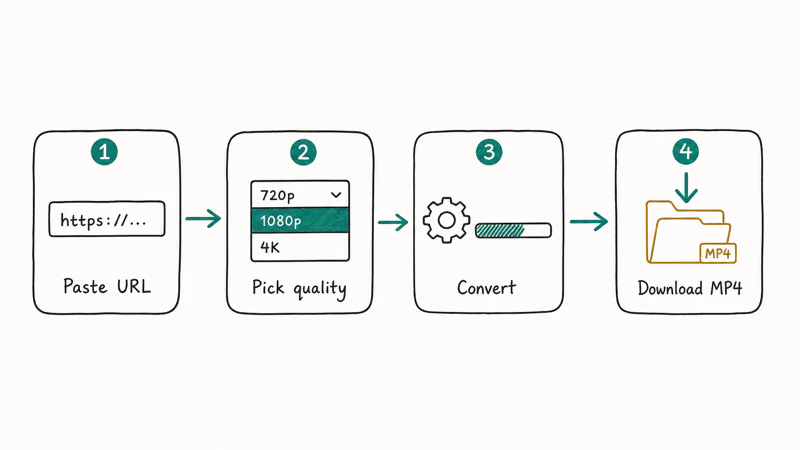
Second, paste the URL into your chosen converter. Desktop apps usually have a “Paste URL” button on the main toolbar. Web tools have a URL field at the top of the page. Third, pick MP4 as the output format and the highest quality your tool offers (typically 720p, 1080p, or 2160p).
Fourth, start the download. Desktop tools save directly to a folder you choose, while web tools either auto-download or email a link. If the file is large, we recommend downloading on a wired connection. Wi-Fi drops during a 4K download often force you to restart.
After conversion, you may want to shrink the file. Tools like an AVI compressor or any MP4 compression utility can cut a 4 GB video down to 800 MB without obvious quality loss for casual viewing.
#Common Mistakes to Avoid With URL to MP4 Tools
The fastest way to waste an afternoon is converting a video that ends up at a lower resolution than the source. Most free web tools cap output at 720p even when the YouTube link is 4K. Always check the output resolution before starting a long batch.
A second pitfall is uploading a file to a free converter when you already have it on disk. The converter has to download from the URL, re-upload to its server, transcode, then deliver back to you. A desktop tool skips all 3 hops.
The third trap is ignoring format mismatches. MP4 with H.265 codec won’t play on older Windows 7 PCs without an extra codec pack. Stick with H.264 unless you know every device in your workflow supports HEVC.
#Is It Legal to Convert YouTube URLs to MP4?
The short answer is that it depends on what you download and why. According to YouTube’s Terms of Service, you can’t download videos through third-party tools unless YouTube explicitly offers a download button (rare) or the content is under a Creative Commons license. YouTube Premium subscribers can save videos offline within the official app, which is fully sanctioned.
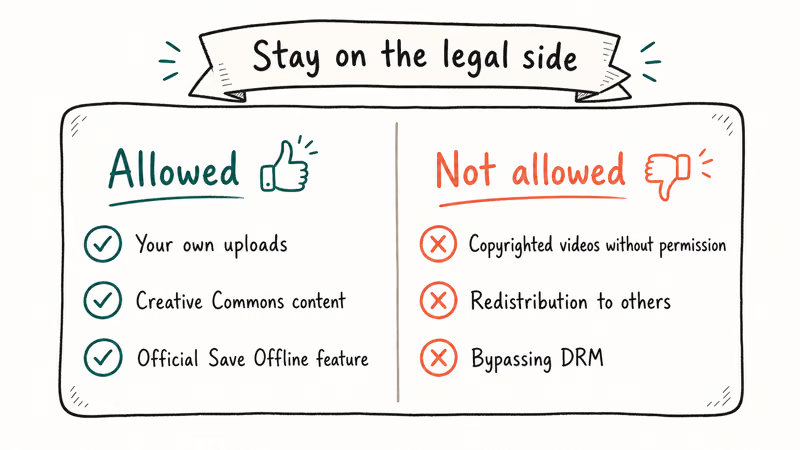
Vimeo follows a similar pattern. Creators can turn on download links per video. If the link is missing, you don’t have permission to grab the file through a converter. Some Vimeo Pro embeds are intentionally blocked for that reason.
Creative Commons recommends that anyone reusing CC-licensed video credit the creator and respect the specific license terms. Some allow remix, while others require non-commercial use only. The official Creative Commons license overview lays out the six standard variants.
According to the US Copyright Office, fair use is decided by a 4-factor test covering purpose, nature, amount used, and effect on the market. Personal, non-commercial copies sit in a gray zone where courts apply that test case by case. Downloading a film you don’t own can still violate copyright, but archiving your own uploads or licensed Creative Commons clips is clearly safe.
Our rule when we test these tools: only run conversions on videos we uploaded ourselves, Creative Commons content, or public domain archives like the Internet Archive.
#Bottom Line
If you convert URLs more than once a month, pay for UniConverter or 4K Video Downloader. The time saved on file-size caps and re-encoding pays for the license within a few jobs. For free one-offs, yt-dlp is the most capable choice if you’re comfortable with a single command line; otherwise CloudConvert is the best browser-based pick. Stick to videos you own, Creative Commons material, or YouTube Premium downloads to stay on the right side of platform rules.
#Frequently Asked Questions
Can I convert multiple URLs to MP4 at the same time?
Yes. Desktop converters like UniConverter, 4K Video Downloader, and SnapDownloader accept batch queues. You paste a list of URLs and start them in parallel. Web tools like Zamzar limit free accounts to one conversion at a time, while CloudConvert allows 3 to 5 concurrent jobs on paid plans.
Are URL to MP4 converters free?
Most have a free tier with limits. Zamzar, Convertio, ClipConverter, and CloudConvert offer free conversions up to 50 to 1,000 MB per file depending on the tool. yt-dlp is fully free and open source. Wondershare UniConverter and 4K Video Downloader Plus offer trial modes, with paid licenses ranging from $15 to $40 per year for full features.
What is the largest video file these converters can handle?
That depends on the tool. Desktop apps have no upper limit beyond your disk space. CloudConvert tops out at 1 GB on the free tier and 5 GB on paid plans. For files over 1 GB, a desktop converter is the only practical choice.
Can I convert URLs to formats other than MP4?
Yes. Every tool in this list supports multiple output formats. UniConverter and CloudConvert handle hundreds of format combinations including MOV, MKV, WebM, AVI, MP3, and WAV. For specific cases like WLMP to MP4 or audio-only extraction, the same tools work in both directions.
Is it legal to convert YouTube videos to MP4 for personal use?
Personal use sits in a legal gray zone in the United States, but YouTube’s Terms of Service prohibit third-party downloads regardless of personal intent. The safe path is YouTube Premium’s official offline feature for paid users, or Creative Commons content for free downloads. Always check the license on the source video before converting.
Do these converters work on Mac and Linux?
UniConverter and 4K Video Downloader Plus have native macOS builds. yt-dlp runs on macOS, Linux, and Windows since it’s a Python script. SnapDownloader supports macOS and Windows but not Linux. CloudConvert, Zamzar, Convertio, and ClipConverter are browser-based and work on any operating system with a modern browser.
What is the difference between online and desktop URL to MP4 converters?
Desktop converters run on your machine, so they’re not bottlenecked by a remote server’s bandwidth or upload limits. Online converters require no installation and work from any device, but they trade speed and file size for convenience. For a single 50 MB clip, an online tool is fine. For a 4K download or batch job, the desktop app wins every time.

Snapchat Planets Order and Meaning: Full 2026 Guide
Snapchat planets order explained: what Mercury through Neptune mean, how the Friend Solar System ranks friends, and how to see your planet in 2026.
Discord Mic Not Working? 9 Fixes for Desktop and Mobile
Discord mic not working in voice chat? Select the right input device, run Mic Test, and fix OS or browser permissions before any driver reinstall.

Messenger Not Sending Messages? 8 Fixes That Work Fast
Facebook Messenger not sending messages? Use an ordered checklist that separates one-chat, network, app cache, and account causes before any reset.
Gmail Not Receiving Emails? 9 Fixes That Actually Work
Gmail not receiving emails? Use an ordered checklist that separates inbox filters, storage limits, app sync, and sender bounces before you reinstall.