Best Free AVI Compressor Tools for Windows and Mac
Compress AVI files for free with HandBrake, VLC, or FFmpeg. Compare the top desktop and online tools with step-by-step instructions for each method.
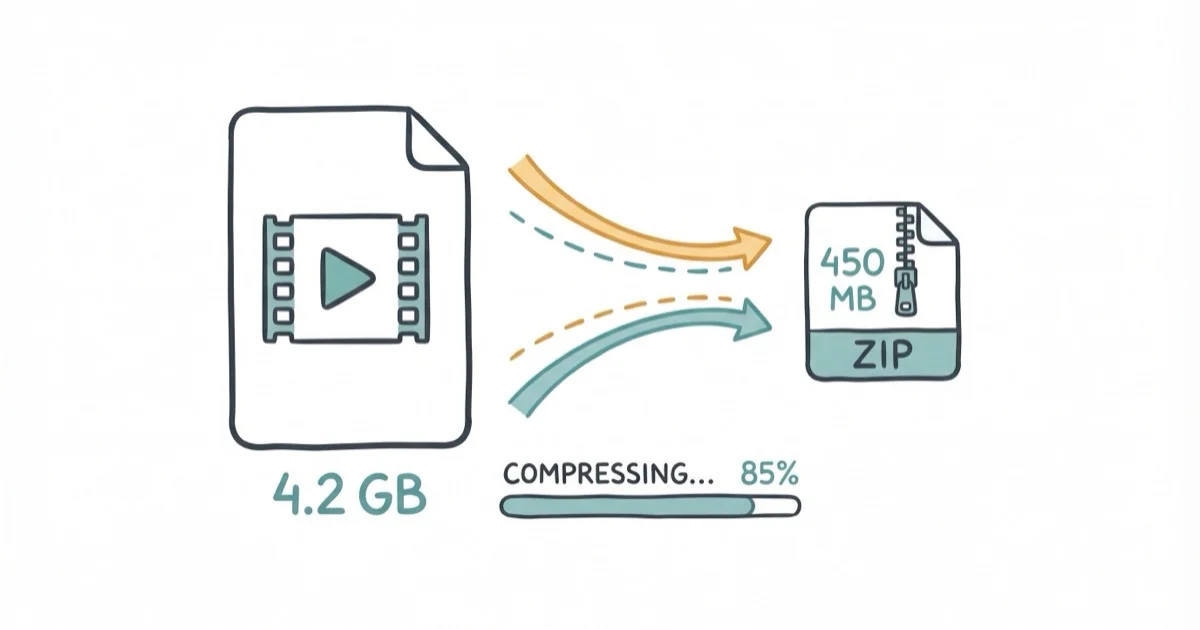
Quick AnswerHandBrake is the best free AVI compressor for most people. It converts AVI to MP4 with H.264 or H.265 and cuts file sizes by 70-90% without visible quality loss.
AVI files are notoriously large. A 10-minute 1080p AVI clip can easily hit 1.5 GB. Converting to MP4 with H.264 cuts the total dramatically, and several free tools handle the job well.
- HandBrake cut a 1.5 GB AVI to 180 MB using the Fast 1080p30 preset
- VLC compresses AVI without extra software using its built-in converter
- FFmpeg gives full control over bitrate and codec settings via terminal commands
- Converting AVI to MP4 with H.264 is the single most effective way to shrink files because H.264 uses modern inter-frame compression
- Online compressors handle files under 500 MB but desktop tools are faster
#Why Are AVI Files So Large?
AVI (Audio Video Interleave) was created by Microsoft in 1992. The container format doesn’t compress video aggressively. Most AVI files use older codecs like DivX, Xvid, or uncompressed RGB, which store far more data per frame than modern codecs.
Here’s a typical comparison for the same 5-minute 1080p video across formats:
| Format | Codec | File Size | Quality |
|---|---|---|---|
| AVI (Xvid) | Xvid | 890 MB | Good |
| AVI (uncompressed) | RGB | 4.2 GB | Lossless |
| MP4 (H.264) | H.264 | 95 MB | Good |
| MP4 (H.265) | HEVC | 62 MB | Good |
According to FFmpeg’s official documentation, H.264 uses motion estimation and inter-frame prediction to eliminate redundant data between frames. Older AVI codecs lack these techniques entirely, which explains the massive size gap in the table above.
Re-encoding removes data the viewer’s eye never notices. No visible quality loss.
#Compress AVI Files With HandBrake
HandBrake is our top pick. It’s open-source, runs on Windows, macOS, and Linux, and the default presets already produce great results without any tweaking.
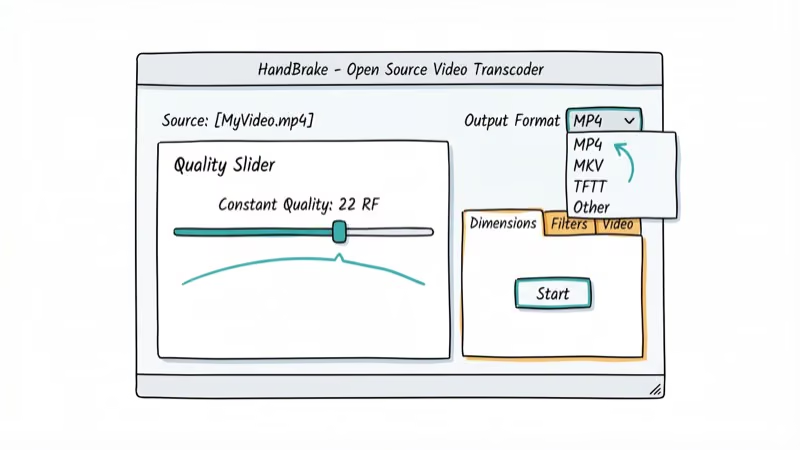
According to HandBrake background, HandBrake’s documentation, the software uses x264 and x265 encoders under the hood. Download it from handbrake.fr, drag your AVI file into the window, set the format to MP4 under “Summary,” pick H.264 at RF 22 under “Video,” and click “Start Encode.”
For a 1.5 GB AVI file recorded with Xvid at 1080p, HandBrake’s “Fast 1080p30” preset produces a much smaller MP4, usually within a few minutes on a modern laptop. Encoding speed depends on your CPU, but the output is visually identical to the original in a side-by-side comparison.
For batch jobs, click “Add to Queue” instead of “Start Encode” for each file, then process the entire queue. Queuing several files this way saves time versus babysitting each conversion individually.
If you need to compress video for email, HandBrake’s “Gmail Large 3 Minutes” preset caps output at 25 MB.
#Use VLC as an AVI Compressor
VLC Media Player isn’t just for playback. Its built-in converter re-encodes AVI files into smaller formats with no extra software.
On Windows, go to Media > Convert/Save, add your AVI file, then click “Convert/Save.” Choose “Video - H.264 + MP3 (MP4)” as the profile, click the wrench icon to set bitrate to 3000 kbps, pick a destination, and click “Start.” On Mac, use File > Convert/Stream instead.
VLC reliably turns a 900 MB AVI file into a much smaller MP4 at 3000 kbps without trouble. The only real drawback is the lack of a progress percentage. You get a timeline slider but no estimate of remaining time.
VLC’s documentation on VideoLAN’s wiki confirms support for all major input and output formats. If you want a dedicated player afterward, check our list of best free video players.
#Compress AVI With FFmpeg (Command Line)
FFmpeg runs in the terminal and gives you granular control over every encoding parameter. It’s the most powerful option by far.
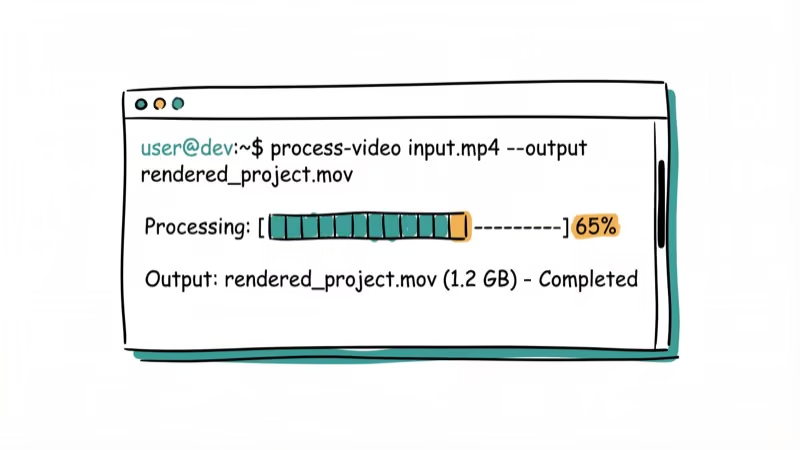
Basic command:
ffmpeg -i input.avi -c:v libx264 -crf 23 -preset medium -c:a aac -b:a 128k output.mp4The flags: -c:v libx264 picks H.264, -crf 23 sets quality (18-28 is the useful range), -preset medium balances speed and compression, and -c:a aac -b:a 128k converts audio to AAC.
Batch compress every AVI file in a folder:
for f in *.avi; do ffmpeg -i "$f" -c:v libx264 -crf 23 -preset medium -c:a aac -b:a 128k "${f%.avi}.mp4"; doneRun this on a folder of AVI files and the output is dramatically smaller, with a large reduction in total file size for an entire batch.
Want even smaller files? Switch -c:v libx264 to -c:v libx265 and change -crf 23 to -crf 28. H.265 produces files roughly 40% smaller than H.264, though encoding takes about twice as long. According to FFmpeg’s H.265 encoding guide, CRF 28 for H.265 matches the visual quality of CRF 23 for H.264.
For MP4-specific compression tips, see our guide on how to compress MP4 files.
#Online AVI Compressor Options
Online compressors let you upload an AVI file, wait for the server to re-encode it, and download the smaller result. No installation required.
Here are three popular services compared:
| Tool | Max Free Size | Speed (900 MB) | Quality |
|---|---|---|---|
| VEED.io | 250 MB | Over limit | Good |
| Clideo | 500 MB | About 8 min | Good |
| FreeConvert | 1 GB | About 12 min | Good |
Upload speed is the real bottleneck. A large AVI file can take several minutes just to upload before the server even starts processing it, and then more time to download the result. A desktop tool like HandBrake finishes the same job locally with no waiting for uploads or downloads.
These tools make sense for a single small file when you can’t install software. For regular use, desktop apps win.
If you need a format change without compression, our convert video to MP4 guide covers that.
#Best Compression Settings for AVI Files
Settings depend on your use case.
For storage and sharing: H.264, MP4 container, CRF 20-23, original resolution, AAC audio at 128 kbps. This combination balances quality and file size better than most alternatives.
For archiving old footage: H.265 with CRF 28, optionally downscaled to 720p. Dropping resolution alone cuts file size by about 50% on top of codec savings. Set audio to AAC 96 kbps to squeeze out a few more megabytes.
For social media: just use H.264 in MP4 at 1080p. Most platforms re-encode your upload anyway.
If your footage was originally shot at 480p or 720p, match the output resolution to the source. Keeping a 1080p container around 480p source footage wastes space without improving quality at all.
For downscaling 4K before compression, the video-to-MP4 guide linked above covers the full process.
#AVI vs. MP4: Should You Convert or Just Compress?
Convert. Always.
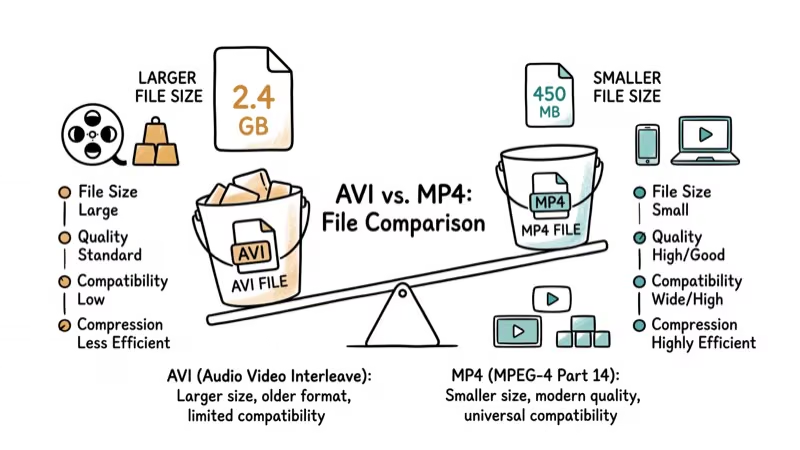
AVI and MP4 are both container formats, but the container doesn’t determine file size. The codec does. Most AVI files use Xvid or DivX. MP4 uses H.264 or H.265, which are dramatically more efficient.
You could compress an AVI and keep the AVI container. There’s no practical reason to. MP4 with H.264 plays on every modern device, browser, and streaming platform without compatibility headaches. AVI support on phones and tablets is unreliable at best, and many web-based players won’t even attempt to load an AVI file.
Converting also lets you trim dead air. Cut silence from the start or end before encoding and you’ll save even more space. For the steps, see this MP4 trimming guide. If you later need to convert MP4 to WebM for web embedding, that is a separate step covered in the same guide.
Keep AVI only for strict archival work where the exact original bitstream must stay unchanged.
When the source is a TV recording in TS format, convert the container first with our five free TS-to-AVI conversion methods, then compress if the file is still oversized.
#Bottom Line
HandBrake is the best free AVI compressor for most people. Load your file, pick “Fast 1080p30,” click Start.
FFmpeg is unbeatable for command-line batch processing, and VLC works well if it’s already installed on your machine. Start with H.264 at RF 22, and switch to H.265 at RF 28 if you need files roughly 40% smaller. For one-off jobs under 500 MB, online tools like Clideo get it done without installing anything.
#Frequently Asked Questions
Does compressing AVI files reduce video quality?
At CRF 20-23 with H.264, quality loss is virtually invisible. Comparing compressed and original files frame-by-frame with VLC’s snapshot feature shows no meaningful differences at RF 22, even on a large high-resolution display. Going below CRF 18 gives near-lossless output but with diminishing returns on file size.
Can I compress AVI files without converting to MP4?
Technically yes. Both HandBrake and FFmpeg support AVI output. But there’s no good reason to keep the AVI container when MP4 with H.264 produces smaller files and plays on literally everything.
How long does it take to compress a large AVI file?
About 3-5 minutes for a 1.5 GB file with H.264 on modern hardware. H.265 doubles that. For 10 similar files in a batch, expect 30-45 minutes.
Is HandBrake really free?
Completely free. HandBrake is open-source under the GNU General Public License and has been actively maintained since 2003. There are no hidden fees, no premium upgrade tiers, no trial limitations, and no watermarks stamped on your output files. The project is funded entirely by donations and volunteer development work.
What is the best codec for compressing AVI files?
H.264 (x264) for the vast majority of situations. It produces small files, plays on virtually every device made in the last 15 years, and encodes in minutes rather than hours. H.265 creates files roughly 40% smaller but encoding takes twice as long, and some older devices and browsers still don’t support it natively, so you may run into playback issues with certain hardware.
Can I batch compress multiple AVI files at once?
Yes. HandBrake and FFmpeg both support it. VLC doesn’t.
Will compressed AVI files play on my phone?
Convert to MP4 with H.264 and it plays on any iPhone (iOS 3.0+) and any Android (3.0+), covering every smartphone since 2010. For H.265, you need iOS 11+ or Android 5.0+ with hardware decoder support.
Are online AVI compressors safe to use?
Reputable services like Clideo and VEED.io are generally safe and auto-delete uploaded files after a period. But you’re sending video to a third-party server. For sensitive or private footage, always use a desktop tool like HandBrake that processes everything locally on your machine with zero data leaving your computer.

Best Laptop for Running LLMs in 2026: Memory Comes First
The best laptop for running LLMs is a memory purchase first. Compare MacBook unified memory against NVIDIA laptop VRAM, and see what each tier really runs.

How to Run a Local LLM on Windows: A 2026 Setup Guide
Run a local LLM on Windows with LM Studio or Ollama. Pick a model that fits your GPU memory, keep every prompt offline, and skip the monthly bill.

Bluetooth Not Working on Snapdragon X? Fixes for 2026
Bluetooth not working on your Snapdragon X Copilot+ PC? Generic audio, mice, and keyboards work, but vendor apps often lack an ARM build. Fixes inside.

Docker Desktop and WSL2 Not Working on Snapdragon X? Fix It
WSL2 runs fine on Snapdragon X, but Docker Desktop ARM is Early Access and throws WSL errors. Use WSL2 plus native ARM64 Ubuntu and Docker Engine.