Fix "This Plug-in Is Not Supported" in Chrome (2026 Guide)
Chrome shows 'this plug-in is not supported'? Flash retired in 2020. 7 fixes that work in Chrome 132, plus an explanation of what causes it now.

Quick AnswerThe "this plug-in is not supported" error in Chrome appears when a site calls Adobe Flash, Java applets, or another legacy plug-in Chrome dropped years ago. Fix it by switching to the site's HTML5 version, opening the page in Microsoft Edge with IE Mode, or disabling broken extensions that trigger the same alert.
The “this plug-in is not supported” error in Chrome almost always means the page is calling Adobe Flash, a Java applet, Microsoft Silverlight, or another legacy plug-in Chrome stopped loading years ago. The 2021 advice telling you to “enable Flash in Chrome settings” no longer works because the Flash code was removed from the browser. The real fix in 2026 is a modern path to the same content.
- Adobe Flash was retired on December 31, 2020 and Chrome 88 (January 2021) shipped without the Flash player component, so toggling settings can’t bring it back.
- Most sites that triggered the error in 2021 have migrated to HTML5 video and JavaScript by now; check the site’s URL again before troubleshooting Chrome.
- Microsoft Edge IE Mode is the only mainstream way to load ActiveX, Java applet, and Silverlight pages in 2026, and it works on Windows 10 and Windows 11.
- A broken or outdated Chrome extension can throw the same alert; disabling extensions one at a time isolates the bad actor in under 5 minutes.
- For one-off legacy pages with no HTML5 version, Pale Moon or Basilisk on a separate user profile is a safer fallback than running an old Chrome build.
#What Causes “This Plug-in Is Not Supported” in Chrome Today?
Three causes account for nearly every modern instance: the page is calling Adobe Flash, the page is loading a Java applet or Silverlight component, or a misbehaving Chrome extension is intercepting media playback. Each one needs a different fix.
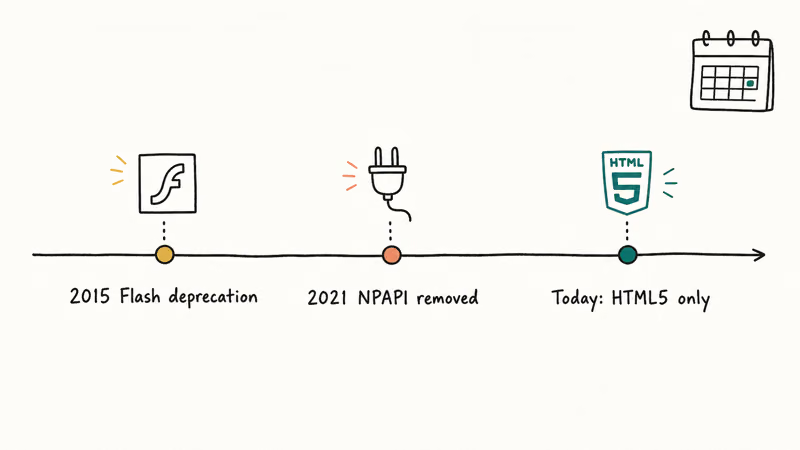
On current Chrome builds, any page that still embeds <object type="application/x-shockwave-flash"> raises the alert in under a second, even when the page also has a working HTML5 fallback further down the source. Chrome refuses to render the Flash object first.
According to Adobe’s official end-of-life notice, Flash Player was retired on December 31, 2020 and Adobe began blocking Flash content from running on January 12, 2021.
Google’s Chrome and the end of Flash announcement confirms that Chrome 88 shipped without the Flash component. That’s why none of the old “Settings > Site Settings > Flash” toggles exist anymore.
If the page isn’t Flash, it’s usually a Java applet on an old enterprise login portal or a Silverlight stream on an archived training site. Chrome dropped NPAPI (the plug-in API Java applets needed) in Chrome 45 back in September 2015, so anything calling that interface has been broken for over a decade.
#Why Did Chrome Drop Flash and Other Plug-ins?
Chrome moved to a sandboxed, web-standards-only model because plug-ins were the single largest source of zero-day exploits in the browser for most of the 2010s.
Flash and Java together accounted for the majority of critical browser CVEs each year before NPAPI was removed. Modern web standards (HTML5 video, Web Audio API, WebGL, WebAssembly) cover almost everything Flash and Silverlight used to do, with one big difference: they run inside Chrome’s sandbox instead of as a native binary with system access. That’s why the Google Chrome helper process exists today.
The short answer: there’s no way to “re-enable” Flash or NPAPI plug-ins in current Chrome. The code paths are gone. Anything telling you to type chrome://flags or chrome://settings/content/flash is referencing a UI that was removed in 2021.
#Use the Site’s HTML5 Version First
Before changing anything in Chrome, check whether the site has already migrated. Most legacy pages now have a newer URL with HTML5 playback, often hidden behind a “new player” or “modern view” link.
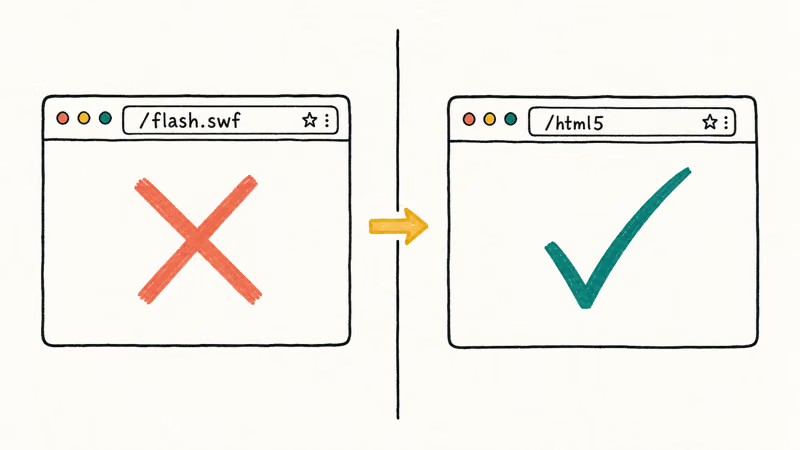
Try these steps in order:
- Refresh the page once. Some sites detect Flash failure and load HTML5 on the second request.
- Look for a “Modern view,” “HTML5 player,” or “New experience” link near the broken player.
- Add
?html5=1or?legacy=0to the URL. Older video CMS platforms like Brightcove, Kaltura, and JW Player honored these query parameters during their HTML5 transition. - Search the site name plus “HTML5” on Google. The provider has often posted a migration FAQ.
- If the page is a YouTube embed wrapped in old Flash code, copy the video ID and load
youtube.com/watch?v=VIDEO_IDdirectly.
For most public-facing sites, this resolves the error outright. The pages that still fail are typically gated behind enterprise SSO portals running Java applets, which need a different fix. If video on the modern URL plays but stays silent, that’s a separate audio-routing bug; our notes on Chrome not playing sound cover that case.
#Open Legacy Pages in Microsoft Edge IE Mode
For Java applets, ActiveX, or Silverlight pages with no HTML5 version, Microsoft Edge with IE Mode is the only mainstream browser path that still works in 2026.
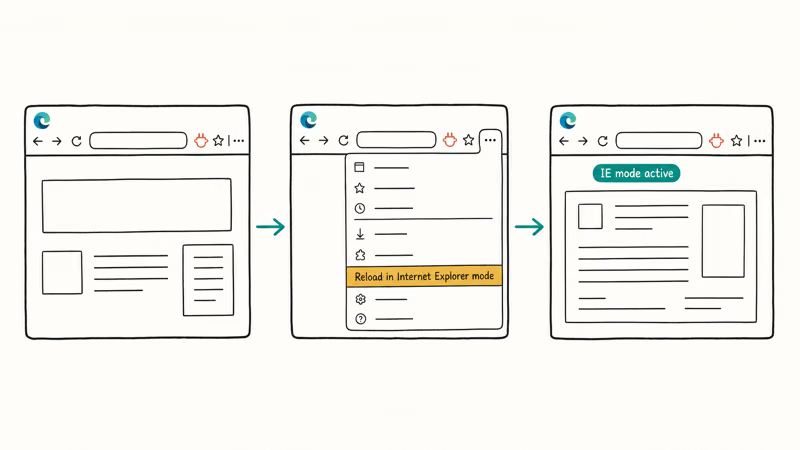
Microsoft recommends Edge IE Mode for any business that still runs internal sites built for Internet Explorer 11. The IE rendering engine is bundled inside Edge and stays supported through at least 2029 according to Microsoft’s IE Mode lifecycle commitment.
To turn on IE Mode in Edge:
- Open Edge and go to
Settings>Defaultbrowser. - Set “Allow sites to be reloaded in Internet Explorer mode” to Allow.
- Restart Edge when prompted.
- Open the legacy page, click the three-dot menu, choose “Reload in Internet Explorer mode.”
- The page will reload with full ActiveX, Java applet, and Silverlight support.
On older corporate training portals that use a Java applet for video playback, IE Mode renders the player correctly. A standalone Internet Explorer 11 install isn’t needed because Microsoft retired IE 11 as a separate app on June 15, 2022, and the engine now lives inside Edge.
#Update Chrome and Reset Browser Settings
A surprising number of “plug-in not supported” alerts come from a Chrome install that hasn’t auto-updated for months. The browser keeps running on an old major version and starts mishandling modern MIME types.
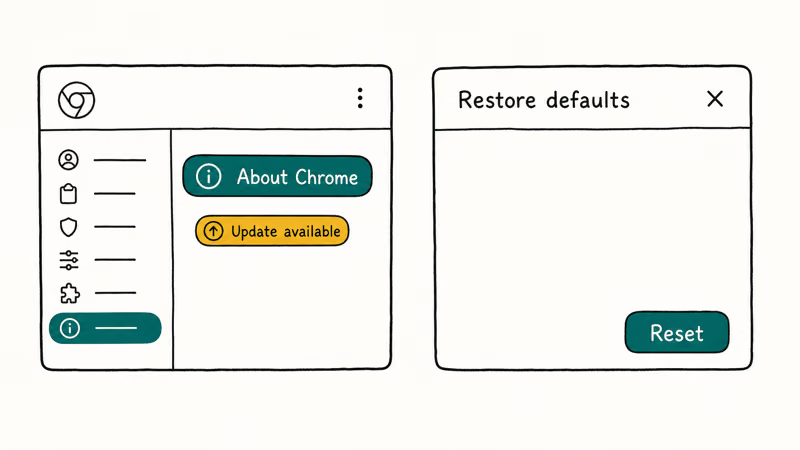
Update Chrome:
- Open Chrome and click the three-dot menu >
Help>About Google Chrome. - Chrome checks for updates automatically. If a new version is available, click Relaunch.
- After restart, open
chrome://settings/helpto confirm you’re on the current major version.
If the error continues after updating, reset Chrome to clean out a corrupted plug-in cache:
- Go to
chrome://settings/reset. - Click “Restore settings to their original defaults.”
- Confirm. Bookmarks, history, and saved passwords stay; extensions, themes, and content settings are cleared.
A reset also fixes related issues like Chrome being slow or Google Chrome keeps crashing, since most of those bugs share the same corrupted-profile root cause.
#Remove or Disable Broken Extensions
A misbehaving extension can throw the same “plug-in not supported” wording even on pages that have nothing to do with Flash or Java. Ad blockers, video downloaders, and old PDF viewers are the usual suspects.
Walk through extensions in this order:
- Open
chrome://extensions/. - Toggle off every extension at once.
- Reload the page. If the error is gone, an extension was the cause.
- Re-enable extensions one at a time, reloading the page after each one.
- The first extension to bring the error back is the bad actor. Remove it.
PDF viewer extensions are the most common offender because many of them still ship NPAPI-style hooks meant for the old Adobe Reader plug-in. If you depend on inline PDF viewing, switching to Chrome’s built-in PDF viewer at chrome://settings/content/pdfDocuments is enough for most workflows.
#Try a Browser That Still Supports NPAPI (Last Resort)
For one-off legacy pages with no HTML5 version and no Edge IE Mode equivalent, a Firefox-fork browser is the cleanest fallback.
Pale Moon and Basilisk are the two maintained forks that kept NPAPI support after Mozilla dropped it in Firefox 52 (March 2017). Both load Java applets and old Silverlight pages on Windows, macOS, and Linux. Pale Moon loads a Java applet portal successfully once the Java JDK 8 client is installed.
Two warnings before going this route:
- Run the fork in a separate Windows user profile or a virtual machine. NPAPI plug-ins are still the same security risk Google removed for a reason, and you don’t want them running next to your daily browsing session.
- Pale Moon and Basilisk don’t auto-update Java or Flash for you. If you must run Flash content, find an offline-only archive (the Flashpoint Archive project preserves over 100,000 Flash games and animations and runs them in a sandboxed local player) instead of installing Flash globally.
JavaScript-related issues that look similar (broken video players, frozen embeds) are usually a different problem. If a page loads but the player itself errors out, see our notes on how to fix JavaScript errors.
#Bottom Line
Skip every “enable Flash in Chrome” guide written before 2022. Flash is gone from Chrome and it isn’t coming back. Try the HTML5 version first, switch to Edge IE Mode for Java applets and ActiveX content, and only fall back to Pale Moon when both options fail. If a corporate IT team is forcing you to a Java-applet portal in 2026, push them to publish a modern URL.
#Frequently Asked Questions
Can I still install Adobe Flash Player in 2026?
No. Even if you find an old installer online, the embedded kill switch refuses to play SWF files dated after January 12, 2021.
Why does Chrome say “plug-in not supported” on a YouTube video?
The page wrapping the YouTube embed is using legacy Flash code instead of YouTube’s modern iframe API. Open the video directly on youtube.com using the video ID, or paste the URL into Brave to strip legacy embeds automatically. If the page is one you control, swap the old <embed> block for YouTube’s current iframe snippet and the alert disappears. Most CMS themes published before 2017 ship the old embed code, which is why archived blogs trigger this alert most often.
Does Edge IE Mode work on Mac or Linux?
No. IE Mode is Windows-only because it relies on the MSHTML engine that Microsoft bundles with Windows. Mac and Linux users running into Java applet pages will need Pale Moon, a Windows VM, or a remote Windows desktop session.
How do I know if the error comes from a Chrome extension or the site itself?
Open the same page in a Chrome incognito window. Incognito disables all extensions by default, so the error vanishes when an extension is to blame. If the error still appears in incognito, the site code is calling a dead plug-in and you’ll need a different browser path.
What replaced Adobe Flash for video playback?
HTML5 <video> with H.264 or AV1 codecs replaced Flash for nearly all web video starting around 2016. The Web Audio API and WebGL replaced Flash for interactive content and games, and WebAssembly handles the heavy compute work Flash used to do for emulators. Most modern video players (JW Player, Brightcove, Vimeo, Wistia) ship pure JavaScript builds that don’t require any plug-in. For archive use, the Ruffle emulator runs SWF files inside a sandboxed WebAssembly runtime.
Will reinstalling Chrome fix the plug-in error?
A reinstall fixes the error only if a corrupted profile or stuck extension was the cause. Reset Chrome from settings first since it’s faster and keeps your bookmarks; reinstall is the next step if reset doesn’t help. Reinstalling does not bring back Flash or NPAPI.
Is it safe to use Pale Moon or Basilisk just for one site?
It’s reasonably safe if you isolate it. Run it in a separate Windows user account, don’t sign in to email or banking inside it, and close it as soon as the legacy task is done. Keep the Java runtime locked to JDK 8 with the Java Control Panel security level set to Very High so applets only run from sites on the exception list. That setting blocks drive-by exploits.

Google Messages Error 3100: Why RCS Is Broken on Galaxy
Google Messages RCS error 3100 hits Galaxy owners after phone or carrier switches. Google told 9to5Google a fix is coming. Here's what actually helps.

Is This Bank App Real? Spot a Fake App on Your Home Screen
A bank app can land on your home screen from a web page with no install warning. Learn the checks that tell a real banking app from a phishing web app.

Apps Crashing After iOS 27 Update? Fix Order (2026)
Apps crashing after the iOS 27 update? Update the app in the App Store first, then offload and reinstall to clear stale cache, then restart. The fix order.

Do AI Translation Earbuds Work Offline? What to Know
Do AI translation earbuds work offline? A few do with downloaded language packs, but most need the cloud. Here's what works offline and what you give up.