Fix Snapchat "There Was a Problem Connecting to the Server"
Fix Snapchat "There was a problem connecting to the server" on iPhone and Android. Toggle airplane mode, clear cache, or update the app first.
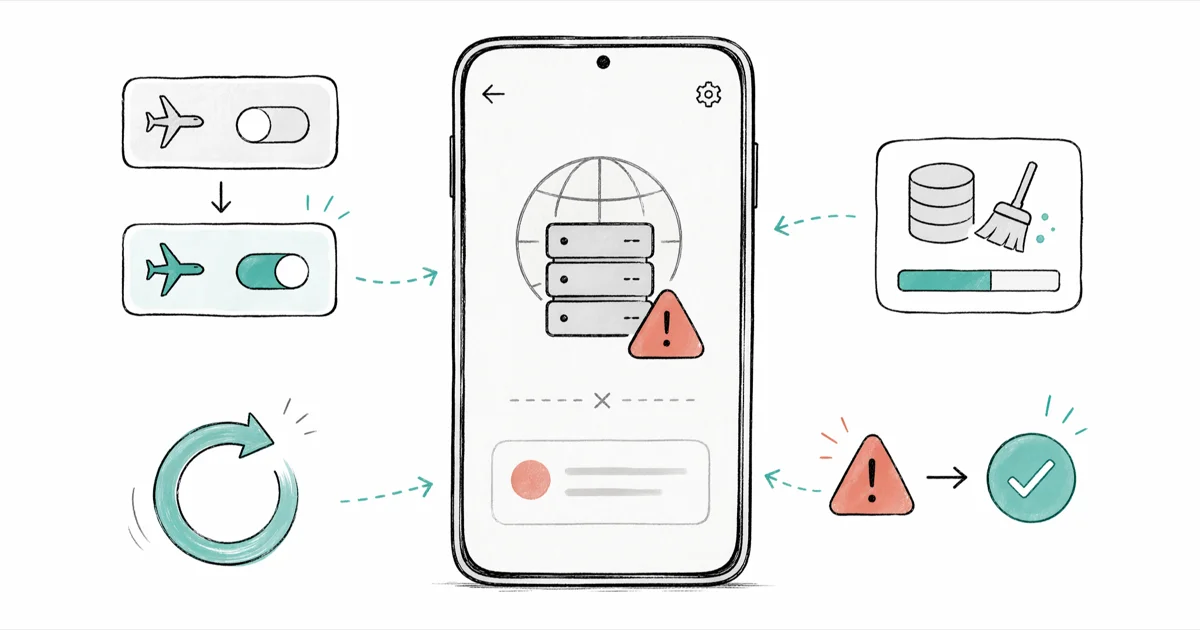
Quick AnswerToggle airplane mode on and off, then reopen Snapchat. If the error persists, clear Snapchat's cache in Settings > Apps > Snapchat > Storage, or update to the latest Snapchat version.
Snapchat’s “There Was a Problem Connecting to the Server” error appears when the app can’t complete a secure handshake with Snapchat’s authentication backend. The fixes below are ordered by speed-to-resolution, starting with the one that clears the most cases.
Airplane mode wins.
Toggling airplane mode clears the error within seconds when the cause is a stuck network state. Other fixes, like clearing the cache and updating the app, handle the cases where airplane mode alone isn’t enough, such as an outdated Snapchat build that fails its initial SSL handshake against Snapchat’s current authentication endpoint.
- Toggle airplane mode on, wait 10 seconds, then off — clears most stuck network states under one minute
- Clearing Snapchat’s cache wipes only session tokens and thumbnails, never your saved Memories or chat history
- Outdated Snapchat builds fail current TLS handshakes, so update from the App Store before reinstalling
- A single VPN exit IP can land on Snapchat’s block list, so disable any VPN before deeper troubleshooting
- Snapchat outages on Downdetector usually clear within an hour, so check status before changing anything on your phone
The error has only two true root causes. Either your device can’t reach Snapchat’s servers, or Snapchat’s authentication service is down. Rule out an outage first, then walk through every connection fix in the order that resolves the most cases per minute spent.
#How to Check If Snapchat’s Servers Are Down?
Check the outage pages first. If Snapchat is broken for everyone, nothing on your phone will fix it.
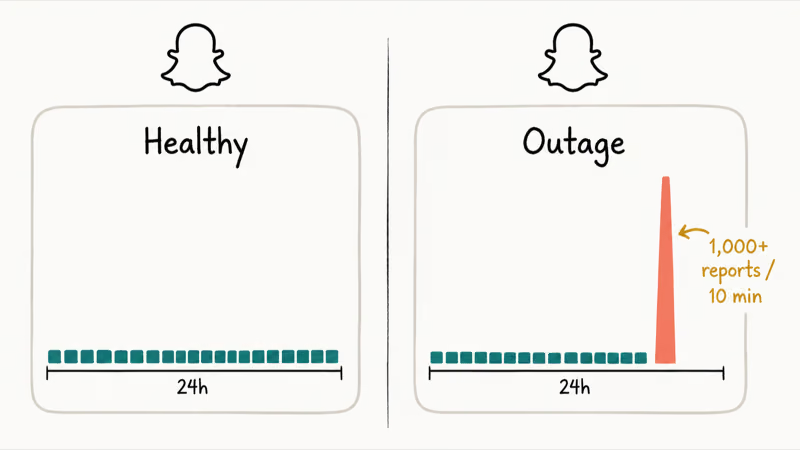
Open Downdetector’s Snapchat status page and scan the last 24 hours. According to Downdetector, a typical regional outage produces a sharp spike of reports in a short window, so a steep red bar is unmistakable. If the page is flat, the issue is local to your device or your account.
Open Snapchat’s official status page next. If Snapchat has confirmed an incident, this page shows it, and most confirmed incidents clear within a few hours once the engineering team works through them.
If both pages look healthy, move on. The fault is on your side.
#Why Your Device Can’t Connect to Snapchat?
The error means your device’s TLS handshake with Snapchat’s authentication endpoint failed or timed out. Three things break that handshake most often: a stuck network state, stale session data on your phone, or an old Snapchat version that can’t match Snapchat’s current SSL certificates.
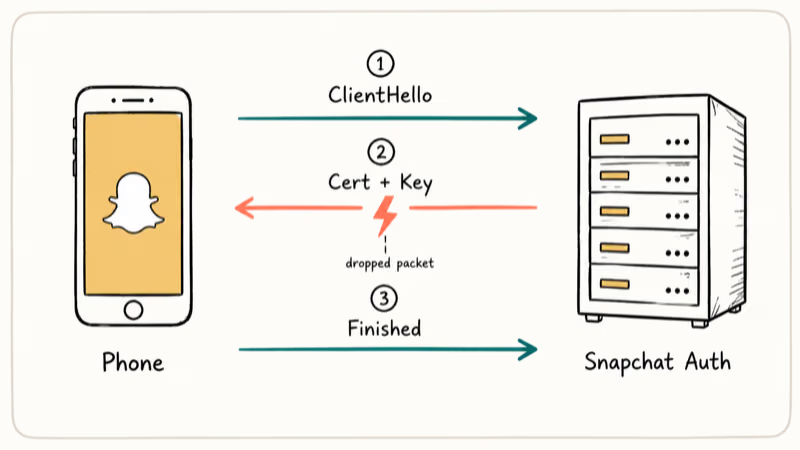
According to Cloudflare’s TLS handshake explainer, a single TLS 1.3 handshake involves at least 3 round trips between the client and server before any app data flows. Anything that interrupts those round trips, including a brief Wi-Fi blip or a VPN exit IP that drops packets, ends the connection with the same generic server error you see in Snapchat.
VPN traffic is a common culprit. Many providers route every client through a small pool of exit IPs, and Snapchat blocks abusive IPs aggressively. The error message looks identical to a real network outage.
#Quick Fix: Toggle Airplane Mode
This is the fastest fix and we put it first for a reason.
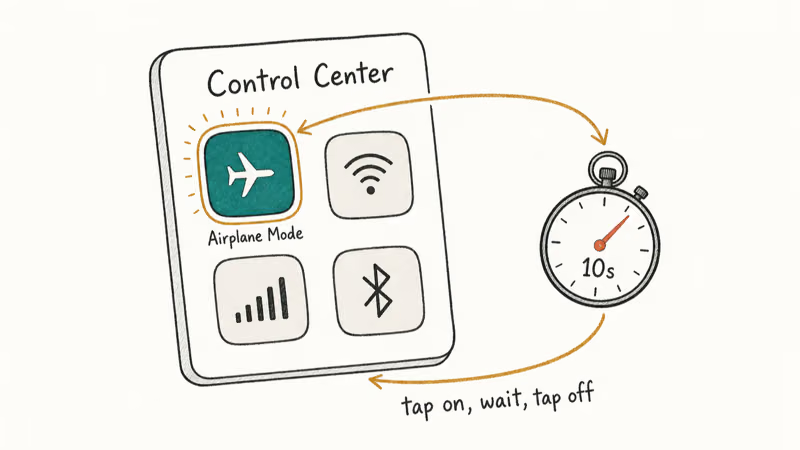
Open Control Center on iPhone (swipe down from the top right) or Quick Settings on Android (swipe down twice). Tap the airplane icon. Wait 10 seconds. Tap it again to turn it off.
What happens under the hood: your device drops every Wi-Fi association and cellular bearer, flushes the in-memory connection table, and rebuilds from scratch when you toggle off. That single sequence clears the error on most phones within seconds.
Reopen Snapchat. If the camera screen loads, you are done.
#Test Wi-Fi Versus Cellular
If airplane mode didn’t work, the next step is to figure out whether the problem is your Wi-Fi specifically.
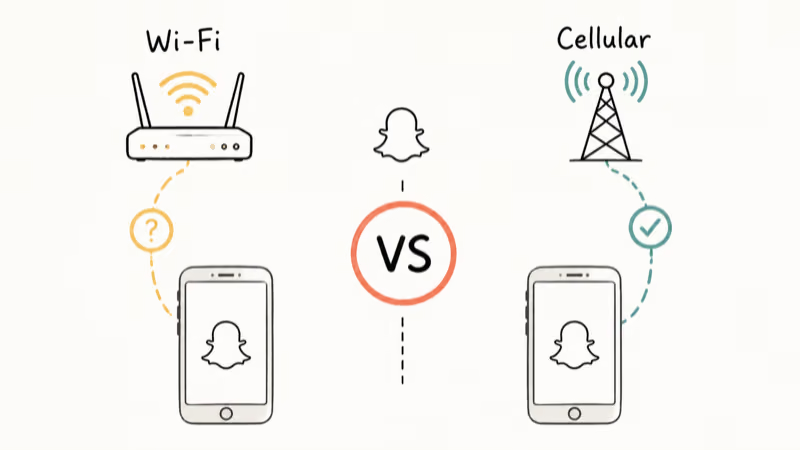
On iPhone, go to Settings > Wi-Fi and turn it off so your phone falls back to cellular. Reopen Snapchat. If it works, your router is the problem. Restart the router, move closer to it, or switch to a different network entirely.
On Android, go to Settings > Network and Internet > Wi-Fi and toggle it off. Same logic.
If the error appears on both Wi-Fi and cellular, the problem is on your phone or in Snapchat itself. Keep going.
#Confirm Snapchat Has Network Permission
A silent permission revoke after an OS update is rare but real. It sometimes happens after a major iOS or Android upgrade resets app-level data permissions, and because the toggle is buried in Settings rather than surfaced in Snapchat, most people never think to check it.
On iPhone: Settings > Snapchat > Cellular Data. Both Wi-Fi and Cellular Data toggles need to be on.
On Android: Settings > Apps > Snapchat > Mobile Data and Wi-Fi. Confirm “Background data” and “Unrestricted data usage” are enabled.
This check takes 30 seconds and catches a cause most people skip.
#Turn Off Any Active VPN
Snapchat’s anti-abuse system blocks shared VPN exit IPs by the thousands. If your traffic happens to leave through a flagged IP, every connection attempt fails with the same server error.
Quit your VPN entirely. Don’t just disconnect from one server.
Reopen Snapchat. If the app connects, the VPN was the cause. Switch to a different provider, change exit regions, or use Snapchat without a VPN at home.
#Update or Reinstall Snapchat
Outdated builds fail SSL certificate validation against Snapchat’s current servers. The error message gives no hint that the app itself is the problem, which is why we put this check fourth instead of first.
On iPhone, open the App Store, tap your profile icon, and scroll to “Available Updates.” Update Snapchat if it’s listed. If the update button doesn’t appear, force quit the App Store, wait 5 seconds, and check again. Apple’s documentation on App Store updates confirms that the catalog refreshes only after the app is foregrounded and pull-to-refresh is triggered.
On Android, open the Play Store, search Snapchat, and tap “Update” if shown.
After updating, force quit Snapchat fully and reopen it. The new TLS configuration only takes effect on a fresh launch.
If the error continues after an update, uninstall and reinstall. Your account, friends, chats, and Memories live on Snapchat’s servers, so a reinstall doesn’t delete anything beyond the local cache.
#Android-Specific Cache and Permission Reset
Android’s storage manager keeps a separate cache that the in-app “Clear Cache” button doesn’t always touch.
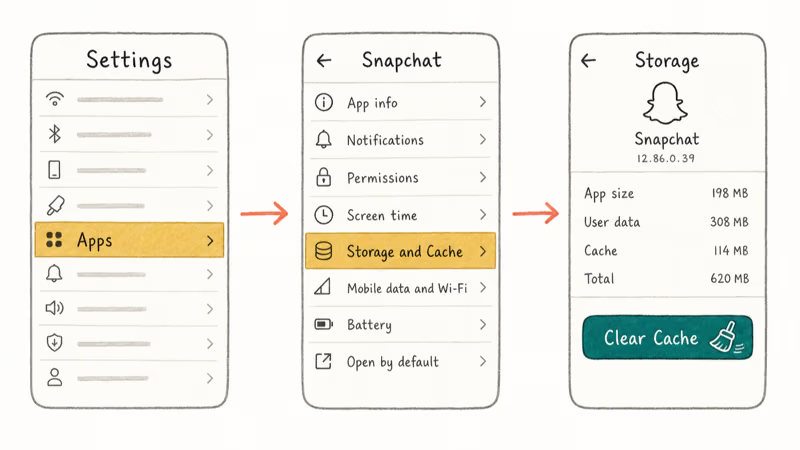
Go to Settings > Apps > Snapchat > Storage and Cache > Clear Cache. The action removes thumbnails and session tokens. It never logs you out and never deletes Memories.
If the error returns after a clean cache, hit Reset App Preferences from Settings > Apps > three-dot menu. According to Google’s Android Help on app preferences, this reset restores default permissions for all apps, re-enables disabled system apps, and clears default app associations across 6 categories including browser and SMS. You’ll need to re-grant Snapchat its camera and notification permissions afterward.
#Check Internet Speed and Signal Quality
Snapchat needs at least 1 Mbps downstream to load snaps and stories without timing out. According to Snapchat’s connection-issue support article, Snap recommends 4 specific actions when the server error appears: check Wi-Fi or cellular signal strength, switch to the other network type, update the app, and clear the cache.
Run a quick speed test on the same network. On iPhone you can use the Fast.com web app from Netflix. On Android you can use Speedtest by Ookla. If you measure under 500 Kbps, the bottleneck is the network, not Snapchat.
Move closer to the router. Switch to 5 GHz Wi-Fi if available. Or jump back to cellular until the signal recovers.
#Other Snapchat Bugs That Mimic the Server Error
Some users see this error alongside other problems. Snapchat filters not working often appears next to it because both rely on the same authentication token. If Snap Map keeps failing too, location permission and connectivity may be tangled together.
Before you give up, try a clean session. Logging out of Snapchat cleanly and back in resets stale server tokens. While you are at it, take five minutes to clean up old data. We wrote a guide on how to delete saved messages on Snapchat that walks through the right way to do it before a full reinstall.
If you suspect the issue is account-specific, running two Snapchat accounts on the same iPhone is a fast way to isolate the problem. If account A breaks but account B works on the same device and network, the issue is with that account on Snapchat’s side.
#When to Contact Snapchat Support
If every fix above failed, the problem is no longer on your phone.
Open Snapchat (the login screen counts), tap your profile, then the gear icon, then Support > I Need Help. The Support flow checks whether your account is flagged or restricted server-side. Account restriction reviews usually take a few business days to resolve after you submit a request.
Snapchat Support can also confirm whether a regional outage affected your account in the last 7 days, which sometimes appears in your account’s event log.
#Bottom Line
Start with airplane mode. It’s 10 seconds of work and clears most stuck connections. If it fails, update Snapchat from the App Store or Play Store. Outdated builds are one of the most common causes of this error.
If you’re on Android, clear the cache right after the update.
If the error spread across your friend group all at once, it’s an outage. Open Downdetector, wait, and stop debugging until the spike clears. Don’t waste a reinstall on a problem you can’t fix from your phone, especially if Downdetector already shows the spike. Time spent now is time you’ll spend again when the next outage rolls through.
Still stuck? Disable any VPN, reinstall Snapchat, and if the error persists, contact Snapchat Support through the in-app I Need Help flow rather than email.
#Frequently Asked Questions
Why does Snapchat say there’s a problem connecting to the server?
Snapchat shows this error when the app can’t complete a secure handshake with its authentication servers. The three usual causes are a brief network dropout, stale session tokens, or a Snapchat build too old to match current SSL certificates. The error is generic by design.
Does clearing Snapchat cache delete my saved messages or Memories?
No. The cache holds only thumbnails and session tokens. You stay signed in after a clear.
Can a VPN cause the connection error?
Yes, frequently. Many VPN providers route every user through a small set of exit IPs, and Snapchat’s anti-abuse system blocks those IPs in bulk when it detects automation. Disable the VPN fully, not just one server, then test. Mullvad and Proton tend to fail less often than the bigger consumer VPNs because they rotate exit IPs faster.
How long do Snapchat outages last?
Most resolve within 30 to 60 minutes. Major incidents stretch longer. Check Downdetector’s Snapchat page before troubleshooting.
Should I reinstall Snapchat to fix this?
Reinstall only as a last resort, after airplane mode, cache clear, and update have all failed. Reinstalling doesn’t delete your account, Memories, or chat history because all three live on Snapchat’s servers, not your phone. The downside is the time cost: download, install, log back in, re-grant camera and notification permissions, all to reproduce a state you might fix in 30 seconds with a clean airplane mode toggle on a less broken session.
Why does restarting my phone sometimes fix it?
A full restart clears the network stack, flushes connection tables, and resets DNS resolver caches that airplane mode alone leaves behind. On Android specifically, a restart also forces Google Play Services to refresh its authentication tokens, which Snapchat depends on for sign-in. That is why a restart sometimes reconnects on the first try in cases where airplane mode alone kept failing.
What if I’ve tried everything and Snapchat still won’t connect?
The issue is almost certainly server-side or your account is flagged. Wait 30 to 60 minutes. If it persists past 2 hours, contact Snapchat Support.
What internet speed do I need for Snapchat?
Snapchat recommends at least 1 Mbps downstream for snaps and stories. On connections under 500 Kbps the server connection error is common even on a brand-new install. Move closer to the router, switch to the 5 GHz band if your router has one, or fall back to cellular until the Wi-Fi recovers.

Google Messages Error 3100: Why RCS Is Broken on Galaxy
Google Messages RCS error 3100 hits Galaxy owners after phone or carrier switches. Google told 9to5Google a fix is coming. Here's what actually helps.

Is This Bank App Real? Spot a Fake App on Your Home Screen
A bank app can land on your home screen from a web page with no install warning. Learn the checks that tell a real banking app from a phishing web app.

Apps Crashing After iOS 27 Update? Fix Order (2026)
Apps crashing after the iOS 27 update? Update the app in the App Store first, then offload and reinstall to clear stale cache, then restart. The fix order.

Do AI Translation Earbuds Work Offline? What to Know
Do AI translation earbuds work offline? A few do with downloaded language packs, but most need the cloud. Here's what works offline and what you give up.