How to Remove My AI From Snapchat (Free or Plus 2026)
Snapchat My AI remove guide: unpin or clear the chatbot for free, fully hide it with Snapchat Plus, delete its data, and understand the privacy tradeoffs.
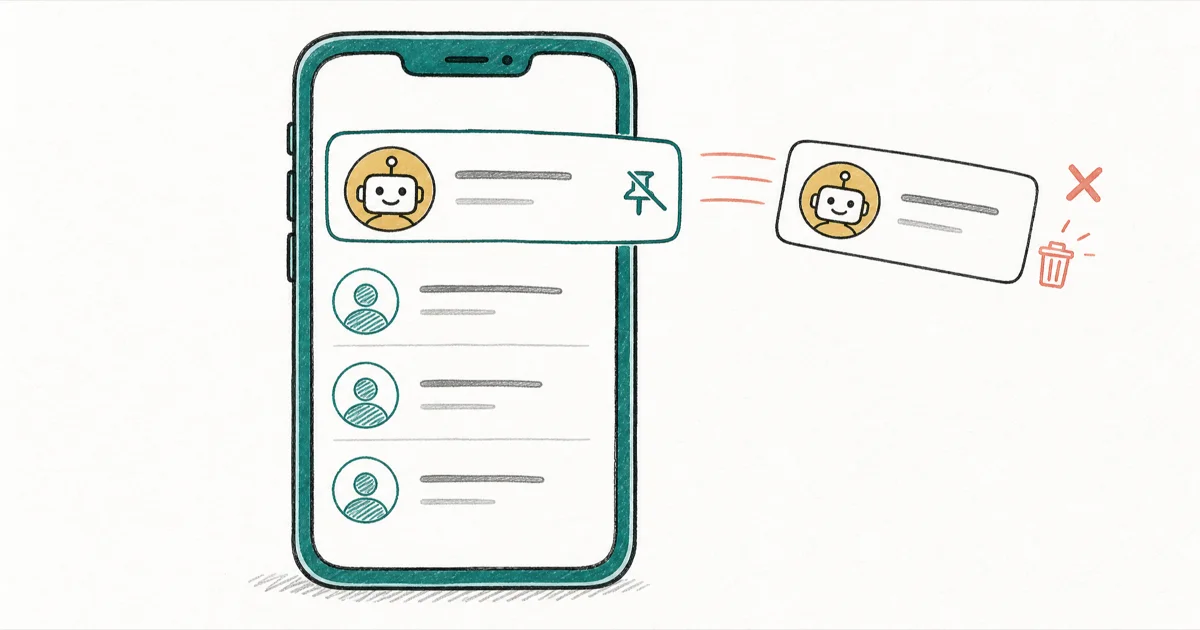
Quick AnswerTo remove My AI from Snapchat, long-press the chat and tap Unpin Conversation or Clear From Chat Feed, which works on free accounts. Snapchat Plus subscribers can fully hide it from a Settings toggle.
If you want to remove My AI from Snapchat, the good news is that you no longer need a paid subscription to get it out of your chat feed. Free accounts can now unpin or clear the chatbot, while Snapchat Plus subscribers get the cleanest full-removal toggle. The catch is that hiding My AI doesn’t erase what it has learned about you, so a true privacy cleanup takes one extra step.
- Free Snapchat accounts can now unpin or clear My AI from the chat feed, a change from the older Plus-only restriction.
- Snapchat Plus subscribers get a Settings toggle that removes My AI from the chat list entirely.
- Hiding My AI does not delete its memory of you, so use Delete My AI Data to wipe stored interactions.
- My AI can reappear if you start a new chat with it, and reinstalling the app won’t get rid of it.
- Update Snapchat first, since the removal options depend on running a current app version.
#Snapchat’s My AI, Briefly Explained
My AI is Snapchat’s built-in chatbot, pinned to the top of your chat feed by default. You can ask it questions, get recommendations, or just talk to it, and it answers in a conversational style much like other AI assistants.
It started as a paid perk. According to the Wikipedia entry on Snapchat, Snapchat launched My AI in February 2023 for Snapchat Plus subscribers and then opened it to all users in April 2023. The same entry notes that the chatbot is built on OpenAI’s GPT technology, which is why it behaves like a stripped-down version of ChatGPT inside the app.
Because it’s pinned by default, plenty of people see it as clutter or a privacy concern rather than a feature. That’s the whole reason this guide exists. The removal path you take depends on whether you’re on a free account or Snapchat Plus, and on whether you want it merely hidden or fully wiped.
#How Do You Remove My AI Without Snapchat Plus?
This is the method that works for every account, free or paid. It hides My AI rather than deleting it, which is enough for most people who just want it out of the way.
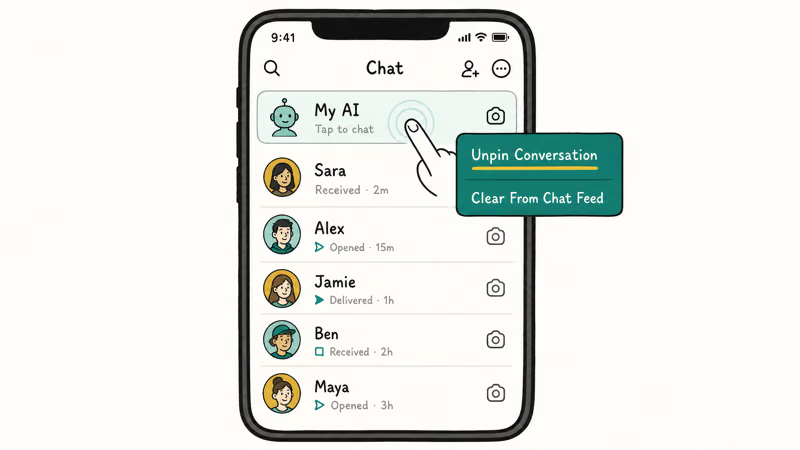
Open Snapchat and swipe right to your Chat screen. Press and hold on the My AI conversation until a menu appears. From there you have two choices that do slightly different things.
Tap Unpin Conversation to drop My AI from the top of your feed. It then sits in your chat list like any normal friend, sorted by most recent activity, so it stops hogging the top slot. If you’d rather it vanish from the main list entirely, choose Clear From Chat Feed instead, which hides the conversation until you interact with the bot again. Snapchat’s support page on My AI confirms that both options are available to all accounts.
Unpinning only drops My AI from the top of your feed, while clearing hides the chat feed entry until you interact with the bot again. Neither option deletes the bot or your conversation history, so keep reading if privacy is your real goal.
#Full Removal With Snapchat Plus
Snapchat Plus subscribers get the cleanest option: a toggle that removes My AI from the chat list completely. Snapchat still offers early-access and experimental controls to Plus members, but this particular toggle is the one worth knowing.
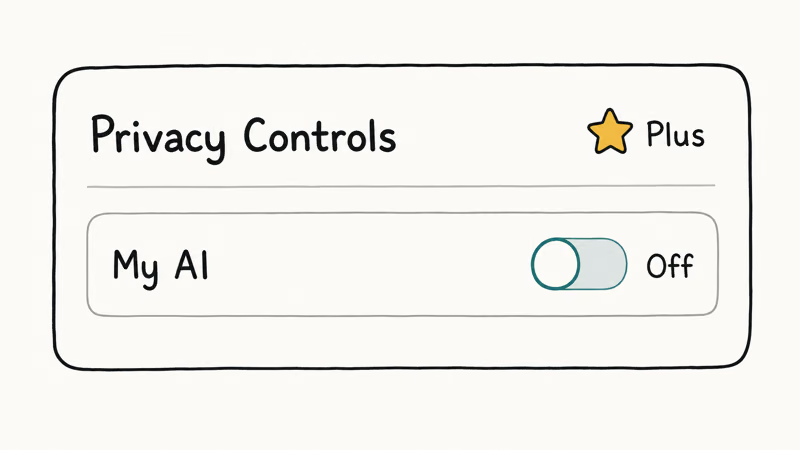
Open Snapchat and tap your profile icon, then the gear icon to open Settings. Scroll to the My AI section under Privacy Controls and turn off the option to show My AI. When the toggle is available, turning it off hides My AI from the chat list, and turning it back on restores it.
This is the only method that fully removes My AI from view rather than just hiding it in place. If you don’t subscribe, the unpin and clear options above are your equivalent, and they cover the same practical need without the cost.
#Does Hiding My AI Delete Your Data?
No, and this is the part most guides skip. Unpinning, clearing, or even the Plus toggle only changes what you see. None of them touch the data My AI has collected from your conversations and shared location.
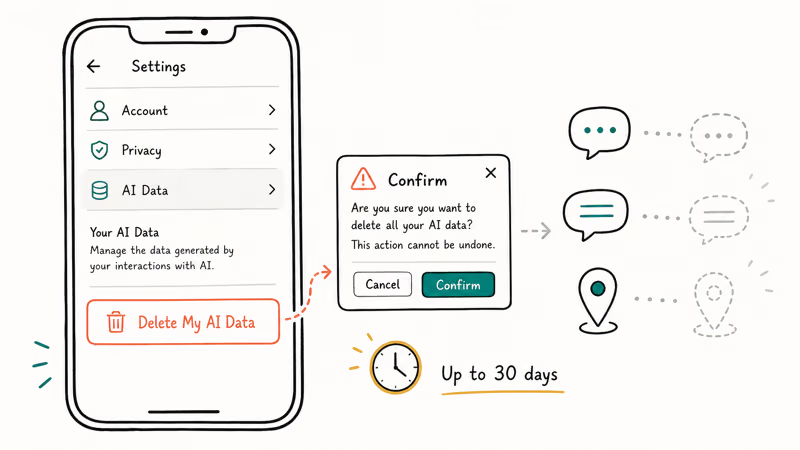
To wipe that, open Settings. On iPhone, go to Privacy Controls, tap Delete Data, then Delete My AI Data and confirm, while Android users scroll to Account Actions and tap Delete My AI Data. This clears your past interactions and location history from the bot’s memory. Snapchat’s support page on deleting My AI data states that it can take up to 30 days to remove the data from its servers, so the change is not always instant.
Treat hiding and deleting as two separate jobs that solve two separate problems. Hiding tidies your feed but leaves every stored interaction untouched. Deleting is the half that addresses privacy, removing the interests, facts, and location history the bot has built up about you. If managing chat clutter is your broader aim, our guide on clearing recents on Snapchat covers tidying the rest of your conversation list.
#Why My AI Keeps Coming Back
My AI is sticky by design. Hiding or clearing it only works temporarily, so it reappears the moment you start a new conversation with it or tap it again.
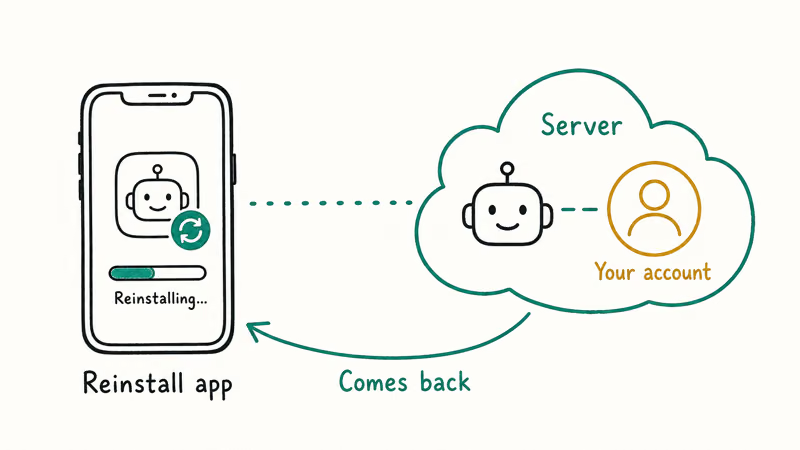
Reinstalling Snapchat does nothing either. The bot is a server-side feature tied to your account, not the app on your phone, so a fresh install brings it straight back. The only way to keep it out of view long-term is the Plus toggle, paired with periodic data deletion if privacy is your concern.
#Update Snapchat First If Options Are Missing
The removal menus depend on running a current app version, and older builds may not show the unpin or clear options at all. Update Snapchat from the App Store or Google Play before assuming a setting is gone.
If Snapchat is acting up after an update, our guide to Snapchat notifications not working on iPhone covers related app-health fixes.
Account access can block these settings too. If you’re locked out, our walkthroughs on a forgotten Snapchat username and being added by phone number on Snapchat cover the recovery and privacy controls you may need first.
#Bottom Line
Removing My AI from Snapchat is simpler than it used to be. Free accounts long-press the conversation and choose Unpin Conversation or Clear From Chat Feed, while Snapchat Plus subscribers flip a Settings toggle for a full removal.
Either way, remember that hiding the bot doesn’t erase its memory, so run Delete My AI Data if privacy is the point. And don’t be surprised when it reappears after you message it again, because that is how Snapchat designed it. The most durable move is downloading your data and reviewing privacy settings, which our guide to downloading your Snapchat stories and data walks through.
#Frequently Asked Questions
Can I remove My AI from Snapchat for free?
Yes. Long-press the conversation and choose Unpin Conversation or Clear From Chat Feed, both now free.
Does unpinning My AI delete my conversation history?
No. Unpinning and clearing only change where the bot appears in your feed. Your past conversation stays intact, and the data My AI has learned about you remains until you use Delete My AI Data in Settings.
Will My AI come back after I hide it?
It can. Hiding is temporary, so My AI returns the moment you message it. The Snapchat Plus toggle is the closest thing to a lasting fix.
Does reinstalling Snapchat get rid of My AI?
No. My AI is a server-side feature tied to your account, not the app on your device. A fresh install brings it right back, so reinstalling is wasted effort. Use the unpin, clear, or Plus toggle methods instead.
How do I delete the data My AI collected?
Open Settings and head to Privacy Controls on iPhone or Account Actions on Android, then tap Delete My AI Data and confirm. This wipes your past interactions and the location history the bot has stored. Snapchat notes that full processing can take up to 30 days, so don’t expect the change to register the same minute you tap confirm, and check back later if you want to be sure it cleared.
What is My AI built on?
Wikipedia reports that Snapchat’s My AI runs on OpenAI’s GPT technology, the same family of models behind ChatGPT. That’s why it answers in a conversational, assistant-like style. It launched in 2023, first for Snapchat Plus and then for everyone.
Why can’t I find the option to hide My AI?
You’re probably running an outdated app. The unpin, clear, and toggle options depend on a current Snapchat version, so update the app from the App Store or Google Play first. After updating, long-press the conversation again and the menu should appear.

Is This Bank App Real? Spot a Fake App on Your Home Screen
A bank app can land on your home screen from a web page with no install warning. Learn the checks that tell a real banking app from a phishing web app.
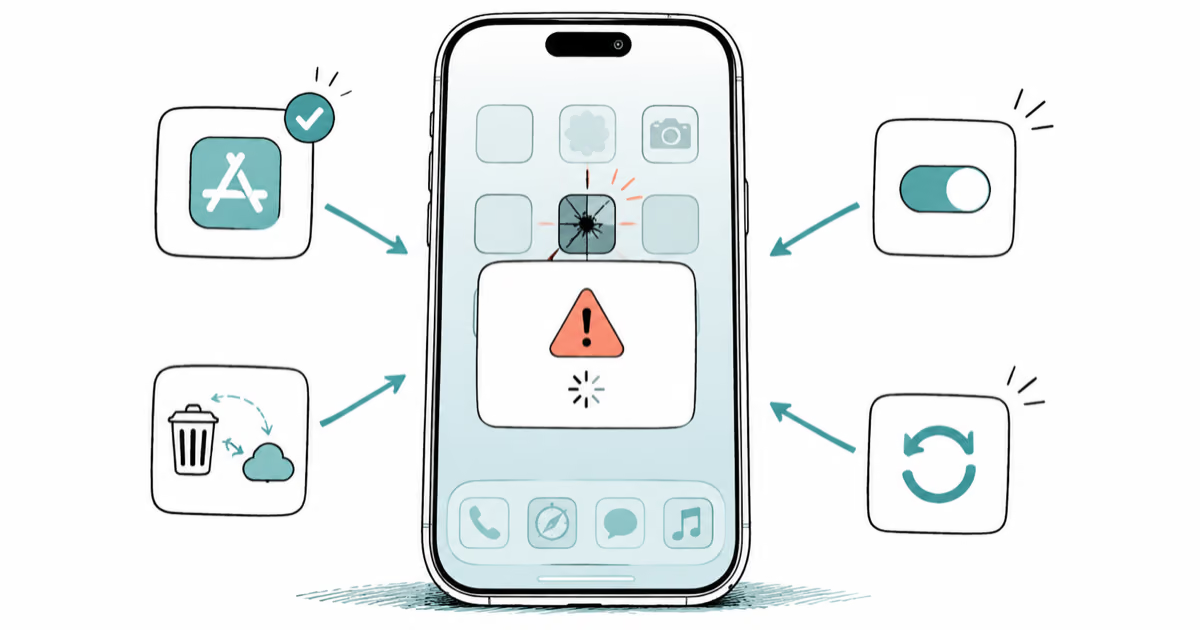
Apps Crashing After iOS 27 Update? Fix Order (2026)
Apps crashing after the iOS 27 update? Update the app in the App Store first, then offload and reinstall to clear stale cache, then restart. The fix order.
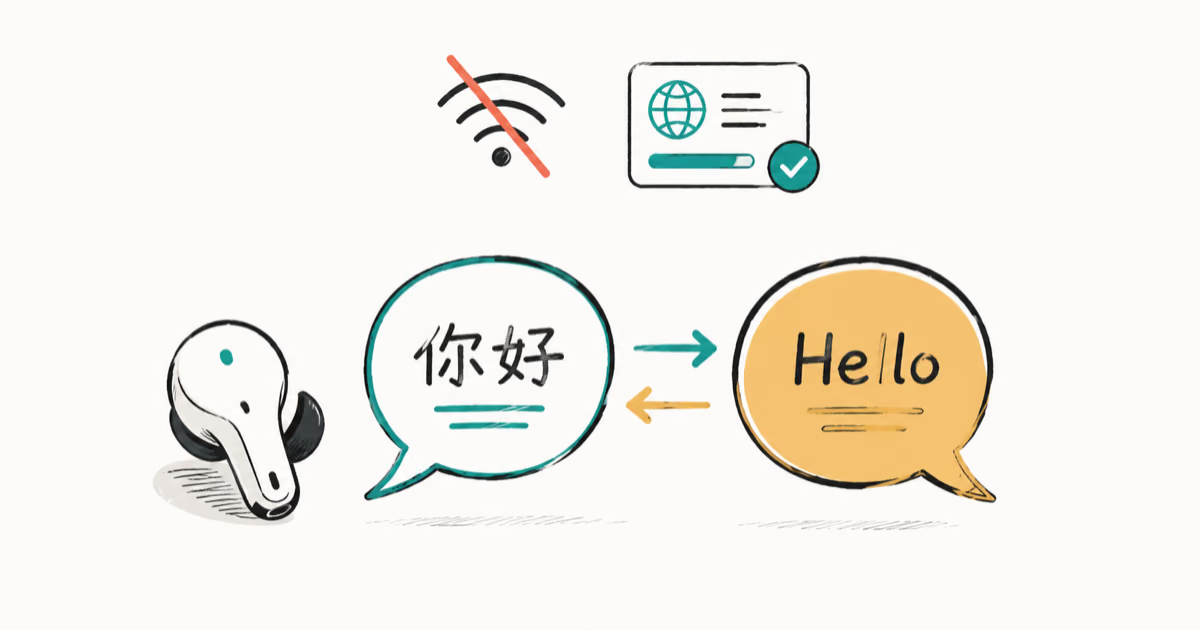
Do AI Translation Earbuds Work Offline? What to Know
Do AI translation earbuds work offline? A few do with downloaded language packs, but most need the cloud. Here's what works offline and what you give up.
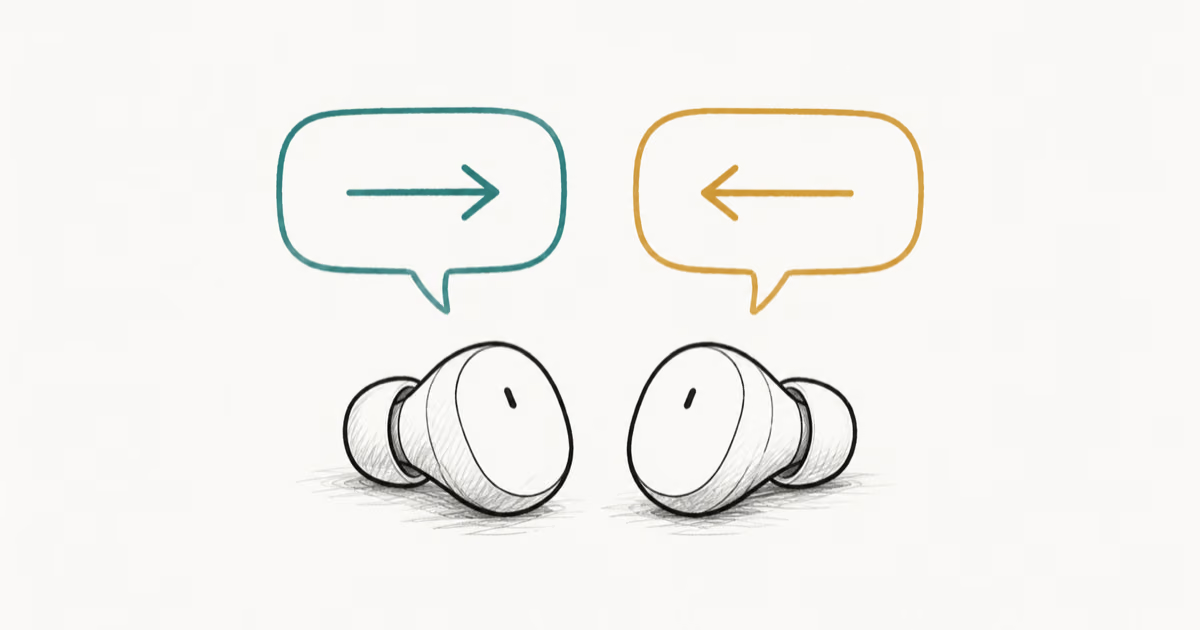
How to Set Up Translation Earbuds (Pairing and Modes)
How to set up translation earbuds: charge, install the app, pair over Bluetooth, pick two languages, and choose a mode. A step-by-step first-use guide.