Share Contacts Between iPhone and Android: 4 Methods
Sync iPhone and Android contacts using iCloud, Google Contacts, Move to iOS, or vCard. Step-by-step methods for single contacts and full lists.
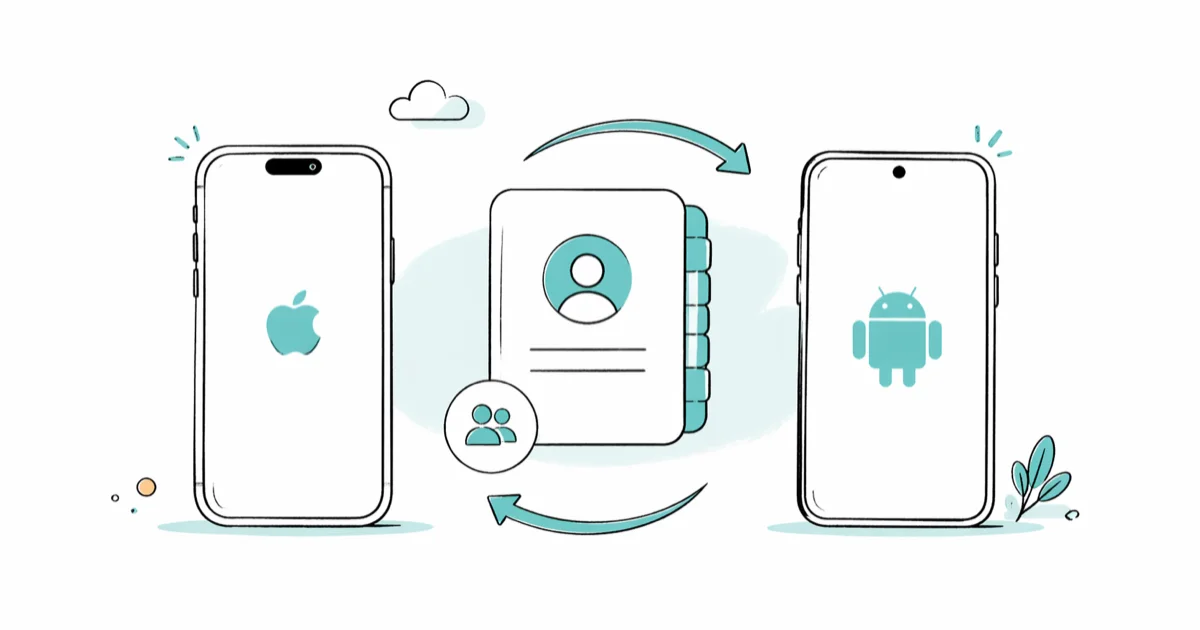
Quick AnswerThe reliable path is to sync iCloud on iPhone and Google Contacts on Android, then install the Google Contacts app on iPhone for live cross-platform access. For one-time switches, use Move to iOS or share a vCard file.
Sharing contacts between iPhone and Android takes about five minutes once you pick the right method. The best path depends on whether you’re switching phones once or syncing both devices long-term. Google Contacts is the strongest option when you want edits to stay synced automatically on both platforms.
- Google Contacts is the only method that keeps an iPhone and Android phone in live sync without manual exports.
- Move to iOS is the fastest one-time path when setting up a brand-new iPhone from an Android phone.
- vCard (.vcf) files work on every platform and travel through email, AirDrop, or cloud storage.
- iCloud sync stays inside Apple devices unless you log into iCloud.com from a browser.
- Single contacts share fastest from the native Share Contact button inside each phone’s Contacts app.
#How to Sync Contacts via iCloud
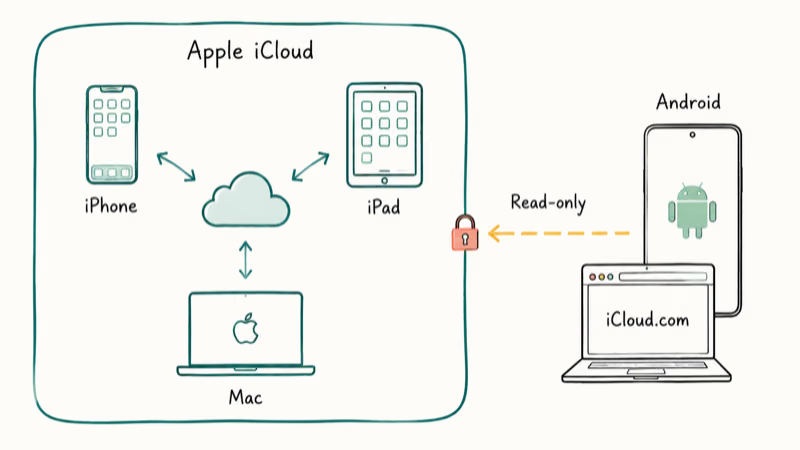
iCloud handles iPhone-to-iPhone and iPhone-to-Mac syncing automatically. It stops at the Apple wall, so an Android phone can only see iCloud contacts through a browser, not through the Android Contacts app.
On your iPhone:
- Open Settings and tap your name at the top
- Select iCloud, then Contacts
- Toggle Contacts on
- Wait for the spinning indicator to finish
Once iCloud finishes syncing, the same list appears on every Apple ID device. The Android side stays read-only via iCloud.com.
This is the simplest setup if every device you own except one is Apple. The real catch shows up when you add an Android contact: it never reaches your iPhone unless you also sync that contact through Google or export a vCard.
If iCloud stops syncing across Apple devices, the fix usually comes down to account or storage settings. Our iCloud contacts not syncing guide walks through the most common causes. For longer-term Android access, the iCloud for Android workaround covers what to do when the web view isn’t enough, including configuring Outlook on Android to read iCloud Contacts via CardDAV credentials.
#How Do You Sync Contacts via Google Contacts?
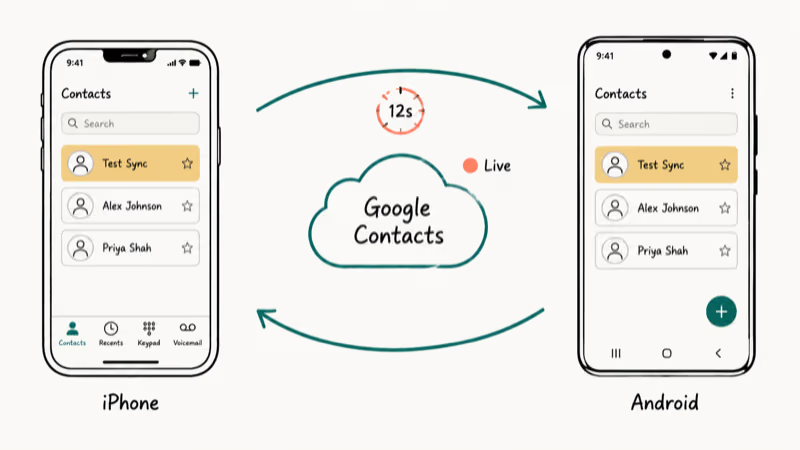
Google Contacts is the closest thing to true cross-platform syncing. Android phones lean on Google by default, and the Google Contacts app on iOS pulls the same list straight into iPhone, so edits on either device can flow back to the shared Google address book.
On your Android device:
- Open Settings, then Accounts
- Tap your Google account, then Account sync
- Toggle Contacts on
On your iPhone:
- Open the App Store and install Google Contacts
- Sign in with the same Google account you use on Android
- Allow the app to read your iPhone contacts when prompted
After both devices finish their first sync, edits flow in both directions. Google’s Contacts help center confirms that the iPhone app reads from the same contacts.google.com database as Android. That shared database is why Google Contacts works better than one-time exports when you want both phones to keep matching over time.
The trade-off is account mixing. You’ll end up with two parallel lists unless you pick Google as your primary directory and stop saving new contacts to iCloud.
#How to Transfer Contacts When Switching Phones
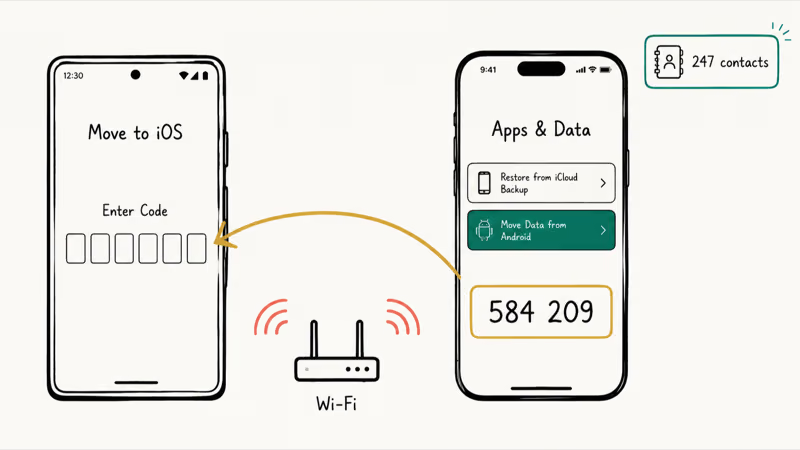
When you’re activating a brand-new iPhone for the first time, Apple’s Move to iOS app pulls everything from Android in one shot. It can move contacts along with messages, photos, and calendar events during the setup flow.
Steps:
- Begin setup on the new iPhone
- When you reach the Apps & Data screen, tap Move Data from Android
- On the Android phone, install Move to iOS from the Play Store
- Open the app and accept the terms
- Enter the six- or ten-digit code shown on the iPhone
- Pick Contacts (and any other categories) from the list
- Leave both phones plugged in until the iPhone shows the home screen
According to Apple’s Move to iOS support article, the app transfers contacts, messages, photos, videos, web bookmarks, mail accounts, calendars, free apps, and accessibility settings. Move to iOS only runs during initial iPhone setup. Once your iPhone is past the welcome screens, the app won’t trigger again, and erasing the phone just for contacts isn’t worth it. Fall back to Google Contacts or the vCard method below in that case.
#How to Transfer Contacts Between Phones That Are Already Set Up?
Both phones are already running, you’ve signed into your accounts, and you don’t want to wipe anything. Two methods cover this situation: a manual vCard export or a third-party transfer app.
#Manual Transfer via vCard
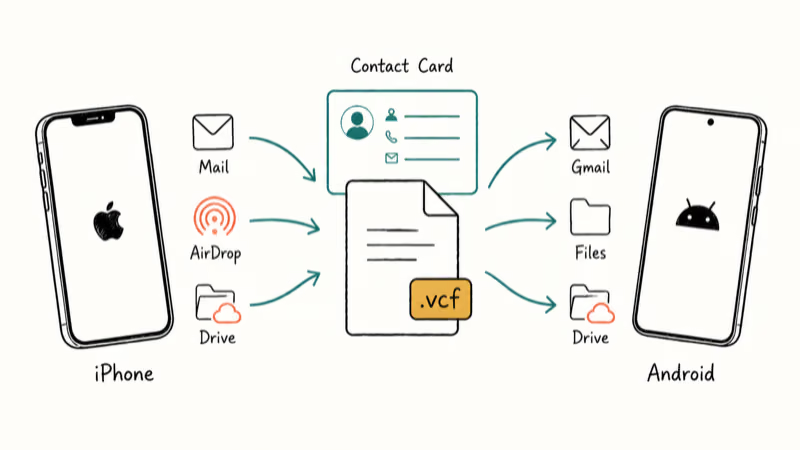
The vCard format (.vcf) is the universal handshake for contact data. The IETF vCard specification states that vCard 4.0 uses the MIME type text/vcard as the standard interchange format for contact records (RFC 6350), and iOS Contacts, Android, Windows, Gmail, and macOS all read and write the same format.
Export from iPhone:
- Open Contacts and pick a contact
- Scroll down and tap Share Contact
- Pick Mail, AirDrop, or any messaging app
- Send the .vcf to yourself or to the other person
For multi-contact exports on iPhone, sign into iCloud.com, open Contacts, select all, and choose Export vCard from the gear menu.
Export from Android:
- Open the Contacts app
- Tap the menu, then Settings, then Export
- Pick a Google account and tap Export to .vcf file
- Save the file to your Files app, Drive, or email
Import on either phone:
- Open the .vcf attachment from email, AirDrop, or cloud storage
- Tap Add All Contacts (iPhone) or Import (Android)
- Pick the destination account if prompted
vCard wins on flexibility. It’s the right call when you’re handing a contact list to someone, archiving an old phone, or moving a few hundred contacts without setting up new accounts. If your AirDrop transfer stalls during the export, our AirDrop not working fix covers the most common causes.
#Copy My Data and Similar Apps
Third-party apps like Copy My Data run on both iPhone and Android and push contacts (plus calendar events) over the same Wi-Fi network. The flow takes about 90 seconds end to end.
- Install the app on both phones from each store
- Connect both phones to the same Wi-Fi network
- Open the app on both, pick “Send” on the source and “Receive” on the destination
- Confirm the matching code on both screens
- Tap Contacts and start the transfer
These apps work well for moving an existing list to a friend’s phone or to a second device you own. They don’t keep the two phones in sync after the transfer. For ongoing sync, you still need Google Contacts. If you’ve already lost contacts to a reset, the Android factory-reset recovery guide covers cloud and SIM-card recovery options.
#How to Move Single Contacts the Fast Way
Need to share one contact fast? The Share Contact button does it in a tap.
On iPhone: open the contact, tap Share Contact, then pick Messages, Mail, AirDrop, or WhatsApp. AirDrop to another nearby iPhone is usually the quickest path.
On Android: open the contact, tap the three-dot menu, then Share. Android pulls up the same share sheet you’d see for any file, so you can pick Gmail, Messages, Bluetooth, or Nearby Share. Nearby Share works phone-to-phone without an internet connection if both devices have the feature toggled on inside Settings, and the receiving Android phone shows a banner notification as soon as the file arrives.
There’s no setup, no account linking, no app to install. The receiving phone shows a tap-to-add prompt as soon as the file lands, so this is the cleanest option for a single contact. If you keep contacts inside OneDrive instead of iCloud or Google, the OneDrive contact import guide walks through the export route to iPhone.
#What to Do When the Transfer Fails
Failed transfers almost always trace back to one of three things: account mismatch, network drop, or a file the receiving phone won’t parse.
Check the account first. Move to iOS needs both phones connected to the same Wi-Fi, and if the iPhone is signed into a different Apple ID than the new one you’re setting up, the migration won’t start. According to Apple’s troubleshooting page for Move to iOS, turning off Smart Network Switch on Android prevents the phone from jumping to cellular mid-transfer, which kills the connection.
Network drops are the second most common cause. Move both phones close to the router, disable VPNs, and pause large downloads on either device.
If you’re seeing repeated stalls during cloud syncing rather than a one-shot transfer, the iTunes Wi-Fi sync fix covers the same network-side issues that block cloud sync.
For a corrupt vCard, the symptom is usually one or two contacts importing while the rest fail silently. Re-export the file from the source phone, send it through a different channel (email instead of AirDrop, or vice versa), and try again. If iCloud itself is the bottleneck, the iCloud account reset walkthrough is the fallback for stale credentials.
#Bottom Line
If you own both an iPhone and an Android phone and want them to stay matched, Google Contacts on both devices is the only method that keeps editing in real time without weekly maintenance. Set it once and forget it.
Move to iOS is the right call exactly once, during the initial iPhone setup, and not at any other time. For everything else (handing contacts to a friend, archiving a phone before resale, moving a few hundred entries between phones already in use), vCard export wins on flexibility because it works on every platform without an account.
For backing up the rest of your phone, like messages, media, and app data, the Samsung WhatsApp backup guide and Android app backup guide cover the data that contact transfers leave behind.
#Frequently Asked Questions
Can I transfer 1,000 contacts at once?
Yes. Every method on this page handles bulk transfers. For large lists, run the transfer over Wi-Fi rather than cellular and keep both phones charged until the import finishes.
Why don’t my iCloud contacts show up in the Android Contacts app?
iCloud doesn’t push contacts into the Android Contacts app. Apple’s iCloud sync support page states that iCloud Contacts syncs to iOS, iPadOS, macOS, and the iCloud.com web view, but not to third-party operating systems. The workaround is to export iCloud contacts as a vCard and import that file into Google Contacts, which then syncs to Android.
Does transferring contacts use my mobile data?
Move to iOS runs on a private Wi-Fi network and never touches mobile data. Cloud sync uses a few kilobytes per contact.
Can I sync contacts without giving an app permission?
No. Both iOS and Android force apps to request explicit Contacts permission the first time they try to read or write the address book. This is a privacy guardrail, not a configuration step you can skip. If you decline, the app falls back to a manual file import flow.
What happens to my contacts after I transfer them?
The contacts live on the destination phone permanently and behave like any other entry you’ve added by hand. They don’t stay linked to the source unless you set up two-way syncing through Google Contacts or iCloud, so each phone keeps its own copy after the transfer finishes. Deleting a contact on one device won’t delete it on the other in a one-time transfer. To mirror changes automatically going forward, point both phones at the same Google account.
Is a vCard the same as a full phone backup?
No. A vCard file holds contact records and nothing else, with no messages, no photos, no app data, and no call history. For a complete backup, use iCloud Backup on iPhone or the Google One backup service on Android.

Mac mini M6 vs M5 Pro: Which Model Should You Buy?
Mac mini M6 vs M5 Pro compared on price, memory, ports, displays, and real workloads. Find the better 2026 Mac mini for your desk and budget.

Apple Siri Settlement: Who Qualifies and How to Claim
Apple's $250 million Siri settlement covers iPhone 15 Pro and iPhone 16 models bought June 2024 to March 2025. See who qualifies and how claims work.

iOS 26.6.1 Security Update: What Apple Fixed and Who Gets It
Apple released iOS 26.6.1 on August 17 with 29 security fixes, including an IPSec interception bug. See what it patches, who gets it, and how to update.

iPhone Adaptive Power: How It Works and When to Use It
Learn how iPhone Adaptive Power works, which models support it, what it changes, and when Low Power Mode is still the better battery-saving choice.