iCloud Contacts Not Syncing: An Apple-First Fix Guide
Fix iCloud contacts not syncing on iPhone, iPad, and Mac with Apple-first checks for hidden lists, account mismatches, outages, and storage limits.
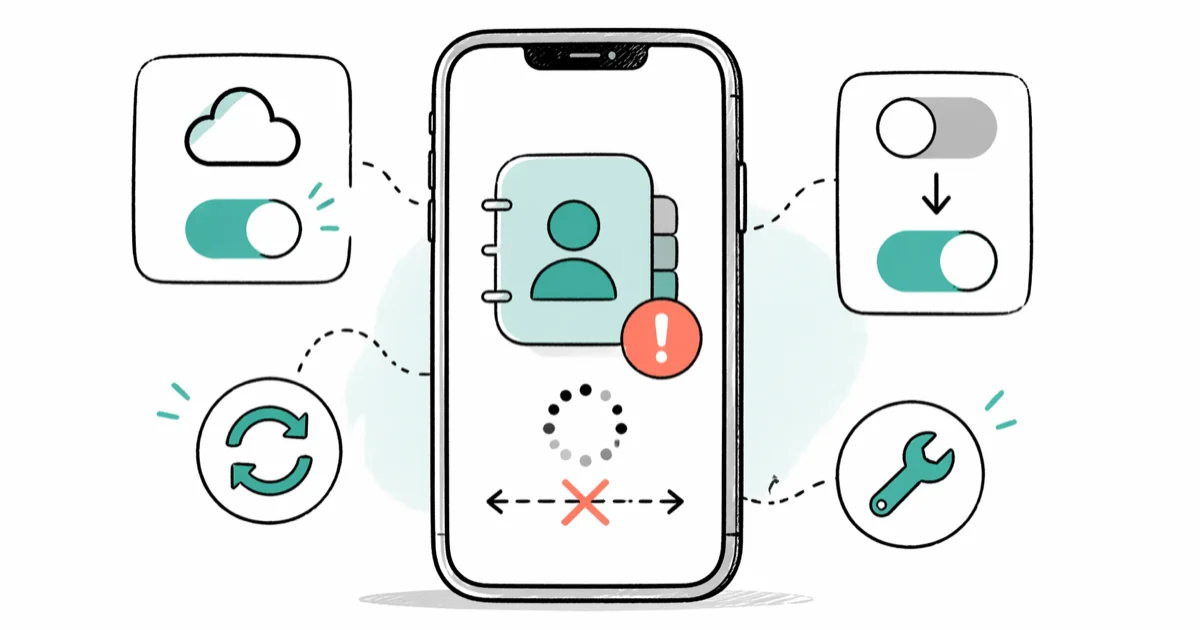
Quick AnswerCheck Apple's System Status, install available updates, and confirm every device uses the same Apple Account with Contacts enabled. Then open Contacts > Lists and select All iCloud.
iCloud contacts can look missing after an outage, account mismatch, disabled setting, or hidden list. Start with Apple’s safe checks, and don’t sign out or erase the phone until the contacts are visible elsewhere and separately backed up.
- Check Apple System Status and install available system updates before changing account settings
- Confirm every device uses the same Apple Account and has Contacts enabled in iCloud
Open Contacts>Lists andselect All iCloud so another account or hidden list isn’t mistaken for data loss- Verify the contacts on iCloud.com and export a vCard before turning Contacts off or signing out
- Contact Apple Support before erasing a device solely because Contacts won’t sync
#What Causes iCloud Contacts to Stop Syncing?
Apple’s current troubleshooting order starts with service status, software updates, the Apple Account, iCloud feature settings, and date and time. Run those checks before assuming the contact database is damaged.
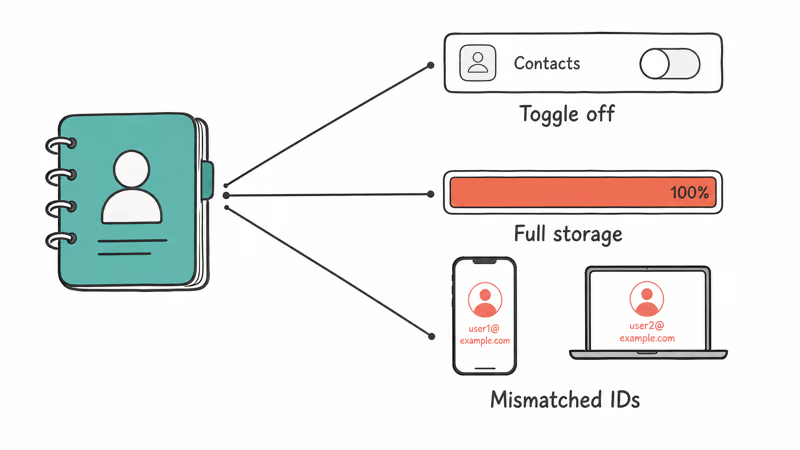
According to Apple’s current iCloud Contacts troubleshooting page, every device should use the same Apple Account, have Contacts enabled in iCloud, run the latest available software, and show the correct date and time. The same page also says to check Apple’s System Status for a reported iCloud Contacts outage.
Storage is another check, but don’t diagnose it from missing contacts alone. Apple’s current storage guidance says that when iCloud storage is exhausted, iCloud Drive and other iCloud apps may stop staying up to date across devices. Our guide on iCloud storage full explains how to review usage without deleting the first backup you see.
A different Apple Account won’t show the first account’s iCloud contacts.
A device also needs a working internet connection. Compare Wi-Fi and cellular access, but don’t treat a slow network as proof that the contacts themselves are gone.
#Refresh Contacts Before Changing iCloud Settings
Open the Contacts app and swipe down on the list. Apple lists this refresh step before account sign-out or device erasure.
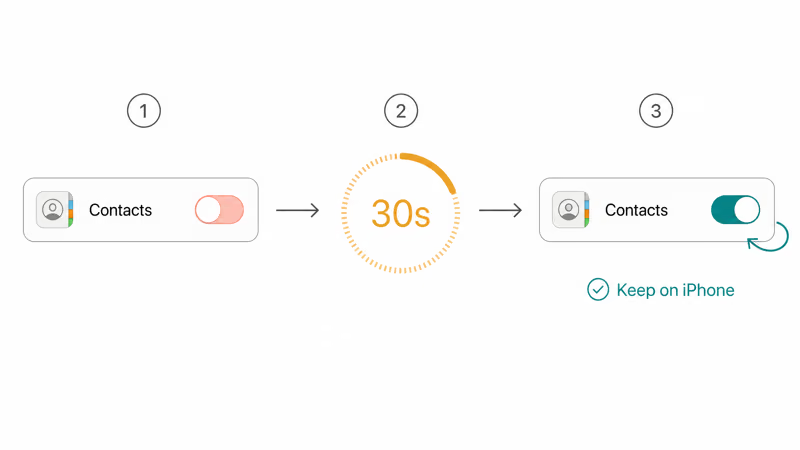
Open Settings, tap your name, tap iCloud, then tap Show All or See All to find Contacts. If Contacts is off, turn it on. If it’s already on, first confirm that the expected contacts appear at iCloud.com/contacts or on another trusted device.
If you still choose to turn Contacts off and on, read each prompt before continuing. Apple’s iCloud data guide explains that turning a feature off stops that device from receiving updates and may ask whether to keep a local copy or remove iCloud data from the device. The current Apple page does not publish a fixed Contacts sync time.
After turning Contacts on, keep the device connected and refresh the Contacts list again. If entries remain missing, continue with the account and list checks below rather than repeatedly toggling the setting.
#Verify Your Apple Account Is the Same on Every Device
An Apple Account mismatch is easy to miss when a device was added for work or previously belonged to someone else.
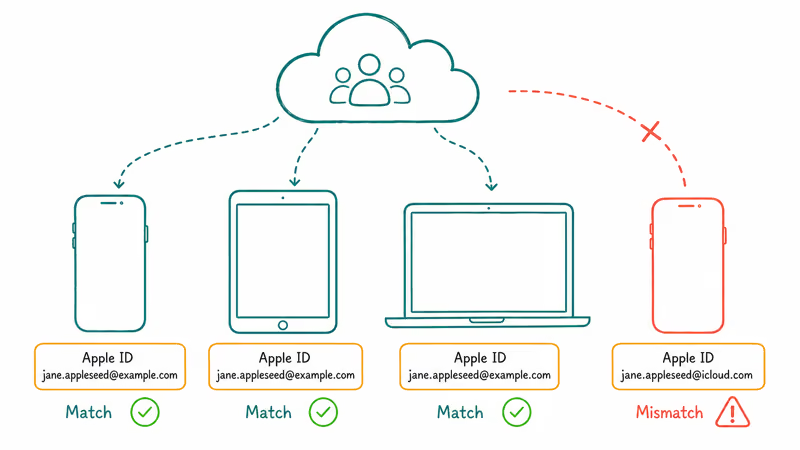
Open Settings on each device and look at the email under your name.
The Apple Account must be the one that stores the expected iCloud contacts. Before signing out of anything, open Contacts > Lists and compare All iCloud with the lists for Google, Exchange, or other accounts.
If a device truly uses the wrong Apple Account, verify where each contact is stored and make a copy before signing out. Apple’s sign-out guidance says iCloud information is removed from the device unless you choose to keep a copy, and recommends checking iCloud.com or another device to confirm recent changes have synced.
Apple’s current Contacts troubleshooting page says all participating devices should be signed in to iCloud with the same Apple Account and have Contacts enabled.
#Check iCloud Storage Limits
Open Settings, tap your name, tap iCloud, then tap Manage Account Storage.
If the storage indicator is full, review which categories use space. A full indicator is relevant, but it doesn’t prove that every missing contact is caused by storage.
Apple provides a base amount of iCloud storage, shared by backups, Photos, Mail, iCloud Drive, and other apps. Review each category before deleting anything. Removing an iCloud backup also turns off iCloud Backup for that device, so verify that the backup is obsolete and that important data exists elsewhere first.
Apple’s current iCloud storage guidance states that exhausted storage can stop iCloud apps staying up to date. It doesn’t say Contacts or Calendar always fail first.
If storage remains full, delete only data you have verified elsewhere or compare the current iCloud+ plans shown for your region. Buying more storage can address a confirmed storage limit, but it won’t fix an account mismatch or a hidden Contacts list.
#Does Resetting Network Settings Fix iCloud Contacts Not Syncing?
It can help when the device has a broader connectivity problem, but Apple does not list a network reset as the first Contacts-specific step.
First confirm that the device can reach iCloud.com and that Apple System Status reports no Contacts outage. If other apps also fail on the same connection, troubleshoot Wi-Fi before changing iCloud settings.
If you decide to reset the network profile, go to Settings > General > Transfer or Reset iPhone > Reset > Reset Network Settings. Apple’s iPhone reset guide says this removes network settings, resets the device name, and changes manually trusted certificates to untrusted. Have Wi-Fi credentials and any required VPN configuration ready before proceeding.
If your Wi-Fi has been dropping in general, fix the connection first. Our guide on phone won’t connect to Wi-Fi covers the router and DNS checks that matter, and the iPad Wi-Fi connection guide handles tablet-specific quirks.
If the connection problem affects several devices, restart the router according to its manufacturer’s instructions before resetting each phone or tablet.
#Advanced Fixes for Persistent Sync Problems
If the quick steps above didn’t move anything, try these in order.
Sign out only after making a copy. Sign-out affects Contacts updates and many other iCloud services. Apple says to confirm recent changes on iCloud.com or another device, keep an up-to-date backup, and understand which data will remain on the device before signing out. If sign-in later throws an error, our guide on resolving iCloud connection errors covers the specific message without assuming the contacts are lost.
Identify third-party contact accounts. Open Contacts > Lists and compare All iCloud with Google, Exchange, and other account lists.
If the missing entry appears only under another account, that identifies its storage source; it does not mean the account is corrupt. Export or move the contacts deliberately before disabling that account, because switching it off can remove its contacts from the device view.
Verify the contacts on iCloud.com. On a tablet or computer, go directly to iCloud.com/contacts and sign in to the Apple Account you checked on the device.
If the page won’t open or the expected contacts aren’t there, don’t infer an account-level failure from a missing homepage tile. Try a supported browser, check System Status, and contact Apple Support if the account view still differs across devices.
Update iOS or macOS. Apple’s current troubleshooting page recommends current software, one Apple Account, and Contacts enabled on every device.
Apple’s separate iCloud system requirements call for up-to-date software and list minimum versions by feature. Go to Settings > General > Software Update and install any pending update before retesting; a version gap by itself does not prove the cause of a sync failure.
Restart the Contacts app. Swipe Contacts off the App Switcher, then reopen it. On Mac, quit and relaunch the app to clear in-memory state.
#Contact Apple Before Erasing the iPhone
An iCloud Contacts sync problem by itself does not prove that iOS is corrupt. Check Apple System Status and contact Apple Support before erasing the device solely for missing contacts.
If Apple Support directs you to erase the phone, first verify that the contacts exist on iCloud.com or export them as a vCard. Apple’s iCloud Contacts export guide says all contacts can be exported as one vCard and used as a backup.
Also create and verify a computer backup, but don’t assume it contains data already synced to iCloud. Apple’s backup-method comparison says computer backups exclude data already synced and stored in iCloud. Only then use Settings > General > Transfer or Reset iPhone > Erase All Content and Settings if instructed. If the restore stalls, our guide on iPhone stuck in recovery mode covers the recovery options.
#Bottom Line
Start with Apple’s System Status, available software updates, the Apple Account shown on each device, and the Contacts setting in iCloud.
Then open Contacts > Lists, select All iCloud, and swipe down to refresh. If the contacts appear on iCloud.com but not the device, work through the device-specific checks without disabling accounts blindly.
If the official checks don’t reconcile the views, contact Apple Support. Don’t label it an account-level fault or erase the device until Apple has helped isolate the cause.
#Frequently Asked Questions
Why do my iPhone contacts keep disappearing from iCloud?
Contacts may be hidden because the app is showing another list, the device uses a different Apple Account, Contacts is off in iCloud, or Apple is reporting a service issue. Open Contacts > Lists and select All iCloud, then compare the account and iCloud settings before toggling anything.
How long does iCloud contacts sync take?
Apple’s current Contacts troubleshooting page does not publish a fixed sync time. Keep the device connected, swipe down on the Contacts list to refresh, and check whether the same entries appear on iCloud.com or another device before changing account settings.
Why are my contacts not syncing between iPhone and Mac?
Confirm both devices use the same Apple Account and that Contacts is on in iCloud settings on each. On iPhone, go to Settings, tap your name, tap iCloud, tap Show All or See All, then check Contacts. On Mac, open System Settings, click your name, click iCloud, then make sure Contacts is enabled. If both are correct, refresh Contacts and contact Apple before signing out.
Can iCloud sync contacts to Android?
Not as a live iCloud Contacts sync. On a tablet or computer, sign in at iCloud.com, open Contacts, select the contacts, and export a vCard. Import that copy into Google Contacts if you want it on Android. Our guide on using iCloud email on Android covers the broader workaround.
What should I do if iCloud notes aren’t syncing either?
Multiple services failing at once can reflect a reported outage, connectivity, storage, or account settings. Check System Status and the device’s iCloud storage view first.
If those checks are clear, follow the service-specific steps before signing out. Our guide on iCloud notes not syncing covers Notes without assuming that a stale token is the cause.
How do I stop duplicate contacts from appearing after syncing?
Duplicates can appear when iCloud and a third-party account like Google both contain the same entry and both contact lists are visible on the device.
Use Contacts > Lists to identify which account supplies each copy. Export important contacts before disabling an account. On Mac, review the matches offered by Card > Look for Duplicates before accepting a merge.
Can iCloud contacts not syncing be caused by a software bug?
Possibly, but timing after an update does not prove a software bug. Install the latest available release, check System Status, and compare iCloud.com with another device. If the mismatch persists, give Apple Support the device versions and the exact point where the views differ.
Is there a way to check iCloud sync status?
Yes. Open Apple’s System Status page and look for iCloud Contacts. A reported issue is a reason to wait before changing device settings. A green indicator only means Apple is not reporting an outage; it does not prove that the fault is on one specific device.

Mac mini M6 vs M5 Pro: Which Model Should You Buy?
Mac mini M6 vs M5 Pro compared on price, memory, ports, displays, and real workloads. Find the better 2026 Mac mini for your desk and budget.

Apple Siri Settlement: Who Qualifies and How to Claim
Apple's $250 million Siri settlement covers iPhone 15 Pro and iPhone 16 models bought June 2024 to March 2025. See who qualifies and how claims work.

iOS 26.6.1 Security Update: What Apple Fixed and Who Gets It
Apple released iOS 26.6.1 on August 17 with 29 security fixes, including an IPSec interception bug. See what it patches, who gets it, and how to update.

iPhone Adaptive Power: How It Works and When to Use It
Learn how iPhone Adaptive Power works, which models support it, what it changes, and when Low Power Mode is still the better battery-saving choice.