Retrieve Deleted Facebook Messenger Messages on Android
Recover deleted Facebook Messenger messages on Android: check Archived Chats, use Download Your Information, and restore encrypted Google backups.

Quick AnswerOpen Messenger, tap the menu icon, and check Archived Chats first. If the messages are truly deleted, use Facebook Download Your Information within 90 days to export them.
Your Facebook Messenger messages disappeared and you want them back. This guide covers every recovery method that works on a modern Android phone, and only a handful actually return real conversations.
Start with archived chats. That’s where most “missing” messages quietly land after a stray swipe. Every method below is for your own account on your own device.
- Swiping a Messenger conversation archives it, so the chat still lives inside the Archive menu and reappears the moment you reply
- Facebook keeps deleted message data on its servers for roughly 90 days, which is the window where Download Your Information can still export it
- A full Messenger export contains message text, timestamps, photos, videos, and call history, and a messages-only file is usually ready in minutes
- Android 11 and later store notification previews for 24 hours, so unsent or deleted messages may still appear in Notification History
- Generic Android recovery apps can’t read Messenger messages because the data lives on Facebook servers, not in the local app folder
#Can You Actually Recover Deleted Facebook Messenger Messages?
Yes, but timing decides what you can save.
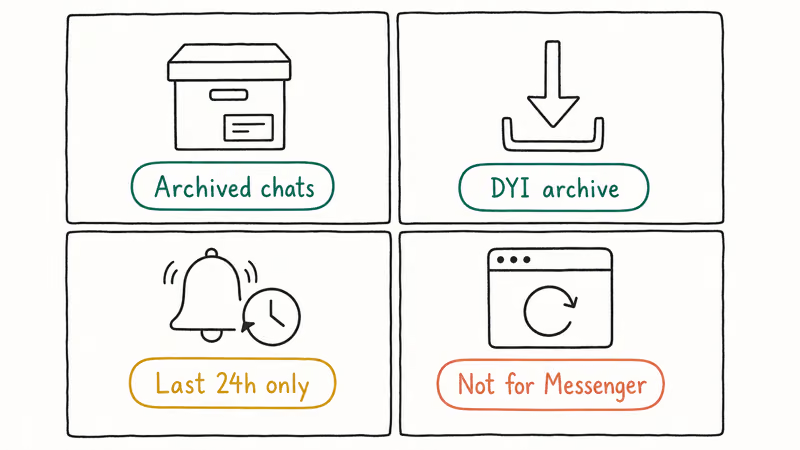
If you swiped a conversation away, it’s archived rather than deleted, and you can pull it back in seconds. If you actually tapped Delete, Facebook still holds a server-side copy for roughly 90 days before the data is purged. Facebook’s policy states that 90 days is the cutoff for deleted-message retention.
The export tool is documented in Facebook’s Download Your Information help center. It’s the only first-party path Facebook offers for restoring deleted messages.
Miss the 90-day window and the chat is gone for good. No third-party app on your phone can bring it back, because the data simply isn’t anywhere on your device to recover.
There’s one underrated backup plan worth trying first.
The other person still has the conversation on their phone. Asking them to scroll up and screenshot is often faster than any recovery tool, especially for a single quote you need for work or a receipt.
If you’re still inside Messenger and not sure the chat is gone, try the search bar before assuming the worst. Long-deleted threads won’t match. Archived ones surface immediately, which saves a trip through several support articles.
#How to Find Archived Chats in Messenger
Archived chats solve most “deleted message” panics. A swipe gesture in Messenger is functionally a hide button, not a delete button.
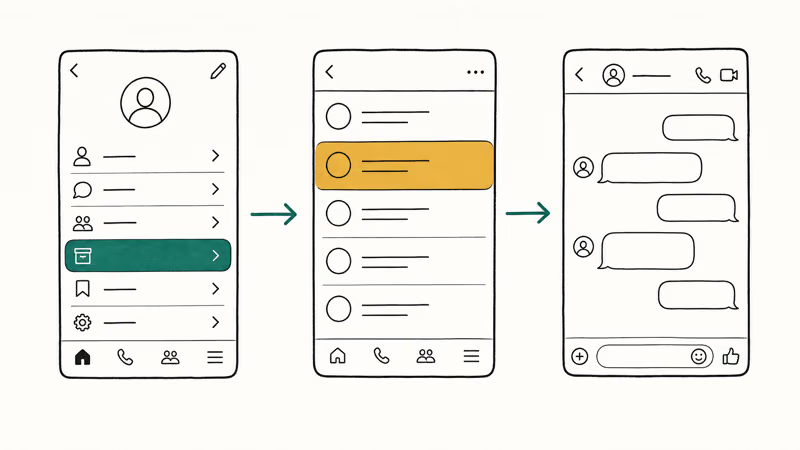
According to Facebook’s archived chats documentation, every archived thread stays available behind 1 tap:
- Open the Messenger app on your Android phone.
- Tap the three horizontal lines (menu icon) at the top left.
- Tap Archive.
- Browse the list of archived conversations and tap any chat to read it.
To unarchive a thread, open it and send a single new message. Messenger automatically promotes the conversation back to your main inbox the moment the recipient receives a new line from you.
The search bar at the top of Messenger also surfaces archived threads. Type the contact name and any matching conversation appears in results, regardless of archive status. This is often the fastest way to pull back a chat you hid months earlier, taking only moments from app launch to chat open.
If the Messenger interface looks different from these steps or the menu refuses to open, update the app from the Play Store first. Older builds shipped a different navigation, and stale versions sometimes load archives slowly.
A quick app restart usually clears it.
Anyone stuck on a Facebook Messenger that is not working should fix the launch issue before troubleshooting missing chats, because half the “lost” messages turn out to be a sync problem on your end rather than an actual deletion.
#Use Facebook’s Download Your Information Tool
Once a chat is truly deleted from your inbox, Download Your Information is the only official way to bring it back.
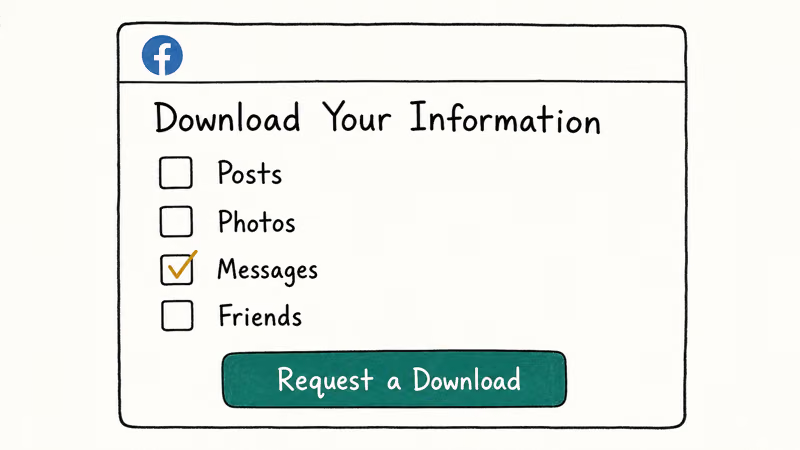
The tool exports every message Facebook still holds for your account, including content that’s been removed from the live Messenger interface within the last 90 days.
- Open the Facebook app or visit facebook.com in a browser on your Android phone.
- Go to Settings & Privacy > Settings.
- Scroll down to Your Facebook Information and tap Download Your Information.
- Tap Deselect All, then tick only Messages to keep the file small.
- Choose JSON for machine-readable output, or HTML if you want to browse the export in any browser.
- Set the date range to a window that covers when the missing messages were sent.
- Tap Create File and wait for the email or in-app notification.
Facebook prepares the archive within a few minutes for a small account, or several hours for users with years of media-heavy history. The notification arrives in your Facebook account, and the file is downloaded from the same Download Your Information screen.
According to Facebook’s Download Your Information guide, the export contains message text, timestamps, attachments, photos, videos, and call history grouped by conversation. Scoped to messages only, even a multi-year history is usually ready within minutes.
The unzip step is the easy part.
Look inside the messages/inbox/ folder. Each conversation lives in its own subfolder named after the participants. If you only need to keep a long-term archive of certain threads, the same export underpins our guide on how to export and print Facebook messages.
#How to Recover Messages From the Last 24 Hours With Notification History
Most recovery articles skip the easiest source for very recent messages.
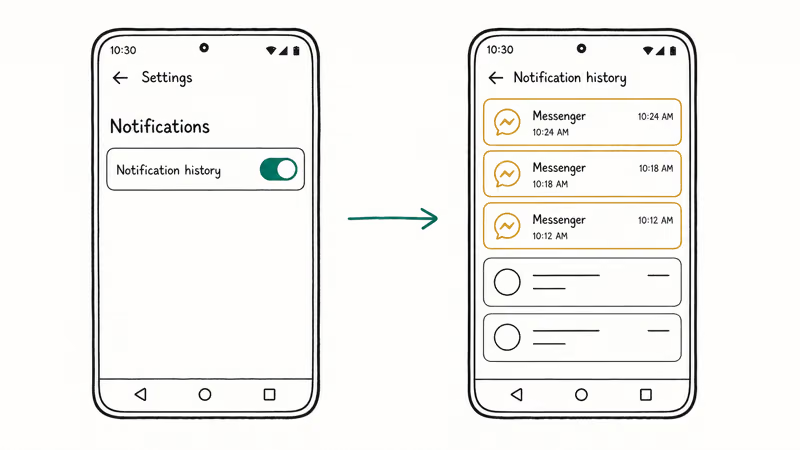
It’s hiding in Android’s own Notification History. If a message landed on your lock screen in the past day and the sender then unsent it, the preview text often lingers in system logs long after the chat thread itself goes dark.
Android’s notification subsystem keeps a 24-hour rolling log on Android 11 and later, including the full preview text. According to Google’s Android notification documentation, Notification History also surfaces dismissed alerts, which is exactly what an unsent Messenger message looks like to the OS.
Here’s how to dig it out:
- Open Settings on your phone.
- Go to Notifications > Notification History (or search “notification history”).
- Toggle Use notification history on if it isn’t already.
- Scroll the list to find the Messenger entry that matches the missing message.
The catch is honest: Notification History only stores the preview, not the full thread, and it expires after 24 hours.
It won’t help with anything older than yesterday.
But for a quote that someone unsent five minutes after sending it, the preview is usually still right there, complete with sender name and time.
A Messenger message someone unsent hours earlier is often still readable in Notification History, including the sender name and the timestamp on the original ping. That isn’t a complete recovery, but for a single quote you need to screenshot, the snippet is usually enough.
#Restore Messages From an Encrypted Google Backup
Messenger added end-to-end encrypted chat backups in late 2023, and that backup is separate from any Google Drive copy of your phone. If you switched it on, your encrypted threads can be restored on any new install.
According to Messenger’s encrypted chat backup help page, restoring runs through the Messenger app itself rather than through Android’s system restore:
- Install Messenger from the Play Store on your Android device.
- Sign in with the Facebook account that owns the chats.
- When the app prompts to restore secure storage, tap Restore from Google Account.
- Follow the PIN or device-code prompt and wait for messages to load.
This path only works if you’d already enabled Secure Storage. To check, open Messenger > Settings > Privacy & Safety > End-to-end encrypted chats > Secure storage. If the toggle is off, you can’t retroactively restore older deletions through this route, but you can switch it on now to protect future conversations.
A standard Google Drive backup of your Android phone doesn’t contain Messenger chats, which is why factory resets so often look like data loss.
Anyone preparing for a clean install should also read up on how to recover data from a broken Android device before the device is wiped, since cloud-backed apps need a different rescue plan than local files.
#Why Data Recovery Apps Don’t Work for Messenger
Plenty of articles still recommend generic Android recovery suites for Messenger. Here’s the boring truth: they almost never recover Messenger threads on a modern Android phone.
Messenger keeps every conversation on Facebook’s servers, not on your device.
The local cache folder named com.facebook.orca only stores temporary thumbnails and offline drafts, and on Android 11 and later, scoped storage prevents any app from reaching into another app’s private folder without root access. Recovery apps don’t have a side door past that. According to the Wikipedia article on Facebook Messenger, Messenger has used a server-stored architecture since launch in 2011, with end-to-end encrypted chats added later as an opt-in option for two-party conversations.
Run a tool like Tenorshare UltData on a non-rooted Android phone and a full device scan turns up zero Messenger messages, only SMS, WhatsApp media, and contacts.
Recovery apps do shine for SMS text message recovery on Android, because SMS is stored locally by the messaging provider. They’re also useful for photos and contacts. The moment you ask them to surface server-side data like Messenger, Instagram, or modern WhatsApp Cloud chats, the pitch falls apart.
#Does Contacting Facebook Support Help?
Not in any real way. Facebook doesn’t offer a manual message-recovery service through support channels, and their public help center confirms that Download Your Information is the recommended path. Filing a ticket about a missing chat usually gets you pointed at the same export tool you can run yourself in 5 minutes.
What support can do is help if a bug, hack, or account compromise is involved. If your messages disappeared without you ever tapping Delete, that’s the lane to use:
- Report a possible bug if a thread vanished without your action, especially after a Messenger update.
- Recover the account if a stranger may have signed in, deleted history, and signed out, leaving you to find empty threads.
Privacy note: every method in this guide assumes you’re recovering chats from your own Facebook account.
Reading another person’s Messenger threads without their permission violates Facebook’s Terms of Service and can break local laws on unauthorized access in many jurisdictions.
If you suspect compromise, change the password and switch on two-factor authentication before anything else. Then use Facebook’s Login Activity screen to spot unfamiliar sessions, and review connected apps for anything you don’t recognize. Anyone seeing the message that this person is unavailable on Messenger should also check whether the contact deactivated their account, because that scenario looks identical to a deletion from your side.
#How to Prevent Losing Messenger Messages
A short setup session today saves a long recovery session later. Treat the next four habits as a bare minimum for anyone who relies on Messenger for anything important.
- Turn on Secure Storage. In Messenger, go to Settings > Privacy & Safety > End-to-end encrypted chats > Secure storage and link the backup to your Google account. The encrypted backup runs in the background.
- Archive instead of deleting. Long-press a conversation and pick Archive rather than Delete. Archived chats reappear instantly when the contact replies, and you can unignore someone on Messenger if you ever need to lift a mute later.
- Run Download Your Information quarterly. Schedule a calendar reminder once every three months and export Messages only. The file is small, and you keep an offline copy that’s independent of Facebook server retention.
- Avoid clearing all app data. Clearing the cache is fine. Clearing data wipes any unsynced drafts and forces a full re-download from the server, which sometimes exposes sync gaps you wouldn’t have noticed otherwise.
Anyone who also wants a pre-built backup workflow on the iOS side should read our guide on how to save Facebook Messenger messages on iOS, since the Download Your Information path is identical across platforms once the file is generated.
#Bottom Line
Open Messenger and check Archived Chats first. That single tap solves most “deleted” messages without any app or export. If the conversation is truly gone, run Download Your Information today as long as fewer than 90 days have passed since deletion, and pick JSON if you want a clean text record or HTML if you want to browse the export in a browser.
Skip third-party Android recovery apps for Messenger specifically.
Scoped storage on Android 11 and later locks them out of com.facebook.orca, and the data they would need lives on Facebook’s servers anyway. The Archive menu, Download Your Information, and Notification History together cover the realistic recovery cases at zero cost.
#Frequently Asked Questions
Can you recover permanently deleted Messenger messages on Android?
Only through Facebook’s Download Your Information tool, and only inside the roughly 90-day server retention window. After that point, the deleted thread is purged from Facebook’s infrastructure and no third-party app on your phone can rebuild it. Local recovery tools can’t reach the data because Messenger never stored it on the device in the first place.
How long does Facebook keep deleted messages?
Facebook retains deleted message data for roughly 90 days before permanent removal. Archived chats stay on the servers indefinitely until you delete them yourself.
Do archived messages take up storage on my phone?
No. Messenger keeps conversations on Facebook’s servers, and your phone only caches thumbnails. Archiving a thread simply hides it from the inbox. Even fully deleting Messenger conversations won’t free meaningful storage on your phone, because the app is built around cloud storage rather than local files.
Can I see messages deleted by the other person?
If the original message produced a notification on your phone before the sender unsent it, you can often read the preview in Settings > Notifications > Notification History within 24 hours. The chat itself won’t show the message any more, but the preview captures the text you saw on the lock screen, which is usually enough for a screenshot.
Does reinstalling Messenger delete my messages?
No. Your conversation history lives on Facebook’s servers, so reinstalling Messenger just resets the local app and pulls every chat fresh on next sign-in.
What is the com.facebook.orca folder on Android?
That’s Messenger’s private app directory on your device, and it stores cached images, attachments, and short-lived offline data. On Android 11 and later, scoped storage prevents any other app from browsing it without root access. The folder doesn’t hold readable conversation logs you could mine for recovery.
Can I recover Messenger messages if my phone is broken?
Yes. Because Messenger stores everything on Facebook’s servers, you only need any other device that can sign in. Open Messenger or messenger.com on a working phone, tablet, or computer with your Facebook credentials, and the full conversation history loads as soon as you log in.
Why did my Messenger messages disappear without deleting them?
Common explanations include Vanish Mode (which auto-clears messages once they’re seen), the other party blocking you, or a temporary server-side sync issue. Open the chat and look for a dark Vanish background to rule that out first. If the thread shows messages aren’t delivering at all, our guide on Messenger sent but not delivered covers the sender-side and recipient-side fixes in detail.

Pixel 11 vs Pixel 10: What Changed and Who Should Upgrade
Pixel 11 vs Pixel 10: same screen and camera resolution, new Tensor G6, 25W wireless, and Gemini Intelligence. Here is who should actually upgrade.

Verizon Not Receiving Texts? How to Fix It in 9 Steps
Verizon not receiving texts? Fix it in 9 steps: check Message Blocking in My Verizon, reset network settings, deregister iMessage, and call support.

Pixel Battery Drain: What Google's July Fix Really Covers
Google marked the Pixel idle battery drain bug fixed in July, but only some phones got the patch. Here is who is covered, who is not, and what to try.

iPhone Stuck on EDGE? How to Get 5G or LTE Back (2026)
iPhone stuck on EDGE with crawling data? Here's why the E icon appears, which settings force 5G or LTE back, and when the problem is your carrier.