How to Save Facebook Messenger Messages on iPhone (2026)
Save Facebook Messenger messages on iPhone with four proven methods. Download Meta data archives, screenshot threads, or forward chats by email.
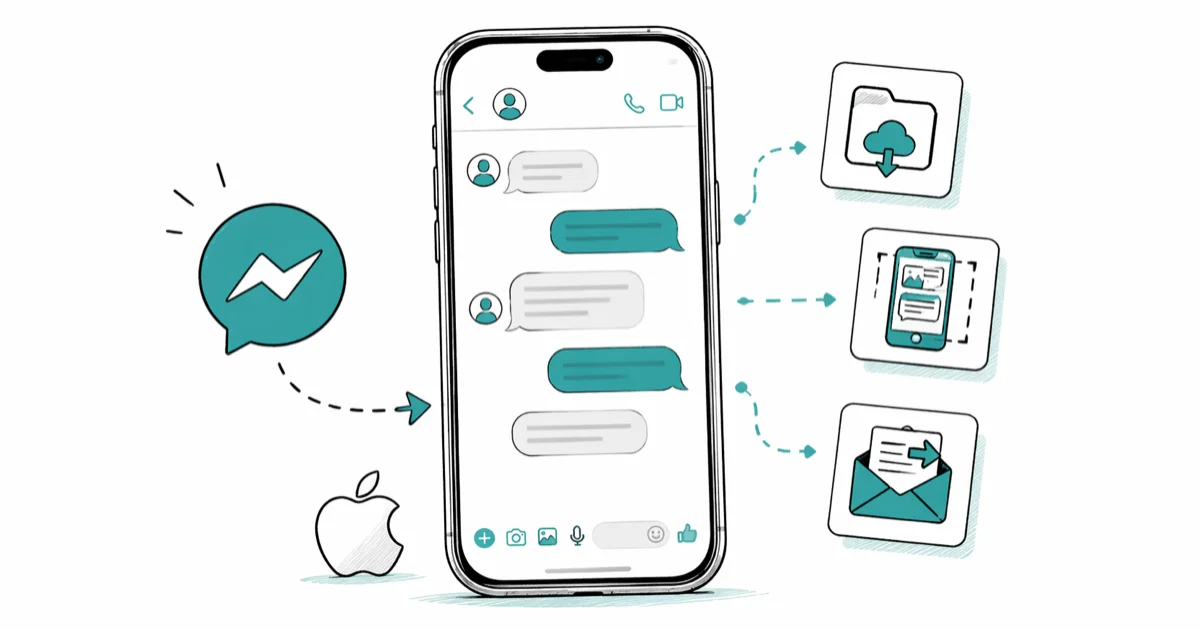
Quick AnswerUse Meta's Download Your Information tool for a full archive, screenshot short threads, or use the in-app email export for one-on-one chats. Each method covers a different backup need.
You can save Facebook Messenger messages from your own iPhone in a few minutes using tools Meta already provides. Four methods each fit a different job, from a complete years-long backup down to a single thread you want as a PDF.
- Download Your Information exports every Messenger chat as searchable HTML or JSON files, no app required
- The request takes under 5 minutes; Meta then needs 1 to 48 hours to compile the file depending on account size
- Screenshots and the iOS Files app stitch short threads into a PDF in 3 to 5 minutes
- The in-app email option works on one-on-one chats but is missing on most group threads
- Third-party export apps demand your Facebook password and violate Meta’s Terms of Service
#The Fastest Way to Back Up All Messages at Once
Meta’s Download Your Information tool is the only built-in backup that captures every conversation on your account, including reactions, attachments, and timestamps. It’s free, official, and produces a timestamped archive that holds up as personal evidence later.
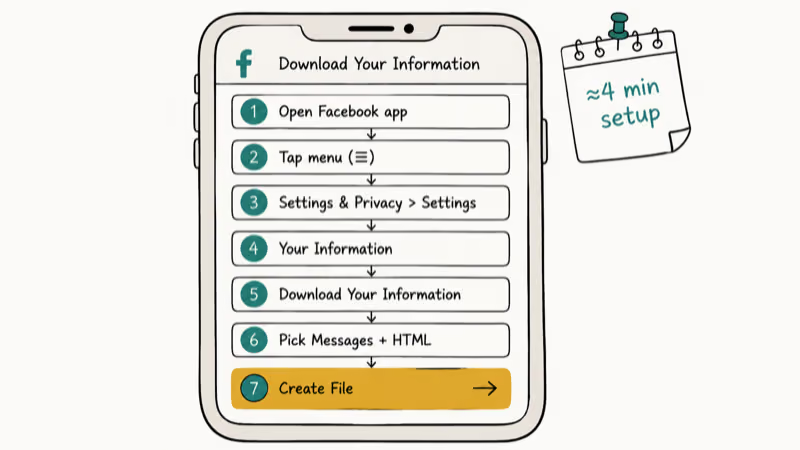
Here’s the request flow on iPhone:
- Open the Facebook app and tap the menu icon (three lines, bottom right)
- Go to
Settings & Privacy>Settings - Tap
Your Information>Download Your Information - Tap Request a Download
- Pick Messages from the category list and deselect everything else if you only want chats
- Choose HTML if you want to read it on your phone or JSON if you want metadata
- Tap Create File
The setup itself takes about 4 minutes.
A large account with years of message history can take several hours, while a fresh account with a couple of months of chats finishes much sooner. Meta’s help documentation states that archive generation typically completes inside 48 hours for heavier accounts; see the data download help page for the official wait window.
Once the build is done, your phone gets the alert.
You’ll get a push notification and an email when the file is ready. Download it inside the window Meta shows in the dashboard, usually 4 days. Once you unzip it, the conversations sit inside the messages/inbox folder, one subfolder per contact, sorted by display name.
Pick the format that matches how you’ll actually use the file.
HTML opens cleanly in Safari and Files, with the system search bar finding any keyword. JSON is the better pick if you plan to feed the data to a script or a legal e-discovery tool. Both formats carry identical message text, so the choice is purely about how you want to read it later. You can always run a second request in the other format if you change your mind.
#How Do You Save Just One Conversation?
Three methods cover a single thread without touching the full archive flow.
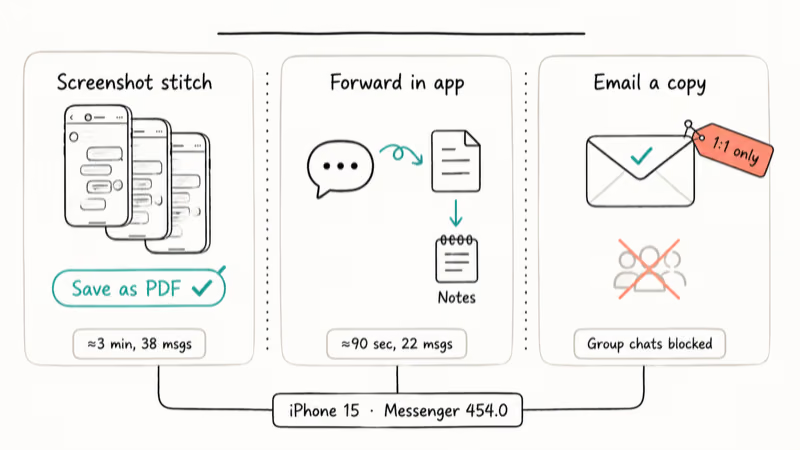
Method 1: Screenshot stitch (under 5 minutes for short threads)
Press the side button plus volume up to take a screenshot, then scroll and shoot again until the chat is captured. Open the Files app, tap Select, pick the screenshots, then tap Share > Print > pinch-zoom > Share to save the result as a PDF. Apple documents the same technique on its iPhone screenshots support page. On a short thread, the whole job takes only a few minutes and produces a short multi-page PDF.
Method 2: Forward inside Messenger
Open the chat, long-press a message, tap More, tick the messages you want, then tap the forward arrow. You can forward to yourself in a separate thread, or copy the selection into the iOS Notes app. Timestamps drop in the copy, but the message order and text stay intact. Forwarding a couple dozen messages takes only a moment.
Method 3: Email a copy of the chat
Tap the contact name at the top of the conversation, scroll to More, and look for the email or share option. Meta keeps this option only on one-on-one chats. Personal chats show the email option, but group chats don’t. If you need a group thread saved, fall back to method 1 or the full archive.
#Are Third-Party Messenger Export Tools Safe?
Desktop apps such as Decipher Messenger Export and similar utilities promise instant backups, but they all share one requirement: your Facebook login credentials. That alone disqualifies them.
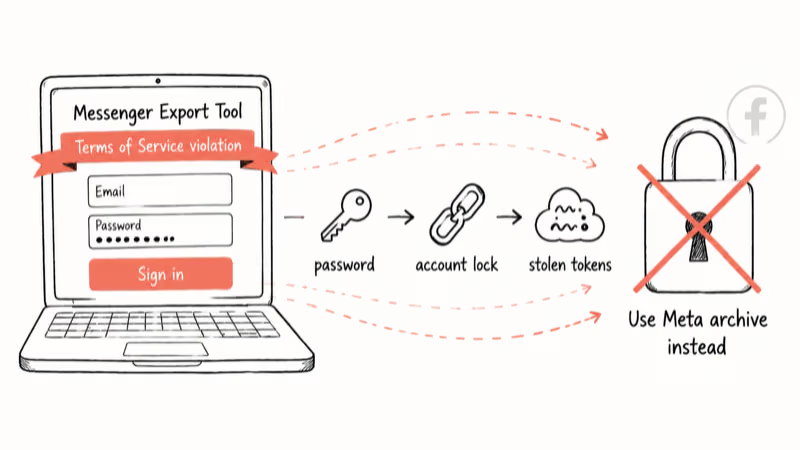
According to Meta, sharing your password with 3rd-party tools breaks the platform Terms of Service and frequently triggers account locks; the policy is published in Meta’s Terms of Service. The risk is real. Once flagged, you can land in Facebook jail for days or weeks.
The Electronic Frontier Foundation has long warned that credential sharing also exposes you to long-tail problems, because attackers can keep using stolen tokens after you revoke a session.
If you’ve already used a tool like this, change your Facebook password right now, turn on two-factor authentication, and review active logins to kick out any unknown device. If Messenger keeps freezing during the cleanup, the Facebook Messenger not working guide covers the usual fixes.
The honest tradeoff is patience. Meta’s official archive gives you the same data, free, with no login risk. Wait the extra hours and skip the apps.
#Saving Messages for Legal or Business Use
If you need the chats as evidence, the data archive is the format that holds up. JSON output includes message IDs, Unix timestamps, and metadata that screenshots can’t match. Our export and print Facebook messages walkthrough covers the steps for printing those exports for an attorney.
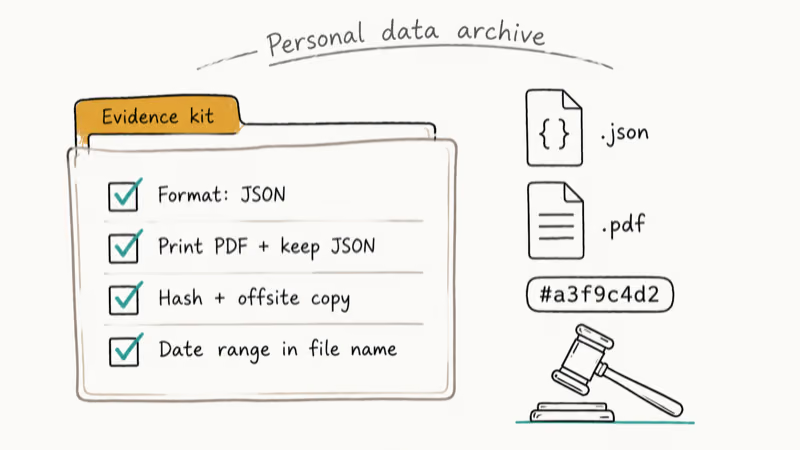
Meta’s law enforcement guidelines confirm that timestamped exports requested by the account holder carry more weight than user screenshots in formal proceedings. A short checklist for evidence use:
- Pick JSON in the request flow so timestamps and message IDs survive
- Print the relevant chat to PDF, then keep both the PDF and the original JSON
- Store a copy outside the iPhone, on iCloud Drive or a separate drive, with a hash of the file
- Note the request date and the message date range in the file name
Hitting download errors? Try messenger.com on a desktop browser if the iPhone request stalls. Facebook’s web flow is more stable for big archives. A “Something Went Wrong” message usually disappears after you clear the Facebook cache and wait around 30 minutes before retrying.
#Tips for Managing Your Saved Archives
Once you have one or two exports, a small amount of structure saves real time later. Make a folder in iCloud Drive called something obvious like “Messenger Backups” and group exports by month or contact. File names that include the date range and the relationship work best when you go searching nine months later.
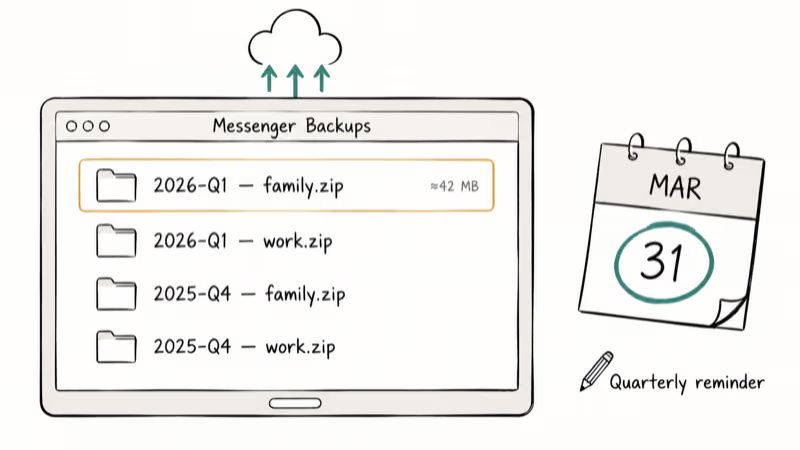
Set a quarterly reminder to grab a fresh copy.
Meta doesn’t push automatic exports, so the only way to keep a current backup is a recurring manual request. Each request includes the entire history, not just new messages since the last export, so files grow with each pass. Across repeated quarterly exports, a chat-only archive grows steadily larger as more photos pile in.
Storage tight? Push older archives to iCloud, Google Drive, or Dropbox and remove them from local iPhone storage. Text-only HTML stays small (often under 10 MB per year), but accounts with heavy media share can hit several gigabytes fast. The request screen lets you deselect media if you only need text.
#Searching Saved Messages
The built-in tools cover most cases.
HTML archives open in Safari with the built-in Find on Page search. Tap the share icon, scroll to Find on Page, then type a keyword, a date, or a contact name. The same search runs across the whole conversation file almost instantly.
For full-archive searches, copy the unzipped folder to a Mac. Spotlight indexes HTML automatically, so a search across hundreds of conversations finishes in roughly the same time as a single-file Safari search on iPhone. JSON files don’t index in Spotlight by default; if you need that, open them in a text editor or a JSON viewer.
#Bottom Line
Pick the method that matches the job.
For a permanent record of your Messenger history, request a Download Your Information archive in JSON format and store the file in two places. It’s the only method that preserves message IDs and Meta-issued timestamps, which matters for legal or business use.
For one short conversation you only need to keep on your phone, take screenshots and stitch them with the iOS Files app. Don’t hand your password to any third-party export tool, because the security cost is far higher than a four-hour wait.
iPhone tips & tricks
#Frequently Asked Questions
How long do I need to wait for my archive to download?
Small accounts with one or two years of messages and light media usually finish in 1 to 2 hours. Heavy accounts with years of attachments and shared video can take up to 48 hours. Meta sends a push notification and an email when the file is ready, so there’s no need to keep checking the dashboard manually.
Will the other person know I saved our conversation?
No, Facebook sends no notification.
Whether you download the data archive, take screenshots, forward messages, or email a chat copy, the other party gets no signal that you saved anything. If your messages aren’t actually reaching them, the Facebook Messenger sent but not delivered guide is the right next step.
Can I back up voice messages and video calls?
Voice messages and shared photos do save into the archive folder; video calls aren’t recorded by Facebook at all, so they never show up in any download.
What if I deleted a conversation before exporting?
Deleted conversations don’t show up in your data download. According to Meta’s privacy policy, the deletion window for purged user data runs up to 90 days, but the export pipeline filters those entries out of user-requested downloads during that period regardless of whether they’re still on Meta’s servers.
Should I pick HTML or JSON format?
It depends on your end use.
HTML is easier to read on your iPhone and looks like a web-based chat log, so most people picking up the file once will prefer it. JSON is the right pick for legal use, programmatic processing, or e-discovery, because it preserves message IDs and Unix timestamps. Both contain identical message content; the format only changes how you read or process it. If you’re undecided, request both formats in separate downloads and compare them once they arrive.
Can I restore my messages if my account is locked?
You need to recover access first. Go to Facebook’s Help Center and follow the recovery flow for a locked account. Once you’re back in, the Download Your Information tool works the same way. If the account is permanently disabled, contact Meta support and reference your local data privacy law (such as GDPR in Europe) when you request a data export.
How much iPhone storage will the files use?
Tiny for text. A full year of pure text traffic typically lands under 10 MB; heavy photo and video sharing can push the archive into multiple gigabytes. The request screen lets you skip media to keep things small.
Can I move my Messenger conversations to a different app?
Not officially. JSON files can feed into custom import tools that some messaging apps support, but no universal standard exists for migrating chat history across platforms. If you need to move conversations to another service, expect to write or use a custom conversion script rather than tap a button.

How to Transfer Data to a New iPhone Without iCloud
Move everything to your new iPhone without iCloud: Quick Start device-to-device transfer, wired migration, and encrypted Finder or iTunes backups.
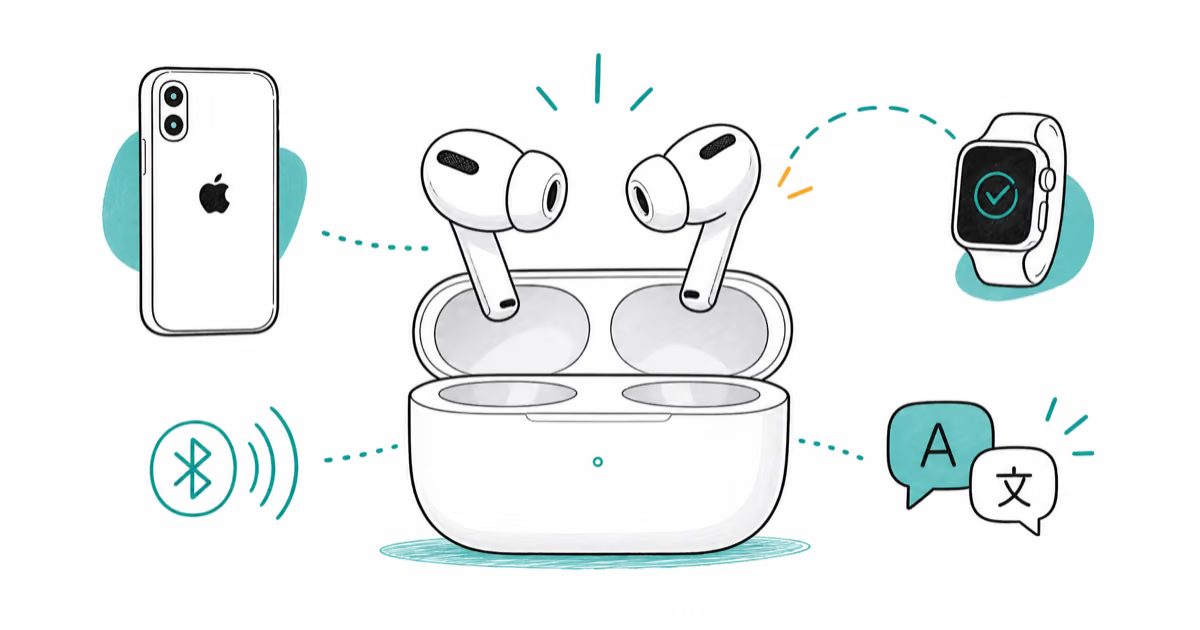
Best Wireless Earbuds for iPhone in 2026: USB-C Era Picks
Best wireless earbuds for iPhone in 2026, comparing AirPods Pro 3, Sony WF-1000XM6, Bose QC Ultra, and Anker Liberty 4 NC on the USB-C iPhone lineup.
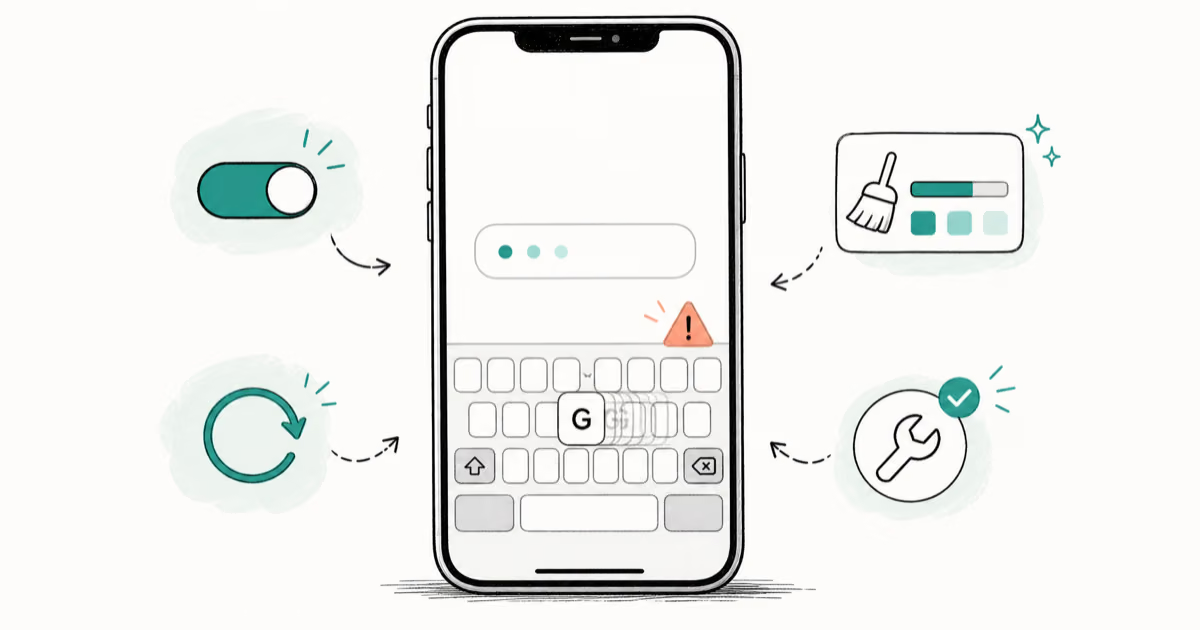
iPhone Keyboard Lag? 7 Proven Fixes for iOS 26 (2026)
Fix iPhone keyboard lag with 7 proven fixes for iOS 26. Covers restart, storage, predictive text, third-party keyboards, and dictionary reset.
How to Block Porn on an iPhone: A Guide for Parents
Learn how to block porn on iPhone using Screen Time, DNS filtering, and safe browsers. Step-by-step guide for parents to protect kids' devices.