Facebook Messenger Sent but Not Delivered: Causes & Fixes
Messages stuck on sent but not delivered in Messenger? Learn the 6 real causes, how to tell if you're blocked, and the fixes that actually work.
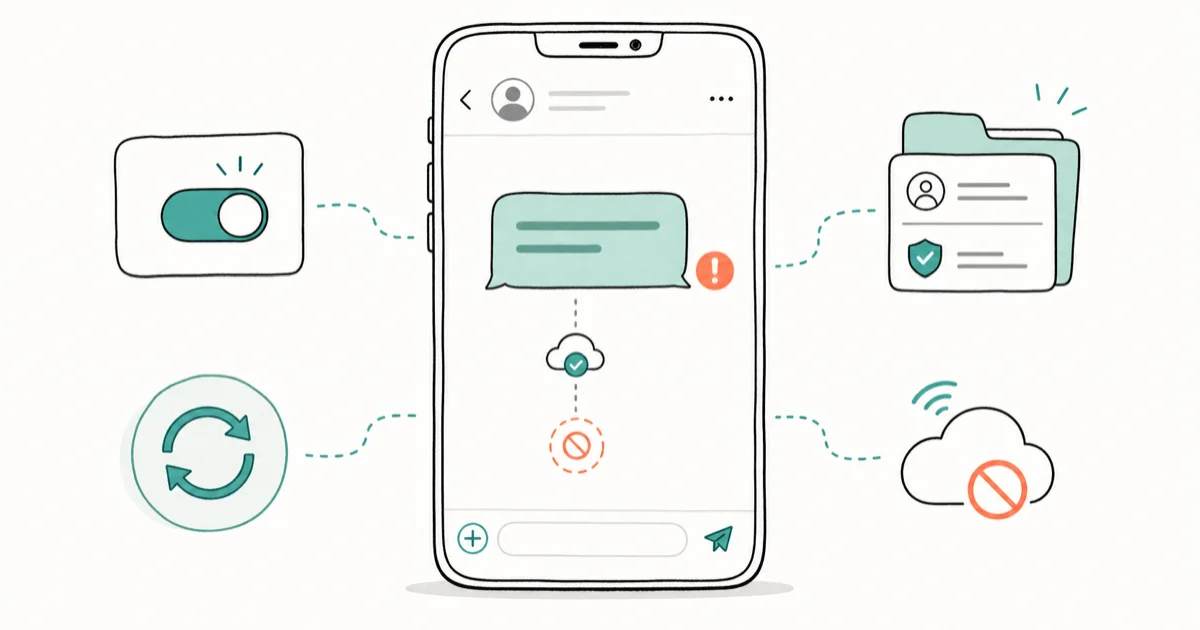
Quick AnswerA Facebook Messenger message stuck on sent but not delivered reached Facebook's servers but never reached the recipient's phone. The recipient is offline, has logged out, has blocked you, or your message is sitting in their Message Requests folder awaiting approval.
A Facebook Messenger message stuck on sent but not delivered is one of the most confusing states in the app. The two statuses mean very different things, and the behavior is consistent across iPhone, Android, and the web app, whether the recipient is a friend, a non-friend, or someone who blocked you. Below: what the icons mean, six real causes, how to spot a block, and the fastest fix order.
- Open circle means sending, blue check means sent to Meta, filled blue check means delivered, and a profile photo means read.
- Stuck on sent almost always means the recipient is offline, has the app force-closed, or is in airplane mode, and the message delivers on its own when they reconnect.
- Messages to people you’re not Facebook friends with land in Message Requests and stay on sent until the recipient taps Accept, which can take hours or days.
- Being blocked is the permanent version of this problem: sent forever, last active disappears, calls fail, and the profile may look unavailable in search.
- Force-closing and reopening the Messenger app clears most stuck conversations within seconds, making it the highest-yield first fix to try.
#What Do the Messenger Status Icons Actually Mean?
Messenger uses a four-stage delivery indicator. Understanding the difference between stages is the fastest way to tell whether the problem is on your end or theirs. Wikipedia reported that Messenger passed 1 billion users in July 2016, so even a tiny failure rate stacks up to many stuck threads daily.
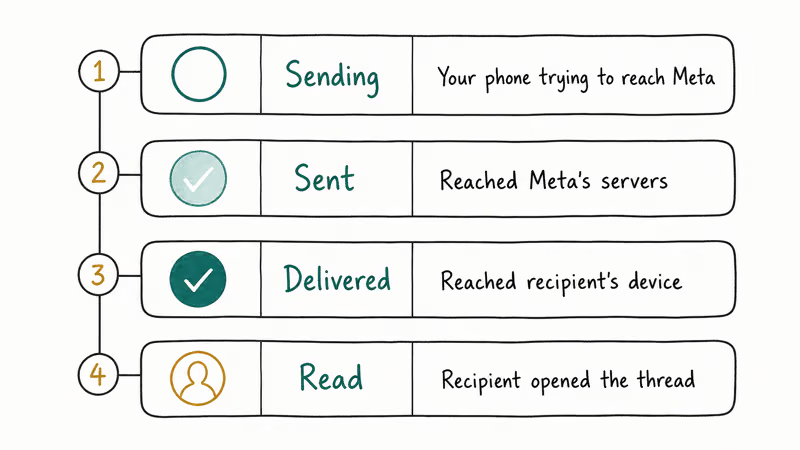
- Sending (open blue circle): Your device is still trying to reach Meta’s servers. This is a your-side problem, usually Wi-Fi or cellular.
- Sent (blue circle with a white check): The message reached Meta’s servers. Your side is fine.
- Delivered (filled blue circle with a white check): The message reached the recipient’s phone, tablet, or computer. Their side is fine.
- Read (the recipient’s small profile photo): They opened the thread after delivery.
A message stuck on sent means Meta has your message but can’t push it to the recipient yet. According to Meta’s Messenger Help Center, the delivered state confirms the message has reached the recipient’s device. The gap between sent and delivered is always a recipient-side or account-filter issue, never a problem with your outbox.
#6 Common Reasons Messages Stay on “Sent but Not Delivered”
Six causes account for almost every stuck conversation. In rough order of frequency, these are the ones to check first.
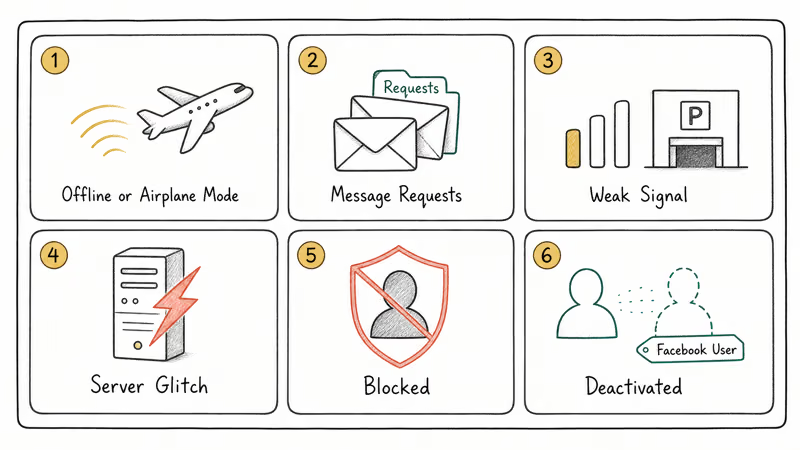
#1. Recipient Is Offline, Logged Out, or in Airplane Mode
If the recipient has no internet, has force-quit Messenger, or is in airplane mode, Meta holds the message until their device checks back in. Once their connection returns, the message moves from sent to delivered within seconds. This is the most common cause, and the fix is time.
#2. You Are Not Friends and the Message Is in Message Requests
Meta filters messages from non-friends into a separate Message Requests folder so strangers can’t flood the main inbox. On your side the message stays on sent until the recipient taps Message Requests > your conversation > Accept. If they never open the request, it never shows delivered. To understand this behavior better, see our breakdown of what the other person sees when you ignore a message on Messenger and our guide to unignoring a conversation you accidentally filtered.
#3. Connectivity Issues on Their End
A weak 3G signal, a captive hotel Wi-Fi portal, or Data Saver on the recipient’s end will all produce a stuck sent state until their device reaches Meta. In a low-signal spot like a parking garage or basement, a message can stay undelivered for several minutes, then land the moment signal returns. Failures on your side usually produce the “Free MSG: Unable to send message” error instead.
#4. Messenger App or Server Glitches
Server issues occasionally break delivery for everyone. Watch for the Facebook session expired error or check Downdetector when every conversation is stuck at once.
#5. Blocked by the Recipient
If the recipient has blocked you, Messenger behaves exactly as if they were offline forever. The message shows sent but never delivered, last active disappears, calls fail with an error, and the profile may say This person isn’t available right now. We cover the telltale error more in our guide to the “this person is unavailable” Messenger error.
#6. The Recipient Deactivated or Deleted Their Facebook Account
Deactivated accounts can’t receive new messages, so your sends stall on sent, and deleted accounts behave the same way. The difference from a block shows up on the chat header: a deactivated account turns the profile photo into a generic gray avatar and changes the display name to “Facebook User,” while a block keeps the person’s real name and photo visible but wipes last-active. Ask a mutual friend to search the account from their phone to tell the two apart.
#How to Tell if You’ve Been Blocked
Being blocked is the hardest case to diagnose because no notification goes out. The signs show up as a pattern rather than a single alert.
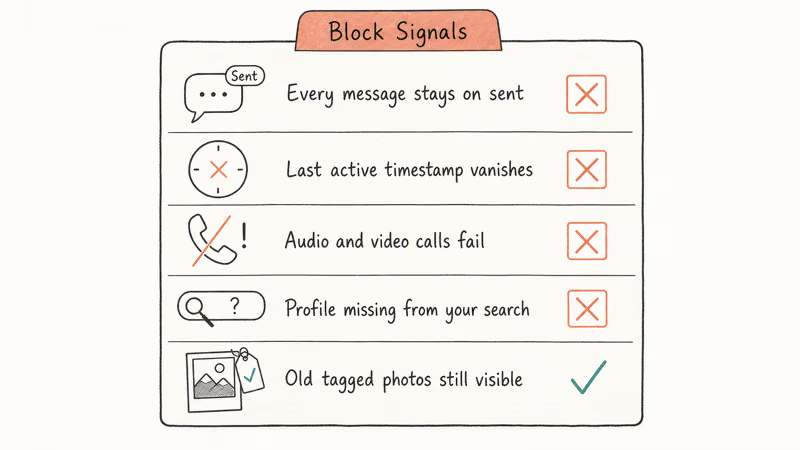
- Every message to that contact stays on sent, no matter how much time passes or whether you switch networks.
- Their last active timestamp vanishes from the chat header, and typing indicators never appear.
- Audio and video calls through Messenger fail instantly, often with an error like “This person isn’t available right now.”
- Their profile doesn’t appear when you search their name from your account, but does appear when searched from a friend’s account.
- Old photos and posts you were tagged in together still show, because blocking doesn’t remove historical content.
If three or more hit at once, a block is far more likely than an offline phone. Meta’s blocking documentation confirms that blocking hides the user’s profile from the blocked person and prevents direct messaging. One cleaner test: check the profile from a mutual friend’s phone — if it looks normal there but is missing from yours, that’s a block, and if it’s missing from both, the account is deactivated instead.
#How Do You Fix “Sent but Not Delivered” on Messenger?
This fix order resolves the most stuck conversations fastest. Start at the top and only move down if the previous step didn’t help.
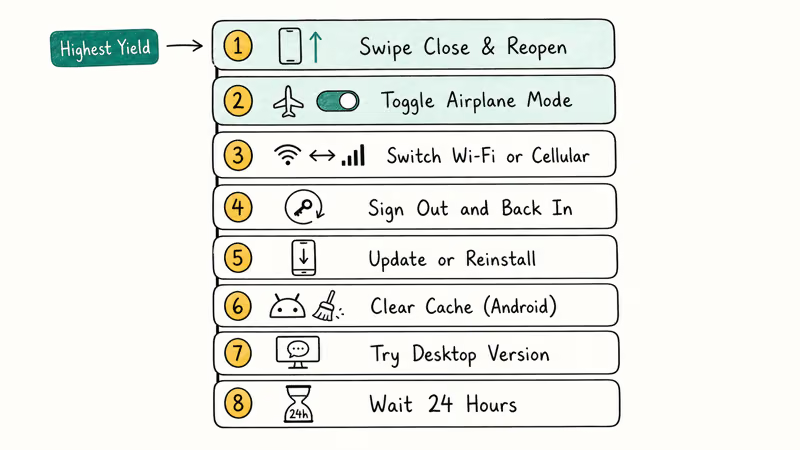
- Swipe Messenger fully closed and reopen it. On iPhone, swipe up and flick the Messenger card away. On Android, tap the square button and swipe Messenger off. A clean relaunch delivers most stuck threads within seconds, which is why it’s the first step to try.
- Toggle airplane mode on for 10 seconds, then off. This forces a fresh network handshake and clears cached DNS. It resolves most of the remaining cases where a working connection still won’t deliver.
- Switch between Wi-Fi and cellular. Some captive Wi-Fi networks (corporate, hotel, airport) silently block Meta traffic. Cellular bypasses the portal.
- Sign out and sign back in. In Messenger, tap your profile photo, scroll to
Legal & Policies>Log Out, then log in again. This rebuilds the local session without touching your messages. - Update or reinstall Messenger. Older versions on iOS 17 and Android 14 have known delivery bugs. Install from the App Store or Play Store, then reboot the phone once. Your chats live on Meta’s servers, so you won’t lose anything.
- Clear the app’s cache (Android only). Go to
Settings>Apps>Messenger>Storage>Clearcache. Our guide to clearing Facebook cache covers the equivalent paths for Facebook and Messenger Lite. - Try the desktop version at messenger.com. If the web version delivers the same message that was stuck on mobile, the problem is local to your phone’s app, not your account.
- Wait 24 hours. If none of the above works, the problem isn’t on your side. Offline recipients, pending Message Requests, and temporary Meta outages almost always resolve within a day without any action.
If delivery is failing across the entire app rather than just one thread, our Messenger not working troubleshooting guide has deeper account-level steps, and the Facebook Something Went Wrong guide covers the overlapping error on the main Facebook app.
#What You Shouldn’t Do While Troubleshooting
Before you assume the worst, skip the behaviors that make things worse.
- Don’t send 15 follow-up messages. If you’re blocked or the recipient is offline, every new message just stacks in the same stuck state. According to Meta’s Community Standards on bullying and harassment, repeated contact after blocking can be reported as harassment.
- Don’t create a second account to contact them. Meta’s account integrity policy states that maintaining multiple personal accounts violates Community Standards and can get both accounts disabled.
- Don’t install third-party “Messenger unblocker” apps. They ask for your Facebook login credentials, which is the whole point of them. The FTC warns that credential-harvesting apps are a common phishing channel.
- Don’t try to hack the recipient’s account. Unauthorized access is illegal. If you need historical message content you can legitimately access, our export and print Facebook messages guide covers the official download route.
#When a Stuck Message Isn’t Actually Stuck
Sometimes the sent state is correct and delivery really has happened in the background. A few non-bug patterns look like stuck messages but aren’t:
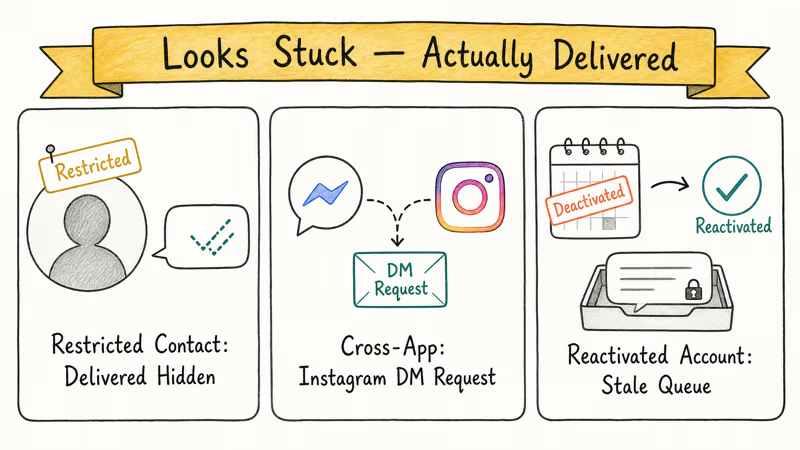
- Vacation responders and Restricted accounts. A Restricted contact still receives your messages, but both read receipts and delivered indicators are intentionally hidden on your side. Sent forever, even though it arrived.
- Cross-chat with Instagram DMs. Meta merged Instagram and Messenger inboxes on accounts where the user opted in. If the recipient uses Instagram and has a pending DM request from you, it looks stuck on sent in Messenger.
- Old threads on deactivated-then-reactivated accounts. Messages sent during a deactivation window sometimes stay on sent permanently even after the user returns, because Meta’s delivery queue doesn’t always retry older messages. A fresh message usually works.
- Facebook Reels not showing and similar visual bugs are unrelated to Messenger delivery. They share login state but ride on different delivery pipes.
#Bottom Line
Swipe-close Messenger and reopen it first when a message is stuck on sent but not delivered. That single step clears most stuck conversations within seconds, making it the best few seconds you can spend before reinstalls. If swipe-close fails and the message stays stuck to one person past 24 hours while others deliver fine, treat it as a probable block; deactivated accounts and unopened Message Requests cover the rest. Don’t stack follow-ups.
#Frequently Asked Questions
Does sent but not delivered mean the person blocked me?
Not on its own. A single stuck message usually means the recipient is offline or has the app force-closed. A block is likely only when every message to that person stays on sent, their last active time disappears, calls fail, and the profile looks normal from a mutual friend’s account.
How long does a message stay on sent before I should worry?
Up to 24 hours is normal for an offline recipient or a Message Request sitting unopened. If the message is still stuck after a full day and other conversations with that person’s contacts deliver normally, move to the blocked or deactivated-account diagnosis.
Can I force a stuck Messenger message to deliver?
You can’t force Meta’s queue to push on demand, but you can trigger a fresh delivery attempt by deleting the stuck message and sending it again. Swipe-closing the app, toggling airplane mode, or signing out and back in also opens a new connection that often picks up queued messages immediately. If the recipient is offline, none of these will help; the message just waits in Meta’s queue until their device reconnects.
Why does only one specific person have stuck messages when everyone else is fine?
The problem is account-specific, not app-specific. That single person is offline, has blocked you, has deactivated their account, or is sitting on an unopened Message Request from you. Check other threads first: if everything else works, the issue lives inside that one contact, not yours.
Will the recipient see my messages once they come back online?
Yes, unless they’ve blocked you. Meta holds undelivered messages and pushes them the moment the recipient’s device reconnects. A message sent to a phone in airplane mode typically delivers within seconds of that phone coming back online, with no action needed from either account.
Does Messenger notify the recipient that I tried to message them while they were offline?
No. There’s no “someone tried to reach you” notification. The recipient only sees the normal new-message alert when the message actually delivers, with the original timestamp preserved.
Can I tell if a message was delivered to an old inactive account?
An inactive account that hasn’t been deactivated still accepts delivery, so you’ll see the delivered circle even though the person hasn’t opened the app in months. A deactivated or deleted account is different: the message stays on sent and the profile typically reads “Facebook User” with a generic avatar.
Is there a way to see past messages if the thread is stuck?
Yes, and it doesn’t require any unofficial tool. Meta lets you download your full chat history from Settings & Privacy > Settings > Your Facebook Information > Download Your Information. Choose JSON or HTML format, select only the Messages category, and request the archive. Most accounts get the download link by email within a few hours.

Is This Bank App Real? Spot a Fake App on Your Home Screen
A bank app can land on your home screen from a web page with no install warning. Learn the checks that tell a real banking app from a phishing web app.

Apps Crashing After iOS 27 Update? Fix Order (2026)
Apps crashing after the iOS 27 update? Update the app in the App Store first, then offload and reinstall to clear stale cache, then restart. The fix order.

Do AI Translation Earbuds Work Offline? What to Know
Do AI translation earbuds work offline? A few do with downloaded language packs, but most need the cloud. Here's what works offline and what you give up.
How to Set Up Translation Earbuds (Pairing and Modes)
How to set up translation earbuds: charge, install the app, pair over Bluetooth, pick two languages, and choose a mode. A step-by-step first-use guide.