How to Unignore Someone on Messenger: 2 Quick Methods
Learn how to unignore someone on Messenger in two steps: open Message Requests, switch to Spam, then tap the chat to drop it back in your inbox.
Quick AnswerTo unignore someone on Messenger, tap your profile picture, open Message Requests, choose the Spam folder, then tap the person's chat to send it back to your main inbox. Sending a reply also lifts the ignore.
When you ignore someone on Messenger, the chat slips into a hidden Spam folder and notifications stop, but the conversation isn’t deleted and the other person is never told. Unignoring is quick: open Message Requests, switch to the Spam tab, then tap the chat to drop it back into your main inbox. This guide covers both the Spam-folder method and the reply-to-unignore shortcut, plus what the other person sees after you do it.
- Ignoring a conversation hides it under Message Requests, Spam, with no notification to the sender
- The Spam folder is reached from your profile picture, Message Requests, Spam tab on both Android and iPhone
- Tapping the ignored chat from Spam returns it to your main inbox immediately, no message required
- Sending any reply to an ignored chat also unignores it, even if the chat is still sitting in Spam
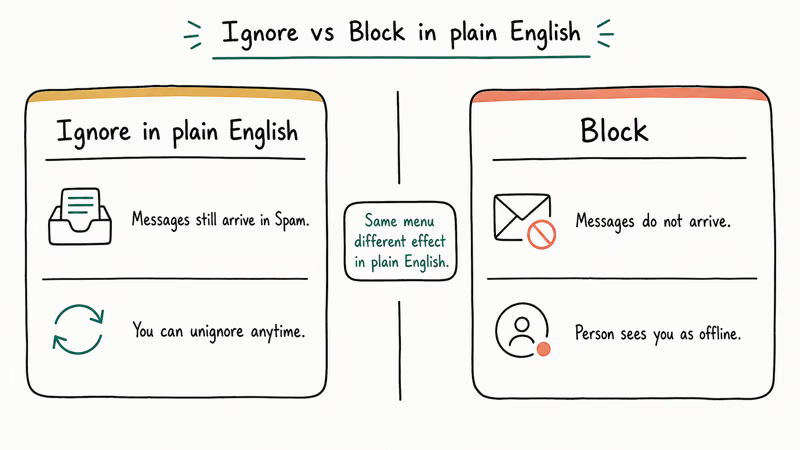
- Ignoring is a one-way mute, while blocking cuts contact in both directions and removes the person from search
#What Ignoring Actually Does on Messenger
Ignoring on Messenger is a soft mute. The conversation doesn’t disappear, messages keep arriving, and the other person can still see your active status. What changes is where the chat lives: it leaves your primary inbox and lands in Message Requests, inside a sub-tab called Spam, with push notifications silenced.
Wikipedia confirms that Facebook released the standalone Messenger app in August 2011, per its Messenger article. Meta’s Messenger Help Center coverage of message requests states that ignored conversations are filtered into a separate folder rather than blocked, and they remain readable at any time.
Facebook’s block-someone walkthrough confirms that blocking is the only option that stops new messages from arriving altogether.
Pick the action that matches your goal. Ignore is the right move for a quiet break. Unignoring is just as low-stakes.
#How to Unignore Someone From the Spam Folder
This is the standard route. It works on the Messenger app for both Android and iPhone, and the steps are identical on each platform. Tapping the conversation from Spam sends it back to the main inbox without a confirmation prompt or notification to the other party.
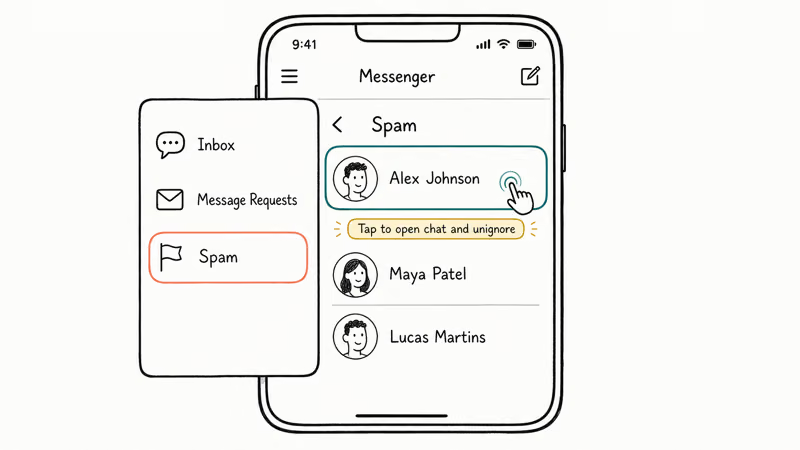
- Open the Messenger app and tap your profile picture in the top-left corner. This opens your settings page.
- Scroll to Message Requests and tap it. Messenger splits incoming requests into two views: You May Know and Spam.
- Tap the Spam tab at the top of the screen. Every chat you have ignored, plus messages flagged automatically, lives here.
- Find the conversation from the person you want to unignore and tap it once to open the thread.
- Tap anywhere inside the chat window. Messenger immediately moves the chat back to your primary inbox. There’s no confirmation dialog and no notification is sent to the other person.
If you don’t see Spam as a tab at the top, your app may show it as a separate row inside Message Requests instead. The wording shifts between Messenger versions, but the path is always Profile picture → Message Requests → Spam. If that path looks different on your phone, update the app from the App Store or Google Play and retry.
You can read every message the person sent during the ignore window without unignoring first. Tap the chat to open it inside Spam, and scroll. Backing out without tapping inside leaves it right where it stands.
#How to Unignore Someone by Sending a New Message
The faster shortcut is reply. Any outgoing message from you instantly pulls the chat out of Spam and back into the main inbox, because Messenger reads outgoing activity as your signal that you want the conversation again. You don’t need to find the Spam folder at all.
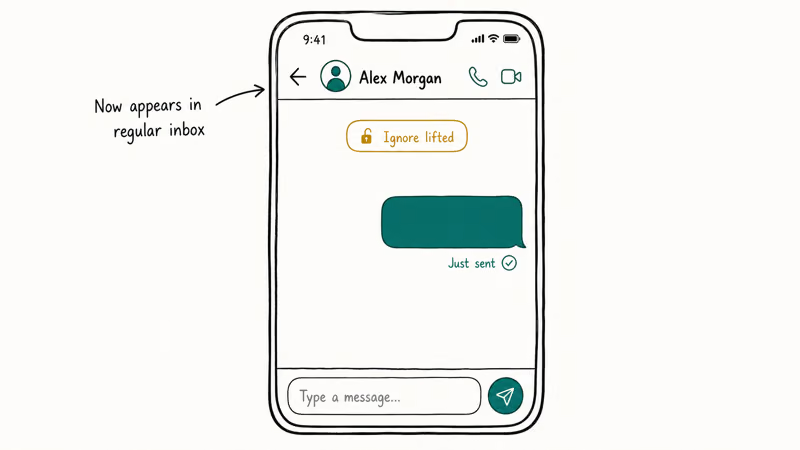
This works two ways. If the person has already messaged you while ignored, open their thread from Spam, type a reply, and send. The chat lands in your main inbox right after.
If they haven’t messaged you, start a new chat from the New Message icon and send anything. Heads up: this route pings them with a fresh push notification.
#What Happens When You Unignore Someone on Messenger?
Three things change the moment you unignore a chat. First, the conversation returns to your primary inbox sorted by its most recent message timestamp, so a chat that’s been ignored for three months won’t jump to the top. Second, notifications resume. Third, the thread becomes searchable again from the main search bar.
What doesn’t change is just as important. The other person sees no banner, no badge, no system message, and no “you have been unignored” alert anywhere. Active Status, read receipts, and typing indicators all behave the same way they did before. Old messages aren’t deleted, and any photos or links they sent during the ignored window stay intact in the thread.
Meta’s Messenger features overview states that ignore actions are deliberately silent on both ends to reduce social friction. That’s why the unignore step works so cleanly. You’re reversing a setting that was never visible to begin with.
#Why Don’t Old Messages Appear After You Unignore Someone?
Almost every “I unignored them but the chat is empty” report traces to one of three causes:
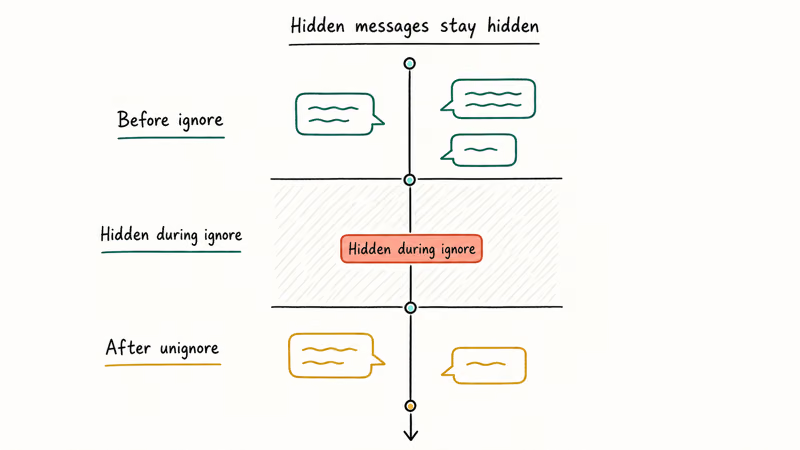
- You opened the chat from You May Know, not Spam. You May Know is for people who messaged you for the first time, so there’s no historical thread to restore.
- The chat was archived before you ignored it. Archived threads stay under Archive, not Spam, so the restore step lands on an empty placeholder.
- A Messenger app cache glitch. Common after major version updates.
To fix a cache glitch, force-quit Messenger and reopen it. On iPhone, swipe up from the home bar, then swipe Messenger up off the screen. On Android, hit the Recents button and swipe Messenger away.
If the restored chat still doesn’t appear with full history, sign out from Settings → Account → Switch Account, then sign back in. This account refresh can clear stale local cache state when a force-quit doesn’t.
If the chat is truly gone, check whether the other person blocked or deleted you during the ignore window. The symptom looks identical. Meta’s Community Help on blocking confirms that a blocked conversation appears empty to the blocked side. If you suspect that’s happening, see our walkthrough on what this person is unavailable on Messenger means and how to tell the difference.
#Ignore Versus Block on Messenger Compared
| Action | Their messages arrive? | They get notified? | Reversible? | Where to find |
|---|---|---|---|---|
| Ignore conversation | Yes, into Spam | No | Yes, in seconds | Chat menu, Ignore Messages |
| Block messages | No | No | Yes, takes effect immediately | Profile, Block Messages |
| Block on Facebook | No, plus loses profile access | No | Yes, with a 48-hour cool-down | facebook.com privacy settings |
Comparison of ignore and block actions on Messenger and Facebook.
Pick the action that matches your intent. Ignore keeps the bridge intact, block messages stops the inbox traffic, and block on Facebook is the strongest of the three because it also removes the person from your search results and group suggestions.
If the person you’re unignoring is someone you actually wanted to block, switch options now: open their profile, tap Block Messages, and confirm. You can also unfollow them on Facebook if you want to stop seeing their posts. If you suspect they blocked you back during the silence, our guide on how to text someone who blocked you walks through the workarounds and what they signal about the account state.
When Messenger misbehaves mid-unignore, run the Facebook Messenger not working checklist first.
#Bottom Line
The fastest unignore is the reply-to-restore shortcut. Open the Spam folder, tap the chat, type anything, send. The chat is back in your main inbox before the keyboard closes, and the other person sees no notification beyond the new message itself.
If you’d rather read history first without revealing that you reopened the conversation, use the Spam-folder method and tap inside the thread to lift the ignore silently. Choose the silent route when you’re still deciding, and choose the reply route when you’ve decided. You can re-ignore at any time from the chat’s three-dot menu, so the choice is easy to undo.
For users juggling parallel inboxes on a basic phone, the lightweight Facebook Touch interface handles ignore controls differently than the main app, so stick with the official Messenger app for these changes.
#Frequently Asked Questions
Will the person know if I unignore them on Messenger?
No. Unignoring is silent on the other end, with no notification, banner, or system message anywhere on their device.
Can I unignore someone without sending a reply?
Yes. Open Message Requests, tap the Spam tab, find the chat, and tap it. The conversation moves to your main inbox as soon as you tap inside the thread. You don’t have to type anything.
What if the Spam folder doesn’t show the chat I’m looking for?
Check the You May Know tab first; new requests from people you’ve never chatted with land there, not in Spam. If it’s not in either tab, the chat may have been archived before you ignored it. Open the search bar, type the person’s name, and tap their result to surface the archived conversation. Update the Messenger app if the layout looks unfamiliar.
Does unignoring restore deleted messages?
No. Unignoring only moves the chat back; deleted messages stay gone.
Can I ignore the same person again later?
Yes. Open the chat, tap the chat header, scroll to Ignore Messages, and confirm. The chat goes back to Spam with no notification. There’s no limit on how many times you can switch a chat between ignored and unignored.
Does ignoring on Messenger also affect Facebook notifications?
Ignoring a Messenger conversation only changes how that chat behaves inside Messenger, since the two notification systems are completely separate inside Meta’s apps. You’ll still see the person’s Facebook posts in your main feed, get tagged-in notifications from posts and comments, and receive event invitations the same as before. To quiet the Facebook side without touching your Messenger settings, open their profile in the Facebook app, tap the three-dot menu, and pick Unfollow.

Google Messages Error 3100: Why RCS Is Broken on Galaxy
Google Messages RCS error 3100 hits Galaxy owners after phone or carrier switches. Google told 9to5Google a fix is coming. Here's what actually helps.

Is This Bank App Real? Spot a Fake App on Your Home Screen
A bank app can land on your home screen from a web page with no install warning. Learn the checks that tell a real banking app from a phishing web app.

Apps Crashing After iOS 27 Update? Fix Order (2026)
Apps crashing after the iOS 27 update? Update the app in the App Store first, then offload and reinstall to clear stale cache, then restart. The fix order.

Do AI Translation Earbuds Work Offline? What to Know
Do AI translation earbuds work offline? A few do with downloaded language packs, but most need the cloud. Here's what works offline and what you give up.