Remove Noise From Audio Online: 7 Free Tools (2026)
Compare 7 free and paid online noise removal tools for speech, music, and privacy, plus when Audacity on your laptop beats every browser AI option.
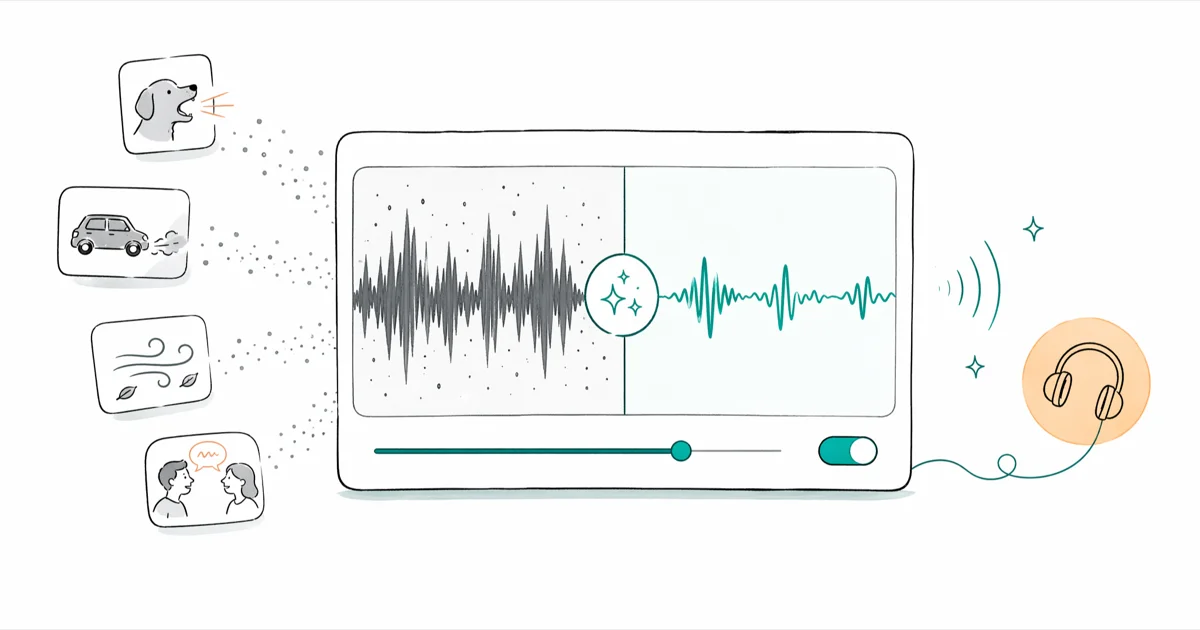
Quick AnswerUpload your file to Adobe Podcast Enhance Speech for free AI cleanup, or try Krisp, Cleanvoice, or AudioStrip. For private recordings, run Audacity Noise Reduction on your desktop instead of uploading to a server.
Background hum, a passing siren, an HVAC drone, a barking dog: any of these can ruin an otherwise usable recording. The good news is that browser-based AI tools have closed most of the gap with paid desktop suites for normal voice cleanup.
For spoken-word cleanup, Adobe Podcast Enhance Speech is the strongest browser option. For music separation, AudioStrip is the better fit. For privacy-sensitive recordings, skip online uploaders and open Audacity on your laptop to run its built-in Noise Reduction profile.
- Adobe Podcast Enhance Speech is free, runs in any browser, and outputs studio-grade voice cleanup with no signup beyond a free Adobe ID.
- Krisp added an in-browser file uploader in 2024; their free plan covers 60 minutes of cleanup per day.
- AudioStrip, Vocal Remover, and Cleanvoice each target a different job: stem separation, karaoke-style splits, and podcast filler removal.
- Online tools upload your file to a server. For HIPAA, attorney-client, or NDA recordings use Audacity or iZotope RX on your own machine.
- AI cleanup can introduce artefacts on music. Always export an A/B comparison before deleting your raw file.
#What is the Best Free Online Tool to Remove Background Noise?
Adobe Podcast Enhance Speech is the strongest free option for spoken audio in 2026. According to Adobe’s Enhance Speech support page, the model is trained to isolate dialogue and reject room tone, reverb, and steady mechanical noise. You sign in with a free Adobe ID, drag a WAV or MP3 onto the page, and the result downloads in roughly the same wall-clock time as your file’s runtime.
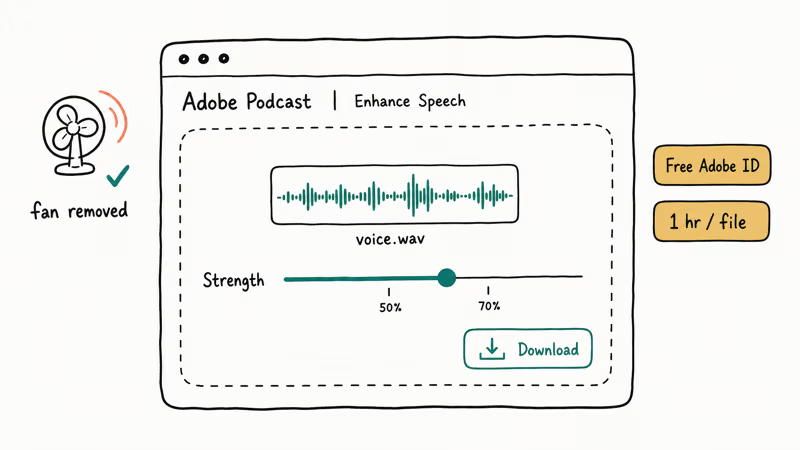
Enhance Speech can push ordinary recordings toward a “studio podcast” timbre, so a kitchen-table interview may suddenly sound like an NPR booth. Use the strength slider conservatively when you want the result to keep some natural room tone.
Free tier limits worth knowing: Adobe caps individual files at 1 hour and 1 GB per upload, with up to 4 hours of audio enhanced per day on the free plan. The page accepts multiple files in sequence, although there is no batch queue. Adobe announced 4 hours per day as the free cap when the tool moved out of beta.
#How to Remove Noise from Audio Online: 7 Tools Compared
Each tool below has a different sweet spot. Pick by use case rather than reputation alone.
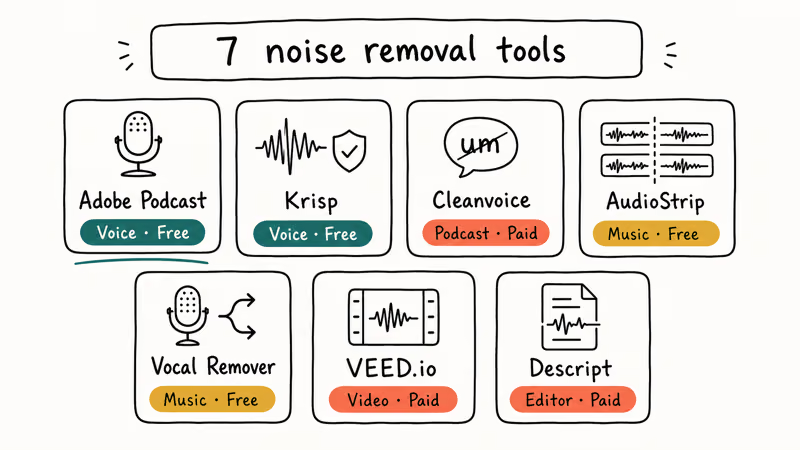
#1. Adobe Podcast Enhance Speech (Free, AI Voice)
- Best for: Spoken word, podcasts, interviews, lecture recordings.
- Limit: 1 hour or 1 GB per file on free tier; 4 hours of processing per day.
- Output: 48 kHz WAV.
- Skip if: The recording has music or singing under the voice, since Enhance Speech treats those as noise.
#2. Krisp Online (Free + Paid)
Krisp built its name as a real-time meeting plugin, but the web app at krisp.ai/online-noise-cancellation lets you upload a file and pull a cleaned version. The free tier handles 60 minutes of total cleaning per day according to Krisp’s pricing page. The cleanup is gentler than Adobe’s, which makes it a better fit when you want to keep the room sound but kill the AC unit.
Krisp also has a desktop driver that filters microphone input before it ever hits Zoom, Meet, or Teams. Use that mode for live calls, and use the web uploader when you already have a recorded file.
#3. Cleanvoice (Paid, Podcast-Focused)
Cleanvoice goes further than basic noise reduction: it also removes mouth clicks, “um” filler words, and long silences. Cleanvoice’s pricing page states the entry plan is $11 per month for 8 hours of audio, which lines up with one weekly podcast episode. Their multi-track support is the reason podcasters with co-hosts pick it over Adobe.
The trade-off is heavier processing than a simple voice denoiser because Cleanvoice also scans for speech edits such as filler words and long silences.
#4. AudioStrip (Free + Paid, Music)
AudioStrip splits a song into vocal and instrumental stems, which is technically not “noise removal” but solves the same problem when the noise is music or vocals you want to subtract. AudioStrip’s free tier limits you to 2 stems per day at 128 kbps; the paid tier unlocks 320 kbps.
#5. Vocal Remover and Isolation (vocalremover.org)
A free, no-signup utility with three relevant tools: Vocal Remover (karaoke-style splits), Noise Reducer (general purpose), and Pitch Changer. According to the site’s FAQ, the splitter uses a UNet model retrained for popular music. Less polished than AudioStrip but truly free with no daily cap, which makes it the best zero-friction first stop.
#6. VEED.io (Paid, Video + Audio)
If your noise problem is on a video, VEED.io’s “Clean Audio” filter applies to the whole video timeline in one click. The free trial watermarks the export, but you can pull the cleaned audio out of the editor if you only need the WAV.
#7. Descript Studio Sound (Paid, Editor-Centric)
Descript’s Studio Sound effect is designed for editors who already work in Descript’s transcript-based timeline. The cleanup quality is comparable to Adobe Podcast, with the benefit that you can layer it on top of edits, fades, and overdubs without re-exporting. According to Descript’s Studio Sound documentation, the feature is included on Descript’s paid Creator plan.
#How Online Noise Removers Actually Work
Modern browser-based cleaners fall into two camps. The traditional camp uses spectral subtraction: you sample a noise-only section, the tool subtracts that frequency profile from the rest of the file, and what remains is the cleaned signal. Audacity, Adobe Audition, and iZotope RX all expose this approach.
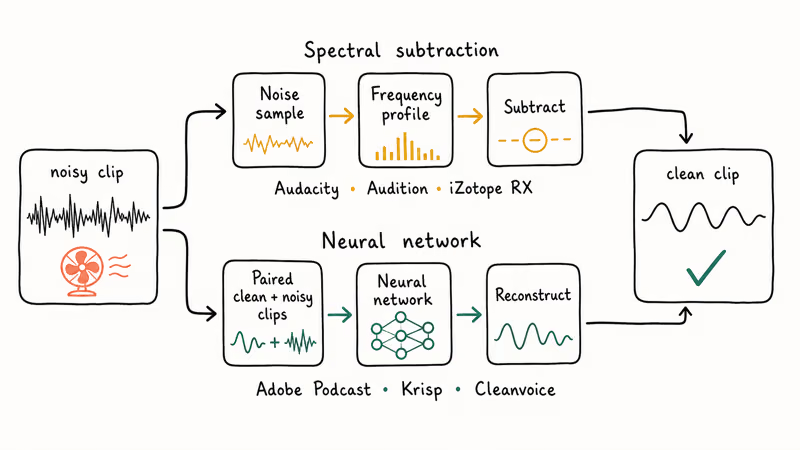
The newer camp uses neural networks trained on millions of paired clean-and-noisy clips. Adobe Podcast Enhance Speech, Krisp, and Cleanvoice are in this camp. The model learned to predict “what would this voice sound like with no noise?” and reconstructs the audio from scratch. That is why AI tools can remove noise even when you don’t have a clean noise-only sample — but it’s also why they sometimes invent artefacts that weren’t in the original.
For voice work, the AI camp wins on convenience and quality. For music or sound design, the spectral camp gives you finer control because you can hear exactly what is being subtracted.
#When Should You Skip the Browser and Use a Desktop App?
Three scenarios where uploading is the wrong choice:
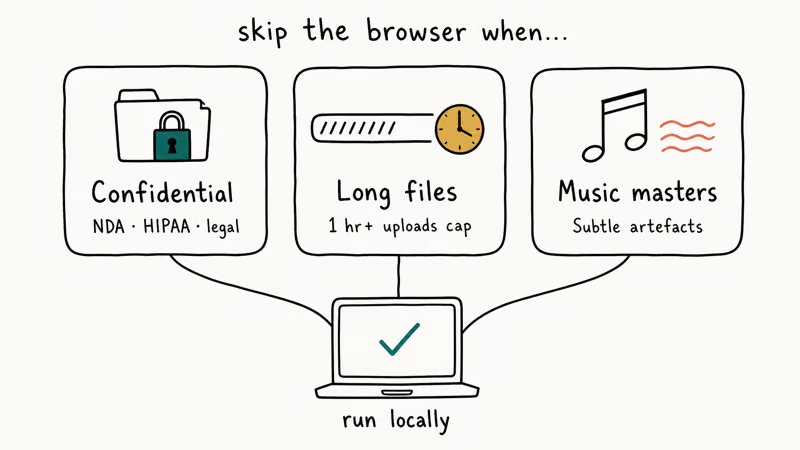
Confidential recordings. Lawyer-client calls, doctor-patient sessions, HR interviews, or anything covered by NDA should never be uploaded to a third-party AI tool. Cross-border transfers to a US-based AI cleanup service trigger GDPR processor obligations under the EU framework.
According to Wikipedia, spectral subtraction methods date to 1979 and run entirely offline on modest hardware. That is why local Audacity processing is the safe default for sensitive audio. For these recordings, run noise reduction on your own machine.
Long files. Most online tools cap individual uploads at 1-2 hours. A 6-hour conference recording will hit that limit immediately. Audacity, Adobe Audition, or DaVinci Resolve handle multi-hour files without batching.
Music with subtle artefacts. AI denoisers can introduce a “watery” sound on sustained instruments. Tools such as iZotope RX Spectral De-noise are a better fit for music masters because they let you draw a noise profile by hand and apply it surgically.
#Run Audacity’s Noise Reduction Locally in 90 Seconds
Audacity is free, open source, and works on Windows, Mac, and Linux. The workflow takes about 90 seconds once you know the steps:
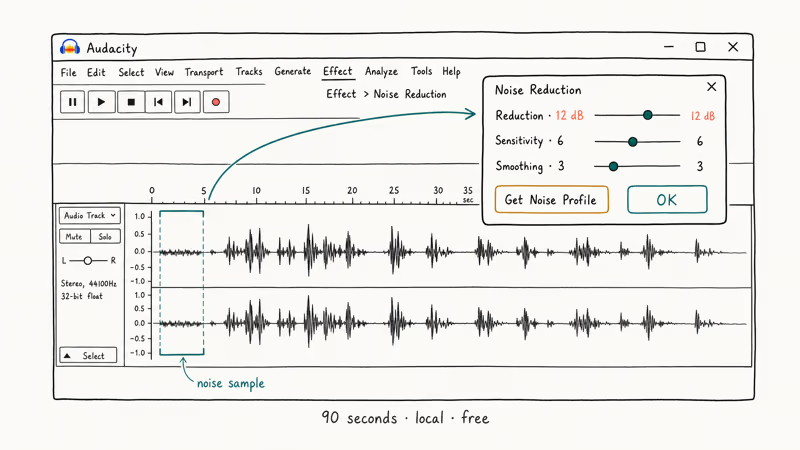
- Open your audio file in Audacity. Find a section that contains only the noise (a 1-2 second gap before the speech starts).
- Highlight that silent-but-noisy section.
- Go to
Effect>Noise Removal and Repair>Noise Reduction. - Click Get Noise Profile.
- Press Ctrl+A (or Cmd+A on Mac) to select the whole track.
- Open the Noise Reduction effect again. Set Noise Reduction to 12 dB, Sensitivity to 6, Frequency Smoothing to 3.
- Click OK.
- Listen back. If the voice sounds underwater, lower the Noise Reduction value to 8 dB and rerun.
The dB number is the maximum amount Audacity will subtract; lower values keep more of the original room sound. If the voice sounds thin or underwater, lower the reduction amount and rerun the effect.
If Audacity feels too bare, DaVinci Resolve’s audio panel (Fairlight) has a real-time Voice Isolation effect that mirrors the Adobe Podcast experience and runs entirely on your GPU.
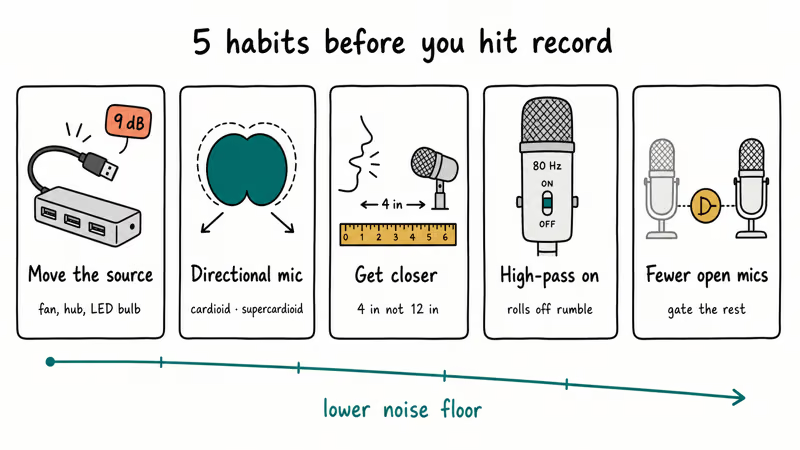
#Five Recording Habits That Reduce Noise Before You Edit
Cleanup is a recovery move. Better mic technique avoids the problem entirely.
#Move the noise source, not the mic
Switching off a buzzing fan, closing a window, or unplugging an LED bulb with a coil-whine driver costs nothing and removes the noise at its source. Fixing the source is cleaner than trying to subtract it later.
#Pick a directional pattern
Cardioid and supercardioid microphones reject sound from the rear. According to Shure’s microphone polar pattern guide, a supercardioid rejects roughly 12 dB more off-axis sound than an omnidirectional mic. For voice work, you almost always want directional. The best ASMR microphone roundup walks through the cardioid choices that work best for close-mic voice.
#Get closer
The inverse-square law says doubling mic distance drops the signal by 6 dB while ambient noise stays roughly constant. Putting the mic 4 inches from your mouth instead of 12 inches improves your signal-to-noise ratio by about 9-10 dB before you touch any software. That is a bigger improvement than any AI plugin gives you.
#Engage the high-pass filter
Most condenser mics have a switch that rolls off frequencies below 80 or 100 Hz. AC rumble, table thumps, and traffic boom all live below that line. Flip the switch.
#Reduce open mic count
Every additional open mic in a room adds 3 dB of noise floor. If you’re recording two people, give each a directional mic and gate the one that isn’t speaking. A noise gate pedal does this in hardware; software gates inside Adobe Audition or Logic do it in post.
#Bottom Line
For most spoken-word cleanup in 2026, start with Adobe Podcast Enhance Speech. It’s free, fast, and the strongest AI voice cleaner you can run in a browser.
For multi-host podcasts with filler words, pay for Cleanvoice. For music or quick free splits, use AudioStrip or Vocal Remover. For confidential or hour-plus recordings, skip the cloud and run Audacity locally.
The best fix is still recording clean: directional mic, close distance, high-pass filter on, fan off.
#Frequently Asked Questions
Is Adobe Podcast Enhance Speech really free?
Yes. You need a free Adobe ID to use it, but there is no charge for the cleanup itself. Adobe’s terms cap the free plan at 4 hours of processed audio per day and 1 hour per file.
Does noise removal damage the original voice?
Aggressive noise reduction can introduce a hollow or underwater quality, especially on sibilants and breath sounds. Always export an A/B comparison and back up the raw file before discarding it. Setting Audacity’s Noise Reduction to 8-12 dB instead of the default 24 dB keeps voice damage minimal.
Are online noise removal tools safe for confidential recordings?
No, they aren’t. Most upload your file to a cloud server for processing. For lawyer-client, doctor-patient, or NDA-covered material, use a desktop tool like Audacity or iZotope RX so the audio never leaves your machine.
Can I remove noise from a live audio stream?
Real-time noise cancellation is a different category. Krisp’s desktop driver, NVIDIA Broadcast, and macOS’s Voice Isolation all filter your microphone before it reaches Zoom or Discord. The browser-based file uploaders don’t work on live streams.
What audio formats do these tools support?
Most online cleaners accept WAV, MP3, M4A, FLAC, and AAC. Adobe Podcast also accepts video files and extracts the audio track automatically. Cleanvoice supports multi-track WAV uploads with one mic per host.
How long does processing take?
For Adobe Podcast Enhance Speech, expect roughly real-time on short clips, meaning a 5-minute file processes in about 5 minutes. Cleanvoice is slower because it also runs filler-word detection, taking around 15-25% of the file’s runtime. Audacity on a modern laptop processes a 30-minute file in under 30 seconds.
Can I remove noise from a voice memo or recovered call recording?
Yes. Save the voice memo as an MP3 or M4A, then upload it to Adobe Podcast or Krisp like any other file. Phone-recorded audio is usually low bit-rate, so expect modest gains compared to a studio recording.

Google Messages Error 3100: Why RCS Is Broken on Galaxy
Google Messages RCS error 3100 hits Galaxy owners after phone or carrier switches. Google told 9to5Google a fix is coming. Here's what actually helps.

Is This Bank App Real? Spot a Fake App on Your Home Screen
A bank app can land on your home screen from a web page with no install warning. Learn the checks that tell a real banking app from a phishing web app.

Apps Crashing After iOS 27 Update? Fix Order (2026)
Apps crashing after the iOS 27 update? Update the app in the App Store first, then offload and reinstall to clear stale cache, then restart. The fix order.

Do AI Translation Earbuds Work Offline? What to Know
Do AI translation earbuds work offline? A few do with downloaded language packs, but most need the cloud. Here's what works offline and what you give up.