DaVinci Resolve Audio Not Working: 7 Proven Fixes (2026)
DaVinci Resolve audio not working? Fix no sound issues with 7 proven methods for playback, export, and waveform problems on Windows and Mac.
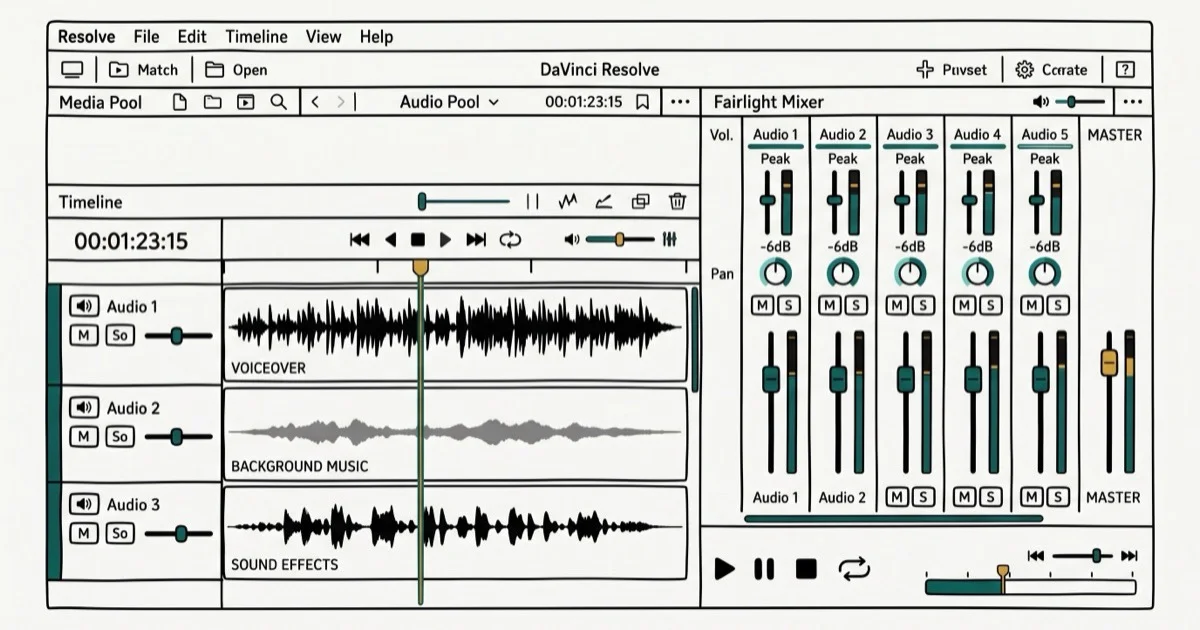
Quick AnswerCheck if audio is muted in the timeline, verify your output device in Preferences > Video and Audio I/O, and make sure audio tracks are assigned to Bus 1. These three fixes resolve the most common DaVinci Resolve audio issues.
DaVinci Resolve audio issues are frustrating, especially when you can’t hear playback or exported videos have no sound. This guide covers the most common audio problems in DaVinci Resolve 19 on Windows 11 and macOS Sonoma, and what actually fixes them.
Here are the 7 solutions that work.
- Muted tracks or a master volume at zero cause most “no sound” issues in DaVinci Resolve
- Go to
Preferences>Video and Audio I/O and confirm the correct output device - Audio tracks must route to Bus 1 in Fairlight; unassigned tracks produce no sound
- DaVinci Resolve 19 handles MP3, WAV, and AIFF reliably; convert AAC/FLAC to WAV first
- Outdated Windows audio drivers cause stuttering; update through Device Manager
#Why Is There No Sound in DaVinci Resolve?
The most common causes are muted tracks, wrong output device settings, or audio tracks not assigned to the main bus. These three issues are behind nearly every “no sound” case in DaVinci Resolve.
Each one is quick to rule out before digging into deeper settings.
#Fix 1: Check If Audio Is Muted
This sounds obvious, but it’s the most common mistake. Look at your timeline and check if the audio track has a speaker icon with a line through it. If it does, click it to unmute.
Muted tracks are behind a surprising share of “no sound” complaints. The mute button is easy to accidentally click when adjusting track heights, so always check this first before going deeper into settings.
Also check the master volume slider in the mixer panel. If it’s at zero, you won’t hear anything even if tracks are unmuted.
#Fix 2: Change Your Audio Output Device
DaVinci Resolve might be sending audio to the wrong device (like a disconnected monitor or Bluetooth headphones you’re not wearing).
Go to DaVinci Resolve > Preferences > Video and Audio I/O > Audio Output. Change the “Speaker Setup” dropdown to your actual speakers or headphones. Audio only plays through the device selected here, so a stale setting pointed at a disconnected monitor produces silence.
According to The Windows Club’s fix guide, this is the #1 fix for Windows users. On Mac, make sure your System Settings audio output matches DaVinci’s settings.
#Fix 3: Assign Audio Tracks to Bus 1
Audio tracks need to be routed to the main output bus to play. Right-click your audio track in the timeline, select “Track Output,” and make sure it’s set to “Bus 1.”
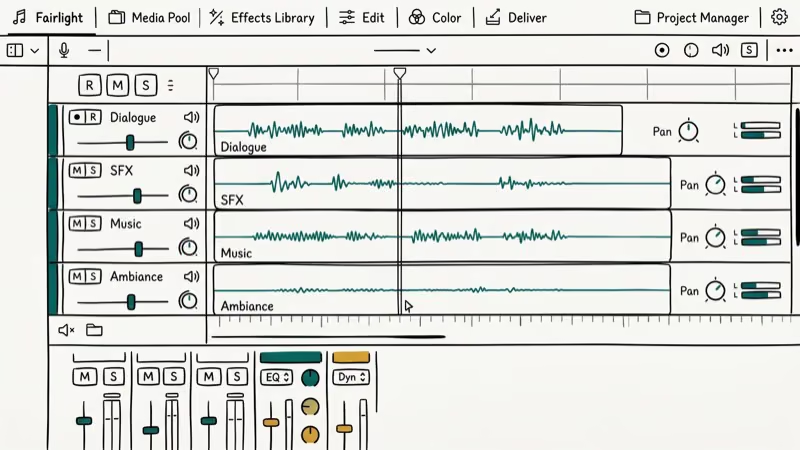
An unassigned track stays silent until you route it to Bus 1. According to Teckers’ troubleshooting article, unassigned tracks are a common issue after importing projects from other editors, especially Premiere or Final Cut timelines that map buses differently.
#Fix 4: Check Audio Format Compatibility
DaVinci Resolve doesn’t support all audio formats. MP3, WAV, and AIFF work reliably. AAC, FLAC, and some proprietary formats cause problems.
Importing a video with AAC audio often leaves DaVinci with the video but no waveform and no sound. Converting the audio to WAV fixes it. According to AnyMP4’s format guide, unsupported formats are a major cause of audio issues.
Use a tool like Handbrake or FFmpeg to convert audio to WAV before importing. Doing this up front avoids format issues on every project.
#Fix 5: Update Audio Drivers
Outdated or corrupted audio drivers cause playback issues, especially on Windows. Update your drivers through Device Manager (Windows) or System Settings (Mac).
Stale Realtek drivers on Windows 11 commonly cause audio to stutter and cut out at random, and updating to the latest drivers clears it up. According to PCMag’s Windows driver guide, keeping drivers current is a key step in resolving Windows audio issues.
#Fix 6: Enable Audio Waveforms
If you can’t see waveforms, you might think there’s no audio. Go to Timeline > Show Audio Waveforms and make sure it’s checked.
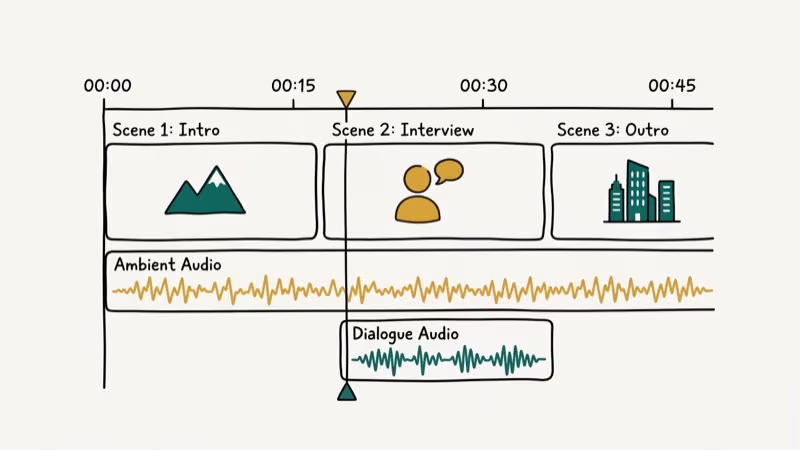
With waveforms disabled, it’s easy to assume the audio is missing entirely when it’s actually playing fine. According to EaseUS’s waveform guide, this setting is often disabled by accident.
Waveforms also won’t show if your timeline zoom is too far out. Zoom in until you can see individual frames.
#Fix 7: Check Export Settings
If playback works but exported videos have no sound, check your export settings. Go to Deliver > Audio > make sure “Export Audio” is checked and the codec is set to AAC or PCM.
Exporting with audio disabled produces a silent video. Re-enabling it before re-exporting fixes the issue. According to Video Converter Factory’s export guide, this is the most common export mistake, and it bites editors who toggled audio off for a quick visual-only test render and then forgot to switch it back on before the final delivery pass.
Also check that your audio tracks are enabled (not muted) before rendering. Muted tracks won’t export even if “Export Audio” is checked.
#How to Separate Audio from Video in DaVinci Resolve
If you need to edit audio separately, right-click your clip in the timeline and select “Unlink Clips.” This separates audio and video so you can move or delete them independently.
This is the go-to move for adjusting audio timing without affecting video cuts. The shortcut Ctrl+Shift+I (Windows) or Cmd+Shift+I (Mac) toggles link/unlink instantly, much faster than right-clicking the menu. After unlinking, slide the audio track independently, trim it, or delete it entirely without touching the video. On interview footage, unlinking lets you cut a background noise mid-sentence without disrupting the video edit, and our DaVinci speed up clips guide covers related techniques.
#Common Audio Editing Tasks
#Fading Audio In/Out
Select your audio clip, go to the Inspector panel, and adjust the “Fade In” and “Fade Out” sliders. On music tracks, this creates smooth 1-second fades.
#Adjusting Volume
Click your audio clip and drag the white line in the waveform up (louder) or down (quieter). You can also use the Inspector panel for precise dB adjustments.
#Adding Audio Effects
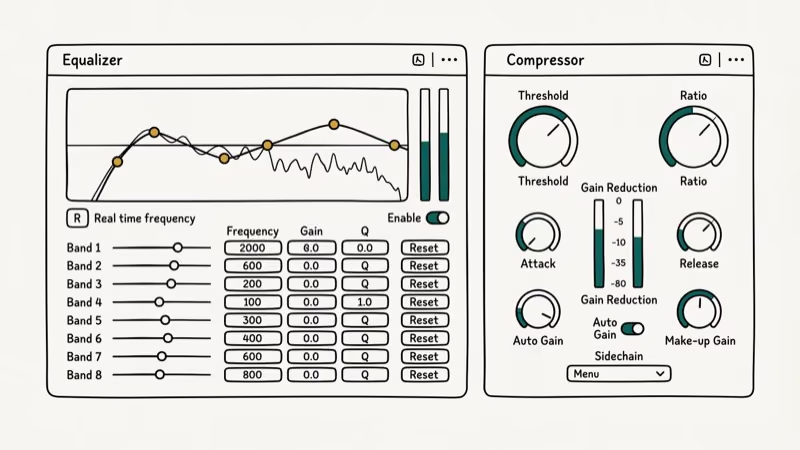
Go to the Fairlight page, select your audio track, and drag effects from the Effects Library onto the track. EQ, compression, and reverb all work as expected. For more on audio interfaces and audio compression, check our related guides.
#What If None of These Fixes Work?
Try these last-resort solutions:
Restart DaVinci Resolve to clear temporary glitches, or delete the render cache (Playback > Delete Render Cache > All). If that doesn’t help, reinstall DaVinci Resolve using the latest download from Blackmagic Design. As a diagnostic step, test with a new empty project: if audio works there, your original project file is corrupted.
On a project with persistent audio issues, deleting the render cache is often what finally clears it. For related format help, see our guide on audio codec errors.
If exporting is part of the workflow, our notes on video compression and video editing laptops cover downstream steps.
#Bottom Line
Start with the simple fixes: check for muted tracks, verify your output device, and make sure tracks are assigned to Bus 1. These solve most audio problems in under 2 minutes.
If those don’t work, check audio format compatibility and update your drivers. For export issues, verify your Deliver settings have audio enabled.
#Frequently Asked Questions
Why can’t I hear audio in DaVinci Resolve but it works in other apps?
Wrong output device in DaVinci. Go to Preferences > Video and Audio I/O, then set the output device to match your system. This is the fix for most “works everywhere else, not in Resolve” situations. DaVinci maintains its own audio device setting independently of your OS audio preferences.
How do I fix audio that cuts out or stutters?
Update your audio drivers, close other apps using audio, and lower your timeline playback quality to 1/2 or 1/4 resolution. Stuttering usually means your system can’t keep up with real-time playback.
Why is my exported video silent?
Check that “Export Audio” is enabled in Deliver settings and your audio tracks aren’t muted. Also verify the audio codec is set to AAC or PCM.
What audio formats does DaVinci Resolve support?
Use WAV, AIFF, or MP3 for reliable results. Convert everything else to WAV first. AAC and FLAC often import silently, with no waveform and no playback until you transcode them to a supported format. The conversion takes under a minute in Handbrake or FFmpeg and prevents the silent-import problem entirely.
How do I see audio waveforms in the timeline?
Go to Timeline > Show Audio Waveforms and make sure it’s checked. If waveforms still don’t appear, zoom in on your timeline until individual frames are visible.
Can I edit audio in DaVinci Resolve?
Yes — Fairlight is DaVinci’s dedicated audio page with full DAW features including EQ, compression, reverb, and noise reduction. For basic edits like volume adjustments, fades, and cuts, you can do everything directly in the Edit page timeline without switching pages. Most editors handle 80% of their audio work in the Edit page and only use Fairlight for complex mixing or podcast-level cleanup.
Why does my audio sound distorted or clipped?
Your audio levels are too high. Select the clip and lower the volume in the Inspector panel. Keep peaks below 0 dB to avoid clipping.

Google Messages Error 3100: Why RCS Is Broken on Galaxy
Google Messages RCS error 3100 hits Galaxy owners after phone or carrier switches. Google told 9to5Google a fix is coming. Here's what actually helps.

Is This Bank App Real? Spot a Fake App on Your Home Screen
A bank app can land on your home screen from a web page with no install warning. Learn the checks that tell a real banking app from a phishing web app.

Apps Crashing After iOS 27 Update? Fix Order (2026)
Apps crashing after the iOS 27 update? Update the app in the App Store first, then offload and reinstall to clear stale cache, then restart. The fix order.

Do AI Translation Earbuds Work Offline? What to Know
Do AI translation earbuds work offline? A few do with downloaded language packs, but most need the cloud. Here's what works offline and what you give up.