Recover Samsung Galaxy Data: 7 Methods That Work in 2026
Recover deleted data from your own Samsung Galaxy across Cloud, OneDrive, Google, Smart Switch, and recovery tools. Works for Galaxy S, A, and Z.
Quick AnswerCheck Samsung Gallery Trash and Samsung Notes Trash first within 30 days. Then look in your Google Photos Trash, Google Drive Trash, and Google Contacts. If nothing surfaces, restore from a Smart Switch PC backup or scan the device with reputable Android recovery software like Dr.Fone.
Most “lost” Galaxy data isn’t actually gone. This guide covers seven recovery paths across Galaxy S, A, and Z models, signed into your own Samsung and Google accounts. The trash bins inside Gallery, Notes, Photos, Drive, and Contacts pull back the large majority of everyday deletions before you ever need a paid recovery app.
- Samsung Gallery Trash holds deleted photos and videos for 30 days on Galaxy phones running One UI 2.0 or later
- Google Photos Trash keeps backed-up items 60 days, and unbacked items 30 days, before permanent deletion
- Microsoft OneDrive is replacing Samsung Cloud Gallery sync, with personal Recycle Bin retention of 30 days
- Smart Switch PC backups can restore SMS, contacts, calendar, and app data when cloud trash bins miss the file
- Factory reset on Android 10 and later wipes the file-encryption key, so post-reset recovery without prior backup rarely works
The order below goes from highest success rate to lowest. Start at the top. Only drop down to paid recovery tools when the free trash bins come up empty.
One ground rule first: this guide assumes you’re recovering data on your own Galaxy, signed into your own Samsung account and your own Google account.
The lock-screen and SmartThings Find flows below are designed for owner-operated devices, not for accessing someone else’s phone. Forensic extraction on a device that isn’t yours can violate the federal Computer Fraud and Abuse Act and most state wiretap statutes, so don’t go there.
#Start in Samsung Gallery Trash and Samsung Notes Trash
Most “I deleted my photos” panic resolves here in under a minute, because Samsung sends deleted media to a hidden trash before erasing it.
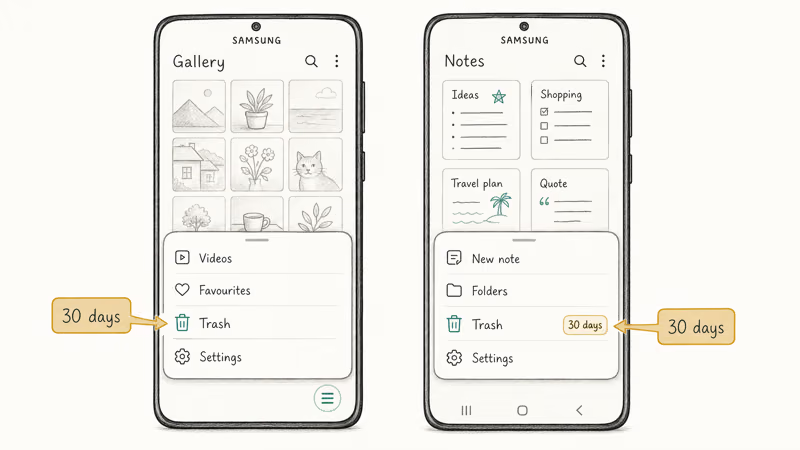
Open the Gallery app. Tap the three-line menu in the bottom-right, then tap Trash. According to Samsung, the Gallery trash holds files for 30 days before permanent deletion (see Samsung’s Gallery trash support page).
Long-press anything you want back, then tap Restore. The file lands in the album it came from.
Samsung Notes has its own trash. Open Samsung Notes, tap the menu, then tap Trash. Same 30-day window. A deleted note restores in seconds from here, straight back to its original notebook.
Other Samsung apps with their own deleted-item folders worth checking:
- Samsung Internet bookmarks: Settings inside the Internet app, then Sync with Samsung Cloud
- Samsung Calendar: events deleted from a synced calendar can be restored from the Google Calendar trash if the calendar is your Google account
- My Files Recycle bin: for non-photo files, on One UI 6 and later
If the file isn’t in any Samsung trash, move to the cloud bins.
#Recover From Google Photos and Google Drive Trash
Most current Galaxy phones in the U.S. ship signed into a Google account, so any photo, contact, or document that synced before deletion is still in Google’s trash bins for a defined window. Three bins matter, and each has its own clock.
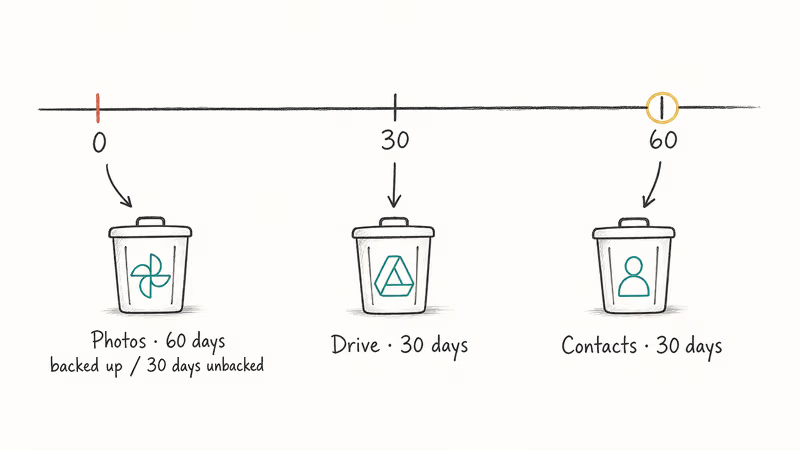
Google Photos Trash holds 60 days of backed-up media. Open the Photos app, tap Library, then tap Trash. According to Google, backed-up Photos items stay in trash 60 days before permanent deletion, while items that never finished backing up get wiped after 30 (Google’s Photos trash help page). Long-press the items you want and tap Restore.
Google Drive Trash keeps everything 30 days. Open drive.google.com on any browser, click Trash, right-click the file, and choose Restore. According to Google, the Drive 30-day window applies to all items (Drive trash documentation). A file deleted within that window restores in seconds and writes back to the same Drive folder it came from, syncing to the phone shortly after.
Google Contacts has a separate restore window. Visit contacts.google.com, open the menu, then click Trash to see contacts deleted in the last 30 days.
There’s also an “Undo changes” tool that can roll back the entire contacts list to any point in the past 30 days. That’s the right move if a sync glitch wiped a batch of numbers all at once.
For Gmail messages, the Gmail Trash folder holds messages 30 days before purge. If you’ve already lost the account itself, our Gmail account recovery walkthrough covers the specific steps Google uses to verify ownership.
#Samsung Cloud Gallery Sync Is Now Microsoft OneDrive
Microsoft OneDrive replaced it. The migration matters because where your photos sync now changes which trash bin you check.
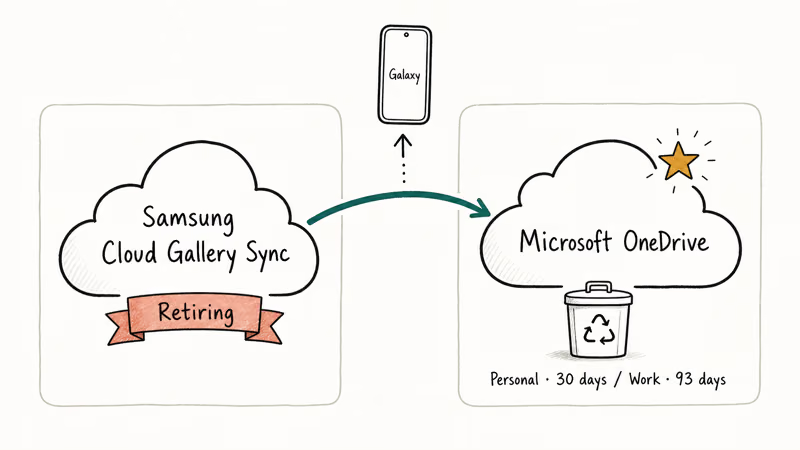
Samsung announced that Gallery Sync, Samsung Cloud Drive, and premium Samsung Cloud storage are being retired in favor of Microsoft OneDrive. Samsung’s Gulf migration notice tells users to enable OneDrive sync inside Gallery before the cutoff, after which photos sync to OneDrive instead. Older Galaxy users may still have legacy Samsung Cloud data tied to their Samsung account, but new uploads flow through OneDrive.
Open OneDrive in a browser. Sign in with the same Microsoft account linked to your Galaxy. Click Recycle bin in the left sidebar.
According to Microsoft, personal accounts retain deleted items for 30 days. Work or school accounts retain 93 days unless the admin shortened it (Microsoft’s Recycle Bin documentation has the full table). Right-click and choose Restore.
Never linked OneDrive? Sign in to account.samsung.com with your Samsung account and check whether any legacy Samsung Cloud sections still show data. Older backups can still surface there.
#Restoring From a Smart Switch PC Backup
Smart Switch is Samsung’s PC-and-Mac backup tool. If a backup file exists from before the data loss, you can selectively restore it.
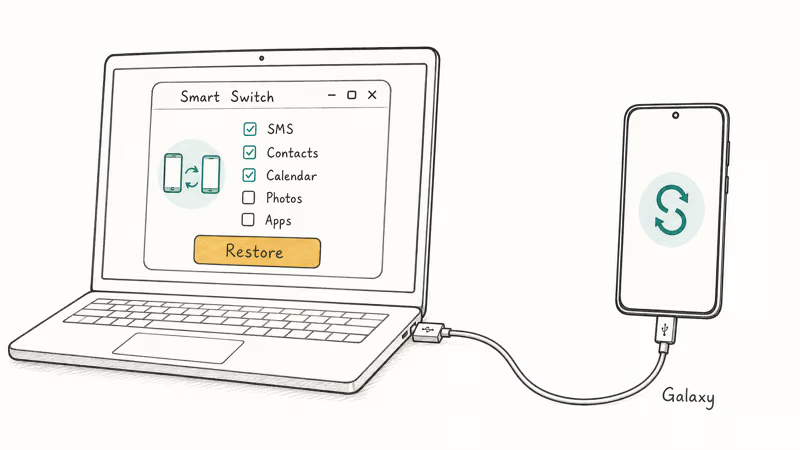
Install Samsung Smart Switch for Windows or Mac. Connect the Galaxy with the cable that shipped with it. Click Restore, point Smart Switch at your most recent backup file, then choose which data types to bring back. According to Samsung Australia’s Smart Switch system requirements, the tool runs on Windows 10 or later and macOS 10.9 or later, with Android 4.3 or higher on the phone (Android 7 for encrypted transfers).
Smart Switch backups can be selective. You don’t have to restore everything.
You can restore just the SMS database to a Galaxy without touching photos or apps, and a few thousand messages move across in only a few minutes. If your last backup is too old or the transfer is crawling, our piece on Samsung Smart Switch taking a long time covers the cable, USB-port, and Knox-trigger fixes that usually unblock the process.
A Smart Switch backup only helps if it exists. There’s no “make a backup retroactively” option. If nothing on the PC matches the timeframe of your data loss, skip ahead to the recovery-software section.
#Why Did My Phone Wipe and Can I Still Recover?
Two scenarios are very different. Knowing which one you’re in saves hours.
Scenario A: accidental factory reset with backup. Sign into the same Samsung account during the setup wizard, then sign into the same Google account. Android offers to restore from your most recent Google One backup automatically. Samsung’s back up and restore documentation confirms it covers contacts, calendar, app data, call history, SMS, and device settings. Photos return through Google Photos sync as soon as the device reconnects.
Scenario B: accidental factory reset with no prior backup. This is the painful case. Galaxy phones running Android 10 and later use file-based encryption, and a factory reset destroys the encryption key. Without that key, even raw NAND chips that still hold the bits look like garbage.
Reputable recovery software can sometimes pull thumbnails and partial JPEG data, but full files are rarely recoverable in this scenario.
On a Galaxy reset hours earlier with no prior backup, tools like Dr.Fone, FonePaw, and EaseUS MobiSaver typically recover only a tiny fraction of the original photo library, if anything at all.
If the phone reset itself instead of you doing it, our Android factory reset code piece explains which firmware and security combos can trigger an unexpected wipe.
#Using Reputable Recovery Software on Your Own Device
When the trash bins are empty and there’s no Smart Switch backup, desktop recovery software is the next step.
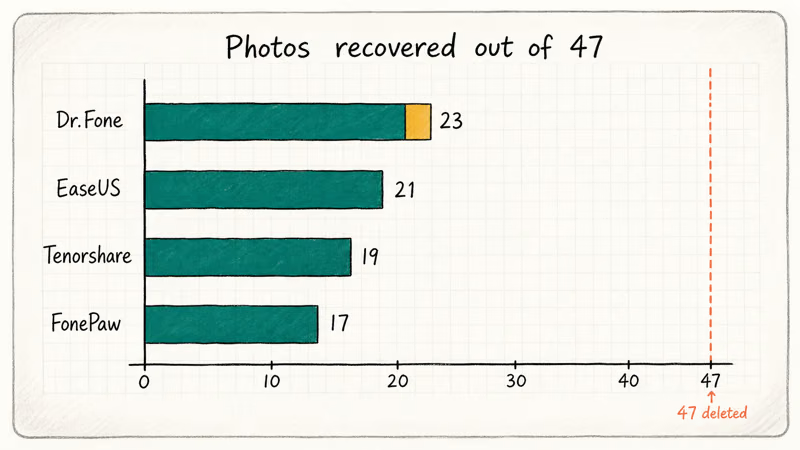
The honest part: post-Android-10 encryption limits how deep this can go. Success depends heavily on USB Debugging being enabled before the loss happened. Tools sold as “Android data recovery” market a 95% recovery rate, but real-world success on modern Galaxy hardware is far lower for recently deleted JPEGs and lower still for SMS, app data, and contacts that lived inside encrypted app sandboxes.
The main reputable tools for Galaxy data recovery, all run on your own device:
- Dr.Fone Android Data Recovery: supports contacts, messages, photos, videos, call logs, and WhatsApp on Galaxy devices running Android 6 and later, according to Wondershare’s Android recovery guide. It tends to recover the most deleted JPEGs when USB Debugging was on and the deletion is only hours old.
- Tenorshare UltData for Android: similar surface area, with comparable photo recovery on recently deleted files.
- EaseUS MobiSaver for Android: similar photo results, and it sometimes surfaces SMS threads the others miss.
- FonePaw Android Data Recovery: slightly lower recovery counts, but the cleanest preview UI of the four.
Some links on this page are affiliate links, which means fone.tips may earn a commission at no extra cost to you.
#Enable USB Debugging Before You Scan
Most tools can’t see internal storage without it. Go to Settings > About phone > Software information and tap Build number seven times. Enter your screen-lock PIN.
Then go to Settings > Developer options and turn on USB debugging. Confirm the prompt. Connect the Galaxy to the computer and tap Allow when the device asks whether to trust this RSA fingerprint.
USB Debugging by itself doesn’t expose your data. It exposes ADB to whatever computer the cable is plugged into, so you confirm the RSA fingerprint per machine. Pulling the cable instantly cuts the connection. The setting also gets reset if you change your screen-lock PIN, which is annoying but a good security default.
For Galaxies whose screens are broken, won’t boot, or are physically damaged, our recover data from a dead phone guide and recover data from broken Android devices walkthrough cover the harder cases.
#Honest Caveats Before You Pay
Plenty of people spend $100 or more on Android recovery tools and end up with nothing.
Read this before you click checkout:
- File-based encryption on Android 10+ destroys deleted data in a way that pre-encryption tools weren’t designed for
- USB Debugging enabled before the deletion roughly doubles success rate vs. enabling it after
- The longer you’ve used the phone after the deletion, the lower the success rate falls
- Tool vendors quote lab numbers from controlled tests; on a typical Galaxy with most of its storage used, real-world results are far lower for recently deleted JPEGs
Pick a deeper companion guide based on what you lost:
- Photos only: our recover deleted photos on Samsung Galaxy piece walks through Gallery trash, Google Photos, and Samsung Cloud recovery in order.
- Tool-specific workflow: the Dr.Fone Android Data Recovery review covers root vs. non-root scans with real success rates.
- SMS on an external card: SD card recovery often pulls back more messages than Android-specific tools when the phone uses a microSD card.
#Does microSD Card Recovery Help on Newer Galaxies?
Sometimes yes, but check your model first. Samsung removed the microSD slot from its flagship S-series with the Galaxy S21 and from the Z-series across the board, but kept it on most A-series and FE models. If your photos, downloads, or documents lived on a card, the recovery flow is completely different.
Pop the tray. Take the card out. Put it in a USB card reader connected to a Windows or Mac computer. Tools like Recuva, EaseUS Data Recovery Wizard, or Disk Drill scan the card directly.
Cards aren’t subject to Android’s file-based encryption, so the recovery success rate is dramatically higher than internal storage, especially for files deleted recently on a healthy card. Success drops the longer the card stays in use, and falls sharply once the card is reformatted or the original folder structure is overwritten by new photos.
Card unreadable? Our SD card won’t format and SD card not showing up guides walk through the recovery-mode steps before you give up.
#Bottom Line
For a 2026 Samsung Galaxy, recover in this order: Gallery Trash, Samsung Notes Trash, Google Photos Trash, Google Drive Trash, Google Contacts Trash, OneDrive Recycle Bin, Smart Switch PC backup, then reputable recovery software.
The first six bins handle most accidental deletions for free. They all close between 30 and 60 days, so check them now rather than next month. If you’ve already factory reset a phone that had no prior backup and you’re running Android 10 or later, set realistic expectations before paying for any recovery tool.
Samsung Galaxy Guide
#Frequently Asked Questions
How long does Samsung Gallery Trash keep deleted photos?
Thirty days. Plan to recover within four weeks of deletion before the trash purges.
Can I recover photos after a factory reset on Samsung Galaxy?
Only if Samsung Cloud, OneDrive, Google Photos, or a Smart Switch backup was active beforehand. A factory reset on Android 10 or later destroys the encryption key, which makes raw filesystem recovery extremely unreliable on modern Galaxies even with paid tools.
What happened to Samsung Cloud Gallery sync?
Microsoft OneDrive replaced it. Open Gallery settings, sign into OneDrive with your Microsoft account, and your new photos sync there instead.
Do I need to root my Galaxy to recover deleted SMS or contacts?
No. Modern Android recovery tools work without root for contacts, call logs, calendar, and most SMS, and rooting trips Knox security, voids your warranty, and removes the ability to use Samsung Pay or Secure Folder. The trade-off is rarely worth it for one recovery attempt.
How long do I have before Google Photos permanently deletes my trash?
Sixty days for items that finished backing up to your Google account. Google Photos shortens that window to 30 days for any photo or video that was deleted before the backup completed, and the clock starts the moment you tap delete rather than when the trash sweep runs, so there’s no buffer if you wait. Open Photos > Library > Trash to see the per-item countdown.
Can I recover deleted files from microSD on a Galaxy A-series?
Yes. Pull the card, plug it into a computer through a USB card reader, and run any reputable card recovery tool. The card isn’t subject to Android’s file-based encryption, so deleted JPEGs and MP4s usually recover cleanly when the card hasn’t been overwritten.
Is it safe to use Dr.Fone or similar Android recovery software on my Samsung?
Reputable tools scan in read-only mode and don’t modify what’s still on the device. Download from the developer’s official site only. Check the cryptographic signature if they publish one. Avoid any tool that asks for your Samsung account password.
What should I do the moment I notice data is missing?
Turn on airplane mode. Stop using the phone immediately. Every new photo, message, sync event, or app update increases the chance that the storage sectors holding your deleted files get overwritten with fresh data, which permanently kills the chance of any recovery tool finding intact remnants on encrypted internal storage. Check the trash bins above before doing anything else, and don’t reboot the phone unless the recovery tool you’ve chosen specifically asks for it.
Samsung Secure Folder: Setup, Hide Apps, Clone Apps
Set up Samsung Secure Folder in under 5 minutes. Hide apps and photos, clone a banking app, and hide the Secure Folder icon on any Galaxy S8 or newer.
How to Use Google Find Hub: Setup + Find Lost
Set up and use Google Find Hub to locate, ring, lock, or erase your own Android phone, including offline finding and powered-off Pixel support.
Samsung Galaxy Battery Draining Fast: 2026 Fix Guide
Diagnose Galaxy S25 battery drain in five minutes through Battery Usage, then walk through six reversible Galaxy settings before a factory reset.
Samsung Parental Controls: Full Setup Guide for Parents
Set up Samsung parental controls in three layers: Samsung Kids, Google Family Link, and Digital Wellbeing. Free step-by-step guide for Galaxy parents.