Samsung Secure Folder: Setup, Hide Apps, Clone Apps
Set up Samsung Secure Folder in under 5 minutes. Hide apps and photos, clone a banking app, and hide the Secure Folder icon on any Galaxy S8 or newer.
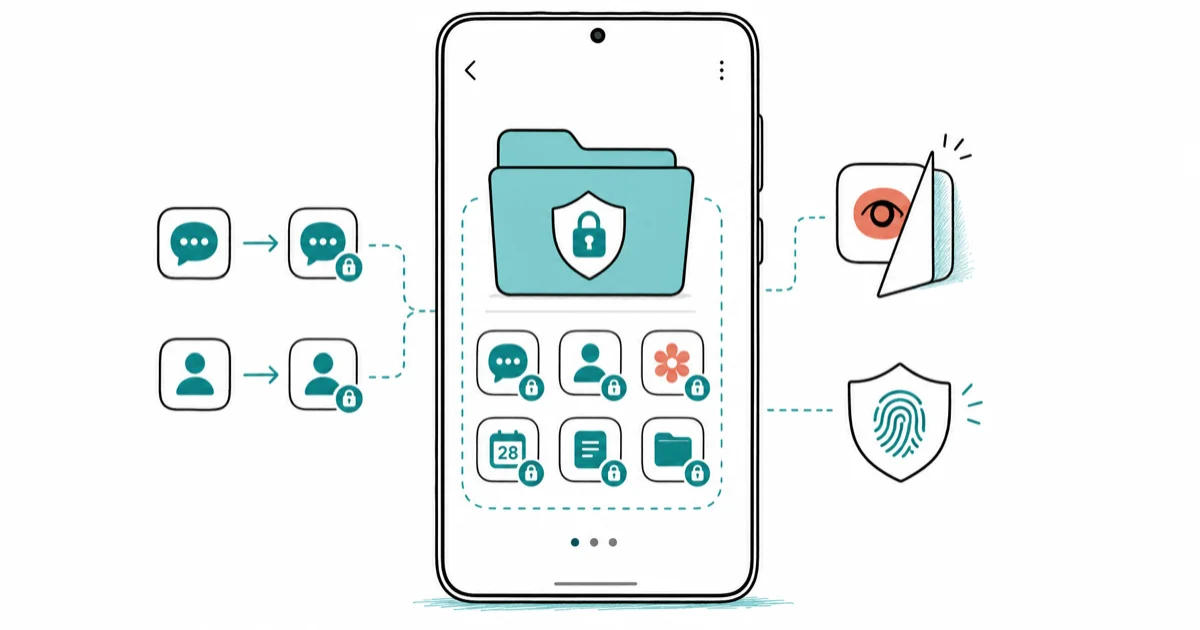
Quick AnswerSamsung Secure Folder is a Knox-encrypted second space on Galaxy phones for sensitive apps and files. Open Settings, Security and privacy, More security settings, then tap Secure Folder.
Samsung Secure Folder is a Knox-encrypted second space that lives on your Galaxy phone and locks apps, photos, and files behind a separate PIN, pattern, or fingerprint. It creates a separate, Knox-protected area for supported Galaxy apps, photos, and files.
Use Secure Folder only on your own device or one you manage with the owner’s explicit permission. Hiding apps on someone else’s phone without consent can violate law in many regions.
- Secure Folder uses Samsung Knox to encrypt data with a hardware-backed AES container, separate from your normal phone storage
- Setup lives at Settings, Security and privacy, More security settings, Secure Folder
- You can clone supported apps to run a second logged-in instance (handy for two WhatsApp or banking accounts)
- The Secure Folder icon itself can be hidden from the home screen and the Quick Panel toggle
- A factory reset wipes Secure Folder contents along with the rest of the phone, so back up first
#What Exactly Is Samsung Secure Folder
Secure Folder is a built-in Samsung feature available on Galaxy S8 and newer that creates an isolated workspace on your phone. Apps installed inside it can’t see or be seen by apps in your normal space. The whole container is protected by Samsung Knox.
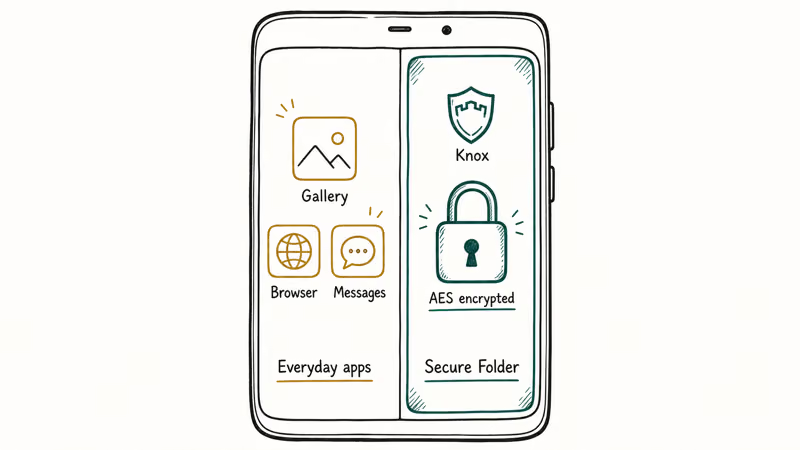
Samsung’s Knox platform documentation confirms that the Knox layer wraps user data in a 256-bit AES encrypted container keyed to the device’s secure hardware. According to Samsung’s official Secure Folder page, the feature ships on every Galaxy device with Android 7.0 or later and uses defense-grade Knox security to keep your selected data isolated. Even with root access, files inside Secure Folder remain encrypted at rest.
Two things are not the same. The legacy Samsung Private Mode was an app-level visibility filter that never encrypted anything. Secure Folder is a full Knox-encrypted workspace.
You can run two copies of an app. You can save photos that never appear in the main Gallery. You can keep work documents away from your personal files, and the encryption survives reboots and SIM swaps. It does not survive a factory reset.
#How to Set Up Secure Folder on a Galaxy
The path is similar across recent One UI versions.
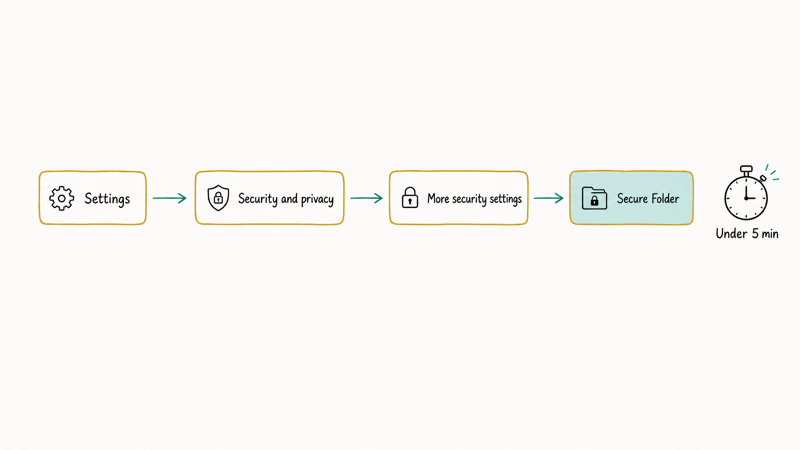
Follow these steps:
- Open Settings on your Galaxy
- Tap Security and privacy
- Scroll down and tap More security settings
- Tap Secure Folder
- Sign in with your Samsung account when prompted
- Choose a lock type: PIN, pattern, password, or biometric
- Tap Continue to finish setup
After setup, a Secure Folder icon appears on your home screen and in the app drawer.
Samsung’s US support page recommends using a different unlock method from your main screen lock. If your phone uses fingerprint, set Secure Folder to PIN. That way, if someone watches you unlock the phone, they still can’t enter Secure Folder.
#What You Can Put Inside Secure Folder
Three categories of content move in cleanly: apps, photos, and files.
For apps, open Secure Folder, tap the plus icon, then choose Add apps. You can install fresh from the Google Play Store or Galaxy Store while inside Secure Folder. A messaging app installed inside Secure Folder won’t show notifications when the folder is locked.
For photos already on your device, open the Gallery app, long-press the image, tap the three-dot menu, and choose Move to Secure Folder. The photo disappears from the main Gallery and from any cloud backup that scans the public gallery folders. You can move multiple files at once.
Files work the same way through My Files. Long-press, tap the three-dot menu, then Move to Secure Folder.
PDFs, documents, and audio files all move without re-encoding.
#Cloning Apps for a Second Account
Yes, this works. It’s one of the most useful Secure Folder tricks and the reason many users set it up in the first place.
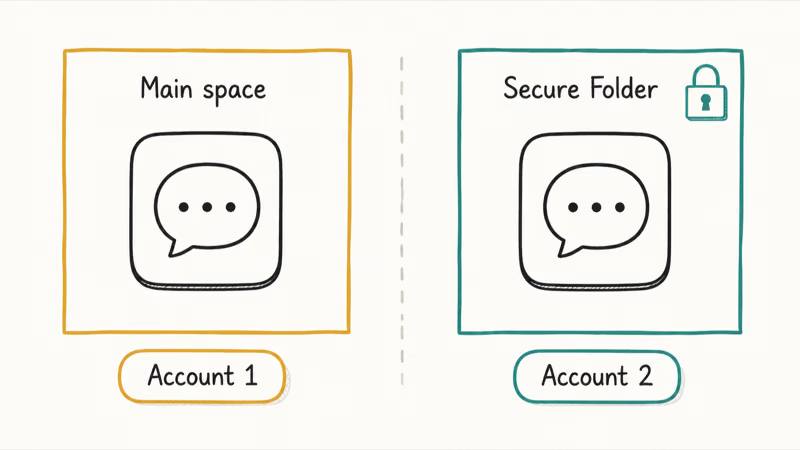
When you install an app inside Secure Folder that is already installed in your main space, you get two completely independent instances. Different account, different data, different notifications.
Supported apps installed inside Secure Folder can run as separate instances, with separate accounts, data, and notifications inside the container.
To clone an app you already have:
- Open Secure Folder and authenticate
- Tap the plus icon in the top-right corner
- Tap Add apps
- Select the apps you want to clone (existing apps show a ”+” badge)
- Tap Add
The cloned app installs in seconds and lands in your Secure Folder app grid. Log in with your second account and it stays signed in.
Not every app supports cloning. Apps that use device-level authentication (some banking apps with hardware attestation) may refuse to run inside Secure Folder. Samsung shows a clear error message when that happens and the install is cancelled.
#How Do You Hide the Secure Folder Icon Itself?
The icon-hide step is the part most guides skip. Hiding the icon makes Secure Folder invisible to anyone who borrows your phone.
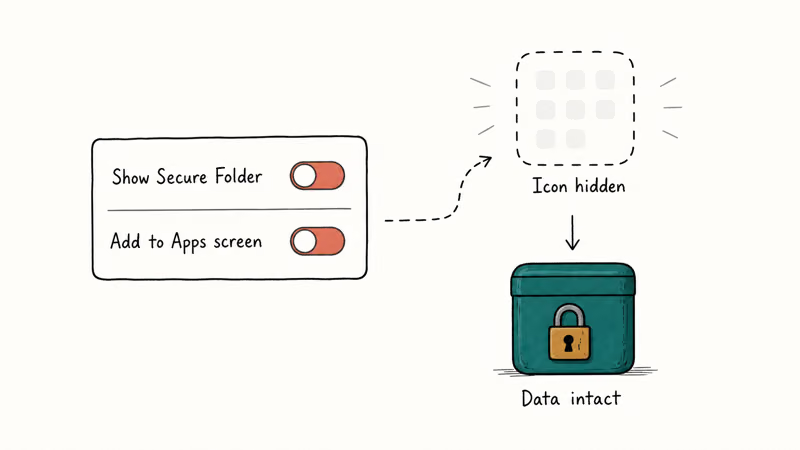
There are two places to control icon visibility, and the wording changed slightly in One UI 6.
The fast path is through the Quick Panel. Pull down the notification shade twice to expose the full Quick Panel grid. Long-press the Secure Folder tile, then toggle the Show Secure Folder switch off.
The full-control path lives inside Secure Folder itself:
- Open Secure Folder and authenticate
- Tap the three-dot menu in the top-right
- Tap Settings
- Toggle Add Secure Folder to Apps screen off
With both toggles off, the icon disappears from the home screen, the app drawer, and the Quick Panel. To get back in, pull down the notification shade and tap the Secure Folder Quick Panel tile, or open Settings, Security and privacy, More security settings, Secure Folder.
The data stays exactly where it was. Hiding the icon hides the door, not the room.
#Secure Folder vs. Private Mode: Which One Do You Have?
No, they’re not the same product, and the difference matters.
Samsung Private Mode was a TouchWiz-era feature that shipped on the Galaxy S5 through Note 5. It hid photos and files using an app-level filter, and files stayed in their original location unencrypted.
Secure Folder replaced Private Mode starting with the Galaxy S8 in 2017. Samsung reported that the new container would use full Knox encryption rather than a visibility filter. Quick comparison:
Comparison of Samsung Private Mode and Secure Folder
| Feature | Private Mode (legacy) | Secure Folder (current) |
|---|---|---|
| Galaxy support | S5 through Note 5 | S8 and newer |
| Protection | App-level visibility filter | Knox-encrypted container |
| Encryption | None | 256-bit AES, hardware-backed |
| App cloning | Not supported | Supported |
| Survives root access | No (root readable) | Yes (still encrypted) |
If your phone is a Galaxy S8 or newer, Secure Folder is the right tool. Private Mode is not available.
Trying to enable Private Mode from Settings on a modern Galaxy returns no result.
#Recovering a Forgotten Secure Folder PIN
Samsung gives you one reset path, and only one. The reset uses your Samsung account credentials, not your phone’s screen lock.
The system links Secure Folder to the Samsung account signed in on your device during setup. If you forget the PIN, tap Forgot pattern (or PIN / password) on the Secure Folder lock screen, sign in with your Samsung account, and you can set a new lock method without losing data.
There is one catch. If you never signed in to a Samsung account during setup, or if you have removed that account from your phone since, the recovery path is gone. The encrypted data inside Secure Folder can’t be unlocked by Samsung support, by a factory reset, or by any third-party tool. That is by design.
Still locked out? Our Samsung Galaxy password recovery guide walks through Find My Mobile and the official Samsung account recovery flow first, since both are required before touching Secure Folder.
#Three Gotchas to Know Before You Rely on It
Three caveats matter before you rely on it.
First, a factory reset wipes Secure Folder along with everything else. The Knox encryption is keyed to the device. A reset destroys the keys and the data is unrecoverable. Move sensitive files to Samsung Cloud or a personal backup before resetting, and remember that Samsung’s Smart Switch tool does not back up Secure Folder contents.
Second, Secure Folder eats storage. Cloned apps install full copies, so a 200 MB messaging app inside Secure Folder eats another 200 MB. Our clear other storage on Samsung guide covers what to delete.
Third, biometric unlock for Secure Folder uses your phone’s existing biometric data. If Samsung Pass is not working or your fingerprint reader is acting up, Secure Folder will fall back to your backup PIN or pattern. Test the biometric unlock right after setup so you don’t get locked out.
Samsung Galaxy Guide
#Frequently Asked Questions
What is Samsung Secure Folder used for?
Secure Folder is used to keep sensitive apps, photos, and files separate from the rest of your Galaxy phone. People use it to clone messaging or banking apps for a second account, store private photos that should not appear in the main Gallery, and isolate work documents from personal files. Everything inside is Knox-encrypted.
Which Galaxy phones support Secure Folder?
Every Galaxy phone from the S8 (2017) onward. That covers Note 8 and newer, the A-series, the M-series, and the Galaxy Z Fold and Z Flip foldables running One UI.
How do I move photos out of Secure Folder?
Open Secure Folder, launch its Gallery, long-press the photo, tap the three-dot menu, and choose Move out of Secure Folder. The file returns to your main Gallery.
Does Secure Folder back up to Samsung Cloud?
Yes, with one caveat. Secure Folder uses its own backup that you must enable manually. Inside Secure Folder, go to Settings, then Backup and restore, and pick a Samsung account or an external SD card. Standard Samsung Cloud and Google Drive backups never touch Secure Folder contents.
Will I lose Secure Folder data if I update One UI?
No. Samsung treats Secure Folder as a system-protected container during firmware updates, and major Android version jumps work the same way as long as you don’t factory reset during the update.
Can someone bypass Secure Folder with USB debugging?
No. An attached computer sees Secure Folder as an encrypted blob with no readable contents, even with USB debugging on. Knox blocks file-system access from outside the authenticated session.
How do I uninstall Secure Folder completely?
Open Secure Folder, tap the three-dot menu, then Settings, then Uninstall. Choose whether to back up the contents to your Samsung account first. Confirm with your Samsung account password and the entire Secure Folder is permanently deleted from your phone.
#Bottom Line
Set up Secure Folder, clone the one app you most want a separate login for, and hide the icon from your Quick Panel and home screen. Those three steps give you the main benefit quickly. If you stop short of the icon-hide step, the data is still safe but the existence of Secure Folder is not, and on a shared phone that matters more than people realize.
How to Use Google Find Hub: Setup + Find Lost
Set up and use Google Find Hub to locate, ring, lock, or erase your own Android phone, including offline finding and powered-off Pixel support.
Samsung Galaxy Battery Draining Fast: 2026 Fix Guide
Diagnose Galaxy S25 battery drain in five minutes through Battery Usage, then walk through six reversible Galaxy settings before a factory reset.
Samsung Parental Controls: Full Setup Guide for Parents
Set up Samsung parental controls in three layers: Samsung Kids, Google Family Link, and Digital Wellbeing. Free step-by-step guide for Galaxy parents.
Samsung Smart View Not Working? 7 Fast Fixes to Try Now
This guide compares seven fixes for Samsung Smart View connection problems, including Wi-Fi alignment, app updates, cache clears, and resets.