Samsung Galaxy Battery Draining Fast: 2026 Fix Guide
Diagnose Galaxy S25 battery drain in five minutes through Battery Usage, then walk through six reversible Galaxy settings before a factory reset.
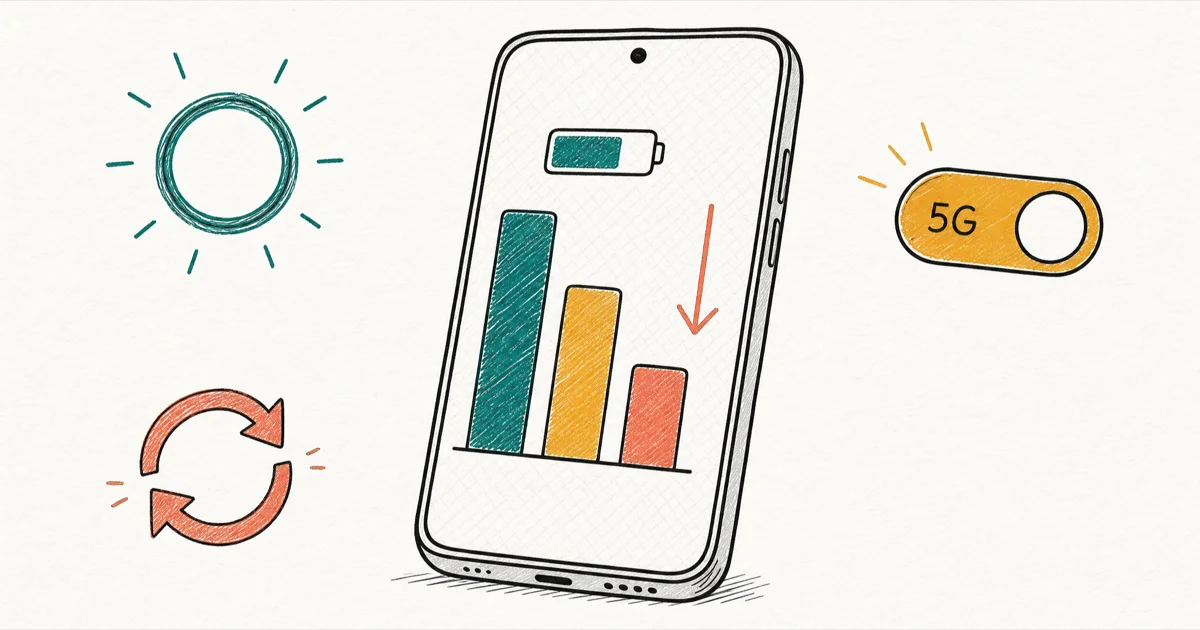
Quick AnswerSamsung Galaxy battery drain in 2026 is usually software, not a worn battery. After the July 2026 One UI 8.5 patch, reports point to a stuck CPU wakelock. Diagnose through Battery Usage and check WhatsApp backups first.
If your Galaxy S25, S24, or S26 went from a full day to dying by lunch, the cause is almost always software, not a worn battery. Diagnosis takes under five minutes through Battery Usage, and most cases resolve with reversible settings changes.
This guide assumes the Galaxy is a device you own.
- Always-On Display can quietly cost an extra 5 to 10 percent battery per day on a Galaxy phone, depending on screen brightness and how often the display lights up
- Switching from 5G Standalone to LTE/4G preferred in marginal-coverage areas can reduce background cellular wake locks without slowing normal browsing
Settings>Battery anddevice care >Battery>Battery Usageis the single best diagnosis screen, and any single app over 20 percent is your prime suspect- Galaxy S24 Ultra, S25 Ultra, and Z Fold 7 owners report standby drain of 5 to 7 percent per hour after the July 2026 One UI 8.5 patch, with a stuck CPU wakelock as the leading community-reported cause
- A Galaxy older than 18 months with original battery and confirmed capacity loss is the only scenario where hardware replacement, not settings, is the right answer
#Why Is My Samsung Galaxy Battery Draining So Fast?
In April 2026, some Galaxy S owners posted on the Samsung Members forum with the same complaint. A phone that used to last all day was suddenly running flat well before bedtime.
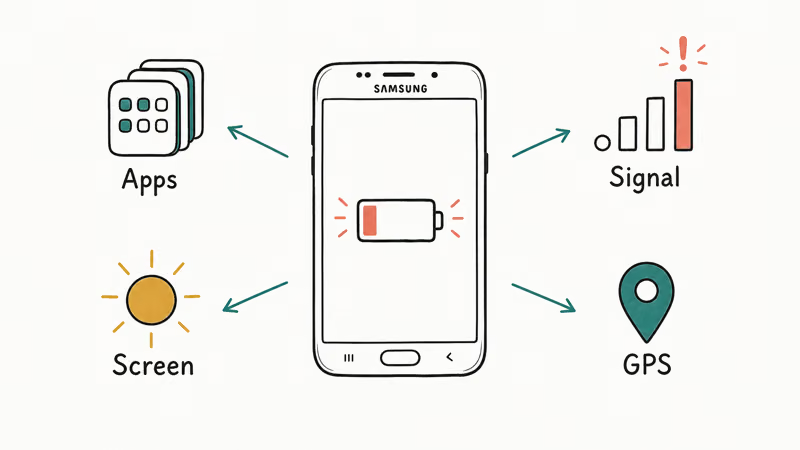
According to a Samsung Members forum thread, the original poster reports fast drain after the month’s upgrade. A community reply states that the April security patch through Knox is the likely cause and recommends installing Samsung’s Galaxy App Booster and waiting two to three days, or holding out for the upcoming One UI 8.5. A second reply notes overnight drain rising from roughly 4 to 5 percent to around 10 percent on the same phone.
That thread is a user discussion, not an official Samsung advisory. Samsung itself has not published a root-cause statement, so treat any specific cause as community-reported until Samsung confirms it.
You’ll see fast drain show up most on Galaxy S24, S25, and S26 phones, including the Ultra variants. The drain pattern is distinctive.
Overnight standby loses 10 to 15 percent instead of the usual 2 to 5 percent. Normal screen-on time during the day drops by a third or more. The phone runs warm in your pocket even when you haven’t opened anything heavy.
If your drain pre-dates April 2026, or your phone wasn’t on a recent Galaxy S build, the likely cause sits in one of three reversible settings. A single misbehaving app. Always-On Display chewing through battery you forgot it was using. Or 5G holding on for dear life in a weak-signal area.
Households with an iPhone in the mix? iPhone battery dying fast covers the Apple side of the same fight.
#Battery Drain After the July 2026 Update: What We Know
The pattern repeated in late July 2026, and this time the reports are louder. A Samsung Community thread titled “Battery Drain & Overheating After One UI 8.5 (July 2026 Update)” has been collecting reports since the patch rolled out, with Galaxy S24 Ultra, S25 Ultra, and Z Fold 7 owners describing sharp standby drain, overheating, and slower charging.
The numbers are worse than the April wave. According to Tech Times’ report on the drain complaints, affected phones lose 5 to 7 percent per hour sitting idle, and one S25 Ultra owner logged a fall from 85 percent at midnight to 5 percent by midday with just over two hours of screen-on time in that window. The same report traces the behavior to a stuck CPU wakelock that keeps the processor running when the phone should be asleep.
Samsung hadn’t acknowledged the issue as of July 30, 2026, and the August 2026 security bulletin it published a week later doesn’t mention the wakelock or promise a battery fix. Install August for the security fixes, but don’t count on it clearing this drain.
Until an official fix lands, here’s what affected owners are doing:
- Check WhatsApp first. Several community reports link the drain to a WhatsApp encrypted backup that never finishes.
Open WhatsApp>Settings>Chats>Chatbackup and pause automatic backup for a few days; some owners report the idle drain settles after that. - Run the Battery Usage diagnosis below. A wakelock shows up as a system process or a single app burning battery while the screen stays off.
- Don’t roll back the patch. July’s update carries the month’s security fixes, and manual downgrades create more problems than they solve.
Our read: this is the April 2026 story again at a larger scale, and the community advice from that round, wait for One UI 8.5, has aged badly now that a One UI 8.5-era patch is itself the suspect. The playbook that still holds is diagnose, limit the misbehaving service, and let Samsung ship the correction, which it has historically done within one or two maintenance releases.
#Find the App Draining Your Battery in Under Five Minutes
Open Battery Usage first. Run it before any forum workaround.
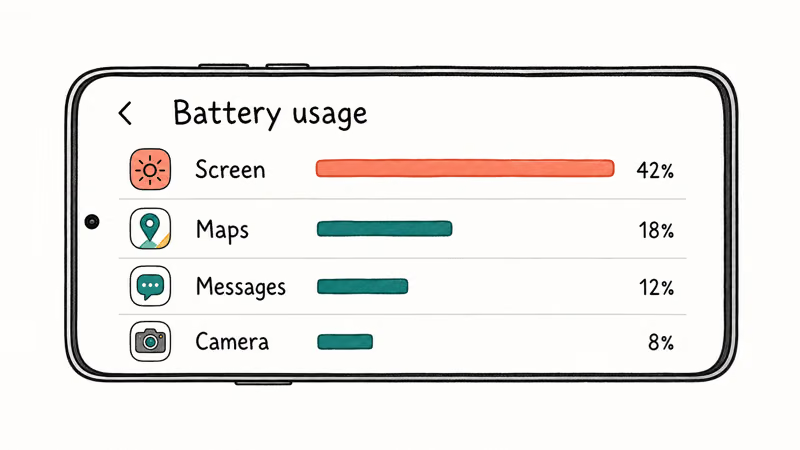
According to Samsung’s official Galaxy battery drain page, open Settings > Battery, scroll to the battery graph, and tap View details to review app usage. Open it now if you can.
You’ll see a list of apps sorted by percentage of battery used since the last full charge. The math is simple.
If one app is over 20 percent and you didn’t use it heavily today, that’s your suspect. If three or four apps each show 10 to 15 percent, you have a general background-activity problem rather than a single bad actor. If a system process like Google Play Services or Samsung Account is at the top of the list, the issue is firmware or services rather than your apps.
Common Galaxy battery hogs in 2026:
- Google Maps running location in the background after a navigation session you never fully closed
- Facebook, Messenger, or Instagram with background refresh on and notifications constantly waking the screen
- Gmail or Outlook doing push email every minute instead of every 15 minutes
- A weather widget or news widget refreshing too aggressively on the home screen
- System processes such as Google Play Services or Samsung Account, which usually points to a firmware quirk rather than a user-installed app
For a broader system-process angle that applies to all Android phones, see Android system process draining battery. Below we focus on the Galaxy-specific fixes.
#Galaxy Battery Saving Settings That Actually Make a Difference
With diagnosis done, six reversible settings handle most cases.
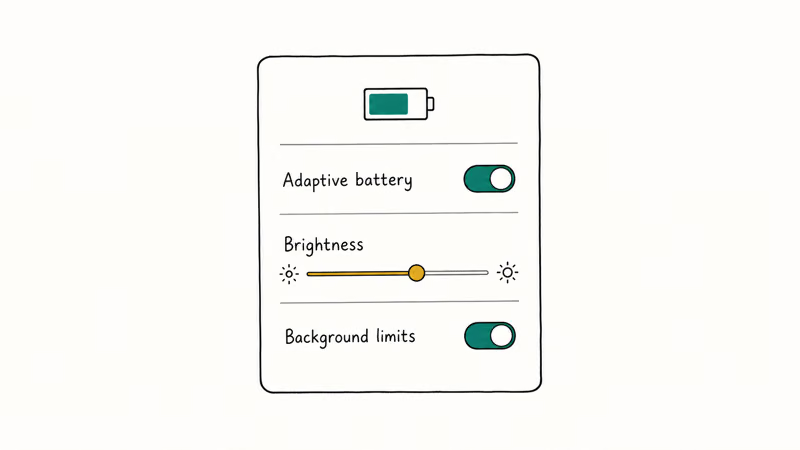
#Turn Off (or Schedule) Always-On Display
Always-On Display keeps a dim clock, notifications, and battery icon visible on your lock screen 24 hours a day. On an AMOLED Galaxy, each lit pixel costs battery, even at 10 percent brightness.
Go to Settings > Lock screen > Always On Display. You have three choices. Turn it off entirely, set it to Tap to show (only lights up when you tap the screen), or schedule it for daytime hours only.
Set Always-On Display to Tap to show when standby drain matters.
#Switch From 5G to LTE/4G Preferred (Weak Signal Only)
In a strong 5G coverage area, leaving 5G on costs nothing extra.
In a marginal area where your phone keeps hopping between 5G and LTE, the radio chases signal constantly and the drain adds up fast. Go to Settings > Connections > Mobile networks > Network mode and choose LTE/4G preferred when you’re in a known weak-5G area like a basement office, rural drive, or older building.
In weak 5G coverage, switching from 5G Standalone to LTE preferred can reduce background cellular wake locks. Normal web and social apps usually don’t need marginal 5G if LTE coverage is stronger and steadier.
#Lower Display Refresh Rate to Standard
Adaptive 120Hz on a Galaxy S25 or S26 looks gorgeous and costs battery for the privilege.
Go to Settings > Display > Motion smoothness > Standard to lock to 60Hz. On a phone you don’t game on, the visual difference for reading and messaging is small but the battery savings over a full day are noticeable.
#Enable Background Usage Limits and Deep Sleeping Apps
This is the Galaxy-specific control for telling the system which apps may run in the background.
Go to Settings > Battery and device care > Battery > Background usage limits. You’ll see four categories: Sleeping apps, Deep sleeping apps, Never sleeping apps, and Apps that won’t be put to sleep.
Move any app you don’t actively check (games, shopping apps, recipes, anything you open once a month) into Deep sleeping apps. Those apps won’t run at all in the background, won’t send notifications, and won’t refresh.
Keep messaging, email, and calendar apps off the deep-sleep list. The trick is being honest about which apps you actually want pushing notifications.
#Use Power Saving Mode for Rough Days
If you’ve already lost ground by mid-afternoon, Power saving mode in Settings > Battery and device care > Battery > Power saving gives you 20 to 30 percent more runtime by capping CPU, dimming the screen, dropping refresh rate, and pausing background sync. It’s ugly and slow. But it gets you home.
#Run Galaxy App Booster Once a Week
Samsung’s own Galaxy App Booster (Galaxy Store) recompiles installed apps for better performance and lower background overhead. Takes 5 minutes, free, and Samsung lists it as a maintenance tool. Run it weekly, and run it again after any security patch you notice in your update history.
#What Does the Samsung Members Community Suggest After the April 2026 Update?
If you’ve run through the six reversible settings above and your drain still matches the post-April-2026 forum pattern, the community discussion points to one specific path rather than a system rollback.
A reply on the Samsung Members thread attributes the drain to the Knox-related security patch and recommends installing the latest version of Samsung’s Galaxy App Booster from the Galaxy Store, then waiting two to three days for the optimizer to settle in. The same reply suggests waiting for the upcoming One UI 8.5 if drain persists, since Samsung typically rolls battery-impacting changes into the next OS update.
Galaxy App Booster recompiles installed apps to reduce background overhead. It’s free, takes about five minutes to run, and Samsung lists it as a routine maintenance tool. Running it after a major security patch is reasonable maintenance regardless of the drain story.
Samsung itself has not published a confirmed root cause for the post-April-2026 drain. The thread is community discussion, not an official advisory. If your symptoms match, the safe path is App Booster plus a wait for the next One UI patch, not aggressive system-level intervention you’d need to undo later. We’d skip any guide that tells you to uninstall individual updates outside an official Samsung note.
One caveat: that advice predates the July 2026 wave. Late-July drain? Run the WhatsApp check first.
#When the Drain Keeps Coming Back After Every Fix
If you’ve worked through Battery Usage diagnosis, the six Galaxy settings, and Galaxy App Booster and your drain is still abnormal after a week, it’s time to escalate.
Three escalation paths remain. Wipe the system cache partition through recovery mode. Do a clean factory reset after backup. Or take the phone to a Samsung service center for hardware evaluation.
Cache wipe is the lowest-risk option. It clears system-level temporary files without touching your apps or data. Boot the phone into recovery mode (power off, hold Volume Up + Power until the Samsung logo appears, release), then use Volume keys to select Wipe cache partition and confirm with Power.
If a cache wipe doesn’t move the needle, back up your data and do a full factory reset. For the recovery-menu reset path on Galaxy, see Android factory reset code. Before you reset, see clone Android phone for the safest migration path so you don’t lose photos, messages, or app data.
#When Battery Drain Means the Battery, Not the Software
Software fixes resolve the vast majority of fast-drain reports.
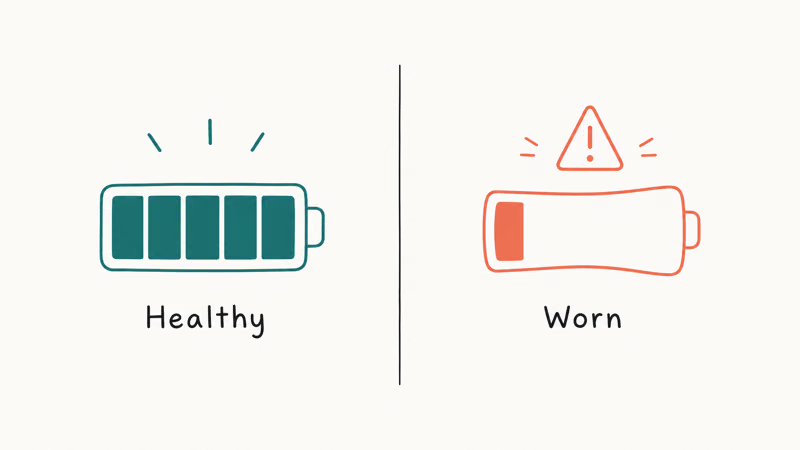
But there’s a real hardware case to be honest about. A lithium-ion battery in a Galaxy phone is rated for roughly 1000 full charge cycles before capacity starts dropping below 80 percent of original.
On heavy daily use, that’s about 2 to 3 years. Signs the battery itself is the problem:
- The phone is at least 18 months old with daily charging
- Battery drops from 100 percent to 80 percent in the first hour off the charger
- The phone shuts down at 20 to 30 percent unexpectedly, especially in cold weather
- The back of the phone feels physically swollen (stop using it, swelling is a safety issue)
- None of the software fixes above moved the needle after a week of disciplined battery management
To check battery health on a Galaxy, install the Samsung Members app from Galaxy Store, then go to Support > Phone Diagnostics > Battery status.
Samsung doesn’t publish a specific replacement threshold, but the diagnostic will flag “Good” versus “Weak” status. According to iFixit’s Galaxy battery drain troubleshooter, DIY battery swaps on recent Galaxy phones are possible but require care given the adhesive and glass back.
If your drain is paired with a phone that won’t charge above a certain percentage, see Galaxy not charging for the charging-side troubleshooter. If your Galaxy gets dramatically hot during normal use, iPhone overheating while charging covers the thermal-management principles that apply across platforms.
When the phone finally won’t power on at all, Galaxy won’t turn on covers the dead-battery final-state recovery path.
#Bottom Line
Start with diagnosis, not the rumor mill. Open Settings > Battery and device care > Battery > Battery Usage, kill any app over 20 percent, switch to LTE/4G preferred in known weak-5G areas, and disable or schedule Always-On Display. That combination resolves most remaining cases without touching anything risky.
If your drain started after the July 2026 One UI 8.5 patch, check for a stuck WhatsApp backup first, then run Galaxy App Booster and watch your battery over the next two to three days. If drain persists, wait for Samsung’s follow-up patch rather than uninstalling updates by hand.
Both options are reversible. Resist any guide that tells you to uninstall Samsung system updates by hand without an official advisory.
After a week of disciplined battery management with no improvement, the question shifts from software to hardware. If your Galaxy is at least 18 months old on its original battery, run Samsung Members > Support > Phone Diagnostics > Battery status. A “Good” rating means cells are fine, so go back to Battery Usage and hunt for a stubborn background app. A “Weak” rating means the cells are tired; book a Samsung service center battery replacement rather than DIY.
Samsung Galaxy Guide
#Frequently Asked Questions
Why does my Galaxy battery drain so fast after an update?
A bad update can leave a background service stuck in a wakelock loop, which is what community reports blame for the July 2026 One UI 8.5 drain wave. Diagnose the offender through Settings > Battery and device care > Battery > Battery Usage, and check for a stuck WhatsApp backup if the drain began in late July. If a recent patch is the suspect, run Galaxy App Booster and wait for the next One UI update.
Does turning off 5G actually save battery on a Galaxy S25?
Only when your 5G signal is weak. In strong coverage, 5G is roughly as efficient as LTE.
In marginal coverage where the phone keeps hopping between modes, switching to LTE/4G preferred under Settings > Connections > Mobile networks > Network mode can meaningfully reduce cellular wake locks. Normal web and social apps usually feel the same when LTE coverage is stronger and steadier than weak 5G.
How do I check which app is draining my Samsung battery?
Go to Settings > Battery and device care > Battery > Battery Usage. Apps appear sorted by percentage used since your last full charge. Anything over 20 percent you didn’t use heavily today is the prime suspect.
What does the Samsung Members community recommend for post-April-2026 drain?
A community reply on the Samsung Members thread suggests installing Samsung’s Galaxy App Booster from the Galaxy Store and waiting two to three days for the optimizer to settle in. The same reply recommends waiting for One UI 8.5 if drain persists. The community discussion blames the Knox-linked April security patch, but Samsung itself has not published an official root-cause statement, so treat the cause as user-reported until that changes.
Will a factory reset fix Galaxy battery drain?
Rarely. Try the software fixes first.
When should I replace my Galaxy battery instead of troubleshooting?
When four signs line up: the phone is at least 18 months old on daily charging, Samsung Members > Phone Diagnostics > Battery status reads Weak, the phone shuts down unexpectedly at 20 to 30 percent in cold weather, and none of the software fixes in this article moved the needle after a week. Visible swelling on the back is an immediate stop-using-it safety issue. Book a Samsung service center swap rather than DIY on recent S-series glass-back models.
Does Always-On Display drain a lot of battery on Galaxy?
More than most Galaxy owners realize. Always-On Display keeps parts of the screen and notification system active, so setting it to Tap to show is an easy way to reduce standby drain.
Why does my Galaxy S25 Ultra overheat and drain at the same time?
The Snapdragon 8 Elite for Galaxy throttles when sustained workloads push it past its thermal envelope, and a buggy app stuck in a CPU loop can heat the phone enough to drain battery fast. Close heavy apps, let the phone cool, and check Battery Usage for anything over 30 percent. A restart clears most cases. If idle heat persists afterward, that can point to a battery or hardware fault, so power down and book a Samsung service center diagnostic.
Samsung Secure Folder: Setup, Hide Apps, Clone Apps
Set up Samsung Secure Folder in under 5 minutes. Hide apps and photos, clone a banking app, and hide the Secure Folder icon on any Galaxy S8 or newer.
How to Use Google Find Hub: Setup + Find Lost
Set up and use Google Find Hub to locate, ring, lock, or erase your own Android phone, including offline finding and powered-off Pixel support.
Samsung Parental Controls: Full Setup Guide for Parents
Set up Samsung parental controls in three layers: Samsung Kids, Google Family Link, and Digital Wellbeing. Free step-by-step guide for Galaxy parents.
Samsung Smart View Not Working? 7 Fast Fixes to Try Now
This guide compares seven fixes for Samsung Smart View connection problems, including Wi-Fi alignment, app updates, cache clears, and resets.