Recover Deleted Photos on Samsung Galaxy S6 Edge (2026)
Recover your own deleted photos on Galaxy S6 Edge using Gallery Trash, Google Photos, OneDrive, Smart Switch, or recovery tools. 2026 guide.
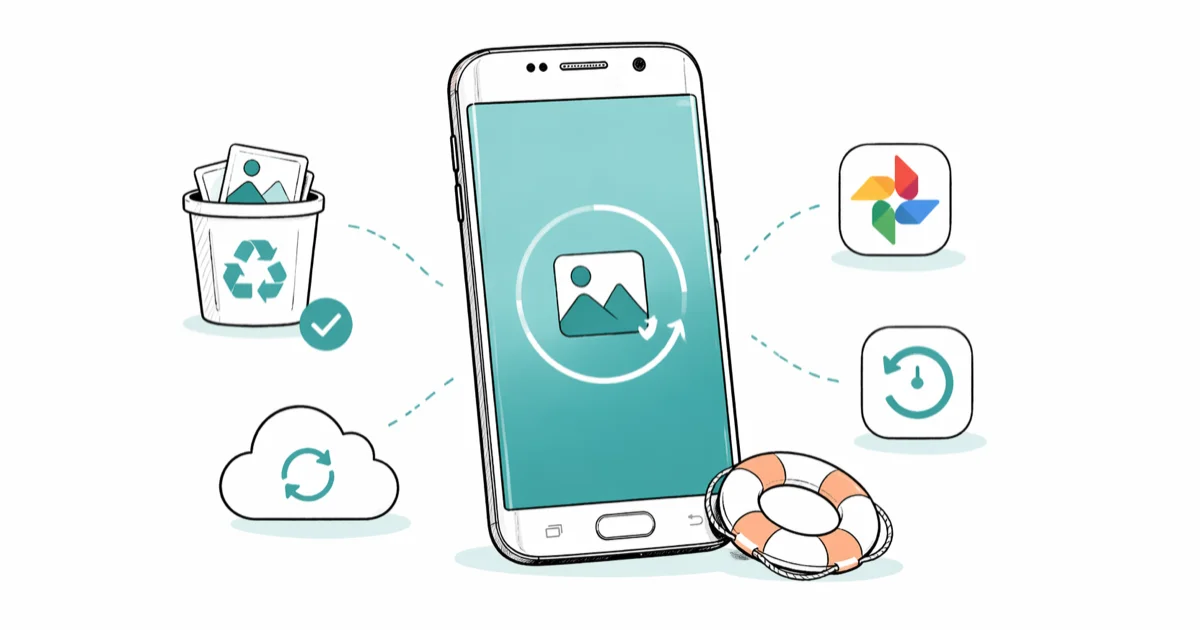
Quick AnswerOpen Samsung Gallery, tap the menu, choose Trash, and tap Restore. The bin holds your own deleted photos for 30 days, and you can also pull copies back from Google Photos Trash within 60 days.
Galaxy S6 Edge owners often think a deleted shot is gone for good. It usually is not. Samsung Gallery hides it in Trash, your Google account may still hold a backup, and even a Windows Smart Switch archive can resurface lost camera rolls. The recovery chain works the same on a 2015 Galaxy S6 Edge running Android 7.0 Nougat and on a current Galaxy S24, so the playbook below carries over to newer Samsung phones too.
- Open Samsung Gallery, tap the menu, choose Trash, and tap Restore to bring back your own deletions within 30 days
- Google Photos keeps backed-up trash items for 60 days and unbacked items for 30, per Google’s official help docs
- Samsung is reversing the OneDrive sync experiment in August 2026, so deleted Gallery items may live in OneDrive Recycle Bin or in the new Samsung Cloud
- Smart Switch Windows or Mac archives often hold an older DCIM snapshot you forgot about
- Android 10 file-based encryption limits raw scans on newer Galaxy phones, so backup-first methods beat recovery apps every time
This guide covers your own Galaxy S6 Edge, your own Samsung account, and your own Google account. Recovering pictures from a phone that does not belong to you is a different problem with serious legal weight, and we touch on that briefly at the end.
#Where Do Deleted Photos Go on the Galaxy S6 Edge?
A photo you delete from the Gallery app doesn’t disappear right away. Samsung Gallery moves it to a Trash bin that holds it for 30 days. After 30 days the file is purged.
Sounds simple. The S6 Edge complicates it.
Version drift is the catch. The original S6 Edge shipped on Android 5.0.2 Lollipop with no Trash feature in the stock Gallery, and the Trash bin arrived only in later Gallery updates. If you sideloaded a newer Gallery APK, you may have it. If you stayed on the factory ROM, the cloud paths below become primary.
Storage history matters too. Galaxy S6 Edge models (SM-G925A, F, I, P, T, V) shipped without a microSD slot, which Samsung confirms on its memory card support page. Everything you shot lived on internal storage only, which is the opposite of what later A-series phones offer.
One more wrinkle: encryption.
Android 7 used full-disk encryption rather than the file-based encryption introduced in Android 10, which gives recovery scanners a slightly better shot at fragments.
#Recovering Photos From Samsung Gallery Trash
This is the fast lane. It only works if your Gallery app shows a Trash option, which is normal on any Galaxy phone refreshed in the last few years.
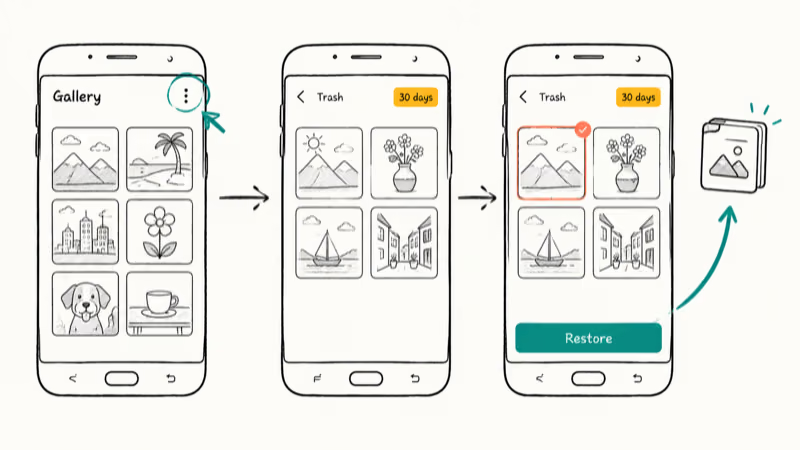
Open the Gallery app. Tap the three-dot menu in the top-right corner (or More on newer Gallery versions), then tap Trash or Recycle Bin. Touch and hold a photo to start selection, tap any extras you want, and tap Restore at the bottom. Files snap back into the original album.
Restoring a large batch is noticeably slower on the S6 Edge than on a recent Galaxy, mainly because of its older eMMC storage rather than any limit in the Gallery app itself. The restore still completes; it just moves files at the pace the aging flash chip can sustain, so a big multi-photo batch can take a while to finish.
Empty Trash? Move on. The cloud paths below are next, and any extra time spent inside the Gallery app risks new app writes overwriting recoverable bytes.
#Restoring Photos From Google Photos
Google Photos is the strongest safety net. Almost every Galaxy phone prompts users to enable backup during setup.
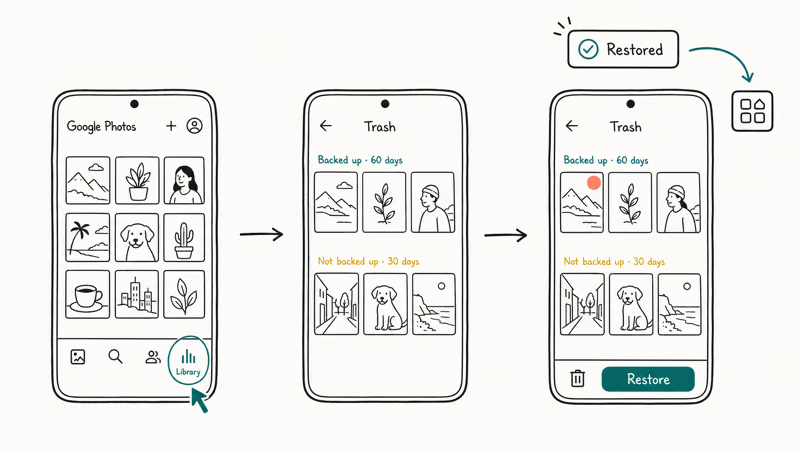
According to Google’s “Restore recently deleted photos and videos” support article, backed-up items stay in Trash for 60 days. Items that were never backed up stay for 30 days before permanent deletion.
Three taps away.
Open the Google Photos app, or visit photos.google.com in any browser signed into your own Google account. Tap Library, then Trash, touch and hold each photo, and tap Restore.
Over Wi-Fi the restored files reappear in the main library within seconds, while a cellular restore can take a beat longer because of the larger original-quality files. Either way, photos sync back to every device signed into the same account, which means a Galaxy phone, an iPad, and a desktop browser all line up the same restored album in moments.
Past the deadline, options run out fast. Google’s community help thread on permanent deletion is clear: support staff can’t recover items past the 60-day window.
#Checking Samsung Cloud and OneDrive Sync Bins
Samsung’s gallery sync story is in transition right now, and 2026 is the messy year. Get this part right or you’ll check the wrong bin.
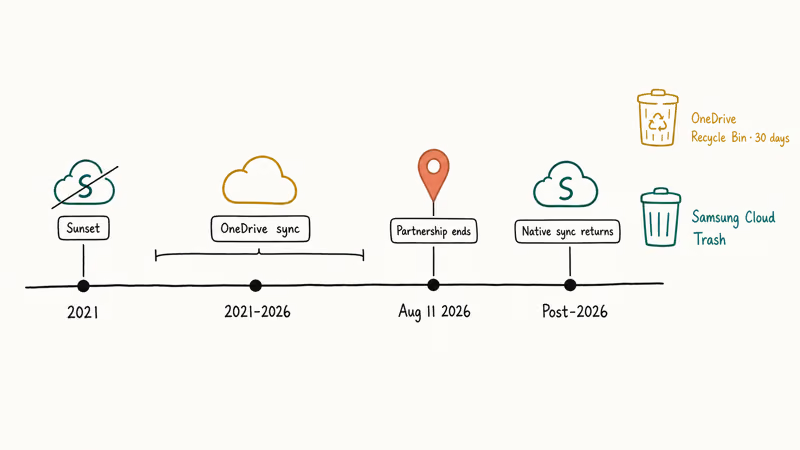
Quick history first. In 2021 Samsung sunset Gallery sync inside Samsung Cloud and pushed users to a partner sync with Microsoft OneDrive. Then on August 11, 2026, Samsung shut that partnership down. According to Microsoft’s Samsung Gallery with OneDrive support article and Samsung’s Galaxy cloud sync page, Gallery is now shifting back to native Samsung Cloud sync, so photos may live in either bin depending on the date you deleted them.
Try OneDrive first.
Open the OneDrive app or onedrive.live.com on a desktop. Go to Recycle bin, find the photo, click Restore. Microsoft’s SharePoint and OneDrive retention page confirms that personal OneDrive accounts hold deleted files for 30 days, and even Microsoft 365 Family plans cap the personal recycle bin at that same 30-day mark.
Now check Samsung Cloud. Open Settings > Accounts and backup > Samsung Cloud on a current Galaxy device, tap Gallery sync or Trash, and sign in with your own Samsung account.
This bin is the new default. If you migrated back from OneDrive after the August 2026 cutoff, new deletions land here. Don’t expect to find 2015-era uploads here, though, since Samsung deleted the original cloud Gallery archive in 2021.
S6 Edge specifically? Different story.
You can still browse OneDrive on the device through any modern browser or via the OneDrive Android app. Samsung Cloud’s native Gallery sync, however, isn’t coming back to phones that stopped getting OS updates in 2017. Treat that path as desktop-only.
#Can You Recover Photos Without Any Backup?
Sometimes, but with a falling success curve. When you delete a photo without a cloud copy, the JPEG bytes stay on the storage chip until something else overwrites them. The longer you keep using the phone, the more those bytes get clobbered.
Speed matters. The window is hours, not days.
Stop adding data first. Put your S6 Edge in airplane mode. Don’t open the camera, install apps, or let auto-update run. Then connect it to a desktop and try one of the recovery tools below.
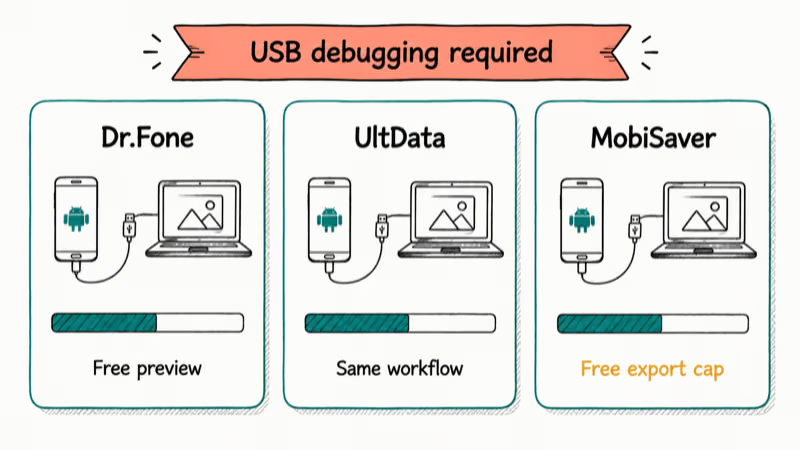
Wondershare Dr.Fone for Android. Walks you through enabling USB debugging on the phone, scans internal storage, and lets you preview JPEG, PNG, and HEIC fragments before saving them to the desktop. Our Dr.Fone for Android review breaks down what the free trial actually exposes.
Tenorshare UltData for Android. Similar workflow. Same need for USB debugging on the phone.
EaseUS MobiSaver for Android. Free tier scans for photos but caps how many you can export.
After the Gallery, Google Photos, OneDrive, and Samsung Cloud checks, DroidKit is another desktop scan option for your own phone; preview the results before paying because recovered photo fragments may be incomplete.
Some links on this page are affiliate links, which means fone.tips may earn a commission at no extra cost to you.
The S6 Edge needs USB debugging enabled before a desktop tool can scan it. Our walkthrough on enabling USB debugging on Galaxy S6 / S7 covers the developer-mode toggle.
Newer Galaxy phones are different.
On Android 10 or later, file-based encryption changes the math. Even with a perfect raw scan, encrypted blocks for a deleted file may already be unreadable. That’s why backup-first methods almost always beat recovery scans on newer Galaxy phones.
So what should you actually expect?
Recovery odds track how fresh the deletion is. A free scan tends to surface a meaningful share of photos deleted earlier the same day, far fewer after a week of normal use, and very little once the file is more than two weeks old.
These are rough expectations, not guarantees. The exact hit rate depends on how much you have used the phone since the deletion.
For a wider angle, our guide on recovering deleted photos from Android internal storage compares more tools.
#Pulling Photos From a Smart Switch Archive
This one gets missed a lot. Samsung Smart Switch on Windows or macOS makes a full archive of your phone the first time you connect it. The archive includes DCIM and Pictures folders.
If you ever ran Smart Switch on your computer, you may already have the photos.
Open Smart Switch on the desktop. Click Restore instead of Backup, pick the most recent archive on the right panel, and toggle off everything except Photos. Click Restore now and let it copy the archive’s pictures back to your S6 Edge or to the desktop output folder. If Smart Switch hangs partway through the restore, our guide on Smart Switch taking too long covers the disk space, USB, and driver fixes that usually unblock it.
Smart Switch isn’t a continuous backup. It’s a snapshot tool. You only have data here if you previously ran it.
#Restoring an ADB Backup From the Android 7 Era
For S6 Edge owners who used the Android 7 era heavy, adb backup -shared -all -f s6edge.ab was a popular full-storage backup command. Google deprecated adb backup in Android 12, but old .ab files still restore.
According to the Android Studio adb command reference, the restore command is adb restore s6edge.ab from the same desktop where you saved the archive.
If you made one of those backups years ago, search your old hard drives. A forgotten .ab file from 2017 sitting on an external drive in a desk drawer can still hold the photos you gave up on, so it’s worth digging out any old archive before you assume the pictures are gone.
#Recovering Photos After a Factory Reset
A factory reset rotates the device’s encryption key. The data blocks are still on storage briefly, but they’re unreadable without the original key. Realistically, photos that lived only on the device and not in any cloud are gone after a reset.
The exception is anything backed up before the reset. Sign into your own Google account on the S6 Edge again, then open Google Photos. The library should rebuild from cloud copies if backup was running.
Our walkthrough on recovering photos after a factory reset on Android covers the rebuild flow in detail.
If the photos were never backed up and you never made a Smart Switch or adb backup archive, the honest answer is the recovery odds are low. Spending more on premium recovery software at this point rarely changes the outcome.
#Preventing Photo Loss on Your Galaxy
Prevention is cheaper than recovery, especially on a phone that is now ten years old. Set up two of these now and you won’t need this guide again.
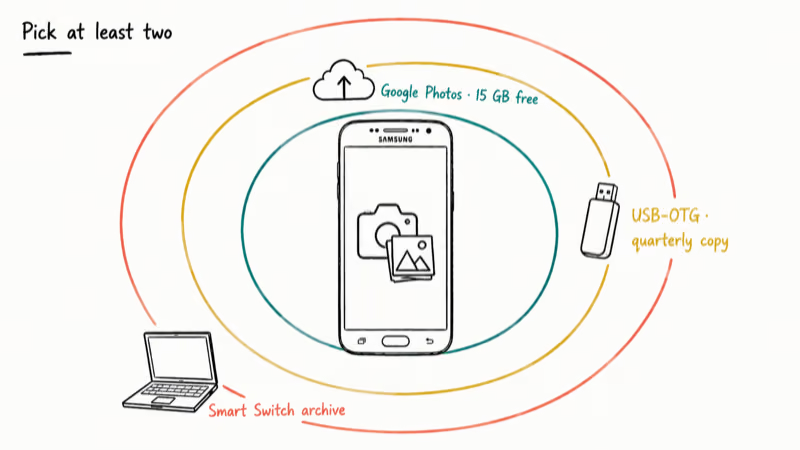
Pick at least two.
Turn on Google Photos backup. Open Google Photos, tap your profile picture, choose Photos settings > Backup, and toggle backup on. Pick Storage saver quality on free accounts to stretch the included 15 GB. Google’s storage tiers help page confirms that 15 GB is shared free across Drive, Gmail, and Photos. If you’re running tight, our guide on Google Photos not backing up covers the usual culprits and the slow-uploads case.
Add a second backup. Cloud-only is one mistake away from disaster. Plug in a USB OTG adapter, attach a flash drive, and copy your DCIM folder once a quarter. A quarterly local copy is cheap insurance on any Galaxy phone.
Move old shoots off the phone. When the S6 Edge approaches its 32 GB storage cap, transfer the older months to a desktop or a NAS. Photos can’t be deleted from a place where they no longer live.
Pre-stage Smart Switch. Run Smart Switch on Windows or Mac once before you need it. First run takes about 20 minutes. Later runs are quicker.
If you depend on chat photos too, backing up WhatsApp messages on Samsung follows the same backup-first logic and protects the media you exchanged in chats.
#Recovering Photos From Someone Else’s Phone
Short version: don’t.
Pulling pictures from a phone that doesn’t belong to you, even with a recovery tool you bought for your own use, can violate the federal Computer Fraud and Abuse Act and most state wiretap laws. According to the U.S. Department of Justice’s CFAA prosecution manual, unauthorized access to a protected computer is criminalized under 18 U.S.C. §1030(a)(2), with felony exposure when the access involves private financial or personal data.
If you actually need photos off a relative’s phone for legal reasons, work through a licensed forensic firm with an authorization document. Don’t go DIY.
#Bottom Line
Open Samsung Gallery Trash first because the win rate there is close to 100% inside the 30-day window. If that comes up empty, hit Google Photos Trash inside 60 days for backed-up shots.
Bins first, then archives.
After those, check OneDrive Recycle Bin and Samsung Cloud for sync-era deletions. Smart Switch or adb backup archives may deliver photos you forgot you had, and the small risk of trying them is zero. Save Wondershare Dr.Fone, Tenorshare UltData, and EaseUS MobiSaver for the rare case when nothing else applies.
Order of operations matters because every minute of normal phone use shrinks the recovery window. Check the bins before installing anything new on the phone.
Samsung Galaxy Guide
#Frequently Asked Questions
Can I recover photos deleted more than 30 days ago from Samsung Gallery?
Probably only through a backup. Google Photos Trash extends the window to 60 days for backed-up items, and OneDrive Recycle Bin holds deleted Samsung Gallery sync items for 30 days. After both windows close, your only realistic shots are an offline Smart Switch archive or an old adb backup file.
Does the Galaxy S6 Edge have a microSD slot for a quick fallback?
No. Samsung’s S6 Edge memory card support page confirms there’s no microSD slot on the SM-G925 family. Newer Galaxy A-series phones often add one back, and our SD card recovery guide covers what to do with those.
Will a factory reset really wipe my photos for good?
Almost always. The reset rotates the encryption key, so old data blocks can’t be read even if they’re physically still there.
The escape hatch is a cloud backup that ran before the reset. Sign back into your own Google account, open Google Photos, and the library should reappear within minutes.
Do I need root access on my Galaxy S6 Edge to recover photos?
No. Wondershare Dr.Fone, Tenorshare UltData, and EaseUS MobiSaver all run a no-root scan over USB once you enable USB debugging. Root scans dig deeper, but the gain is small on a phone that has been used normally since the deletion.
Why can’t Google support staff just bring back my permanently deleted photos?
Because the items are gone from Google’s storage after the 60-day window expires. The Google Photos community thread on this is unambiguous: once Trash purges, support can’t reverse it. Plan around the window. Restore inside 60 days or accept the loss.
Did Samsung Cloud already lose all my old photos?
If you only used the original Samsung Cloud Gallery sync, yes. Samsung notified users in 2021 that the legacy archive would be deleted, and OneDrive sync replaced it.
With OneDrive sync ending August 11, 2026, Samsung is bringing native Samsung Cloud sync back for current Galaxy phones. Old S6 Edge cloud uploads from 2015-2021 aren’t coming back.
Can I trust paid Android data recovery apps to find photos a free tool missed?
Sometimes, but the gap is usually small. Free and paid scanners use similar low-level recovery methods, so on a phone that has been used normally since the deletion the difference is rarely dramatic. Run the free tier first. Buy a paid scanner only if the preview shows your specific photos behind a paywall.
How quickly should I stop using my phone after deleting a photo I want back?
The same minute you realize. Drop into airplane mode, don’t open the camera, and don’t install apps or let auto-update run.
Each new write to internal storage may land on the bytes that held your deleted photo. The Gallery Trash and Google Photos Trash don’t depend on this discipline, but every other path on this page does.
Samsung Secure Folder: Setup, Hide Apps, Clone Apps
Set up Samsung Secure Folder in under 5 minutes. Hide apps and photos, clone a banking app, and hide the Secure Folder icon on any Galaxy S8 or newer.
How to Use Google Find Hub: Setup + Find Lost
Set up and use Google Find Hub to locate, ring, lock, or erase your own Android phone, including offline finding and powered-off Pixel support.
Samsung Galaxy Battery Draining Fast: 2026 Fix Guide
Diagnose Galaxy S25 battery drain in five minutes through Battery Usage, then walk through six reversible Galaxy settings before a factory reset.

Samsung Parental Controls: Full Setup Guide for Parents
Set up Samsung parental controls in three layers: Samsung Kids, Google Family Link, and Digital Wellbeing. Free step-by-step guide for Galaxy parents.