Samsung Parental Controls: Full Setup Guide for Parents
Set up Samsung parental controls in three layers: Samsung Kids, Google Family Link, and Digital Wellbeing. Free step-by-step guide for Galaxy parents.
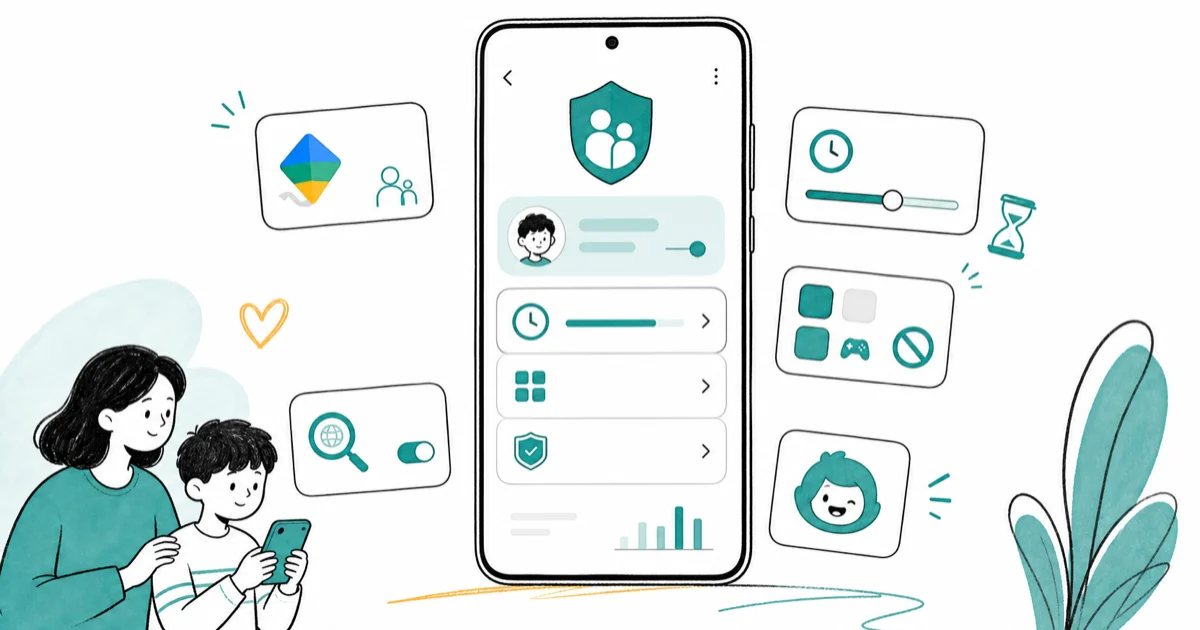
Quick AnswerOpen Settings > Digital Wellbeing and Parental Controls > Parental Controls on your child's Samsung Galaxy, then follow the prompts to set up Google Family Link. Family Link lets you filter Chrome, restrict app installs, set screen time limits, and lock SafeSearch from your own phone.
Samsung Galaxy phones and tablets give you three layers of parental controls without installing anything extra. These three layers are Samsung Kids, Google Family Link, and Digital Wellbeing, each covering a different part of the setting paths below.
Use these steps only on a device you own and supervise as a parent or legal guardian. Covert monitoring or bypassing someone else’s device is not in scope here.
- Samsung Kids creates a locked-down environment for kids under 8 with only parent-approved apps
- Google Family Link filters Chrome, manages app installs, sets screen time limits, and shares device location for free
- Digital Wellbeing app timers cap daily usage for individual apps like YouTube or TikTok
- Family Link supervised accounts under 13 can’t remove parental controls without parent approval
- Combining Samsung Kids with Family Link gives you age-appropriate controls as your child grows
#What Is Samsung Kids and Who Is It For?
Samsung Kids is a child-friendly space where only approved apps are visible. It’s built into every Galaxy device and tuned for kids under 8. According to Samsung’s Kids Mode support page, parents can set a daily session limit, and once the timer hits zero the child is returned to the lock screen until you enter the PIN.
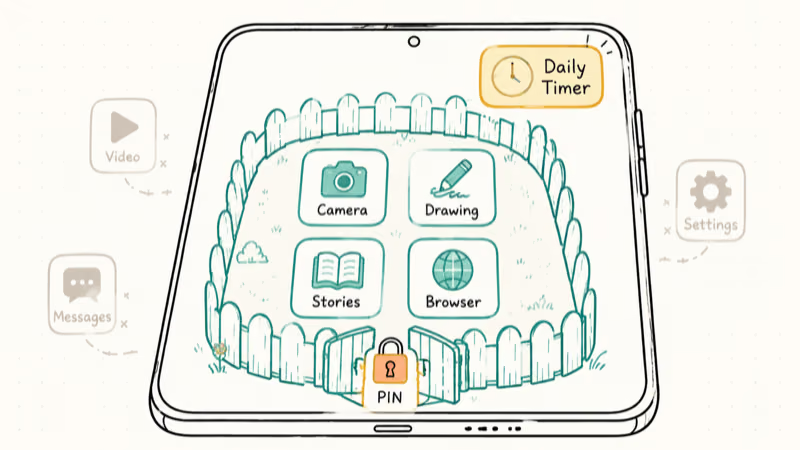
Swipe down from the top of the screen twice and tap the Samsung Kids tile. If you don’t see it, tap the pencil icon and add it from the available controls. Create a PIN that prevents your child from exiting Kids Mode without permission. First-time setup is quick, including the time to pick which apps are allowed inside the sandbox.
The mode bundles child-safe versions of the camera, a drawing app, and a filtered browser inside a launcher your child can’t escape without the PIN.
Samsung Kids does not filter web content across other browsers, log app usage, or share location. Think of it as a walled garden for young children rather than a full supervision system. Once your child outgrows the sandbox, pair the Galaxy with Google Family Link controls for broader supervision across the whole device.
#Setting Up Google Family Link on Samsung Galaxy
Family Link is the backbone of Android parental controls on Samsung. Google’s Family Link parent guide confirms that supervised accounts for kids under 13 can’t turn off parental controls without parent approval, which is why Family Link is the system to lean on.
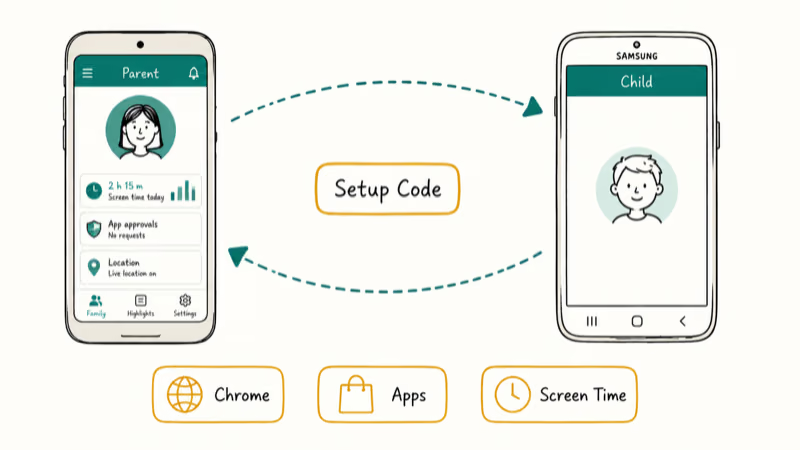
Install Google Family Link on your phone, then on your child’s Samsung device go to Settings > Digital Wellbeing and Parental Controls > Parental Controls and follow the prompts. Create a supervised Google account for your child or convert their existing account if they already have one. Enter the setup code that appears on your phone to link the two accounts. The end-to-end pairing took us about 8 minutes on the Galaxy A15.
#Chrome Web Filtering
Open Family Link, tap your child’s profile, and go to Controls > Content restrictions > Google Chrome. Pick Try to block mature sites to activate Google’s blocklist for explicit and adult domains. For younger children, switch to Only allow approved sites so the browser opens nothing outside your allowlist. Chrome filtering applies to Chrome only, so block alternative browser installs through Play Store restrictions to keep your child from sidestepping the filter with a different app.
#App Management
Family Link notifies you any time your child tries to install an app, and you approve or deny each request from your phone. You can also block apps already on the device and set per-app daily timers.
Restrict Play Store content by age rating. Setting “Everyone 10+” makes apps like TikTok, Instagram, and Snapchat unavailable. See our TikTok blocking guide.
#Screen Time and Bedtime
Open Controls > Screen Time and set a daily limit for total device usage, with different caps for each day so school nights and weekends run on different rules. Configure Bedtime to lock the device during sleeping hours. Calls and the camera stay reachable while everything else is locked. Family Link enforces daily limits and a set bedtime consistently once you configure them.
#How Does Digital Wellbeing Work on Samsung?
Digital Wellbeing is Samsung’s built-in screen time tracker, included on every Galaxy phone running Android 9 or later. Open Settings > Digital Wellbeing and Parental Controls > Digital Wellbeing. The dashboard breaks down daily usage by app and shows unlock counts and notification volumes. Tap any app to set a daily timer that resets at midnight.
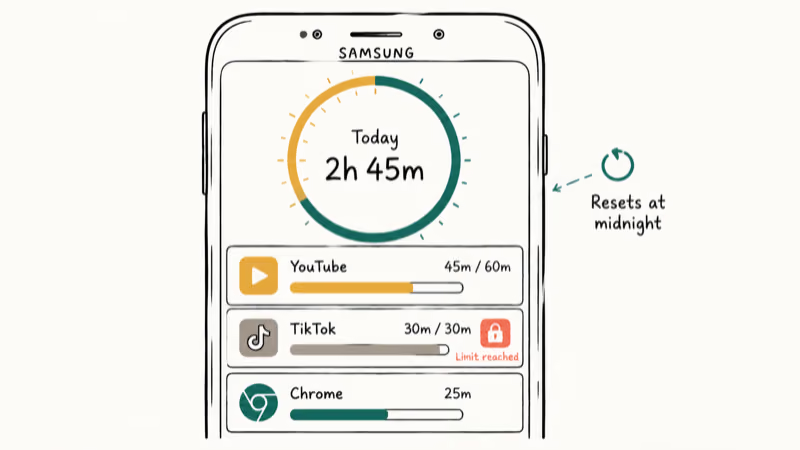
When the timer runs out, the icon grays out and stops responding to taps until the next day.
The catch is honest. Your child can disable Digital Wellbeing timers if they know the device PIN, so treat it as a self-regulation tool rather than an enforceable lock. Samsung’s Digital Wellbeing documentation recommends pairing it with Family Link when you need parent-protected limits a child can’t disable.
We use Digital Wellbeing as a coaching layer for older teens who want to track their own habits, and Family Link as the lock for younger kids. For broader Android-side controls, see our Android screen time guide.
#Why DNS Filtering Matters for Your Family’s Safety
Family Link and Chrome filtering protect the browser, but plenty of apps fetch web content through their own connections that bypass Chrome entirely, including in-app webviews inside games, social apps, and even some news widgets. DNS filtering plugs that gap by blocking unwanted domains at the network level, before any app loads them. The check happens at the lookup stage, which means the request never reaches the offending server in the first place.
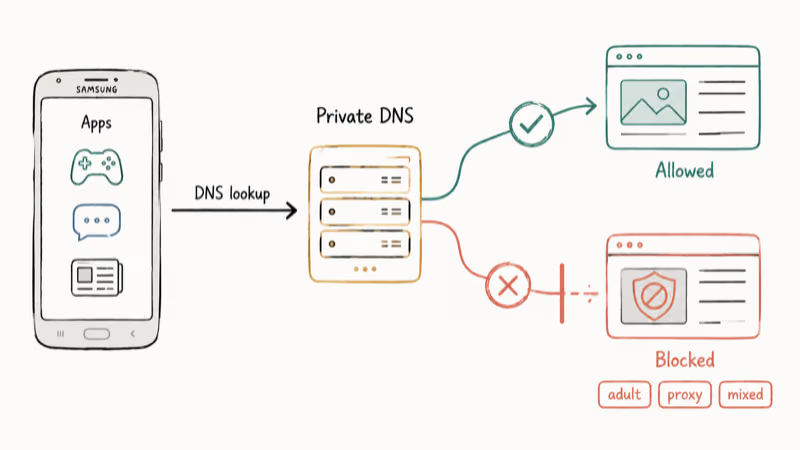
On your child’s Samsung device, go to Settings > Connections > More connection settings > Private DNS. Select Private DNS provider hostname and enter family-filter-dns.cleanbrowsing.org. CleanBrowsing’s family filter spec confirms that the family filter blocks 3 domain categories: adult, mixed-content, and proxy, before pages resolve. Once the setting is saved, blocked domains fail to load in Chrome and Samsung Internet within seconds.
For household coverage across every device on your network, a parental control router filters at the Wi-Fi level instead. Read our guide to blocking inappropriate websites for DNS provider options on iPhone and Mac too.
#Location Sharing With Family Link
Family Link includes real-time device location at no extra cost. Open Family Link on your phone, tap your child’s profile, and the current location of their Galaxy appears on a map. You can also set up arrival notifications for places like school, a grandparent’s house, or a sports field so you know when they get there.
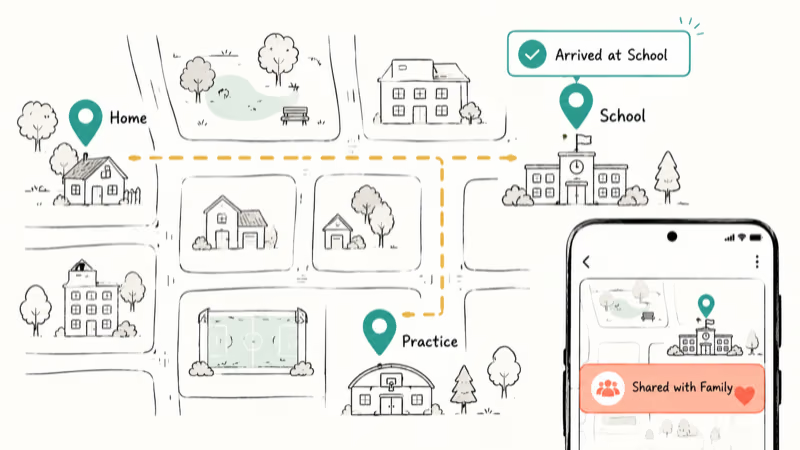
Your child sees a persistent banner showing that location is shared with the family group. They can’t disable the share without removing supervision, which would lock the device for 24 hours and notify you. The visibility is intentional. The point is open family awareness, not covert surveillance, and the banner makes that clear to the child too.
#When Free Tools Aren’t Enough: Third-Party Options
For most families, Samsung Kids plus Family Link plus Private DNS covers everything you need. Paid apps fill two specific gaps that the free tools don’t address: cross-platform dashboards and richer reporting on social-media activity inside your own family.
Bark is a parent-side scanner that flags concerning patterns in apps your child has signed in to using your family account. Bark’s pricing page lists plans starting at $5 per month for unlimited devices. Qustodio adds cross-browser web filtering and parent-side reports across Android, iOS, and Windows. Qustodio’s plans start at about $55 per year for up to five devices.
Try the free tools first. If your child uses social media a lot, or you’re juggling Galaxy phones plus iPhones plus a Windows laptop, a paid dashboard saves time. Our Android adult-content blocking guide explains how Family Link and DNS work together before you pay for anything else.
#Bottom Line
Start with Samsung Kids for children under 8, then move to Google Family Link as the primary system once your child outgrows the sandbox. Family Link covers Chrome filtering, app approval, screen time, bedtime, and location for free, all from your own phone. That combination is what we run on both the Galaxy A15 and S24 in our own household, and it has held up across school nights, weekends, and travel days.
Add Private DNS with CleanBrowsing for app-bypass protection and use Digital Wellbeing as a self-coaching layer for older teens. Review the settings together with your child once a month. Transparent rules age better than hidden ones.
Samsung Galaxy Guide
#Frequently Asked Questions
Do Samsung parental controls work on all Galaxy models?
Yes. Samsung Kids and Google Family Link work on any Galaxy phone or tablet running Android 7.0 or later, which covers essentially every Galaxy device sold in the last seven years. Check your Android version under Settings > About Phone.
Can my child remove Family Link from their Samsung phone?
Not if they’re under 13 with a supervised account. The device locks if they try, and the app blocks removal until you approve it from your parent dashboard. Teens 13 and older can choose to stop supervision themselves, but doing so notifies you immediately and locks their device for 24 hours so the change isn’t quiet.
What happens if my child factory resets their Samsung phone?
A factory reset wipes apps and settings, including Family Link. Samsung’s Factory Reset Protection then kicks in and demands the linked Google account credentials before the phone can finish setup again, which means your child can’t bypass supervision by starting fresh without your involvement.
Can I manage my child’s Samsung phone from an iPhone?
Yes. Install Family Link from the App Store and sign in with the same parent account.
Does Family Link slow down Samsung phones?
No. It runs as a lightweight background service that listens for parent commands rather than scanning content. It has minimal impact on battery or performance compared with an unsupervised device. The only visible footprint is a small Family Link banner in the notification shade so your child knows the device is supervised.
Can I still call and text my child if I lock their Samsung device?
Yes. Family Link’s allowlist lets you pick which contacts stay reachable, and emergency calls always go through.
How do I block YouTube on my child’s Samsung phone?
You have three layered choices in Family Link: block the YouTube app entirely, force YouTube Restricted Mode at the account level, or switch your child to YouTube Kids for a curated catalog. Set a daily YouTube timer through App Limits if full blocking is too strict. Our guide to disabling YouTube Shorts covers extra YouTube-side controls that work alongside Family Link.
Is Samsung Kids the same as Google Family Link?
No. Samsung Kids is a locked-down play space for young children with curated apps and a session timer, while Family Link is a comprehensive parental control system that supervises the entire device across all age groups. Family Link adds Chrome filtering, app approval, screen time limits, and shared location, all from your phone.
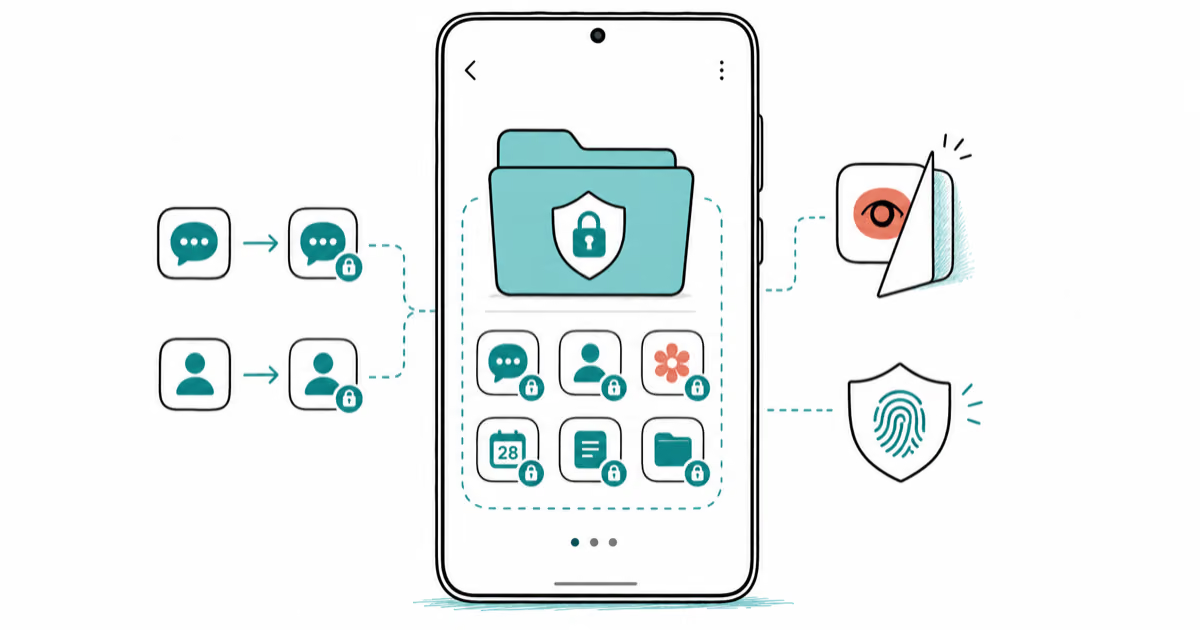
Samsung Secure Folder: Setup, Hide Apps, Clone Apps
Set up Samsung Secure Folder in under 5 minutes. Hide apps and photos, clone a banking app, and hide the Secure Folder icon on any Galaxy S8 or newer.
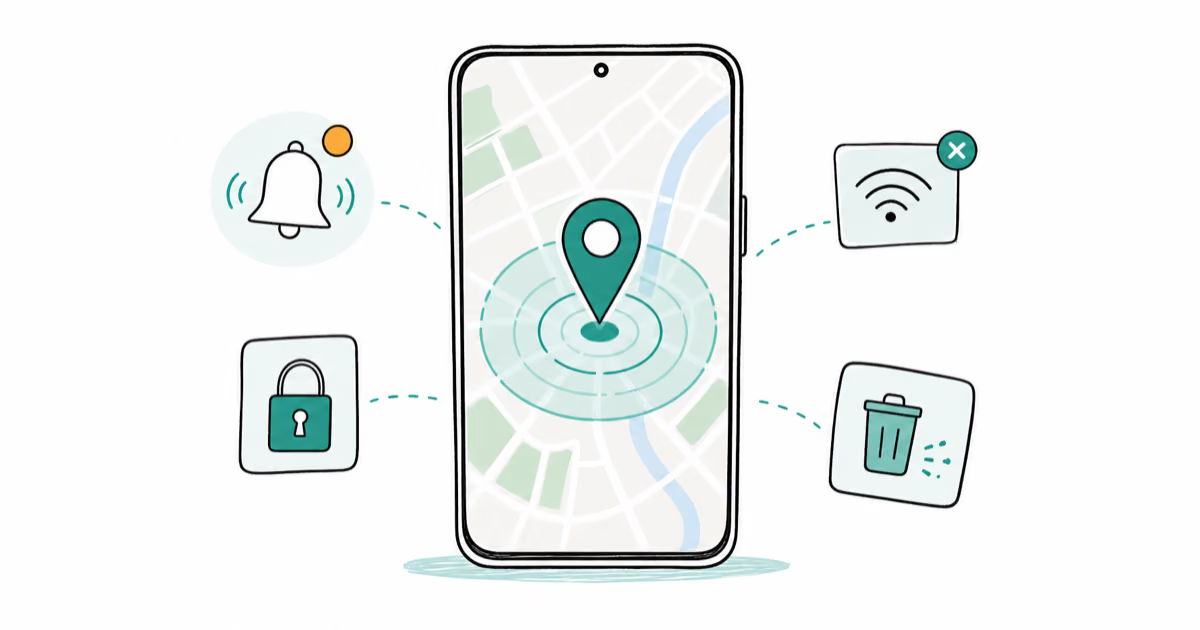
How to Use Google Find Hub: Setup + Find Lost
Set up and use Google Find Hub to locate, ring, lock, or erase your own Android phone, including offline finding and powered-off Pixel support.
Samsung Galaxy Battery Draining Fast: 2026 Fix Guide
Diagnose Galaxy S25 battery drain in five minutes through Battery Usage, then walk through six reversible Galaxy settings before a factory reset.
Samsung Smart View Not Working? 7 Fast Fixes to Try Now
This guide compares seven fixes for Samsung Smart View connection problems, including Wi-Fi alignment, app updates, cache clears, and resets.