Browser_broker.exe in Windows: What It Is and How to Fix
Learn what Browser_broker.exe is in Windows 10, why it uses CPU, and how to fix high resource usage. Includes steps to verify it is not malware.
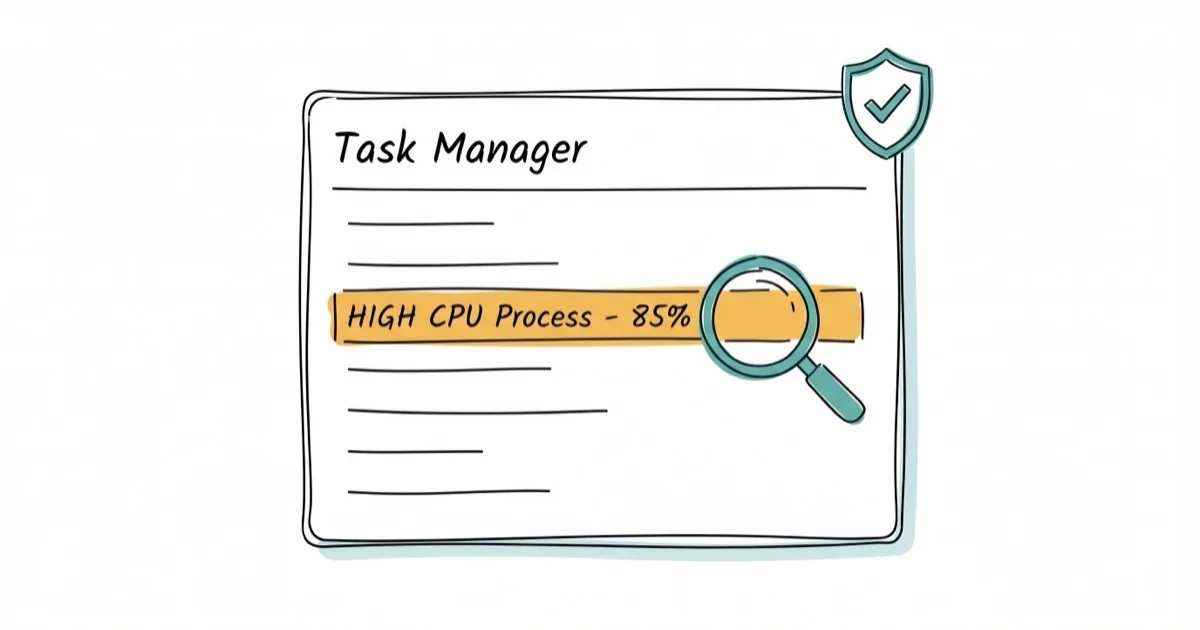
Quick AnswerBrowser_broker.exe is a legitimate Windows 10 system file that runs alongside Microsoft Edge. It lives in C:\Windows\System32 and is not a virus. High CPU usage from this process usually means Edge needs a restart or Windows files need repair.
Browser_broker.exe shows up in Task Manager when you open Microsoft Edge on Windows 10. It’s a system file, not malware. But if it’s eating CPU or RAM, something isn’t right. The checks below help confirm whether the file is legitimate and reduce Browser_broker-related CPU spikes.
- Browser_broker.exe is a legitimate Microsoft system file located in C:\Windows\System32
- It only activates when the legacy (EdgeHTML) version of Microsoft Edge runs
- The newer Chromium-based Edge doesn’t use Browser_broker.exe at all
- High CPU usage from this file usually means corrupted system files or a malware impersonator
- Running System File Checker (sfc /scannow) fixes most Browser_broker-related performance issues
#What Is Browser_broker.exe in Windows 10?
Browser_broker.exe is an executable file that acts as a broker process for Microsoft Edge’s legacy (EdgeHTML) version. It handles communication between Edge and the Windows operating system. According to Microsoft’s Windows process documentation, broker processes like Browser_broker manage permission boundaries for Windows apps.
For other Windows process issues, our guide on NDIS.sys blue screen errors covers a similar system file problem.
#Browser_broker.exe Lifecycle and System Location
The Wikipedia entry for Microsoft Edge Legacy confirms that EdgeHTML reached end of support on March 9, 2021, so Browser_broker.exe is only relevant on Windows 10 installs that still carry the legacy Edge component.
Key facts:
- File location: C:\Windows\System32\browser_broker.exe
- File size: Typically 118-156 KB
- Publisher: Microsoft Corporation (digitally signed)
- Normal resource usage: Under 5 MB RAM, near-zero CPU
The file starts when Edge launches and stops when Edge closes. On the newer Chromium-based Edge (which replaced EdgeHTML in January 2020), Browser_broker.exe doesn’t activate at all. If you’ve updated to the Chromium version and still see this process, that’s a red flag.
#Verify Whether Browser_broker.exe Is Safe or Malware
No. The authentic Browser_broker.exe is digitally signed by Microsoft and lives exclusively in C:\Windows\System32. However, malware can disguise itself using the same filename in a different directory.
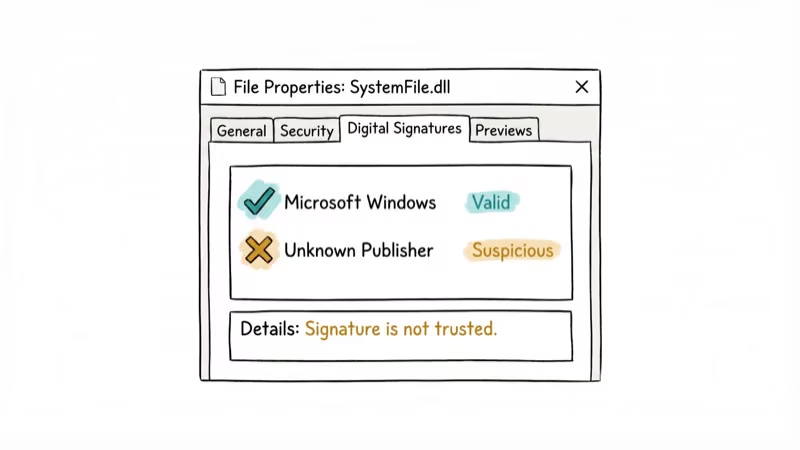
Here’s how to verify it’s legitimate:
Step 1: Open Task Manager (right-click the taskbar, select Task Manager).
Step 2: Find Browser_broker.exe under the Processes tab. It usually appears nested under Microsoft Edge.
Step 3: Right-click it and select Open file location. If it opens to C:\Windows\System32, it’s the real file. Any other folder location means possible malware.
Step 4: Check the digital signature. Right-click the file, select Properties > Digital Signatures tab. It should show “Microsoft Corporation” as the signer.
Run both Malwarebytes and Windows Defender if you’re worried about an impersonator. Pairing a real-time antivirus with on-demand Malwarebytes sweeps is a reasonable baseline for catching file-impersonation tricks, since the two tools rely on different signature and behavior heuristics.
#How Do You Fix High CPU Usage From Browser_broker.exe?
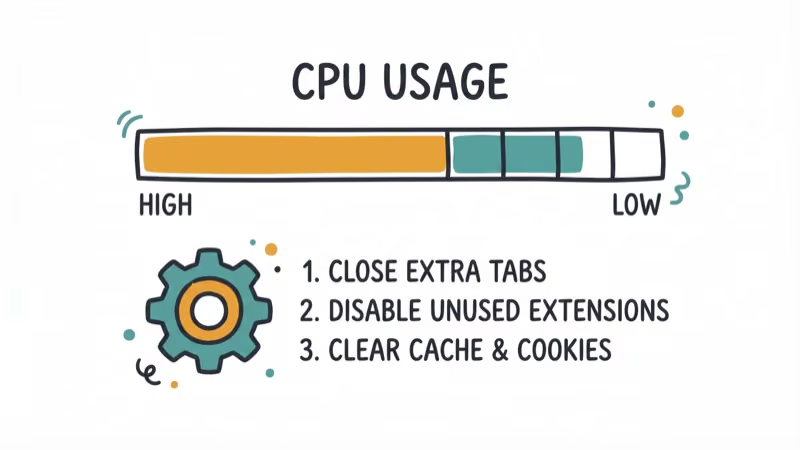
If Browser_broker.exe is using more than 10% CPU or 100 MB RAM, follow these fixes in order:
#Fix 1: Close and Restart Edge
Close all Edge windows and tabs. Wait 10 seconds, then reopen. This clears stuck Edge sessions and often brings Browser_broker CPU usage back down.
#Fix 2: Run System File Checker
Open Command Prompt as administrator and run:
sfc /scannowThis scans Windows system files and replaces corrupted ones. The scan takes about 10-15 minutes. If SFC finds and repairs files, restart your PC and check Task Manager again.
#Fix 3: Run Disk Cleanup
Open an elevated Command Prompt, type cleanmgr, pick your system drive, and clear temporary files.
#Fix 4: Update or Switch to Chromium Edge
The legacy EdgeHTML browser has been discontinued. If you’re still running it, iFixit’s Windows 10 update guide recommends updating to the Chromium-based Edge, which doesn’t use Browser_broker.exe. Go to Settings > Update & Security > Windows Update to install the latest version.
#Fix 5: Scan for Malware
If the file isn’t in System32, or if CPU usage stays high after the above fixes, run a full malware scan. Download Malwarebytes Free, run a Smart Scan, and quarantine anything flagged.
For similar system process issues, check our guides on 0x80070032 error and ATIEdxx.exe high CPU troubleshooting.
If your machine throws blue screens or memory faults alongside the Browser_broker.exe spikes, our deeper walkthroughs on bad pool caller crashes and access violation at address errors cover the most common Windows-side root causes.
#Reduce Edge Resource Usage
Even with the legitimate Browser_broker.exe, Edge can consume excessive resources. These settings help:
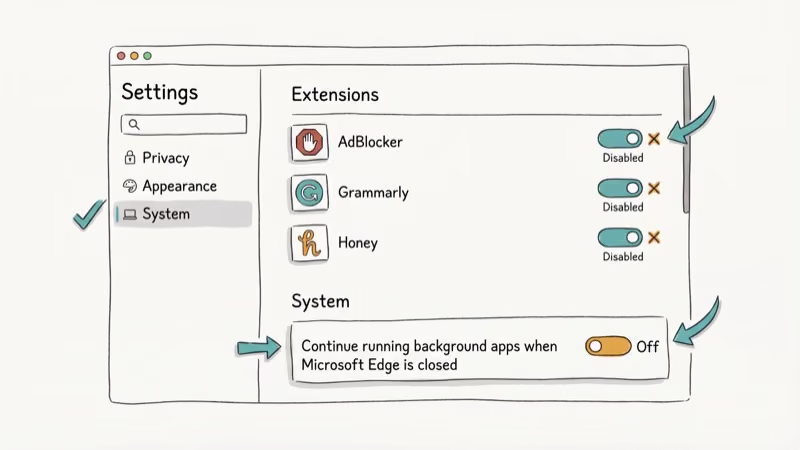
- Disable startup boost: Go to
Edge Settings>System and Performance> turn off “Startup boost.” This prevents Edge processes from running in the background. - Disable unnecessary features: Turn off “Continue running background apps when Microsoft Edge is closed” in
Settings>System.
#Trim Edge Extensions and Cache
Extensions and cached files compound Edge’s memory footprint over time. Pruning both helps Browser_broker.exe stay quiet.
- Limit extensions: Each extension adds a separate process. Remove extensions you don’t use.
- Clear browsing data: Press Ctrl+Shift+Delete in Edge to clear cache and cookies. A bloated cache forces Edge to work harder.
#Bottom Line
Browser_broker.exe is safe when it’s in System32. It only matters on the old EdgeHTML version of Edge. If you’re on Chromium Edge, you shouldn’t see it at all. High CPU from this file means either corrupted system files (fix with sfc /scannow) or malware pretending to be the real thing (scan with Malwarebytes).
#Frequently Asked Questions
Can I delete Browser_broker.exe?
Don’t delete it. It’s a protected Windows system file. Deleting it can cause Edge to malfunction and Windows Update issues. If it’s causing problems, use the SFC repair method instead of deletion.
Why does Browser_broker.exe appear when I’m not using Edge?
Edge’s startup boost feature keeps browser processes running in the background even when you close the window. Disable it in Edge Settings > System and Performance. After disabling, Browser_broker.exe should only appear when you actively open Edge.
Does Browser_broker.exe exist in Windows 11?
Windows 11 ships with Chromium Edge by default, so Browser_broker.exe rarely appears unless legacy Edge is installed.
How much CPU should Browser_broker.exe normally use?
Under normal operation, it should use less than 1% CPU and under 5 MB of RAM. Anything above 5% sustained CPU usage indicates a problem that needs the troubleshooting steps above.
Is Browser_broker.exe related to other browser processes?
Yes. Legacy Edge runs 4 main processes: MicrosoftEdge.exe, MicrosoftEdgeCP.exe, RuntimeBroker.exe, and Browser_broker.exe. All four are normal and expected. The Chromium version uses msedge.exe and its own set of renderer processes instead.
Will disabling Edge stop Browser_broker.exe?
If you uninstall or disable legacy Edge and only use Chromium Edge (or another browser), Browser_broker.exe won’t activate. You can’t uninstall Chromium Edge through normal means on Windows 10/11, but you can set a different default browser and disable Edge’s background processes.

Best Laptop for Running LLMs in 2026: Memory Comes First
The best laptop for running LLMs is a memory purchase first. Compare MacBook unified memory against NVIDIA laptop VRAM, and see what each tier really runs.

How to Run a Local LLM on Windows: A 2026 Setup Guide
Run a local LLM on Windows with LM Studio or Ollama. Pick a model that fits your GPU memory, keep every prompt offline, and skip the monthly bill.

Bluetooth Not Working on Snapdragon X? Fixes for 2026
Bluetooth not working on your Snapdragon X Copilot+ PC? Generic audio, mice, and keyboards work, but vendor apps often lack an ARM build. Fixes inside.

Docker Desktop and WSL2 Not Working on Snapdragon X? Fix It
WSL2 runs fine on Snapdragon X, but Docker Desktop ARM is Early Access and throws WSL errors. Use WSL2 plus native ARM64 Ubuntu and Docker Engine.