No Sound on Laptop? 9 Fixes That Actually Work in 2026
Fix no sound on your laptop in 9 steps. Covers output device, drivers, Windows audio service, and hardware checks for Windows 10, Windows 11, and macOS.
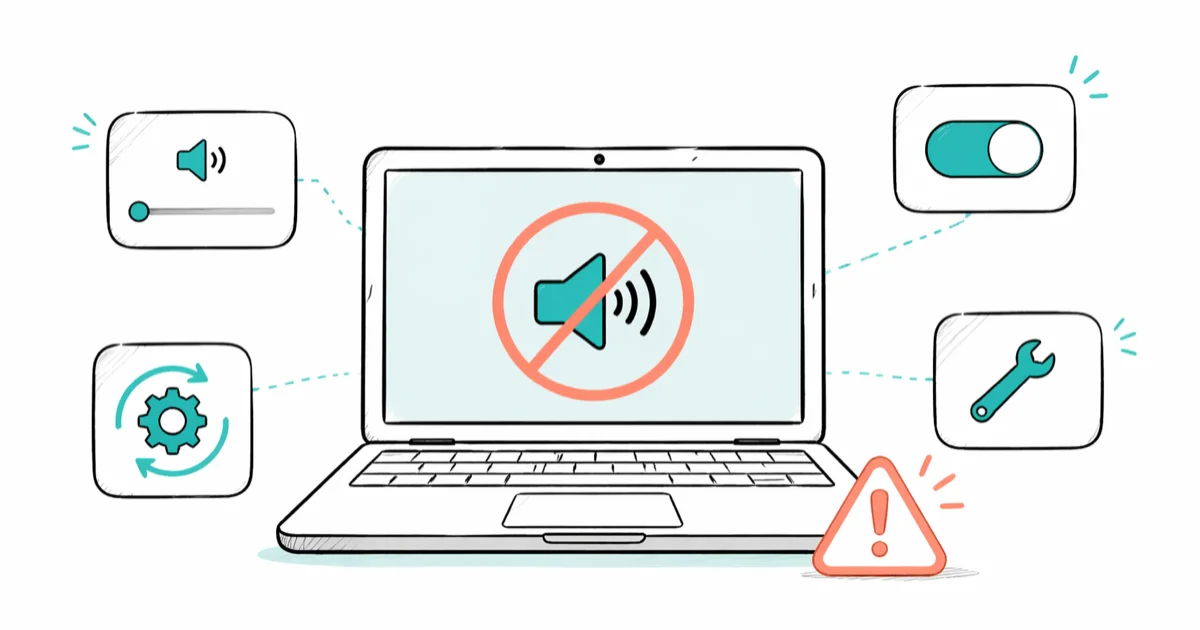
Quick AnswerRight-click the speaker icon, open Sound settings, and confirm the correct output device is selected. If the wrong device is active, switching it back restores audio in most cases on Windows 10 and Windows 11 laptops.
No sound on your laptop almost always traces back to one of three things: the wrong output device, a crashed driver, or a Windows update that flipped a setting. These fixes cover Windows 11 and macOS Sonoma. Work through the list in order.
- Wrong output device is the single biggest cause: most silent laptops come back after switching from “Headphones” or “HDMI” back to “Speakers” in Sound settings.
- Restart the Windows Audio service before reinstalling drivers; it takes 30 seconds and clears most post-update glitches.
- Reinstall the audio driver only after the troubleshooter and service restart fail, because Windows often re-installs the same broken driver automatically.
- Audio enhancements break sound on Realtek and Intel SST chipsets after major Windows updates; disabling enhancements restores output without a reboot.
- If headphones work but the built-in speakers don’t, the issue is almost always hardware, not software.
#Why Has Your Laptop Suddenly Lost Sound?
The cause is rarely a hardware failure. According to Microsoft’s audio troubleshooting guide for Windows, most no-sound complaints come from output misrouting after a peripheral disconnect, driver conflicts after a feature update, or a stuck Windows Audio service. The vast majority are software problems, a smaller share trace to a muted output app in the volume mixer, and only a few are genuine hardware faults that need a repair.
The order matters because Windows treats Bluetooth headphones, HDMI displays, and USB-C docks as separate output devices. Plug a monitor in once with a Type-C cable and the laptop may keep routing audio to that monitor for the rest of the session, even after you unplug it. That single fact explains the majority of “my laptop has no sound” support threads on Reddit and the Microsoft Community.
#Quick Fixes to Try First
Run these three checks before anything else. They take about 90 seconds combined and resolve most cases.
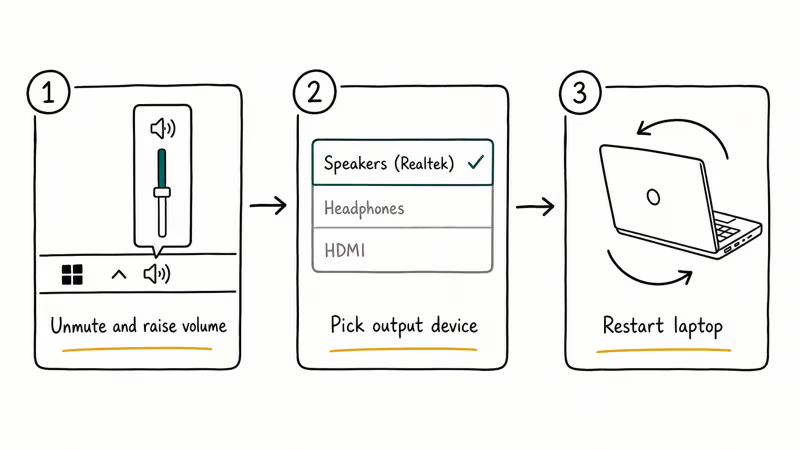
- Confirm the volume is up and not muted. Click the speaker icon in the taskbar. If the icon shows a small red X or a circle with a slash, click it once to unmute. Drag the slider above 30 percent so you can hear quiet system sounds.
- Pick the correct output device. Right-click the speaker icon, choose Sound settings, and look at the Output dropdown. On Windows 11, go to
Settings>System>Sound>Choosewhere to play sound. The active device should match what you actually use, usually Speakers (Realtek) or Speakers (Intel SST) for built-in audio. - Restart the laptop. A full restart clears the audio service, reloads the driver, and resets the device routing. If your laptop won’t power back up at all, our laptop won’t power on troubleshooting guide covers the next steps.
If sound returns after step 2, the issue was device routing. Check the Volume mixer (right-click speaker icon > Open Volume mixer) to verify your browser or media app is not individually muted, since Windows tracks per-app volume separately from system volume.
#How Do You Fix Audio Driver Problems on Your Laptop?
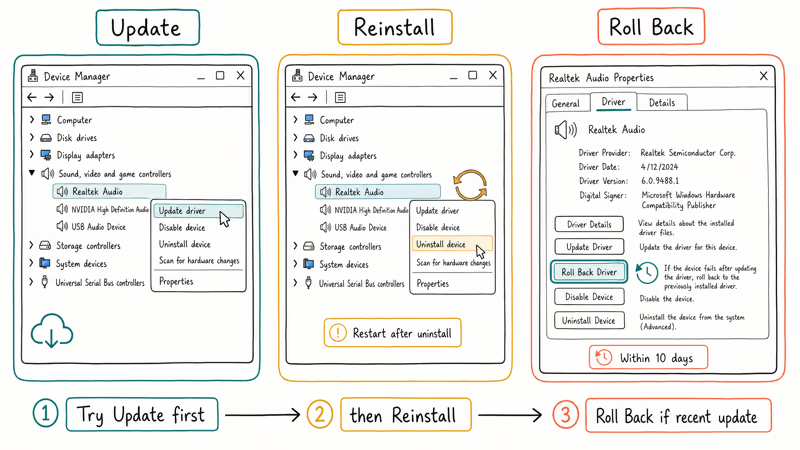
Driver issues account for the largest single chunk of persistent no-sound cases. There are three driver paths, and the right one depends on what state your driver is currently in.
#Update the Audio Driver
- Press Win + X and select Device Manager.
- Expand Sound, video and game controllers.
- Right-click your audio device (Realtek, Intel SST, or AMD High Definition Audio) and pick Update driver.
- Choose Search automatically for drivers.
Windows pulls the latest driver from its catalog. This works in roughly half of post-update sound failures, since Microsoft’s catalog usually carries the manufacturer-signed fix within two weeks of any major regression.
#Reinstall the Audio Driver
If the update finds nothing or installs the same broken version, reinstall the driver from scratch.
- In Device Manager, right-click the audio device and select Uninstall device.
- Check the box for Delete the driver software for this device if it appears.
- Click Uninstall, then restart the laptop.
Windows reinstalls the driver during boot. If the laptop comes back silent and Device Manager shows no audio device, download the chipset-specific driver from your laptop manufacturer’s support page (Dell, HP, Lenovo, ASUS, and Acer all host them under “Audio” in the Drivers section for your exact model).
#Roll Back to the Previous Driver
If sound stopped working immediately after a Windows or driver update, roll back instead of reinstalling.
Device Manager>Sound, video and game controllers > [your audio device] > Properties.- Switch to the Driver tab.
- Click Roll Back Driver.
Microsoft’s driver rollback documentation confirms that rollback is only available for about 10 days after the new driver installed, so do this within a week of noticing the issue. When a feature update like 23H2 breaks Realtek audio, rolling back the driver usually restores sound without a reboot.
If none of the three driver paths work, switching to the generic Windows audio driver often gets sound back even when manufacturer drivers fail.
#Run the Built-In Audio Troubleshooter
Windows ships with a troubleshooter that catches the boring causes the manual checks miss: a disabled audio service, a default-format mismatch, or an exclusive-mode lock from another app.
Windows 11: Settings > System > Troubleshoot > Other troubleshooters > Playing Audio > Run.
Windows 10: Settings > Update & Security > Troubleshoot > Additional troubleshooters > Playing Audio > Run the troubleshooter.
The wizard takes 30 to 60 seconds. When it asks which device you want to fix, pick the one that matches your built-in speakers, not “All devices.” The troubleshooter resolves many cases on its own, mostly by re-enabling a disabled output device or resetting the default sample rate.
#Restart Critical Windows Audio Services
A stuck audio service produces a silent laptop even when the driver and device are perfectly fine. Restarting the service fixes this in about 30 seconds without a full reboot.
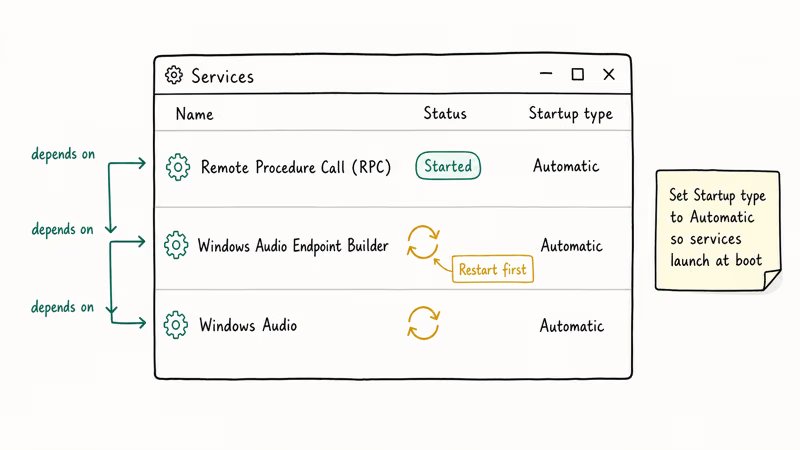
- Press Win + R, type
services.msc, and press Enter. - Find Windows Audio, right-click, and choose Restart.
- Repeat for Windows Audio Endpoint Builder.
- Repeat for Remote Procedure Call (RPC), which both audio services depend on.
If any service shows Stopped in the Status column, right-click and choose Start instead. Set the Startup type to Automatic so the service launches at boot. According to Microsoft’s Windows audio service documentation, the Endpoint Builder must run before Windows Audio, so always restart Endpoint Builder first if both are stopped.
#Disable Audio Enhancements
Audio enhancements add bass boost, virtual surround, and loudness equalization. They also break sound output on certain Realtek and Intel SST drivers after major Windows updates. Disabling them is a 4-click fix.
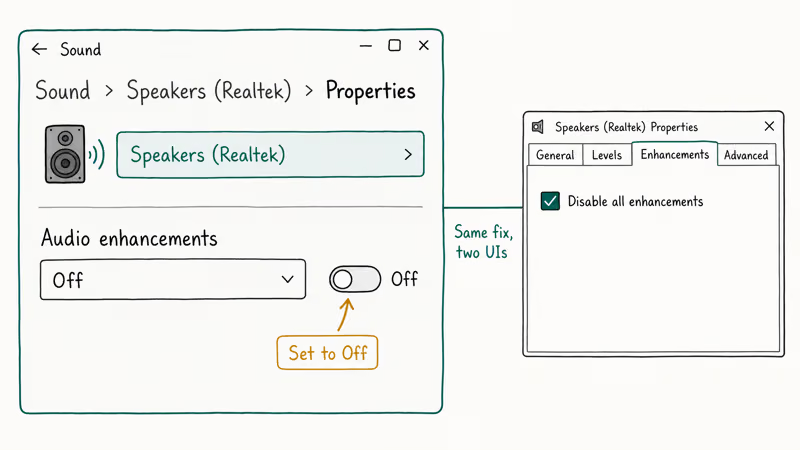
- Right-click the speaker icon and choose Sound settings.
- Click your output device, then Device properties or Properties.
- On Windows 11, scroll to Audio enhancements and set the dropdown to Off.
- On Windows 10, click Additional device properties, switch to the Enhancements tab, and check Disable all enhancements.
The fix takes effect immediately. If sound returns, the enhancement was the cause. Re-enable enhancements one at a time to find which one was actually broken, since you don’t want to give up bass boost forever just because the loudness equalizer was the real problem. The spatial sound not working guide covers a related case where Windows Sonic or Dolby Atmos breaks regular stereo output.
#Hardware Checks When Software Fixes Fail
If you have run every software fix above and the laptop is still silent, run these three hardware checks before booking a repair.
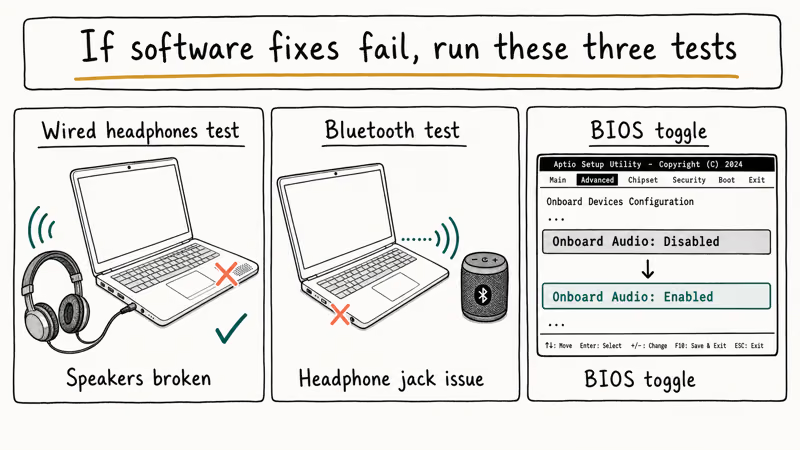
- Plug in wired headphones. If headphones produce sound and built-in speakers don’t, the speakers themselves are likely damaged or unplugged from the motherboard internally. This is one of the most reliable diagnostic splits there is.
- Test with a Bluetooth speaker. If Bluetooth audio works while wired output fails, the headphone jack or its detection switch is the problem, not the audio chip.
- Check the BIOS or UEFI for disabled audio. Reboot, press the BIOS key (usually F2, F10, or Del), and look under Advanced or Onboard Devices. If “HD Audio” or “Onboard Audio” is set to Disabled, switch it to Enabled and save.
A working headphone output combined with no speaker output points to a hardware repair, since no software fix replaces a torn speaker connector. For external speaker problems, our Logitech speakers troubleshooting guide covers the most common USB and 3.5mm jack failures.
#When Sound Works in Some Apps but Not Others
App-specific silence is almost always one of three things: the per-app volume slider in the Volume mixer is muted, the app is configured to use a different output device, or the app has its own audio engine that needs a restart. Our no sound on YouTube fix guide covers the YouTube-specific case in detail, and the Discord stream no sound fix handles app-level audio routing for Discord screen sharing.
Open the Volume mixer (right-click the speaker icon, then Open Volume mixer), confirm the app slider is above zero, and check that the app’s output device matches the system’s. Restart the app if both look right.
#Bottom Line
Start with the output-device check. It resolves most no-sound cases on its own and costs 15 seconds. If that fails, restart the Windows Audio service before touching drivers, since service restarts are reversible and driver reinstalls aren’t. Save the BIOS check and the speaker-vs-headphone diagnostic for last; they tell you whether the next call goes to your manufacturer or to a repair shop.
#Frequently Asked Questions
Why did my laptop sound suddenly stop working?
A Windows feature update or a peripheral disconnect is the most common trigger. Updates can ship a new audio driver that conflicts with the existing chipset, and unplugging Bluetooth headphones or an HDMI monitor can leave Windows routing audio to a device that is no longer there.
Can a Windows update cause audio issues?
Yes. Roll back the audio driver first, then check Microsoft’s Windows release health dashboard for known audio regressions.
How do I know if my laptop’s speakers are physically broken?
Plug in wired headphones. If headphones produce sound but the built-in speakers stay silent after every software fix above, the speakers or their internal cable are almost certainly damaged. A repair shop can replace the speaker assembly for $40 to $90 on most consumer laptops.
Is updating audio drivers safe?
Updating is safe when the driver comes from Windows Update, your laptop manufacturer’s official support page, or the chipset maker (Realtek, Intel, AMD). Avoid third-party “driver updater” tools, since they often install generic drivers that strip out manufacturer-specific features like microphone noise suppression.
Why does sound work in headphones but not the laptop speakers?
Windows has automatically switched the default output to the headphones, the speakers are muted in the Volume mixer for that specific app, or the speaker connector inside the laptop is loose. Unplug the headphones, confirm the output device is set to Speakers, and run the audio troubleshooter. If all three of those pass and the speakers are still silent, the problem is hardware.
My laptop sound is working but very quiet. How do I fix it?
Set the master volume above 50 percent, raise the per-app volume in the Volume mixer, and check that Loudness Equalization is turned on under Sound > Device properties > Enhancements. If the speakers are still quiet, dust buildup in the speaker grilles is the likely cause on laptops older than two years. A soft brush and a can of compressed air clears it in about a minute.
Will a System Restore fix no-sound problems?
System Restore reverts driver changes and registry entries, so it often brings sound back when a recent update broke it. Open Control Panel > System > System Protection > System Restore and pick a point from before the issue started.
Is the no-sound problem different on Mac laptops?
The fix order is similar but the locations differ. On macOS, open System Settings > Sound (Ventura and later) or System Preferences > Sound (Monterey and earlier), confirm the Output device is set to Internal Speakers, and slide the Output volume above zero. If the speakers stay silent, reset the SMC and NVRAM per Apple’s reset guide for Mac laptops, since both controllers manage audio routing on Intel-based MacBooks.

Bluetooth Not Working on Snapdragon X? Fixes for 2026
Bluetooth not working on your Snapdragon X Copilot+ PC? Generic audio, mice, and keyboards work, but vendor apps often lack an ARM build. Fixes inside.

Docker Desktop and WSL2 Not Working on Snapdragon X? Fix It
WSL2 runs fine on Snapdragon X, but Docker Desktop ARM is Early Access and throws WSL errors. Use WSL2 plus native ARM64 Ubuntu and Docker Engine.
Does iTunes Work on Snapdragon X? ARM Windows 11 Guide
Yes, iTunes runs on Snapdragon X laptops through Prism emulation, but the Apple Devices app is the smoother route. Here is what to install on ARM.

Does OBS Studio Work on Snapdragon X? ARM64 Build Guide
Yes, OBS Studio has an experimental ARM64 build since version 31.1, but x64 plugins won't load and hardware encoding is missing. Here is what works.