Fix No Sound on YouTube on Your Phone or PC (2026)
Fix no sound on YouTube with 8 proven methods for phones and PCs. Covers muted tabs, browser cache, app updates, audio drivers, and extensions.
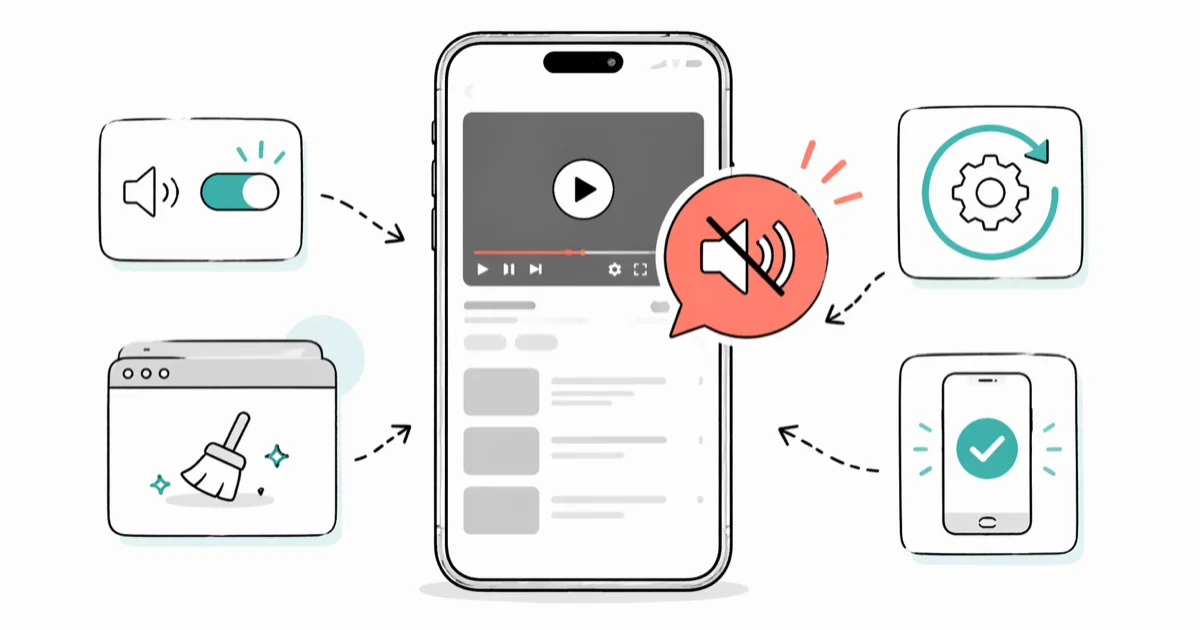
Quick AnswerCheck if YouTube or your browser tab is muted first. If that is not it, clear your browser cache, update the app, or restart your device. These fixes work for most people on both phones and computers.
No sound on YouTube turns a 10-minute video into a frustrating mime show, and the fix is almost always something small you can check in under a minute. The cause is usually a muted tab, a silent switch, or a Bluetooth device still holding the audio stream that your phone forgot to release. The right fix depends on whether you’re on a phone or a desktop, so this guide splits both.
- A muted browser tab or YouTube player slider is the single most common desktop cause
- Clearing browser cache and cookies fixes audio glitches from corrupted site data
- On iPhone, the Ring/Silent switch overrides YouTube volume in some app versions
- Outdated Windows audio drivers break sound in one browser while other apps work fine
- Force-closing and reopening the YouTube app resolves stuck audio sessions on phones
#Why Is There No Sound on YouTube?
YouTube audio can break for a handful of reasons, and the fix depends on whether you’re on a phone or a desktop. On desktop, the most common culprit is a muted browser tab.
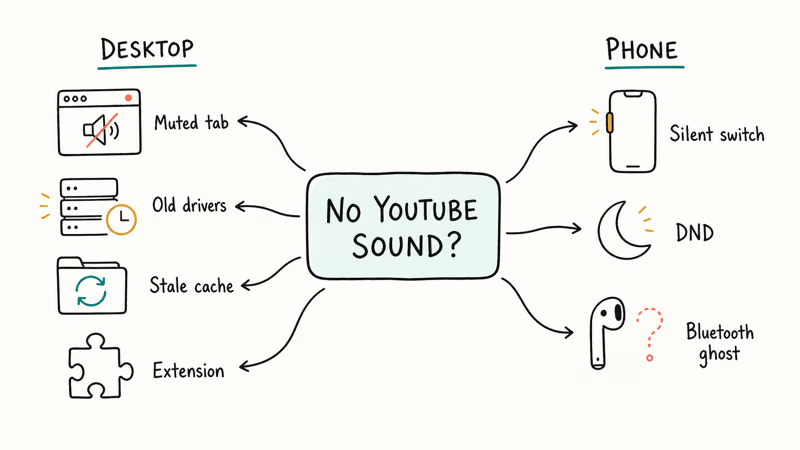
Chrome, Edge, and Firefox all let you mute individual tabs. One accidental right-click silences YouTube without touching your system volume.
Outdated audio drivers and corrupted cache data are the next most frequent causes. Google’s YouTube video playback troubleshooter recommends 6 specific checks before you escalate to reinstalling the app, and the first two (device volume and browser cache) are both directly relevant to a no-audio complaint. Browser extensions that interfere with media playback round out the desktop culprits, and these are the trickiest to diagnose because they produce no error messages at all.
On phones, check the mute switch (iPhone), DND mode, or Bluetooth audio routing. If your phone recently disconnected from Bluetooth headphones, the audio stream may still be pointed at that device even though you can’t see it.
#Check the YouTube Player and Browser Tab
Look at the speaker icon in the bottom-left corner of the YouTube video player. If there’s a line through it or the slider sits all the way left, YouTube itself is muted. Click the icon or drag the slider right.
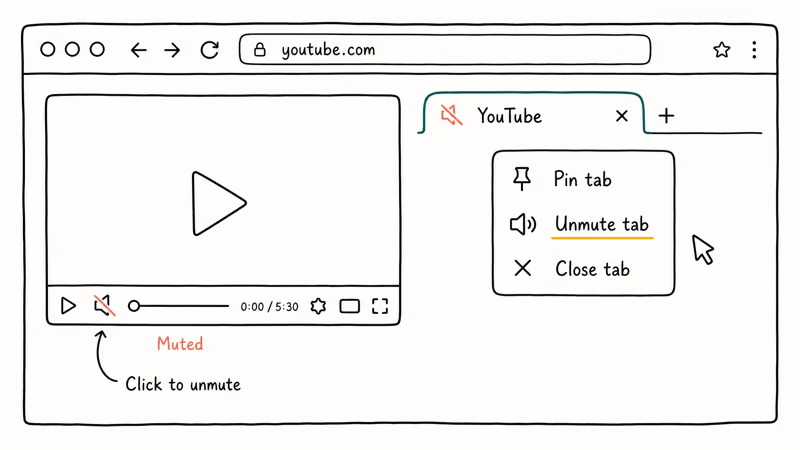
This alone fixes the problem in a large share of cases.
YouTube remembers your last volume setting per browser session, so a video you muted yesterday stays muted today. That’s by design, and it surprises people who share a computer.
Next, right-click the YouTube tab in your browser. If you see “Unmute tab” or “Unmute site,” the tab is silenced at the browser level. Click it to restore audio. This is different from Chrome not playing sound system-wide, which points to a deeper issue with Windows audio routing rather than a single site.
#Fix System Volume and Audio Output
On Windows 11, right-click the speaker icon in the taskbar and select “Open Volume Mixer.” Each app gets its own volume slider here. Your browser might be at zero while everything else is cranked up.
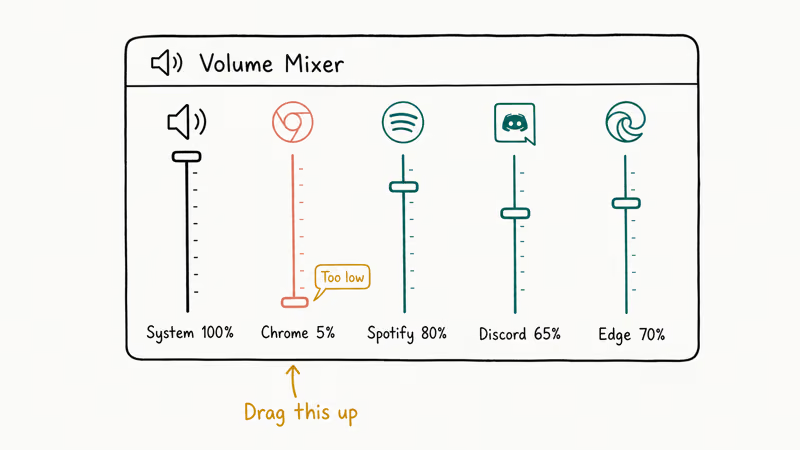
This exact situation is common: Spotify might sit at 80 percent while Chrome is stuck at 5 percent. One slider drag brings the audio back.
On Mac, go to System Settings > Sound > Output and confirm the right device is selected. macOS doesn’t always switch back to built-in speakers after you unplug headphones, so check this any time audio disappears. The menu bar volume indicator can show full volume while the system is still pointing at a disconnected pair of AirPods from earlier, which is an easy fault to miss.
#Clear Browser Cache and Cookies
Corrupted cache data can break YouTube’s audio player. Here’s how to clear it in any browser:
- Press Ctrl + Shift + Delete (Cmd + Shift + Delete on Mac)
- Select “Cached images and files” and “Cookies and other site data”
- Set the time range to “All time,” then click “Clear data”
Reload YouTube after clearing.
You’ll need to sign back into sites, but your audio should work. Google’s Chrome cache and cookies help page states that clearing cache causes 3 specific changes (you get signed out, saved settings disappear, some pages load slower at first). None of those break YouTube itself, confirming the reset is safe to try whenever stale site data is the suspected cause.
If you’re on Android and use Chrome as your mobile browser, the process for clearing cache on Android is slightly different but just as effective.
#Update Audio Drivers on Windows
Outdated audio drivers cause problems when your browser uses newer audio APIs that the driver doesn’t support.
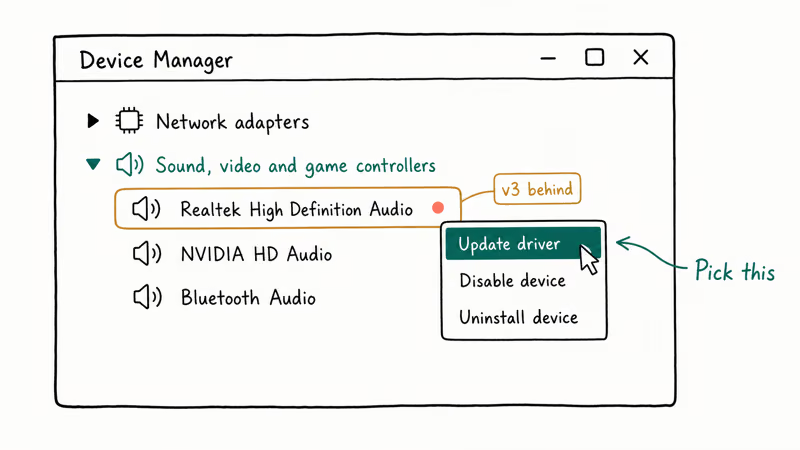
- Press Windows + X, then select “Device Manager”
- Expand “Sound, video and game controllers”
- Right-click your audio device, choose “Update driver,” and select “Search automatically”
On many laptops a year or two old, the Realtek driver is several versions behind, and updating it restores YouTube audio in both Chrome and Edge within a minute. If YouTube still has no sound on your laptop after a driver update, the issue is most likely hardware, not software.
#Fix YouTube Audio on iPhone
iPhone has a few quirks that Android doesn’t. The physical mute switch is the biggest one.
#Check the Ring/Silent Switch
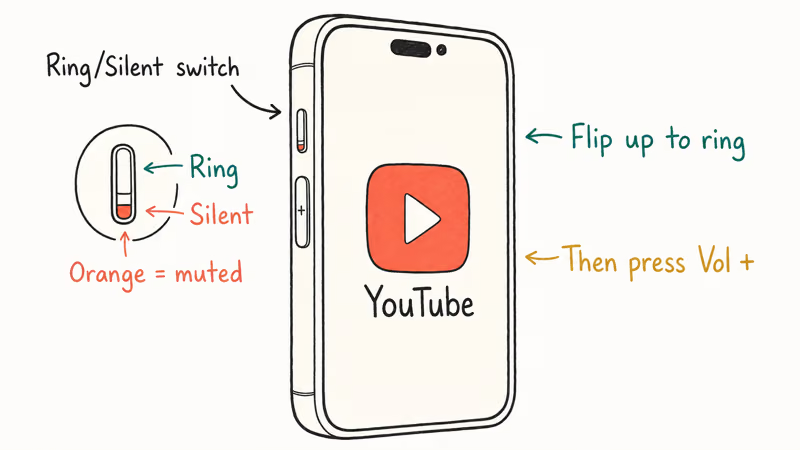
The small switch on the left side of your iPhone controls the ringer, but it also affects media playback in certain apps. Flip it so the orange indicator is hidden, then press Volume Up while YouTube is open. It takes less than 3 seconds and resolves the majority of iPhone audio complaints.
With the silent switch on, some app versions play zero audio from YouTube even with media volume maxed out. One flip and the sound usually comes back within a second.
iPhone stuck sending audio to headphones when none are plugged in? That’s a separate headphone mode problem and the Ring/Silent switch won’t help, because the system still thinks wired headphones are plugged in. You’ll see it mostly after unplugging Lightning or 3.5mm headphones from the bottom port, and it sometimes clears only after a full restart.
#Force Close and Reopen the App
Swipe up from the bottom of the screen (or double-press the Home button on older models) to open the app switcher. Swipe YouTube away to close it, wait a few seconds, then reopen.
This resets the app’s audio session. Apple’s force-quit an app support page states that you should force-quit only when an app is unresponsive or not working as expected, and it gives the exact swipe-up-and-away gesture for 2 conditions. A stuck audio stream fits the “not working as expected” condition cleanly, which is why force-quitting is the right first response before you consider reinstalling YouTube.
#Fix YouTube Audio on Android
Android handles audio differently depending on the manufacturer, but these fixes cover Samsung, Pixel, and most other brands running Android 10 or later.
#Check Media Volume Separately
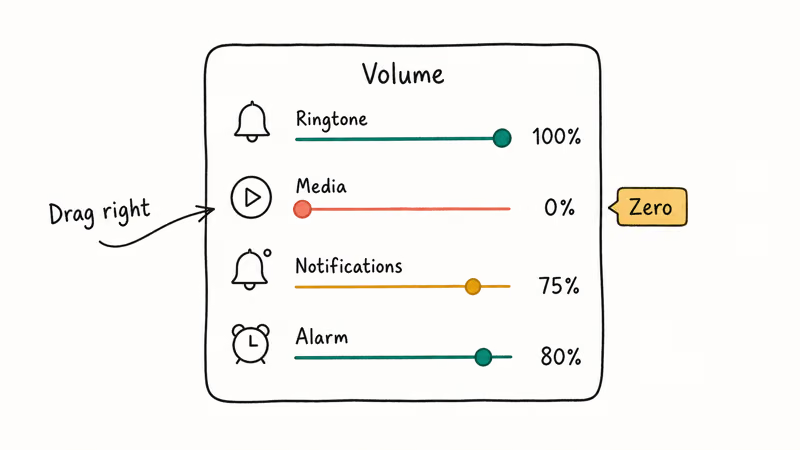
Android has separate sliders for ringtone, media, notifications, and alarms. Press a volume button, then tap the arrow icon to expand all sliders. Make sure “Media” is turned up.
On Samsung phones, go to Settings > Sounds and vibration > Volume to adjust the Media slider directly. A common trap is the media slider sitting at zero while the ringtone slider is at maximum. That happens when you silence media in public and forget to turn it back up later, which is easy to overlook.
If YouTube isn’t working at all on your Android device and not just the audio, check our guide on YouTube not working on Android for broader troubleshooting steps.
#Clear the YouTube App Cache
Go to Settings > Apps > YouTube, tap “Storage,” then tap “Clear cache.” Don’t tap “Clear data,” since that resets your login and preferences along with the cache.
Clearing the cache often resolves an issue where YouTube audio cuts out shortly after playback starts. Your subscriptions and watch history stay untouched because cache is just temporary data the app accumulated over time, not account data stored on Google’s servers.
#Check Bluetooth Connections
Go to Settings > Connected devices (or Settings > Bluetooth on Samsung). If a speaker or earbuds show as “Connected,” disconnect them.
Your audio routes to the last connected Bluetooth device even if it’s in another room. This is the same problem that causes YouTube to keep pausing when Bluetooth devices move in and out of range. Your phone keeps trying to reconnect, which interrupts playback and sometimes kills the audio stream entirely until you manually disconnect from the ghost device.
#Can Browser Extensions Block YouTube Audio?
Yes. Ad blockers can strip audio elements along with ads, and privacy extensions sometimes block the scripts YouTube needs to initialize its player.
The quickest test: open YouTube in an incognito window (Ctrl + Shift + N in Chrome). Audio works there? Then one of your extensions is definitely the culprit, and you can narrow it down without uninstalling anything yet.
Disable extensions one at a time to pinpoint the offender. Well-maintained blockers like uBlock Origin usually leave audio alone, but lesser-known “ad blocker” clones are a frequent cause of silenced playback. Google’s Chrome Web Store troubleshooting page recommends a 3-step isolation workflow: disable all extensions, reproduce the issue, then enable them one at a time. That is the fastest way to catch a bad ad blocker.
If your broader issue is YouTube not working at all, extensions are the first thing to investigate.
#Bottom Line
Start with the obvious checks: muted YouTube player, muted browser tab, muted phone switch. Those three silence YouTube far more often than any driver or extension issue, and they take less than a minute to rule out.
If those don’t work, clear your browser cache or YouTube app cache next. Stale site data is the most common cause of audio that plays for a few seconds and then cuts out, and the fix takes about 30 seconds on any browser. Driver updates and extension conflicts are the last resort for desktop users, and the Windows driver fix is worth the 5 minutes on any laptop older than a year.
#Frequently Asked Questions
Why does YouTube have no sound but other websites work fine?
Your browser tab is probably muted, or the YouTube player volume slider is all the way down. Right-click the tab to check for an “Unmute” option, then check the speaker icon inside the video player itself.
Can a YouTube video have no audio on purpose?
Yes. Some uploaded videos don’t have an audio track, or YouTube removed the audio due to a copyright claim. Try 2 or 3 different videos to confirm. If they all lack sound, the problem is on your end, not the video.
Does clearing cache delete my YouTube history or subscriptions?
No. Browser cache is just temporary files stored locally. Your watch history, subscriptions, and playlists are tied to your Google account.
Why does YouTube audio work with headphones but not speakers?
Your device’s audio output is still routed to headphones or a Bluetooth device. On Windows, check Settings > System > Sound for the output device. On iPhone, flip the Ring/Silent switch off and restart the phone to reset routing. On Android, disconnect Bluetooth devices and check the media volume slider.
How do I fix YouTube audio delay or out-of-sync issues?
Audio sync problems usually come from hardware acceleration in your browser. Go to Chrome Settings > System and turn off “Use hardware acceleration when available,” then restart Chrome. This commonly fixes a slight audio sync delay on machines with an older Intel integrated GPU. Firefox and Edge have similar hardware acceleration toggles in their settings menus.
Will reinstalling the YouTube app fix no sound on my phone?
Try clearing the app cache first. It’s faster, keeps your login intact, and resolves most audio bugs without a full reinstall.
Does DND mode affect YouTube sound?
On iPhone, DND doesn’t mute media playback by default, so YouTube should still play audio. On some Android phones, the DND settings include a “No media” option that silences YouTube. Check Settings > DND and verify that media and alarms are allowed.
Why did YouTube audio stop after a Windows update?
Windows updates sometimes reset your default audio device or replace your manufacturer’s audio drivers with generic ones. Open Device Manager and look for a yellow warning icon on your audio device, then update or reinstall the driver. Also verify the correct output device in Settings > System > Sound, since the update may have switched it to a monitor’s built-in speakers or a device you don’t use.

Google Messages Error 3100: Why RCS Is Broken on Galaxy
Google Messages RCS error 3100 hits Galaxy owners after phone or carrier switches. Google told 9to5Google a fix is coming. Here's what actually helps.

Is This Bank App Real? Spot a Fake App on Your Home Screen
A bank app can land on your home screen from a web page with no install warning. Learn the checks that tell a real banking app from a phishing web app.

Apps Crashing After iOS 27 Update? Fix Order (2026)
Apps crashing after the iOS 27 update? Update the app in the App Store first, then offload and reinstall to clear stale cache, then restart. The fix order.

Do AI Translation Earbuds Work Offline? What to Know
Do AI translation earbuds work offline? A few do with downloaded language packs, but most need the cloud. Here's what works offline and what you give up.