Netflix Device Not Part of Household? 2026 Fix Guide
Netflix blocked your TV with a household error. Use the official Update Household, I'm Traveling, or Watch Temporarily path. Here is which works when.
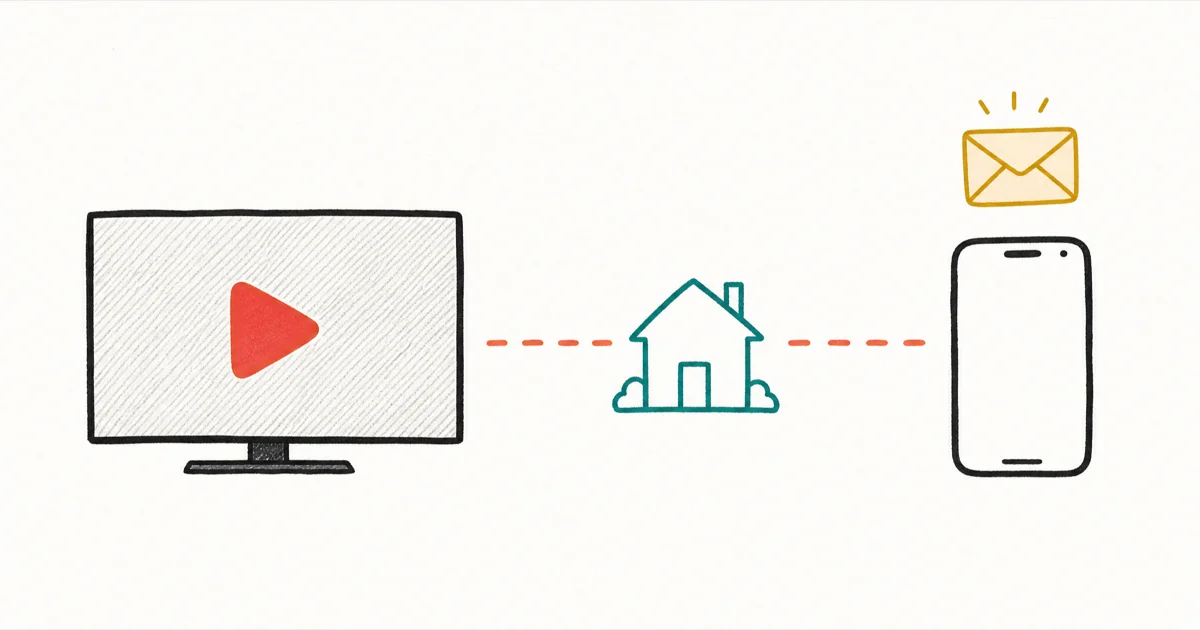
Quick AnswerIf Netflix says your device isn't part of the Household, sign in on the home TV first, or pick I'm Traveling from the error screen for a 7-day verification code by email.
You hit play and Netflix throws up a red screen: “Your TV isn’t part of the Netflix Household for this account.” It commonly shows up on a Roku at a vacation rental or a Fire TV after a router swap, and the fix is almost always one of three official Netflix paths.
Netflix tightened household enforcement through 2025 and into 2026, so the message now triggers more often than it did at launch.
- A Netflix Household is tied to the main TV’s network and location, and the system re-verifies off-network devices every few weeks
- The error screen itself offers three paths: Update Household, I’m Traveling, and Watch Temporarily
- Update Household from the home TV resolves most cases caused by a new router, ISP swap, or modem reset
- The I’m Traveling code arrives by email or SMS and unlocks a device for 7 days
- A VPN won’t reliably fix this in 2026 because Netflix flags commercial VPN IPs that don’t match the household network
#What Does the Netflix Household Error Actually Mean?
Netflix uses the word “Household” as a formal term: the set of devices that share an IP address and Wi-Fi network with the account’s main TV. When a device strays from that network for too long, Netflix shows the error screen until you confirm the device belongs.
The exact wording varies a little by device.
On Roku and Fire TV you’ll see “Your TV isn’t part of the Netflix Household for this account.” On a phone it usually reads “Your device isn’t part of the Netflix Household.” On smart TVs the message often becomes “This device isn’t part of your Netflix Household.”
Three different sentences, one mechanic. According to Netflix’s Help Center, devices must connect to the home Wi-Fi at least 1 time per month to stay verified, and a 4-digit code is what unlocks them when they don’t. See Netflix’s household error page for the canonical writeup.
This isn’t a bug. It’s the enforcement rule Netflix put in place to limit account sharing, and the same screen tells you exactly which buttons to press to clear it.
If the error tone reminds you of Pinterest app troubleshooting, the structural fix pattern is similar: official path first, network checks second.
#Three Official Paths Netflix Built for This Problem
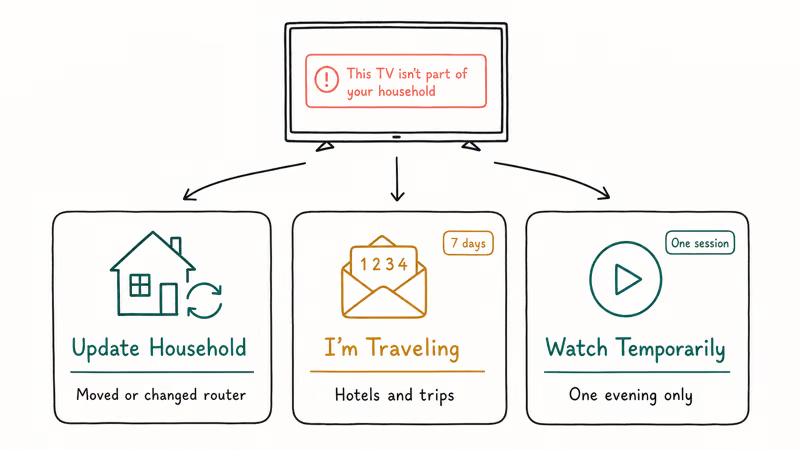
Netflix doesn’t expect you to memorize a menu. The error screen itself shows three options.
Choosing the right one is the entire fight.
Update Household. This is the path when you’ve moved permanently, swapped your router, changed ISPs, or just want to re-anchor your account to a different home TV. It rewrites which network counts as the household, and it’s the only one of the three paths that survives across multiple traveling sessions because the new household becomes the new long-term anchor for every device that ever connects to it.
I’m Traveling. This sends a verification code to email or SMS and unlocks the blocked device for 7 days.
Watch Temporarily. The one-shot version. You get a single verified session, useful when you’re at a hotel for a night and don’t want a 7-day token sitting on a TV you’ll never see again.
Netflix’s How to Update a Netflix Household guide walks through the Update Household path in detail, including how to switch which TV anchors the household.
The I’m Traveling path sends a verification code by email, and once you enter it the device is unlocked for 7 days, exactly as the Help Center describes. It’s the right choice for hotels, Airbnbs, and other short stays away from your home network.
#How Does Netflix Decide What Counts as Your Household?
Netflix anchors the Household to one TV. The device you sign into most often, on the network you use most often.
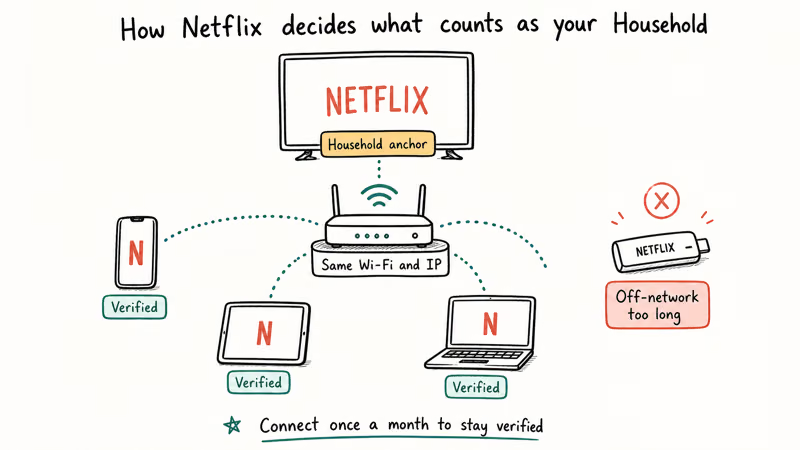
Every other device piggybacks on that anchor by sharing the same Wi-Fi at some point. When you sign in on a phone, tablet, or laptop while connected to the home Wi-Fi, Netflix tags that device as part of the household, and the tag sticks for weeks of off-network use.
If a device stays off the home network too long, the tag expires.
A few signals feed into the check. Netflix looks at the IP address, the network the main TV is on, and whether the device has been on that network recently. It does not require GPS, and it doesn’t ask for your address.
Apple’s Family Sharing setup documentation operates on a similar principle for Apple TV signed-in devices. Household is about network association, not residence.
If your geolocation is part of the issue (you legitimately moved, or you’re testing access from a different region), the right move is to change iPhone location settings for that device first, then re-anchor the household. Don’t mask the IP entirely.
#Why a VPN Won’t Reliably Fix the Household Error
A VPN can shift your IP, but it can’t make a commercial VPN endpoint look like your home modem.
PureVPN’s Netflix household error article recommends a bypass workflow, but Netflix has tightened detection in 2026. Commercial VPN IPs are flagged precisely because they’re commercial VPN IPs, and the household error often triggers on the home network too when a VPN is active.
The honest answer: a VPN is the wrong tool for this problem.
It also pushes against Netflix’s Terms of Use, so even when a particular VPN endpoint slips past detection one afternoon, your account is still on the wrong side of the rule that protects your access long-term.
#Update Your Netflix Household from a TV: Step-by-Step
This is the path when you’re at home and getting the error, or when you’ve permanently moved and need to re-anchor.
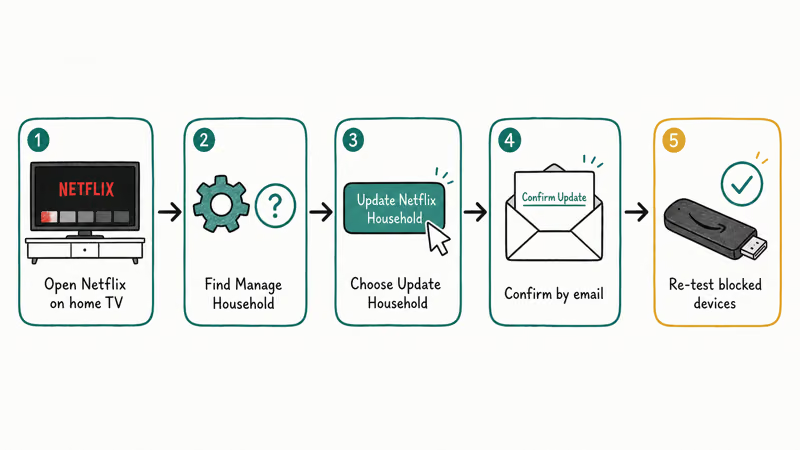
You need physical access to a TV at the new household location, and that TV needs to be signed into the Netflix account you’re updating. The whole process takes about two minutes.
- Open Netflix on the TV at the home location. Use the actual remote, not the phone app. The TV must be connected to the network you want to anchor as the new household.
- Go to the main menu and select your profile. From the home screen, go to
Settings>Get Help>Manage Netflix Household. On some smart TVs, you’ll find it under Account instead of Get Help. - Pick “Update Netflix Household.” Netflix asks you to confirm. Read the warning. Devices previously tagged to the old household will need to verify again the next time they connect.
- Confirm via the email link. Netflix sends a confirmation email to the account holder’s address. Open it on a phone or laptop, click the Confirm Update button, and the new household is anchored.
- Test the previously-blocked devices. Open Netflix on the Roku, Fire TV, or whatever was getting the error. If it still shows the household screen, restart the app. Most devices need a fresh launch to pull the new household state.
After you update the Netflix Household from a primary-home device, previously-blocked devices usually regain access within a few minutes, often without a router restart. Netflix recommends updating the household as the canonical fix when the household identity drifts after an ISP swap or modem reset.
If updating doesn’t take, restart the home router. Unplug it for 2 minutes, plug it back in, and let it fully reconnect before you try Netflix again. Sometimes Netflix’s geolocation cache needs a network refresh, and the same trick helps when iCloud backup isn’t working due to network state. A clean DHCP lease fixes both kinds of stale identity.
One more thing.
If you don’t recognize devices listed when you update, sign them out. Go to Account > Manage Access and Devices on netflix.com from a web browser. Hit Sign Out next to anything unfamiliar. This is the same menu Netflix recommends for security cleanup, and it doesn’t affect your active household devices.
#When Traveling and You Can’t Touch the Home TV
This is the path when you’re at a hotel, an Airbnb, a friend’s place, a coffee shop, or anywhere your home TV isn’t.
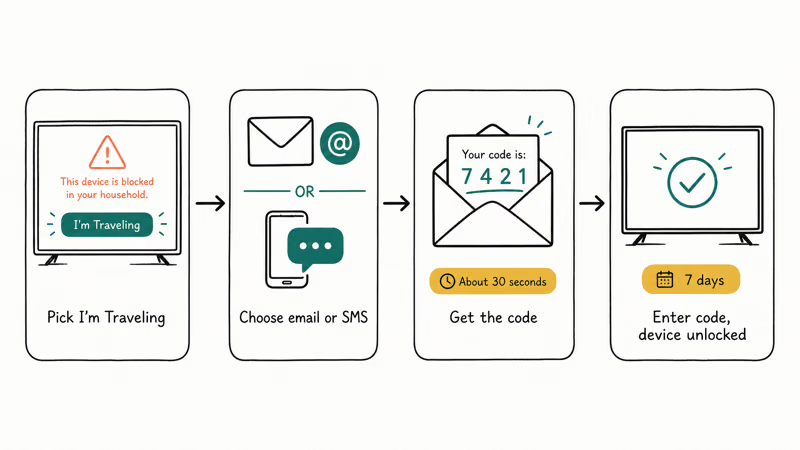
You don’t need to know the home Wi-Fi password. You don’t need to ask a roommate to unplug the router. You just need access to the email or phone number on the Netflix account.
From the blocked device, choose I’m Traveling on the error screen.
Netflix asks how you want the verification code, email or SMS. Pick whichever you can check fastest. The code usually arrives within a minute. Enter the 4-digit code on the blocked device and Netflix unlocks it for up to 7 days.
That’s usually enough for a vacation, a work trip, or a college weekend home.
A few practical notes worth keeping in mind:
- The code is single-use. If you misread it, request a new one. The old one stops working immediately.
- SMS sometimes lags. Email usually arrives faster than SMS, so use email if you have a choice.
- Each device needs its own code. Two TVs at the Airbnb means two separate I’m Traveling requests. They don’t share an unlock.
- The 7-day clock starts at unlock time. Not at the start of your trip, not at first play. The day you verify is day one.
If you only need access for one movie or one episode, and you don’t want a 7-day session attached to a hotel TV, pick Watch Temporarily instead. That gives you a single verified session, long enough for an evening, short enough that the TV doesn’t keep your account access after you check out.
When streaming is the wrong tool entirely (slow hotel Wi-Fi, no signal in a cabin), it’s worth knowing you can download HTML5 video alternatives or save content to an iPad before the trip. Netflix’s own offline downloads work from the mobile app on Wi-Fi, no household check required, and they remain playable for 48 hours after first play.
The Wi-Fi at the hotel is the actual variable here.
On networks where you can’t see the password (a friend’s place, a rental), you can see Wi-Fi password on iPhone once you’ve connected. Useful if you also want to anchor a laptop or tablet to the same network as the TV you’re watching.
For permanently-blocked devices that you legitimately use at a different residence (a college student’s setup, a partner who lives apart), Netflix’s Extra Member add-on is the intended path. It’s a paid slot on the same account that doesn’t expire and doesn’t trigger the household check, and it’s cheaper than maintaining two full accounts.
Pricing varies by region. Check the Account page on netflix.com for current rates.
If your device-side issue is broader than Netflix (controller drops, mirroring fails, second-screen setups), phone-to-screen mirroring covers the surrounding device-connectivity checks worth running before blaming any one app.
#Bottom Line
If you’re at home and getting the household error, restart your router first.
Then sign in to Netflix on the household’s main TV to re-establish the household. That single action resolves most network-shift cases (ISP change, router reset, new modem) within about five minutes.
If you’re traveling, pick I’m Traveling.
If you’ve permanently moved, Update Netflix Household from the new TV is the right path. It’s a deliberate Netflix feature, not a workaround, and it doesn’t cost anything extra.
Skip the VPN.
Netflix has tightened detection in 2026, so commercial VPN IPs trigger the same household error even when you connect from inside the home network. The VPN-as-bypass strategy also runs against the Netflix Terms of Use, which is the part that puts your account at risk over a longer arc than any single evening’s stream.
For two real homes (college kid, partner who lives apart, long-term travel), Extra Member is the right path.
#Frequently Asked Questions
Why does Netflix say my device is not part of the household?
Because the device hasn’t connected to your home Wi-Fi recently, or your home network identity has changed (new router, new ISP, new modem). Netflix re-verifies devices periodically and shows the household error until you confirm the device using one of the three official paths from the Help Center.
How long does Watch Temporarily access last?
A single session. Watch Temporarily is the one-shot version of I’m Traveling, designed for situations where you want access for an evening on a hotel TV without leaving a 7-day token behind that anyone who later uses that TV could ride for the rest of the week. If you need longer access, pick I’m Traveling instead, and that one lasts 7 days from the moment you enter the verification code.
Can I use a VPN to get around the Netflix household error?
No, not reliably. Netflix tightened detection in 2026 and commercial VPN IP ranges are flagged precisely because they’re commercial VPN endpoints. The household error often triggers harder when a VPN is active, even on your home network.
Using a VPN to bypass household checks also runs against Netflix’s Terms of Use. Use I’m Traveling, Watch Temporarily, or Update Household instead.
Does updating the Netflix Household sign other devices out?
It rewrites the household anchor. Devices tagged to the old household will need to verify again the next time they connect. Devices on the new home network get tagged automatically, and devices off-network see the household error on their next launch.
Your profiles and watch history are untouched.
What happens to my Netflix profile if my household changes?
Nothing changes. Profiles, viewing history, watch progress, ratings, and downloads are all attached to your account, not your household. Updating the household only changes which TV anchors the account’s network identity, and your “Continue Watching” row and recommendations stay exactly where they were.
Will I lose my downloads when I update the household?
No.
Downloads stored on your phone or tablet stay playable for the standard Netflix offline window, up to 48 hours after you first hit play, depending on the title. The household update doesn’t reach into downloaded files, and new downloads after the update will follow the new household identity.
How often does Netflix re-verify devices in the household?
The Help Center doesn’t publish an exact schedule, and it varies by device type and recent network activity. In general, devices that stay off the home Wi-Fi for several weeks are the most likely to hit the error, while devices that connect to the home network at least once every couple of weeks rarely trigger re-verification.
Should I just pay for a Netflix Extra Member?
If your living situation actually involves two homes (a college student, a partner who lives apart, a long-term travel pattern), yes, Extra Member is the intended path and it’s cheaper than a second full account. Netflix’s pricing varies by region, so check the Account page on netflix.com for the current rate. For one-off travel or temporary network changes, I’m Traveling and Update Household are free and fit the use case better.

Google Messages Error 3100: Why RCS Is Broken on Galaxy
Google Messages RCS error 3100 hits Galaxy owners after phone or carrier switches. Google told 9to5Google a fix is coming. Here's what actually helps.

Is This Bank App Real? Spot a Fake App on Your Home Screen
A bank app can land on your home screen from a web page with no install warning. Learn the checks that tell a real banking app from a phishing web app.

Apps Crashing After iOS 27 Update? Fix Order (2026)
Apps crashing after the iOS 27 update? Update the app in the App Store first, then offload and reinstall to clear stale cache, then restart. The fix order.

Do AI Translation Earbuds Work Offline? What to Know
Do AI translation earbuds work offline? A few do with downloaded language packs, but most need the cloud. Here's what works offline and what you give up.