How to Change Your iPhone Location: 5 Proven Methods
Change your iPhone location with 5 proven methods. Covers Location Services, App Store region, VPN, and GPS spoofing tools. Step-by-step for iOS 16+.
Quick AnswerYou can change your iPhone location by adjusting Location Services in Settings, switching your App Store region, using a VPN, or using a desktop tool like Tenorshare iAnyGo to set a custom GPS coordinate on your own device.
Your iPhone location affects everything from weather apps to regional App Store content, and the right way to change it depends entirely on what you’re trying to do. There are five different methods on a modern iPhone, ranging from a built-in Settings toggle to a desktop tool that sets a custom GPS coordinate, and each one solves a different purpose.
- Turning off Location Services blocks GPS for apps, but carriers can still estimate your position
- Changing your App Store region means canceling subscriptions and zeroing your balance first
- A VPN shifts your IP-based location for streaming but does not alter GPS coordinates
- Desktop tools like iAnyGo let you set a custom GPS coordinate that all apps read
- Restarting your iPhone clears spoofed coordinates and restores your real location
#How Do You Turn Off Location Services on iPhone?
The fastest way to stop apps from tracking your position is through the Location Services toggle. This is built into every iPhone running iOS 12 or later.
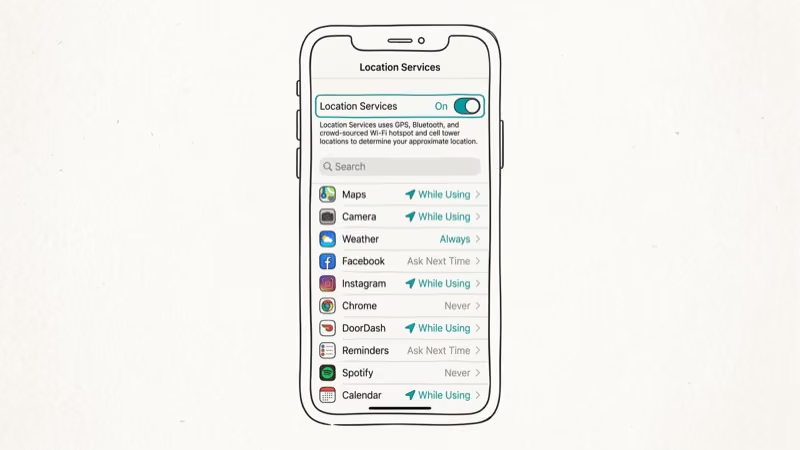
Go to Settings > Privacy & Security > Location Services and flip the master toggle off. Every app on your phone loses GPS access right away.
According to Apple, 4 types of location permission exist on iPhone: Never, Ask Next Time, While Using the App, and Always. Apple’s Location Services support page confirms that disabling the master toggle removes all access simultaneously. But there’s a catch: emergency calls will still transmit your location to first responders regardless of this setting. System services like Find My iPhone also stop working, which means you can’t locate your phone remotely if it gets lost.
You don’t have to disable everything. Scroll down to see per-app controls:
- Never blocks that app permanently
- While Using grants foreground-only access
- Always permits background tracking
Setting Instagram to “While Using the App,” for example, stops location-based Reels from appearing once the app is closed.
There’s also a Precise Location toggle under each app. Turn it off, and the app only gets your approximate area (roughly a 10-square-mile zone) instead of your exact coordinates. This works well for an app like DoorDash, which can still find nearby restaurants without pinpointing your street address.
Keep in mind: Disabling Location Services doesn’t make you invisible. Your cellular carrier can still estimate your location using cell towers, and Wi-Fi networks can do the same. If you want to go completely off the grid, you’ll need airplane mode on top of this.
#How to Change Your App Store Country or Region
If you want access to apps or media available only in another country, you’ll need to change your Apple Account region. This is the only official way to get region-locked content.
According to Apple’s support documentation, you must complete these steps before switching:
- Spend your entire Apple Account balance (you can’t transfer it)
- Cancel all active subscriptions and wait for them to expire
- Finish any pending pre-orders, movie rentals, or Season Passes
Once those are cleared, here’s the process:
- Open Settings, tap your name, then Media & Purchases > View Account
- Tap Country/Region and select Change Country or Region
- Agree to the terms and add a payment method for that region
A US-to-Canada switch only takes a few minutes to complete, and the App Store refreshes with the new region’s pricing right away.
One thing Apple doesn’t mention upfront: some of your purchased apps might not be available in the new region. US-only banking apps, for instance, can disappear after a switch to another country. You can always switch back, but you’ll need to repeat the entire process.
This method is completely legitimate and doesn’t violate any terms of service. It’s the right approach if you’re relocating or traveling long-term.
#Using a VPN to Change Your iPhone IP Location
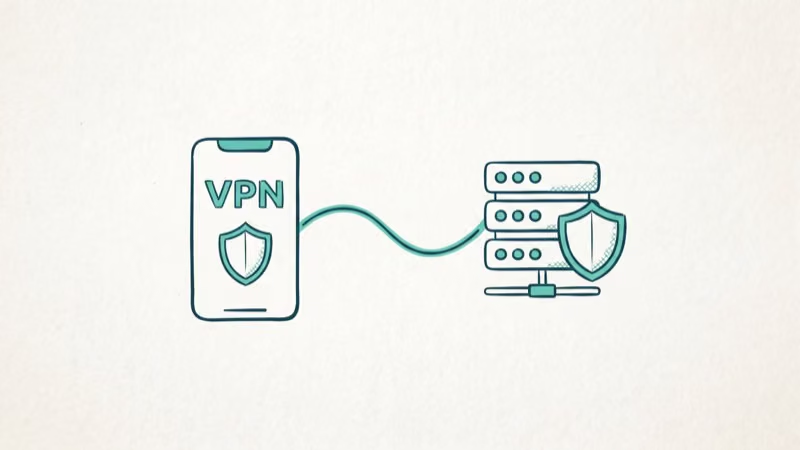
A VPN (Virtual Private Network) changes the IP address that websites and streaming services see. It’s the go-to method for accessing region-locked streaming content on your own device.
Connect to a VPN server in London and Netflix thinks you’re in the UK. Spotify shows British playlists. Websites serve British English content. But your actual GPS coordinates stay the same, so Apple Maps and other GPS-dependent apps still show your real physical position.
Setting up a VPN on iPhone:
- Download a VPN app like NordVPN or ExpressVPN
- Sign in, pick a server country, and tap Connect
iOS will ask permission to add a VPN configuration on first launch. Tap Allow. A small VPN icon appears in your status bar.
Connect to a UK server in an app like NordVPN, and an IP-checking site will show a London IP while a service like BBC iPlayer loads as if you were in Britain. The whole setup takes just a couple of minutes.
Legal note: Using a VPN is legal in most countries, including the US, UK, Canada, and most of Europe. However, using it to bypass geo-restrictions may violate the terms of service of specific streaming platforms. Always use VPN services on your own device and for lawful purposes.
A VPN won’t help if you need to change GPS coordinates for location-based apps. For that, you need the next method.
#Changing GPS Coordinates With a Desktop Tool
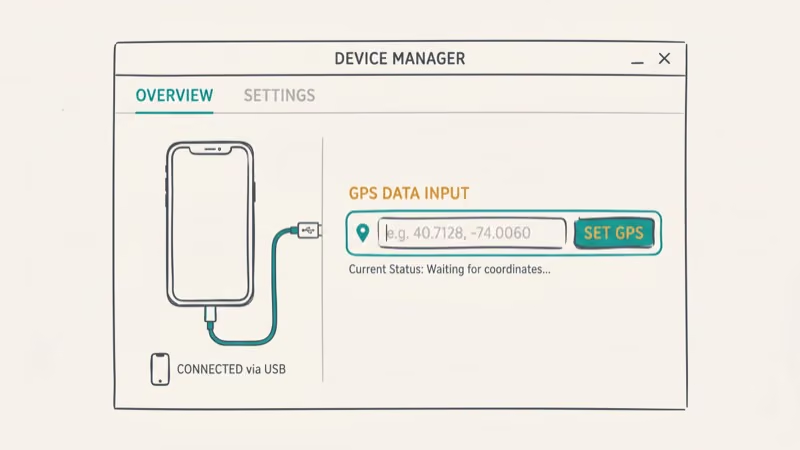
Desktop GPS spoofing tools let you set any GPS coordinate on your iPhone. Every app on the device reads that fake location as real. This works for gaming, testing, and development purposes on your own device.
Authorization scope: Only use these tools on your own device. GPS spoofing without consent violates privacy laws, and apps like Pokemon GO may ban accounts that fake coordinates.
#Tenorshare iAnyGo
Tenorshare iAnyGo changes your iPhone’s GPS coordinates from a Windows or Mac computer, no jailbreak needed.
- Install Tenorshare iAnyGo and connect your iPhone via USB
- Select Change Location and enter an address or coordinates
- Click Start to Modify
Some links on this page are affiliate links, which means fone.tips may earn a commission at no extra cost to you.
Once a coordinate is set, Apple Maps reflects the spoofed location within a few seconds, and apps like Pokemon GO and Snapchat read the same fake coordinates.
The tool also has a movement simulation feature. You can plot a route between two points and set a walking, cycling, or driving speed. Your iPhone’s location moves along that route in real time, which is useful for testing location-based features during app development.
To restore your real location, just restart your iPhone. The spoofed coordinates clear on reboot, and your device returns to using actual GPS data.
#Using Xcode (Free, Mac Only)
If you have a Mac, Apple’s own Xcode developer tool can simulate GPS locations on a connected iPhone at no cost.
- Install Xcode from the Mac App Store (free, about 12 GB)
- Connect your iPhone, launch Xcode, and go to
Debug>Simulate Location - Pick a preset city or type custom coordinates
This is Apple’s own developer tool, so there’s zero risk of malware. The downside: it requires a Mac, and the simulated location only persists while Xcode is connected. Disconnect the cable, and your real GPS comes back.
#How Do You Hide Your Location on Find My?
According to Apple’s Find My support page, location sharing lets friends and family track you. You can turn it off any time.
To stop sharing with everyone:
- Open Find My
- Tap the Me tab
- Turn off Share My Location
To stop sharing with one person:
- Open Find My and tap People
- Tap the person’s name
- Select Stop Sharing My Location
Neither action sends a notification. The other person will only notice if they open Find My and see your pin is gone.
You can also pick which device shares your location. If you own both an iPhone and iPad on the same Apple Account, go to Settings > [Your Name] > Find My > Use This iPhone as My Location. Only the selected device appears on the map, which matters if you need to locate a lost device later.
Privacy reminder: This is your right on your own device. According to Apple’s Personal Safety guide, you can audit and revoke all location sharing if someone enabled it without your knowledge.
#VPN vs GPS Spoofing: When to Use Each
A VPN and a GPS spoofer solve different problems. Pick the wrong one and you’ll waste time.
Use a VPN for streaming geo-locked content or browsing from a different country’s IP. It won’t touch your GPS coordinates.
Use a GPS spoofing tool when the actual coordinates your iPhone reports need to change. App development testing, location-gated game content, and verifying how software behaves in another city are the main use cases.
You can run both simultaneously without any conflict between them.
#Bottom Line
Start with the method that matches your goal. Turn off Location Services to block app tracking (takes 30 seconds), change your Apple Account region for locked App Store content, use a VPN for streaming, or try Tenorshare iAnyGo for GPS coordinate changes on your own device. A quick restart clears any spoofing.
iPhone tips & tricks
#Frequently Asked Questions
Does changing my iPhone location affect all apps?
It depends on which method you picked. Turning off Location Services is the nuclear option: every app on your phone loses GPS access at once, from Maps to Uber to your weather widget. A VPN only masks your IP address for websites and streaming services, so GPS-reliant apps like Apple Maps still know exactly where you are. Desktop tools like iAnyGo change the actual coordinates your phone reports, fooling every app simultaneously.
Can apps detect that I’m using a VPN?
Yes. Netflix, Hulu, and Disney+ actively block known VPN server addresses. Premium VPN providers rotate their IP ranges regularly to stay ahead of these blocks, but no VPN can guarantee 100% bypass rates. If one server gets blocked, switching to another server in the same country usually works.
Is it legal to change my iPhone location?
Yes, for the built-in methods. Location Services and App Store region changes are fully supported by Apple. VPNs are legal in most Western countries. GPS spoofing is legal on your own device, but games like Pokemon GO will ban accounts caught using it.
Will changing my App Store region delete my apps?
No. Your apps stay installed. Region-exclusive ones may lose update access though.
How do I get my real location back after using a GPS spoofer?
Just restart your iPhone. That clears all spoofed GPS data from desktop tools. Your phone reconnects to real satellites within about 30 seconds and shows your actual position again.
Does airplane mode hide my location from everyone?
Not fully. Your GPS chip still receives satellite signals even in airplane mode. Turn off Location Services separately.
Can I change my location for just one app?
Yes. Open Settings > Privacy & Security > Location Services, find the app in the list, and set its permission to Never. That single app loses all location access while every other app on your phone keeps its current setting.
Do I need to jailbreak my iPhone to spoof GPS?
No. iAnyGo and Xcode both work on stock iOS 16 through iOS 18 without any jailbreak.

How to Transfer Data to a New iPhone Without iCloud
Move everything to your new iPhone without iCloud: Quick Start device-to-device transfer, wired migration, and encrypted Finder or iTunes backups.
Best Wireless Earbuds for iPhone in 2026: USB-C Era Picks
Best wireless earbuds for iPhone in 2026, comparing AirPods Pro 3, Sony WF-1000XM6, Bose QC Ultra, and Anker Liberty 4 NC on the USB-C iPhone lineup.
iPhone Keyboard Lag? 7 Proven Fixes for iOS 26 (2026)
Fix iPhone keyboard lag with 7 proven fixes for iOS 26. Covers restart, storage, predictive text, third-party keyboards, and dictionary reset.
How to Block Porn on an iPhone: A Guide for Parents
Learn how to block porn on iPhone using Screen Time, DNS filtering, and safe browsers. Step-by-step guide for parents to protect kids' devices.