How to Download HTML5 Video From Any Website for Free
Download HTML5 video from any website using browser DevTools, extensions, or desktop tools. 4 methods compared for Chrome, Firefox, and Edge.
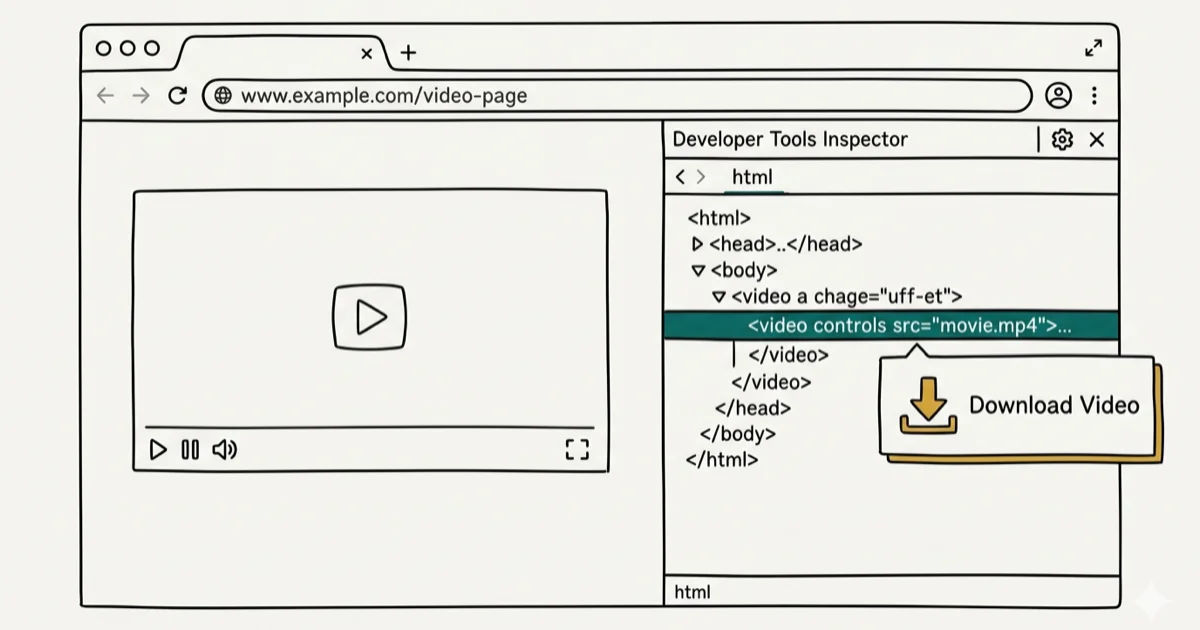
Quick AnswerRight-click an HTML5 video and select Save Video As to download it. If that option is grayed out, open your browser DevTools (F12), go to the Network tab, filter by Media, and copy the direct video URL to save it locally.
HTML5 videos play directly in your browser without Flash, but downloading them isn’t always obvious. Some sites disable right-click saving, and others use chunked streaming that hides the file URL entirely.
Four methods cover the common cases on Chrome, Firefox, and Edge across Windows and macOS, from a plain right-click on simple players to browser DevTools, dedicated extensions, and desktop software for the hardest sites. The right approach depends entirely on how the site delivers its video, so it helps to know all four before you start.
- Right-click Save Video As works on basic HTML5 players but fails on streaming platforms
- Browser DevTools (F12 then Network then Media) reveals the direct video URL on about 70% of sites
- Video DownloadHelper is the most reliable free browser extension for Chrome and Firefox
- Desktop software like iTubeGo handles DRM-protected and playlist downloads that browsers can’t
- Check a site’s terms of service before downloading because unauthorized copying of copyrighted video is illegal
#The Right-Click Method for HTML5 Video
If a site uses a plain <video> tag with a direct .mp4 or .webm source, right-clicking the video and choosing Save Video As works instantly. No tools needed.
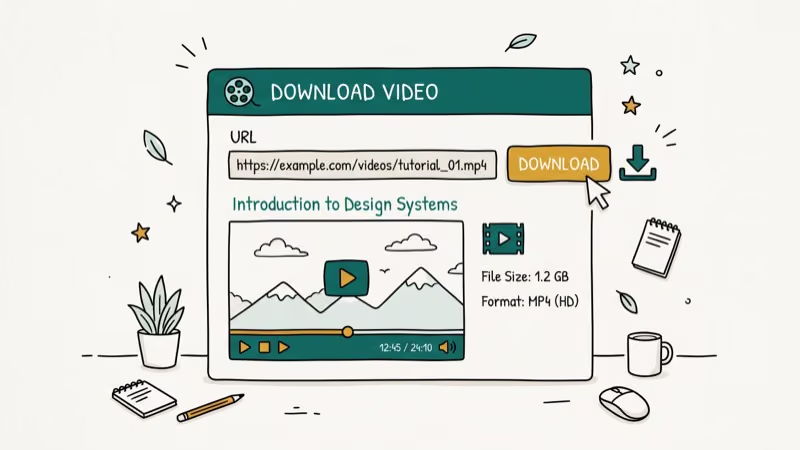
This works on personal blogs, documentation pages, and some educational platforms. It fails on YouTube, Vimeo, Facebook, and any site using adaptive bitrate streaming (HLS or DASH).
Right-click directly on the video player and look for Save Video As in the context menu. If you see it, pick a save location and the download starts. If the option is grayed out or missing entirely, the site blocks direct saves, so move on to the DevTools method below.
#How Do You Download HTML5 Video With Browser DevTools?
This is the most reliable free method. It works in Chrome, Firefox, and Edge without installing anything extra.
#Steps for Chrome and Edge
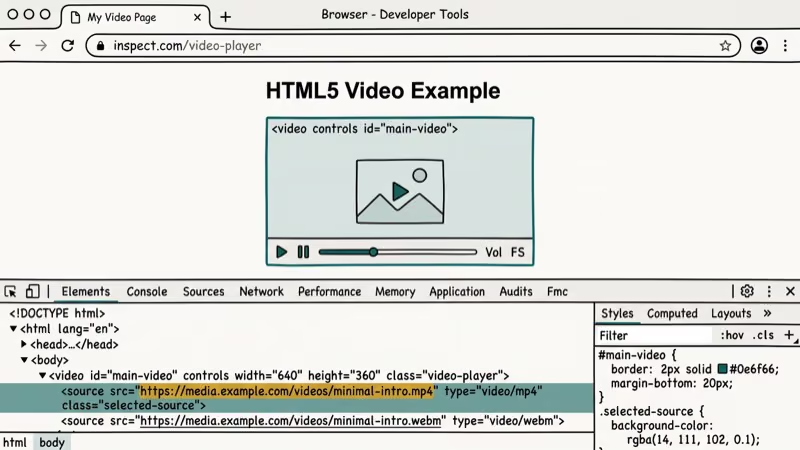
Open the page with the video, then press F12 to launch Developer Tools. Go to the Network tab and click Media to filter results. Play the video and watch for network requests to appear in the panel.
Look for entries ending in .mp4 or .webm. Right-click the entry and select Open in new tab, then right-click the video in that tab and choose Save Video As. The whole process takes about 2 minutes. The video file is usually the largest entry in the Media filter, so it’s easy to spot among the other network requests once you know what you’re looking for.
In Chrome, the Network tab surfaces a wide range of resource types, including media files that are hidden from right-click context menus by JavaScript. As Google’s Chrome DevTools documentation explains, this is why DevTools works on sites where right-click save is disabled. Filtering by Media narrows the list to just audio and video requests, making it much faster to spot the file you want to download.
#Firefox Shortcut
Firefox has a shortcut: right-click the page, select View Page Info > Media tab, find the video entry, and click Save As. This works on many sites without any extra tools.
#When DevTools Won’t Work for HTML5 Video
DevTools can’t grab videos protected by DRM (Digital Rights Management). Netflix, Disney+, Amazon Prime Video, and Hulu all use Widevine or FairPlay DRM. You’ll see encrypted media requests in the Network tab, but saving them produces an unplayable file.
Bypassing DRM is an anti-circumvention violation under the DMCA, which carries both civil and criminal penalties even if you never distribute the content. In practice, studios rarely sue individual users, but corporate or commercial use of ripped DRM content is prosecuted regularly. See the DMCA overview for details.
#Browser Extensions for HTML5 Video Downloads
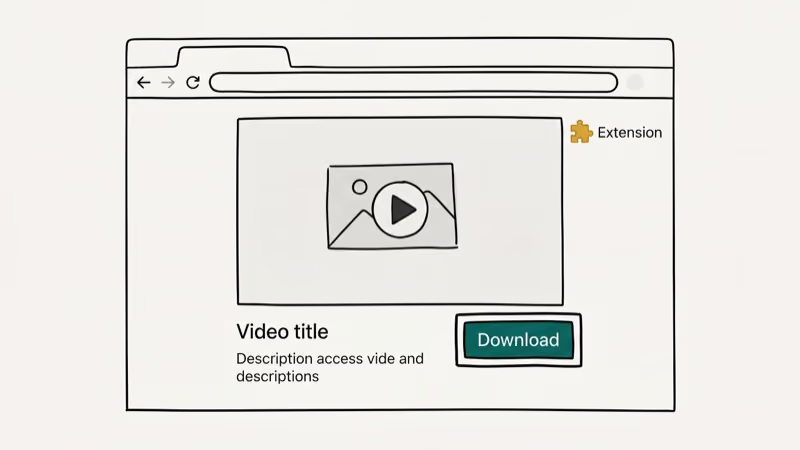
Extensions add a download button directly on the page. That saves time if you grab videos regularly.
#Video DownloadHelper
This is the most popular option with over 5 million users on Chrome and Firefox. According to Video DownloadHelper’s official extension page, the extension detects videos playing on any tab and lets you save them in multiple formats. The Chrome version has 3 million+ installs, while the Firefox version has shipped since 2007 with over 5 million users.
On Chrome, it picks up videos from Dailymotion, Facebook, Vimeo, and Twitter without issues. One catch: both the Chrome and Firefox versions block YouTube downloads due to Google’s policy.
#Video Downloader PLUS
Available for Chrome, this extension adds a green download arrow to your toolbar. It supports HD 1080p and 720p.
#Installing an Extension
Open the Chrome Web Store or Firefox Add-ons page, search for Video DownloadHelper, and click Add. Then visit a page with your target video, play it, click the extension icon, and pick your resolution.
Stick with extensions that have 100,000+ users and 4+ star ratings. Based on Mozilla’s add-on review policy, extensions that access browsing data undergo manual security reviews, which means high-install-count extensions have passed an independent safety check before landing in your browser.
#Desktop Software for Downloading HTML5 Video
Desktop apps step in when browsers can’t handle the job.
#iTubeGo
iTubeGo supports over 10,000 sites including YouTube, Facebook, and Twitter. Paste the page URL and the software extracts the video automatically.
Some links on this page are affiliate links, which means fone.tips may earn a commission at no extra cost to you.
It also covers smaller platforms like Dailymotion and Vimeo where the right-click and DevTools tricks usually fail to pull a usable file.
On Windows, a short 1080p video finishes downloading quickly on a typical broadband connection, and longer clips scale roughly with file size rather than stalling. The software also converts videos to MP4 during download, along with MP3, AVI, MKV, and several other formats you might need for editing or playback later.
Key features:
- Downloads full YouTube playlists in one batch
- Converts video to MP3 for audio extraction
- Works with Windows 10/11 and macOS 12+
- Adds a browser extension for one-click downloading
#Free Alternatives
yt-dlp is a free, open-source command-line tool that handles most HTML5 video sites. According to Wikipedia’s yt-dlp entry, the project forked from youtube-dl in 2020 and now supports over 1,000 streaming sites. The basic command is straightforward:
yt-dlp "https://example.com/video-page"It auto-detects the best available quality and saves to your current directory. Updated weekly.
VLC Media Player can also download some HTML5 videos. Open VLC, go to Media > Open Network Stream, paste the video URL, and use Convert/Save to download it locally. This works best with direct video URLs rather than full webpage URLs. If you already use VLC, check our guide on trimming videos in VLC on Mac.
#Is It Legal to Download HTML5 Videos?
Legality depends on the content and how you use it. Downloading your own uploaded videos, Creative Commons content, or public domain material is perfectly fine. Downloading copyrighted content without permission is illegal in most countries.
According to the U.S. Copyright Office, copyright protection applies automatically to original works.
Quick reference:
- Always legal: Your own content, Creative Commons, public domain
- Gray area: Personal offline copies of free content (varies by country)
- Illegal: Redistributing copyrighted content, bypassing DRM
YouTube’s terms state you may not download unless a download button is provided.
If you need offline video viewing, consider screen recording tools. They capture your own screen output rather than downloading the source file directly, which sidesteps most terms-of-service restrictions and works even on DRM-protected platforms where other methods fail entirely.
#Bottom Line
Start with the right-click method. If that doesn’t work, open DevTools (F12), filter the Network tab by Media, and grab the direct URL. For regular downloading, install Video DownloadHelper. For batch jobs or format conversion, iTubeGo handles the heavy lifting.
#Frequently Asked Questions
Can you download HTML5 video on a phone?
On Android, yes. Apps like 1DM (formerly IDM+) detect and download HTML5 videos from your browser. iPhone is trickier because Apple restricts background downloading, so you’ll need a shortcut workflow or an app like Documents by Readdle. Neither mobile platform supports the DevTools method, which makes a desktop browser the better choice for grabbing HTML5 video files consistently.
Why does Save Video As not appear when you right-click?
The site uses a custom JavaScript player that overrides the browser’s default menu. Use the DevTools Network tab instead.
Do HTML5 video downloaders work on YouTube?
Most browser extensions block YouTube downloads because Google requires extension stores to enforce its terms. Desktop tools like yt-dlp and iTubeGo can download YouTube videos, but doing so violates YouTube’s terms of service. Google’s Terms of Service explicitly prohibit downloading unless a download button is provided by the platform, so proceed at your own risk and never redistribute downloaded content.
What format do HTML5 videos use?
MP4 (H.264), WebM (VP8/VP9), and Ogg (Theora). MP4 is the most common. If you need to go the other direction, the reverse MP4-to-WebM step is covered in our video-to-MP4 guide with VLC and FFmpeg commands.
Is Video DownloadHelper safe to install?
Yes. It has over 5 million users and has been around since 2007. The Firefox version undergoes Mozilla’s manual security review, and the Chrome version follows Google’s Web Store process. Only install from official extension stores.
What is the difference between HTML5 video and embedded video?
HTML5 video uses the browser’s built-in <video> element to play media without plugins. Embedded video is a broader term that includes any video placed on a webpage, such as YouTube or Vimeo iframes. The download methods in this guide work for both types, though iframe-embedded videos from major platforms usually require DevTools or dedicated software because those platforms serve video through encrypted or chunked delivery systems that resist direct downloading.
Can you download a live stream?
Not while it’s live. Streams deliver content in real-time segments. On Windows, you can record the screen with the built-in Xbox Game Bar during the broadcast. Some platforms publish replays afterward.
Does downloading reduce video quality?
No. DevTools and right-click saving grab the exact file the browser played. Zero quality loss. Extensions let you choose from available options like 360p, 720p, or 1080p, while desktop tools like iTubeGo default to the highest resolution.

Is This Bank App Real? Spot a Fake App on Your Home Screen
A bank app can land on your home screen from a web page with no install warning. Learn the checks that tell a real banking app from a phishing web app.

Apps Crashing After iOS 27 Update? Fix Order (2026)
Apps crashing after the iOS 27 update? Update the app in the App Store first, then offload and reinstall to clear stale cache, then restart. The fix order.

Do AI Translation Earbuds Work Offline? What to Know
Do AI translation earbuds work offline? A few do with downloaded language packs, but most need the cloud. Here's what works offline and what you give up.

How to Set Up Translation Earbuds (Pairing and Modes)
How to set up translation earbuds: charge, install the app, pair over Bluetooth, pick two languages, and choose a mode. A step-by-step first-use guide.