iPhone iCloud Backup Not Working? 7 Fixes That Work
iPhone iCloud backup not working? Storage, Wi-Fi, "backup needs restart" and 2FA fixes for iOS 18 and iOS 26. Step-by-step with Apple-verified paths.
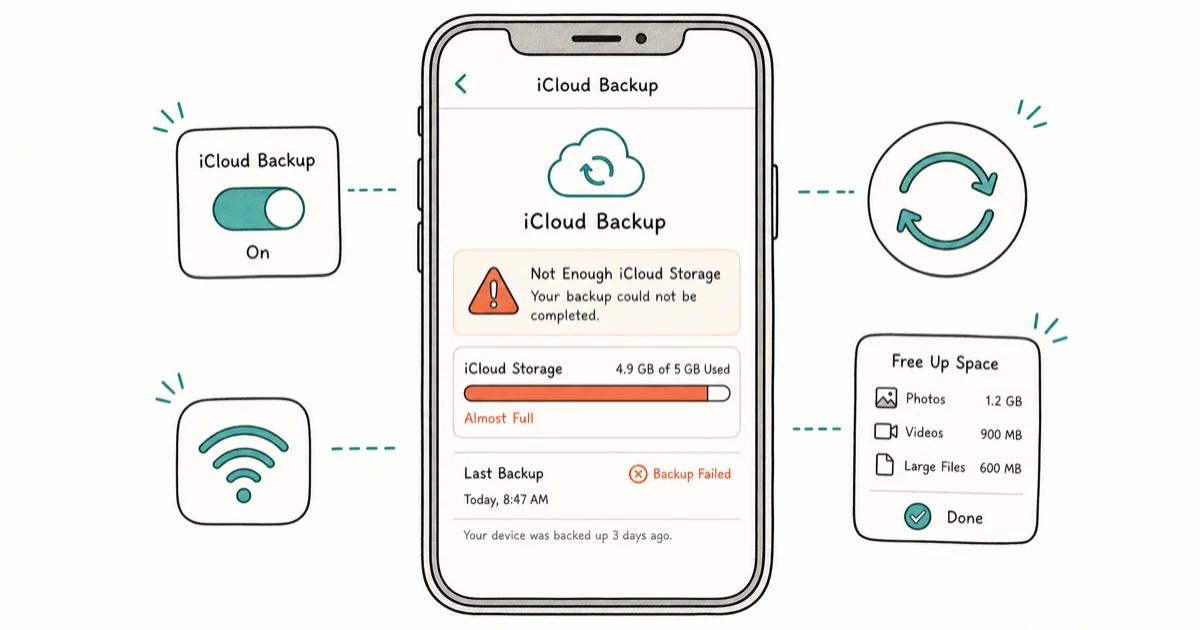
Quick AnsweriPhone iCloud backup fails most often because iCloud storage is full. Open Settings > [your name] > iCloud > Manage Account Storage, free space, then tap Back Up Now over Wi-Fi.
iPhone iCloud backup not working is almost always storage or Wi-Fi in disguise. Every failure notification iOS surfaces points to a specific fix bucket, so match the on-screen error to the section below.
- iCloud storage full is the most common cause; check Settings > [your name] > i
Cloud>Manage Account Storagefirst - Free iCloud is 5 GB, which is too small for an iPhone with more than 200 photos; 50 GB iCloud+ is $0.99 per month
- Backups need Wi-Fi and a charged battery by default; cellular backup is opt-in starting in iOS 17
- “Backup needs restart” usually clears in 90 seconds by toggling iCloud Backup off, then back on
- Force restart fixes a hung session faster than waiting; the button sequence differs on Face ID and Home-button iPhones
#Why Is My iPhone iCloud Backup Not Working?
The first thing to do is read the exact words iOS used. Each notification points to a different fix bucket, and chasing the wrong bucket wastes 20 minutes.
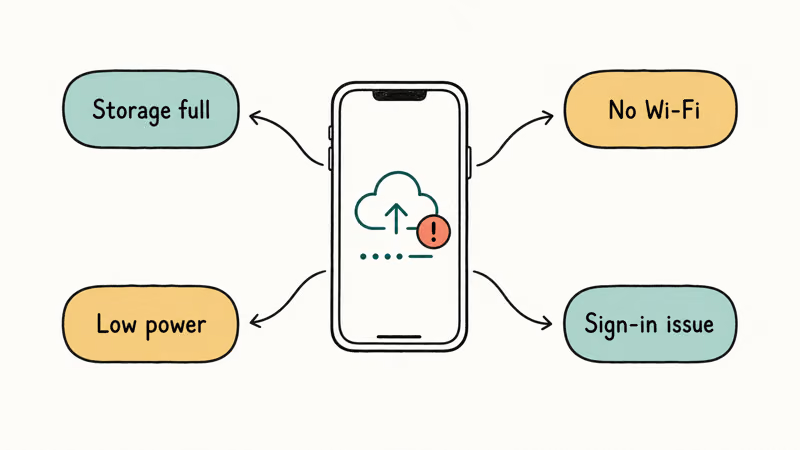
Four error states cover almost everything. “Not Enough iCloud Storage” means your plan is full and the backup never started. “Last backup could not be completed” means it started but timed out partway through. “Backup needs restart” means the session hung and iOS wants you to nudge it manually.
According to Apple’s iCloud backup troubleshooting guide, the official sequence is to confirm enough free iCloud storage, confirm Wi-Fi, then check for an iOS update. The sections below follow that same order.
#iCloud Storage Full Is the Number-One Cause
Storage is the most common cause of iCloud backup failures by a wide margin. The free iCloud tier is 5 GB, which gets eaten by photos and the previous device backup long before a new full backup fits.
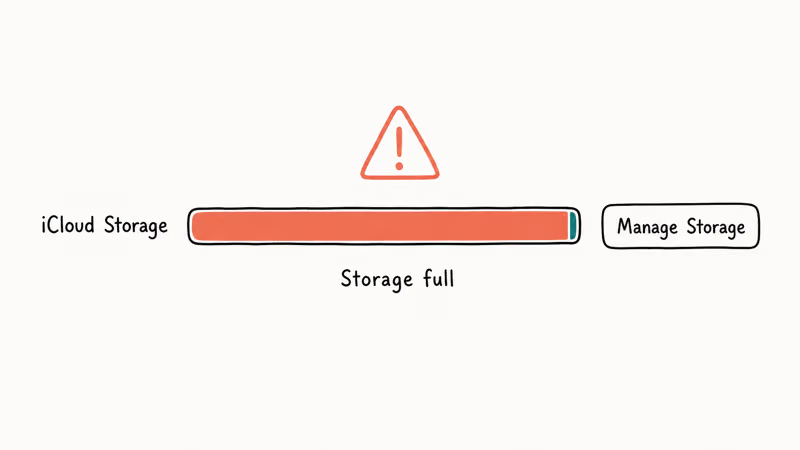
To check your storage:
- Open Settings, then tap your name at the top.
- Tap iCloud, then tap Manage Account Storage (older iOS 16 calls this Manage Storage).
- Look at the colored bar. If the bar is more than 90% full, your backup won’t complete.
- Tap Backups, then tap the name of an old device you no longer use, then tap Turn Off and Delete from iCloud.
- Tap Photos, then decide whether to keep iCloud Photos on (recommended) or move photos off the iPhone first.
Apple’s What does iCloud back up? page confirms that an iCloud Backup includes app data, device settings, Home Screen layout, iMessage and SMS, ringtones, and Visual Voicemail. It excludes anything already synced to iCloud (Photos, iCloud Drive, Contacts, Notes, Mail).
That last detail matters. It explains why your backup might be 4.8 GB even though your iPhone holds 80 GB of content. If you haven’t audited your account recently, our guide on how to see what’s in your iCloud walks through the exact panels to open.
When the storage bar is truly full, you have two paths. Free up space using the free up iCloud storage playbook, or upgrade to iCloud+. The 50 GB tier is $0.99 a month in the US, 200 GB is $2.99, and 2 TB is $9.99. For anyone with more than 200 photos and a one-year-old iPhone, the $0.99 plan is the right answer instead of pruning every two weeks.
#Wi-Fi, Power, and Battery Requirements
iCloud Backup won’t run on cellular by default. The toggle that allows it (Settings > [your name] > iCloud > iCloud Backup > Back Up Over Cellular) is new in iOS 17 and is off out of the box. If your iPhone isn’t on Wi-Fi, the spinner will sit at 0% forever.
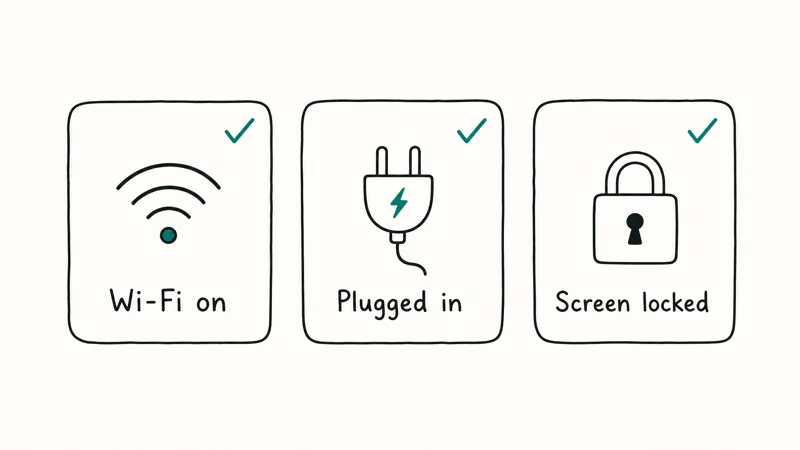
Confirm the three requirements:
- Wi-Fi connected (
Settings>Wi-Fi, network shows a checkmark). - Plugged into power (an automatic overnight backup needs this; manual Back Up Now does not, but is far more reliable with the cable in).
- Screen locked for automatic backups, or unlocked with the iPhone awake for Back Up Now.
A 5 GHz Wi-Fi band runs initial backups noticeably faster than 2.4 GHz because it carries more bandwidth at close range. If your router publishes both, join the one labeled with “5G” or “5 GHz” in its name. A first-time backup that crawls on 2.4 GHz often finishes far quicker on 5 GHz from the same router.
If Wi-Fi looks fine but the backup still stalls, reset network settings as a last-resort:
Settings>General>Transferor Reset iPhone (older iOS calls thisGeneral>Reset).- Tap Reset, then tap Reset Network Settings.
- Enter your passcode and confirm.
- Rejoin Wi-Fi, then tap Back Up Now.
This wipes saved Wi-Fi passwords, so be ready to re-enter them.
#What Does “Backup Needs Restart” Actually Mean?
“Backup needs restart” is iOS telling you the previous backup session hung partway through, and the system wants you to manually toggle iCloud Backup off and on so it can start a fresh upload from scratch. This appears most often after the iPhone slept mid-backup or after a Wi-Fi blip.
The fix takes 90 seconds:
- Open Settings, tap your name, tap iCloud, tap iCloud Backup.
- Toggle Back Up This iPhone off, then confirm.
- Wait 30 seconds. The spinner above the toggle should disappear.
- Toggle Back Up This iPhone back on.
- Tap Back Up Now.
The toggle-off and toggle-on trick clears a “Backup needs restart” state in most cases. A phone with a recent backup checkpoint to resume against finishes faster than one that has to start fresh, so the first post-fix backup may run longer if your last successful backup was a while ago.
If the toggle off step itself spins forever (more than 2 minutes), force restart the iPhone. On Face ID iPhones: press and release Volume Up, press and release Volume Down, then press and hold the Side button until the Apple logo appears. On Home-button iPhones (iPhone SE first gen, 6s, 7, 8): press and hold the Home button plus the Side or Top button until the Apple logo appears.
#“Last Backup Could Not Be Completed” Timeout Fix
This message means a backup actually started but a network drop, storage spike, or app file lock killed it before iOS could write the final manifest. The recovery is to delete the broken backup, then try a fresh one.
This is the classic storage-full failure path: a multi-gigabyte backup queued against only a few hundred megabytes of free space. The backup retries several times overnight before iOS finally surfaces the “Last backup could not be completed” notification by morning.
Deleting the half-broken backup, freeing space by removing an old device backup you no longer need, then tapping Back Up Now usually succeeds on the first try.
Steps:
- Settings > [your name] > i
Cloud>Manage Account Storage>Backups. - Tap the current iPhone’s backup, then tap Turn Off and Delete from iCloud at the bottom.
- Wait for the deletion to finish (10-30 seconds).
- Return to Settings > [your name] > iCloud > iCloud Backup.
- Toggle Back Up This iPhone back on, then tap Back Up Now.
If you are nervous about deleting the existing backup, that is a reasonable worry, but the broken backup is not usable for restore anyway. Apple’s restore from iCloud backup guide lists “incomplete or interrupted backup” as a reason restore will refuse to run, so a half-finished backup is worse than no backup. For a broader picture of why backups stall here, the iPhone backup failed fixes walkthrough covers both iCloud and Finder paths.
#Apple ID Sign-Out and Two-Factor Authentication Fix
A backup that stalls at 0% with no error message is sometimes an authentication problem in disguise. iOS is waiting on an Apple ID challenge it has not surfaced. This happens after a password change, after a 2FA prompt that timed out, or after a long stretch offline. The steps below apply only to your own phone and your own account.
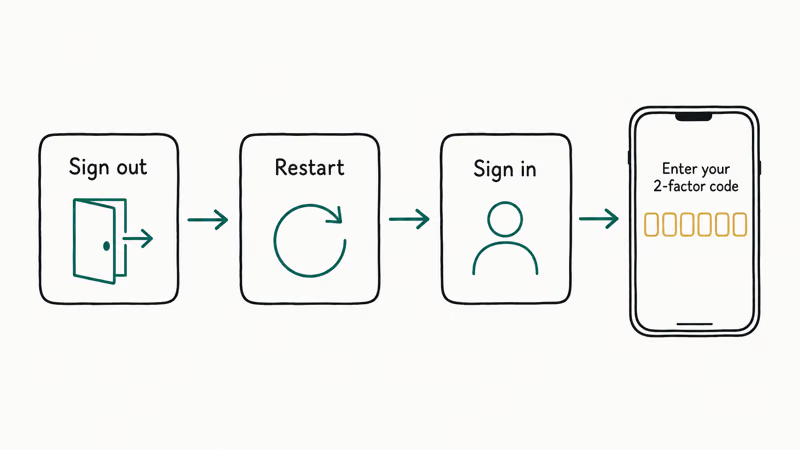
The fix is to sign out of Apple ID and sign back in:
- Settings > [your name] > Sign Out (scroll to the bottom of the profile screen).
- Enter your Apple ID password to disable Find My.
- Choose what to keep on the iPhone: leave Contacts, Calendars, Safari, Keychain, and Reminders on if you trust the iCloud copy is current.
- Tap Sign Out, confirm.
- Tap Sign in to your iPhone at the top of Settings, enter your Apple ID and password.
- Approve the 2FA prompt on a trusted device or via SMS code.
- Wait 60 seconds, then tap Back Up Now.
Two-factor authentication adds a real layer of safety, but a stale 2FA session is one of the more common silent backup blockers. If you don’t have access to a trusted device or trusted phone number, recover the account first via Apple’s official recovery flow before forcing a backup. To audit which devices currently trust your account, our change iCloud account guide shows the device list panel.
#iOS Bug Fixes That Need a Software Update
About once a year, a new major iOS release ships with an iCloud Backup bug Apple patches within two weeks. iOS 18.0 had a known “iCloud Backup pauses overnight and never resumes” issue, and Apple confirms that iOS 18.0.1 fixed it. iOS 26.1 shipped a similar fix for backups stuck on “Preparing”.
To check for and install an update:
- Plug the iPhone into power.
Open Settings>General>Software Update.- If an update is offered, tap Download and Install.
- Enter your passcode and let the update run (15-45 minutes depending on size).
- After the iPhone reboots, open Settings > [your name] > iCloud > iCloud Backup and tap Back Up Now.
If Software Update itself is stuck, that is a different problem (the iCloud Settings panel hangs while the iPhone tries to verify your account). Our iCloud Settings stuck walkthrough covers that specific loop. Apple’s back up to a computer instead page is the official Finder/iTunes fallback while you wait for the next point release; Finder backups bypass iCloud entirely.
If iCloud and Finder or iTunes still won’t create a usable backup, AnyTrans can make a local iPhone backup through a computer; verify that copy before deleting anything.
Some links on this page are affiliate links, which means fone.tips may earn a commission at no extra cost to you.
#Bottom Line
Check storage first. The clear majority of failed backups come down to storage. Settings > [your name] > iCloud > Manage Account Storage is where to spend the first 60 seconds.
When the cause is truly the iPhone and not your plan, the toggle-off-then-on trick clears most “Backup needs restart” states, and a force restart followed by Back Up Now handles the rest. While you sort out iCloud, a Mac Finder backup runs locally, takes 5-15 minutes, and is the reliable fallback you can lean on tonight. If you eventually need to extract files from an existing iCloud backup, the download iCloud backup files guide shows the export path.
#Frequently Asked Questions
How long should an iPhone iCloud backup take?
A first-time iCloud Backup of a typical 4-6 GB account takes 15-40 minutes over 5 GHz Wi-Fi. Incremental nightly backups usually finish in 2-10 minutes. If yours has been running 90+ minutes with no progress, something is wrong.
Why does my iCloud backup say “backup needs restart”?
It means iOS detected that the previous session hung partway through, usually because the iPhone slept mid-upload or the Wi-Fi dropped. Toggling iCloud Backup off, waiting 30 seconds, then toggling it back on starts fresh.
Can I run an iCloud backup on cellular instead of Wi-Fi?
Only on iOS 17+ after enabling Settings > [your name] > iCloud > iCloud Backup > Back Up Over Cellular. iOS 16 and earlier require Wi-Fi.
What gets backed up to iCloud and what does not?
It includes app data, device settings, Home Screen layout, iMessage and SMS history, ringtones, Visual Voicemail, Health data, and HomeKit settings. It excludes anything already synced to iCloud separately (Photos, iCloud Drive, Contacts, Calendars, Notes, Mail, Safari history). Those live in iCloud as live synced copies instead of as part of the backup blob.
Will deleting an old iCloud backup free up space?
Yes. It’s the fastest way to reclaim space. A typical old iPhone backup is 2-6 GB, and deletion is permanent, so confirm the device is one you’ve already replaced or wiped.
Why does iCloud backup pause on my iPhone overnight?
Common causes are the iPhone losing Wi-Fi when the router goes to sleep, the cable getting unplugged, or the iPhone sleeping while another app held a file lock. iOS 18.0 had a known overnight-pause bug that Apple patched in iOS 18.0.1, so confirm you’re on the latest point release before assuming hardware. Keeping the iPhone on a stable 5 GHz network and plugged in solves most overnight pauses.
Should I use iCloud or my Mac for iPhone backups?
For most people, iCloud is the better default because it runs automatically every night with no cable and no Mac required. Use a Mac Finder backup as a supplement when you want an extra encrypted copy locally, when iCloud is failing and you need a backup tonight, or when you’re migrating to a new iPhone and want a faster restore than downloading several GB over Wi-Fi. The two aren’t mutually exclusive; you can run both.

Mac mini M6 vs M5 Pro: Which Model Should You Buy?
Mac mini M6 vs M5 Pro compared on price, memory, ports, displays, and real workloads. Find the better 2026 Mac mini for your desk and budget.

Apple Siri Settlement: Who Qualifies and How to Claim
Apple's $250 million Siri settlement covers iPhone 15 Pro and iPhone 16 models bought June 2024 to March 2025. See who qualifies and how claims work.

iOS 26.6.1 Security Update: What Apple Fixed and Who Gets It
Apple released iOS 26.6.1 on August 17 with 29 security fixes, including an IPSec interception bug. See what it patches, who gets it, and how to update.

iPhone Adaptive Power: How It Works and When to Use It
Learn how iPhone Adaptive Power works, which models support it, what it changes, and when Low Power Mode is still the better battery-saving choice.