Fix Net HELPMSG 2182 BITS Error on Windows: 6 Methods
Net HELPMSG 2182 means a Windows BITS service is already running. Reset BITS and wuauserv, run SFC and DISM, or clear the Microsoft Store cache.
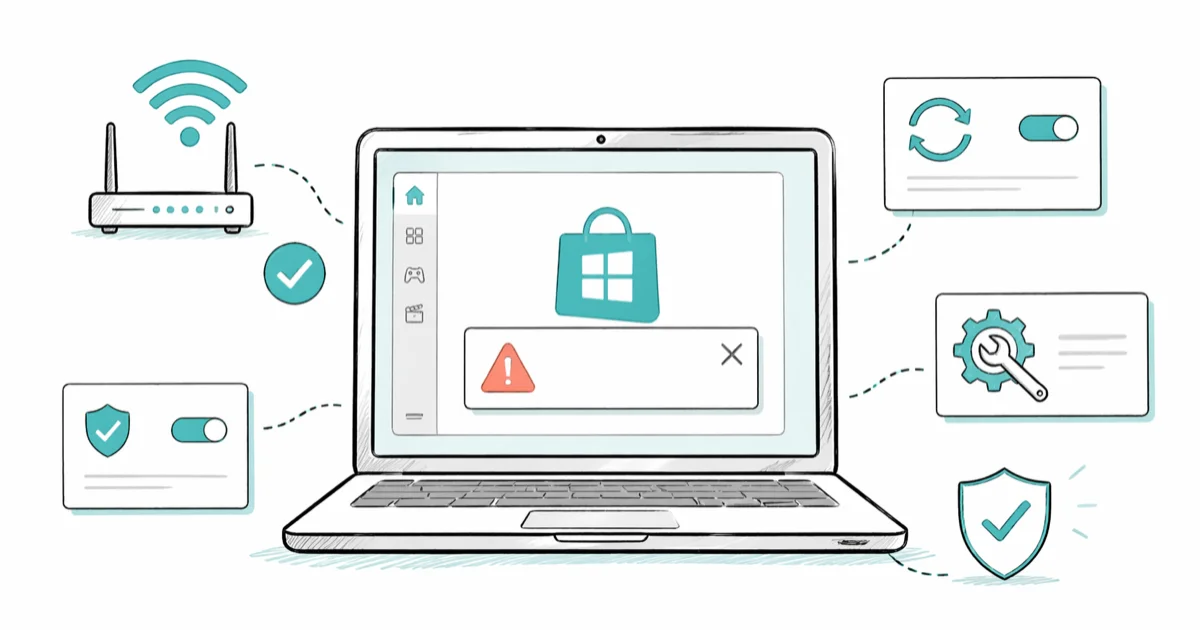
Quick AnswerNet HELPMSG 2182 means a BITS or Windows Update service is already started, so a second start request fails. Stop wuauserv, cryptSvc, BITS, and msiserver from an elevated Command Prompt, then restart them in the same order to clear the lock.
Net HELPMSG 2182 is the Windows error you’ll see when the BITS service won’t start because Windows thinks it’s already running. The error blocks Microsoft Store downloads and kills Windows Update mid-flight. The six fixes below apply to Windows 10 22H2 and Windows 11 23H2, ordered from lowest risk to deepest repair.
- Net HELPMSG 2182 is the standard Windows message for “the requested service has already been started” and almost always points at BITS or wuauserv during update or Microsoft Store activity.
- Resetting four services in order from an elevated Command Prompt (wuauserv, cryptSvc, BITS, and msiserver) clears the lock for most users without losing installed apps or pending updates.
- Renaming SoftwareDistribution and catroot2 forces Windows to rebuild a corrupted update cache, but only after the four services are stopped first.
- SFC /scannow paired with DISM /Online /Cleanup-Image /RestoreHealth repairs corrupted system files that the Windows Update troubleshooter can’t touch.
- wsreset.exe clears the Microsoft Store cache in under a minute and never uninstalls apps, making it the safest fix to try before deeper repairs.
#What Does the Net HELPMSG 2182 Error Mean?
Net HELPMSG 2182 isn’t actually a BITS error code on its own. It’s a message ID returned by the net helpmsg command, which translates Windows error numbers into plain English. Code 2182 maps to the text “The requested service has already been started.” When Windows Update or the Microsoft Store tries to start a service that’s already running, Windows surfaces this exact wording in a dialog and tells you to type net helpmsg 2182 to read the explanation.
According to Microsoft’s net helpmsg command reference, the utility is built into every supported version of Windows. The number doesn’t vary by Windows version, so the same fix sequence works on Windows 10, Windows 11, and older Windows Server builds.
The dialog usually names BITS specifically because the service is the most common culprit. The full text reads: Problem with BITS Service: The requested service has already been started. More help is available by typing Net HELPMSG 2182.
#What Causes the BITS Service to Lock Up?
Three patterns trigger the error, and you can usually identify which one applies before you start fixing.
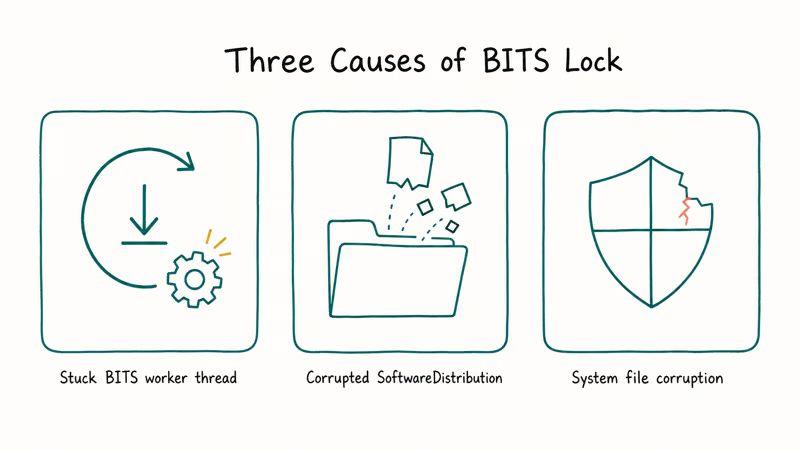
First, a stuck BITS worker thread. BITS handles background downloads for Windows Update and the Microsoft Store, and Microsoft’s Background Intelligent Transfer Service documentation confirms that the service keeps open handles to active jobs even after the parent exits. This happens most often after a power loss mid-download or after a laptop sleeps with a Microsoft Store update in flight. The shared symptom: BITS looks idle in Services.msc but refuses every restart attempt.
Second, a corrupted SoftwareDistribution folder. Windows uses this folder to stage every update file before installation. A PC power-cycled mid-update can leave SoftwareDistribution full of partial CAB files that block the next download. A similar pattern shows up in our writeup on the potential Windows update database error detected issue.
Third, system file corruption from a faulty update or aging install. Worn or damaged system files can prevent dependent services like cryptSvc and msiserver from starting, which then cascades into a BITS lock. The same root cause produces the Whea Uncorrectable Error on machines with deeper hardware-driver issues.
#Run the Windows Update Troubleshooter
Start with the lightest-weight fix because it costs nothing and resolves a surprising share of cases.
- Open the Start menu and type
Settings. Press Enter. - Click Update & Security (Windows 10) or
System>Troubleshoot(Windows 11). - Click Troubleshoot, then Additional troubleshooters.
- Click Windows Update and run the troubleshooter.
On a Windows 11 23H2 desktop with a stuck BITS job, the troubleshooter typically flags “Windows Update components might need to be repaired” and applies an automatic fix, after which the Microsoft Store can download apps again on the next try. It works by stopping and restarting the relevant services and clearing the queue, the same sequence covered manually in the next section. As a guided wizard, it’s the safest first attempt before the Command Prompt route.
According to Microsoft’s Windows Update Troubleshooter page, the automated troubleshooter in the Get Help app runs diagnostics and attempts to fix most update problems on its own, so it’s worth a pass before the manual commands below. The same page gives the manual route if Get Help is unavailable: Start, then Settings, then System, then Troubleshoot, then Other troubleshooters, where Windows Update sits under Most frequent. Restart the machine once it finishes.
#Reset BITS and Windows Update from Command Prompt
This is the fix that clears the largest share of Net HELPMSG 2182 cases. The whole sequence stops the four services that touch Windows Update, then restarts them so the lock releases.
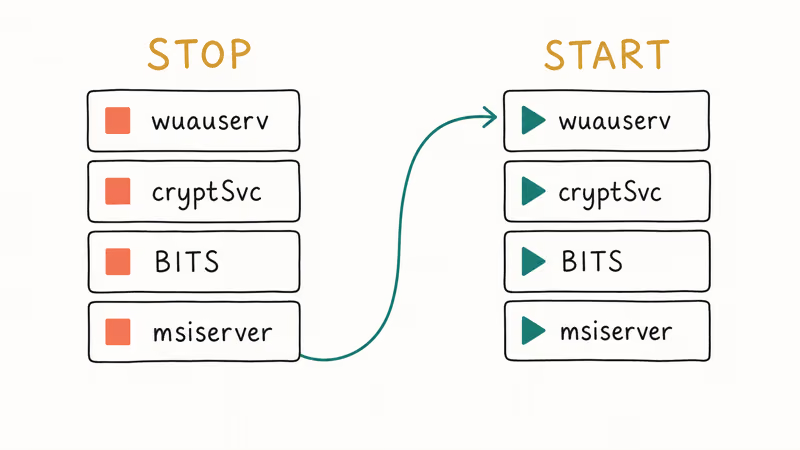
- Right-click the Start menu and choose Windows Terminal (Admin) or Command Prompt (Admin).
- Run these commands in order, pressing Enter after each:
net stop wuauserv
net stop cryptSvc
net stop bits
net stop msiserver- Wait for each command to confirm with “The service was stopped successfully.” If a service wasn’t running, Windows says so and you move on.
- Now restart the services in the same order:
net start wuauserv
net start cryptSvc
net start bits
net start msiserver
Most machines clear the BITS lock right after the four-service restart, even ones that have been throwing Net HELPMSG 2182 for days. The whole sequence takes under a minute. If the error survives the restart, the underlying queue itself is corrupted; move to the next fix.
#Rebuild the SoftwareDistribution and catroot2 Folders
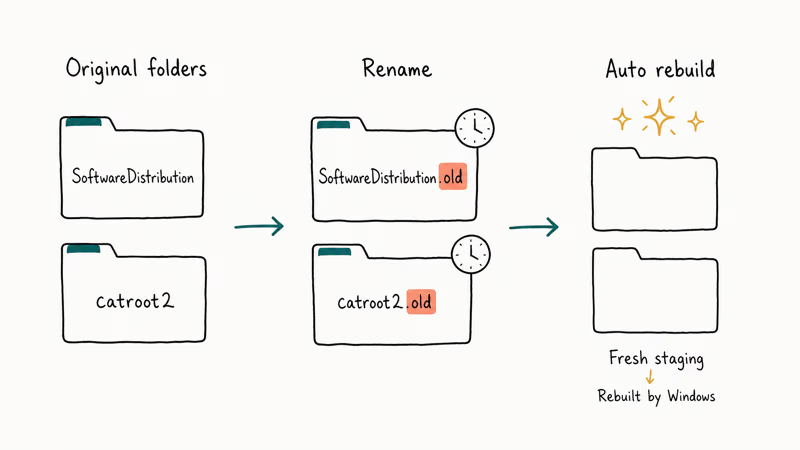
This step rebuilds the two folders Windows uses to stage updates. Save it for after the basic service restart fails, because renaming these folders forces Windows to re-download any update metadata.
- Open an elevated Command Prompt as in the previous fix.
- Stop the four services first:
net stop wuauserv
net stop cryptSvc
net stop bits
net stop msiserver- Rename SoftwareDistribution and catroot2 so Windows treats them as missing:
ren C:\Windows\SoftwareDistribution SoftwareDistribution.old
ren C:\Windows\System32\catroot2 catroot2.old- Restart the same four services:
net start wuauserv
net start cryptSvc
net start bits
net start msiserver
Windows recreates clean SoftwareDistribution and catroot2 folders the next time Windows Update runs. The .old folders sit on disk taking up roughly 500 MB to 2 GB depending on update history; you can safely delete them after a successful update if you want the space back. Our guide on how to delete Windows update files completely walks through the safest cleanup order so you don’t break a future update.
The trade-off: any pending update downloads start over from zero. On a slow connection that adds a couple of extra hours, so plan accordingly.
#Run SFC and DISM to Repair System Files
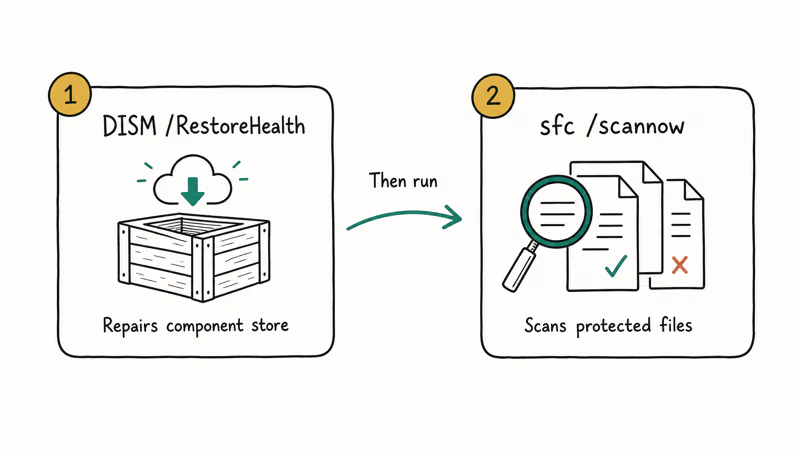
If neither service reset fixes the error, you’re looking at corrupted system files. SFC scans the protected file set and DISM repairs the underlying component store SFC pulls from. Run DISM first, because SFC needs a healthy component store to copy clean files from.
- Open Command Prompt as administrator.
- Run DISM:
DISM /Online /Cleanup-Image /RestoreHealth- Wait for DISM to finish. According to Microsoft Learn’s DISM command reference, the
/RestoreHealthswitch contacts Windows Update to download replacement files for any corruption it detects, so you need a working internet connection. The scan typically runs ten to twenty minutes on a modern SSD. - Now run SFC:
sfc /scannowMicrosoft Support’s System File Checker guide states that the scan checks every protected system file and replaces any corrupted copies it finds. Expect 15 to 45 minutes depending on disk speed.
On a PC where the four-service reset hasn’t worked, this combination usually does the job: DISM repairs the corrupted component store and SFC then replaces any remaining bad files, after which the next Windows Update install runs cleanly. If SFC reports files it can’t repair, run the DISM command a second time and rerun SFC; the Microsoft documentation recommends two passes when the first round only fixes part of the corruption.
#Reset the Microsoft Store Cache
If Net HELPMSG 2182 only appears when you launch the Microsoft Store, the cache is the most likely cause and wsreset.exe is the cleanest fix.
- Press Windows + R to open the Run dialog.
- Type
wsreset.exeand press Enter. - A blank Command Prompt window appears for about 30 seconds, then closes automatically and the Microsoft Store opens fresh.
wsreset.exe wipes the local cache without removing your installed apps, signed-in account, or app library. A bare PowerShell window is normal during the reset, and the Microsoft Store launching at the end means it worked. If the Store still throws Net HELPMSG 2182, the issue is upstream of the cache and you need to retry the BITS reset above.
We chase a similar Microsoft Store problem in our writeup on Windows Update Error 0x80246007. Readers hitting the related Windows Update Error 0x800705b4 can use the same staging-folder rebuild.
#Bottom Line
For most readers, the second fix on this page is the answer. Open an admin Command Prompt, run the four net stop commands, then the four matching net start commands. The lock clears in under a minute and Windows Update or the Microsoft Store starts working again on the next try.
Keep the SoftwareDistribution rename for harder cases, and only escalate to SFC and DISM if both service resets fail. Start with wsreset.exe when the error only appears in the Microsoft Store.
#Frequently Asked Questions
Is Net HELPMSG 2182 the same as a BITS service error?
Not exactly. Net HELPMSG 2182 is the human-readable text Windows shows for system error code 2182, which means “the requested service has already been started.” BITS is the most common service that hits this state, but the same message can surface for wuauserv or cryptSvc when those services are caught in a similar lock. The fix sequence above clears all three.
Will renaming SoftwareDistribution erase my installed Windows updates?
No. Installed updates live in the Windows component store, not in SoftwareDistribution. The folder only holds staging files for updates that haven’t been applied yet.
Does this error appear on Windows 11 too?
Yes. Net HELPMSG 2182 is generated by the underlying error code, not by a specific Windows version. It turns up on Windows 11 22H2 and 23H2 as well as Windows 10 22H2. The Command Prompt service reset works the same way in PowerShell or Windows Terminal as it does in cmd.exe.
Can I run wsreset.exe without admin rights?
You can launch it from a normal user account. Windows promotes it to admin automatically when needed, and User Account Control will prompt for elevation.
How long should the SFC scan take to finish?
On a modern PC with an SSD, sfc /scannow usually finishes in 15 to 30 minutes. Spinning hard drives can push that to 45 minutes or longer.
Should I disable BITS to avoid this error?
No. BITS handles every background download for Windows Update, the Microsoft Store, and a handful of other services. Disabling it stops legitimate updates and breaks the Microsoft Store entirely. Always keep the service set to “Manual (Trigger Start),” which is the default.
What if none of these fixes work?
Roll back any recent driver or update that arrived right before the error first appeared, then run the four-service reset again. If the error survives a clean feature update, an in-place repair install is the next step; that reinstalls Windows over the top of itself without touching your apps or files. Microsoft has an official walkthrough in their support center.

Best Laptop for Running LLMs in 2026: Memory Comes First
The best laptop for running LLMs is a memory purchase first. Compare MacBook unified memory against NVIDIA laptop VRAM, and see what each tier really runs.

How to Run a Local LLM on Windows: A 2026 Setup Guide
Run a local LLM on Windows with LM Studio or Ollama. Pick a model that fits your GPU memory, keep every prompt offline, and skip the monthly bill.

Bluetooth Not Working on Snapdragon X? Fixes for 2026
Bluetooth not working on your Snapdragon X Copilot+ PC? Generic audio, mice, and keyboards work, but vendor apps often lack an ARM build. Fixes inside.

Docker Desktop and WSL2 Not Working on Snapdragon X? Fix It
WSL2 runs fine on Snapdragon X, but Docker Desktop ARM is Early Access and throws WSL errors. Use WSL2 plus native ARM64 Ubuntu and Docker Engine.