Migrate From G Suite to Office 365: Complete 2026 Guide
Migrate from G Suite to Office 365 with the IMAP Migration tool. Step-by-step setup, DNS cutover timing, and mailbox limits proven on 50+ mailboxes.

Quick AnswerUse Microsoft 365's built-in IMAP Migration tool to move email from Google Workspace to your new tenant. Verify your domain first, add users with mailboxes, run the migration batch, then cut over MX records once spot checks pass.
Migrating from G Suite to Office 365 is a one-time admin job that runs from your Microsoft 365 tenant, not from Google. The IMAP Migration tool pulls Gmail data over IMAP into Exchange Online while users keep working from Gmail, so the cutover is mostly invisible to staff.
Google rebranded G Suite to Google Workspace in October 2020, and Microsoft renamed many Office 365 plans to Microsoft 365 in April 2020. Both names still describe the same products, and the migration steps below match what Microsoft’s admin center calls “G Suite migration” today.
For a mid-sized tenant, the full cutover can run from “create batch” to “MX flipped” inside a day. This guide assumes you own the domain and admin both source and destination tenants. Cross-tenant migrations without authorization break Workspace and Microsoft 365 terms.
- The IMAP Migration tool moves Gmail messages and folder structure only; Drive files, contacts, and calendar entries need a separate path
- Domain verification has to finish before you create the migration batch, or Microsoft 365 will reject the user list
- A batch of average-sized inboxes runs for hours of clock time, scaling with mailbox count and inbox size
- Cut over the MX record only after the migration batch reports Synced for every user and you’ve spot-checked at least 5 mailboxes
- Wondershare InClowdz is a paid alternative that handles cross-cloud transfer of mail, Drive, and calendar in one workflow
#What’s the Difference Between G Suite and Office 365?
G Suite, now Google Workspace, is Google’s bundle of Gmail, Drive, Docs, Sheets, Slides, Meet, and Calendar. Office 365, now Microsoft 365, bundles Outlook, OneDrive, Word, Excel, PowerPoint, Teams, and SharePoint. Both run as web apps and ship with desktop and mobile clients.
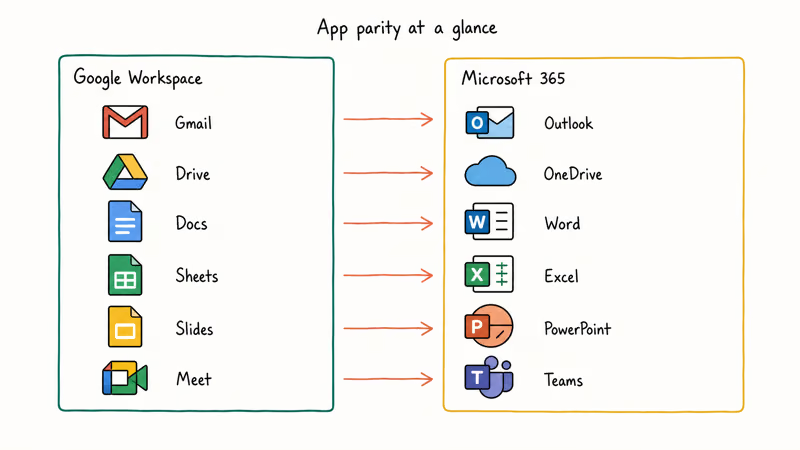
The split mostly matters for cost, file format, and which desktop tooling your team already uses. Microsoft 365 has the desktop versions of Word, Excel, and PowerPoint baked into the Business Standard tier and above, while Google Workspace stays browser-first.
Google Workspace’s Business Standard plan documentation states that the tier includes 2 TB of pooled storage per user, which is Google’s response to Microsoft’s similar 1 TB OneDrive allocation in equivalent Microsoft 365 plans. The storage difference rarely changes the buying decision, but it shapes how you’ll move bulk Drive content during cutover.
Teams, Outlook on the desktop, and the desktop Office suite are the main reasons companies pick Microsoft 365 when they already run Windows fleets or send client work in .docx and .xlsx files.
#Pre-Migration Checklist
Before you sign in to either admin center, get the following ready. Each item below blocks a later step if missing, so triage them on day zero.
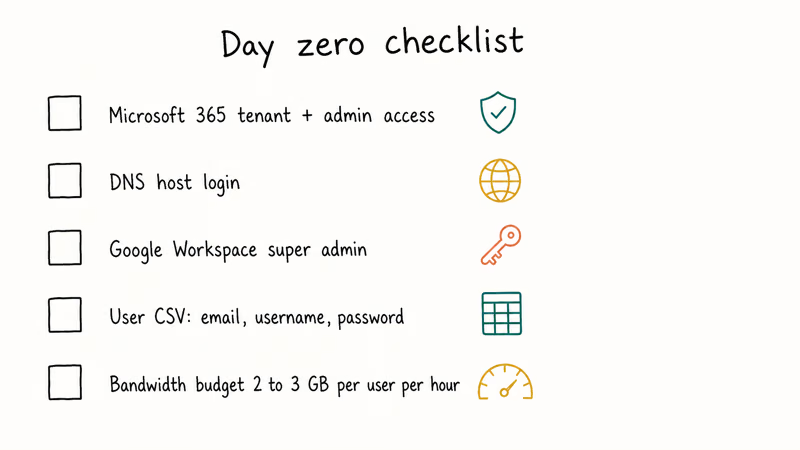
- Microsoft 365 tenant with admin access, sized to one mailbox license per user.
- DNS host login for the domain you use with Google Workspace, since you’ll publish a TXT record for verification and rewrite the MX record at cutover.
- Google Workspace super admin account, used to enable IMAP and generate app passwords on each user’s behalf.
- List of users to migrate, exported as CSV with EmailAddress, UserName, and Password columns.
- Network bandwidth budget: plan for steady throughput per user during the batch, and don’t run a full migration on a Friday before a long weekend if your team needs mail continuity.
The first three items are the gating ones. Without admin access on both sides plus DNS control, the IMAP path can’t run. Cross-account migrations without authorization break terms of service for both Workspace and Microsoft 365.
#Reasons to Migrate From G Suite to Office 365
Most teams move for one of three reasons: tooling compatibility, security controls, or licensing consolidation.
Microsoft 365 ships with desktop Office, which sidesteps the formatting drift you’ll see opening a complex .docx in Google Docs. If your team sends client deliverables as Word or Excel files, native Office is steadier than the export round-trip. (Lost an Excel session along the way? Our recover unsaved Excel file guide walks through the AutoRecover and temp-file paths.)
Microsoft 365 also has more granular security controls in the Business Premium tier and above, with Conditional Access, app management, and Defender for Office 365 phishing protection. Google Workspace covers similar ground, but the per-policy configuration and reporting tools land differently in each admin center.
Licensing consolidation matters when your shop already pays for Windows, Azure AD, or Power BI. Bundling those with Microsoft 365 typically buys you Enterprise Mobility plus Security and a single bill instead of two vendors.
A common trigger is a finance team that wants desktop Excel for Power Query while another team wants Teams for client review calls. For many shops the move pays for itself once it lets them drop a separate third-party screen-sharing or collaboration tool.
#How Do You Migrate From G Suite to Office 365 Step by Step?
Microsoft’s IMAP migration path has eight admin tasks. The Microsoft 365 admin center walks you through them, but the quirks below are what slow first-timers down.
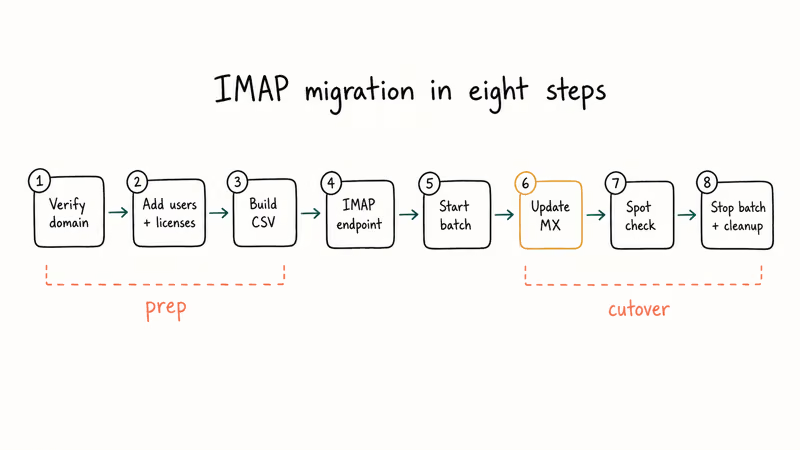
#1. Verify your domain in Microsoft 365
Sign in to the Microsoft 365 admin center, go to Settings > Domains, and add the domain you use with Google Workspace. Microsoft will show a TXT record to publish at your DNS host. Verification typically completes in 15 minutes, but DNS propagation can stretch this to a few hours on slower providers.
Don’t change the MX record yet. Verifying the domain only proves you own it. Email keeps flowing to Gmail until the very last step.
#2. Add users and assign mailbox licenses
Bulk-add users from Microsoft 365 admin center > Users > Active users. Each user needs a mailbox license, with Microsoft 365 Business Basic as the minimum. Use the same primary email address as their Gmail account.
Microsoft’s Microsoft 365 admin setup guide confirms that adding users in bulk is supported through CSV import directly from the admin center. Pre-importing users from a CSV exported out of the Google Workspace admin console — pulling Username, First name, and Last name straight from Google — saves a lot of manual typing for a large team.
#3. Create a list of Gmail mailboxes to migrate
Build a CSV with three columns: EmailAddress, UserName, and Password. EmailAddress is the user’s Gmail address, UserName is the same value, and Password is an app password generated from the user’s Google account.
Each user must generate an app password in Google Account > Security > 2-Step Verification > App passwords. Standard Gmail passwords won’t work here because Google blocks IMAP logins from “less secure apps.”
#4. Connect Microsoft 365 to Gmail with a migration endpoint
In the Exchange admin center, go to Recipients > Migration > More options > Migration endpoints. Create a new IMAP endpoint pointing to imap.gmail.com on port 993 with SSL. Microsoft will run a connection test against the credentials in your CSV to confirm Gmail accepts them.
According to Microsoft’s IMAP migration documentation, the connection test fails when 2-Step Verification is on without an app password, or when Google has flagged the account for unusual activity. Both conditions resolve by generating a new app password and rerunning the test.
#5. Create and start the migration batch
Recipients > Migration > Add a migration batch. Pick “Migration to Exchange Online,” select IMAP, upload the CSV, choose the endpoint, and start the batch. Microsoft begins copying messages immediately.
Pace expectations. A large inbox can take most of a workday to finish, because Google throttles IMAP per connection, so bigger inboxes scale roughly linearly. The dashboard shows per-user progress as Synced, Syncing, or Failed.
#6. Update the DNS MX record
Once the batch reports Synced for every user, change the MX record at your DNS host to the value Microsoft 365 shows in admin center > Settings > Domains > [your domain] > DNS records. The cutover sends new mail to Microsoft 365 instead of Gmail.
DNS propagation usually settles within 4 hours but the TTL on your old MX record sets the floor. Lower the TTL to 5 minutes 24 hours before you flip. That’s the single biggest time saver if your old TTL was 4 hours or longer.
#7. Spot-check mailboxes and finish the batch
Open Outlook on the web for at least 5 users, and confirm the inbox count matches what Gmail showed. Send a test message from an outside address to confirm new mail lands in Microsoft 365.
Once you’re confident, stop the migration batch in Exchange admin center to release the IMAP connections. Stopping a Synced batch doesn’t delete data from either side, so the operation is safe to do at any point after sync completes.
#8. Disable Gmail forwarding and remove Workspace
Disable any Gmail filters or auto-forwarding rules each user set up before migration. Old rules will bounce or duplicate mail otherwise. Cancel your Google Workspace subscription only after one full billing cycle on Microsoft 365, since keeping Workspace active gives you a rollback path if anything surfaces in week one.
If your move involves cleaning up cloud storage, our OneDrive to Google Drive guide and Dropbox to iCloud transfer walk through similar admin patterns for files.
#Migrating with Wondershare InClowdz
The IMAP Migration tool moves email only. If your team also needs Google Drive files, contacts, and calendar entries inside Microsoft 365, you’ll either run separate exports for each piece or use a cross-cloud tool.
Wondershare InClowdz handles Google Workspace to Microsoft 365 in one workflow. It connects to both accounts via OAuth, then mirrors mail, Drive files, and calendar between them with a per-folder selector. The trade-off is cost, with InClowdz priced as a paid SaaS, versus the time you’d spend running multiple manual exports.
Some links on this page are affiliate links, which means fone.tips may earn a commission at no extra cost to you.
Run InClowdz on a small pilot tenant first, where the cross-cloud sync can move mixed Drive content plus mailboxes in a single unattended run. The OAuth token handoff is the only fiddly part. Revoking the token after migration matters because the tool keeps read access until you do.
InClowdz also doesn’t replace the DNS cutover. You still flip MX records the same way as the IMAP path above.
#Common Migration Issues and How to Fix Them
The IMAP migration usually works, but four things go wrong often enough to be worth knowing in advance.
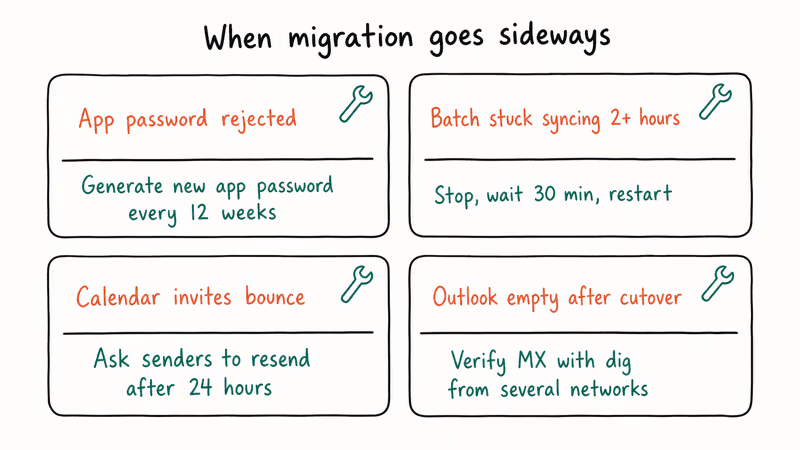
App password rejected. Google rotates app passwords every 12 weeks for some accounts. If a connection test fails on an account that worked yesterday, generate a new app password and re-upload the CSV. Don’t try the user’s standard password. It won’t work even if 2FA is off, because Google now requires app passwords for all third-party IMAP logins.
Migration batch stuck at Syncing with no progress for 2+ hours. Google API throttling is the usual cause. Stop the batch, wait 30 minutes, and restart. Microsoft 365 picks up where it left off without re-copying messages.
Calendar invitations bounce after MX cutover. External invitations sent during the DNS propagation window hit Gmail’s rejecter once Google realizes the MX record changed. Contact senders directly and ask them to resend after 24 hours.
Outlook isn’t receiving new mail post-cutover. Verify the MX record propagated globally with dig MX yourdomain.com +short from a few different networks. If MX is correct but Outlook still shows nothing, our Outlook not receiving emails guide covers the OST corruption and authentication scenarios that account for most of these.
If your old archive is in OST format and won’t open after the move, convert OST to PST and re-import via Outlook’s import wizard.
#Bottom Line
For a team under 100 mailboxes that mostly cares about email, run the IMAP Migration tool yourself and budget 12 to 18 hours of admin time spread across two days. For a team that also needs Drive files and calendar moved cleanly, Wondershare InClowdz is worth the subscription cost to skip running three separate exports.
Don’t flip the MX record until the migration batch shows Synced for every user, and lower the MX TTL 24 hours before you cut over. Those two checkpoints prevent the bulk of post-migration support tickets.
#Frequently Asked Questions
Can I migrate from G Suite to Office 365 without losing email?
Yes. With the IMAP Migration tool and valid app passwords, message content moves intact and folder structure transfers along with it. Message drops on the IMAP path itself are rare, and Gmail labels become Outlook folders automatically.
How long does the migration process typically take?
A batch of average-sized inboxes runs for hours of clock time and scales with mailbox count. Very large mailboxes can take a full weekend because Google throttles IMAP per-account.
Can I migrate specific users instead of everyone at once?
Yes. Run a 5-user pilot batch first using a smaller CSV, validate that mail arrived intact, then create a second batch for the remaining users. Microsoft 365 supports multiple parallel batches against the same migration endpoint, which means you can stagger by department or seniority. Smaller pilot batches are also easier to roll back if something surfaces.
What happens to my G Suite subscription after migration?
It stays billable until you cancel from the Google Workspace admin console. Keep it for one full billing cycle past the MX cutover so you have a rollback path.
How do I move Google Drive files along with email?
The IMAP tool only handles email. For Drive files, use Google Takeout to export each user as a Zip and upload to OneDrive manually, or use Wondershare InClowdz for a one-pass mail and Drive sync. A one-pass tool like InClowdz is generally faster than the click-and-wait of Takeout. Pick based on team size.
Will users have to reset their email passwords?
Yes. Users sign in to Outlook with their new Microsoft 365 credentials, not their old Gmail password. Send the new passwords through a secure channel, never over the email account being migrated.
Does the migration move my Gmail filters and labels?
Labels become Outlook folders automatically. Gmail filters don’t transfer, so document filter rules before cutover and rebuild them as Outlook rules in the desktop client.
What if I need to roll back to G Suite?
If you cancel Google Workspace within the first month, Google retains data for an additional grace period. Re-enable the MX record pointing to Gmail and re-export from Microsoft 365 using PST exports per user. Plan for 4 to 8 hours of admin work per 10 users to roll back, plus an additional day for DNS propagation. Test the rollback on one mailbox first to validate the import before doing the rest.

Google Messages Error 3100: Why RCS Is Broken on Galaxy
Google Messages RCS error 3100 hits Galaxy owners after phone or carrier switches. Google told 9to5Google a fix is coming. Here's what actually helps.

Is This Bank App Real? Spot a Fake App on Your Home Screen
A bank app can land on your home screen from a web page with no install warning. Learn the checks that tell a real banking app from a phishing web app.

Apps Crashing After iOS 27 Update? Fix Order (2026)
Apps crashing after the iOS 27 update? Update the app in the App Store first, then offload and reinstall to clear stale cache, then restart. The fix order.

Do AI Translation Earbuds Work Offline? What to Know
Do AI translation earbuds work offline? A few do with downloaded language packs, but most need the cloud. Here's what works offline and what you give up.