AirPods Not Connecting to Mac: 7 Proven Fixes (2026)
Fix AirPods not connecting to your Mac. Covers Bluetooth resets, macOS compatibility, audio output, AirPods reset, interference, and battery checks.
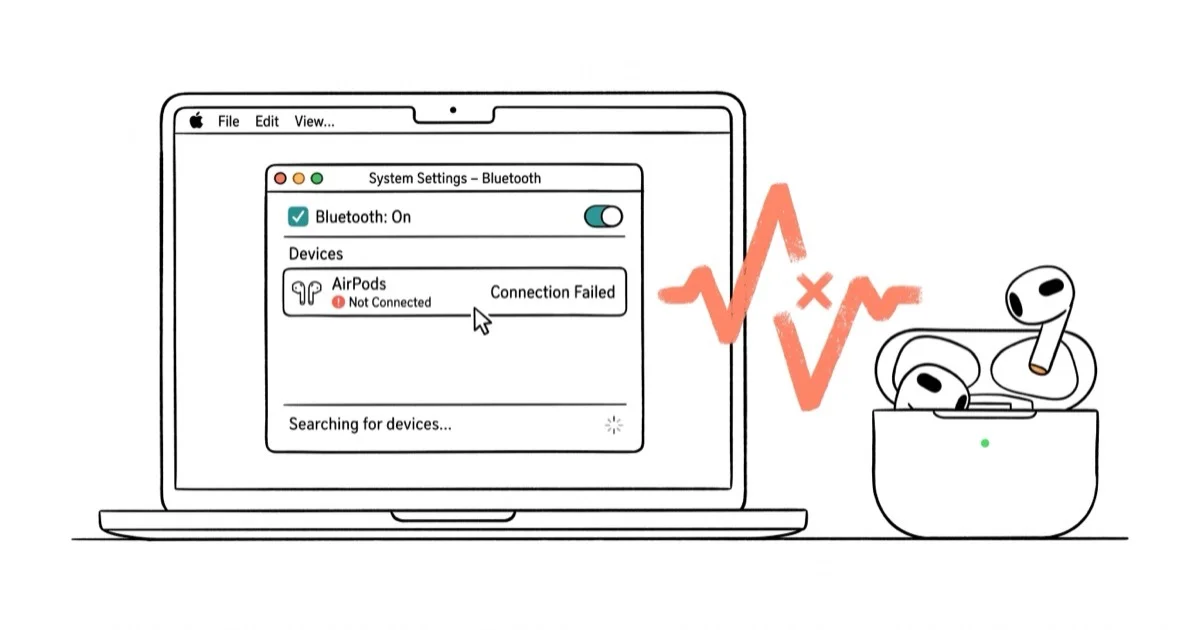
Quick AnswerClose the AirPods case for 15 seconds, then reopen and reconnect from Bluetooth settings. If that fails, forget the device and reset with the setup button until the light flashes.
Your AirPods won’t connect to your Mac, or they pair but play zero audio. The cause is usually stale Bluetooth data, outdated macOS, or wrong audio output.
- Close the AirPods case for 15 seconds, reopen it, and reconnect via Bluetooth settings
- AirPods 4 and AirPods Pro 3 need the latest macOS version or they won’t pair at all
- Forget the device in Bluetooth settings and re-pair to fix “connected but no sound”
- A full AirPods reset (hold setup button until amber then white flash) wipes corrupted pairing data
- A Bluetooth module reset on your Mac is the last resort before hardware service
#Does Your macOS Version Support Your AirPods?
Each AirPods generation has a hard macOS requirement. If your Mac runs older software, the pairing will fail without any error message.
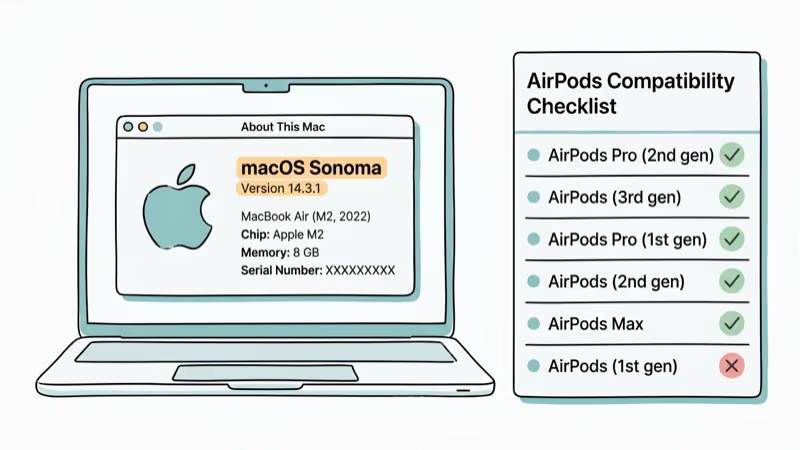
| AirPods Model | Minimum macOS |
|---|---|
| 1st gen | Sierra 10.12 |
| 2nd gen | Mojave 10.14.4 |
| 3rd gen | Monterey 12 |
| Pro 1st gen | Catalina 10.15.1 |
| Pro 2 | Latest macOS |
| Pro 3 | Latest macOS |
| AirPods 4 | Latest macOS |
Click the Apple menu > About This Mac to check your version. According to Apple’s AirPods setup guide, AirPods Pro 2, AirPods Pro 3, and AirPods 4 all require the latest macOS release. That means if you’re one version behind, they won’t connect.
Go to System Settings > General > Software Update if you need to upgrade. The download takes 15-30 minutes on a typical connection.
After updating macOS, try pairing again from Bluetooth settings before moving to deeper reset steps.
#Close the Case and Re-Pair Manually
Automatic iCloud pairing handles most connections, but the Bluetooth cache on your Mac can go stale after weeks of continuous use. When this happens, your AirPods might appear in the device list but refuse to actually connect. Forcing a manual re-pair clears the stale cache and takes about 20 seconds total.
Put both AirPods in the charging case and close the lid. Wait 15 seconds. Open the lid.
On your Mac, go to System Settings > Bluetooth. Find your AirPods in the device list and click Connect. If they don’t show up, press and hold the setup button on the back of the case until the status light flashes white. That puts them in pairing mode.
If your AirPods won’t connect at all even after this step, move on to forgetting the device.
#Why Are AirPods Connected but No Sound Plays?
Your AirPods show “Connected” in Bluetooth settings, but audio still comes through the Mac’s built-in speakers. This happens when macOS picks the wrong output device.
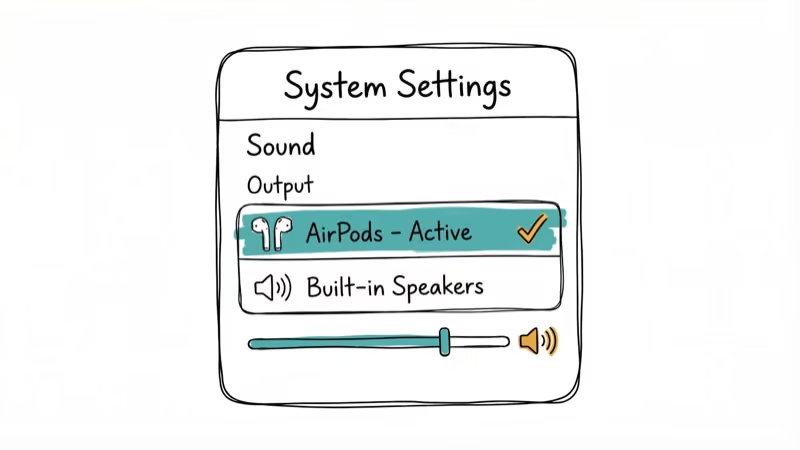
Go to System Settings > Sound > Output and select your AirPods from the list. If you see a monitor with built-in speakers or another Bluetooth device listed, your Mac likely defaulted to one of those after a recent connection change.
You can also switch output from Control Center.
According to Apple’s AirPods troubleshooting page, you should check Control Center first and make sure your AirPods appear as an available device. If your AirPods are connected but sound keeps coming from the phone instead, the same output selection issue is the cause.
#Forget the Device and Re-Add Your AirPods
Sometimes the Bluetooth profile cached on your Mac gets corrupted. Removing it completely forces a clean slate, and the whole process takes about a minute.
Go to System Settings > Bluetooth, find your AirPods in the list, click the info button (i), and select Forget This Device. Confirm when prompted.
After forgetting, put your AirPods back in the case, close the lid for 15 seconds, then open it. Your Mac should detect them as a new device. Click Connect in the Bluetooth settings, or hold the setup button on the case until the white light appears.
If your Mac’s Bluetooth isn’t available at all, you’ll need to troubleshoot the Bluetooth module first.
#Reset Your AirPods to Factory Settings
A factory reset wipes all stored pairing data from the AirPods themselves. This is the fix when your AirPods are trying to connect to a different iCloud account or have corrupted Bluetooth profiles that survive a simple forget-and-reconnect.
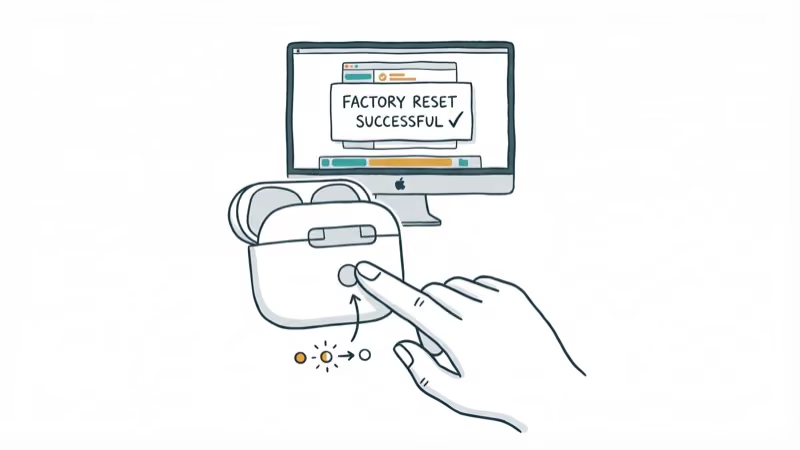
Put both AirPods in the case. Close the lid for 30 seconds, then open it. Press and hold the setup button on the back of the case for about 15 seconds.
Watch the status light: it flashes amber first, then white. Release when it turns white.
Open the case near your Mac.
If your AirPods won’t flash white during the reset process, charge the case for at least 15 minutes before trying again.
#Reset Your Mac’s Bluetooth Module
This is the nuclear option. It restarts the entire Bluetooth stack on your Mac and disconnects every wireless device, not just AirPods.
macOS Ventura 13 and later: Open Terminal, type sudo pkill bluetoothd, press Enter, and type your admin password. Bluetooth restarts in about 10 seconds. You’ll lose connection to your wireless mouse, keyboard, and any other Bluetooth accessories temporarily.
macOS Monterey 12 and earlier: Hold Shift + Option, click the Bluetooth icon in the menu bar, and select “Reset the Bluetooth module.”
Based on MacRumors’ Bluetooth reset guide, this process forces macOS to rebuild its Bluetooth device cache from scratch. Re-pair your AirPods using the manual method afterward.
#Check for Bluetooth Interference
Bluetooth and Wi-Fi both operate on the 2.4 GHz frequency band, and nearby devices can create enough interference to drop your AirPods connection repeatedly. USB 3.0 hubs and external hard drives are common culprits that many people overlook.
Move your Mac away from USB 3.0 hubs, wireless devices, and microwave ovens. Disconnect any USB hub temporarily to test.
9to5Mac’s Bluetooth troubleshooting guide confirms that USB 3.0 devices generate radio interference in the 2.4 GHz range, which directly disrupts Bluetooth connections on nearby devices.
If your AirPods keep cutting out even after re-pairing, interference is a likely cause. Try switching your Wi-Fi router to the 5 GHz band to free up the 2.4 GHz spectrum for Bluetooth. Also check that the AirPods case is charging properly, since low battery causes similar symptoms.
#Bottom Line
Start by closing the AirPods case for 15 seconds and reopening it. That alone fixes most disconnection problems in about 20 seconds. If it doesn’t work, verify your macOS version meets the minimum for your AirPods model, then forget the device and re-pair from scratch.
A full AirPods reset (hold the setup button until amber then white) handles corrupted Bluetooth profiles. The Bluetooth module reset is your last software-based fix before looking at hardware.
Still no luck? Book a Genius Bar appointment or visit Apple Support for service options.
Mac Tips & Tricks
#Frequently Asked Questions
Why do my AirPods keep disconnecting from my Mac?
Low battery. AirPods cut the connection when either earbud drops below 5%. Check battery levels from the Bluetooth menu bar icon on your Mac.
Can I connect AirPods to a Mac and iPhone at the same time?
Not simultaneously. AirPods with an H1 or H2 chip switch automatically between Apple devices on the same iCloud account, but they maintain only one active connection at a time. The switch happens based on which device is playing audio.
To stop this, go to Settings > Bluetooth on your iPhone, tap your AirPods, and set Connect to This iPhone to When Last Connected.
Do AirPods work with non-Apple computers?
Yes. AirPods work as standard Bluetooth headphones with Windows, Linux, and Chrome OS. You lose ear detection and spatial audio, but playback and microphone work fine. Hold the setup button on the case until the white light blinks, then pair through your computer’s Bluetooth settings.
How do I check my AirPods battery level on a Mac?
Click the Bluetooth icon in the menu bar and hover over your AirPods. You’ll see percentages for each earbud and the case.
Why do my AirPods connect to my iPhone instead of my Mac?
Your iPhone grabs the connection whenever it’s actively playing audio. Open your Mac’s Bluetooth menu and manually select your AirPods.
Will resetting AirPods delete my custom settings?
Yes, completely. A factory reset erases your ear tip fit test results, noise cancellation preferences, press-and-hold actions, and the custom AirPods name. It also removes them from your iCloud account.
After the reset, you’ll need to pair them fresh with your Mac, iPhone, iPad, and any other device you use. Re-setup takes about 2 minutes per device.
Can a dirty charging case cause connection failures?
Absolutely. Dirty charging contacts prevent the AirPods from getting a full charge, leading to random disconnections. Wipe the contacts inside the case with a dry, lint-free cloth. A soft-bristled brush works well for cleaning debris from the Lightning or USB-C charging port at the bottom.
My AirPods connect but audio quality sounds terrible. What’s wrong?
Bluetooth can’t handle high-quality audio output and microphone input at the same time. When macOS uses your AirPods for both, it drops to a low-bitrate codec. Go to System Settings > Sound > Input and switch to your Mac’s built-in microphone. The audio quality jump is immediate.
macOS 27 Golden Gate: Release Date and Compatible Macs
macOS 27 Golden Gate was announced at WWDC 2026. Here is the release date, the Apple Silicon-only compatible Mac list, and every confirmed new feature.
How to Copy and Paste on a Mac: Shortcuts and Fixes
Copy and paste on a Mac with Command-C and Command-V. Learn the cut shortcut, paste without formatting, Universal Clipboard, and fixes when it breaks.
How to Use the Phone App on Mac: macOS Tahoe Setup Guide
Set up the Phone app on macOS Tahoe to relay iPhone cellular calls. Covers requirements, FaceTime setup, Call Screening, and common firewall fixes.
How to Use iPhone Mirroring on Mac: Full 2026 Setup Guide
Set up iPhone Mirroring on macOS Sequoia with iOS 18. Covers hardware requirements, the six common error messages, EU limits, and a shared-Mac privacy fix.