Mac Won't Connect to Wi-Fi? 9 Working Fixes (2026)
Your Mac won't join Wi-Fi? Toggle Wi-Fi, forget the network, renew the DHCP lease, and remove network config files in order, with reset steps last.
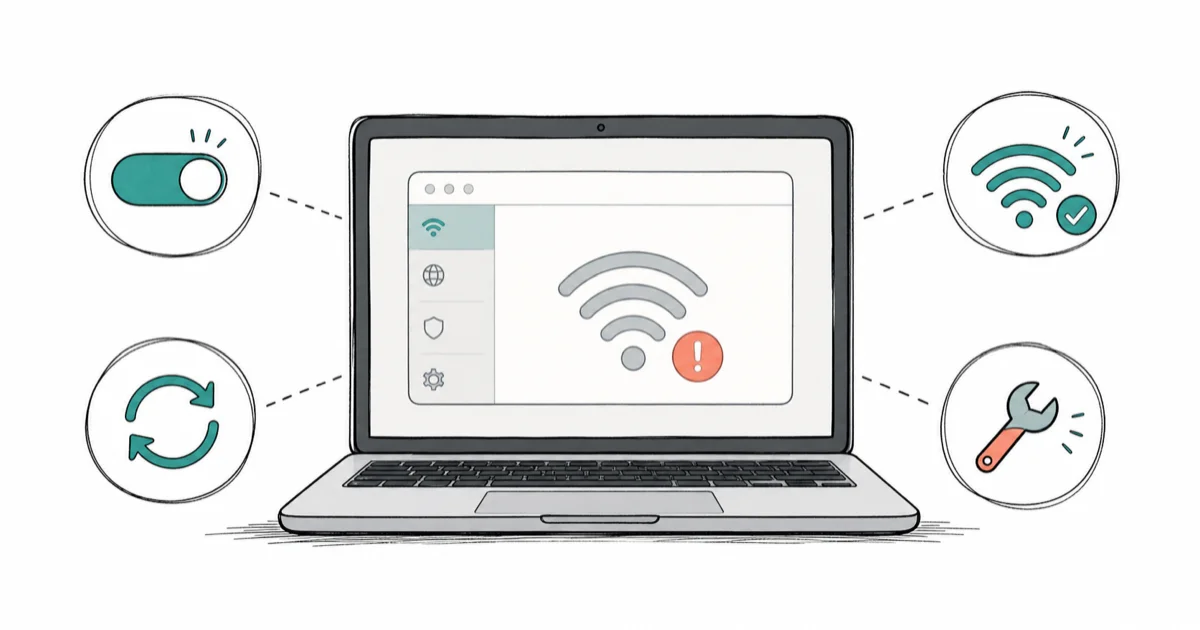
Quick AnswerIf your Mac won't connect to Wi-Fi, start by toggling Wi-Fi off and on, then forget and rejoin the network, and renew the DHCP lease in Network settings. A wrong-password loop or a corrupted network configuration is the usual cause, not the hardware.
A Mac that won’t join Wi-Fi feels like a hardware disaster, but it almost never is. Far more often it’s a stale network setting, a password loop, or a config file that’s quietly corrupted. Start with quick toggles, then move through password, DHCP, and configuration resets before assuming hardware.
- Most Wi-Fi failures on a Mac are stale settings, not broken hardware
- The fastest fix is toggling Wi-Fi off and on, then forgetting and rejoining the network
- Renewing the DHCP lease in Network settings clears a stuck IP-address handshake
- Deleting a few network configuration files forces macOS to rebuild a clean setup
- “Wi-Fi: No Hardware Installed” means macOS lost the adapter, which a restart often restores
#Why Won’t Your Mac Connect to Wi-Fi?
Start by narrowing the problem. If other devices on the same network work fine, the issue lives on your Mac, not the router, and you can skip straight to the Mac-side fixes below. If literally nothing in the house connects, the router or your internet service is the real suspect, so restart the router and check your provider’s status page before touching the Mac at all.
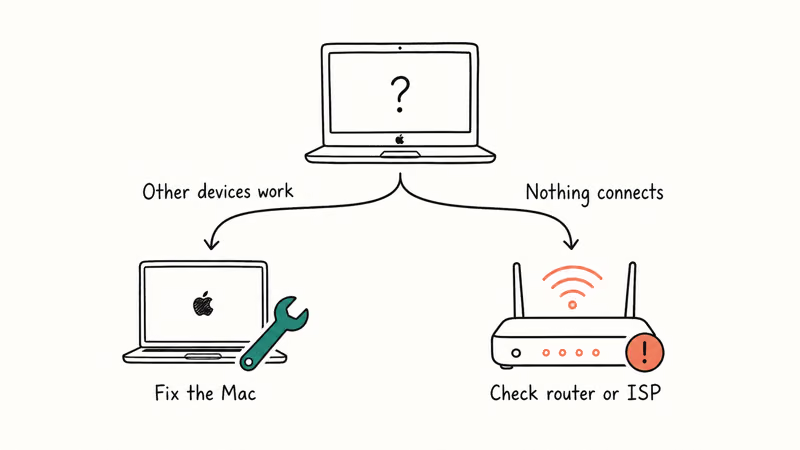
The Mac-side causes cluster into a few buckets: a stale Wi-Fi state, a wrong or cached password, a stuck DHCP lease, or a corrupted network config. Each has a clean fix below.
Two related problems deserve their own guides. If your Mac joins the network but pages won’t load, that’s connected but no internet. If it joins then drops over and over, see Wi-Fi that keeps disconnecting.
And if Wi-Fi is missing from the menu bar entirely, our guide to Mac Wi-Fi not working starts from scratch.
#Quick Fixes: Toggle, Forget, and Rejoin
These three take a minute and resolve most cases. Try them in order.
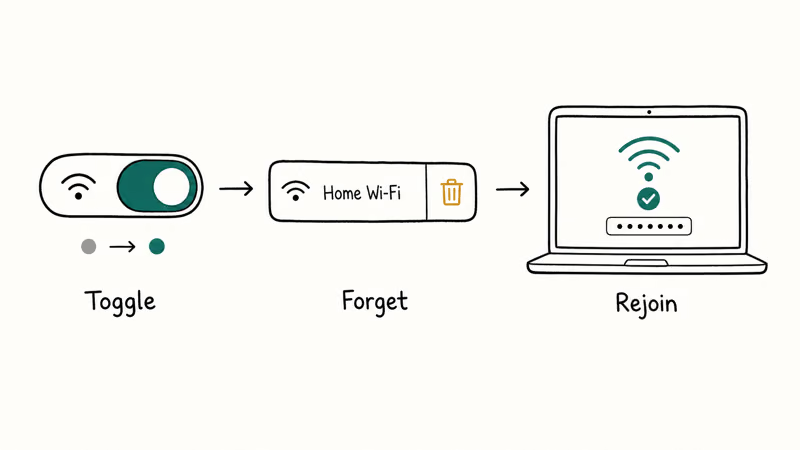
First, toggle Wi-Fi off and back on from the menu bar. This forces a fresh scan and often grabs the network on the second try.
If that fails, forget the network and rejoin it. Open System Settings, then Wi-Fi, click the Details button next to your network, and choose Forget This Network. Then reconnect and re-enter the password carefully, since a single mistyped character causes an endless “incorrect password” loop.
If a Mac refuses to connect, forgetting the network and retyping the password from scratch can clear a cached-password loop. The same logic applies on a phone, which is why iPhone Wi-Fi problems often clear the same way.
#Renewing the DHCP Lease and Checking the Router
If you join the network but still can’t get online, your Mac may be stuck on a bad IP address. Renewing the DHCP lease asks the router for a fresh one.
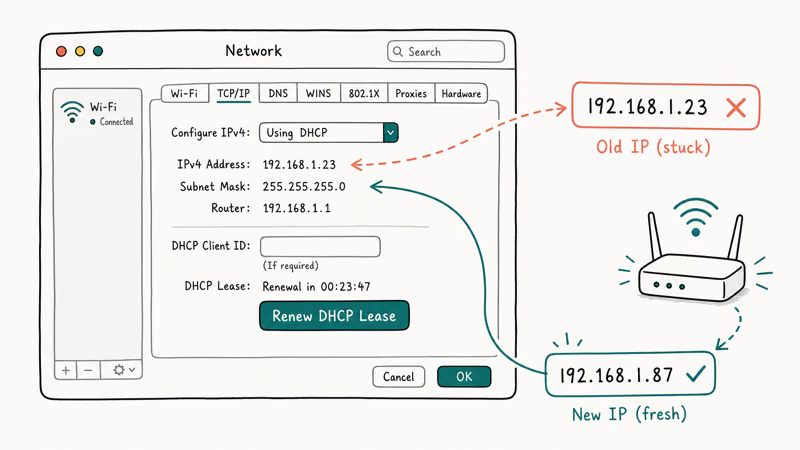
Go to System Settings, Network, Wi-Fi, Details, then TCP/IP, and click Renew DHCP Lease. This clears a stalled handshake without changing anything else, and it’s safe to do anytime.
While you’re troubleshooting, rule out the router. Restart it, confirm other devices connect, and move your Mac closer to cut interference. Apple states that 1 shared network name should cover both the 2.4 GHz and 5 GHz bands so devices roam cleanly between them. The same radio noise that disrupts Wi-Fi can also affect nearby Mac Bluetooth, so a busy band sometimes breaks both at once.
#Removing Corrupted Network Configuration Files
When the quick fixes don’t stick, macOS may be reading a corrupted network preference. Deleting a handful of config files forces a clean rebuild on the next boot.
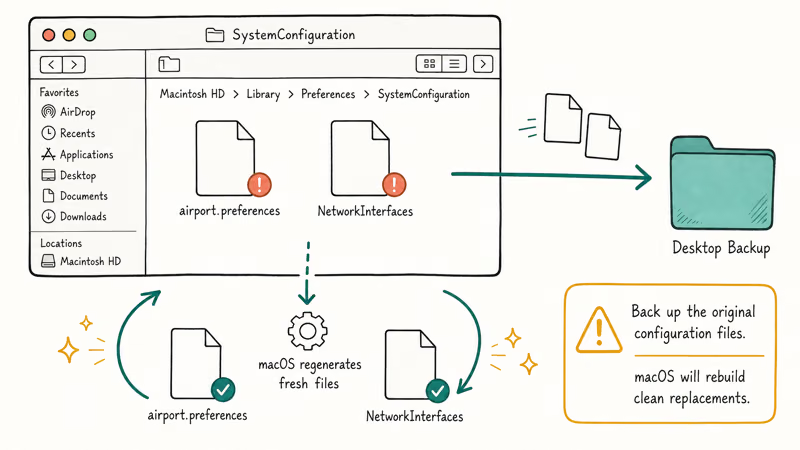
In Finder, choose Go, then Go to Folder, and open /Library/Preferences/SystemConfiguration/. Move files like com.apple.airport.preferences.plist and NetworkInterfaces.plist to the desktop as a backup, then restart. This is safe because macOS regenerates fresh versions automatically on the next boot, and your originals on the desktop let you drag them straight back if anything looks worse.
After the reboot, rejoin your network from scratch. This step clears the deepest software-level Wi-Fi gremlins that toggling and forgetting can’t reach, and it’s the fix that finally works when nothing simpler does.
#What Does “No Hardware Installed” Mean?
If you reach this point, run Apple’s built-in diagnostics before assuming hardware failure. According to Apple’s Wireless Diagnostics guide, you hold the Option key while clicking the Wi-Fi icon in the menu bar, then choose Open Wireless Diagnostics. Apple confirms that the tool “doesn’t change your network settings” while it analyzes the connection.
The scariest message is “Wi-Fi: No Hardware Installed.” It sounds terminal, but a full restart usually fixes it.
If diagnostics and a restart both fail, then a genuine hardware fault is finally on the table. At that point, follow Apple’s broader steps for when a Mac isn’t connecting over Wi-Fi, or book a Genius Bar appointment to test the antenna and card directly.
#Creating a Fresh Network Location
If the plist rebuild and diagnostics both come up empty, a brand-new network location gives macOS a clean slate without touching your main setup.
Open System Settings, Network, the three-dot menu, then Locations, and add a new one. Switch to it and rejoin your Wi-Fi.
According to Apple’s guide for when a Mac isn’t connecting to the internet, you should also “make sure that the date and time are set correctly,” because a wrong clock quietly breaks the secure certificate checks that many connections depend on. It’s a small detail that derails an otherwise healthy Wi-Fi setup.
#Bottom Line
Work the list top to bottom instead of jumping to a hardware repair. Toggle Wi-Fi, forget and rejoin the network with the password typed carefully, then renew the DHCP lease.
If it still won’t hold, delete the SystemConfiguration plist files and reboot for a clean rebuild. Only after running Wireless Diagnostics and a full restart should you treat “No Hardware Installed” as a real fault, because nine times out of ten it’s a software hiccup a reboot fixes.
#Frequently Asked Questions
Why won’t my Mac connect to Wi-Fi when other devices can?
The problem is almost certainly on your Mac, not the network. A stale Wi-Fi state, a wrong cached password, or a corrupted network config file is usually to blame. Toggle Wi-Fi, forget and rejoin the network, and renew the DHCP lease, and one of those almost always fixes it.
How do I forget a Wi-Fi network on a Mac?
Open System Settings, click Wi-Fi, then the Details button next to your network. Choose Forget This Network, and you’ll re-enter the password fresh next time.
What does renewing the DHCP lease do?
It asks your router for a fresh IP address, which restores the connection if your Mac got stuck on a bad or expired one. Nothing else changes. You’ll find the button under Network, Wi-Fi, Details, then TCP/IP, and it’s completely safe to click whenever a connection seems half-broken.
Is it safe to delete network configuration files?
Yes, as long as you back them up first. macOS rebuilds fresh copies automatically, so you lose nothing.
What does “Wi-Fi: No Hardware Installed” mean?
It means macOS lost contact with the Wi-Fi card, usually after a buggy update or a sleep glitch rather than a real hardware failure. A full restart brings the adapter back the vast majority of the time. Only if a reboot and Wireless Diagnostics both fail should you suspect the actual hardware.
How do I run Wireless Diagnostics on a Mac?
Hold the Option key and click the Wi-Fi icon in the menu bar, then choose Open Wireless Diagnostics. It analyzes your connection without changing a thing.

macOS 27 Compatible Macs: Every Supported Model (2026)
macOS 27 Golden Gate runs only on Apple Silicon Macs. Here is the full list of supported M-series models and the four Intel Macs that lose support.

macOS 27 Golden Gate: Every Major New Feature Confirmed
macOS 27 Golden Gate goes Apple Silicon only, adds a Gemini-powered Siri, refines Liquid Glass, and rebuilds Spotlight. Here is every confirmed change.

macOS 27 Liquid Glass: Every Readability Fix Explained
macOS 27 Golden Gate refines Liquid Glass with an intensity slider, better contrast, cleaner window corners, and edge-to-edge sidebars to fix readability.

macOS 27 Performance: What Golden Gate Makes Faster
macOS 27 Golden Gate speeds up AirDrop, network file browsing, Safari, and Spotlight, with core system improvements on the Apple Silicon-only release.