Mac Wi-Fi Not Working? 9 Fixes to Get Back Online Fast
Fix Mac Wi-Fi not working with an ordered checklist for router checks, Wireless Diagnostics, DNS and VPN profiles, and re-adding the Wi-Fi service.
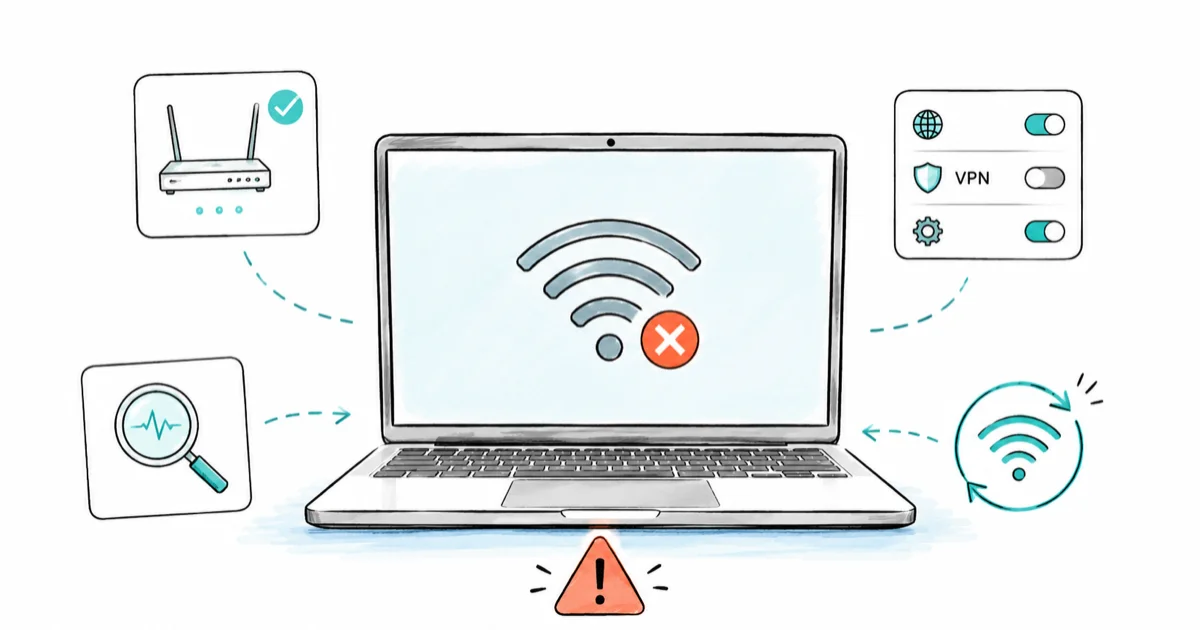
Quick AnswerWhen Mac Wi-Fi isn't working, prove whether the problem is your network or just your Mac by testing another device first. If only the Mac fails, run Wireless Diagnostics, then remove bad VPN, DNS, or profile settings before you delete any network services.
Mac Wi-Fi not working is one of those problems that feels random but rarely is. Either your whole network is down, or something on your Mac alone (a VPN, a stale DNS setting, or a corrupted network service) is blocking the connection. This guide separates those two cases first, then walks the safe fixes in order so you don’t delete system settings you’ll regret.
The other-device check separates a router problem from a Mac-specific problem before you change settings. Start at the top and stop when pages load again.
- Test another device on the same network first to learn whether the fault is your Mac or the router
- A captive-portal login page can block internet even when Wi-Fi shows full bars
- Wireless Diagnostics runs from the Wi-Fi menu while you hold the Option key
- A bad VPN, DNS entry, or configuration profile blocks traffic while Wi-Fi still looks connected
- Renew the DHCP lease before deleting any Wi-Fi service or system configuration files
#Two Buckets: Network Problem or Mac Problem
Wi-Fi problems on a Mac fall into two buckets: the network is broken, or your Mac is. Tell them apart first. A reset won’t fix an offline router.
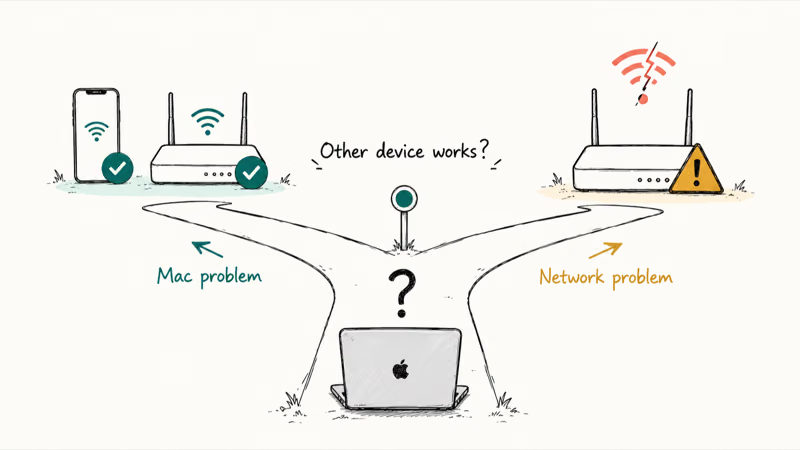
Connect your phone or another laptop to the same network. No internet there either? Then the router, modem, or provider is at fault, so restart the gear and check for an outage. If only the Mac fails, keep reading; our mac keeps crashing guide uses the same isolate-first logic.
#Check Router, Captive Portal, and Another Device
Start with the network even after the device test, because a half-broken router is common. Power-cycle the gear. Unplug the modem and router, wait 30 seconds, plug the modem in first, then the router, and give them a minute to come back.
Watch for a captive portal. On hotel, café, or campus Wi-Fi, you’re connected to the access point but can’t reach the internet until you accept a login page. If that page never appears, open a browser and visit a plain http site to trigger it. Apple’s If your Mac isn’t connecting to the internet over Wi-Fi page recommends checking your network with your provider to confirm there isn’t a service outage on the line.
If the router is healthy and other devices work, the fault is local.
#How Do You Run Wireless Diagnostics on a Mac?
macOS ships with a built-in tool most people never open. Hold the Option key, click the Wi-Fi icon in the menu bar or Control Center, then choose Open Wireless Diagnostics. Run it while the problem is happening so it captures the live fault.
Apple’s Use Wireless Diagnostics on your Mac page states that the tool generates 1 compressed report file, saved in /var/tmp, that your network administrator or provider can read. It gives you a list of detected issues with possible solutions, and Apple notes it doesn’t change your settings, so you can run it safely.
According to Apple’s connectivity guide, a plain restart often helps too, because your Mac automatically renews the address it was assigned when it joined the network. If Wireless Diagnostics flags nothing obvious, restart and retest.
#What If Wi-Fi Connects but Has No Internet?
Full Wi-Fi bars with no internet points at the layer above the connection: DNS, DHCP, or a blocking tool. Start by renewing the address your Mac was assigned.
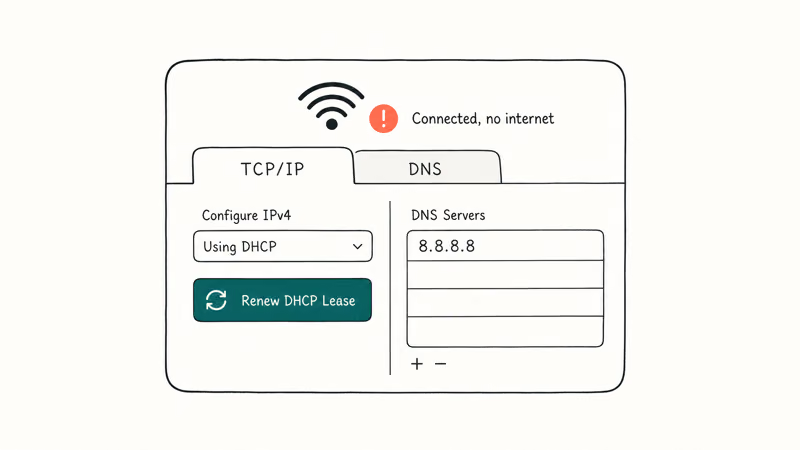
Go to System Settings > Network, select Wi-Fi, click Details, then open the TCP/IP tab and click Renew DHCP Lease. This re-requests an IP address from the router and clears a stuck assignment. In the DNS tab, you can add a public resolver like 8.8.8.8 to rule out a broken router DNS. Apple’s Change network settings on Mac page is the official reference for where these controls live.
If renewing the lease and fixing DNS doesn’t help, something is actively intercepting your traffic. Remove it next.
#Remove Bad VPN, DNS, or Network Profiles
A VPN that didn’t disconnect cleanly, a DNS-filtering app, or a leftover configuration profile can block all traffic while Wi-Fi still shows connected. A stale VPN profile can take down a Mac’s internet while every other device on the network works fine.
Open System Settings > VPN and disconnect any active connection, then quit the VPN app entirely to test. Check System Settings > General > Device Management (or Profiles) for any configuration profile you don’t recognize, and remove it if you didn’t install it for work or school. If a content filter or “security” app sits in your network path, disable it temporarily. This isolation step tells you whether software, not hardware, is the wall.
If the connection still fails with every profile removed and DHCP renewed, the Wi-Fi service itself may be corrupted.
#Delete and Re-Add the Wi-Fi Service Carefully
Do this only after the steps above, and only to the service, not random system files. Deleting the Wi-Fi network service and recreating it rebuilds a corrupted configuration cleanly, and it’s reversible.
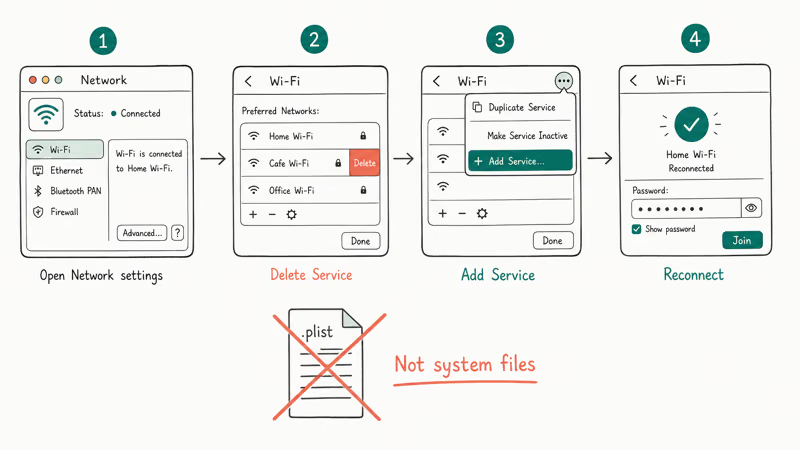
Run it carefully:
Open System Settings>Network.- Select Wi-Fi, click the three-dot menu, and choose Delete Service.
- Click the same menu and choose Add Service, then pick Wi-Fi.
- Reconnect to your network and re-enter the password.
This is far safer than the old advice to trash system configuration plist files, which can break networking when done wrong. Don’t start there.
If your Mac connects fine but other Apple devices struggle, our iphone personal hotspot not working guide covers sharing issues. A different hardware-handshake fault, like a black second screen, lives in our mac external monitor not guide.
On a PC hitting a missing radio? Use our windows 11 wifi option guide. And if the Mac slows after all this network churn, our how to clear cache on mac guide clears the clutter.
#Bottom Line
Do the another-device check first, then run Wireless Diagnostics while the issue is happening. If only the Mac fails, renew the DHCP lease and strip out any VPN, DNS, or configuration profile before you delete the Wi-Fi service. Random system-file deletion should never be your first fix, and a healthy router test saves you from chasing the wrong problem entirely.
#Frequently Asked Questions
Why is Wi-Fi not working on my Mac?
It’s either the network or the Mac. If other devices also have no internet, the router or provider is the issue. If only your Mac fails, the cause is usually a DNS setting, a stuck DHCP lease, a VPN, or a corrupted Wi-Fi service.
What should I check first?
Connect another device to the same Wi-Fi. That one test tells you whether to fix the network or the Mac, and it stops you from resetting a Mac that was never the problem.
Can a macOS update cause Wi-Fi problems?
Yes. Updates occasionally reset network preferences or leave a service in a bad state, and re-adding the Wi-Fi service usually clears those post-update glitches.
Will resetting network settings delete my data?
No. Renewing a DHCP lease or re-adding the Wi-Fi service only affects how your Mac connects to the network, never what’s stored on it. Your files, apps, accounts, and documents stay completely untouched, though you’ll re-enter your Wi-Fi password afterward and any custom DNS entries you added by hand will need to go back in. Nothing here risks your data, which is exactly why a service rebuild beats deleting system files.
When should I contact official support?
Contact Apple or your internet provider if Wireless Diagnostics reports a hardware fault, or if the connection fails even after a clean service rebuild on a network where every other device works. Persistent hardware-level failure needs service.
How do I prevent this from happening again?
Disconnect VPNs cleanly before sleep, avoid stacking multiple DNS-filtering tools, and keep macOS current. Removing configuration profiles you no longer use also prevents the silent traffic-blocking that causes “connected, no internet” states.

macOS 27 Compatible Macs: Every Supported Model (2026)
macOS 27 Golden Gate runs only on Apple Silicon Macs. Here is the full list of supported M-series models and the four Intel Macs that lose support.

macOS 27 Golden Gate: Every Major New Feature Confirmed
macOS 27 Golden Gate goes Apple Silicon only, adds a Gemini-powered Siri, refines Liquid Glass, and rebuilds Spotlight. Here is every confirmed change.

macOS 27 Liquid Glass: Every Readability Fix Explained
macOS 27 Golden Gate refines Liquid Glass with an intensity slider, better contrast, cleaner window corners, and edge-to-edge sidebars to fix readability.

macOS 27 Performance: What Golden Gate Makes Faster
macOS 27 Golden Gate speeds up AirDrop, network file browsing, Safari, and Spotlight, with core system improvements on the Apple Silicon-only release.