Mac Wi-Fi Keeps Disconnecting? 8 Proven Fixes in Order
Mac Wi-Fi keeps disconnecting? Work through 8 ordered fixes, from renewing DHCP to deleting corrupt network plists and ruling out login items.
Quick AnswerRenew the DHCP lease first, then forget and re-add the network. If drops continue, delete the SystemConfiguration network plists, switch to the 5GHz band, and unplug USB-C devices that interfere with the antenna.
If your Mac Wi-Fi keeps disconnecting, the fastest fix is renewing the DHCP lease, then forgetting and re-adding the network so macOS rebuilds a clean profile. If drops appear on a congested 2.4GHz channel, start with the lease before assuming hardware.
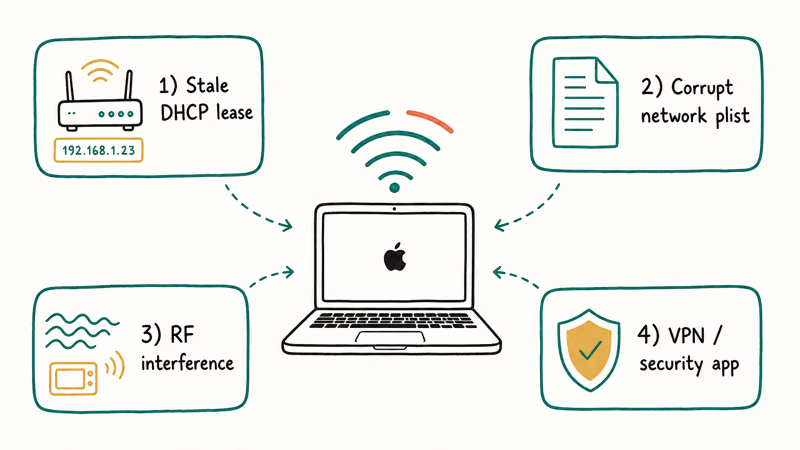
Random drops trace to four causes: a bad DHCP lease, corrupt preference files, interference, or a login item. The fixes below tackle all four in order, highest-yield first.
- Most Mac Wi-Fi drops trace to a stale DHCP lease, a corrupt network plist, RF interference, or a VPN or security app fighting for the connection.
- Renewing the DHCP lease and re-adding the network fixes the majority of cases in two minutes with zero risk.
- The SystemConfiguration folder holds the network plists; deleting them forces macOS to rebuild a clean profile after a restart.
- The 5GHz band drops less in crowded buildings but has shorter range, so move closer to the router when you switch.
- USB-C and USB 3.0 accessories emit RF noise near 2.4GHz and can knock a Mac off Wi-Fi until you unplug them.
#Why Does Your Mac Keep Dropping Wi-Fi?
A Mac drops Wi-Fi when the link between the wireless card and the router breaks for any reason, and macOS does not always reconnect cleanly. The trigger is usually invisible. A DHCP lease expires, a preference file gets corrupted after an update, or another device floods your channel.
Apple’s Wireless Diagnostics guide confirms that the built-in tool analyzes 1 connection and returns a list of detected issues plus signal and noise readings. That is why the same Mac can be rock-solid at a coffee shop and flaky at home.
Software is the other half. A VPN on a timer, an antivirus tool that inspects packets, or a login item that resets the network can each cause a drop that looks like a hardware fault, behaves like a hardware fault, and yet clears the moment you quit the offending app. That last detail is the tell: a real card failure does not care which apps are running, so if a drop disappears in Safe Mode you are chasing software.
Start with the lease and the network profile. They cause more drops than anything else, and both fixes are reversible.
#How Do You Renew the Lease and Reset the Network?
These first two steps are the highest-yield moves on the list. Run them before touching anything advanced.
#Step 1: Renew the DHCP Lease
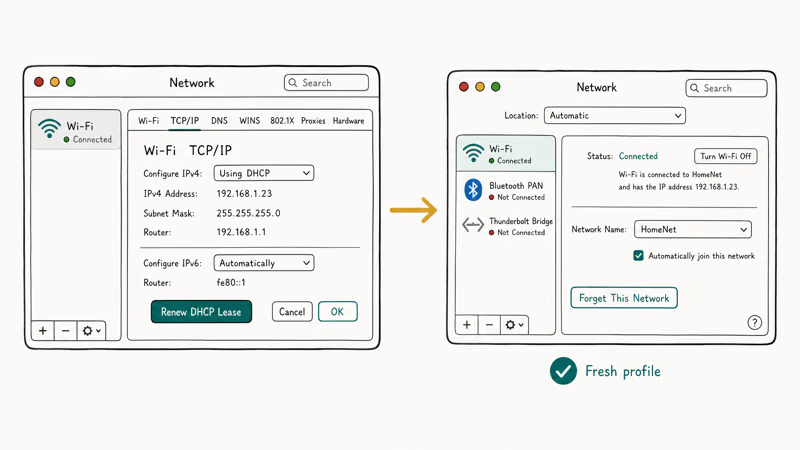
Open Apple menu > System Settings > Network, click Wi-Fi, then Details, then TCP/IP. Click Renew DHCP Lease and confirm. Your Mac asks the router for a fresh IP address, which clears the lease conflicts that cause silent drops.
Renewing the lease targets the signature of an address collision: repeat drops that come back after the Mac reconnects. If the issue is an IP collision, this single step is your whole fix.
#Step 2: Forget and Re-Add the Network
A corrupted saved network profile causes repeat drops that survive restarts, and the fix is to throw the profile away. In the same Wi-Fi panel, click Details next to your network, choose Forget This Network, then reconnect by entering the password again so macOS writes a clean profile from scratch instead of reusing the broken one.
This also clears a mismatched security setting after a router firmware update. Hit a password loop here? The Wi-Fi authentication error guide walks through the exact cause.
#Deleting Corrupt Network Configuration Files
When the lease and profile resets don’t hold, the preference files are likely corrupt. macOS keeps them in /Library/Preferences/SystemConfiguration/, and deleting the right ones forces macOS to regenerate clean copies, which is the most reliable cure for drops that survive every lighter fix above.
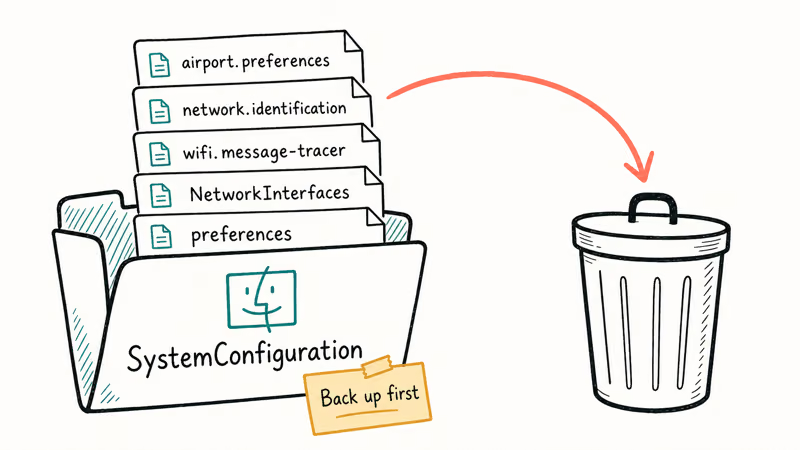
Quit Wi-Fi first by turning it off. Open Finder, choose Go > Go to Folder, and enter /Library/Preferences/SystemConfiguration/. Move these five files to the Trash: com.apple.airport.preferences.plist, com.apple.network.identification.plist, com.apple.wifi.message-tracer.plist, NetworkInterfaces.plist, and preferences.plist.
Back them up first. Then restart, turn Wi-Fi on, and reconnect.
Deleting the plists is the heavier rebuild step for drops that survive lease renewals, especially on Macs that carried settings through major updates.
#Switching Bands and Clearing Interference
Drops that cluster in one room are physical, not software. Two moves address it.
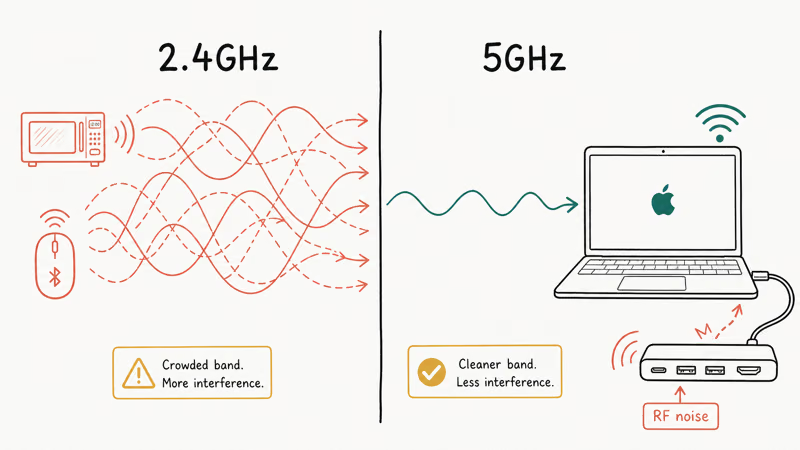
Switch to the 5GHz band. In crowded buildings the 2.4GHz spectrum is jammed with neighbors, microwaves, and Bluetooth. Apple’s recommended router settings states that you should cap the 2.4GHz band to 20 MHz channel width to avoid interference, while leaving 5GHz on Auto for speed.
Give every band the same name so your Mac roams cleanly between them, since separate names confuse the roaming logic and trigger needless handoffs. An aging router makes the congestion worse, and the best routers under $50 roundup covers dual-band models that handle a crowded apartment far better than a five-year-old box from your provider.
Then unplug your accessories one at a time. USB-C hubs and USB 3.0 drives emit RF noise right around the 2.4GHz band, and a poorly shielded one sitting next to the antenna can knock the Mac offline.
Bluetooth shares that same crowded band. If your mouse and Wi-Fi both stutter at once, the Bluetooth not available on Mac fix is worth a look, and a VPN on public Wi-Fi can reconnect on a timer in a way that mimics a drop, so disable it during testing.
#Ruling Out Login Items and Sleep Drops
Two software patterns produce drops that mimic a failing card. The first is the sleep drop: the Mac disconnects when it sleeps or the lid closes, then struggles to reconnect on wake.
Open System Settings > Battery or Lock Screen and stop the Mac from sleeping while plugged in, or enable Power Nap so the network stays alive. That alone fixes the “Wi-Fi is dead every morning” complaint.
The second pattern is a login item. A VPN client, a management profile, or a security suite can reset the connection on a schedule.
Boot into Safe Mode by holding Shift during startup, since only essential processes load there. If Wi-Fi is stable in Safe Mode, a third-party app is your cause. Disable login items one by one under System Settings > General > Login Items to find it.
#When the Connection Holds but the Internet Dies
A different symptom looks like a drop but is not. The Wi-Fi icon stays connected while pages stop loading, which points at DNS rather than the wireless link itself. Before you blame the Mac, Apple’s Wi-Fi connection guide recommends a quick sanity check: see whether other devices on the same network can reach the internet, because if they can’t, the fault is the router or the line, and nothing you do on the Mac will fix it.
To clear a stale DNS cache, open Terminal and run sudo killall -HUP mDNSResponder. If pages still fail and you see a DNS error in the browser, the walkthrough on dns_probe_finished_no_internet covers the router-side cause. And if search and other system features feel off after all this troubleshooting, the related reindex behavior is in the fix for Mac Spotlight not working.
#Bottom Line
Run the fixes in order. Renew the lease, forget and re-add the network, then delete the SystemConfiguration plists if drops persist. The lease renewal plus a fresh profile ends it in five minutes for most Macs.
#Frequently Asked Questions
Why does my Mac keep disconnecting from Wi-Fi but other devices stay connected?
The problem is local to your Mac, not the router. Renew the lease, then forget and re-add the network. If your Mac alone keeps dropping, the plists are next.
Will deleting the network plists erase my saved Wi-Fi passwords?
Yes, it clears saved networks and their passwords, so you’ll reconnect by entering each one again. That is the point of the rebuild: it strips out the corrupt entries that lighter fixes can’t reach. The safety net is to copy all five files to your Desktop before you delete them, so if the rebuild does not help you can drag the originals back into the SystemConfiguration folder and restart to return to exactly where you started.
Does switching to 5GHz fix dropping Wi-Fi?
It helps when the cause is congestion on the crowded 2.4GHz band, which is common in apartments. The tradeoff is range, since 5GHz weakens through walls. Keep 2.4GHz as a fallback for distant rooms.
My Mac drops Wi-Fi after sleep. How do I stop that?
Sleep drops come from power settings that shut down the wireless card. In System Settings, stop the Mac from sleeping while plugged in, or turn on Power Nap so the network stays awake. This is one of the most common drop patterns and usually clears with a single setting change.
How do I know if a VPN or antivirus is causing the drops?
Boot into Safe Mode by holding Shift at startup, which blocks third-party login items from loading at all. If Wi-Fi stays connected through a full Safe Mode session, a background app is almost certainly your cause rather than the router or the card. Reboot normally, then disable your VPN, your antivirus, and any management profiles one at a time, testing the connection after each, until the drops stop. The app you disabled right before stability returned is the culprit.
Could this be a hardware problem with the Wi-Fi card?
It’s possible but rare, and you should rule out every software fix first. If drops continue after a lease renewal, a fresh profile, plist deletion, and a band switch, run Apple’s Wireless Diagnostics and check the signal and noise readings. Persistent drops with a strong signal and clean software point to hardware, which means a Genius Bar appointment.

macOS 27 Compatible Macs: Every Supported Model (2026)
macOS 27 Golden Gate runs only on Apple Silicon Macs. Here is the full list of supported M-series models and the four Intel Macs that lose support.

macOS 27 Golden Gate: Every Major New Feature Confirmed
macOS 27 Golden Gate goes Apple Silicon only, adds a Gemini-powered Siri, refines Liquid Glass, and rebuilds Spotlight. Here is every confirmed change.

macOS 27 Liquid Glass: Every Readability Fix Explained
macOS 27 Golden Gate refines Liquid Glass with an intensity slider, better contrast, cleaner window corners, and edge-to-edge sidebars to fix readability.

macOS 27 Performance: What Golden Gate Makes Faster
macOS 27 Golden Gate speeds up AirDrop, network file browsing, Safari, and Spotlight, with core system improvements on the Apple Silicon-only release.