Mac Bluetooth Not Working? 8 Fixes for Flaky Devices
Mac Bluetooth not working? Keep a wired input backup first, then forget and re-pair the device, check battery and interference before any deep reset.
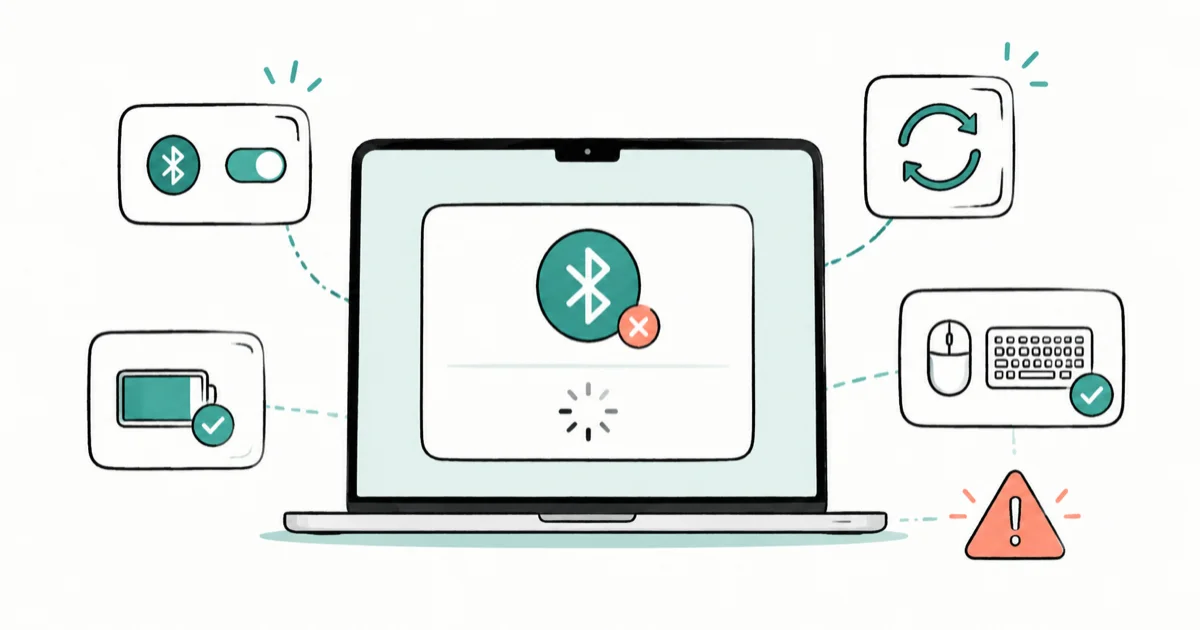
Quick AnswerBefore you forget a Bluetooth keyboard or mouse, make sure you have another way to control the Mac. Then clear the accessory pairing, re-pair it in macOS Bluetooth settings, and rule out battery and interference. Hidden-file resets are a last resort, not the main path.
Mac Bluetooth not working is uniquely frustrating because the fix often requires the very keyboard or mouse that just stopped responding. So the first rule isn’t a setting change at all: make sure you can still control your Mac before you remove anything. Once you’ve got a wired backup ready, the actual fix usually comes down to clearing a stale pairing or moving a device away from interference.
- Keep a wired keyboard or mouse plugged in before you forget any Bluetooth input device, or you can lock yourself out of your own Mac
- Forgetting and re-pairing a device clears a stale pairing record, which is the most common cause of a device that won’t connect
- An accessory already paired to a phone or tablet can refuse a Mac connection until you put it back in pairing mode
- Metal surfaces, USB 3 devices, and the crowded 2.4 GHz band cause the random disconnects that look like a Bluetooth failure
- Hidden Bluetooth file resets are a last resort, used only after pairing, battery, and interference checks come up empty
#Why Is Bluetooth Not Working on Your Mac?
Mac Bluetooth problems sort into a few causes, and the order you check them in matters more than usual because some fixes can leave you unable to operate the Mac.
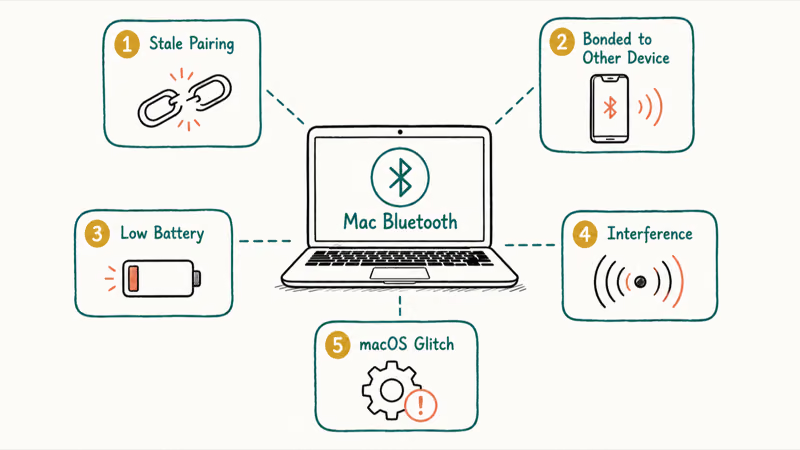
The common causes are a stale pairing record, an accessory still bonded to another device, a low battery, wireless interference, or a macOS-level Bluetooth glitch. The catch is that the keyboard and mouse you’d use to apply fixes may be the broken devices. That’s why the very first step is securing a backup input method, not diving into settings.
An accessory can also stay bonded to another device and grab the connection first.
Put the mouse or keyboard back into pairing mode and re-pair it to the Mac before resetting plist files.
According to Apple, common interference sources include power cables, microwave ovens, fluorescent lights, wireless video cameras, and cordless phones. Apple’s wireless interference guide states that a metal surface between a Bluetooth mouse and computer can cause it to perform poorly, rating metal as having very high interference potential, which is why device placement matters as much as software settings.
#Keep a Wired Input Backup Before Changing Settings
This is the step people skip, and it’s the one that turns a minor problem into a lockout.
Before you forget or unpair any Bluetooth keyboard, mouse, or trackpad, plug in a wired alternative. A cheap USB or USB-C keyboard and mouse, or even a wired keyboard you already own, gives you a guaranteed way to keep controlling the Mac if the Bluetooth fix goes sideways. On a MacBook, the built-in keyboard and trackpad serve as your backup, but on a Mac mini or Mac Studio with only Bluetooth peripherals, a wired option is essential.
If your built-in trackpad is also acting up alongside Bluetooth, sort that out first; the steps for a trackpad not working on Mac cover that specific case. The same goes for a misbehaving built-in keyboard, where a MacBook keyboard not working needs its own check. Secure your control method, then proceed.
#Forget and Re-Pair the Bluetooth Device
A stale pairing record is the single most common cause, and clearing it forces a clean reconnection.
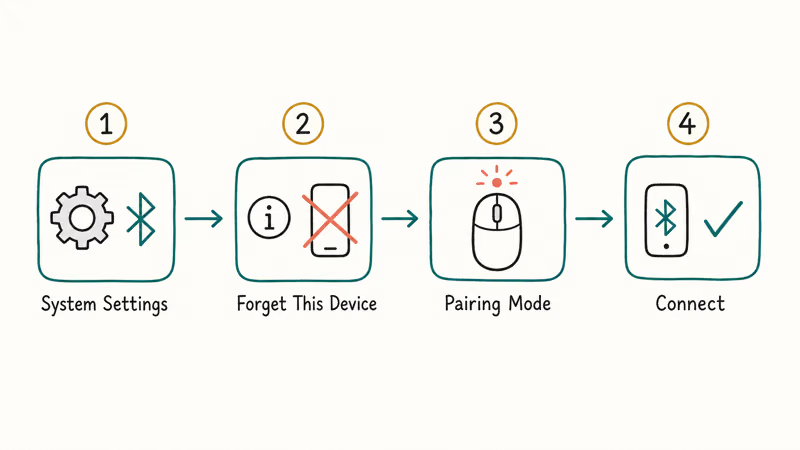
Go to Apple menu > System Settings > Bluetooth. Find the device that won’t connect, hover over it, click the i info button (or right-click), and choose Forget This Device. Then put the accessory into pairing mode following its own instructions, which usually means holding a button until a light flashes. Back in System Settings, the device should reappear in the list so you can click Connect.
Apple’s Mac Bluetooth pairing guide describes the standard flow: open Apple menu > System Settings, click Bluetooth in the sidebar, make sure the device is turned on and discoverable, then “hold the pointer over the device in the list, then click Connect.” If pairing asks for confirmation, click Accept or enter the numbers shown. Forgetting first matters because re-pairing over a corrupted record often fails where a fresh pair succeeds.
#What If Bluetooth Devices Disconnect Randomly?
A device that connects but keeps dropping is a different problem from one that won’t connect at all, and it usually points to interference or battery, not pairing.
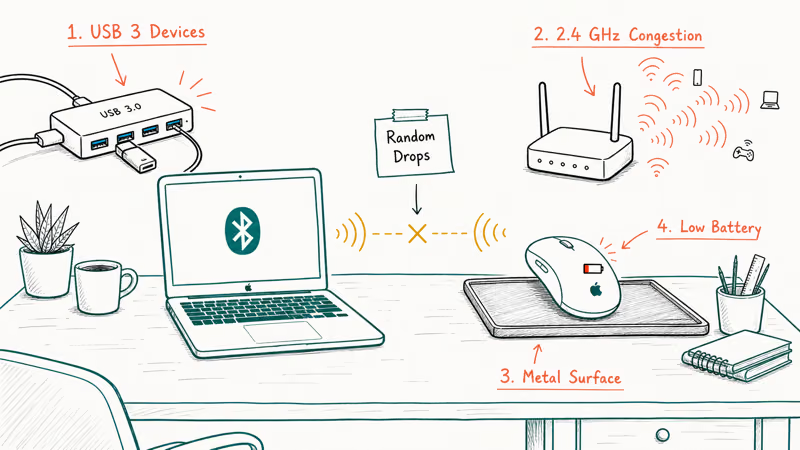
Random disconnects on the 2.4 GHz band that Bluetooth shares with Wi-Fi often trace to environment. Move USB 3 devices and hubs away from your Mac, since Apple specifically flags them as interference sources. Keep the device closer to the Mac and clear any metal between them. If your Mac Wi-Fi keeps disconnecting at the same time, that’s a strong signal of 2.4 GHz congestion affecting both radios at once.
Battery is the other frequent cause of drops. A low battery can make a mouse disconnect repeatedly, so check the battery level in the Bluetooth menu before assuming a deeper fault. Headphones and AirPods have their own quirks, and a separate guide handles AirPods not connecting to a Mac specifically.
#Check Battery, Interference, and Accessory Pairing Memory
Beyond random drops, three physical factors decide whether a Bluetooth device behaves, and all three are easy to overlook.
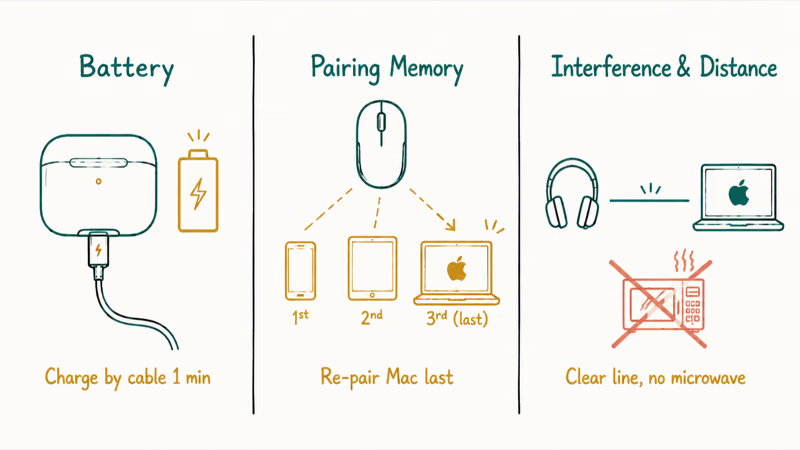
First, battery. A device that shows as connected but unresponsive is often just low on power. For an Apple accessory, Apple’s Magic Keyboard and Mouse connection guide suggests connecting it by cable for one minute to charge and re-establish the link before any software step.
Second, pairing memory. Many modern accessories remember multiple paired hosts and will silently reconnect to whichever one they saw last, which is why a mouse paired to your iPad keeps stealing itself away from the Mac. Re-pair it to the Mac last so the Mac is its most recent host.
Third, interference and distance. Keep about a clear line between the accessory and the Mac, away from microwaves, cordless phones, and fluorescent lights as Apple lists. If you connect Wi-Fi devices to your router’s 5 GHz band where possible, you free up the 2.4 GHz band that Bluetooth relies on, which Apple recommends for reducing collisions. These physical fixes resolve more flaky-connection cases than any reset.
#Update macOS and Test a New User Account
If pairing, battery, and interference are all clean and Bluetooth still misbehaves, two software checks isolate whether the problem is system-wide or account-specific.
Keep macOS current. Go to Apple menu > System Settings > General > Software Update and install anything pending, since Bluetooth driver fixes ship through macOS updates rather than the App Store. A known Bluetooth bug may already be patched in a release you haven’t installed yet. The broader symptom of Bluetooth simply not appearing at all has its own targeted steps when Mac Bluetooth is not available.
Then test a new user account. Create one in System Settings > Users & Groups, log in, and try pairing there. Success in the new account but not your main one means a corrupted profile setting.
If it fails in both accounts, the issue is system-level or hardware, and a hidden Bluetooth file reset becomes a reasonable last resort, done carefully and only at this stage. Persistent disconnects across accounts also affect non-Apple gear, which is why Android Bluetooth keeps disconnecting follows a similar diagnostic path.
#Bottom Line
Before you forget a Bluetooth keyboard or mouse, make sure you have another way to control the Mac, because the fix can lock you out otherwise. Then clear the accessory’s pairing, re-pair it last in macOS Bluetooth settings, and rule out battery, distance, and 2.4 GHz interference. Update macOS and test a clean user account before touching hidden plist files. Hidden-file resets are the final move, not the consumer starting point.
#Frequently Asked Questions
Why is Bluetooth not working on my Mac?
The usual causes are a stale pairing record, an accessory still bonded to another device like a phone, a low battery, or 2.4 GHz interference from nearby electronics. A connection that won’t form at all points to pairing or battery, while a connection that forms and then drops repeatedly points to interference or a fading battery, so the symptom itself tells you which bucket to start in before you change a thing.
What should I check first?
Make sure you have a wired keyboard or mouse on hand so you can still control the Mac.
Can a macOS update cause Bluetooth to stop working?
Yes, both ways. An update can introduce a temporary Bluetooth bug, and a later update can fix it. If Bluetooth broke right after an update, check Software Update for a newer release, since driver fixes arrive through macOS rather than the App Store, which makes an outdated system worth ruling out early.
Will forgetting a device delete any of my data?
No. Forgetting a device only removes its pairing record; your files and settings are untouched.
When should I contact official support?
Contact Apple if a device fails to pair in a clean test user account even after a macOS update, or if your Mac shows no Bluetooth hardware at all. Failure across separate user accounts with current software usually points to a hardware fault that only a service visit can confirm and repair.
How do I prevent this from happening again?
Keep accessory batteries charged and re-pair a device to the Mac last so the Mac stays its most recent host.

macOS 27 Compatible Macs: Every Supported Model (2026)
macOS 27 Golden Gate runs only on Apple Silicon Macs. Here is the full list of supported M-series models and the four Intel Macs that lose support.

macOS 27 Golden Gate: Every Major New Feature Confirmed
macOS 27 Golden Gate goes Apple Silicon only, adds a Gemini-powered Siri, refines Liquid Glass, and rebuilds Spotlight. Here is every confirmed change.

macOS 27 Liquid Glass: Every Readability Fix Explained
macOS 27 Golden Gate refines Liquid Glass with an intensity slider, better contrast, cleaner window corners, and edge-to-edge sidebars to fix readability.

macOS 27 Performance: What Golden Gate Makes Faster
macOS 27 Golden Gate speeds up AirDrop, network file browsing, Safari, and Spotlight, with core system improvements on the Apple Silicon-only release.