How to Manage Login Items on Mac for a Faster Boot
Stop apps from opening at startup on your Mac. Manage Login Items and Allow in the Background in System Settings, and learn what is safe to disable.
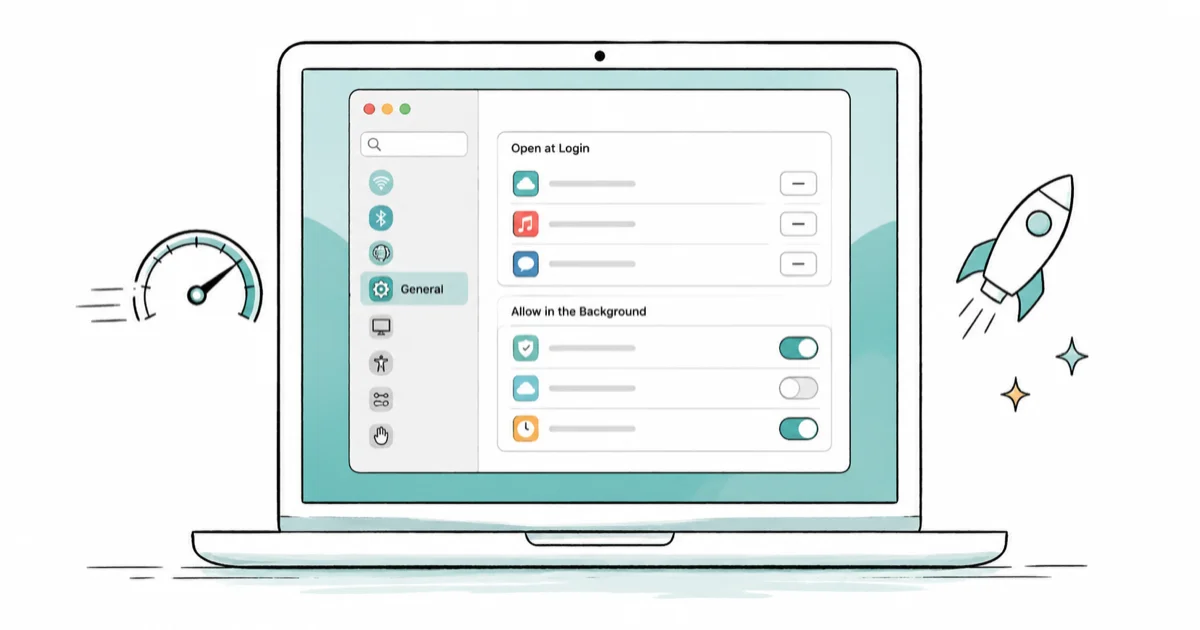
Quick AnswerOpen System Settings, go to General, then Login Items and Extensions. Remove apps under Open at Login with the minus button, and toggle off unwanted entries under Allow in the Background. This speeds up startup without uninstalling the apps.
Learning how to manage login items on Mac is the quickest win for a machine that takes too long to feel usable after you sign in. Every app that launches at login steals a slice of startup, and many of them you never asked for. Trimming a cluttered login list can make the desktop feel usable sooner.
- Login Items live in System Settings under General, then Login Items and Extensions, split into Open at Login and Allow in the Background
- Removing an app from Open at Login stops it launching at startup but does not uninstall it
- Background helper items, the launch agents Apple started surfacing in Ventura, are the hidden culprits behind slow boots
- Safe to disable: third-party updaters and cloud-sync helpers you rarely use; leave macOS system items alone
- On older macOS the same controls live under System Preferences, Users and Groups, Login Items
#What Are Login Items and Background Items?
Login items are programs your Mac launches automatically the moment you sign in. Some you chose, like a password manager. Many you didn’t, because installers quietly add themselves so they’re “ready” the next time you need them.
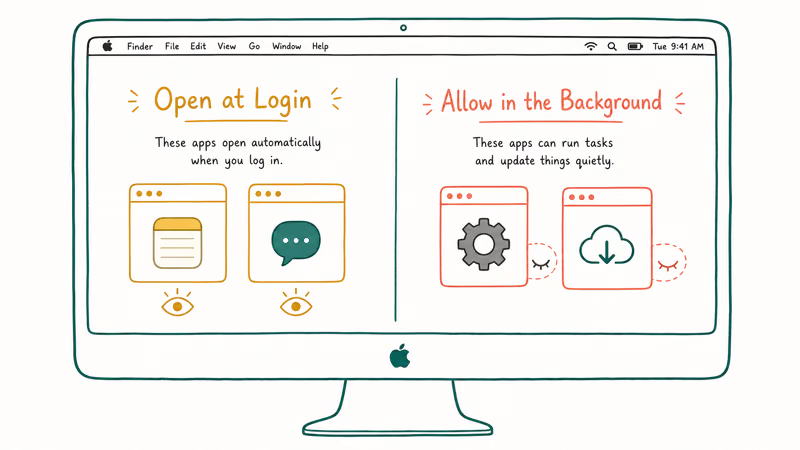
There are two distinct kinds, and the split matters. Apple’s Login Items guide states that you can have “apps, documents, folders, or server connections, open automatically when you log in.” These are the visible Open at Login apps.
The second kind is sneakier. Background items are helper processes, the launch agents and daemons that updaters and sync tools register, and macOS began listing them openly in Ventura. They don’t open a window, so you never see them, yet they run from the moment you log in and quietly eat memory and battery in the background while you work.
#How Do You Remove Apps That Open at Login?
Open System Settings, click General in the sidebar, then click Login Items and Extensions. The top section, Open at Login, lists every app set to launch at sign-in.
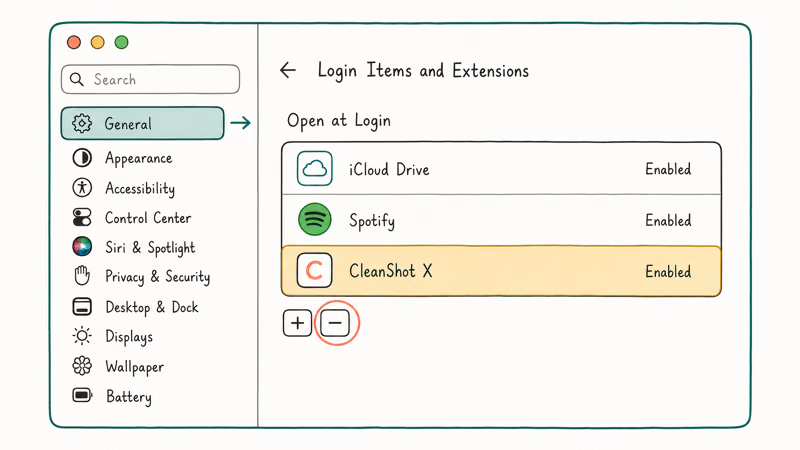
To stop one, select it and click the minus button beneath the list. That’s it. The app stays installed and you can open it any time by hand; you’ve only told macOS to stop launching it for you. To add an app deliberately, click the plus button and pick it from Applications.
Removing unused apps from Open at Login can make the desktop usable sooner, with no downside for apps you can still open normally on demand.
#Managing the Allow in the Background List
Below Open at Login sits the more powerful section. The Allow in the Background list shows helper items grouped by the app that installed them, each with a toggle.
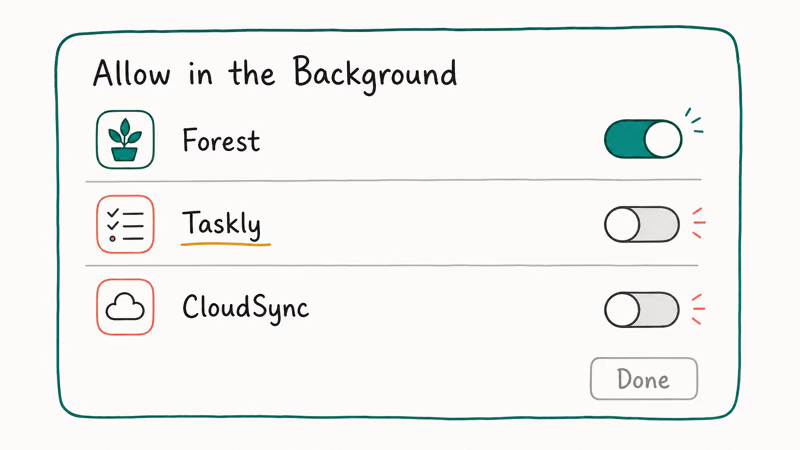
Apple’s Login Items and Extensions settings guide states that to change these you “click next to an option, turn the option on or off, then click Done.” Flipping a toggle off stops that background helper from running at login.
This is where the real speed and battery savings hide. An updater checking for versions, a cloud client syncing constantly, a utility for a device you rarely plug in: each runs invisibly until you switch it off. Switching off unnecessary background helpers reduces what starts at login, which can help a Mac whose battery drains fast calm down.
#Which Items Are Safe to Disable
The honest answer is that most third-party helpers are safe to switch off, while macOS system items should stay on. A good rule: if you recognize the app and don’t need it running constantly, disabling its background item is low-risk. Apple’s deployment guide to login items and background tasks confirms that since macOS 13 Ventura, these background tasks are surfaced for users to manage rather than hidden, which is why the list suddenly looks longer than you remember.
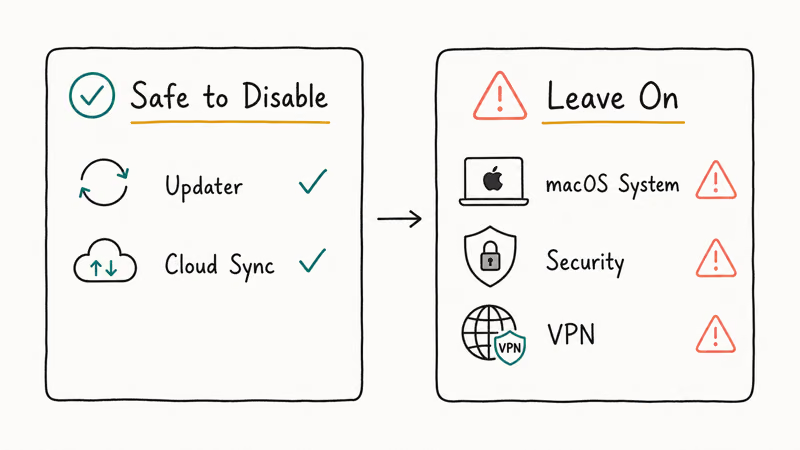
Updaters are the first to go. A third-party updater that runs all day can be switched off, and you simply update the app manually now and then. Cloud-sync helpers for services you rarely use are next, though leave the one for the service you depend on alone, or files will stop syncing live.
Be cautious with anything you don’t recognize or anything labeled as part of macOS. If a toggle controls a security tool, a VPN you actually use, or a system component, leave it on. When in doubt, disable one item, restart, and confirm nothing you care about broke before moving to the next. A Mac that has felt sluggish since a macOS update can sometimes trace back to a helper that re-enabled itself, so it’s worth a second look here.
#Older macOS and Hidden Startup Agents
If your Mac runs an older macOS without the Login Items and Extensions panel, the controls live elsewhere. Open System Preferences, click Users and Groups, select your account, then open the Login Items tab. The list works the same way, with plus and minus buttons to add or remove startup apps.
There’s also a one-click shortcut. Right-click an app’s icon in the Dock, hover Options, and you’ll see Open at Login with a checkmark when it’s enabled. Click it to toggle that single app without opening Settings.
#When Login Items Are Not the Whole Story
After trimming the list, a Mac that still feels sluggish may have a different problem. Login items affect startup; they don’t explain slowness hours into a session. If the lag persists once you’re working, the cause is more likely storage pressure, runaway caches, or an app misbehaving rather than anything launching at sign-in.
The guides to clearing caches on a Mac and freeing up space cover the storage angle.
If the machine actually crashes or freezes rather than just dragging, that points somewhere else entirely. Login items aren’t your fix for that.
#Bottom Line
Start in System Settings, General, Login Items and Extensions, and clear out the Open at Login apps you never asked to launch. Then work down the Allow in the Background list and switch off the third-party updaters and sync helpers you don’t actively need, since that section holds most of the hidden boot and battery cost. Leave macOS system items and security tools alone. The payoff is a Mac that reaches a responsive desktop faster every time you sign in.
#Frequently Asked Questions
Does removing a login item uninstall the app?
No. Removing an app from Open at Login only stops it launching automatically at sign-in. The app stays fully installed and opens any time from Applications. You’re changing a preference, not deleting anything.
What’s the difference between Open at Login and Allow in the Background?
Open at Login lists full apps that launch with a window when you sign in. Allow in the Background lists invisible helper processes that run with no window at all. The background items are usually the bigger drain, so review them first.
Is it safe to turn off background items?
Most third-party background items are safe to disable, especially updaters and sync helpers for services you rarely use. Leave anything labeled as part of macOS, plus security tools and a VPN you actually use, switched on. If unsure, turn one off, restart, and confirm nothing you depend on stopped working.
Why does my Mac take so long to start up?
A long list of login and background items is the most common cause of a slow startup. Each one adds work the moment you sign in, and a dozen competing for the CPU and disk at once is what makes the first minute feel frozen. Trimming both lists usually produces an immediate, visible improvement, often the single biggest speed change you can make for free.
How do I add an app to open at login?
Open System Settings, General, Login Items and Extensions, then click the plus button under Open at Login and choose the app. Alternatively, right-click the app’s icon in the Dock, hover Options, and click Open at Login. Both methods do the same thing.
Where are login items on older macOS versions?
On macOS before the Login Items and Extensions panel, open System Preferences, click Users and Groups, select your account, and open the Login Items tab. You add and remove startup apps there with the plus and minus buttons, just like the newer interface.

macOS 27 Compatible Macs: Every Supported Model (2026)
macOS 27 Golden Gate runs only on Apple Silicon Macs. Here is the full list of supported M-series models and the four Intel Macs that lose support.

macOS 27 Golden Gate: Every Major New Feature Confirmed
macOS 27 Golden Gate goes Apple Silicon only, adds a Gemini-powered Siri, refines Liquid Glass, and rebuilds Spotlight. Here is every confirmed change.

macOS 27 Liquid Glass: Every Readability Fix Explained
macOS 27 Golden Gate refines Liquid Glass with an intensity slider, better contrast, cleaner window corners, and edge-to-edge sidebars to fix readability.

macOS 27 Performance: What Golden Gate Makes Faster
macOS 27 Golden Gate speeds up AirDrop, network file browsing, Safari, and Spotlight, with core system improvements on the Apple Silicon-only release.