iPhone Stuck on Apple Logo: Safe Recovery Steps (2026)
Distinguish a moving progress bar from a static Apple logo, then use current Apple force-restart, Recovery Mode, backup, and service guidance.
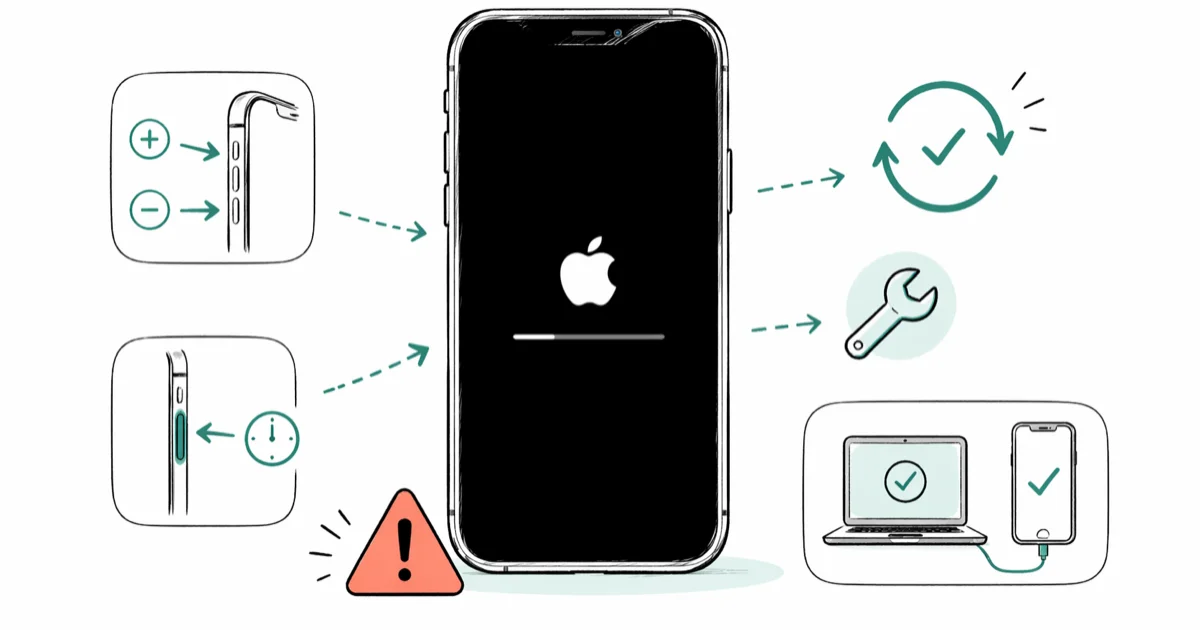
Quick AnswerIf a restore-or-migration progress bar has not moved for one hour, use Recovery Mode. For a static logo with no bar, force restart first; if it returns, choose Update before destructive Restore.
An Apple logo can appear during normal startup, an update, a restore, or migration. The correct next step depends on whether a progress bar is present and moving, so don’t force restart an active installation based on a generic timer.
Only follow this guide for your own iPhone or with the owner’s explicit permission. Using recovery to access another person’s device without consent can violate privacy laws. Recovery and Restore don’t bypass the passcode or Activation Lock.
- A moving progress bar can be normal during an update, restore, or migration
- Apple’s one-hour no-movement rule applies specifically to the restore-or-migration progress-bar case
- For a static logo with no progress bar, try the model-specific force restart
- If the logo returns, use Recovery Mode and choose Update first when it’s offered
- Restore erases the iPhone; a device that can’t update or restore may need service
#1. Is There a Progress Bar?
According to Apple’s stuck-progress-bar article, confirm that an Apple-logo progress bar after restoring a backup or migrating from another device hasn’t moved for at least one hour before using Recovery Mode.
That is not a universal “Apple logo” timer. If the bar is still moving, allow the process to continue. If the screen shows only a spinning indicator, use the spinning-wheel guide. If the phone shuts down and restarts repeatedly, use the restart-loop guide.
A static Apple logo with no progress bar is one of the conditions in Apple’s current Recovery Mode guidance. Continue with a force restart first.
#2. Force Restart a Static Apple Logo
A force restart does not erase the iPhone.
iPhone 8 or later, including iPhone SE (2nd generation or later):
- Press and quickly release Volume Up.
- Press and quickly release Volume Down.
- Hold the Side button until the Apple logo appears.
iPhone 7 or iPhone 7 Plus: Hold the Side button and Volume Down together until the Apple logo appears.
iPhone 6s or earlier, including iPhone SE (1st generation): Hold the Home button and the Side or Top button together until the Apple logo appears.
According to Apple’s force-restart article, the logo is the release cue and can take longer than ten seconds to appear on Face ID models. Don’t rely on an unsupported universal timing sequence or promise that this fixes most cases.
If the same static logo returns, continue to Recovery Mode.
#3. Connect to the Correct Computer App
Use a known-good data cable and open:
- macOS Catalina or later: Finder
- Windows: Apple Devices; use iTunes only if Apple Devices is not installed
- macOS Mojave or earlier: iTunes
Keep the iPhone connected. Apple’s current Recovery Mode guide provides these model-specific entry steps.
iPhone 8 or later: Press and release Volume Up, press and release Volume Down, then hold the Side button past the Apple logo until the Connect to computer screen appears.
iPhone 7 or iPhone 7 Plus: Hold the Side or Top button and Volume Down until the Connect to computer screen appears.
iPhone 6s or earlier: Hold the Home button and the Side or Top button until the Connect to computer screen appears.
The related Recovery Mode guide explains cable, port, and app checks if the computer does not recognize the device.
#4. Should You Choose Update or Restore?
When the computer offers Update or Restore, choose Update first if it’s available. Apple says Update attempts to reinstall the current compatible iOS version while keeping personal data.
Update is not a guarantee. If it fails and only Restore remains, confirm whether a usable backup exists before proceeding. Apple’s computer restore article states that Restore erases the iPhone’s information and settings and installs the latest compatible iOS version. Read what Restore does before clicking it.
Don’t tell readers that Recovery Mode itself erases data. The destructive boundary is the Restore action.
#5. Let a Long Software Download Finish
According to Apple’s current Recovery Mode guide, if the software download takes more than 15 minutes and the iPhone leaves the Connect to computer screen, let the download finish and then repeat the sequence.
The 15-minute value describes when the device can exit the screen. It’s not a promised total repair time, and it doesn’t mean a faster internet connection prevents every failure.
#6. Handle Computer Errors Before Repeating Restore
Update the Mac or Apple Devices app, try another known-good cable and USB port, and use Apple’s guidance for any named error. The error 4013 guide covers one specific computer error.
If Finder, Apple Devices, or iTunes still can’t update or restore the iPhone, use the iPhone-won’t-restore guide and contact Apple or an authorized service provider. Apple’s current Recovery Mode page says a device that can’t update or restore may need service.
Don’t move from a failed Recovery Mode attempt to an unsourced DFU timing diagram or a paid “no data loss” guarantee.
#7. Back Up and Check Storage After Recovery
Once the iPhone starts normally, create a current backup. Apple’s iCloud backup guide gives the manual path Settings > [your name] > iCloud > iCloud Backup > Back Up Now and says to stay connected to Wi-Fi until it finishes.
Before a future update, review Settings > General > iPhone Storage. Apple’s update troubleshooting article requires enough available storage, power, and internet access but does not publish one universal free-space amount or battery percentage that prevents an Apple-logo stall.
Don’t state that interrupted Wi-Fi, skipped versions, jailbreaking, or low storage is the cause of a particular stuck logo unless the device provides evidence for it.
#8. Separate a Black Screen From a Stuck Logo
If the logo disappears and the display stays fully black, follow the black-screen power and charging checks. A phone with no visible logo or progress bar is not in the same state as a phone displaying a static logo.
Physical damage, liquid exposure, abnormal heat, or a computer that never detects the iPhone can justify service sooner. Don’t infer a specific failed part remotely.
#Bottom Line
Wait while a progress bar is moving. For Apple’s restore-or-migration case, act only after the bar has not moved for at least one hour. For a static Apple logo with no bar, force restart first; if it returns, use Recovery Mode and choose Update before Restore. Restore erases the iPhone, and a device that can’t update or restore may need service.
#Frequently Asked Questions
How long should I wait on an Apple logo?
There isn’t one timer for every Apple-logo screen. Apple’s sourced one-hour rule applies to a restore-or-migration progress bar that has not moved. A static logo with no bar follows the force-restart and Recovery Mode flow.
Does a force restart erase data?
No. A force restart restarts the device without erasing personal data. Restore through a computer is the destructive action.
Will Update always keep my data?
Update attempts to reinstall iOS while keeping personal data, but it’s not a guarantee. Check for a usable backup before any troubleshooting that could lead to Restore.
Should I use DFU Mode after Recovery Mode fails?
Apple’s current consumer Recovery Mode page says a device that can’t update or restore may need service. It does not provide one universal DFU timing sequence as the next supported step, so this guide does not invent one.
How much storage prevents a stuck Apple logo?
Apple requires enough available storage for an update but does not publish one amount that prevents every startup problem. Use the storage screen and the device’s own recommendations.
Can third-party software guarantee no data loss?
No verified source on this page supports that promise. Compare any vendor claim with Apple’s Update and Restore boundaries and assume important data is at risk unless you have a usable backup.

Mac mini M6 vs M5 Pro: Which Model Should You Buy?
Mac mini M6 vs M5 Pro compared on price, memory, ports, displays, and real workloads. Find the better 2026 Mac mini for your desk and budget.

Apple Siri Settlement: Who Qualifies and How to Claim
Apple's $250 million Siri settlement covers iPhone 15 Pro and iPhone 16 models bought June 2024 to March 2025. See who qualifies and how claims work.

iOS 26.6.1 Security Update: What Apple Fixed and Who Gets It
Apple released iOS 26.6.1 on August 17 with 29 security fixes, including an IPSec interception bug. See what it patches, who gets it, and how to update.

iPhone Adaptive Power: How It Works and When to Use It
Learn how iPhone Adaptive Power works, which models support it, what it changes, and when Low Power Mode is still the better battery-saving choice.