Mac Slow After macOS Update? What Is Normal vs Fixable
Mac slow after a macOS update? Most of it is Spotlight reindexing for a day or two. Here is what is normal, what is fixable, and the order to fix it.

Quick AnswerA Mac is usually slow after an update because Spotlight is reindexing in the background. Give it 24 to 48 hours plugged in. If it is still slow, check launch agents, free up storage, and restart.
If your Mac is slow after a macOS update, the cause is almost always Spotlight reindexing every file on the drive in the background. The visible clue is mdworker processes pegging the CPU after the update, then settling once indexing finishes.
That part is normal. The trick is knowing when slowness is the expected post-update reindex versus a real problem you can fix. This guide separates the two, then gives you an ordered checklist for the fixable half.
- Most post-update slowness is Spotlight reindexing, which can run 24 to 48 hours and is expected, not a fault.
- Keep the Mac plugged in and awake during the first day so indexing finishes faster.
- Check Activity Monitor for mdworker processes to confirm indexing is the cause before changing anything.
- Low free storage makes every update slow; macOS needs roughly 10 percent of the drive free to run well.
- Older hardware truly slows down on newer macOS versions, and that part won’t improve with a cleanup.
#Why Is Your Mac Slow Right After an Update?
A fresh macOS update triggers a full Spotlight reindex. The system rebuilds its search database from scratch, cataloging every file, app, and email on the drive so that search works instantly once the job is done. That rebuild is heavy, it runs entirely in the background, and it makes the whole machine feel sluggish for as long as it lasts.
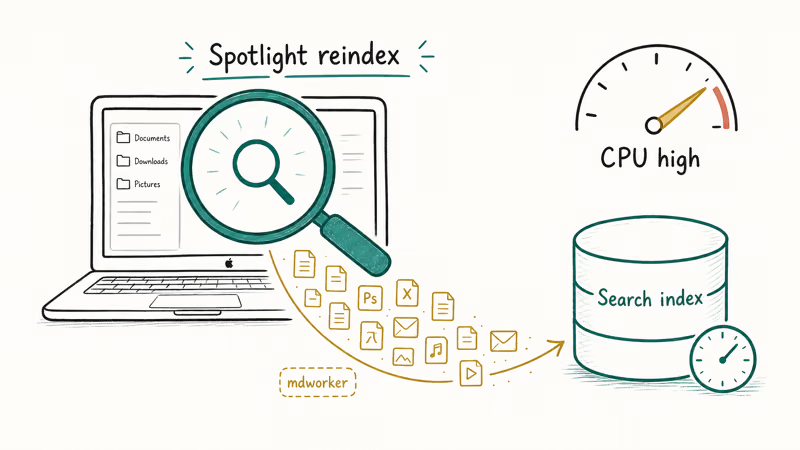
This is the single most common reason. It’s also the easiest to confirm.
Open Activity Monitor, click CPU, and type mdworker in the search box. Those processes churning means your Mac is reindexing, not broken.
During a normal reindex, the activity stays high until the index finishes, then drops off.
A reindex is not the only update-time tax. macOS also recompiles caches, verifies system files, and sometimes re-downloads optimized photos, all competing for the same CPU and disk for a day or so.
#Confirm the Cause Before You Touch Anything
Resist the urge to start deleting things. Confirm first.
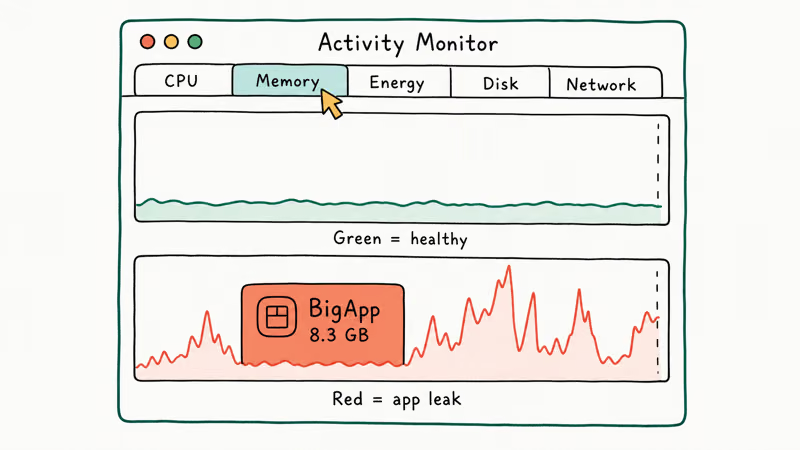
The fastest confirmation is Activity Monitor > Memory, where a healthy Mac shows green memory pressure even while indexing. If pressure is red and an app is hogging gigabytes, that app, not the update, is your problem. Apple’s If your Mac runs slowly guide recommends checking memory and disk before assuming the OS is at fault.
Only then should you act. Reindexing wants patience, an app leak wants a quit, low storage wants a cleanup. Treating all three the same wastes an afternoon.
#How Long Should the Slowness Last?
Plan for 24 to 48 hours. On a Mac with a large drive and lots of files, the first full reindex after a major update really does take that long, and there is no safe way to rush it without breaking the index.
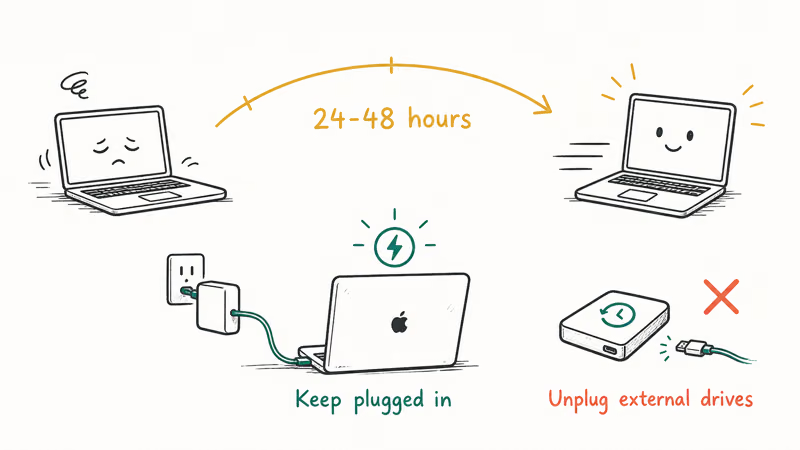
Keep the Mac plugged in. Indexing is a background job, so macOS throttles it hard on battery, and short bursts between sleeps drag it out for days.
Disconnect external drives during that window. A Time Machine drive or a media-heavy external can balloon the reindex, because Spotlight tries to catalog those too. Unplug everything except power and let the internal drive finish first.
If two full days pass and the Mac is still crawling, the reindex is no longer your explanation. Move to the fixable checklist below.
#The Fixable Checklist After the Reindex
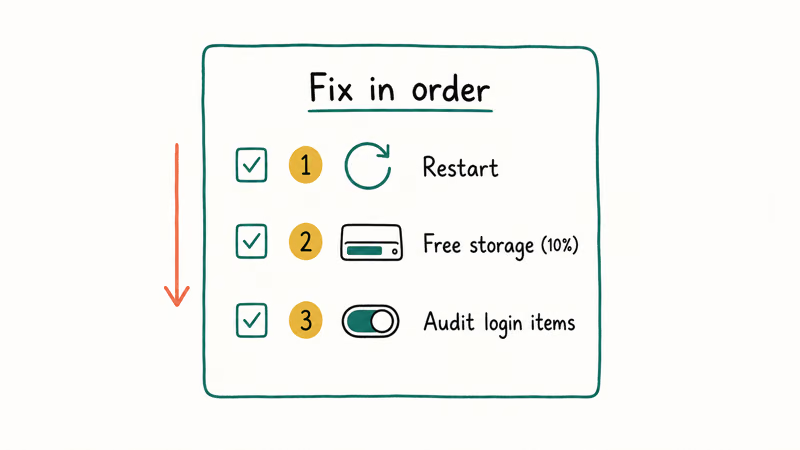
Once you have ruled out a normal reindex by confirming mdworker has gone quiet, work through the steps below in order, because each one targets a different cause and every one of them is reversible if it does not help. Start at the top and stop the moment the Mac feels normal again.
#Restart and Force a Clean Reindex
A restart clears stalled indexing states that can loop forever. Reboot, then give Spotlight 15 minutes to settle before judging.
If search itself is broken rather than just slow, the index may be corrupt. Apple’s Rebuild the Spotlight index page states that you can force a clean rebuild by briefly adding your startup disk to the Spotlight Privacy list, then removing it. The deeper walkthrough on what to do when Mac Spotlight is not working covers the exact steps and the one mistake that leaves search disabled forever.
#Free Up Storage
A nearly full drive makes every operation slow. Updates suffer most.
Apple’s Free up storage space on Mac page confirms that 1 catch-all System Data category quietly absorbs the caches and snapshots that pile up after every update.
The guide on how to free up space on Mac walks the storage bar slice by slice, and the companion piece on how to clear System Data storage on Mac handles the gray slice specifically.
#Audit Launch Agents and Login Items
Updates sometimes re-enable startup items you had disabled, or a third-party app installs a new background agent. Both eat CPU at login.
Open System Settings > General > Login Items & Extensions and disable anything you don’t recognize. Boot into Safe Mode to confirm: if the Mac is fast there, a login item is your culprit.
#Telling Hardware Limits From Software Bloat
Sometimes the honest answer is the hardware. A newer macOS asks more of the CPU, GPU, and memory than the version it replaced, and an older Mac feels that gap permanently, well after the reindex finishes and every cleanup trick has been tried. The software is not failing; it has simply outgrown the machine, and no amount of disk-clearing rolls back the demands a new release places on silicon that shipped years ago.
Here is the test. If the slowness persists after the reindex finishes, storage is healthy, and login items are clean, and it’s worst during everyday tasks rather than at startup, you are likely hitting a hardware ceiling. No cleanup reverses that.
That does not mean the Mac is finished. Closing memory-hungry browser tabs, disabling visual effects, and keeping 20 percent of the drive free all help an aging machine stay usable. The MacBook battery draining fast guide covers the same background-process pressure from the power angle, and the broader guide on a slow macOS collects every speed fix in one place.
If you have not updated yet and you are reading this to decide whether to, the guide on whether to update to macOS Tahoe weighs the new features against the reindex tax on older hardware.
#When a Clean Reinstall Is Worth It
A reinstall is the last resort, not a first move. Try everything above first.
If the Mac is still slow after the reindex finishes, storage is healthy, login items are clean, and Activity Monitor shows no runaway app, a botched update is the rare remaining suspect. Back up with Time Machine, then reinstall macOS over the top from Recovery mode by holding the power button on Apple silicon or Command-R on Intel. This keeps your files and replaces only the system, which fixes a corrupt update install without wiping the drive.
Reserve a full erase-and-restore for a Mac that misbehaves even after the in-place reinstall. That is rare, and on older hardware it usually confirms a limit rather than a fix.
#Bottom Line
For the first 24 to 48 hours after an update, do nothing but keep the Mac plugged in and let Spotlight finish; that resolves the majority of post-update slowness on its own. If it’s still slow after two days, restart, free up storage to at least 10 percent, and audit login items in that order. Only conclude it’s hardware after the reindex is done and storage is healthy, because that is the one cause a cleanup can’t fix.
#Frequently Asked Questions
How long does a Mac stay slow after a macOS update?
Usually 24 to 48 hours while Spotlight reindexes the drive. A larger drive sits at the longer end. Keep the Mac plugged in to finish faster.
How do I know if Spotlight is the reason my Mac is slow?
Open Activity Monitor, click the CPU tab, and search for mdworker. If those processes are using significant CPU, Spotlight is actively reindexing and that is your answer. Once mdworker activity drops to near zero, the reindex is done, and any remaining slowness points to a different cause.
Should I disable Spotlight to speed up my Mac?
No. Disabling Spotlight stops the reindex but breaks search, Siri suggestions, and several system features that lean on the index, and because the reindex is a one-time tax rather than an ongoing drain, you would be trading a day of slowness for permanently broken search across the whole system. Let it finish instead. If search stays broken after indexing completes, rebuild the index cleanly rather than disabling it, which fixes the corruption without losing the feature.
Will a macOS update permanently slow down an old Mac?
It can. Each new macOS version expects more from the hardware, so a Mac several years old runs the newest release slower than it ran the version it shipped with. A cleanup helps at the margins, but it won’t erase a real hardware gap, which is why deciding whether to update at all matters on older machines.
Why is my Mac slow only at startup after the update?
That pattern points to login items, not the reindex. Updates sometimes re-enable startup apps that compete for CPU the moment you log in. Review them in System Settings, and test in Safe Mode to confirm.
Is it safe to use my Mac while it reindexes after an update?
Yes, completely. Reindexing is a background job, and you can browse, write, and work normally while it runs, though everything feels a step slower. The only thing that reliably speeds it up is keeping the Mac plugged in and awake, so the system stops throttling the indexer to save battery.

macOS 27 Compatible Macs: Every Supported Model (2026)
macOS 27 Golden Gate runs only on Apple Silicon Macs. Here is the full list of supported M-series models and the four Intel Macs that lose support.

macOS 27 Golden Gate: Every Major New Feature Confirmed
macOS 27 Golden Gate goes Apple Silicon only, adds a Gemini-powered Siri, refines Liquid Glass, and rebuilds Spotlight. Here is every confirmed change.

macOS 27 Liquid Glass: Every Readability Fix Explained
macOS 27 Golden Gate refines Liquid Glass with an intensity slider, better contrast, cleaner window corners, and edge-to-edge sidebars to fix readability.

macOS 27 Performance: What Golden Gate Makes Faster
macOS 27 Golden Gate speeds up AirDrop, network file browsing, Safari, and Spotlight, with core system improvements on the Apple Silicon-only release.