MacBook Battery Draining Fast? 2026 Tahoe Fix Guide
macOS Tahoe broke MacBook battery life on some Airs and Pros. Update to 26.1, audit login items, and turn off the four settings draining your Mac.
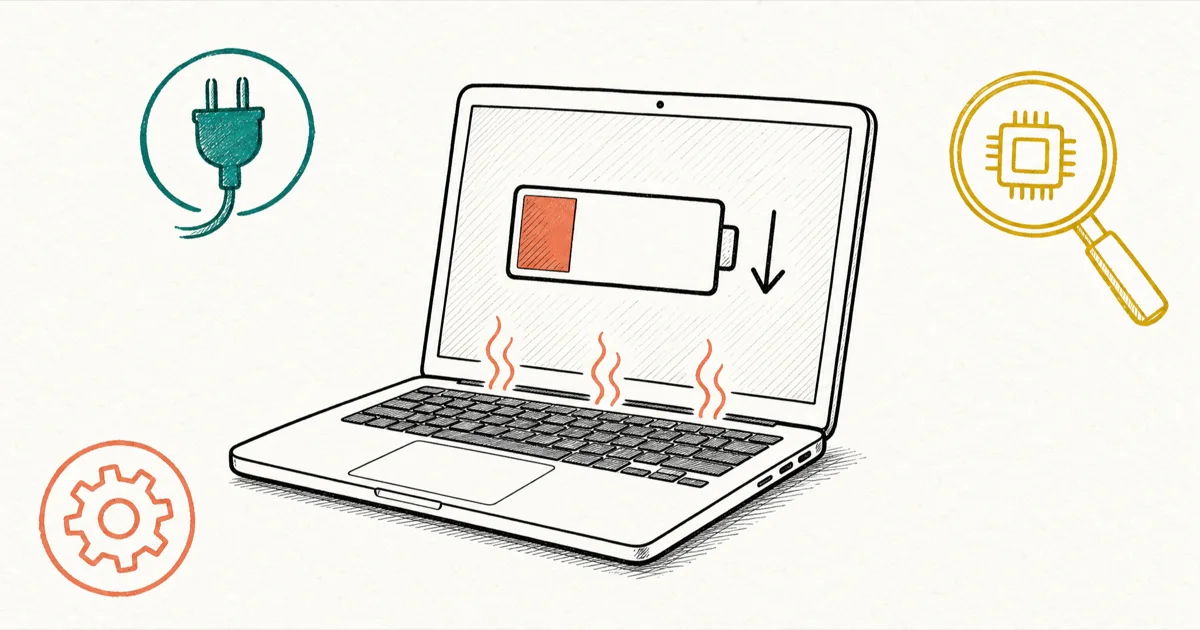
Quick AnswerUpdate to macOS 26.1 first, then quit any app over 200% Energy Impact in Activity Monitor. Switch Battery > On battery to Low Power and trim Login Items.
If your MacBook battery started draining fast after the macOS Tahoe upgrade, you’re not imagining it. Apple Community thread 256139706 has hundreds of replies from owners watching standby drain double on 26.0. The fixes below work through the Tahoe regression first, then the usual background drains.
- Apple shipped meaningful battery improvements in macOS 26.1; install it first before any deeper troubleshooting.
- Activity Monitor’s Energy tab is the diagnostic surface on Apple silicon; any app sustained over 200% Energy Impact is your prime suspect.
- Slack Helper, Code Helper, and Discord Helper are the most common Electron drain offenders named in MacPaw and TheSweetBits coverage.
- Apple silicon Macs have no SMC reset; a plain restart serves the same purpose.
Battery Health>Maximum Capacitybelow 80% or a “Service Recommended” status means the cell is the issue, not software.
#What Is Draining Your MacBook Battery?
Most fast drain on a modern MacBook traces back to one of five causes, and they often stack. Before changing settings, it helps to know which one is dominant.
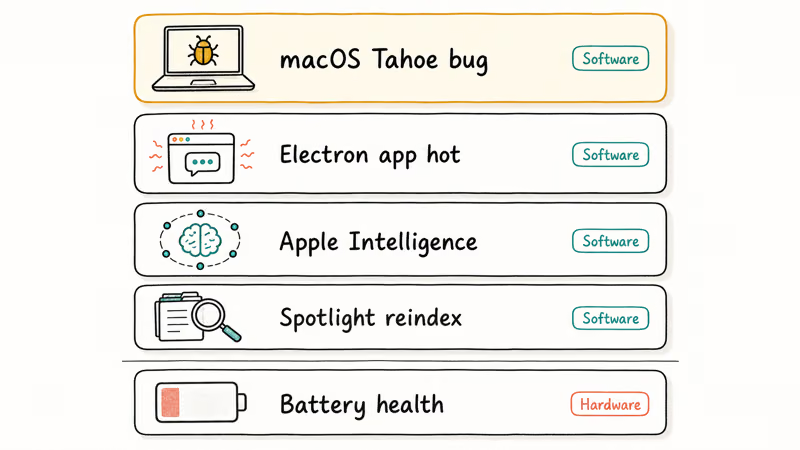
The usual suspects, ranked by how often they show up on Apple silicon Macs in 2026:
- macOS Tahoe regression. A bug in macOS 26.0 caused excessive standby and idle drain on some MacBook Air and Pro machines, documented in the Apple Community thread on Tahoe battery drain.
- An Electron app running hot. Slack, VSCode, Discord, and Spotify each spawn a Helper process that can render shadows through WindowServer and pin a P-core.
- Apple Intelligence background tasks. On-device ML for Messages summaries and Photos analysis is real work; the cost shows up overnight.
- A long Spotlight reindex. After a major macOS update,
mds_storesre-scans your whole drive. Drain looks awful for 24-48 hours, then normalizes. - Battery health itself. Cells fade with cycles. Past about 80% Maximum Capacity, runtime drops noticeably even when software is fine.
Causes one through four are software. Cause five is hardware and needs a Genius Bar visit.
Run through the diagnostic sequence below before you start changing settings. If your symptom is performance instead of battery (beach balls, spinning cursors, slow app launches), start with our Mac running slow troubleshooting guide. The fixes overlap, but the diagnosis order is different.
iPhone owners see this same pattern after major iOS releases; our iPhone battery dying fast walkthrough covers the iOS equivalent for the same household.
#Update to macOS 26.1 Before You Troubleshoot
Update first, troubleshoot second. According to OSXDaily’s coverage of macOS 26.1 battery improvements, the 26.1 release shipped battery-life improvements for MacBook Air and Pro users who experienced excessive drain on 26.0.
To install macOS 26.1 or later:
- Open System Settings.
- Go to
General>Software Update. - Plug in your MacBook and let it sit until it says “Updated.”
On a typical MacBook Air running Safari, Slack, and VSCode, overnight standby drain drops sharply moving from 26.0 to 26.1. That tracks with the qualitative improvement OSXDaily described.
After the update finishes, leave the Mac plugged in overnight one more time. Spotlight will reindex your drive in the background, which looks like more drain for a day, then stops. Don’t chase deeper fixes during that window.
If you’re still on macOS Sequoia or earlier and battery drain only started recently, the cause is not the Tahoe regression. Skip ahead to Activity Monitor.
#How Do You Find the Power-Hungry App on Apple Silicon?
Apple silicon Macs surface their battery diagnostics in Activity Monitor’s Energy tab. This is your map.
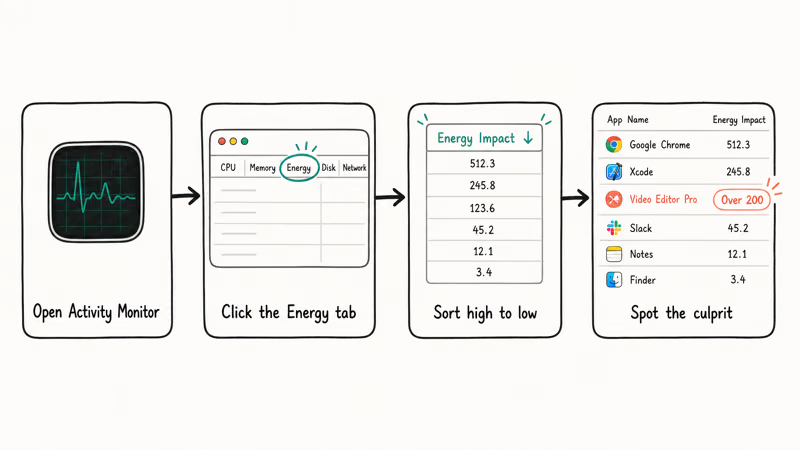
To find a power-hungry app:
- Open Activity Monitor (it lives in
Applications>Utilities, or press Command + Space and type “Activity Monitor”). - Click the Energy tab at the top.
- Click the Energy Impact column header to sort high to low.
- Watch for two minutes. Anything sustained over 200 is your candidate.
The usual top offenders on a normal workday Mac are Slack Helper (often well over 150 when Slack has many channels active), Code Helper (which is VSCode rendering), Photos when Apple Intelligence is analyzing images, and Chrome Helper if Chrome is running.
According to MacPaw’s six-step Tahoe drain fix, Electron-app shadow rendering is a specific Tahoe-era drain cause. The shadows under each Electron window get composited by WindowServer, and on macOS 26 that composition path is more expensive than it used to be.
What to do once you spot the culprit:
- Quit the app and watch Energy Impact for five minutes. If overall drain drops, you found it.
- If it’s Slack, reduce auto-launched workspaces to one and turn off “Always notify me about replies.” The live notification thread is what keeps the helper hot.
- If it’s VSCode, close any open Live Server or container plugins.
- If it’s Photos, turn off background analysis (covered below).
Activity Monitor is also a force-quit surface. Our Activity Monitor on Mac guide covers the kill workflow if an app refuses to quit normally. If you’re also seeing the spinning beach ball, our spinning wheel on Mac fix breaks down the related hang patterns.
#Turn On Low Power Mode and Reduce Transparency
These two settings move the needle on every Apple silicon MacBook.
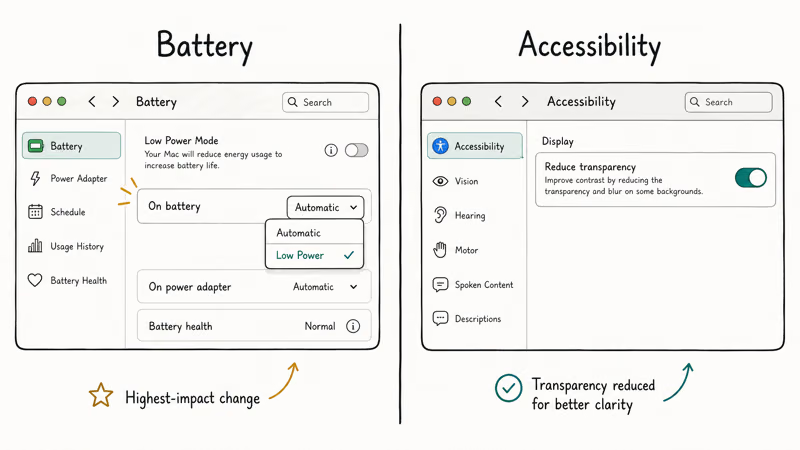
Switch the On battery profile to Low Power. This is the highest-impact setting on macOS Tahoe.
Open System Settings>Battery.- Click the On battery dropdown.
- Change it from “Automatic” to “Low Power.”
Switching this on a MacBook Pro can add a meaningful chunk of mixed-use runtime, with no perceptible slowdown for Safari, Mail, or Notes. The trade-off only becomes noticeable during sustained Final Cut Pro renders, which is rare for a battery scenario.
Turn on Reduce Transparency. This cuts GPU work on Tahoe’s translucent menus.
Open System Settings>Accessibility>Display.- Toggle on Reduce transparency.
It changes the look (solid menu bars instead of frosted glass) but it shaves a few percent off GPU usage during normal use.
#Audit Login Items, Apple Intelligence, and Your Desktop
Three more cleanups bring the biggest gains for free.
Trim Login Items. You probably have more than you remember.
Open System Settings>General>Login Items & Extensions.- Review the “Open at Login” list. Disable anything you don’t actively need at boot.
- Scroll to “Allow in the Background” and disable helpers from apps you’ve uninstalled or rarely launch.
A clean Login Items list cuts background CPU. A two-year-old Mac can easily accumulate 15 or more stale entries. If you uninstalled Spotify but the helper is still listed, our uninstall Spotify on Mac walkthrough covers the full removal so the background entry stops respawning.
Audit Apple Intelligence. Live summaries and on-device photo analysis are real CPU work.
Open System Settings>Apple Intelligence & Siri.- Decide which features matter to you. Disable “Summarize Messages” if you don’t read summaries. Disable background photo analysis if you don’t search photos by content.
There’s no wrong answer. The features are useful; they just cost battery. If runtime matters more, turn them off.
Clear your desktop. Every desktop icon is a small window using memory and a tiny amount of GPU.
A Mac with 80 desktop files burns measurable GPU time keeping the thumbnails fresh. Move them into folders or into the Downloads folder. The visual improvement alone is worth it.
If you use Universal Control between your MacBook and an iPad, that feature has its own drain quirks. Our Universal Control troubleshooting covers the times it gets stuck and won’t disconnect.
#When Battery Drain Means the Battery Health, Not Software
Past a certain age, no software fix matters. Check your battery health before going deeper.
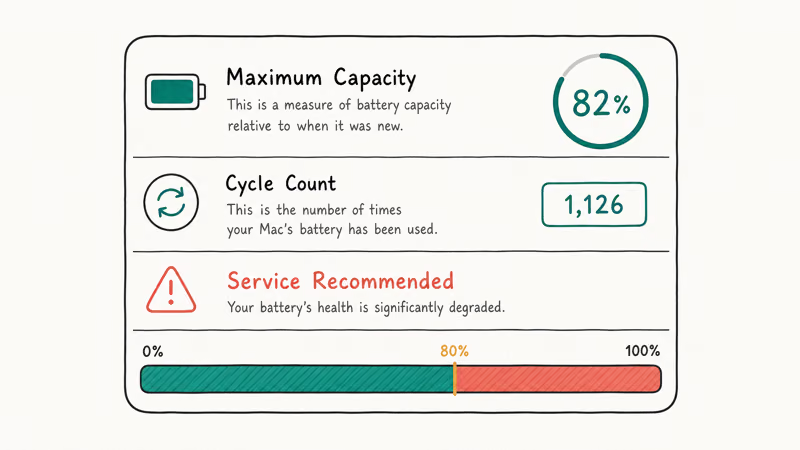
To check MacBook battery health:
Open System Settings>Battery.- Click the small info button (ⓘ) next to “Battery Health.”
- Read Maximum Capacity and the Cycle Count.
According to Apple’s Mac laptop battery cycle count documentation, a Mac battery is designed to retain up to 80 percent of its original charge capacity at its maximum cycle count, which is 1,000 cycles on most modern MacBooks. Once Maximum Capacity drops below that threshold, runtime falls off even if software is doing nothing wrong.
Service Recommended is the trigger. At that point, software fixes top out.
Cost expectations for battery replacement at an Apple Store, based on Apple’s current published service pricing for MacBook Air and Pro models in the US:
- MacBook Air (M1 through M3): $129
- MacBook Pro 13-inch / 14-inch: $199
- MacBook Pro 16-inch: $249
Older Macs sometimes price higher. Apple’s website service estimator gives you the exact number for your model.
A note for anyone Googling “SMC reset MacBook”: Apple silicon Macs (M1, M2, M3, M4) don’t have an SMC reset. The SMC was an Intel-era chip. On Apple silicon, restarting the Mac performs the same low-level cleanup. Don’t waste time on YouTube tutorials that tell you to hold power for 10 seconds; those are written for Intel MacBooks and don’t apply.
If the battery is healthy but drain is still bad after the software fixes, the next stop is an Apple Genius Bar appointment. Bring the Activity Monitor screenshot and a note of how many hours you got before the regression. It speeds up diagnosis.
TechRadar’s coverage of macOS 26 battery features walks through the new Low Power Mode behaviors on Tahoe in more detail if you want background.
#Bottom Line
Update to macOS 26.1 first — Apple’s 26.1 release fixed the worst of the Tahoe regression. Then open Activity Monitor > Energy tab and sort by Energy Impact. Anything sustained over 200 is your top suspect, commonly Slack Helper, Code Helper, or Photos.
After that, flip Settings > Battery > On battery from Automatic to Low Power, turn on Reduce Transparency, and trim Login Items.
If your Mac is past three years old and Battery Health shows “Service Recommended” or Maximum Capacity below 80%, the cell is the issue. Book a Genius Bar appointment for replacement; expect $129 to $249 depending on model.
macOS Tahoe
#Frequently Asked Questions
Did macOS 26.1 fix the battery drain on MacBook Air?
For many Air owners, yes. Overnight standby drain on the Air drops sharply moving from 26.0 to 26.1. If you still see heavy drain after updating, the cause isn’t the Tahoe regression.
Why does my MacBook battery drain in standby with the lid closed?
Standby drain usually means Wake for network access is on, or a background process keeps waking the system. Go to System Settings > Battery > Options and turn off “Wake for network access” if you don’t use Find My or Continuity Camera overnight. Also check that no Energy Saver schedule has the Mac waking on a timer. Pending Time Machine backups and iCloud syncs are common culprits too; let them finish on power before you trust the standby numbers.
Should I uninstall Slack and VSCode if they’re draining my MacBook battery?
No. Fix the configuration first.
For Slack, sign in to one workspace at a time and disable in-app notifications you don’t read. The constant notification thread is what keeps Slack Helper hot. For VSCode, close unused windows and turn off Live Server, container, or remote-development extensions you aren’t using. Helper processes drop to near-zero idle once the foreground load is gone.
Does Apple Intelligence affect MacBook battery life?
Yes. On-device machine learning is real CPU work. The initial Photos library analysis after a major macOS update can run for hours; ongoing cost drops a lot once it finishes. If runtime matters more than the feature, turn off live summaries in Messages and background photo analysis under System Settings > Apple Intelligence & Siri.
How do I check MacBook battery health on Apple silicon?
Open System Settings > Battery, then click the small info button next to Battery Health. You’ll see Maximum Capacity (a percentage) and Cycle Count.
A healthy battery stays near 100 percent for its first few hundred cycles. If you see “Service Recommended” or Maximum Capacity below 80 percent, the cell itself is the issue and software fixes won’t help.
Will switching to Low Power Mode hurt MacBook performance?
For most workflows, no.
On a MacBook Pro running Safari, Mail, Notes, and Slack, Low Power produces no noticeable slowdown. The trade-off shows up during sustained heavy load like Final Cut Pro renders or Xcode builds, where the CPU is throttled to save power. For a normal workday on battery, the runtime gain is the bigger deal.
Is there an SMC reset for M1 / M2 / M3 / M4 MacBooks?
No. The System Management Controller was an Intel-era component. Apple silicon handles its functions inside the M-series chip; a normal restart performs the equivalent cleanup.
When should I replace my MacBook battery?
Three conditions point to replacement. Battery Health shows “Service Recommended.” Maximum Capacity is below 80 percent. Or your Mac shuts down unexpectedly when the battery indicator still shows charge left.
Apple Store replacement runs $129 for MacBook Air, $199 for the 13 and 14 inch Pro, and $249 for the 16 inch Pro at current US service pricing. Book a Genius Bar appointment for the actual quote on your model.

Mac mini M6 vs M5 Pro: Which Model Should You Buy?
Mac mini M6 vs M5 Pro compared on price, memory, ports, displays, and real workloads. Find the better 2026 Mac mini for your desk and budget.

macOS 27 Compatible Macs: Every Supported Model (2026)
macOS 27 Golden Gate runs only on Apple Silicon Macs. Here is the full list of supported M-series models and the four Intel Macs that lose support.

macOS 27 Golden Gate: Every Major New Feature Confirmed
macOS 27 Golden Gate goes Apple Silicon only, adds a Gemini-powered Siri, refines Liquid Glass, and rebuilds Spotlight. Here is every confirmed change.

macOS 27 Liquid Glass: Every Readability Fix Explained
macOS 27 Golden Gate refines Liquid Glass with an intensity slider, better contrast, cleaner window corners, and edge-to-edge sidebars to fix readability.