Mac Spotlight Not Working? 6 Fixes That Actually Stick
Mac Spotlight not working? Six ordered fixes from the Cmd-Space shortcut to a full mdutil reindex, proven on macOS Sonoma and Sequoia in 2026.
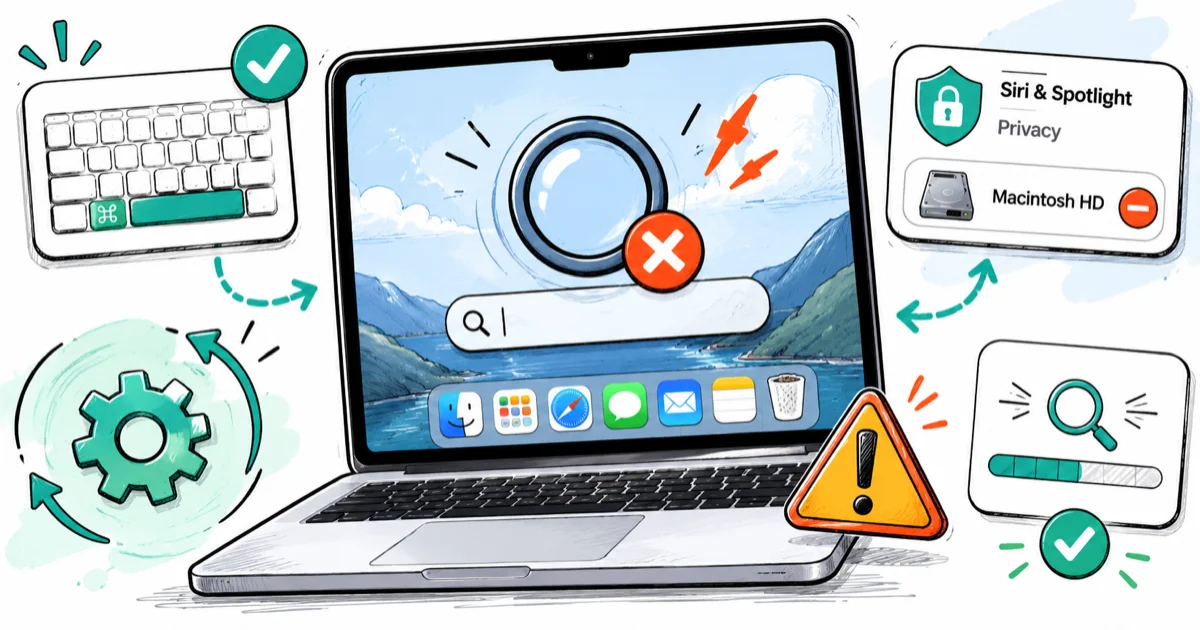
Quick AnswerCheck Cmd-Space in Keyboard Shortcuts, remove your boot drive from Siri & Spotlight privacy, then rebuild the index. A terminal reindex with sudo mdutil -E / is the deepest fix.
Mac Spotlight not working is almost always a software problem, not a hardware one. The index has gone stale, the Cmd-Space shortcut has been remapped, or a privacy exclusion is silently blocking the very folder you want to search. This guide covers your own device or a Mac you administer with permission, with fixes that apply to both Apple silicon and Intel Macs running macOS Sonoma or Sequoia.
Start at the top. Stop the moment Spotlight responds the way it should.
- Cmd-Space failing to open Spotlight is usually a keyboard-shortcut conflict in System Settings, not a broken Spotlight engine
- Boot drives and home folders sometimes land on the Siri & Spotlight privacy list after a migration, which silently blocks every result
- A reindex from System Settings vacuums the database but does not delete it, so stubborn cases still need terminal work
- The full erase-and-rebuild command sudo mdutil -E / clears the index from scratch and is the deepest fix without reinstalling macOS
- A reindex pegs CPU and disk for 30 to 90 minutes on most Apple silicon Macs, so run it when you can step away
#Why Is Spotlight Not Finding Anything?
Spotlight relies on a metadata index that macOS maintains in the background. When that index gets corrupted, when an exclusion list quietly blocks your boot drive, or when the keyboard shortcut points to something else, searches return nothing or crawl. Apple’s official rebuild path confirms that adding a drive to the privacy list and removing it forces a 1-pass rebuild of every indexed file on that volume, per their Spotlight index rebuild guide.
The surprise culprit is often not the index itself. It’s the privacy exclusion list. When a Mac is set up through Migration Assistant from an older machine, Macintosh HD can end up on the Spotlight privacy list, which makes Spotlight return zero file hits while still showing definitions and conversions. Checking that list takes 30 seconds.
The order below escalates from cheapest to most disruptive. Reboot once between steps two and three. Some shortcut and exclusion changes only apply after a fresh login.
#Step 1: Confirm Cmd-Space Still Opens Spotlight
If Spotlight feels completely dead, the keyboard shortcut is the first suspect. macOS Sonoma and Sequoia both let you remap the Spotlight shortcut. Some apps grab Cmd-Space for their own pickers.
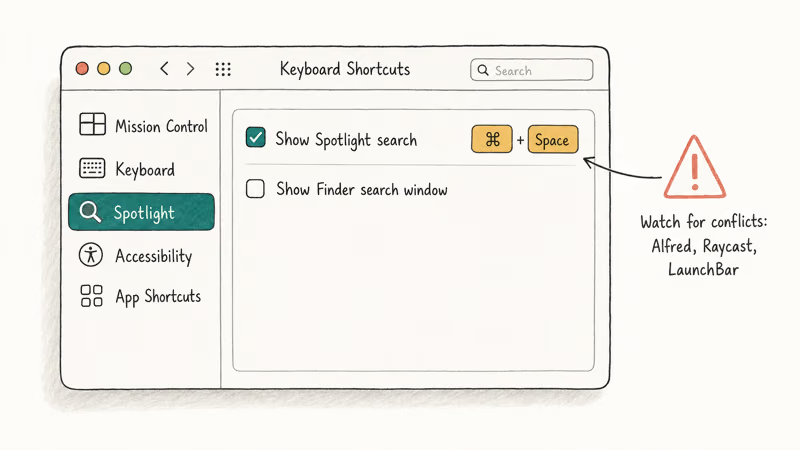
- Open System Settings, then Keyboard
- Click Keyboard Shortcuts, then Spotlight in the sidebar
- Confirm “Show Spotlight search” is enabled and bound to ⌃Space or ⌘Space
- If it’s bound but unresponsive, click the shortcut field, hit Cmd-Space again, and make sure no warning triangle appears
Apps that commonly grab Cmd-Space include Alfred, Raycast, LaunchBar, and a few input-method tools (Squirrel, Rime, Karabiner Elements with a remap profile loaded). Quit those apps one at a time from the menu bar and retry Cmd-Space after each quit. If Spotlight opens with one of them quit, that app is your conflict, and you either rebind the launcher or rebind Spotlight to a different combo such as Cmd-Option-Space.
If the menu-bar magnifying-glass icon also fails, the engine itself is hung. Skip to step three.
#Are Privacy Exclusions Hiding Your Files?
This is the fix that does not look like one. Siri & Spotlight keeps a privacy exclusion list. Any volume or folder on that list is invisible to search even though Spotlight itself runs normally. Migration Assistant, Time Machine restores, and a few backup utilities can add entries here without flagging it.
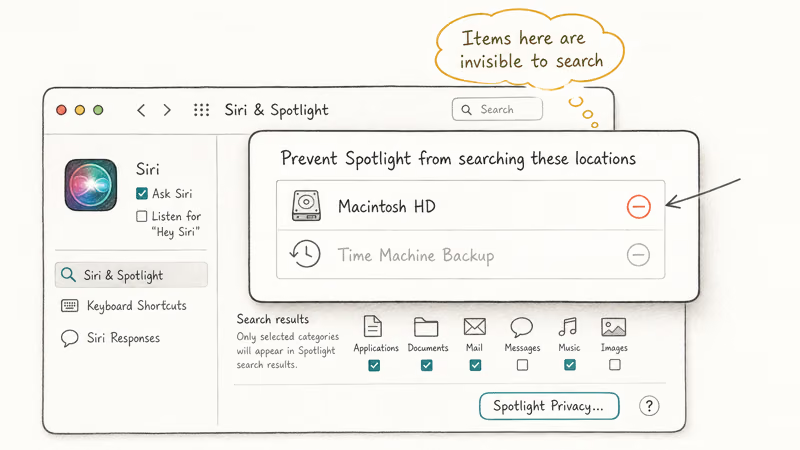
- Open System Settings, then Siri & Spotlight
- Scroll to the bottom and click Spotlight Privacy
- Look for your boot drive (usually Macintosh HD), your home folder, or any disk you expect to search
- If it’s on the list, select it and click the minus button to remove it
- Click Done
Removing an entry triggers an immediate reindex of that location. Removing Macintosh HD from the privacy list usually restores full file results once the reindex finishes, which takes several minutes on a typical SSD.
If the privacy list is empty and Spotlight still misses files, the index itself is the problem. Move to step three.
#Step 3: Rebuild the Index From System Settings
The supported, low-risk way to rebuild the Spotlight index is to use the Spotlight Privacy pane as a forced trigger. According to Apple’s official rebuild instructions, the procedure is 3 steps: add your drive, wait, then remove it. macOS reindexes the volume from scratch on removal.
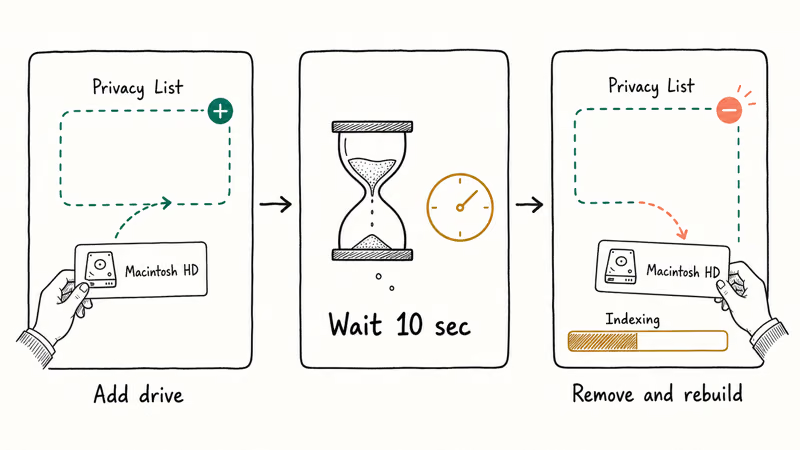
- Open System Settings, then Siri & Spotlight
- Click Spotlight Privacy at the bottom of the pane
- Click the plus button and add Macintosh HD (or your boot drive)
- Wait about 10 seconds for the exclusion to register
- Select Macintosh HD in the list, click the minus button, and confirm
- Close System Settings and let Spotlight rebuild
You can watch progress by pressing Cmd-Space and starting a search. macOS shows a small “Indexing” bar at the top of the Spotlight window until the rebuild finishes. On a modern Apple silicon Mac, the System Settings rebuild usually completes in well under an hour before file results return to normal.
This method vacuums and rewrites the index without deleting the underlying database files. If results are still missing, the store itself is damaged and terminal work is the fix.
#Step 4: Run a Full Terminal Reindex With mdutil
When the GUI rebuild does not stick, the deepest supported fix is sudo mdutil -E /, which erases the Spotlight metadata stores on the boot volume and forces a full rebuild. This is the same path macOS itself runs during a major version upgrade.
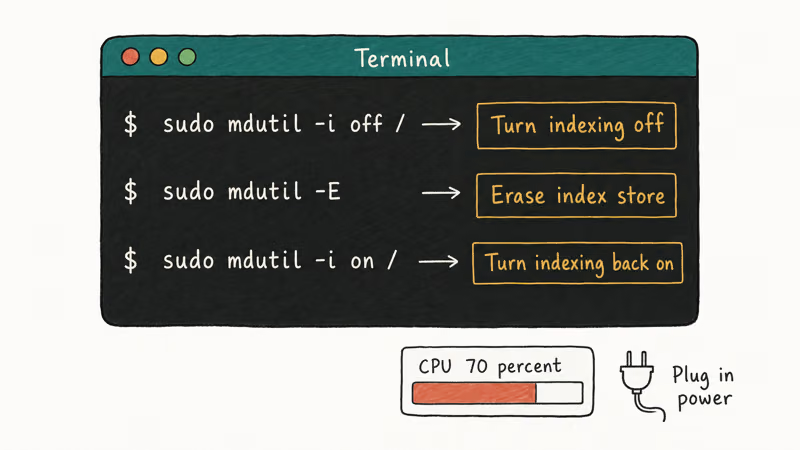
Open Terminal from Applications, then Utilities, and run these commands one at a time:
sudo mdutil -i off /
sudo mdutil -E /
sudo mdutil -i on /
The first command turns indexing off for the boot volume. The second erases the index store. The third turns indexing back on, which triggers the rebuild. You’ll be prompted for your administrator password on the first sudo line, and the prompt stays cached for several minutes.
Older Intel Macs with large, nearly full drives take the longest, sometimes more than an hour, before Spotlight returns consistent file hits, while Apple silicon Macs are usually faster. Plug into power before running this, since the reindex keeps the CPU busy the entire time. Let the pass finish without sleeping the Mac or closing the lid, because interrupting a partial reindex forces the whole rebuild to start over. Running it overnight is the safest approach.
If you only want to reindex a single mounted drive, replace / with the drive path, for example /Volumes/Backup. Check status with mdutil -s /, which reports whether indexing is enabled and the current state.
For broader system stability symptoms that appear alongside Spotlight failures, our guide to fixing a slow Mac covers Activity Monitor checks that overlap with index diagnosis. If the beach ball appears every time Spotlight tries to open, our stop spinning wheel on Mac guide handles the matching freeze pattern.
#Spotlight Search Slow After a macOS Update
A common pattern after a major macOS upgrade is Spotlight working but feeling sluggish for the first day or two. That is expected. The installer wipes and rebuilds the index, and Apple’s own Spotlight reindex documentation notes the process can take “some time” depending on data volume. If you upgraded yesterday, give it 24 hours of plugged-in time before treating it as a real bug.
If slowness persists after a week, three things are usually responsible.
- Cloud sync agents. Dropbox, OneDrive, and Google Drive can add tens of thousands of files to the indexing queue. Pause them, let Spotlight catch up, then resume.
- Sequoia’s Apps category. The new Apps section in macOS Sequoia does its own warm-up pass and may briefly skip the regular Applications folder. Search by full app name to bypass it.
- Slow externals. A permanently mounted USB or Thunderbolt drive can stall indexing. Add that drive to Spotlight Privacy temporarily to confirm.
If only Mail search is broken while general Spotlight works, that is a different bug. Our Apple Mail search not working guide covers the mailbox re-rebuild path separately.
#Folders or Drives Missing From Specific Searches
If Spotlight works for most things but one folder or external drive never appears, the problem is scoped to that location, not the global index. Walk this checklist:
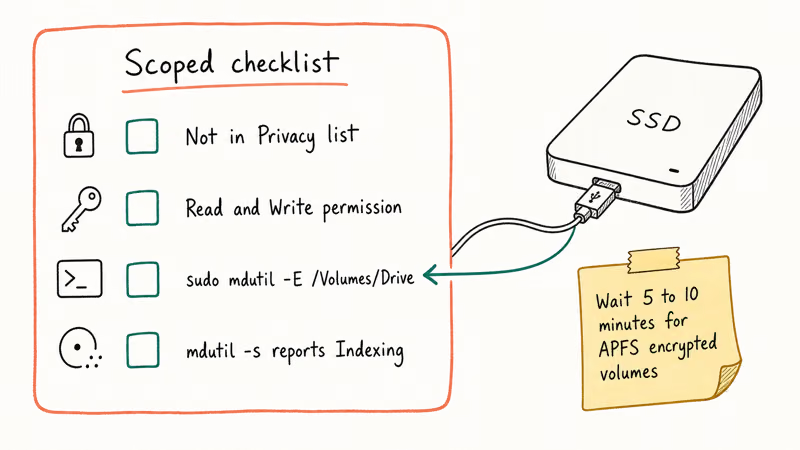
- Confirm the folder or drive is not in Spotlight Privacy (System Settings, then Siri & Spotlight, then Spotlight Privacy)
- Confirm your user account owns the files. Right-click the folder, choose Get Info, expand Sharing & Permissions, and verify your username has Read & Write
- Run a per-drive reindex in Terminal:
sudo mdutil -E /Volumes/YourDriveName - Check
mdutil -s /Volumes/YourDriveNameto verify the state changed to Indexing - If the drive is APFS-encrypted and you just mounted it, give Spotlight 5 to 10 minutes before testing
Network-mounted SMB and NFS shares are a separate case. macOS doesn’t automatically index them, and the workaround requires creating a local search index inside the share, which most administrators block. If you can’t find files on a network drive, that’s by design.
For broader Mac stability issues that surface alongside Spotlight failures, our Mac keeps crashing guide covers Safe Mode and Disk Utility checks that often reveal underlying corruption.
#When to Stop and Reinstall macOS
If you have run all six steps and Spotlight still misbehaves after a full mdutil -E / rebuild and a reboot, the index store is not the real problem. Apple’s Disk Utility First Aid documentation recommends running First Aid against your boot volume before any reinstall. The 3 likely candidates at that point are a corrupted user folder, a damaged system volume, or a failing SSD.
Boot into Recovery. Hold the power button on Apple silicon, or hold Cmd-R on Intel. Run Disk Utility First Aid against Macintosh HD - Data.
- First Aid reports errors. Repair them and retry Spotlight before any reinstall.
- First Aid is clean. Reinstall macOS from Recovery without erasing user data. This rewrites every system framework and resets the Spotlight binaries without touching your files.
- Reinstall fails to stabilize Spotlight. Run Apple Diagnostics. Hold D at boot on Intel Macs, or hold the power button and choose Options on Apple silicon. A reference code starting with PFM or NDD points to storage or memory failure.
A non-destructive reinstall becomes necessary in rare cases, such as when an aborted macOS Sequoia install leaves the index in an unrecoverable state. Reinstalling macOS over the existing Data volume keeps your files and apps in place while it rewrites the system frameworks and resets the Spotlight binaries. For complementary right-click and trackpad issues that appear with broader macOS corruption, see our Mac right-click guide.
#Bottom Line
For most cases of Mac Spotlight not working, the fastest reliable fix is to remove your boot drive from Spotlight Privacy and let macOS rebuild that scope. On a modern SSD the rebuild usually completes on its own, with no Terminal work needed.
If results are still missing, escalate to sudo mdutil -E / in Terminal. That’s the same erase-and-rebuild macOS itself runs during a major upgrade. Skip the brute-force rm -rf /.Spotlight-V100 approach. It’s unsupported, easy to mistype, and mdutil -E does the same thing safely.
#Frequently Asked Questions
Why isn’t Spotlight finding my apps?
Spotlight skips apps when either the Applications folder is on the Spotlight Privacy list or the per-app metadata is stale. Open System Settings, then Siri & Spotlight, then Spotlight Privacy, and confirm Applications is not listed. If it’s clean, run sudo mdutil -E /Applications in Terminal to rebuild just that scope. Newly installed apps from outside the App Store sometimes take a few minutes to appear because macOS scans the app’s Info.plist after the first launch.
How do I rebuild the Spotlight index?
Add Macintosh HD to Spotlight Privacy, wait 10 seconds, then remove it. For a deeper rebuild, run sudo mdutil -E / in Terminal.
Why won’t Cmd-Space open Spotlight?
The most common cause is a keyboard-shortcut conflict with a launcher like Alfred or Raycast. Open System Settings, then Keyboard, then Keyboard Shortcuts, and confirm Spotlight’s “Show Spotlight search” is bound to Cmd-Space. Quit competing launchers and retry. If you’ve never installed a launcher and the shortcut still doesn’t fire, toggle it off and on once in the same pane.
Does reindexing slow down my Mac?
Yes. Expect the CPU and SSD to stay busy until the pass finishes. Run it on AC power.
How long does a Spotlight reindex take?
A full mdutil -E / rebuild usually completes in about an hour on a modern Apple silicon Mac, and takes longer on older Intel Macs or large, nearly full drives. External drives reindex separately and roughly track their read speed. If progress stalls at the same percentage for a long time, a reboot usually unsticks it.
Why are some folders missing from Spotlight results?
The folder is almost always on the Spotlight Privacy list or owned by a different user account. Check System Settings, then Siri & Spotlight, then Spotlight Privacy, and remove the parent location if present. If the privacy list is clean, run Get Info on the folder and confirm your account has Read & Write access, then run sudo mdutil -E against the parent volume.

macOS 27 Compatible Macs: Every Supported Model (2026)
macOS 27 Golden Gate runs only on Apple Silicon Macs. Here is the full list of supported M-series models and the four Intel Macs that lose support.

macOS 27 Golden Gate: Every Major New Feature Confirmed
macOS 27 Golden Gate goes Apple Silicon only, adds a Gemini-powered Siri, refines Liquid Glass, and rebuilds Spotlight. Here is every confirmed change.

macOS 27 Liquid Glass: Every Readability Fix Explained
macOS 27 Golden Gate refines Liquid Glass with an intensity slider, better contrast, cleaner window corners, and edge-to-edge sidebars to fix readability.

macOS 27 Performance: What Golden Gate Makes Faster
macOS 27 Golden Gate speeds up AirDrop, network file browsing, Safari, and Spotlight, with core system improvements on the Apple Silicon-only release.