Should You Update to macOS Tahoe? A Practical Guide
macOS Tahoe brings Liquid Glass, Apple Intelligence updates, and the end of Intel Mac support. See who should update now and what to back up first.
Quick AnswerMost Apple Silicon Mac users should update to macOS Tahoe, and the 26.6.1 security fixes, including an August 2026 Screen Sharing patch, make the case stronger than at launch. Intel Mac owners should back up first and confirm their key apps are compatible before installing.
macOS Tahoe is the biggest visual overhaul macOS has seen in years, and it also marks the end of Intel Mac support. The key question is whether your Mac gets the full Apple Silicon feature set or only the supported Intel path. Here is what every Mac user needs to know before hitting that update button.
- macOS Tahoe requires a Mac from 2019 or 2020 at the very earliest, depending on model; check the official compatibility list before downloading
- Intel Macs can run macOS Tahoe but won’t get Apple Intelligence features, which require Apple Silicon
- The Liquid Glass design overhaul changes how the Dock, menu bar, and most app windows look; it’s a visible shift, not a subtle refresh
- Back up with Time Machine before updating; the installer can take a while, especially on older Macs
- macOS Tahoe is the last version that’ll support Intel processors; your next Mac upgrade will require Apple Silicon
#macOS Tahoe Compatibility: Which Macs Are Supported
Not every Mac that ran macOS Sequoia can run macOS Tahoe. According to Apple’s official compatibility page, the supported models are:
- MacBook Air: 2020 (M1) and later
- MacBook Pro: 2020 (M1) and later, plus the 2019 16-inch and the 2020 13-inch with four Thunderbolt 3 ports
- iMac: 2020 and later
- Mac mini: 2020 (M1) and later
- Mac Studio: 2022 and later
- Mac Pro: 2019 and later
If your Mac is older than those models, it can’t run macOS Tahoe. To check your model, click the Apple menu and choose About This Mac. Notably, the 2019 iMac, 2018 MacBook Pro, and 2018 Mac mini are all excluded from Tahoe support, even though they ran Sequoia fine.
Those four Intel models can install Tahoe. They just won’t get Apple Intelligence, which requires Apple Silicon.
#The Biggest Changes in macOS Tahoe
The headline change is Liquid Glass. Apple introduced this new translucent visual material across all its operating systems this year. The Dock, menu bar, app toolbars, and window controls all reflect the color behind them like real glass. It looks different from anything in Sequoia, and it’s not a setting you can switch off.
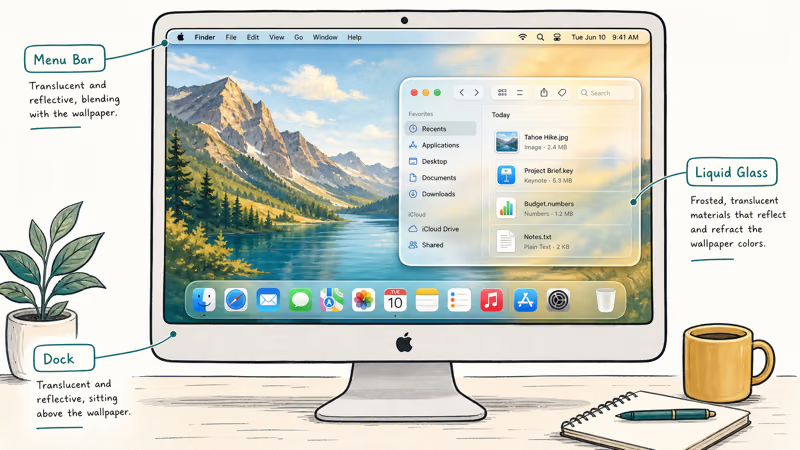
Beyond the look, Apple announced several concrete changes at WWDC 2025:
Spotlight got a full rebuild. It’s faster, supports Apple Intelligence, and replaces Launchpad with a new Applications view. iPhone apps connected via Continuity show up here too.
Live Activities from iPhone now appear on Mac. If you have a running delivery tracker, sports score, or timer on your iPhone, it shows up on your Mac too. This builds on the iPhone Mirroring feature from Sequoia.
Live Translation in Messages, Phone, and FaceTime. Real-time call translation, Apple Silicon only.
Shortcuts automation expanded. Shortcuts can now trigger workflows based on time of day or incoming emails from specific senders, matching functionality that was previously iPhone-only.
The practical split is simple: Apple Silicon Macs get the full Tahoe feature set, while supported Intel Macs can install the interface update without Apple Intelligence.
#Should You Update Now or Wait?
As of early August 2026, the answer tilts further toward updating. Apple shipped macOS Tahoe 26.6 on July 27 with what MacRumors counts as more than 130 security fixes, none known to be actively exploited, and being on Tahoe keeps you on the build Apple patches first. Sequoia and Sonoma holdouts got security updates the same day (15.7.8 and 14.8.8), but Apple has long noted that older macOS versions don’t always receive every fix the current release does.
Then on August 6, Apple followed up with macOS Tahoe 26.6.1, an emergency patch for a Screen Sharing flaw (CVE-2026-65400) that could let an attacker on the same network authenticate without valid credentials. Apple’s security note credits the fix to improved state management, and the same repair shipped to Sequoia as 15.7.9 and Sonoma as 14.8.9. As heise reports, an attacker who got through could drive the Mac as if sitting in front of it.
Don’t treat “I never turned Screen Sharing on” as a reason to wait. Apple didn’t say whether the service has to be active for a Mac to be at risk, and 9to5Mac notes that the fix went to three macOS versions at once, skipping the usual beta cycle. Install it.
Update now if:
- Your Mac has Apple Silicon (M1 or newer)
- You rely on Apple Intelligence features like Writing Tools or Live Translation
- You want the new Spotlight experience, which replaces Launchpad
- You are comfortable with a significant visual change across the OS
Hold off briefly if:
- You’re on an Intel Mac; apps that depend on specific macOS internals sometimes take a patch cycle or two to catch up
- Your work depends on professional audio, video, or security tools — check with vendors first
- You haven’t backed up recently
Don’t update if:
- Your Mac isn’t on the list
It’s a free update. According to Apple’s upgrade guide, go to System Settings > General > Software Update to download it. The process is straightforward: the installer checks compatibility automatically and only shows versions that work on your Mac. If your Mac’s system storage is running low, clear some space before you start the download.
#How to Back Up Before Updating
Never skip this step. A backup protects you if something goes wrong mid-install or if an app you rely on breaks under the new version. One failed install on an older Mac could cost you hours without a backup to fall back on.
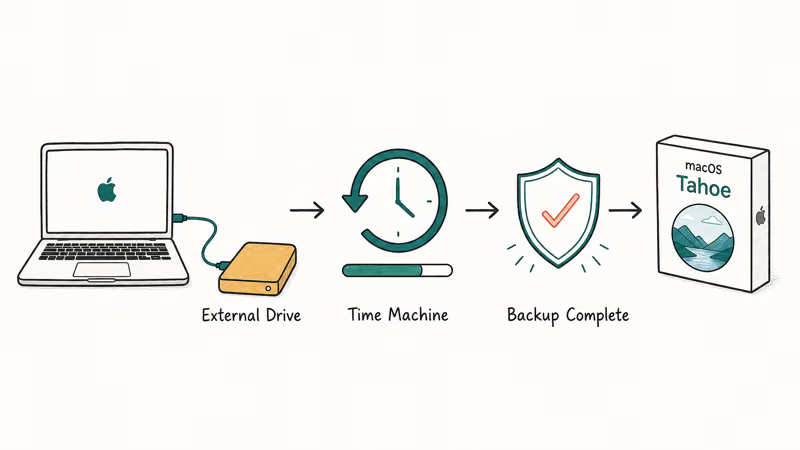
Apple recommends Time Machine for backing up before a major update. Here is the process:
- Connect an external drive to your Mac
- Go to
System Settings>General>Time Machine - Click Add Backup Disk and select your drive
- Let the backup complete before downloading macOS Tahoe
The first backup is the slowest. You can delete old Time Machine backups to free up drive space before starting.
No external drive available? iCloud Drive or a manual copy of your Documents folder can serve as a fallback before the update, though those only copy files; they can’t restore the whole system the way a Time Machine backup can.
Time Machine is still the most thorough option and what Apple recommends for major upgrades.
#Intel Mac Owners: What Tahoe Means for You
Yes, this is it for Intel. Apple confirmed at WWDC 2025 that macOS Tahoe is the final version to support Intel processors. After Tahoe, all future macOS releases will require Apple Silicon. The four Intel models that still qualify will continue to get security updates for a while, but macOS 27 Golden Gate is Apple Silicon only and won’t run on them.
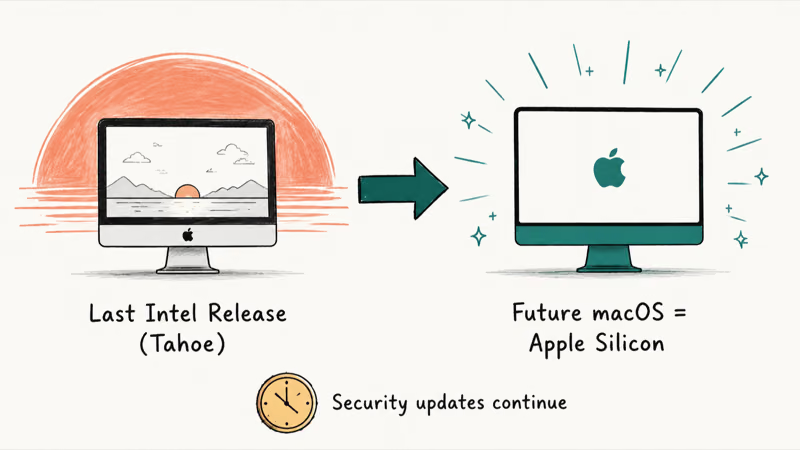
If you’re on one of those four Intel Macs, you can still install Tahoe and use it for several years with continued security patches. The Liquid Glass interface will work fine. You just won’t get Apple Intelligence. When those security updates eventually end, you’ll need new hardware.
Waiting for a point release made sense at launch. With Tahoe now on 26.6.1 as of August 2026, the early-bug window has passed, so the only remaining reason to hold off is a vendor that still hasn’t confirmed compatibility.
#Does macOS Tahoe Affect Performance?
Performance depends heavily on chip generation. Apple Silicon Macs are the safest fit for Tahoe’s visual effects and Apple Intelligence features.
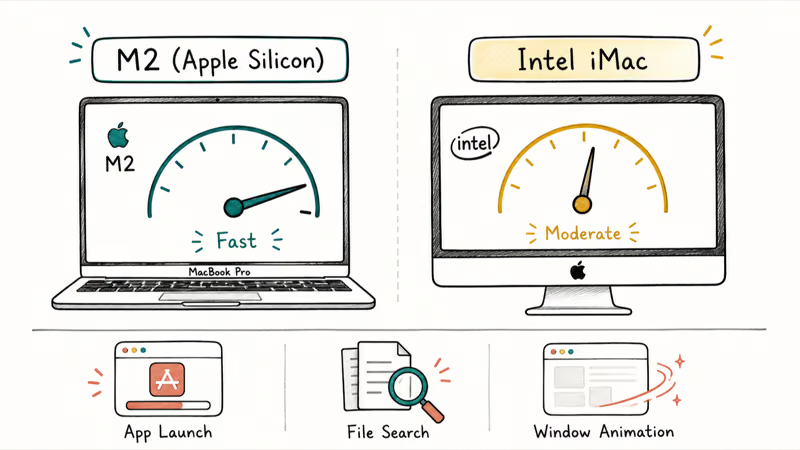
If your MacBook battery is draining faster than usual after the update, give it 24 to 48 hours. The system re-indexes files after a major update, which causes temporary increased CPU use that settles down on its own.
On 26.6 specifically there’s a second, deliberate wave of background indexing. The Apple Post notes the release pairs its security patches with Spotlight improvements, and reports indicate Apple is using it to start building the semantic index that macOS 27’s upgraded Siri will rely on this fall.
On a Mac with years of documents and photos, that first pass can run for a day or more. Extra Spotlight or mdworker CPU time in Activity Monitor during the week after installing 26.6 is expected, not a fault. Leave the Mac plugged in and it settles on its own. If your Mac is running hot or overheating beyond that window, that guide covers the hardware and software causes specific to macOS updates.
Supported Intel Macs can install Tahoe, but they don’t get Apple Intelligence and are closer to the end of the support road. If you’re already noticing that macOS feels slow before updating, the update won’t speed things up.
Post-update Spotlight glitch? Force a re-index from System Settings > Siri & Spotlight > Spotlight Privacy. This is a common macOS update quirk, not specific to Tahoe.
#Bottom Line
Most Apple Silicon Mac users should update now. Do it.
Intel Mac owners should back up first and confirm their key apps support Tahoe before installing. If you’re on any of the four remaining Intel models, start planning your next Mac purchase. This is the last major release your machine will run.
Clear your storage, run a Time Machine backup, and download the installer during off-hours. First-generation Apple Silicon machines and Intel Macs may run longer, so plan accordingly rather than starting the download right before a work call.
macOS Tahoe
#Frequently Asked Questions
How do I check if my Mac can run macOS Tahoe?
Click the Apple menu and choose About This Mac to see your model year. Compare against support.apple.com/en-us/122867. Not listed? It can’t run Tahoe.
Will macOS Tahoe slow down my Mac?
Not noticeably on Apple Silicon once the initial re-indexing period settles down. On Intel Macs, some users have reported slightly increased fan activity in the days after installing, which is normal while the OS finishes background tasks.
Can I revert to macOS Sequoia if I don’t like Tahoe?
Reverting requires erasing your Mac and reinstalling macOS from macOS Recovery, which means you need a backup to restore your files. This is why backing up before the update is non-negotiable. If you have a Time Machine backup made before the Tahoe install, you can restore from it, but the process takes several hours.
Does macOS Tahoe require Apple Intelligence turned on?
No. You can install Tahoe and skip Apple Intelligence entirely. The Liquid Glass design, the new Spotlight, Shortcuts improvements, and Live Activities are all available regardless of whether you enable Apple Intelligence in settings.
How much storage does macOS Tahoe require?
You need at least 20 GB free. The installer is around 12-14 GB. Short on space? Clear your Mac’s cache first.
Is it safe to update to macOS Tahoe right away?
For most users on Apple Silicon Macs, yes. The release has been out since 2025 and now sits on version 26.6.1, so the early-bug window has passed. If your work depends on specialized software like professional audio DAWs or security tools, check with those vendors first, since a few still lag on compatibility updates.
What does macOS Tahoe 26.6.1 fix?
macOS Tahoe 26.6.1, released August 6, 2026, fixes one Screen Sharing vulnerability (CVE-2026-65400) that could let someone on your network authenticate without valid credentials. Sequoia 15.7.9 and Sonoma 14.8.9 carry the same fix. Apple shipped it outside the normal update cycle and didn’t say whether Screen Sharing has to be switched on for a Mac to be exposed, so install it right away rather than deciding you’re covered.
Will my existing Mac apps still work on macOS Tahoe?
Most apps from the Mac App Store update automatically and are already Tahoe-compatible. Third-party apps installed outside the App Store need individual confirmation from their developers. Apps built for Apple Silicon will continue to run normally. The biggest risk is older apps built only for Intel processors: if they relied on Rosetta translation under Sequoia, they should still work under Tahoe via Rosetta.

macOS 27 Compatible Macs: Every Supported Model (2026)
macOS 27 Golden Gate runs only on Apple Silicon Macs. Here is the full list of supported M-series models and the four Intel Macs that lose support.

macOS 27 Golden Gate: Every Major New Feature Confirmed
macOS 27 Golden Gate goes Apple Silicon only, adds a Gemini-powered Siri, refines Liquid Glass, and rebuilds Spotlight. Here is every confirmed change.

macOS 27 Liquid Glass: Every Readability Fix Explained
macOS 27 Golden Gate refines Liquid Glass with an intensity slider, better contrast, cleaner window corners, and edge-to-edge sidebars to fix readability.

macOS 27 Performance: What Golden Gate Makes Faster
macOS 27 Golden Gate speeds up AirDrop, network file browsing, Safari, and Spotlight, with core system improvements on the Apple Silicon-only release.