Best Free Video Players for Windows 10 and 11 in 2026
VLC, PotPlayer, and mpv lead this Windows 10 and 11 video player comparison, covering format support, hardware decoding, subtitles, and features.
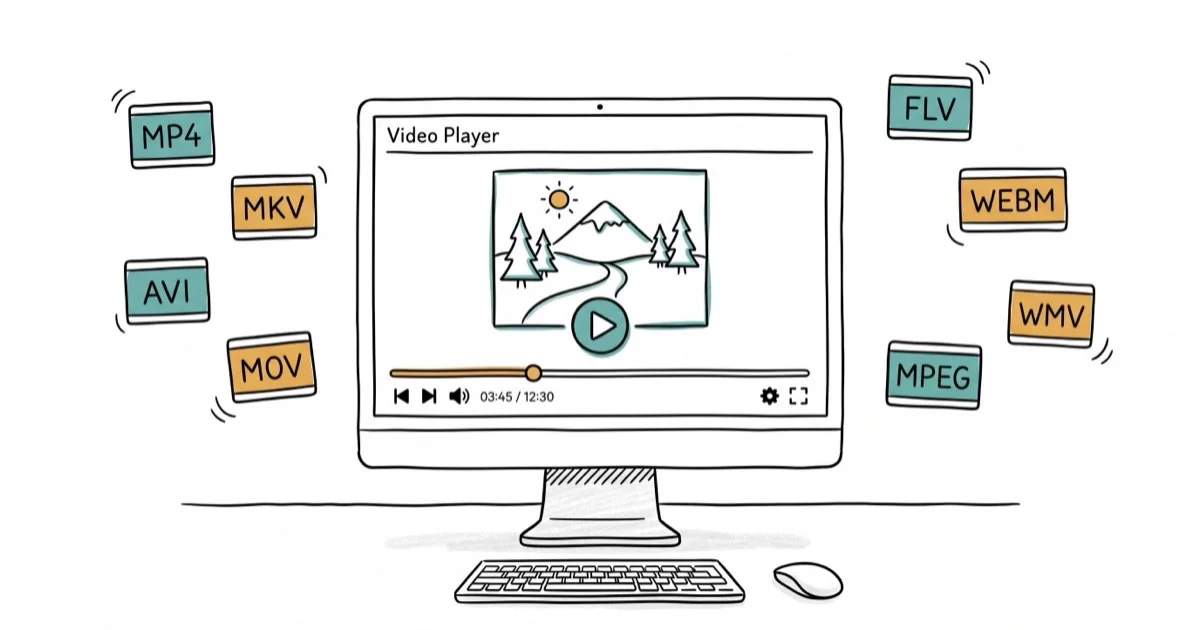
Quick AnswerVLC Media Player is the best free video player for most Windows users. It plays virtually every file format without extra codecs, runs on low-end hardware, and gets regular updates.
The best video players for Windows handle common formats without asking you to install extra codecs. This comparison focuses on free players with broad codec support, hardware decoding, subtitle controls, and active maintenance on Windows 10 and 11.
- VLC plays over 100 formats out of the box and remains the easiest default pick
- PotPlayer offers the best subtitle and audio customization on Windows
- mpv is the lightest option for keyboard-driven playback
- MPC-BE continues active development after MPC-HC stopped updating in 2017
- Kodi works best as a full media center for large libraries
#Which Free Video Player Features Matter Most?
For most Windows users, codec support and hardware decoding matter more than interface polish. According to Wikipedia’s media player software overview, media players are applications for playback of audio or video files, so broad format coverage is the baseline.
Subtitle loading, audio track switching, hardware-accelerated decoding, and update history separate the best free players from the abandoned ones. Every player on this list is free.
#VLC Media Player: Best Overall Pick
VLC has been the default recommendation for years. Its broad codec support, regular updates, and simple setup still make it the top spot.
VLC’s wide format support is the main reason it stays useful for MKV, MOV, AVI, FLV, and HEVC files without extra codec packs.
VLC also doubles as a basic screen recording tool and network stream player. You can paste a URL to play IPTV streams or YouTube links directly. According to VideoLAN’s official documentation, VLC supports over 100 input formats and runs on Windows, macOS, Linux, Android, and iOS.
The only real complaint about VLC is its interface. The default skin looks like it hasn’t changed since 2010. You can install custom skins from VideoLAN’s website, but most people just leave it as-is because the playback quality makes up for the dated look.
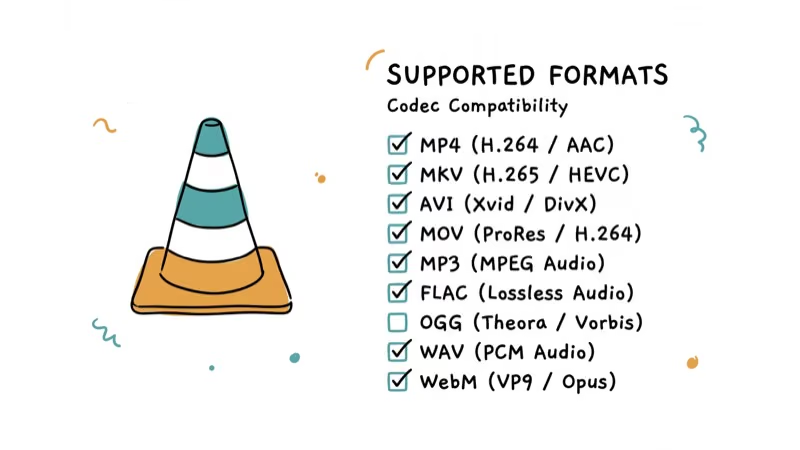
Best for: Everyone who wants one player that handles everything.
#PotPlayer: Best for Customization
PotPlayer, developed by Kakao (the South Korean tech company), gives you granular control over almost every playback setting. It supports DXVA, CUDA, and QuickSync hardware acceleration out of the box.
PotPlayer’s built-in codec pack means you usually won’t need to install anything extra for MKV, MOV, FLV, or AVI files. If you need to rotate a video or adjust the aspect ratio on the fly, PotPlayer handles it through right-click controls.
Where PotPlayer really pulls ahead is subtitles. You can adjust position, font, size, color, and sync timing without leaving the player.
PotPlayer’s keyboard shortcuts are another standout. You can remap every key, set custom playback speed increments, and bind frame-by-frame advance to any key you want. For people who work with video files daily, that level of control saves hours over time.
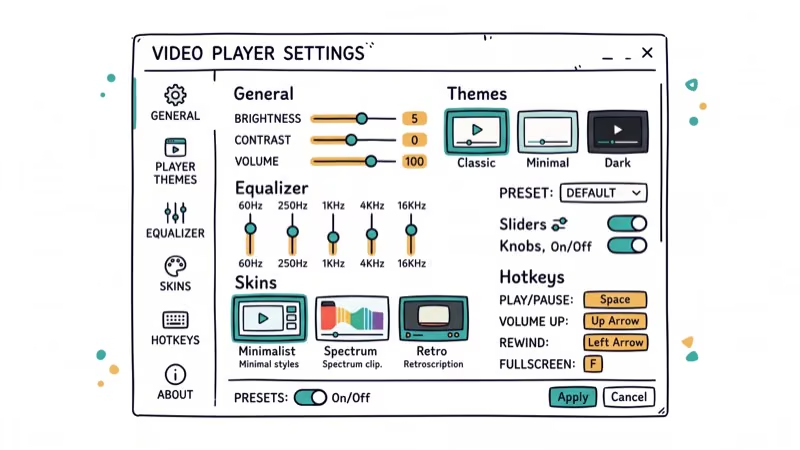
Best for: Users who want deep playback controls and subtitle customization.
#What About mpv and MPC-BE?
mpv is a command-line-first player with no menus or toolbars. You control everything with keyboard shortcuts or a config file, which makes it fast, light, and highly customizable for power users.
According to mpv’s official documentation, it supports hardware decoding on all 3 major GPU vendors and handles over 200 input formats.
MPC-BE (Media Player Classic - Black Edition) picks up where the discontinued MPC-HC left off. Clean interface, fast loading, light on resources. According to MPC-BE’s GitHub repository, the latest release was in early 2026 with HEVC and VP9 support.
mpv is better for keyboard-driven workflows. MPC-BE is better if you want a traditional GUI.
#Free vs. Paid Video Players
Free players are all most people need.
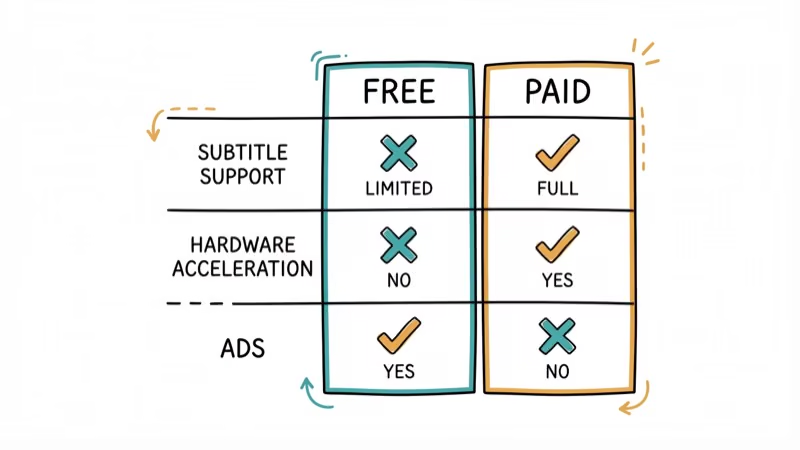
VLC, PotPlayer, and mpv cover virtually every use case without spending a dollar. The table below shows why paid alternatives rarely justify the cost for typical video playback on Windows 10 or 11.
| Feature | Free (VLC, PotPlayer, mpv) | Paid |
|---|---|---|
| Format support | 100+ formats | Similar |
| 4K/HDR | Yes | Yes |
| Subtitles | Full | Full |
| Streaming | VLC/Kodi | Included |
| Price | $0 | $10-$30 |
The only scenario where paying makes sense is Blu-ray disc playback with AACS encryption. VLC handles some Blu-ray discs, but commercial discs often need CyberLink PowerDVD.
Stick with free options for digital files. You won’t notice a difference in playback quality between a $0 player and a $30 one.
#Three More Players Worth Knowing
GOM Player has a built-in codec finder that downloads missing codecs automatically. It plays most formats including MKV, AVI, and MP4, and adds 360-degree video support for VR content. The one catch is that the installer bundles adware, so select Custom Install and uncheck every optional offer during setup to keep your system clean.
Kodi is a media center, not just a video player. It organizes your library with metadata, poster art, and episode tracking, and it supports MOV, MKV, FLAC, and many other formats. According to Kodi’s official wiki, the platform supports over 50 audio and video formats natively.
Plex streams your library to other devices. Setup takes about 10 minutes, and local playback is free.
If you’re dealing with audio issues during streaming, the problem is usually on the platform’s end.
#Bottom Line
Start with VLC. It handles virtually every format, runs on any Windows version from 7 through 11, and costs nothing. Switch to PotPlayer if you want more subtitle control. Power users who prefer keyboard shortcuts will be happier with mpv.
For editing after playback, check our guide on speeding up clips in DaVinci Resolve or reversing clips in Premiere Pro.
#Frequently Asked Questions
Can VLC play 4K videos without lag on Windows 10?
Yes. Enable hardware acceleration under Tools > Preferences > Input/Codecs and set it to Automatic. Any PC made after 2018 with a dedicated GPU or recent integrated graphics should handle typical 4K HEVC playback without lag.
Which video player uses the least system resources?
mpv is usually the lightest because it skips the traditional menu-heavy interface and can be controlled almost entirely from the keyboard or a config file.
Do I need to install codecs separately for MKV or HEVC files?
Not with VLC, PotPlayer, or mpv. All three include built-in support for MKV, HEVC (H.265), VP9, AV1, and dozens of other formats. Windows 11 added native HEVC support starting with version 22H2, so even the built-in Media Player app handles these files now.
Is PotPlayer safe to download?
Yes, from the official Kakao site (potplayer.daum.net). Avoid third-party mirrors.
Can I use Kodi just to play individual files?
You can, but it takes more clicks than VLC. Kodi shines when you have hundreds of movies or TV episodes organized in folders.
What replaced Windows Media Player in Windows 11?
Microsoft replaced it with the Media Player app in late 2021. The new app supports MP4, MKV, and FLAC, and it has a cleaner interface than the old Windows Media Player. However, it lacks advanced subtitle timing controls, audio equalizer settings, and the deep customization that VLC or PotPlayer provide.
How do I fix choppy video playback on Windows?
Update your GPU drivers first, then enable hardware acceleration in your player’s settings. If the video is a high-bitrate 4K file, confirm your hardware supports HEVC decoding. Closing GPU-heavy background apps helps too. If speaker buzzing accompanies the choppiness, check for a driver conflict.
Are these video players compatible with Windows 11?
All seven players work on Windows 11. VLC, PotPlayer, mpv, and MPC-BE have been updated for full compatibility. Kodi and Plex run without issues as of early 2026.

Best Laptop for Running LLMs in 2026: Memory Comes First
The best laptop for running LLMs is a memory purchase first. Compare MacBook unified memory against NVIDIA laptop VRAM, and see what each tier really runs.

How to Run a Local LLM on Windows: A 2026 Setup Guide
Run a local LLM on Windows with LM Studio or Ollama. Pick a model that fits your GPU memory, keep every prompt offline, and skip the monthly bill.

Bluetooth Not Working on Snapdragon X? Fixes for 2026
Bluetooth not working on your Snapdragon X Copilot+ PC? Generic audio, mice, and keyboards work, but vendor apps often lack an ARM build. Fixes inside.

Docker Desktop and WSL2 Not Working on Snapdragon X? Fix It
WSL2 runs fine on Snapdragon X, but Docker Desktop ARM is Early Access and throws WSL errors. Use WSL2 plus native ARM64 Ubuntu and Docker Engine.