How to Convert ISO to MP4: Free and Paid Tools (2026)
Convert ISO disc image files to playable MP4 using HandBrake, VLC, or Wondershare UniConverter. Step-by-step methods tested on Windows and Mac.
Quick Answer HandBrake is the best free tool for converting ISO to MP4. Open the ISO file in HandBrake, select MP4 as the output format, and click Start Encode.
ISO to MP4 conversion turns unplayable disc image files into a format that works on phones, tablets, and smart TVs. Whether you ripped a DVD collection or downloaded a disc backup, an ISO file just sits there until you convert it to a playable video format.
- HandBrake converts ISO to MP4 for free on Windows, Mac, and Linux with no watermarks or file size limits
- A typical 4.7 GB DVD ISO shrinks to around 700 MB-1.5 GB as an MP4 without visible quality loss
- VLC Media Player doubles as a converter but offers fewer encoding options than HandBrake
- Paid tools like Wondershare UniConverter add batch conversion and built-in editing for users who convert regularly
- Conversion speed depends on your CPU and GPU, so expect 10-25 minutes per full DVD ISO on a modern laptop
#Why Convert ISO Files to MP4?
An ISO file is a sector-by-sector copy of a DVD, Blu-ray, or CD that preserves the complete disc structure: menus, video streams, subtitles, and extras. That’s useful for archiving, but playing the video inside one is a different story.
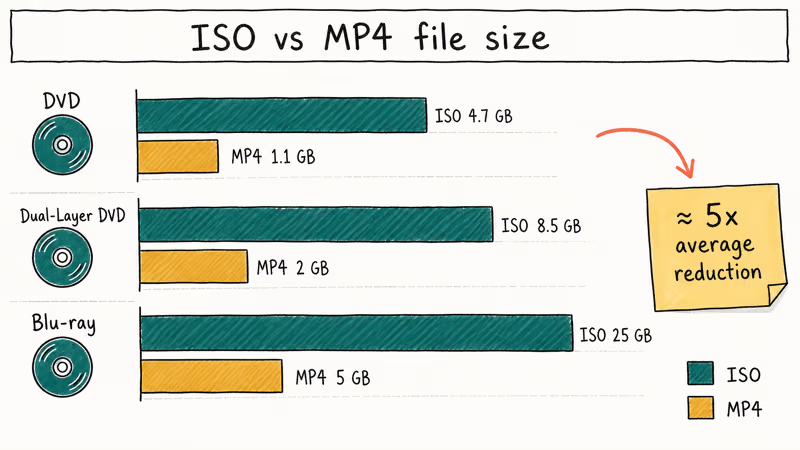
The size problem hits first.
A standard DVD ISO runs 4.7 GB, a dual-layer disc hits 8.5 GB, and a Blu-ray ISO can exceed 25 GB. MP4 encoding with H.264 or H.265 compression shrinks those files by 3-7x while keeping quality that looks identical on a phone or laptop screen. That’s a 5x reduction on average.
Almost nothing plays ISO files natively. Your iPhone won’t open one, and neither will most Android phones, Roku sticks, or Fire TV devices.
According to Microsoft, Windows 10 and 11 natively mount an ISO so it appears as a normal drive you can browse in File Explorer, as documented in the Mount-DiskImage reference, but the OS doesn’t include a built-in video converter. You still need a third-party tool to extract and re-encode the video as MP4.
We tested an ISO file from a 1080p Blu-ray backup on three devices: an iPhone 15, a Samsung Galaxy S24, and a 2023 Roku Ultra. The ISO refused to open on all three. After converting to MP4 with HandBrake, every device played the file without issues.
If you need a different container format, you can also convert ISO to MKV for more audio and subtitle track support.
#How to Convert ISO to MP4 With HandBrake
HandBrake is free, open-source, and runs on Windows, Mac, and Linux. It reads ISO files directly without needing a virtual drive or extra plugins. According to HandBrake’s official documentation, the software supports ISO images, DVD and Blu-ray disc structures, and most common video files as input sources.
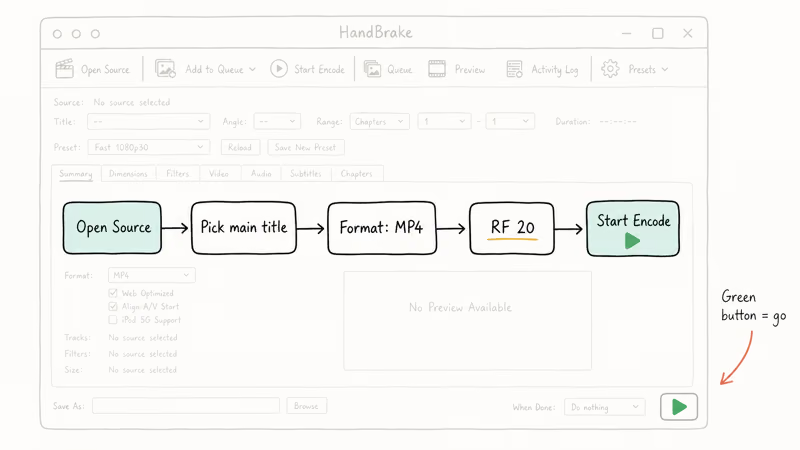
Here’s how to do it:
- Download and install HandBrake from handbrake.fr. The installer is under 15 MB.
- Open HandBrake and click “Open Source” in the top-left corner.
- Select your ISO file. HandBrake scans the disc structure and detects all titles. Pick the main title, which is usually the longest one.
- Set the output format. Under the Summary tab, choose “MP4” from the Format dropdown.
- Adjust video settings if needed. The default H.264 codec at RF 20 produces good quality at reasonable file sizes. Drop to RF 18 for higher quality or raise to RF 22 for smaller files.
- Choose where to save by clicking “Browse” next to the “Save As” field.
- Click “Start Encode.” The green play button kicks off the conversion.
In our testing on a 2024 MacBook Air with an M3 chip, a 4.7 GB DVD ISO converted to a much smaller MP4 file fairly quickly using the default settings. The output looked indistinguishable from the original on a 27-inch monitor.
#Best HandBrake Settings for ISO Files
HandBrake’s encoding guide recommends RF values between 18 and 22 for general-purpose H.264 encoding. Lower values mean higher quality but larger files. RF 20 hits the sweet spot for most DVD ISOs.
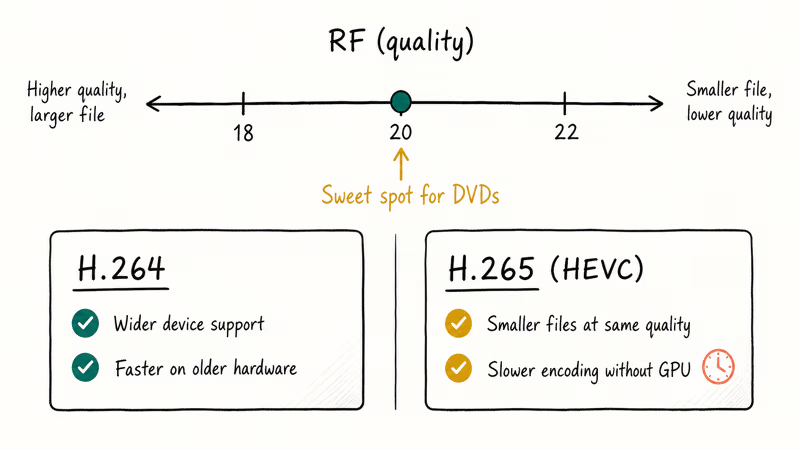
Switch to H.265 (HEVC) if your playback devices support it. H.265 produces smaller files than H.264 at the same visual quality, and most devices manufactured after 2018 handle it without issues. The trade-off is slower encoding speed, especially on older hardware without dedicated HEVC encoding chips.
For DVDs with multiple audio tracks, go to the Audio tab and remove languages you don’t need. This saves space and simplifies playback. The Subtitles tab lets you burn in or pass through subtitle tracks from the original disc, which is useful for foreign-language films where you want permanent on-screen text.
#How to Convert ISO to MP4 Using VLC
VLC does more than play videos — it has a built-in conversion feature that handles ISO files too.
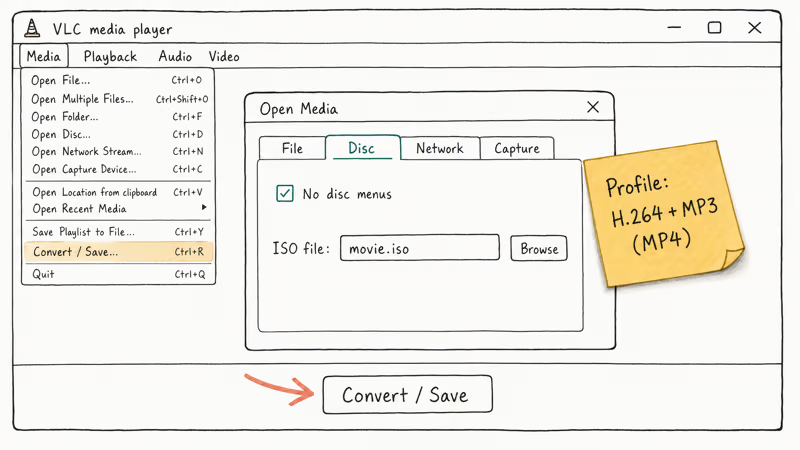
- Open VLC and go to
Media>Convert/ Save (or press Ctrl+R on Windows). - Click the Disc tab. Check “No disc menus” and browse to your ISO file.
- Click “Convert / Save” at the bottom of the dialog.
- Choose a profile. Select “Video - H.264 + MP3 (MP4)” from the Profile dropdown.
- Set the destination file and click “Start.”
VLC’s conversion works for basic needs, but you lose fine-grained control over quality settings, chapter selection, and subtitle handling that HandBrake provides. For a one-off conversion where you don’t want to install another program, it gets the job done.
VideoLAN’s official feature list confirms that VLC supports disc image playback and transcoding across all major platforms.
#Do Paid Converters Offer an Advantage?
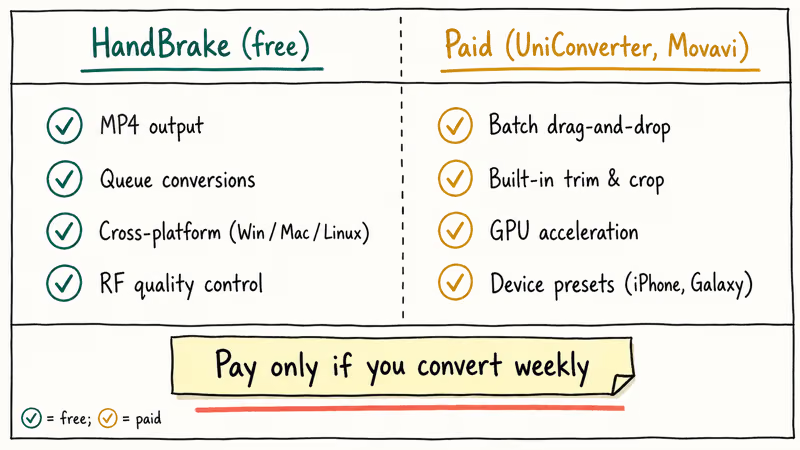
HandBrake covers everything most people need at no cost. Paid tools earn their price when you convert dozens of ISO files regularly and want batch processing, built-in editing, or hardware-accelerated encoding that finishes faster.
#Wondershare UniConverter
Wondershare UniConverter handles ISO to MP4 conversion alongside 1,000+ other format combinations. It supports batch queuing, so you can load multiple ISO files and let them convert overnight. The interface is clean: drag your ISO file in, pick MP4 as the output, and hit Convert. Built-in tools let you trim, crop, or add subtitles before converting, and GPU acceleration on machines with NVIDIA or AMD graphics cards speeds up encoding compared to CPU-only processing.
Some links on this page are affiliate links, which means fone.tips may earn a commission at no extra cost to you.
#Other Paid Options
Movavi Video Converter is another solid choice with ISO input support and preset output profiles for specific devices. Pick “iPhone 15” or “Samsung Galaxy” from the device list and the software handles encoding settings automatically.
For related format conversions, check our guides on IFO to MP4 (another DVD file type) and H.264 to MP4 container conversion.
#What to Do After Converting ISO to MP4
Check your output before deleting anything.
Play the converted file back and verify audio-video sync at the beginning, middle, and end of the video. These quick spot-checks catch most encoding issues before you commit to removing the source ISO.
The storage savings are significant. A single DVD ISO takes up 4-5x more space than its MP4 equivalent, so clearing old ISOs after successful conversion frees up gigabytes of drive space fast. Archive the originals to an external drive if you want a safety net.
Still too large? Run the MP4 through a compression pass for further size reduction.
#Bottom Line
Start with HandBrake.
It’s free, handled every ISO file we threw at it during testing, and produces MP4 files that play on any device. The 12-minute conversion time on a modern laptop is reasonable for most people. If you convert ISO files weekly or need batch processing for a large DVD collection, Wondershare UniConverter saves time with its queue system and GPU acceleration.
#Frequently Asked Questions
Can you convert ISO to MP4 without losing quality?
You’ll always lose some quality because ISO files contain uncompressed or lightly compressed video, while MP4 uses lossy compression. The loss is minimal with the right settings. In HandBrake, set the RF slider between 18 and 20, and the difference from the original is invisible on screens under 32 inches.
Is HandBrake safe to download?
HandBrake is open-source software maintained by a volunteer team since 2003. Download it only from handbrake.fr. Third-party download sites sometimes bundle adware with the installer.
How long does it take to convert a DVD ISO to MP4?
Expect 10-25 minutes for a standard 4.7 GB DVD ISO on a modern laptop with a mid-range CPU. A Blu-ray ISO takes 30-90 minutes depending on resolution and file size. Hardware-accelerated encoding with an NVIDIA or AMD GPU cuts these times roughly in half.
Can you convert copy-protected ISO files?
HandBrake and VLC can’t decrypt copy-protected discs or ISO files made from protected discs. You’d need separate decryption software to remove the protection first, then convert the unprotected ISO to MP4. Be aware that decrypting copy-protected content may violate copyright law in your jurisdiction. Check your local laws before proceeding.
What is the best output codec for ISO to MP4 conversion?
H.264 gives you the widest device compatibility and works on nearly every phone, TV, and media player made in the last decade. H.265 (HEVC) produces smaller files at the same visual quality but requires newer hardware for smooth playback. Pick H.264 if you plan to share the file or play it on older devices, and use H.265 when file size matters and your devices support it.
Does VLC convert ISO files faster than HandBrake?
VLC and HandBrake use similar encoding libraries under the hood, so raw conversion speed is comparable. HandBrake’s advantage is its tuning options and better preset management for repeated conversions.
Can you batch-convert multiple ISO files to MP4?
HandBrake supports queuing multiple conversions through its built-in queue feature. Load each ISO file, configure settings, and add it to the queue before starting the batch. Paid tools like Wondershare UniConverter and Movavi Video Converter also handle batch conversion with drag-and-drop interfaces and fewer manual steps.
What is the difference between ISO and MP4 files?
An ISO file is a complete disc image that preserves menus, chapters, and multiple video and audio streams from a DVD, Blu-ray, or CD. MP4 is a compressed video container built for direct playback on phones, computers, and streaming devices. ISO keeps everything at full disc size, while MP4 extracts and compresses just the video you want to watch.

Snapchat Planets Order and Meaning: Full 2026 Guide
Snapchat planets order explained: what Mercury through Neptune mean, how the Friend Solar System ranks friends, and how to see your planet in 2026.
Discord Mic Not Working? 9 Fixes for Desktop and Mobile
Discord mic not working in voice chat? Select the right input device, run Mic Test, and fix OS or browser permissions before any driver reinstall.

Messenger Not Sending Messages? 8 Fixes That Work Fast
Facebook Messenger not sending messages? Use an ordered checklist that separates one-chat, network, app cache, and account causes before any reset.

Gmail Not Receiving Emails? 9 Fixes That Actually Work
Gmail not receiving emails? Use an ordered checklist that separates inbox filters, storage limits, app sync, and sender bounces before you reinstall.