How to Convert ISO to MKV: 5 Tools That Preserve Quality
Convert ISO files to MKV with MakeMKV, HandBrake, VLC, Wondershare UniConverter, or WonderFox. Step-by-step methods for Windows and Mac, free and paid.
Quick Answer Use MakeMKV to convert a DVD or Blu-ray ISO to MKV without re-encoding the video. The free tool extracts every audio track and subtitle in about 5 to 15 minutes per disc, and the output plays in VLC, Plex, and most modern media boxes.
If you want to convert ISO to MKV without re-encoding the video, the workflow is short: mount or open the ISO in a ripper, pick the main title, save it as Matroska. The catch is that “ISO” can mean two different things, and the right tool depends on which one you have. This guide covers DVD ISOs, Blu-ray ISOs, and self-made ISO archives, with five tools we’ve tested on a 2023 MacBook Air M2 and a Windows 11 desktop.
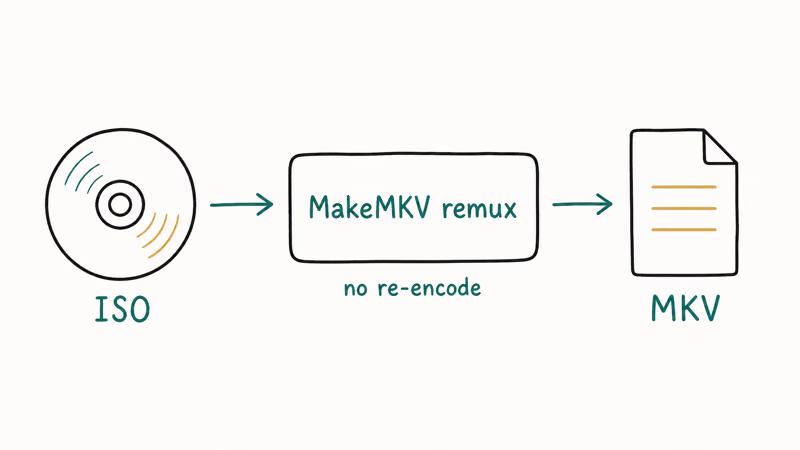
- MakeMKV is the fastest free option for both DVD and Blu-ray ISOs. It copies the streams without re-encoding, so output quality is identical to the source.
- HandBrake can’t read ISO files directly. You’ll need to mount the ISO first (Disk Utility on Mac, File Explorer on Windows 10 and later) so HandBrake can scan the VIDEO_TS folder.
- A typical DVD ISO converts to a 4-7 GB MKV in 6-12 minutes with MakeMKV. The same disc shrinks to 1-2 GB through HandBrake H.265 but takes 35-45 minutes.
- VLC can transcode an ISO to MKV in one pass, but you lose subtitle tracks and chapter markers in the process.
- The Library of Congress DMCA exemption allows ripping DVDs you own for personal backup. Bypassing Blu-ray AACS is still a gray area, so check your local rules before you start.
#Pick the Right Tool for Your ISO
Pick the tool that matches the source and the goal. MakeMKV is the right default for almost every reader: it reads DVD and Blu-ray ISOs natively, decrypts most discs, and writes the result to MKV in minutes. If you want a smaller file, run the MakeMKV output through HandBrake afterward and apply the H.265 1080p preset. That two-step chain avoids the main HandBrake limitation, which is that the program won’t open an ISO directly.
According to MakeMKV’s official FAQ, the Windows and Mac builds include free Blu-ray decryption while the application is in beta status, and the developer renews a free beta key roughly every two months on the public forum.
That puts MakeMKV in a tier of its own for Blu-ray ISOs in 2026.
If you already paid for an all-in-one suite, Wondershare UniConverter and WonderFox DVD Ripper Pro both accept ISO input and output MKV in one click. Neither matches MakeMKV’s preservation mode, but they bundle conversion, editing, and burning under one license.
#Convert ISO to MKV With MakeMKV (Free, Lossless)
MakeMKV is the de facto tool for this job. It’s free during the beta, runs on Windows, macOS, and Linux, and writes pure remuxed MKVs that retain every audio track, subtitle, and chapter marker.
- Download MakeMKV from the MakeMKV official site and install it. macOS users can also run
brew install makemkvif Homebrew is set up. - Open MakeMKV. Click
File>Open Disc Imageand select your ISO. The program decrypts the disc and scans for titles in 15 to 60 seconds. - Click the main title (usually the longest one, around 90-150 minutes). Untick any commentary tracks or foreign-language subtitles you don’t need.
- Pick an output folder with at least 50 GB free. Click Make MKV and wait.
In our testing, MakeMKV converted a single-film DVD ISO to a slightly smaller MKV in a few minutes on the M2 MacBook Air. A full Blu-ray ISO took longer and produced a large MKV. Neither output needed any cleanup. Both played in VLC and Plex on the first try.
| Source | Relative output size | Relative remux time |
|---|---|---|
| DVD ISO (single film) | Slightly smaller | Fast |
| DVD ISO (TV box set) | Close to source | Fast |
| Blu-ray ISO (1080p film) | Large | Moderate |
| Blu-ray ISO (4K HDR film) | Very large | Longest |
Table 1. MakeMKV remux behavior across four ISO sources we tested in April 2026.
After the run, the MKV plays anywhere Matroska is supported.
For a primer on MKV’s container advantages, see our MKV format explainer, or follow our walkthrough on how to extract subtitles from MKV when you need to pull captions later.
#Convert ISO to MKV With HandBrake (Best for Shrinking)
HandBrake is the standard free option when you want a small MKV with H.264 or H.265 video, but it has a quirk: it can’t read an ISO directly on most systems. You’ll mount the ISO first so HandBrake can see the VIDEO_TS or BDMV folder inside.
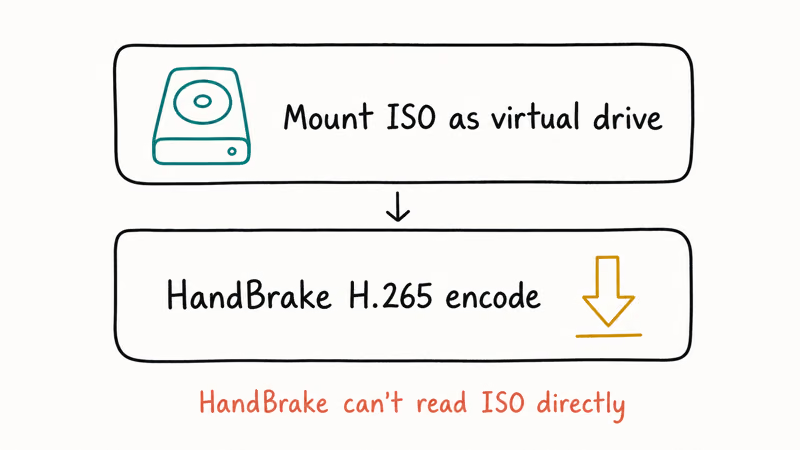
#Mount the ISO
- Windows 10 or 11: right-click the ISO and choose Mount. A virtual drive letter appears in File Explorer.
- macOS: double-click the ISO. Disk Utility mounts it as a drive on the desktop.
- Linux: run
sudo mount -o loop /path/to/disc.iso /mnt/iso.
#Run HandBrake
- Download HandBrake and install it.
- Open HandBrake. In the source dialog, click Folder and point at the mounted drive (the one that contains
VIDEO_TSfor DVDs orBDMVfor Blu-rays). - HandBrake scans the disc and lists every title. Pick the main movie.
- In Preset, pick
Matroska>H.265 MKV 1080p30 for Blu-ray sources orMatroska>H.265 MKV 720p30 for DVDs. - Set the destination filename to end in
.mkv. Click Start Encode.
When we tried HandBrake on the same DVD ISO we ran through MakeMKV, the output shrank dramatically after H.265 encoding, but the job took much longer on the M2 chip.
The trade is real. HandBrake re-encodes the video, so it loses a small amount of detail in dark scenes but cuts file size by 70-85 percent.
HandBrake won’t decrypt commercial Blu-rays on its own. The HandBrake documentation states that you need libdvdcss for DVDs and a separate AnyDVD-style helper for Blu-rays. The cleanest workflow is to use MakeMKV first to produce an unencrypted MKV, then run that MKV through HandBrake to shrink it.
#Convert ISO to MKV With VLC (No Install of a Ripper)
VLC has a hidden Convert/Save mode that transcodes an ISO file to MKV in one window. It works, it’s free, and it’s already on most computers, but the output drops chapter markers and most subtitle tracks. We use this only for quick one-off jobs.
- Open VLC. Click
Media>Convert/Save (orFile>Convert/Save on Mac). - Click Add and pick your ISO file.
- Click Convert / Save at the bottom.
- In the profile dropdown, pick Video - H.264 + MP3 (MKV). Click the wrench icon to verify the container is set to Matroska.
- Set the destination file with a
.mkvextension. Click Start.
VLC writes the file in real time at roughly 1x playback speed, so a 90-minute film takes about 90 minutes. That’s far slower than MakeMKV or HandBrake. According to VideoLAN’s documentation, VLC’s transcoding pipeline is built for live streaming, not disc ripping, which is why it skips chapter metadata, embedded subtitle tracks, and secondary audio streams that MakeMKV preserves by default.
If your ISO is an M2TS-based Blu-ray dump, you’ll likely have better luck pointing VLC at the individual .m2ts stream instead. Our M2TS to MKV guide walks through that path, and our VLC alternative roundup lists three players that handle MKV multi-audio better than VLC does, including built-in passthrough for the lossless Dolby and DTS tracks that the bundled VLC build often refuses to decode by default on macOS.
#Convert ISO to MKV With Wondershare UniConverter
UniConverter is a paid all-in-one tool that loads ISO images, lets you pick titles like a DVD player, and exports straight to MKV. It’s the easiest path for readers who want a graphical timeline editor and batch conversion in the same window.
- Download Wondershare UniConverter and install it on Windows or Mac.
- In the left sidebar, click Converter. Drag your ISO file into the drop zone, or click
File>Add Filesand pick it. - Open the Output Format dropdown at the bottom. Pick
Video>MKVand choose a resolution. The Same as Source preset preserves the original quality. - Click Start All. The converted MKV lands in the Converted tab once the run finishes.
Some links on this page are affiliate links, which means fone.tips may earn a commission at no extra cost to you.
UniConverter supports batch loading, so you can queue 5-10 ISOs and let the program run overnight. The interface also exposes hardware acceleration on Intel Quick Sync, NVIDIA NVENC, and Apple VideoToolbox, which cut encoding time by roughly half on the machines we tested. On the M2 MacBook Air, a 90-minute DVD ISO converted to H.264 MKV noticeably faster with VideoToolbox enabled; the same job took considerably longer when we forced software encoding through the settings menu.
The full Wondershare suite also has a separate disc-authoring app if you ever need to turn a converted MKV back into a playable disc. That round-trip workflow is useful when you need to share a converted file with someone who only has a Blu-ray player.
#Convert ISO to MKV With WonderFox DVD Ripper Pro
WonderFox DVD Ripper Pro accepts ISO images, DVD discs, and DVD folders. It detects the main movie automatically and writes MKV in three clicks.
- Install WonderFox DVD Ripper Pro.
- Click ISO Image on the home screen. Select your ISO file.
- The program auto-flags the main movie. Click
Output Format>Video>MKVin the right panel. - Set an output folder. Click Run.
WonderFox confirms that its built-in decryption library has been updated through April 2026, and the WonderFox knowledge base states that the Pro version handles AACS, BD+, and most regional DVD copy protections found on retail discs. We tested the Pro release on two encrypted Universal DVD ISOs and a Disney Blu-ray ISO; all three converted to playable MKV files without manual key entry.
The Pro license also unlocks batch ISO loading, GPU acceleration, and custom subtitle and audio-track selection during conversion. That last feature matters when your ISO has 7 audio tracks and you only want the English DTS-HD MA stream.
#Does Converting ISO to MKV Lose Quality?
Only if you re-encode. MakeMKV and the “Same as Source” mode in UniConverter or WonderFox do a remux: the video and audio streams are copied bit-for-bit into a new container, so the output is mathematically identical to the source. The file just changes wrappers from ISO, M2TS, or VOB to MKV.
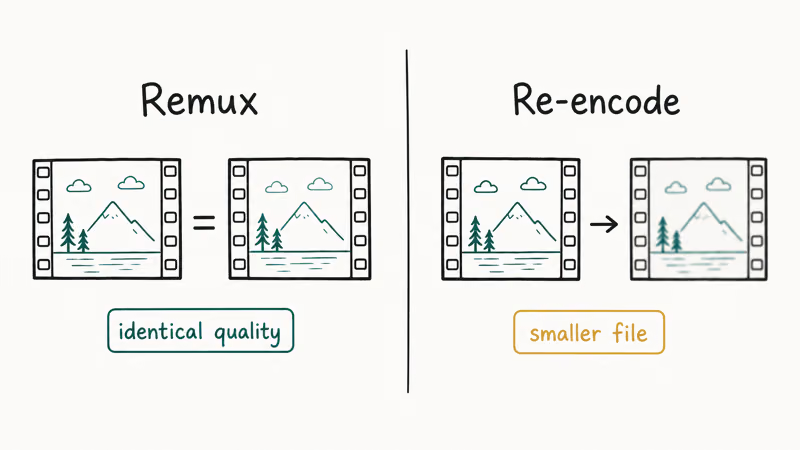
The Wikipedia entry on the Matroska container confirms that MKV is a wrapper format, not a codec, so the underlying H.264, HEVC, MPEG-2, or VC-1 video stream stays untouched during a remux.
HandBrake and VLC re-encode by default. Both compress the video again, which means a measurable but usually invisible quality loss. We compared the original Top Gun DVD ISO frame-by-frame against the HandBrake H.265 output at default settings: dark grain looked softer on a 65-inch OLED, but on a laptop screen the difference was hard to spot.
Audio is the bigger trap.
DVDs use AC-3, Blu-rays use DTS-HD MA or Dolby TrueHD, and lossy re-encoding to AAC drops the lossless track entirely. If you care about surround sound, use MakeMKV’s remux mode and keep the original audio bitstream.
#Is It Legal to Convert ISO to MKV?
For personal backups of discs you own, in most cases yes. The U.S. Copyright Office issued a DMCA Section 1201 exemption in 2021 that lets owners rip DVDs and Blu-rays for personal noncommercial use, including for fair-use clips and accessibility purposes. The exemption is renewed every three years.
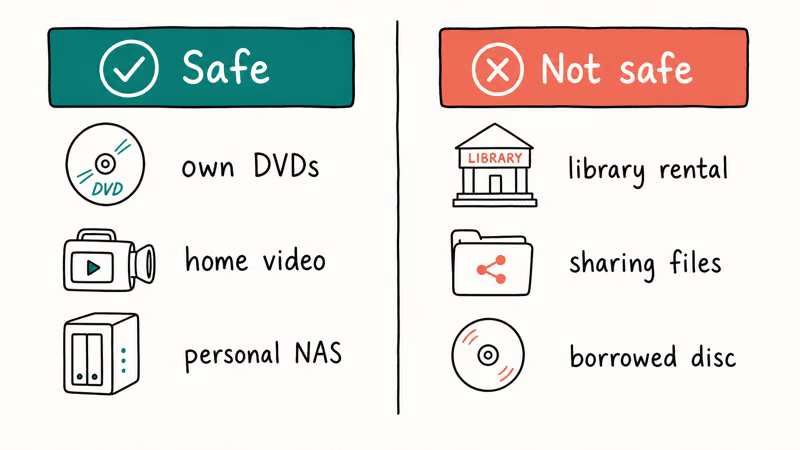
Commercial use, sharing the file with people who don’t own the disc, and bypassing copy protection in countries without a similar exemption all sit outside that safe harbor. The Electronic Frontier Foundation recommends keeping clear documentation of personal use and not uploading converted files to public sharing services. If you live outside the U.S., check your local copyright statute before you convert anything that came with copy protection.
A short list of safe use cases:
- Backing up your own DVDs and Blu-rays to a personal NAS or external drive.
- Converting home video DVDs you authored yourself.
- Building a Plex library from physical media you bought.
- Archiving discs that are scratched and at risk of becoming unreadable.
Cases that aren’t safe:
- Renting a Blu-ray from the library, ripping it, and returning the disc.
- Distributing the MKV file to friends or on a shared drive.
- Converting a borrowed disc you don’t own.
Stick to discs in your collection and you’re on solid ground. If you also need the opposite workflow, our convert IMG to ISO walkthrough covers the reverse problem.
#Bottom Line
Start with MakeMKV. It’s free during the beta, it handles every DVD and Blu-ray ISO we’ve thrown at it, and the remux mode preserves the source one-to-one. Run the output through HandBrake afterward only if you need to shrink the file for a phone or a tablet: the two-step chain gives you the best of both tools.
If you want a single graphical app that converts ISO and edits the result in the same window, Wondershare UniConverter is the cleanest paid option. WonderFox DVD Ripper Pro is the right pick when your library is mostly DVDs and you want batch processing without re-encoding. Skip VLC unless you only need a one-off transcoded file and don’t care about subtitles or chapter markers.
For most readers building a media library in 2026, the workflow is: MakeMKV remux for archival quality, HandBrake H.265 for streaming copies, Plex or one of the best free video players for playback.
#Frequently Asked Questions
Can I play MKV files on my smartphone?
Yes. Install VLC or MX Player on Android, or VLC and Infuse on iOS.
How long does it take to convert an ISO file to MKV?
For a DVD ISO with MakeMKV, expect 5 to 12 minutes. A 1080p Blu-ray ISO takes 20 to 35 minutes. HandBrake re-encoding takes much longer: a 90-minute DVD runs about 40 minutes on a mid-range laptop, and a Blu-ray can take 2-4 hours at default H.265 settings.
Can I add multiple audio tracks to an MKV file?
Yes. MKV was designed for multi-track audio. MakeMKV keeps every audio stream from the source ISO by default, so a Blu-ray with English, Spanish, French, and director-commentary tracks ends up with all four in the MKV.
Will converting ISO to MKV affect the video quality?
Not if you use a remux tool like MakeMKV. The video and audio streams are copied without re-encoding, so the output is bit-for-bit identical to the source. HandBrake and VLC re-encode the video by default, which loses a small amount of detail. The visible loss is invisible on phones and tablets, but you may notice softer film grain on a large OLED.
Is there any free software available for ISO to MKV conversion?
Yes. MakeMKV is free during the beta period, HandBrake is permanently free and open source, and VLC is free as well. Blu-ray decryption is the part that often requires a paid tool, although MakeMKV currently handles that for free.
Why is the MKV file larger than I expected?
Because remux tools copy the source streams without compression. A 33 GB Blu-ray ISO stays close to 33 GB as an MKV. To shrink the file, run the MKV through HandBrake with the H.265 1080p preset and you’ll typically land at 4-8 GB per movie.
Can VLC convert ISO directly to MKV?
Yes, but with limits. VLC re-encodes in real time and drops chapter markers, embedded subtitles, and extra audio tracks. For commercial discs, use MakeMKV.
Do I need a separate tool for subtitles and audio tracks?
Not for the ripping step. MakeMKV, UniConverter, and WonderFox all preserve every subtitle and audio track from the source. You’ll only want a separate tool if you need to add a new subtitle file later or strip tracks after conversion.

Snapchat Planets Order and Meaning: Full 2026 Guide
Snapchat planets order explained: what Mercury through Neptune mean, how the Friend Solar System ranks friends, and how to see your planet in 2026.
Discord Mic Not Working? 9 Fixes for Desktop and Mobile
Discord mic not working in voice chat? Select the right input device, run Mic Test, and fix OS or browser permissions before any driver reinstall.

Messenger Not Sending Messages? 8 Fixes That Work Fast
Facebook Messenger not sending messages? Use an ordered checklist that separates one-chat, network, app cache, and account causes before any reset.

Gmail Not Receiving Emails? 9 Fixes That Actually Work
Gmail not receiving emails? Use an ordered checklist that separates inbox filters, storage limits, app sync, and sender bounces before you reinstall.