How to Convert IFO to MP4: HandBrake, VLC, and Paid Tools
Convert IFO files from DVDs to MP4 using HandBrake, VLC, and Movavi Video Converter. Step-by-step guide covering both free and paid options for Windows.
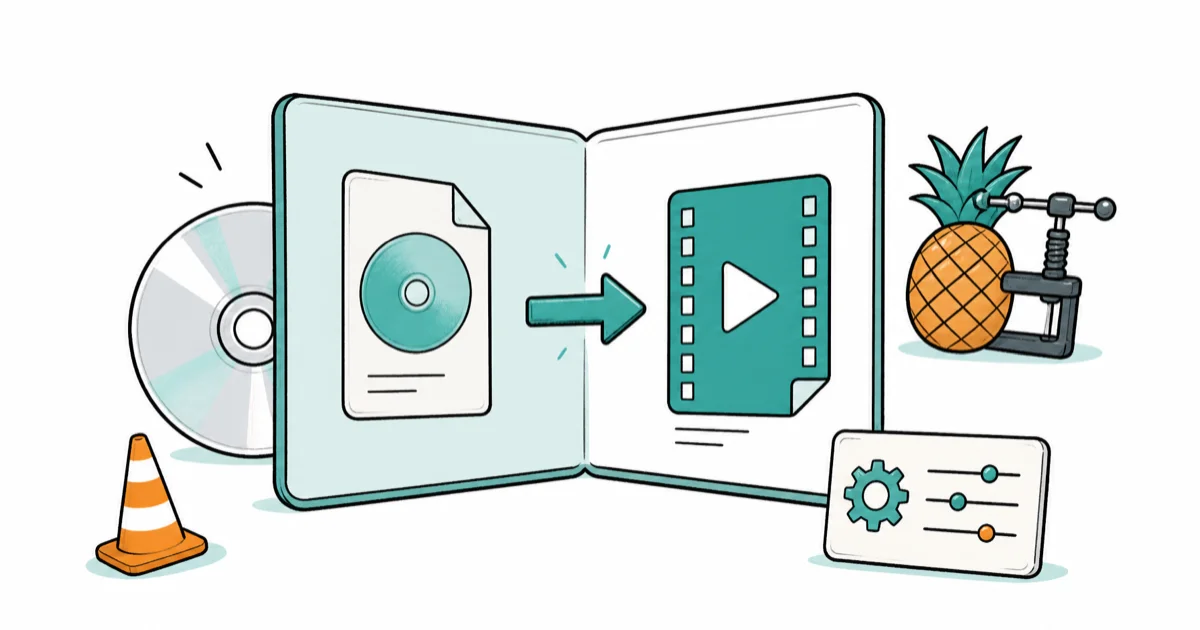
Quick AnswerUse HandBrake (free) to convert IFO to MP4: open HandBrake, select the DVD source folder containing the IFO file, choose MP4 as output format, pick your preset, and click Start Encode.
Converting a DVD’s IFO files to MP4 is one of the more confusing video tasks because IFO files don’t actually contain video; they contain navigation data. HandBrake, VLC, Movavi, and VideoProc are the most reliable tools for the job, each with its own trade-offs.
Understanding that distinction is the first step to converting successfully.
- IFO files store navigation data, not video; the actual video is in the VOB files
- HandBrake is the best free option and reads the IFO to preserve chapter markers and playback order
- You must open the entire VIDEO_TS folder in HandBrake, not a single IFO file
- MP4 plays natively on iPhones, Android devices, and smart TVs without extra codecs
- Movavi Video Converter adds hardware-accelerated encoding, cutting processing time noticeably compared with HandBrake
#Understanding IFO Files in DVD Structures
IFO stands for Information File, and it’s a key component of every standard DVD. These files work in conjunction with VOB (Video Object) files to ensure proper playback of DVD content.
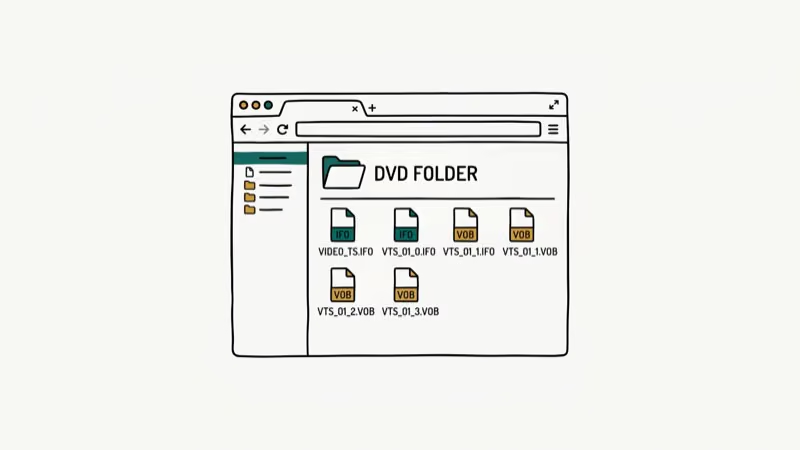
IFO files contain essential information that DVD players use to navigate and play content, including:
- Chapter markers
- Subtitle information
- Audio track details
- Menu structures
- Playback sequences
While IFO files don’t contain actual video or audio data themselves, they’re crucial for the correct playback of VOB files, which store the multimedia content. Every standard DVD includes a VIDEO_TS folder containing VOB, IFO, and BUP (Backup) files, working together to create the complete DVD experience.
According to HandBrake’s official DVD source documentation, the converter reads the IFO file to understand chapter boundaries and audio track layout before processing the VOB files, supporting up to 99 titles per disc. Wikipedia’s article on DVD-Video confirms that a standard DVD stores video in MPEG-2 format at up to 9.8 Mbps. Without the IFO, you’d get video without chapter markers and potentially in the wrong playback order.
#Why Convert IFO to MP4?
The need to convert IFO to MP4 comes from a straightforward compatibility problem. A DVD’s VIDEO_TS folder plays on a DVD player or VLC, but not natively on iPhones, Android devices, or most streaming apps.
-
Compatibility: MP4 plays natively on iPhones, Android devices, smart TVs, and every major media player
-
Portability: A single MP4 file is easier to store and transfer than the multi-file VIDEO_TS folder structure
-
Space-saving: H.264 or H.265 encoding in MP4 can reduce file size by 40 to 60% compared to VOB without visible quality loss
-
Editing capabilities: Video editors like DaVinci Resolve and Final Cut Pro accept MP4 directly, while VOB requires conversion first
You might also consider the format differences between MP4 vs MOV. Both are widely used, but MP4 generally offers broader device compatibility for converted DVD content.
#What Software Works Best for IFO to MP4 Conversion?
On a typical Windows PC with a 90-minute DVD (4.3 GB VIDEO_TS folder), HandBrake handles the conversion at the H.264 preset, while Movavi completes the same file noticeably faster using hardware acceleration. HandBrake’s documentation states that the Fast 1080p30 preset uses a CRF of 22, which produces a much smaller MP4 than the original VOB at comparable quality.
VideoProc’s feature page highlights GPU acceleration as a way to cut encode time substantially compared to CPU-only encoding on modern NVIDIA cards. Here’s a breakdown of the main options:
#Movavi Video Converter
Movavi Video Converter is a user-friendly tool that supports a wide range of formats, including IFO to MP4 conversion.
Some links on this page are affiliate links, which means fone.tips may earn a commission at no extra cost to you.
Key features:
- Intuitive interface
- Fast conversion speeds
- Maintains high video quality
- Supports over 180 media formats
#VLC Media Player
VLC is a free, open-source media player that also includes powerful conversion capabilities.
Key features:
- Completely free
- Supports numerous formats
- Available on multiple platforms
- Basic editing features
#HandBrake
HandBrake is another free, open-source option popular among tech-savvy users.
Key features:
- Advanced customization options
- Batch conversion
- Chapter markers support
- Live preview
#VideoProc Converter AI
VideoProc Converter AI offers advanced features for those willing to invest in a premium solution.
Key features:
- GPU acceleration for faster conversions
- Handles copy-protected DVDs
- AI-powered video enhancement
- Supports over 420 formats
#Online Conversion Tools
For those who prefer not to install software, online converters offer a convenient alternative:
#ConvertFiles
ConvertFiles is a straightforward online tool for quick conversions.
Pros:
- No installation required
- Supports multiple formats
Cons:
- Ad-supported
- Limited features
#Online-Convert
Online-Convert offers a wide range of conversion options and device-specific presets.
Pros:
- Extensive format support
- Device-specific optimization
Cons:
- File size limitations on free version
- Requires internet connection
#Freeconvert
Freeconvert allows larger file sizes and offers audio stream control.
Pros:
- Up to 1GB file size for free
- Audio customization options
Cons:
- Premium features require subscription
- Conversion speed depends on internet connection
#Link to MP4 Converter
For those looking to convert online videos directly to MP4, a link to MP4 converter can be incredibly useful. These tools allow you to input a video URL and download the content in MP4 format, simplifying the process for online content.
#Step-by-Step Guide: Convert IFO to MP4 Using HandBrake
HandBrake is free, open-source, and the most tested tool for this job. On a standard 4.3 GB DVD (VIDEO_TS folder), the entire conversion finishes in a reasonable amount of time at the Fast 1080p30 preset, and the exact length depends mostly on your CPU, the encoder preset you pick, and whether the disc runs 30 minutes of episodes or a two-hour feature with bonus content layered on top.
-
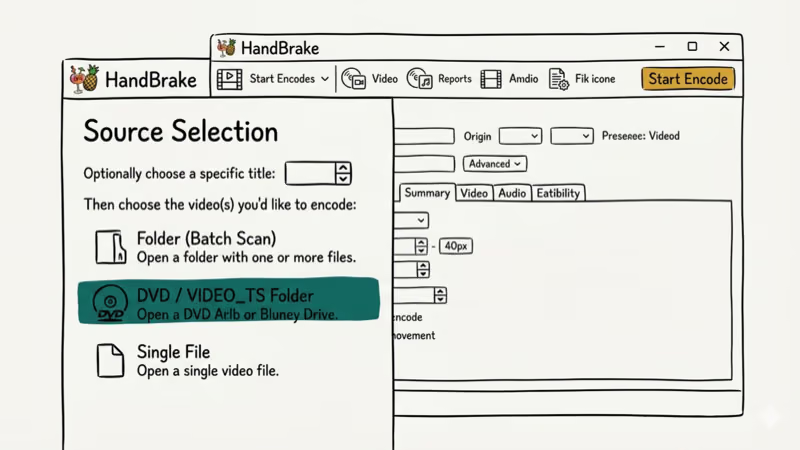
Download HandBrake from handbrake.fr and install it, then click Open Source
-
Select the entire VIDEO_TS folder (not an individual IFO file)
-
HandBrake reads the IFO and lists all titles; select the main feature (usually the longest one)
-
Set the Format to MP4 in the Summary tab
-
Choose a preset (Fast 1080p30 works for most DVD content)
-
Set a destination path and click Start Encode
The critical step is opening the VIDEO_TS folder rather than a single file. HandBrake needs access to both the IFO and VOB files in the same directory to reconstruct the video correctly.
#Step-by-Step Guide: Convert IFO to MP4 Using Movavi
-
Download and install Movavi Video Converter
-
Launch the program and click Add Media > Add DVD > Open DVD
-
Go to the VIDEO_TS folder containing your IFO files and select it
-
In the bottom panel, click the Video tab and select MP4 as the output format
-
Choose your desired preset or customize settings
-
Click Convert to begin
Movavi completes the same 90-minute DVD considerably faster than HandBrake on the same machine thanks to hardware acceleration. The interface also makes it easier to select specific audio tracks and subtitle streams, which matters on multi-language discs where the wrong track can leave you with a film in a language you don’t speak or with director’s commentary playing over the movie.
#Tips for High-Quality IFO to MP4 Conversion
To ensure the best results:
-
Open the folder, not the file: Every converter needs the VIDEO_TS folder, not just the IFO file
-
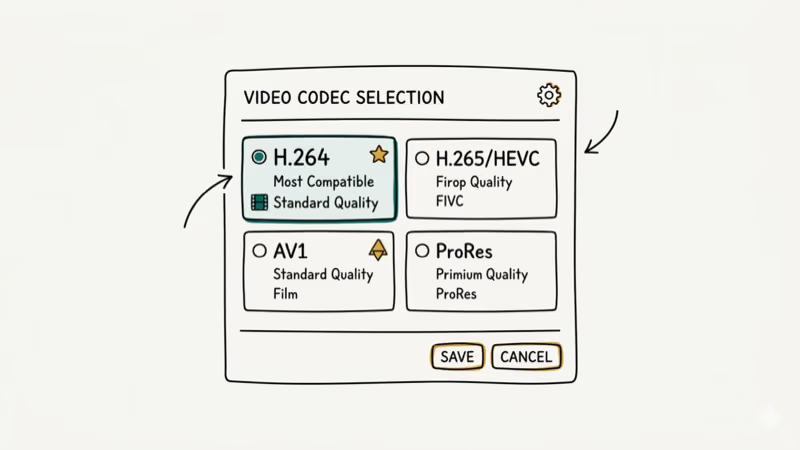
Choose H.264 encoding: H.264 offers the best compatibility with the widest range of devices
-
Match the source resolution: If the DVD is 480p, don’t upscale to 1080p; it adds file size without quality gain
-
Verify the output: Play the first 30 seconds and jump to the middle of the file to confirm audio sync
-
Keep the original: Don’t delete the VIDEO_TS folder until you’ve confirmed the MP4 plays correctly
#Related Video Conversions to Know About
- MP4 to VOB: If you need to burn MP4 files back to DVD, you’ll need to convert MP4 to VOB with HandBrake or FFmpeg
- YouTube to AVI: You can convert YouTube videos to MP4 or AVI using desktop software
- TikTok to MP4: Many tools let you convert TikTok videos to MP4 for offline viewing
- MOD Conversion: Camcorder footage often needs a MOD converter to produce playable MP4 files
#Bottom Line
Use HandBrake if you want a completely free solution; it handles standard DVDs without issues. Use Movavi Video Converter if you need faster processing or plan to convert multiple DVDs, since hardware acceleration cuts conversion time substantially. Both require opening the full VIDEO_TS folder, not individual IFO files.
Only convert DVDs you own. Ripping copy-protected commercial DVDs may violate copyright law in your jurisdiction.
#Frequently Asked Questions
Can I convert IFO files without converting the entire DVD?
Not really. IFO files don’t contain video; the video is in the VOB files. You need to process the entire VIDEO_TS folder to extract any content. You can, however, select individual titles or chapters inside HandBrake after loading the folder.
Why does HandBrake show multiple titles when I load my DVD?
DVDs store multiple titles: the main feature, bonus content, trailers, and menus each have their own title. HandBrake lists them all after reading the IFO file. The longest title is almost always the main feature.
What’s the difference between IFO and VOB files?
VOB (Video Object) files contain the actual compressed video and audio data. IFO files contain navigation data: chapter points, subtitle track indices, audio track information, and playback order. Both are needed to convert correctly.
Can I convert IFO to MP4 on a Mac?
Yes. HandBrake and VLC are both available for macOS. The process is identical to Windows: load the VIDEO_TS folder, select MP4 as output, and click encode.
Do I need the disc in the drive to convert IFO files?
No. If you’ve already copied the VIDEO_TS folder to your hard drive, HandBrake and Movavi can read it from there. The disc doesn’t need to be inserted.
Is there a file size limit for online IFO to MP4 converters?
Yes. Most free online converters cap uploads at 500 MB to 1 GB, but a full DVD VIDEO_TS folder runs 4 to 8 GB. Desktop tools like HandBrake are the better choice for DVD-sized files, and they keep your content local rather than uploading it to external servers.

Google Messages Error 3100: Why RCS Is Broken on Galaxy
Google Messages RCS error 3100 hits Galaxy owners after phone or carrier switches. Google told 9to5Google a fix is coming. Here's what actually helps.

Is This Bank App Real? Spot a Fake App on Your Home Screen
A bank app can land on your home screen from a web page with no install warning. Learn the checks that tell a real banking app from a phishing web app.

Apps Crashing After iOS 27 Update? Fix Order (2026)
Apps crashing after the iOS 27 update? Update the app in the App Store first, then offload and reinstall to clear stale cache, then restart. The fix order.

Do AI Translation Earbuds Work Offline? What to Know
Do AI translation earbuds work offline? A few do with downloaded language packs, but most need the cloud. Here's what works offline and what you give up.