iPhone Won't Turn Off? 6 Proven Software and Hardware Fixes
iPhone won't turn off? Start with force restart, then check iOS updates, settings, restore options, hardware, and when to contact Apple Support.
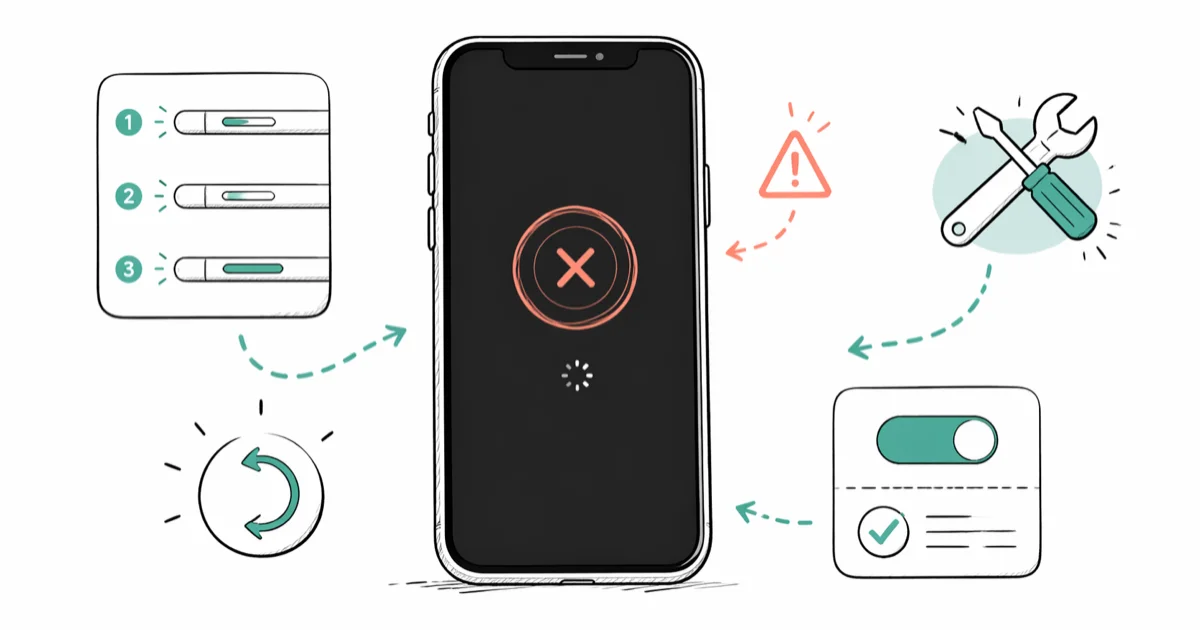
Quick AnswerForce restart your iPhone first: press Volume Up, press Volume Down, then hold the Side button until the Apple logo appears. That clears the software freeze without deleting any data.
Your iPhone won’t turn off and the power slider refuses to appear. This guide covers your own iPhone — the steps assume you have full access to the device and its Apple ID. Start with a hardware force restart, then move through settings, restore, and hardware checks.
- Force restart (Volume Up, Volume Down, hold Side button) solves the problem in most cases
- Accessibility Shortcuts like AssistiveTouch can block normal shutdown; check
Settings>Accessibility - An iOS update can fix a shutdown bug; go to
Settings>General>Software Update - Reset All Settings clears configuration glitches without erasing your photos or apps
- Finder on Mac or iTunes on Windows can restore iOS as a last resort, but back up first
#Why Won’t Your iPhone Turn Off?
A software freeze is the usual culprit. When a background process crashes or memory fills up, the OS stops drawing the power slider even though the Side button itself still reports presses to the kernel. A hardware-level reboot is the safe first step because it forces iOS to restart without relying on the frozen power slider.
Hardware can be at fault too. Press the Side button and listen for a click.
Jailbroken iPhones are a separate category. Apple’s standard troubleshooting won’t help while unofficial tweaks are loaded, and this guide is limited to stock iOS on devices you own. Remove the jailbreak first, then come back to Fix 1.
#Fix 1: Force Restart Your iPhone
Force restart is a hard reboot at the hardware level. It bypasses the frozen software layer, so it works even when the screen is completely unresponsive. Nothing is erased.
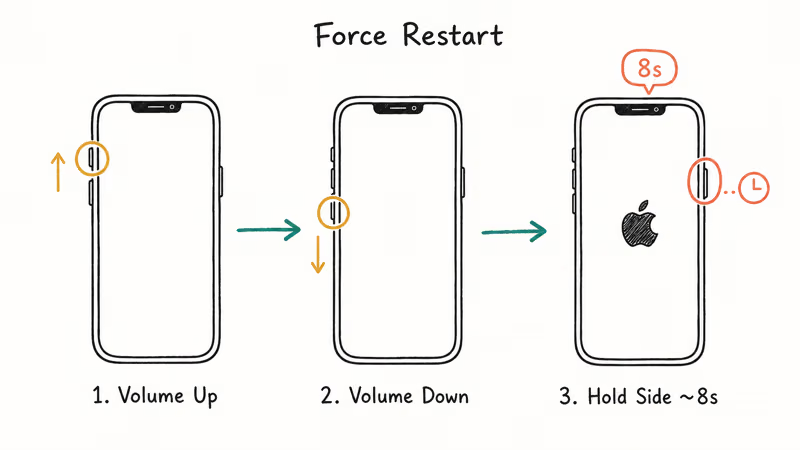
iPhone 8, iPhone X, and newer (including iPhone 15 and 16 series):
Press Volume Up, then Volume Down (release each immediately), then hold the Side button until the Apple logo appears, about 8 seconds.
iPhone 7 and iPhone 7 Plus: Hold the Side button and Volume Down together for 10 seconds. Release when you see the Apple logo.
iPhone 6s, iPhone SE (1st generation), and older: Hold both the Home button and the Top button together for 10 seconds. Release when the Apple logo appears. These older models use the two-button method because they have a physical home button.
Release all buttons when the logo appears. Wait 60 seconds before trying to use the phone again. If the freeze was software-related, the problem is gone.
#Does an Accessibility Shortcut Block Shutdown?
Yes. AssistiveTouch intercepts the Side button entirely.
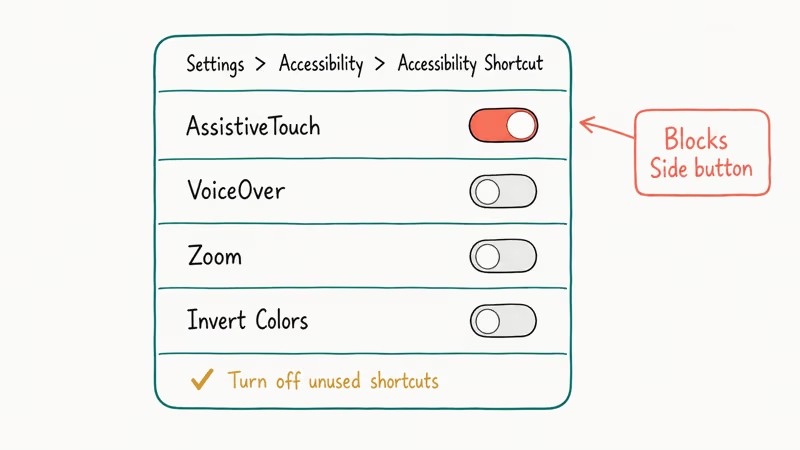
Go to Settings > Accessibility > Accessibility Shortcut and check whether AssistiveTouch, VoiceOver, Zoom, or Invert Colors are toggled on. Turn off any shortcut you don’t intentionally use.
According to Apple’s Accessibility documentation, AssistiveTouch is designed to replace 8 physical button gestures, including the Side button press that normally triggers the shutdown slider. Disabling it restores standard button behavior.
Once you’ve turned off the conflicting shortcut, try the Side button again.
#Fix 2: Update iOS
Apple releases bug-fix updates regularly. If a shutdown problem was introduced in a specific iOS version, updating can remove it because Apple bundles system stability fixes into iOS updates, and some of those fixes target the exact background processes that draw and dismiss the power slider, so a pending update is worth installing before you assume the button itself has failed.
Go to Settings > General > Software Update. If an update is available, plug in your iPhone and install it. The process takes under 15 minutes on a fast Wi-Fi connection.
If your iPhone is too frozen to open Settings, force restart it first using Fix 1, then update immediately after it reboots.
#Fix 3: Reset All Settings
Reset All Settings wipes every configuration option (Wi-Fi passwords, keyboard shortcuts, privacy permissions, display settings) without touching your photos, apps, or personal data. It resolves shutdown problems caused by a corrupted setting.
Go to Settings > General > Transfer or Reset iPhone, tap Reset, then Reset All Settings, enter your passcode, and confirm. Your iPhone reboots automatically.
The reboot takes 1-3 minutes. You’ll need to reconnect to Wi-Fi, but everything else stays put. Worth trying before a full restore.
If your iPhone’s mute switch also seems stuck or unresponsive after this, Reset All Settings clears that too. It’s a broad reset that wipes configuration glitches across the whole system, not just the shutdown behavior.
#Fix 4: Restore iPhone via Finder or iTunes
If the iPhone still won’t turn off after the first three fixes, a full iOS restore is the next step. This reinstalls the OS from scratch. It erases your iPhone, so back up first.
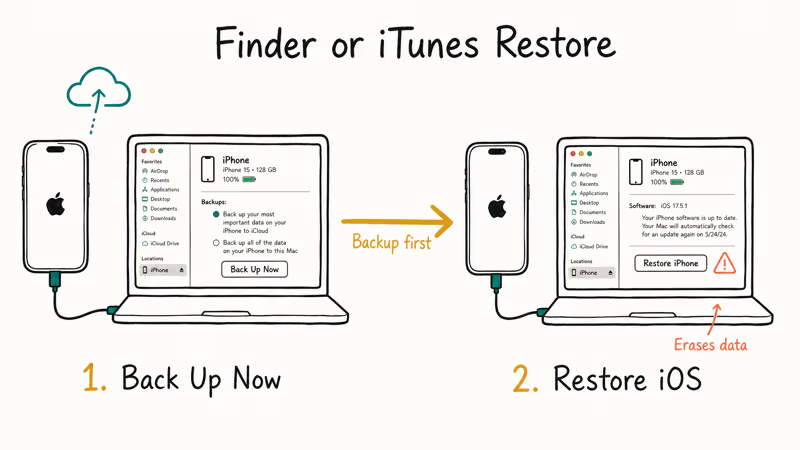
How to back up:
- iCloud: Go to Settings > [your name] > iCloud > i
Cloud Backup>Back Up Now. Takes 5-20 minutes. - Mac (macOS Catalina or later): Connect via USB-C, open Finder, select your iPhone, click Back Up Now.
- Windows (or older Mac): Open iTunes, select your iPhone, click Back Up Now.
How to restore:
Connect your iPhone to your computer and open Finder (Mac) or iTunes (Windows). Select your iPhone in the sidebar, click Restore iPhone, and wait while iOS reinstalls from scratch. The whole process takes 20-40 minutes. When it’s done, choose Restore from Backup to get your data back.
According to Apple’s official restore documentation, a Finder or iTunes restore is the recommended path when force restart and software updates fail to clear persistent system issues. The page also notes that a restore wipes the device cleanly, which is why backup is mandatory.
If your iPhone won’t enter restore mode normally, you may need DFU mode, a deeper restore state that bypasses the bootloader entirely. Apple’s support page covers the DFU restore process step by step.
For iPhones with older iOS versions, you can sometimes restore iPhone without updating if you want to stay on your current iOS.
#Fix 5: Check for a Hardware Problem
If none of the software fixes work, the Side button may be physically damaged. Press it sharply and listen for a click. A working Side button has a clean, tactile response.
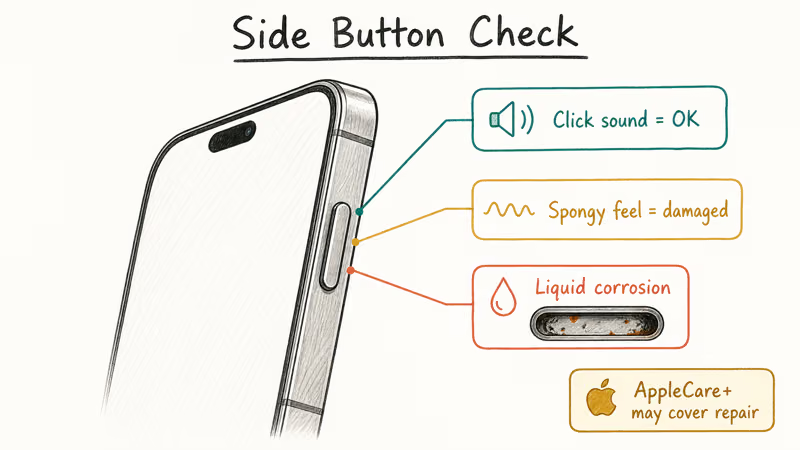
A button that feels stuck, spongy, or produces no sound usually means the assembly is damaged. This is especially common after a drop or liquid exposure, since corrosion inside the connector prevents proper electrical contact and no software fix will address that.
Apple’s Repair and Service page lets you book a Genius Bar appointment or mail your iPhone in. If your device is under warranty or covered by AppleCare+, button repairs may be covered. Out-of-warranty fees vary by model and damage type, so check Apple’s estimate before booking.
A frozen iPhone that also shows ghost touch issues alongside the shutdown problem points to combined hardware stress. Get it diagnosed before trying more software steps.
#iPhone Stuck on the Apple Logo
That’s a different problem. If the Apple logo appears but the phone never finishes booting, you’re dealing with a boot loop rather than a shutdown freeze.
The iPhone stuck on Apple logo fix starts with a force restart using the same steps above. If two attempts don’t clear the loop, a Finder or iTunes restore is the next step using the Fix 4 instructions.
Phones caught in an iPhone boot loop after a failed update often need DFU mode.
#Bottom Line
Force restart clears many software freezes. If the phone comes back but still won’t power off, check Accessibility Shortcuts and install any pending iOS updates. Persistent issues after all six steps point to a hardware problem worth a Genius Bar visit.
If the screen stays dark after the restart, the iPhone black screen guide covers display and battery angles in more depth, including the case where the backlight has failed but the phone is still alive underneath. If Safari stops working on your iPhone post-freeze, Reset All Settings usually clears it, and so does signing out of iCloud once and signing back in after the reboot finishes.
#Frequently Asked Questions
Why won’t my iPhone turn off even when I hold the power button?
A software freeze or a crashed process is blocking the power-off slider from appearing. The Side button input reaches the hardware, but the frozen OS isn’t responding. Force restart bypasses this by resetting the device at the hardware level, without going through the frozen OS layer.
Does force restarting delete anything on my iPhone?
No. Force restart doesn’t erase photos, apps, messages, or settings. Think of it as pulling the battery on an old phone and plugging it back in. Your data stays intact.
How do I turn off an iPhone if the screen is completely black?
Force restart works with a black screen. The Apple logo appears after 8 seconds.
Can a bad app cause my iPhone to freeze and not turn off?
Yes. A poorly written app running in the background can consume all available CPU and RAM, locking the OS in a frozen state. After force restarting, delete the most recently installed app. You can also check Settings > Privacy and Security > Analytics Data for crash logs pointing to a specific app.
Will restoring my iPhone via iTunes fix the shutdown problem?
In most cases, yes. A full iOS restore installs a clean copy of the operating system, removing any corrupted system files. According to Apple’s support documentation, restore via Finder or iTunes is the recommended step when other troubleshooting hasn’t resolved the issue. Always back up first to avoid losing data.
My iPhone turns off fine but won’t restart. Is that the same problem?
No. See the guide to iPhone won’t turn on for that fix.
How long does a Finder restore take?
Expect 20-40 minutes. Keep your iPhone plugged in via USB-C the whole time and don’t disconnect mid-restore.
Can I fix this without a computer?
Yes, in most situations. Force restart, Accessibility Shortcut check, iOS update, and Reset All Settings all work directly on your iPhone. Only the Finder or iTunes restore requires a Mac or PC. Start with the on-device fixes first, since they solve the problem most of the time.

Mac mini M6 vs M5 Pro: Which Model Should You Buy?
Mac mini M6 vs M5 Pro compared on price, memory, ports, displays, and real workloads. Find the better 2026 Mac mini for your desk and budget.

Apple Siri Settlement: Who Qualifies and How to Claim
Apple's $250 million Siri settlement covers iPhone 15 Pro and iPhone 16 models bought June 2024 to March 2025. See who qualifies and how claims work.

iOS 26.6.1 Security Update: What Apple Fixed and Who Gets It
Apple released iOS 26.6.1 on August 17 with 29 security fixes, including an IPSec interception bug. See what it patches, who gets it, and how to update.

iPhone Adaptive Power: How It Works and When to Use It
Learn how iPhone Adaptive Power works, which models support it, what it changes, and when Low Power Mode is still the better battery-saving choice.