Fix Safari Not Working on iPhone: 11 Proven Methods
Fix Safari not working on iPhone with 11 proven methods. Covers iOS 17 and 18, from clearing cache to resetting network settings. Step-by-step guide.
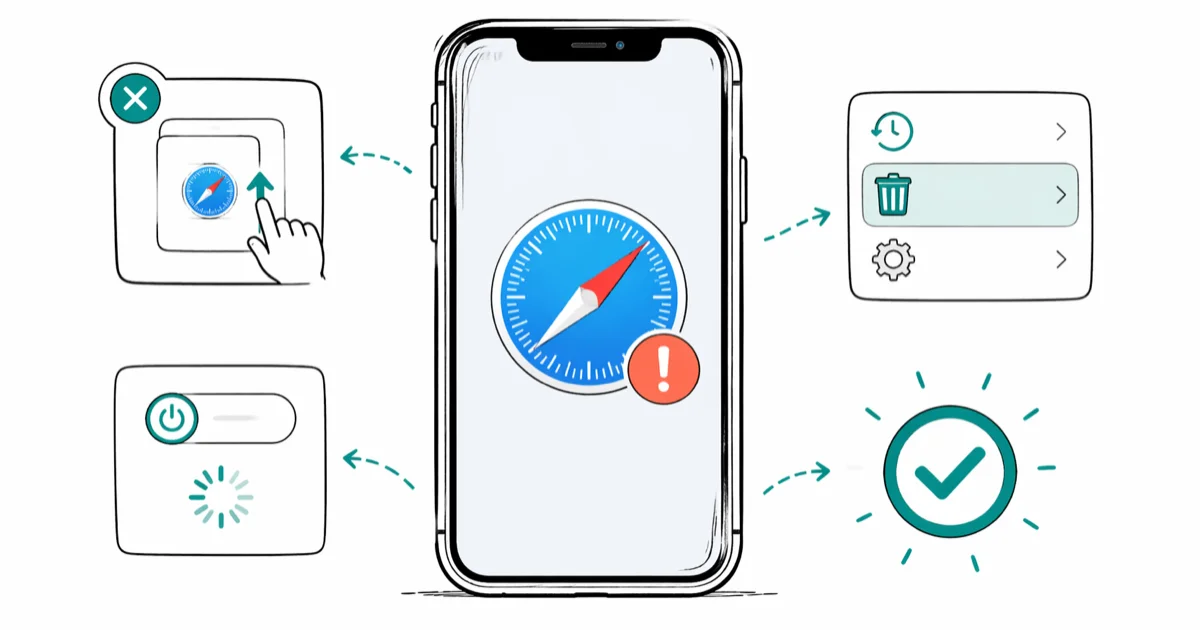
Quick AnswerForce-close Safari and restart your iPhone. If that doesn't fix it, go to Settings > Safari > Clear History and Website Data. These two steps resolve most Safari issues on iOS 17 and iOS 18.
Safari not working on your iPhone shuts down most of what makes the phone useful: search, links from Mail and Messages, the in-app browsers in TikTok and Instagram, and any login that bounces through a web view. This guide works through 11 fixes for iPhones on iOS 17 and iOS 18, sorted by which ones actually move the needle and which are just folklore.
- Force-closing Safari plus a 5-second wait clears most stuck-tab and blank-screen issues without losing any data
- Clearing history and website data signs you out of sites but leaves iCloud Keychain passwords intact
- Outdated iOS is a top culprit because each iOS point release ships Safari and WebKit security fixes
- Resetting network settings wipes saved Wi-Fi passwords and VPN configs but doesn’t touch photos or apps
- Reset All Settings is the last self-service step before booking Apple support
#Why Does Safari Stop Working on iPhone?
Most Safari failures fall into one of four buckets, and figuring out which bucket you’re in saves a lot of trial-and-error.
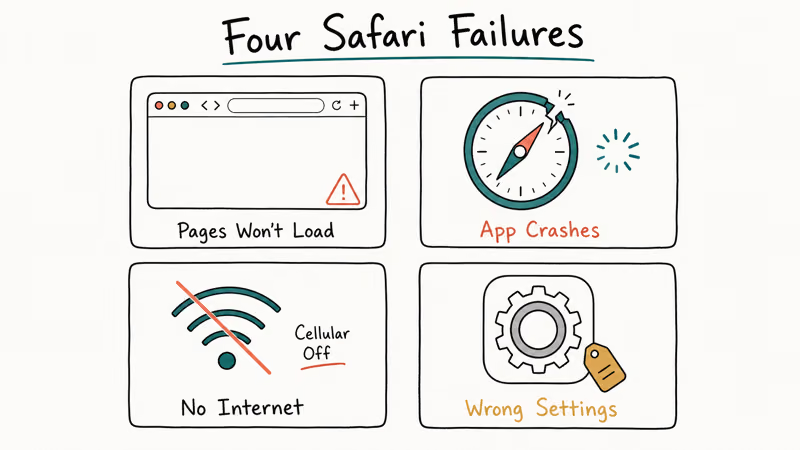
A stuck Safari process is the most common cause. Safari runs as a background app even when you think it’s closed, and a single corrupt tab can lock the whole process so the address bar stops responding. Force-closing it usually unsticks things in seconds, which is why it’s the first fix on every Apple support thread for Safari on iPhone, and the right place to start before touching any settings.
Corrupted cache is the second usual suspect. Safari caches images, scripts, and HTML for speed. Bad partial downloads turn into blank white screens.
According to Apple, every iOS 17 and iOS 18 point release lists Safari and WebKit fixes alongside system updates (see Apple’s iOS release notes). If you’ve been deferring updates for several weeks, you’re running a Safari that Apple has already patched, and that patch may be exactly the bug you’re hitting.
Network connectivity rounds out the list. When a phone toggles between Wi-Fi and 5G in a low-signal area, Safari can stall on the loading bar even while Mail and YouTube keep working over cellular. Safari is more sensitive than other apps to flaky DNS or partial connections, so a flaky Wi-Fi connection often shows up as a Safari problem first.
The fourth bucket is rarer but worth checking: Safari can get blocked by Screen Time or Mobile Device Management profiles after an update or restore.
#Quick Fixes That Solve Most Safari Problems
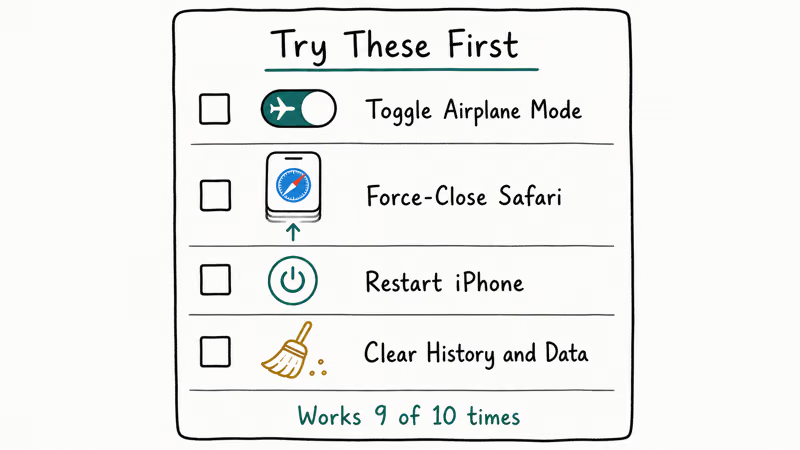
Five small steps clear most Safari complaints. Try them in order before touching any settings.
#Force-Close Safari
Swipe up from the bottom of the screen and pause halfway up to open the App Switcher (iPhone X and later) or double-press the Home button (iPhone 8 and earlier). Find the Safari card and swipe it up off the screen. Wait at least five seconds, then reopen Safari. This single step usually recovers a frozen blank tab in seconds.
#Close Extra Tabs
Tab clutter starves Safari of memory. Open Safari, tap the tabs icon at the bottom right, then long-press it and tap Close All Tabs. With dozens of tabs open, scrolling stutters and tap targets respond slowly; closing down to a handful clears both problems.
#Restart Your iPhone
A restart kills every running process, including the parts of Safari that survive a force-close. For iPhone X and later, hold the side button and either volume button until the power slider appears, drag it, wait 30 seconds, then hold the side button until the Apple logo shows. iPhone 8 and earlier just need the side button. The full restart only takes a minute or two.
#Update iOS
Go to Settings > General > Software Update and install anything pending.
According to Apple’s developer release notes for Safari, each iOS version ships with WebKit and Safari rendering fixes documented by build number. Moving from an older point release to a newer one often eliminates a recurring page-reload crash on JavaScript-heavy news sites.
If the update keeps stalling, the underlying problem is usually a Wi-Fi snag mid-download, not the iOS update itself.
#Clear Safari Cache and History
Open Settings > Safari > Clear History and Website Data, then tap the red confirmation button. You’ll be signed out of every site that uses cookies, but iCloud Keychain passwords stay put and autofill on the next login. This is often the single most effective fix on the list, clearing white-screen loading issues in under two minutes.
#When Safari Still Won’t Load After Restarting
If the quick fixes didn’t stick, the problem is almost always your network rather than Safari itself.
#Check Your Wi-Fi Connection
Open Control Center and tap the Wi-Fi icon to disable it for 10 seconds, then turn it back on. If the page still won’t load, go to Settings > Wi-Fi, tap the info button next to your network, and choose Forget This Network. Reconnect by selecting the network and re-entering the password. Routers that have been running for weeks often need a power cycle: unplug for 20 seconds, plug back in, and give it a minute to broadcast.
According to Apple’s networking troubleshooting guide, DHCP, DNS, and proxy mismatches are 3 of the top connectivity reasons Safari fails when other apps still work. Forgetting and rejoining the network resets all three.
#Check Cellular Data Permissions for Safari
Cellular data permissions are app-by-app on iOS, and Safari can lose its toggle after a SIM swap or carrier reset. Go to Settings > Cellular and scroll down to the app list. If the switch next to Safari is gray, Safari can’t use LTE or 5G even when every other app on the phone is connecting fine.
If the toggle’s already on and pages still time out, you may have a broader cellular network problem affecting the whole device. That looks the same as a Safari bug from inside Safari.
#Toggle Airplane Mode
Airplane Mode tears down every radio at once: Wi-Fi, cellular, Bluetooth, GPS. Tap the airplane icon in Control Center, wait 15 seconds, then tap it again. This often fixes Safari after walking out of a building with patchy 5G coverage. The radios negotiate fresh connections instead of trying to recover a half-broken one.
#Safari Settings Worth Checking
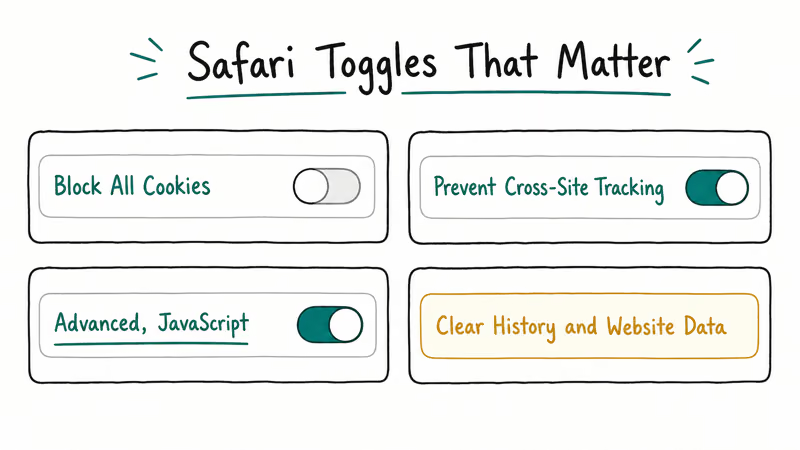
Two settings inside Safari itself break things often enough to be worth checking before you escalate to a reset.
#Disable Search Engine Suggestions
Search Engine Suggestions sends each keystroke to your search provider for autocomplete results. On a slow or filtered connection, that round trip stalls the address bar entirely. Go to Settings > Safari and turn off Search Engine Suggestions. Search still works normally; you just lose the dropdown predictions.
#Turn Off Experimental WebKit Features
Apple ships work-in-progress WebKit toggles for developers. Go to Settings > Safari > Advanced > Experimental Features and turn off anything you don’t recognize.
According to the WebKit project status page, features still in the In Development and Prototyping stages are explicitly not production-ready and ship for testing only. If Safari stabilizes after you flip them off, re-enable them one at a time to find the culprit.
#Should You Reset Your iPhone to Fix Safari?
Two reset levels exist below the nuclear “erase all content and settings” option. Both are reversible enough to be worth trying before you book a Genius Bar slot.
#Reset Network Settings
Go to Settings > General > Transfer or Reset iPhone > Reset > Reset Network Settings. Apple’s current reset guide says to use this only after other solutions fail; it removes saved Wi-Fi networks and passwords, cellular settings, and VPN and APN settings.
The reset also clears up overlapping symptoms like iPhones losing cellular data intermittently, since Wi-Fi, cellular, and messaging all share the same underlying network stack. If you mostly notice the issue when texts stop arriving, our walkthrough on iPhones not receiving texts covers the message-specific angle in more depth.
You’ll need to reconnect to Wi-Fi and re-enter the password afterward. VPN users will need to reinstall their config profile. Photos, apps, and Apple ID stay untouched.
#Reset All Settings
Go to Settings > General > Transfer or Reset iPhone > Reset > Reset All Settings. This rolls every Settings preference back to factory defaults: Notifications, Display, Accessibility, Sounds, the lot. It doesn’t delete photos, messages, apps, or your Apple ID.
After a botched update leaves Safari broken, Reset All Settings is often what finally restores it when nothing else works. You’ll need to set up Face ID, Wi-Fi, and notification preferences again, but the whole reconfigure takes only about 10 minutes.
#When to Contact Apple Support
If you’ve run every fix above and Safari still won’t load, the problem is probably hardware or a corrupt iOS install that needs Apple’s diagnostic tools. Visit the official Apple Support Safari page to start a chat or book a Genius Bar appointment. Hardware issues like a damaged Wi-Fi antenna or logic-board fault can break Safari while leaving other apps working, and you can’t diagnose those from inside iOS.
Bring two pieces of information with you. Write down the iOS version (Settings > General > About) and a list of the fixes you’ve already tried. That trims diagnostic time at the appointment, and Apple Authorized Service Providers will use the same list to skip duplicate steps if you go to a third-party shop instead.
#Bottom Line
Force-close Safari, restart your iPhone, and clear history and website data, in that order. Those three steps resolve most Safari issues inside 10 minutes total, and they cover the corrupted-cache, stuck-process, and stale-state cases that drive most reports.
If pages still won’t load, work the network angle next: forget and rejoin Wi-Fi, confirm Safari has cellular permission, and check whether the issue follows you off your home network.
Reset Network Settings comes before Reset All Settings, and both come before booking Apple support. Most Safari problems clear before you ever need to escalate past Reset All Settings, but if you do, write down the steps you’ve tried so the technician doesn’t repeat them.
#Frequently Asked Questions
Why is Safari not working after an iOS update?
Point releases occasionally introduce regressions in Safari before Apple ships a follow-up patch. Check Settings > General > Software Update for a newer version. If you’re already current and the bug persists, Reset All Settings clears most of these post-update Safari faults without touching your data.
Will clearing Safari data delete my saved passwords?
No. Clear History and Website Data wipes browsing history, cookies, and the cache, but iCloud Keychain stays intact and autofills on your next login.
Can I reinstall Safari on my iPhone?
Yes, but only on iOS 14 and later. Search the App Store for Safari and tap the cloud-download icon. On older iOS releases Safari is part of the operating system and can’t be removed or reinstalled. If Safari just disappeared from your Home Screen, swipe left past your last home page to find it in App Library.
Does resetting network settings delete anything else?
It removes saved Wi-Fi passwords, Bluetooth pairings, VPN configurations, and APN settings. Photos, contacts, messages, and apps stay completely untouched.
Why does Safari keep crashing on my iPhone?
Corrupted cache or a memory pressure problem is the usual cause. Close every open tab, clear Safari’s history and website data, then restart your iPhone. This sequence usually stops recurring crashes within a few minutes. If crashes return after the restart, install any pending iOS update at Settings > General > Software Update.
Should I switch to Chrome instead of fixing Safari?
You can install Chrome, Firefox, or Edge from the App Store, but every third-party browser on iOS has to use Apple’s WebKit engine under the hood. That means a WebKit bug shows up identically in Chrome and Safari. Safari has the deepest iOS integration: Handoff, iCloud Keychain, Reading List sync, and private browsing protections that other browsers don’t get. Fixing Safari is usually the better bet.
How do I check if Screen Time blocked Safari?
Go to Settings > Screen Time > Content & Privacy Restrictions > Allowed Apps and confirm Safari’s toggle is on. If Screen Time is managed by a parent or by a corporate MDM profile, you’ll need their passcode to flip it back.
What does the “address is invalid” error in Safari mean?
The URL itself is malformed or pointing to nothing. Double-check the address for typos and stray characters. If the URL looks correct, try loading google.com to confirm Safari is otherwise working, then search for the site name in the address bar instead of pasting the URL. Some sites also block direct paste from third-party apps for security reasons.
For a deeper walkthrough of that specific message, see our Safari “address is invalid” page-load fixes.

Mac mini M6 vs M5 Pro: Which Model Should You Buy?
Mac mini M6 vs M5 Pro compared on price, memory, ports, displays, and real workloads. Find the better 2026 Mac mini for your desk and budget.

Apple Siri Settlement: Who Qualifies and How to Claim
Apple's $250 million Siri settlement covers iPhone 15 Pro and iPhone 16 models bought June 2024 to March 2025. See who qualifies and how claims work.

iOS 26.6.1 Security Update: What Apple Fixed and Who Gets It
Apple released iOS 26.6.1 on August 17 with 29 security fixes, including an IPSec interception bug. See what it patches, who gets it, and how to update.

iPhone Adaptive Power: How It Works and When to Use It
Learn how iPhone Adaptive Power works, which models support it, what it changes, and when Low Power Mode is still the better battery-saving choice.