How to Fix an iPhone Stuck in a Boot Loop: 6 Methods
Fix your iPhone stuck in a boot loop with 6 proven methods including force restart, Recovery Mode, and DFU Mode. Step-by-step for all models on iOS 15+.
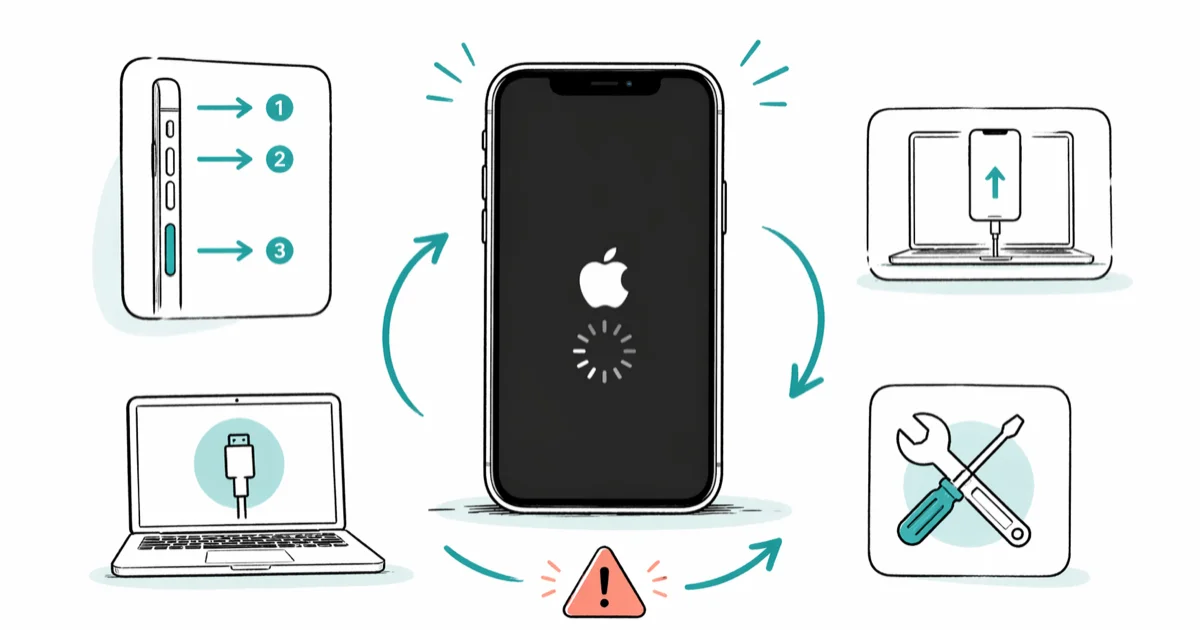
Quick AnswerForce restart your iPhone by pressing Volume Up, Volume Down, then holding the Side button until the Apple logo appears. If the loop continues, connect to a Mac or PC and use Recovery Mode to reinstall iOS.
An iPhone boot loop locks your phone in an endless restart cycle. The Apple logo appears, the screen goes black, and the whole thing starts over. Six fixes cover the full range, from a quick force restart that clears many loops on the spot to a computer-based restore for the corruption that runs deeper.
- Force restart (Volume Up, Volume Down, hold Side button) resolves roughly half of all boot loops without erasing data
- Failed iOS updates are the leading cause, typically triggered by low battery, poor Wi-Fi, or full storage during the install
- Recovery Mode’s Update option reinstalls iOS while preserving your photos, messages, and apps
- DFU Mode reinstalls both firmware and the operating system, making it the deepest restore available before Apple hardware service
- Third-party USB-C cables can trigger repeated restarts on iPhone 15 and newer due to accessory authentication checks
#What Causes an iPhone Boot Loop?
A boot loop happens when iOS crashes during startup and reboots endlessly.
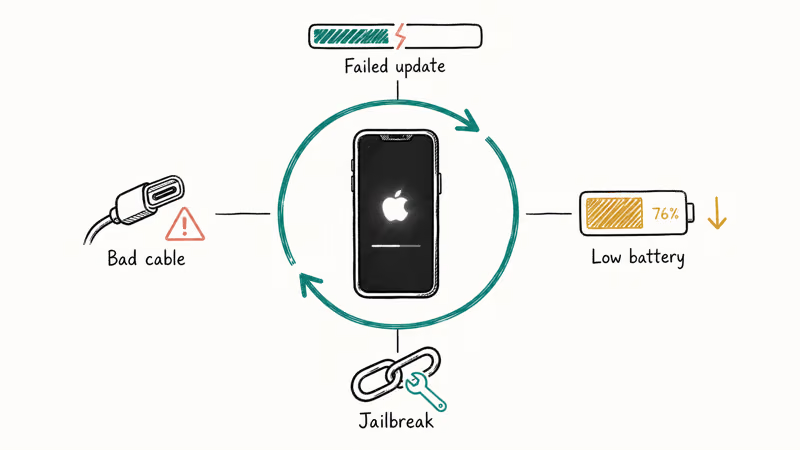
Failed iOS updates top the list. If an update gets interrupted by a dead battery, a dropped Wi-Fi connection, or full iPhone storage, the installation leaves behind damaged system files. According to Apple’s support documentation on the Apple logo screen, an iPhone that stays stuck on the Apple logo for more than one hour likely needs a computer-based restore to recover.
Jailbreaks and sideloaded tweaks rank second. Modified system partitions don’t always survive an iOS update cleanly. Battery degradation below 80% health is another culprit because the processor demands more current during boot than during normal use.
An iPhone with degraded battery health can loop several times before finally completing a boot, since the processor demands extra current that a worn battery struggles to supply. Hardware faults, water damage, and non-MFi cables round out the common causes. On iPhone 15 and later, USB-C authentication rejects certain third-party cables outright, which can look exactly like a boot loop.
#How Do You Force Restart an iPhone in a Boot Loop?
A force restart cuts power to the processor, clears the RAM, and forces a clean startup. Nothing gets erased. This method only works on your own device since you need physical access to the buttons.
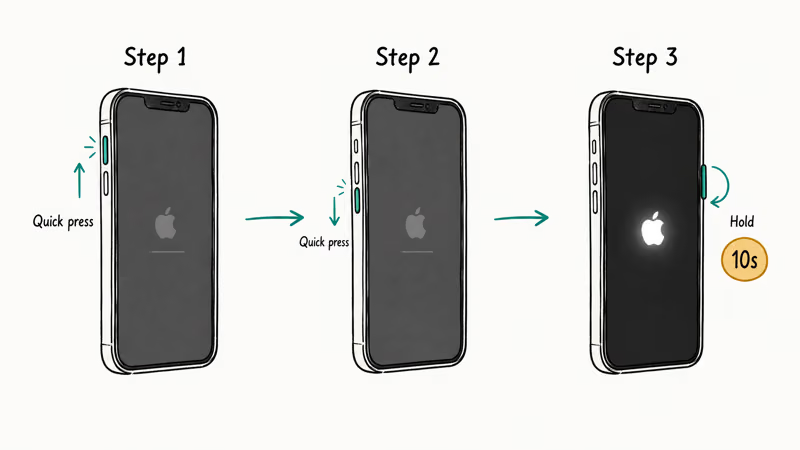
iPhone 8, X, 11, 12, 13, 14, 15, 16 (and SE 2nd/3rd gen):
- Press and quickly release Volume Up
- Press and quickly release Volume Down
- Press and hold the Side button for about 10 seconds until the Apple logo appears, then let go
iPhone 7 / 7 Plus: Hold Volume Down and the Side button together for 10 seconds until the Apple logo shows up.
iPhone 6s and earlier: Hold Home and Power together for 10 seconds.
After a failed update triggers a boot loop, a force restart often resolves it on the first try, and the phone loads normally within a couple of minutes. Give your iPhone a full 2-3 minutes to boot before assuming the fix failed.
If the loop returns, the corruption runs deeper than RAM can clear. Move to Recovery Mode.
#Restore Through Recovery Mode
Recovery Mode lets your computer reinstall iOS directly. Try Update first — it keeps your data. Restore wipes everything.
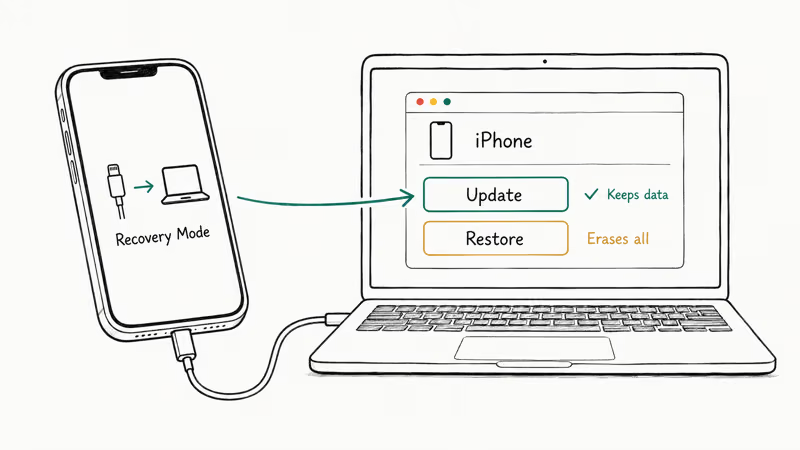
What you need: A Mac running macOS Catalina or later (uses Finder) or a Windows PC with iTunes. A USB cable that isn’t worn out or damaged.
- Connect your iPhone to the computer with the USB cable
- Enter Recovery Mode using the same button combo as a force restart, but keep holding the Side button past the Apple logo until the recovery screen appears
- Finder or iTunes detects the device and shows two choices: Update and Restore
- Click Update first, which reinstalls iOS without erasing your files
- If Update fails or the boot loop returns, go back and click Restore
According to Apple’s guide on restoring an iPhone, the Update process downloads the latest iOS version and reinstalls it while keeping personal data intact. Plan on 15-20 minutes total for the download and installation.
One common snag: a frayed Lightning cable makes the iPhone drop out of Recovery Mode mid-restore, and swapping to a new cable solves the disconnection. If your phone exits Recovery Mode before the process finishes, re-enter it and restart from step 2.
#DFU Mode Restore
DFU (Device Firmware Update) Mode goes one layer deeper than Recovery Mode. Where Recovery Mode reinstalls iOS only, DFU reinstalls both the firmware and the operating system. Use DFU when Recovery Mode fails or when you see error codes like 4013 during restore. The process requires a computer running Finder on macOS Catalina or later, or iTunes on Windows, and precise button timing that differs slightly from the Recovery Mode sequence.
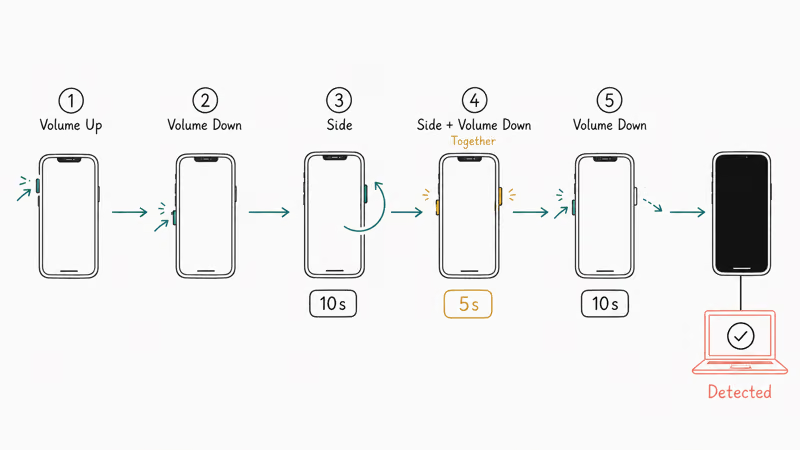
9to5Mac’s guide to iPhone restore modes confirms that DFU Mode is the deepest restore level available to end users before hardware service.
DFU steps for iPhone 8 and later:
- Connect your iPhone to a computer with Finder or iTunes open
- Quick-press Volume Up, then Volume Down
- Hold the Side button for 10 seconds
- While still holding Side, press and hold Volume Down for 5 seconds
- Release the Side button but keep holding Volume Down for 10 more seconds
If done correctly, the screen stays completely black and Finder or iTunes detects the device automatically.
DFU wipes everything. Back up through iCloud or your computer first if your phone boots long enough. The restore takes 10-15 minutes, and you’ll need your Apple ID and password afterward to pass Activation Lock.
Important: Apple’s Activation Lock means you can only DFU restore an iPhone linked to your own Apple ID. Attempting this on someone else’s device without authorization is both ineffective and potentially illegal under computer fraud statutes in most jurisdictions.
#Use an iOS Repair Tool to Keep Your Data
If you lack a backup, an iOS repair tool can help. These apps replace corrupted system files while keeping personal data intact.
Tools like Tenorshare ReiBoot handle this:
Some links on this page are affiliate links, which means fone.tips may earn a commission at no extra cost to you.
- Install the tool on your Mac or PC
- Connect your boot-looping iPhone via USB
- Select Standard Repair (the data-preserving option)
- The tool downloads the correct firmware for your model and iOS version
- Click Start Repair and wait about 10 minutes
ReiBoot’s Standard Repair is built for exactly this case, a persistent loop after a storage-full update failure. The repair reinstalls the firmware while photos and messages stay intact, which is the whole point of the data-preserving mode.
Advanced Repair fully wipes like DFU. Use only after Standard fails.
If Apple’s Recovery and DFU routes and ReiBoot’s standard repair don’t work, AnyFix is another dedicated iOS repair option to check before assuming the fault is hardware.
#Check Your Battery and Hardware
Not every boot loop comes from corrupted software. A worn-out battery can fail to deliver the surge of current that the startup sequence demands.
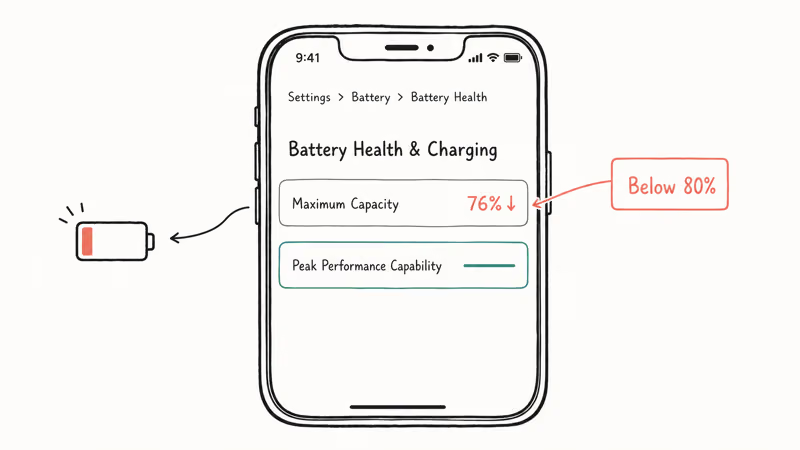
If your iPhone boots long enough to reach the home screen, go to Settings > Battery > Battery Health & Charging and check the maximum capacity percentage. Below 80% means the battery can’t reliably power a full boot. Apple’s iOS update and restore errors page states that error codes 1, 3, 11, and 12 during restore specifically indicate hardware-level faults that no software fix can resolve.
Signs pointing to hardware:
- Battery health below 80%
- The phone gets unusually hot during each restart
- The loop started after a drop or liquid exposure
- Ghost touch problems showed up before the loop began
If two or more of these apply, book a Genius Bar appointment. Out-of-warranty battery replacements run $89-$119 depending on the model. Full logic board repairs cost significantly more, but Apple’s in-store diagnostics confirm whether the board actually needs replacement before you pay.
#Bottom Line
Start with a force restart. Ten seconds, zero data loss, and it resolves about half of boot loops on the spot. When the loop comes back, connect to a computer and try Recovery Mode’s Update option to preserve your files. Fall back to DFU Mode or ReiBoot’s Standard Repair when the corruption runs too deep for Recovery Mode.
Keep your iPhone backed up through iCloud or Finder. A boot loop becomes a 15-minute fix instead of a data emergency when your backup is current. If your iPhone won’t turn on at all, that’s a different issue.
#Frequently Asked Questions
Why does my iPhone keep showing the Apple logo and restarting?
A corrupted system file blocks iOS from loading. Failed updates cause this most often. Try a force restart first.
Can I fix a boot loop without losing my data?
Yes. A force restart never erases anything, and Recovery Mode’s Update option reinstalls iOS while preserving your files. iOS repair tools with a Standard Repair mode also keep your data on iOS 15 and later. Only DFU Mode and the full Restore option wipe the device.
What is the difference between Recovery Mode and DFU Mode?
Recovery Mode reinstalls iOS only. DFU Mode reinstalls firmware plus the OS, but it wipes everything.
Does a boot loop mean my iPhone hardware is damaged?
Not usually. Software corruption from failed updates or jailbreaks accounts for the vast majority of boot loops, and a DFU restore fixes those. Hardware becomes the likely culprit only when the loop returns after a completely clean DFU reinstall. At that point, the cause is typically battery degradation below 80% maximum capacity, water damage to internal components, or a failing logic board that needs professional diagnosis at an Apple Store.
How do I back up an iPhone stuck in a boot loop?
You can’t create a new backup from a phone that won’t finish starting. Check iCloud.com for existing automatic backups by signing in and looking under Account Settings. If no backup exists, use an iOS repair tool’s Standard Repair to fix the loop without erasing data.
Will restoring through iTunes or Finder fix a boot loop?
Yes. Restoring through Finder or iTunes reinstalls iOS from scratch and clears corrupted files. Try Update first to keep your data.
How long does it take to fix an iPhone boot loop?
Force restart takes about 10 seconds, while Recovery Mode Update and DFU Mode each run 10-20 minutes including the firmware download. Repair tools average around 10 minutes. Apple hardware repairs take 1-3 hours in store or 5-7 business days by mail.
Can a third-party cable cause an iPhone boot loop?
On iPhone 15 and later, yes. Apple’s USB-C implementation includes accessory authentication that rejects non-MFi cables and triggers repeated restarts that look exactly like a software boot loop. Switching to an Apple-branded or MFi-certified cable stops the cycle immediately. iPhone 14 and earlier models with Lightning connectors aren’t affected because Lightning doesn’t perform the same authentication check.

Mac mini M6 vs M5 Pro: Which Model Should You Buy?
Mac mini M6 vs M5 Pro compared on price, memory, ports, displays, and real workloads. Find the better 2026 Mac mini for your desk and budget.

Apple Siri Settlement: Who Qualifies and How to Claim
Apple's $250 million Siri settlement covers iPhone 15 Pro and iPhone 16 models bought June 2024 to March 2025. See who qualifies and how claims work.

iOS 26.6.1 Security Update: What Apple Fixed and Who Gets It
Apple released iOS 26.6.1 on August 17 with 29 security fixes, including an IPSec interception bug. See what it patches, who gets it, and how to update.

iPhone Adaptive Power: How It Works and When to Use It
Learn how iPhone Adaptive Power works, which models support it, what it changes, and when Low Power Mode is still the better battery-saving choice.