iPhone Safari Not Loading Pages? 8 Fixes by Root Cause
iPhone Safari not loading pages? Test one site versus all sites and Safari versus other apps first, then fix content blockers, VPN, and website data.
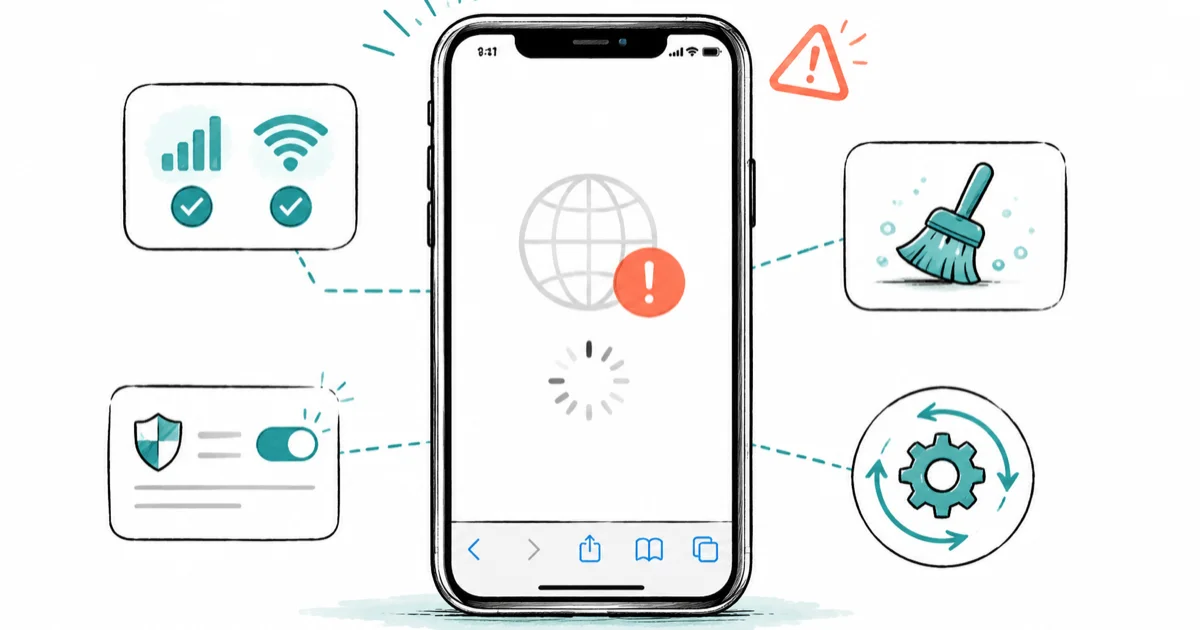
Quick AnswerProve whether it's Safari-only or network-wide first. If Mail and other apps also fail, fix the connection. If only Safari fails, disable content blockers and clear website data for the affected site before resetting all network settings.
iPhone Safari not loading pages can mean one stubborn site won’t open, every site hangs, or the whole browser shows blank white screens. These steps assume you’re working on your own iPhone or a device you manage. Each symptom points to a different cause, so the fix starts with a 60-second test that tells you whether the problem is Safari, your connection, or one specific website.
- Testing one site versus all sites, and Safari versus another app, isolates the cause before you change a single setting
- A content blocker, VPN, or iCloud Private Relay can break specific sites while leaving the rest of the internet working
- Clearing website data fixes a single corrupted site, while clearing all history is a broader, more disruptive step
- A wrong date and time setting can block secure HTTPS connections and make every site fail with a security error
- Reset Network Settings is the last resort, used only after content blockers and website data come up clean
#Why Is Safari Not Loading Pages on iPhone?
Safari loading failures sort into four causes, and a quick test matrix tells you which one you have.
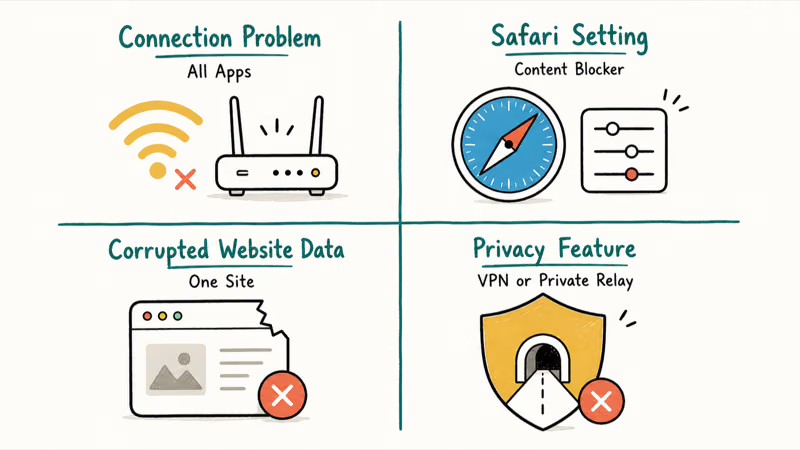
The four causes are a connection problem affecting everything, a Safari-specific setting like a content blocker, a single corrupted website’s stored data, or a privacy feature breaking a particular site. The trick is to test along two axes: does the problem hit one site or all sites, and does it hit Safari only or other apps too. Those two questions narrow four causes down to one fast.
Use this matrix as a filter: if a site fails in Safari but opens in another browser on the same connection, the network is unlikely to be the cause.
According to Apple, the first move is to load a known site over cellular data or a different Wi-Fi network to confirm whether the connection is the issue. Apple’s Safari troubleshooting page also recommends turning off Private Relay and checking VPN settings, which matches the cause-isolation approach below. Keeping a second browser like Firefox for iOS installed gives you a clean way to isolate whether a loading failure is browser-specific or network-wide.
#Test One Website, All Websites, Wi-Fi, and Cellular
Run the matrix before anything else. It’s the fastest path to the right fix.
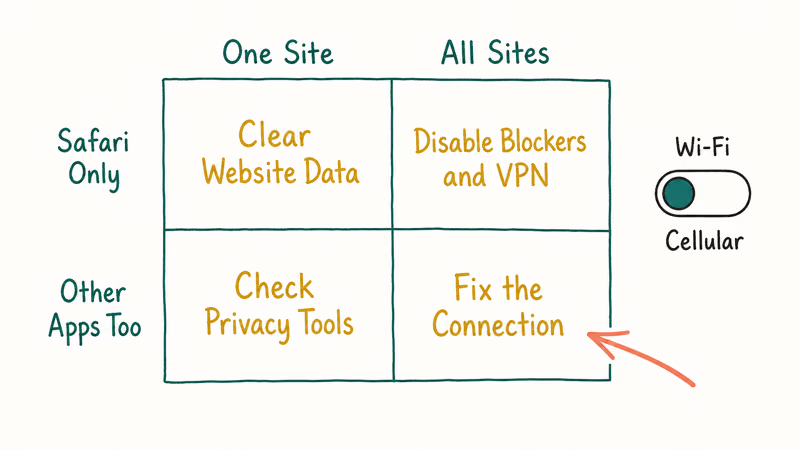
First, try a known-good site like apple.com. If it loads but your target site doesn’t, the problem is that one website, not Safari. Next, try the failing site in Chrome or another browser, and if it works there, the problem is Safari specifically.
Then switch from Wi-Fi to cellular (or the reverse) and retry. If it works on cellular but not Wi-Fi, your Wi-Fi connection or router is the suspect, and the steps for when your iPhone won’t connect to Wi-Fi apply. If Safari loads on Wi-Fi but dies on mobile data, you’re likely looking at some apps not working on cellular, which usually traces to a per-app cellular toggle.
If every site fails in every browser on both Wi-Fi and cellular, you don’t have a Safari problem at all; you have a connection problem. Check whether other apps like Mail are also failing to update or whether the Weather app stops working too. When multiple apps fail together, fix the network, not the browser.
#Disable Content Blockers, VPNs, and Private Relay Temporarily
If the matrix points at Safari, privacy and filtering tools are the next suspects, because they can break specific sites while everything else works.
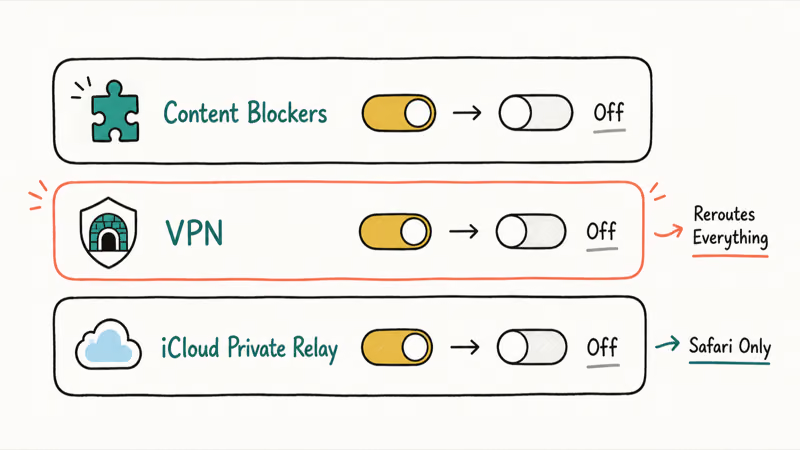
Content blockers, the extensions that strip ads and trackers, sometimes block resources a site needs to render, leaving you with a blank or half-loaded page. Go to Settings > Apps > Safari > Extensions and turn off any content blockers one at a time, retesting the site between each.
A VPN can do the same thing by routing you through a region the site blocks, so toggle your VPN off and retry. Understanding Private Relay versus a VPN helps, since they behave differently with site access. Private Relay only protects Safari traffic, while a full VPN reroutes the entire connection, which means a VPN is the more likely culprit when apps beyond Safari also struggle to reach a site.
iCloud Private Relay deserves its own check. Go to Settings > [your name] > iCloud > Private Relay and turn it off temporarily, since Private Relay hides your IP and can trip up sites that geo-restrict content or require a stable address.
These toggles are diagnostic steps, not permanent fixes. If turning one off makes a single site work, you’ve found the conflict, and you can decide whether to leave it disabled only for that site or switch to a more compatible service. If you rely on a VPN daily, the best VPN options for iPhone handle site compatibility better than free ones do.
#What If Safari Works Only After Clearing Website Data?
When one specific site loads everywhere except Safari, its stored data on your phone is probably corrupted.
Safari saves cookies, cache, and local data per site, and a bad entry can wedge that one site into a permanent failure state. According to Apple’s guide to clearing Safari data, the path starts in Settings > Apps > Safari and ends at Clear History and Website Data. That clears the stored data and forces the site to rebuild it fresh on your next visit.
Be aware of the trade-off. Clearing all history and website data signs you out of most sites and wipes saved form data, so it’s broader than you may want for a single broken site. Use it only after content blockers, VPN, Private Relay, and the site-versus-browser check all point back to Safari’s stored data.
#Fix DNS, Date and Time, and Network Settings
A few system-level settings can block Safari in ways that look like a site failure but aren’t.
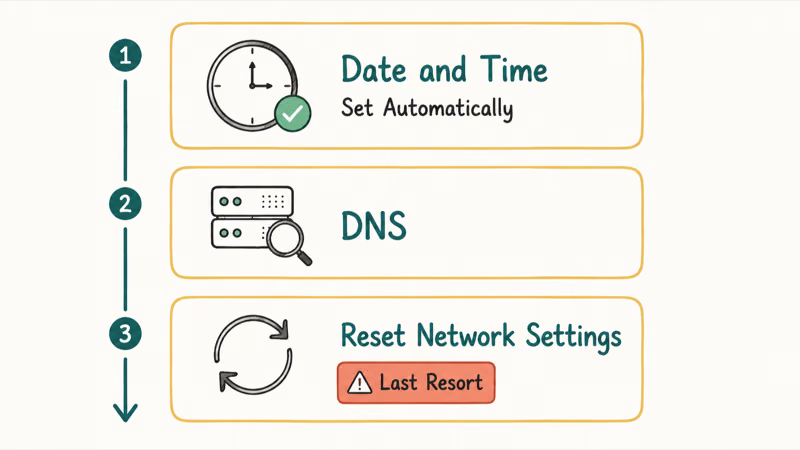
The sneakiest is date and time. Secure HTTPS connections rely on accurate certificates, and if your iPhone’s clock is wrong, Safari rejects those certificates and refuses to load secure sites, often with a vague connection-failed message. Go to Settings > General > Date & Time and turn on Set Automatically.
A DNS problem can also stall page loading, and the same symptoms that produce a DNS probe finished no internet error on other devices apply to Safari too.
If you’ve confirmed it’s not a single site, not a content blocker, and not the clock, Reset Network Settings is the broad clean-slate move. Go to Settings > General > Transfer or Reset iPhone > Reset > Reset Network Settings. This wipes saved Wi-Fi passwords and network configs, then rebuilds them, which clears stubborn DNS and connection bugs. Keep it as a last resort because of the password re-entry it forces.
#Update iOS or Try Another Browser for Isolation
Two final moves catch the rare cases the earlier steps miss.
Keep iOS current. Safari ships with iOS, so browser bugs get fixed through system updates, not the App Store, and the new Safari AI features in iOS 27 arrive this way too. Go to Settings > General > Software Update and install anything pending, since a known Safari rendering bug may already have a fix waiting. If the same broad Wi-Fi failures persist across apps, the deeper steps for iPhone Wi-Fi not working cover the radio and router side.
Keeping a second browser installed is useful purely for isolation. If a site fails in Safari but works in Chrome or Firefox on the same connection, you’ve proven the problem is Safari-specific and saved yourself from blaming the network. That single comparison is worth more than a dozen blind setting changes.
#Bottom Line
First prove whether this is Safari-only or network-wide, because that one fact decides everything downstream. If Chrome, Mail, and Weather also fail, fix the connection. If only Safari fails, disable content blockers and Private Relay, then clear website data for the affected site before you reset all network settings. Treat VPN and Private Relay toggles as diagnostic tests, and keep Reset Network Settings as the final step after everything else comes up clean.
#Frequently Asked Questions
Why is Safari not loading pages on my iPhone?
The cause is usually one of four things: a network problem hitting all apps, a content blocker or VPN breaking specific sites, corrupted data for one website, or a wrong date and time blocking secure connections. Testing one site versus all sites, and Safari versus another browser, pinpoints which of the four you’re actually dealing with, and that single distinction is what saves you from blindly resetting settings that were never the problem.
What should I check first?
Try loading apple.com, then open your failing site in another browser to see if it’s the site or Safari.
Can an iOS update cause Safari to stop loading pages?
Yes, both ways. A buggy Safari version can ship with an update, and a pending update can include the fix. Check Software Update if pages stopped loading after a recent iOS change, since Safari fixes arrive through the system rather than the App Store, which is why an outdated iOS is worth ruling out early.
Will clearing website data delete my passwords?
No. Clearing history and website data signs you out of most sites but doesn’t delete passwords stored in your iCloud Keychain.
When should I contact official support?
Contact Apple if Safari fails across every site and browser even after a network reset, or if secure sites keep rejecting connections after you’ve fixed the date and time. Persistent failures across all browsers usually point to something only Apple’s own diagnostics can isolate.
How do I prevent this from happening again?
Keep Set Automatically on for date and time, update iOS promptly, and check your content blockers occasionally.

Apple Siri Settlement: Who Qualifies and How to Claim
Apple's $250 million Siri settlement covers iPhone 15 Pro and iPhone 16 models bought June 2024 to March 2025. See who qualifies and how claims work.

iOS 26.6.1 Security Update: What Apple Fixed and Who Gets It
Apple released iOS 26.6.1 on August 17 with 29 security fixes, including an IPSec interception bug. See what it patches, who gets it, and how to update.

iPhone Adaptive Power: How It Works and When to Use It
Learn how iPhone Adaptive Power works, which models support it, what it changes, and when Low Power Mode is still the better battery-saving choice.

How to Transfer Data to a New iPhone Without iCloud
Move everything to your new iPhone without iCloud: Quick Start device-to-device transfer, wired migration, and encrypted Finder or iTunes backups.