iPhone Mail Not Updating? 8 Fixes to Get New Email Flowing
iPhone Mail not updating? Check webmail first to find where the failure lives, then fix Push, Fetch, and Low Power Mode before removing any account.
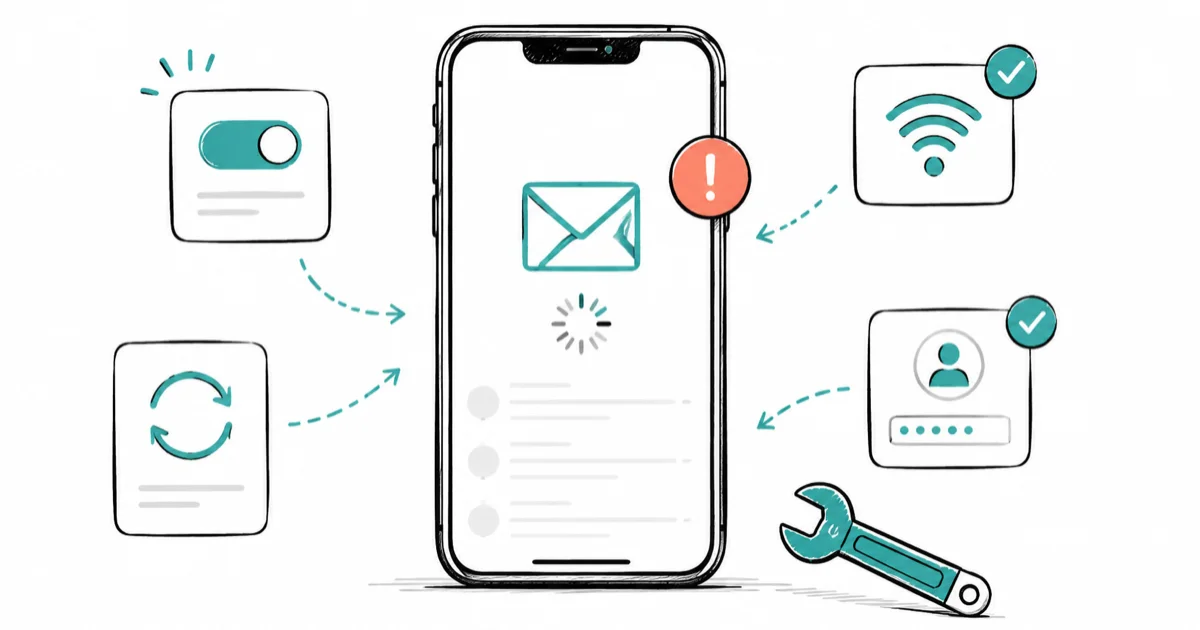
Quick AnswerCheck your webmail first, because if the new message is there but your iPhone is stale, the problem is your Fetch or Push settings or an account that needs re-authentication. If webmail is stale too, the provider is the real issue.
iPhone Mail not updating usually means new messages won’t appear until you manually pull to refresh, or they don’t arrive at all. Before you delete the account or reset anything, one quick test tells you where the failure lives: open the same inbox in a web browser. That single check decides whether you fix your phone or wait on the provider.
- Checking webmail first proves whether the message exists, splitting an iPhone problem from a provider problem in under a minute
- Fetch and Push settings control how often Mail pulls new email, and Low Power Mode quietly pauses background fetching
- A single account that won’t refresh while others work points to an authentication or password issue, not a phone-wide bug
- Removing and re-adding an account is safe for IMAP and iCloud but risks data loss on POP accounts that store mail only on the device
- A provider outage or expired app-specific password can stop delivery even when every iPhone setting is correct
#Why Is iPhone Mail Not Updating?
Mail update failures fall into three layers, and you fix them in order from the outside in.
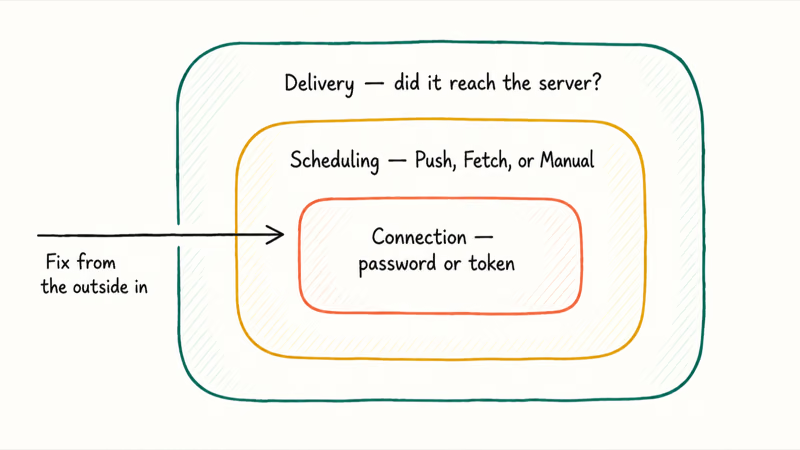
The outer layer is delivery: did the email actually reach your mailbox on the provider’s server? The middle layer is scheduling: is your iPhone set to pull new mail often enough, or is something pausing it? The inner layer is the account connection itself, where a password change or token expiry breaks the link for one account. Testing webmail tells you instantly whether you’re dealing with the outer layer or the inner two.
That webmail check also protects you from deleting a healthy account. If a missing message is visible in Gmail, Outlook, or iCloud webmail but not in Mail on the iPhone, delivery worked and the failure is local to the phone’s sync or account connection.
Apple’s Mail can’t receive email page states that the Fetch New Data screen lets you choose a setting like Automatically or Manually, or a schedule for how often Mail fetches data. Apple recommends verifying this scheduling setting before removing any account, which is the order you should follow too.
Changing a stale account from Manual to Push, or to a frequent Fetch schedule when Push isn’t available, can explain the entire delay.
#Check Whether Webmail Has the Missing Email
Open Safari or any browser and sign in to your email provider’s website. Check whether the message you’re missing is sitting there.
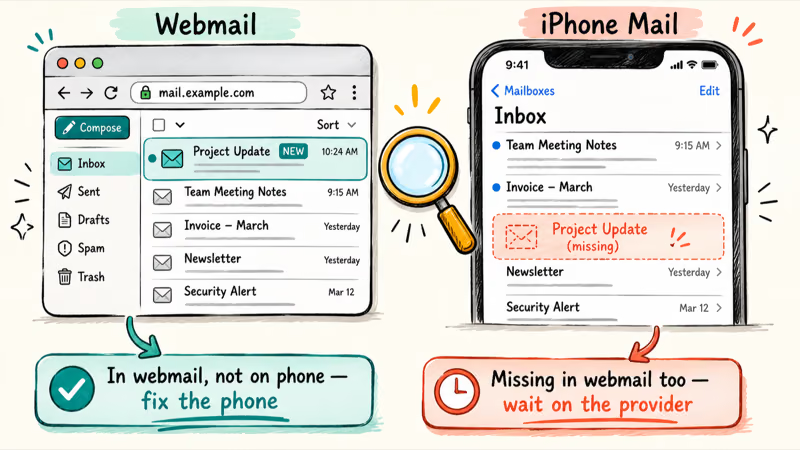
If the new email is in webmail but not on your iPhone, the problem is local to your phone, and the next two sections fix it. If the email isn’t in webmail either, your iPhone is innocent. The message either hasn’t been delivered yet, got filtered into spam, or the sender’s mail is delayed. In that case, no iPhone setting will help, and the same kind of dead-end shows up when Gmail isn’t sending emails from the other side.
This webmail test is the single most useful diagnostic for any mail problem. Do it before you touch a single setting, because it cuts your troubleshooting in half by telling you which side of the connection is broken.
#Fix Push, Fetch, and Low Power Mode Settings
If webmail has the message and your phone doesn’t, your fetch schedule is the prime suspect.
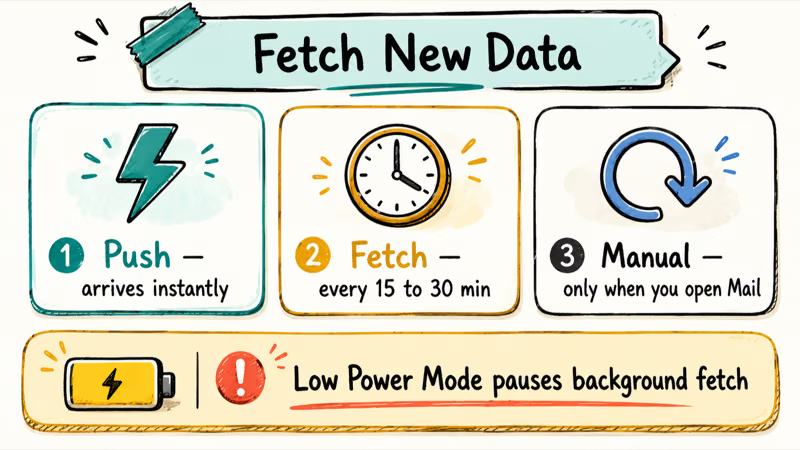
Go to Settings > Apps > Mail > Mail Accounts > Fetch New Data. Accounts that support Push deliver mail the instant it arrives; accounts set to Fetch only check on a schedule like every 15 or 30 minutes; accounts set to Manual never check until you open the app and pull down.
Turn Push on for accounts that support it, and set Fetch to a frequent schedule for the rest. iCloud Mail and most Exchange accounts support Push, while many Gmail and Yahoo setups fall back to Fetch.
Low Power Mode is the quiet saboteur here. When your battery is low and Low Power Mode kicks in, iOS pauses background fetching, so mail stops arriving until you open the app. Check the battery icon color in the top corner, and if it’s yellow, turn off Low Power Mode in Settings > Battery to confirm whether that was the cause.
Background App Refresh also has to be on for Mail, found in Settings > General > Background App Refresh. The same background-refresh setting affects whether your iPhone Calendar syncs automatically, so it’s worth confirming once for both. Apple’s guide to checking email on iPhone states that Mail account setup lives in the Mail app’s account flow if you need to confirm yours is configured correctly.
#What If Only One Mail Account Will Not Refresh?
When other accounts update fine but one stays frozen, the issue is that single account’s connection, not your whole phone.
The most common trigger is a password change. If you recently updated your email password on another device or the provider forced a reset, your iPhone is still using the old credentials and the connection silently fails. iOS usually flags it with a red badge or an “Account Error” banner, but not always.
Go to Settings > Apps > Mail > Mail Accounts, tap the stuck account, and look for an error message or a prompt to re-enter your password.
Two-step verification can invalidate old app passwords and leave a Gmail account stale until you create a fresh app-specific password. Outlook and Exchange accounts hit the same wall, which is why the steps for Outlook not receiving emails often come down to the same re-authentication.
#Remove and Re-Add the Account Safely
If re-authenticating doesn’t take, removing and re-adding the account rebuilds the connection from scratch, but you have to know your account type first.
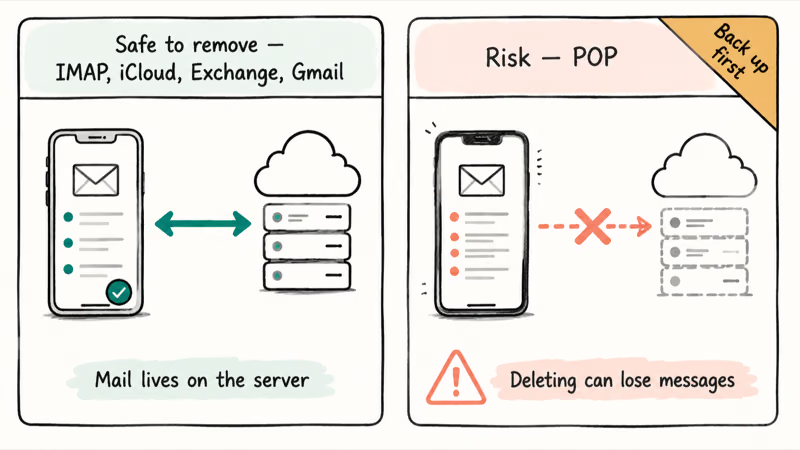
For IMAP, iCloud, Exchange, and Gmail accounts, your mail lives on the provider’s server, so removing the account from your iPhone is safe. Re-adding it pulls everything back down. Go to Settings > Apps > Mail > Mail Accounts, tap the account, then tap Delete Account, and add it again fresh.
POP accounts are the dangerous exception. POP downloads mail to your device and may not keep a server copy, so deleting one can permanently lose messages. Not sure which type you have? Ask your provider first.
A “connection to the server failed” message points to a server or credential problem, not the schedule. If your inbox search is also broken, the steps for Apple Mail search not working sit alongside this fix, since both ride the same account connection and a single re-authentication often clears both at once on the affected account.
#Check iCloud Mail or Provider Outages
Sometimes your iPhone is perfect and the email service itself is down.
Open Apple’s System Status page and look for iCloud Mail. A yellow or red dot next to it means Apple is having an issue and no amount of fixing on your end will help until it clears. For Gmail, Outlook, or Yahoo, check that provider’s own status dashboard the same way. Outages are usually resolved within hours, so the right move is to wait rather than tear apart your settings.
If webmail itself is slow or erroring out across devices, that’s your strongest outage signal. The same confirm-the-service-first logic applies when Outlook needs restarting. Confirm the service is healthy before assuming your device is broken.
#Bottom Line
Don’t start by deleting the account. Confirm the message exists in webmail first, because that tells you whether to fix your phone or wait on the provider. If webmail is current but your iPhone is stale, check Fetch New Data, turn off Low Power Mode, and re-authenticate the single stuck account. Remove and re-add only IMAP or iCloud accounts, never POP without a backup, and check Apple’s System Status before you assume the fault is yours.
#Frequently Asked Questions
Why is iPhone Mail not updating?
The usual culprits are a Fetch schedule set too infrequently, Low Power Mode pausing background fetches, or a single account that’s still using outdated credentials after a password change. Checking webmail first tells you whether the email even reached your mailbox, which splits a phone problem from a provider problem in under a minute and shapes everything you do next.
What should I check first?
Open your inbox in a web browser to see if the missing email is even there.
Can an iOS update cause Mail to stop updating?
Yes. A major update can reset Fetch and Push schedules or prompt you to re-authenticate, so check Fetch New Data after any big update.
Will resetting settings delete my email?
No. Reset Network Settings only clears Wi-Fi and network configs. The one real risk is deleting a POP account, which can lose messages stored only on your device, so back those up first.
When should I contact official support?
Reach out if a single account still fails after you’ve re-authenticated and removed and re-added it. At that point, the problem is usually server-side, and your email provider’s support team has visibility into account and delivery issues that you simply can’t check from the phone yourself.
How do I prevent this from happening again?
Keep Push on for accounts that support it, and update your iPhone’s saved password the moment you change it elsewhere.

Apple Siri Settlement: Who Qualifies and How to Claim
Apple's $250 million Siri settlement covers iPhone 15 Pro and iPhone 16 models bought June 2024 to March 2025. See who qualifies and how claims work.

iOS 26.6.1 Security Update: What Apple Fixed and Who Gets It
Apple released iOS 26.6.1 on August 17 with 29 security fixes, including an IPSec interception bug. See what it patches, who gets it, and how to update.

iPhone Adaptive Power: How It Works and When to Use It
Learn how iPhone Adaptive Power works, which models support it, what it changes, and when Low Power Mode is still the better battery-saving choice.

How to Transfer Data to a New iPhone Without iCloud
Move everything to your new iPhone without iCloud: Quick Start device-to-device transfer, wired migration, and encrypted Finder or iTunes backups.