iPhone Weather App Not Working? 7 Fixes by Root Cause
iPhone Weather app not working? Separate an Apple service outage from a location-permission or widget-cache problem, then fix each one in the right order.
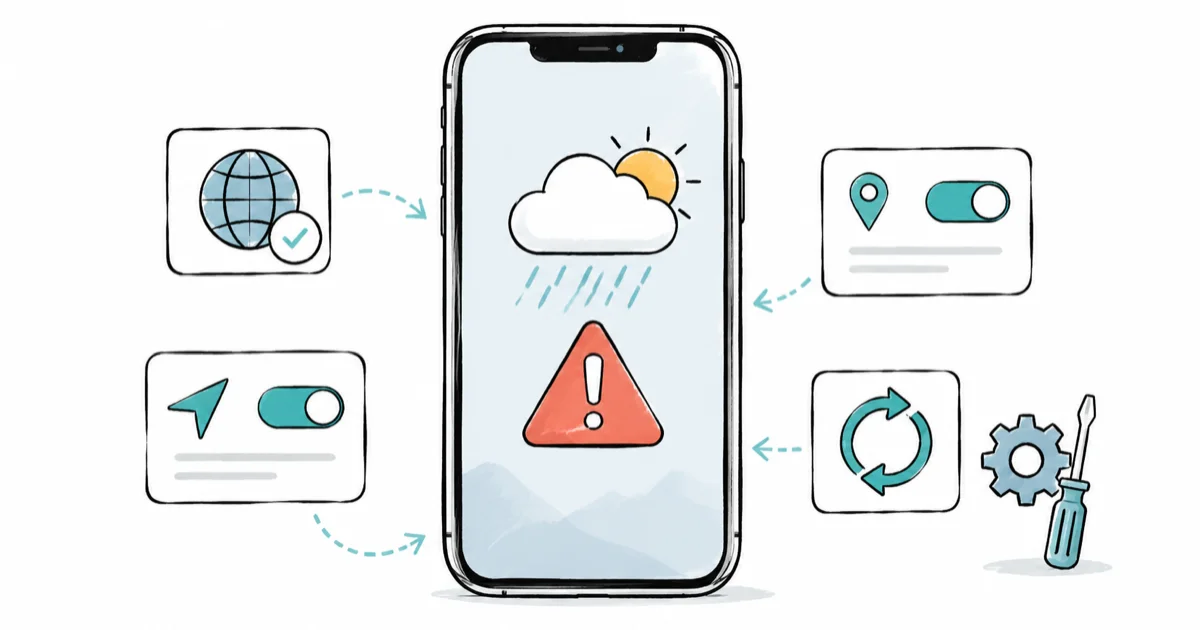
Quick AnswerTreat Weather failures as three separate problems: an Apple service outage, a location permission issue, or a stale widget cache. Check Apple System Status first, then fix Location Services and refresh the widget before deleting the app.
iPhone Weather app not working shows up in a few ways: blank forecast cards, a widget stuck on yesterday’s data, the wrong city, or an “unavailable” message. Those look like one bug but come from three different sources, so the fix depends on which one you’re facing. The right starting move isn’t a restart; it’s checking whether Apple’s Weather service is even up.
- Weather failures come from three sources: an Apple service outage, a location-permission problem, or a stale widget cache
- Checking Apple System Status first tells you whether the problem is on Apple’s end and nothing on your phone will help
- Location Services and Precise Location must be on for Weather to show your current-location forecast
- A widget showing old data while the app itself works points to a cache problem the widget needs refreshed, not the app
- Deleting and reinstalling Weather is a last resort, used only after the app can’t load even a manually searched city
#Why Is the iPhone Weather App Not Working?
Weather problems split into three causes, and you check them in a specific order to avoid wasted effort.
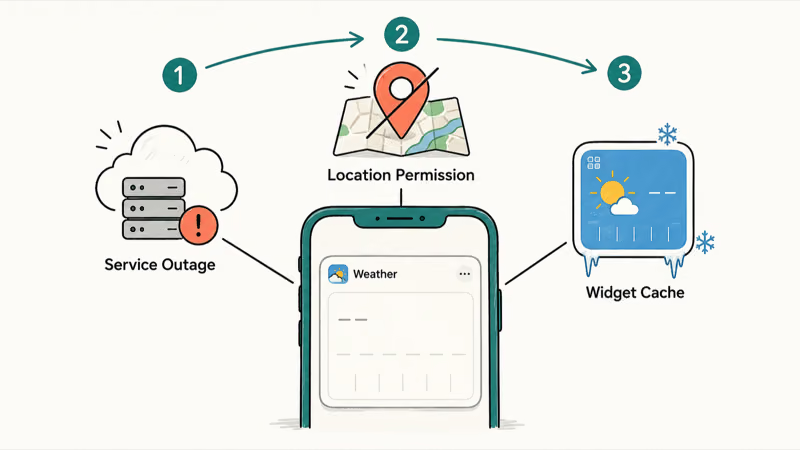
The first cause is a service outage, where Apple’s Weather backend is down and no device-side fix matters. The second is location permission, where Weather can’t get your position. The third is a widget cache problem, where the app works fine but the home-screen widget is frozen on old data. Checking these in order, outage then permission then widget, means you never reinstall the app to fix what was really a brief outage.
Use this order as a quick split: if the full app loads forecasts but the widget stays blank, treat the widget as a cache problem before reinstalling Weather.
Remove and re-add the widget before touching the app. Diagnosing the widget separately from the app is the step most quick-fix lists skip.
According to Apple, the Weather app pulls a forecast for your current location and lets you add other cities manually, which means a current-location failure and a manual-city failure are two different signals. Apple’s Weather user guide confirms that manual city search and current-location forecasts are independent, so if a searched city loads but your current location doesn’t, the problem is location access, not the app or the service.
#Check Apple Weather Service Status and Your Connection
Before you change anything on your phone, confirm Apple’s Weather service is actually up.
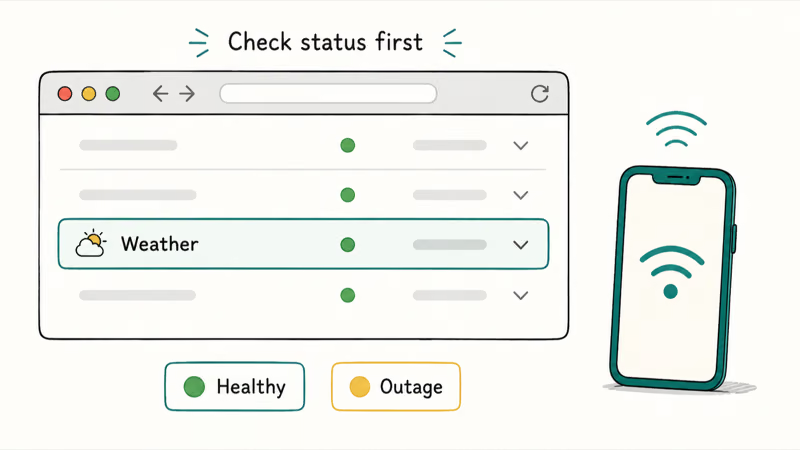
Apple’s System Status page reports the live health of the Weather service; open it in any browser and look for Weather. A green dot means the service is healthy and the problem is on your end. A yellow or red dot means Apple is having an issue, so the right move is simply to wait.
Don’t assume an outage you haven’t verified, since most “Weather is down” reports turn out to be a local permission or cache problem instead.
Then confirm basic internet. Weather needs a working connection to pull forecasts, so if other apps are struggling too, fix the network first. If your Safari isn’t loading pages or Mail isn’t updating at the same time, you’re looking at a connection problem affecting everything, not a Weather-specific bug.
#Fix Location Access for Weather and Widgets
If the service is up and your connection is fine, location permission is the next and most common culprit.
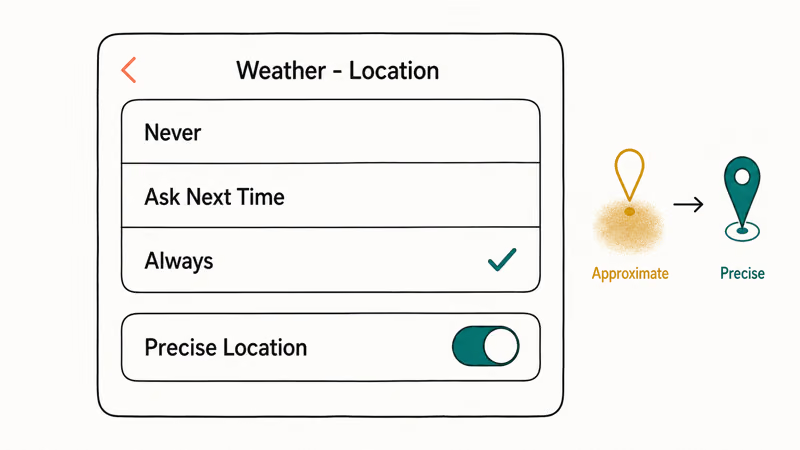
Weather needs your location to show a current-location forecast, and a single denied permission breaks that. Apple’s Location Services guide recommends setting per-app access deliberately rather than disabling location globally. Go to Settings > Privacy & Security > Location Services, confirm the master toggle is on, then scroll to Weather and set it to Always so the widget can update in the background.
While you’re there, turn on Precise Location. With it off, Weather only gets your approximate area and may show a nearby city’s forecast instead of yours.
A software restore or major update can reset Location Services back to defaults, leaving Weather set to “Never.” Set it to Always and enable Precise Location before chasing app-level fixes. The same location-permission logic affects other apps, which is why Google Maps stops working under the identical denied-permission scenario.
#What If Only the Weather Widget Is Not Updating?
A widget stuck on old data while the full app works fine is its own specific problem, and you fix the widget, not the app.
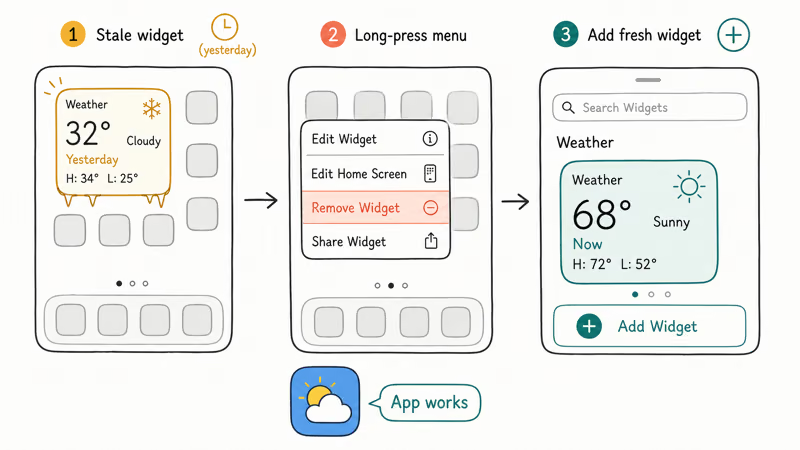
Home-screen widgets cache their data and refresh on a background schedule, so a widget can freeze on yesterday’s forecast even while opening the Weather app shows current conditions. The cleanest fix is to remove the widget and add it back. Touch and hold the widget, tap Remove Widget, then long-press an empty area of the home screen, tap the + button, find Weather, and add a fresh widget. That forces a clean data pull.
If the widget still won’t refresh, a full restart clears the widget rendering process. The same restart that helps with a frozen iPhone wakes up stalled background widgets. Background App Refresh also has to be on for Weather, found in Settings > General > Background App Refresh, or the widget can’t update while you’re not in the app. If you depend on at-a-glance home-screen info, pairing Weather with a reliable clock widget is a common setup.
#Refresh Units, Locations, and Background Data
Sometimes Weather works but shows the wrong thing, and a few in-app settings fix that without any reset.
Open the Weather app and tap the list icon to see your saved locations. If your current location is missing, tap the search field, find your city, and add it manually to confirm the app can load any forecast at all. A manual city that loads while current location stays blank confirms the location-permission problem from earlier. While you’re in the list, you can reorder or remove stale cities that clutter the view.
Low Data Mode and a VPN can also interfere. Go to Settings > Cellular > Cellular Data Options and check whether Low Data Mode is on, since it can throttle Weather’s background refresh. A VPN or Private Relay occasionally routes your connection through a region that confuses the forecast, so toggle those off briefly to test. These are diagnostic checks, not permanent changes.
#Reinstall Weather Without Losing Your Locations
Deleting and reinstalling Weather is the final step, reasonable only after you’ve proven the app can’t load even a manually searched city.
If the service is up, location is granted, and the app still shows nothing for any city, delete the app by long-pressing its icon and tapping Remove App > Delete App, then reinstall it from the App Store. Your saved cities are tied to your Apple Account and iCloud, so they generally repopulate once you reopen the app and sign in. Still, note your saved cities first in case you need to re-add them.
A reinstall clears any corrupted local app data that survived a restart. It’s a clean fix, but it’s overkill for an outage or a permission problem, which is why it sits last on the list.
If even a fresh install can’t load a forecast on a healthy connection, the issue is likely on Apple’s side or your account, not the app itself. A separate, older guide covers the Weather app on iPhone not working from a more general restart-first angle if you want that approach too.
#Bottom Line
Treat Weather failures as three different problems: a service outage, a location issue, or a widget cache. If Apple System Status is clean, fix Location Services and Precise Location, then refresh the widget by removing and re-adding it before you delete the app. Reinstalling Weather is fair, but only after you prove the app can’t load a manually searched city either. Don’t reinstall to fix something that was a 30-minute outage.
#Frequently Asked Questions
Why is the iPhone Weather app not working?
It’s usually one of three things: Apple’s Weather service is having an outage, Location Services is denied so the app can’t get your position, or the home-screen widget is stuck on a stale cache while the full app still works fine. Each one needs a different fix, which is why checking them in order, outage then permission then widget, keeps you from reinstalling the app over a problem a simple toggle would have solved.
What should I check first?
Check Apple’s System Status page for Weather to confirm the service isn’t down.
Can an iOS update cause Weather to stop working?
Yes. A major update or a restore can reset Location Services to default, leaving Weather set to “Never,” which blocks the current-location forecast. After any big update, confirm Weather’s permission is set to Always with Precise Location on, since a reset permission is a far more common cause than an actual app bug.
Will deleting the Weather app lose my saved cities?
Usually not, since your saved locations sync to your Apple Account and repopulate on reinstall. Still, note them first.
When should I contact official support?
Contact Apple if a fresh reinstall still can’t load any forecast on a healthy connection with location granted, or if the service status stays red for hours. Persistent failure with everything correct on your end points to an account or backend issue that only Apple can see and resolve from their side.
How do I prevent this from happening again?
Keep Weather set to Always with Precise Location on, and check System Status before assuming the app is broken.

Apple Siri Settlement: Who Qualifies and How to Claim
Apple's $250 million Siri settlement covers iPhone 15 Pro and iPhone 16 models bought June 2024 to March 2025. See who qualifies and how claims work.

iOS 26.6.1 Security Update: What Apple Fixed and Who Gets It
Apple released iOS 26.6.1 on August 17 with 29 security fixes, including an IPSec interception bug. See what it patches, who gets it, and how to update.

iPhone Adaptive Power: How It Works and When to Use It
Learn how iPhone Adaptive Power works, which models support it, what it changes, and when Low Power Mode is still the better battery-saving choice.

How to Transfer Data to a New iPhone Without iCloud
Move everything to your new iPhone without iCloud: Quick Start device-to-device transfer, wired migration, and encrypted Finder or iTunes backups.